

Quiz settings
The settings decide how an attempt is taken: how long it may last, whether a question can be opened again, what the person sees at the end and who may start one at all. Open them with the gear icon (Settings) in the designer’s top bar. They are saved with the quiz, by Save.
Available when: your role has the Manage quizzes permission
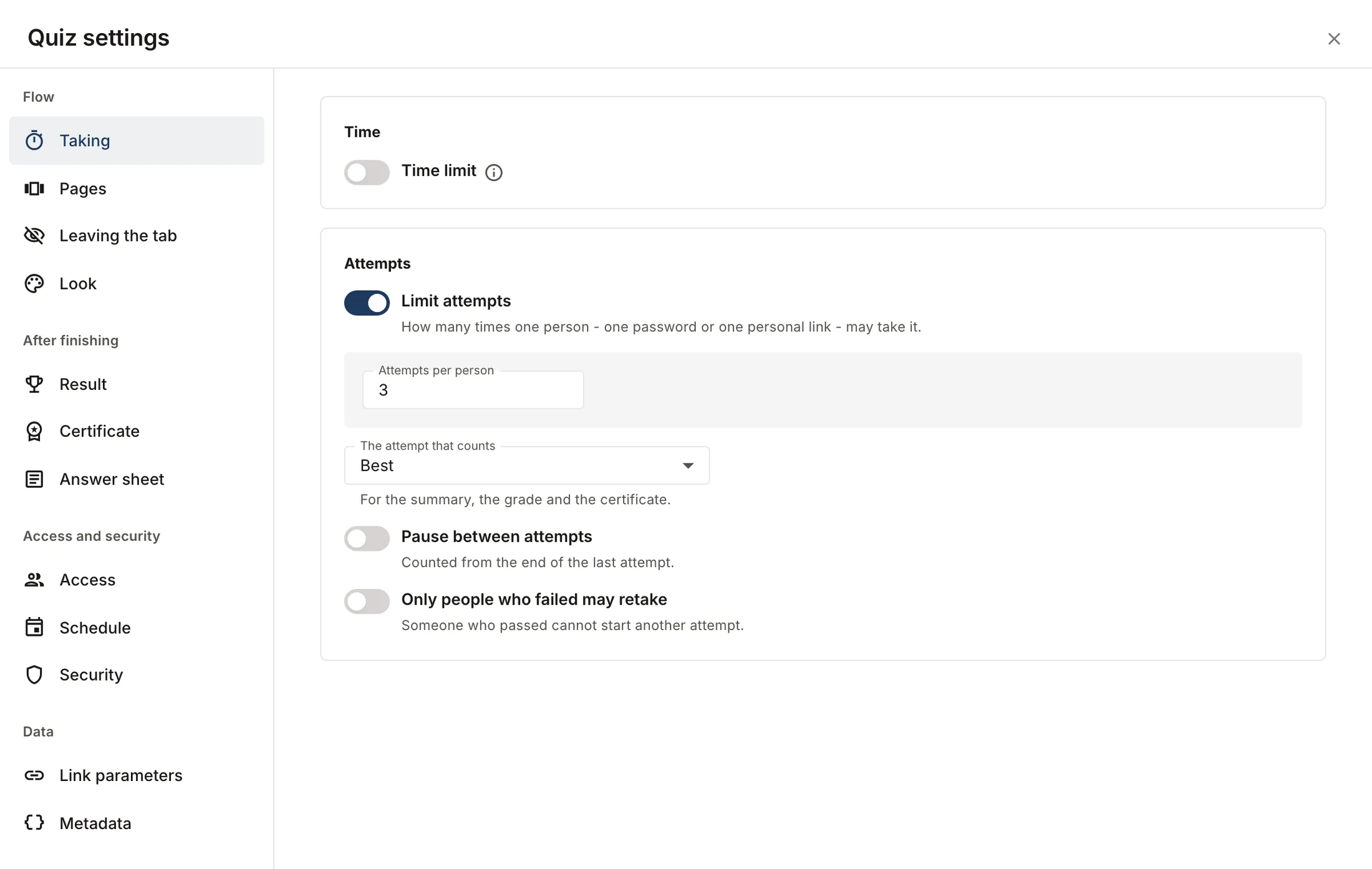
The Quiz settings dialog lists its sections down the left side under four headings: Flow (Taking, Pages, Leaving the tab, Look), After finishing (Result, Certificate, Answer sheet), Access and security (Access, Schedule, Security) and Data (Link parameters, Metadata). On a phone, pick one from the Section list at the top. A survey has settings of its own: see Survey settings.
Taking
Section titled “Taking”Time limit gives every attempt the same time from its start, between 1 minute and 24 hours, set in whole minutes under Time for an attempt (30 when you switch it on). The server keeps the time: when it runs out, the attempt is sent with the answers given. Off, an attempt has no limit. Taking a quiz explains what the person sees.
Attempts
Section titled “Attempts”Limit attempts sets Attempts per person, from 1 to 100. Off, anyone may take the quiz again as often as they like. On an open link, a person is one browser: the page keeps a key of its own and the server counts the attempts started with it. Someone using a second browser or a private window counts again, so on an open link this keeps honest people from retaking the quiz by mistake rather than stopping a determined one. When only the people on an access list may take the quiz, a person is really a person: their attempts are counted together, whatever browser or device they use. Once they are used up, starting another answers You have used every attempt this quiz allows.
When a person may take a quiz more than once, three more settings appear:
| Setting | What it does |
|---|---|
| The attempt that counts | Best (default), Last or First. That attempt is the person’s result in the results, the grade and the certificate. Schools often prefer the last one. |
| Pause between attempts | The minutes a person waits after an attempt ends before starting the next (60 when you switch it on). Starting too early tells them how long they still wait. |
| Only people who failed may retake | Someone whose counted attempt passed cannot start another. |
How the questions are split into pages, as a form’s sections are when it is split into pages. Split into pages offers three ways, the same for a quiz and a survey:
| Option | What it does |
|---|---|
| One question per page (default) | Each question on a page of its own, in large type, answered from the keyboard (what the person sees). Content before a question goes with it. |
| One section per page | Each section is a page, with its title and description on top. A quiz without sections is one page. |
| Everything on one page | Every question on one page, for a short quiz. A timed section still gets a page of its own. |
The designer marks on the sheet where each page begins (Page 2, Page 3…), so you see the pages as you build.
When there are pages to move between, the same section shows what moving between them takes; with everything on one page, none of it is there:
| Setting | What it does |
|---|---|
| Move on once a single choice is answered | One question per page only: moves to the next question by itself, 0.4 seconds after a choice or a rating is picked. |
| Progress | A bar, steps, a percentage or nothing. |
| List of questions | All questions (default): every question, numbered in the attempt’s order, each marked answered or not; with free moving, a click opens it. Questions reached: grows as questions are reached, and the page gets each question only once it is reached, so nobody can read ahead in the page’s code. Hidden: only the page at hand. |
Moving between questions
Section titled “Moving between questions”| Option | What it does |
|---|---|
| Free (default) | Any page, in any order, while time is left. |
| Forward only | A page once left is closed: its answers cannot be changed. Use it for exams where a later question gives away an earlier answer. |
Leaving the tab
Section titled “Leaving the tab”The page notices when the person switches to another tab or window while an attempt is taken. It is a deterrent, not proof: a second device, such as a phone beside the laptop, is invisible to it.
| Setting | What it does |
|---|---|
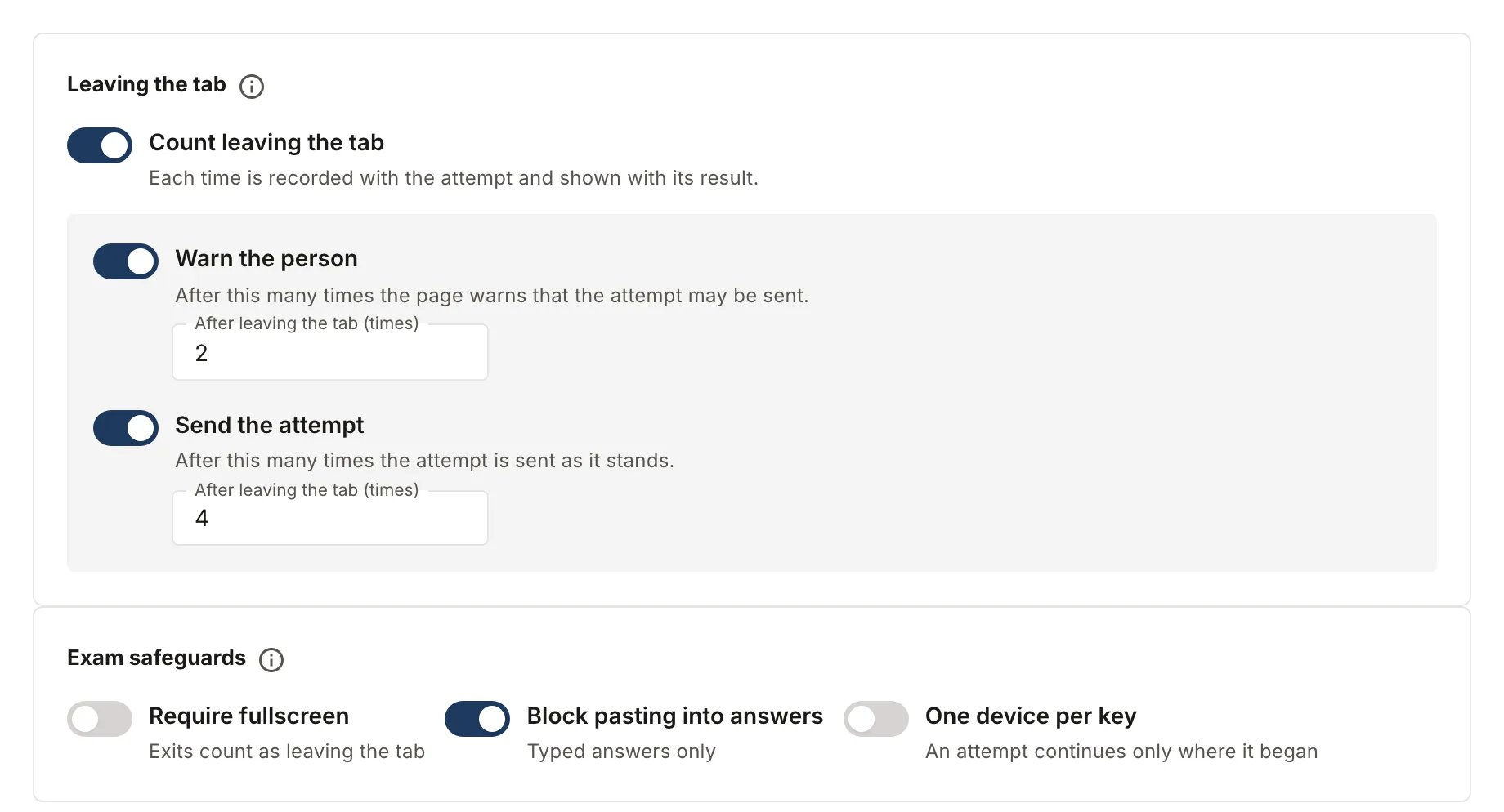
| Count leaving the tab | On by default. Each time is recorded with the attempt and shown with its result, on the Responses tab of the results and in workflows. The introduction page tells the person it is counted. |
| Warn the person | After this many times (2 when you switch it on), the page warns that the attempt may be sent. |
| Send the attempt | After this many times (one more than the warning when you switch it on), the attempt is sent as it stands, and the result page says why. |
Warn the person and Send the attempt appear under Count leaving the tab once it is on; each is a switch, and the number of times shows beside it when the switch is on. The warning has to come before the send: a quiz whose warning comes at or after it cannot be saved.
Exam safeguards
Section titled “Exam safeguards”The Exam safeguards card, below Leaving the tab in the same section, asks more of the page an exam is taken on, for a certification test or a recruitment exam where a typed answer must be the person’s own. Each switch is off until you turn it on.
| Setting | What it does |
|---|---|
| Require fullscreen | The page goes fullscreen as the person clicks Start the quiz. Each exit from fullscreen counts as leaving the tab, so it adds up toward Warn the person and Send the attempt when the tab is counted. Out of fullscreen, the page shows a warning with Return to fullscreen. A browser that has no fullscreen, or refuses it, leaves the page as it is. |
| Block pasting into answers | Nothing can be pasted into an answer field: the paste is refused, and the page says that pasting is turned off. Answers have to be typed. |
| One device per key | For the people on the access list and for personal links: an attempt is held to the browser it began in. Opened on another device, or in another browser, it is refused there with This attempt is being taken on another device. Continue there, or ask the examiner to release it. The person continues it on the device they started on. While it’s being taken, a fresh attempt can’t be begun on another device either. When the device breaks down, an examiner opens the attempt in the results and chooses Release device: the next device the person opens it on takes it over. Someone who came through the open link, without a key of their own, is not held. |
Result
Section titled “Result”What the person sees at the end
Section titled “What the person sees at the end”| Option | What it shows |
|---|---|
| Only that it was sent | Useful when the results are announced later. |
| The score (default) | Points, per cent and whether the attempt passes. |
| The score and the answers | Each question with the answer given, the correct one, its verdict and its explanation. |
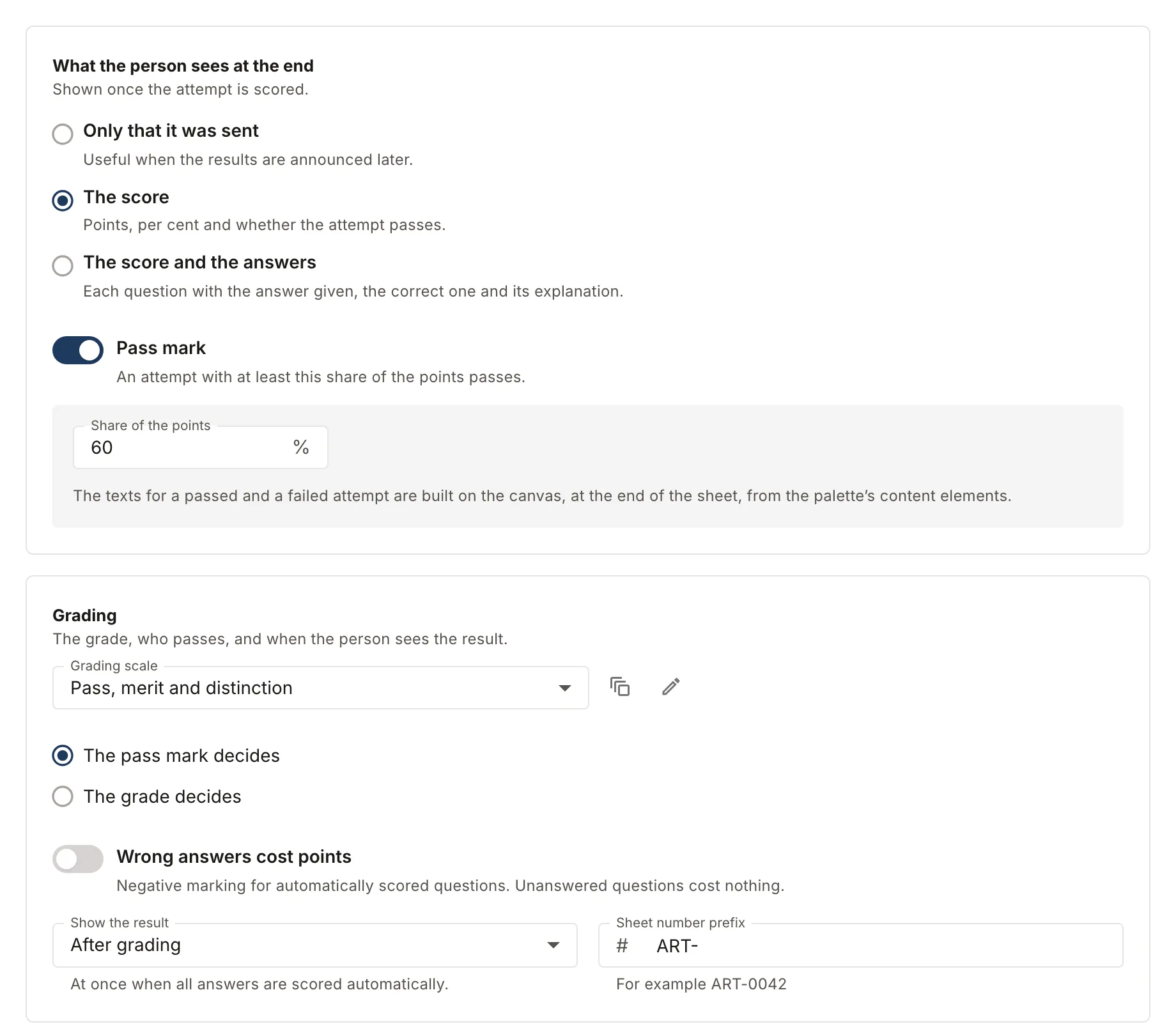
Pass mark sets the Share of the points an attempt needs to pass, from 0 to 100% (60% when you switch it on). Off, attempts are neither passed nor failed.
With a pass mark, what people who passed, or did not, read under the score is built on the designer’s page, in the Passed and Not passed areas at its end: headings, paragraphs, images, videos and dividers, translated like the rest of the content (see The page in the middle). Left empty, the result only says whether the attempt passed.
Grading
Section titled “Grading”| Setting | What it does |
|---|---|
| Grading scale | None grades by points and the pass mark alone. Choose one of your organization’s grading scales, make a new one from a preset with the button beside it, or give the quiz its own scale, which no other quiz shares. The pencil edits the chosen scale. |
| Who passes | With a scale: The pass mark decides, or The grade decides, by whether the grade passes. |
| Wrong answers cost points | Negative marking: each wrong answer to a question scored by its answer key costs this many points (1 when you switch it on). A question left unanswered costs nothing, and a question can set its own cost in the designer. |
| Total may fall below 0 | Off, the total stops at 0. |
| Show the result | After grading (default): at once when every answer is scored automatically, after the last grade otherwise. Immediately: what is graded so far, open answers as they are graded. When I release it: someone who grades releases it on the results. |
| Sheet number prefix | Every attempt gets a number in the order attempts start, 0001, 0002. A prefix such as EXAM- makes it EXAM-0042. |
The grade shows with the score on the result page, in the results and in workflows. A person whose e-mail is known, from the access list or from a question that asks for it, is sent the Quiz result message with a link to their result when it is released. You can change that message in Default messages.
Send button
Section titled “Send button”The text of the button that sends the attempt, in each language, as for a form’s submit button.
Success message or redirect
Section titled “Success message or redirect”A message shown after the attempt is sent, or an address the person goes to instead; see Success message and Redirect to another page on forms. The message is shown below the score.
The message is written per language, like the send button: the organization’s language comes first, and Add language adds another tab. The page shows the version in its own language, otherwise the first of the browser’s languages that has one, otherwise the organization’s, otherwise the standard text.
The message can use the answers by their keys, such as {{ question_1 }}, and the attempt’s own values, under Attempt in the variable picker:
| Variable | Label in the picker | Contents |
|---|---|---|
{{ _quiz.title }} |
Quiz title | The quiz’s title. |
{{ _attempt.score }} |
Score | The points scored. |
{{ _attempt.maxScore }} |
Maximum score | The most there were to score. |
{{ _attempt.percent }} |
Score in per cent | The share of the points. |
{{ _attempt.passed }} |
Passed | Whether the attempt passed. |
{{ _attempt.number }} |
Attempt number | 1 for the person’s first attempt. |
{{ _attempt.durationSeconds }} |
Time taken (seconds) | How long the attempt took. |
{{ _attempt.focusLosses }} |
Times the tab was left | How often the person switched away. |
{{ _attempt.finishedAt }} |
Sent at | When the attempt was sent. |
{{ _attempt.id }} |
Attempt ID | The attempt’s identifier. |
For example: Well done, you scored {{ _attempt.percent }}% in {{ _quiz.title }}.
Security
Section titled “Security”Password, websites and IP addresses
Section titled “Password, websites and IP addresses”Its first card, Access:
| Setting | What it does |
|---|---|
| Password | Asked for before the first question. Leave it empty for an open link. With a password, Protection against password guessing appears, as on a form. When the quiz is only for the people on its access list, the password is not used and the section says so; with People with their own passwords, the protection against guessing guards each person’s own password. |
| Only from these websites | The quiz opens only in a frame on one of these websites, such as https://www.example.com, the website that shows it with the snippets or a plugin. Anywhere else it is not found, also on a website that frames it without your leave. Its own link opens it only when the address the link starts with, such as https://app.doxtly.com, is on the list too. One per line, with https://, or a regular expression between slashes. See Validate request origin. |
| Block IP addresses | Attempts from these addresses are refused. One per line; ranges in CIDR notation, such as 10.0.0.0/8. |
Protection
Section titled “Protection”| Setting | What it does |
|---|---|
| Ask a CAPTCHA to start | Every attempt starts with an invisible reCAPTCHA check, which stops robots from starting attempts and using up your plan’s attempts. It needs an active reCAPTCHA integration; without one the switch is greyed out. |
| Enable honeypot protection | A hidden field only robots fill, on the introduction page. See Honeypot. |
| Limit requests | On by default. Slows down anyone who opens or sends too many attempts in a short time. See Rate limits. |
Data collected
Section titled “Data collected”| Setting | What it does |
|---|---|
| Save the location | The browser asks the person to share their location; the attempt can be taken without it. |
| Own retention period | Keep attempts for a number of days, from 1 to 3,650 (365 when you switch it on). Off, attempts are kept as long as the organization keeps form submissions. |
Link parameters
Section titled “Link parameters”Accept link parameters saves values added to the link, such as ?group=A, with the attempt, and hands them to the workflows as _params. Choose which parameters are accepted, as on a form. A trainer can send each group its own link and see in the workflow which group an attempt came from.
Metadata
Section titled “Metadata”Values of your own, handed to the workflows the attempts start, as _metadata: a course code, a cost centre, the trainer’s email. See Metadata.
Access
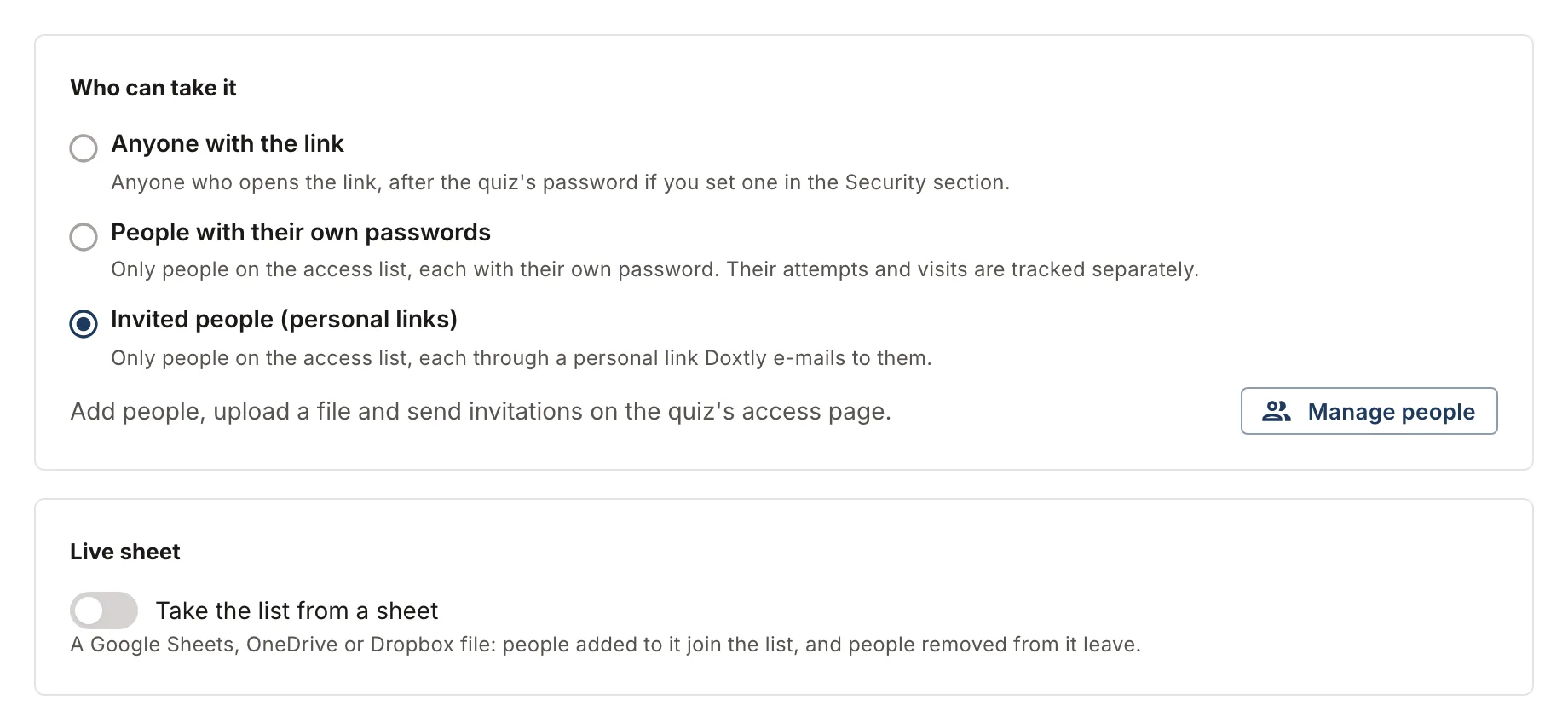
Section titled “Access”Who can take it decides whether the quiz is open to anyone with its link or only to people you name. A training company that certifies its course participants wants the second: only they get in, and every attempt carries the name of the person who took it.
| Option | Who gets in |
|---|---|
| Anyone with the link (default) | Anyone who opens the link, after the quiz’s password if you set one in the Security section. |
| People with their own passwords | Only the people on the quiz’s access list, each with a password of their own. The page asks for it before the first question, and the password tells Doxtly who came in. |
| Invited people (personal links) | Only the people on the access list, each through a personal link Doxtly emails to them. Nobody types a password. Whoever opens the quiz’s ordinary link, or a link that is no longer valid, is told the quiz is by invitation. |
With either list, the single password in the Security section is not used. Attempts per person counts each person’s attempts, whatever browser they use, each visit is recorded in the access log, and the Responses tab of the results shows who took each attempt.
The people themselves are added, uploaded and invited on the quiz’s People and access page; Manage people takes you there. A new quiz has to be saved first.
Live sheet
Section titled “Live sheet”Available when: your plan includes data sources and a cloud drive is connected. Choosing a file also takes the View cloud files permission.
With a list, the people can come from a spreadsheet instead of being typed in: a Google Sheets, OneDrive or Dropbox file that HR or the course office already keeps. The list then follows the sheet.
- Under Who can take it, choose People with their own passwords or Invited people (personal links).
- Under Live sheet, switch on Take the list from a sheet.
- Choose the Drive and select Choose a file.
- Set the Format, the Sheet and the Header row, as for a data source, and how often the sheet is read under Refresh every: 1 minute, 5 minutes, 15 minutes (the default), 1 hour or 1 day.
- Choose the E-mail column, and with passwords the Password column. The Name column and the Group column are optional; each read sets a person’s group from their row.
- Save the quiz. The sheet is read right away, and then at the interval you chose.
Each row is one person, known by their e-mail address; a row without a valid address is passed over. Someone added to the sheet joins the list, a changed name or password is taken over, and someone whose row is removed is taken off the list. Only people the sheet brought leave this way: people added by hand or from a file stay. A person already on the list whose address turns up in the sheet is the sheet’s from then on. Switching the sheet off keeps everyone it brought.
With Invited people (personal links), Send new people their link as soon as they appear in the sheet sends each new person their invitation by itself, while the quiz is active.
The sheet counts towards your plan’s data sources, like a form’s. If it cannot be read, for example because the file was moved or the drive’s connection expired, everyone who can manage quizzes gets a notification, the People and access page says so, and the list stays as it was until the next good read.
Certificate
Section titled “Certificate”The workflow that generates a certificate for each attempt, and whether the result page offers it for download at once. The section can also create the starter workflow Certificate after a passed quiz with its template. See Certificates.
Schedule
Section titled “Schedule”When the quiz can be taken.
| Setting | What it does |
|---|---|
| Opens at a set time | Before then, the link says when it opens. |
| Closes at a set time | From then on, the link says it is closed. An attempt already running can still be sent. |
| Limit the responses | How many attempts the quiz takes in all. The last one closes it, and anyone who comes later is told it is full. |
When the quiz closes, by the date or by the limit, the A quiz closes event starts the workflows waiting for it, once. Change the date or the limit, and the next close starts them again. See Quiz triggers.
Answer sheet
Section titled “Answer sheet”What an attempt’s answer sheet, the PDF of one attempt, shows: the header, whether the correct answers are marked, whether the explanations and pictures are printed, the signature lines, the paper, and whether people may download their own sheet. See Answer sheets.
How the quiz’s page looks.
| Setting | What it does |
|---|---|
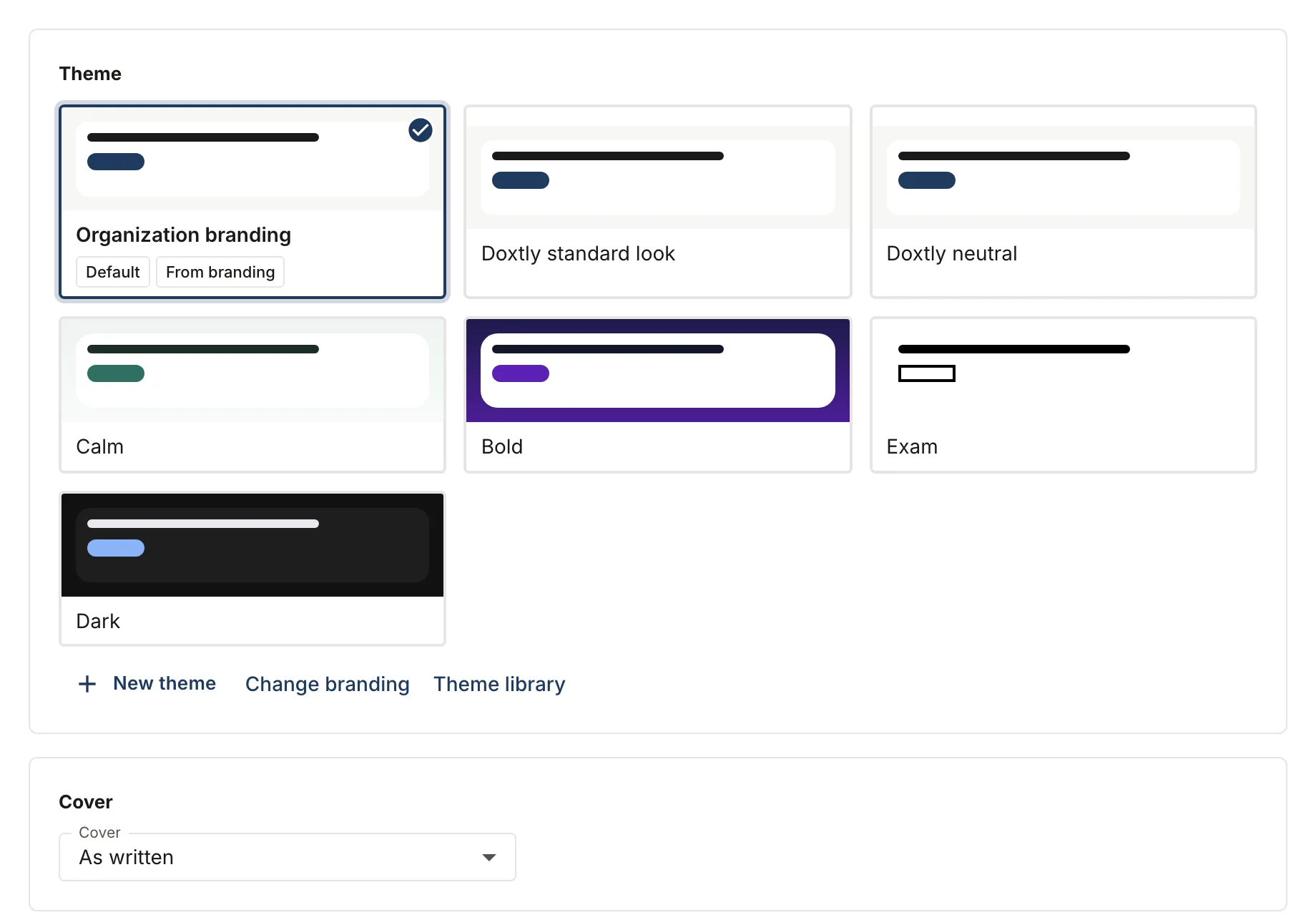
| Theme | The colours, font, corners and buttons of the page. Organization branding (the neutral look in the accent colour of your branding, marked From branding, with Change branding), Doxtly standard look, Doxtly neutral, Calm, Bold, Exam (high contrast, large type) and Dark are built in; themes your organization made are listed after them, and Theme library opens Themes. A new quiz starts in the organization’s default theme, Organization branding unless you chose another. |
| Cover | Picture beside the text puts the first picture of the introduction and of the result text on the left, with the text and the button on the right; on a phone the picture stands above. As written keeps them in order. |
How the questions are split into pages, and the progress shown, are set in Pages.
Your own themes
Section titled “Your own themes”People with Manage themes see two buttons under the cards: New theme copies the chosen theme into the theme editor, and Edit theme opens one of your organization’s. Everyone else picks from the themes there are. The editor shows the page as people will see it, at the width of a phone, a tablet or a desktop, while you change:
| Group | Tokens |
|---|---|
| Colours | Primary, accent (optional), background with an optional fade, card and its opacity, text. Under a pair that falls below WCAG AA the editor says so; text on the card below 3:1 cannot be saved. |
| Type | The font, from those Doxtly serves itself, so the page asks no other site for it, and the text size: 16, 18 or 20 px. |
| Shapes | Corners, buttons (filled, outline or pill), options (a list or cards) and spacing. |
With Standard look on, the page keeps the look it has without a theme and these groups are hidden. Under Advanced, Custom CSS restyles anything else on the page: see Styling with CSS. A theme saved in the editor is chosen for the quiz.
A theme belongs to the organization: any quiz, any survey, form and interactive document can use it, and the theme library lists them all. Deleting one moves everything that used it to the default theme.