

Managing pages
The pages panel is where you shape the document itself: take out pages you do not need and bring in pages from other files. Northbridge Advisory uses it to build a client pack, with a proposal, an NDA and a price list joined into one PDF.
Open the panel with Pages at the right end of the toolbar. It starts closed each time you open the editor, and it shows whichever file’s tab you are in.
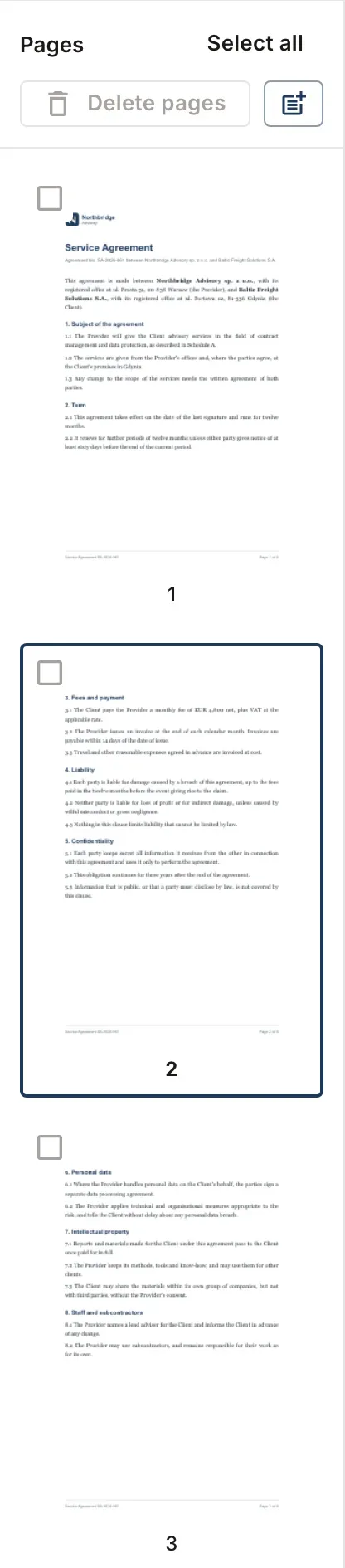
Click a thumbnail to go to that page. The current page has a highlighted border and a bold number, and ticked pages are shaded. Thumbnails show the file’s own pages and do not include the objects you placed on them.
Deleting pages
Section titled “Deleting pages”-
Tick the checkbox on each page you want to remove. Select all ticks every page, and Deselect clears them.
-
Click the delete button. It reads Delete pages and stays disabled until you tick something, then counts for you: Delete 2 pages.

Objects you placed on those pages go with them. There is no warning, because Undo brings back the pages and their objects.
A document must keep at least one page. With every page ticked the button is disabled, and hovering over it tells you so.
Deleting is also how you split a file. To send a client only pages 3 to 5, delete the rest and save the result. Your original is safe either way: a download is a new file, and on a cloud drive you give the result a new name. To cut one report into three parts, open it in three tabs, keep a different part in each and save them one by one.
Inserting pages from another file
Section titled “Inserting pages from another file”This is how you merge documents. The pages of the other file join the document open in the current tab, and you choose which ones and where.
-
Go to the page you want to insert after, if the position matters.
-
In the pages panel, click Insert pages from another file (the icon beside the delete button).
-
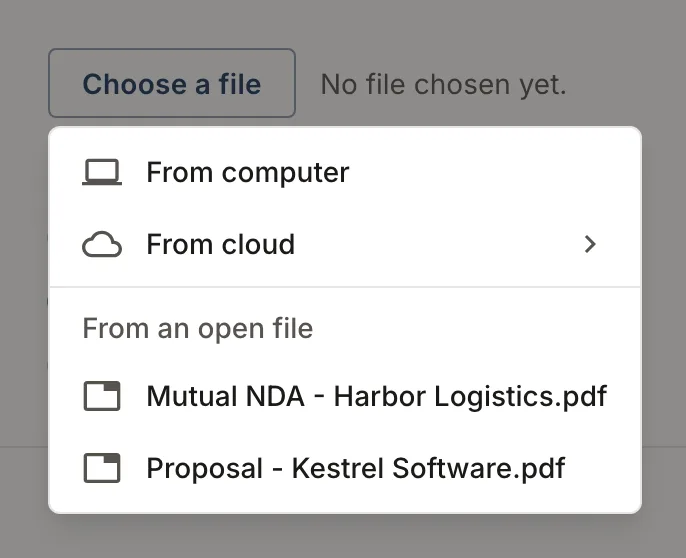
Click Choose a file and pick a source, as listed below.
-
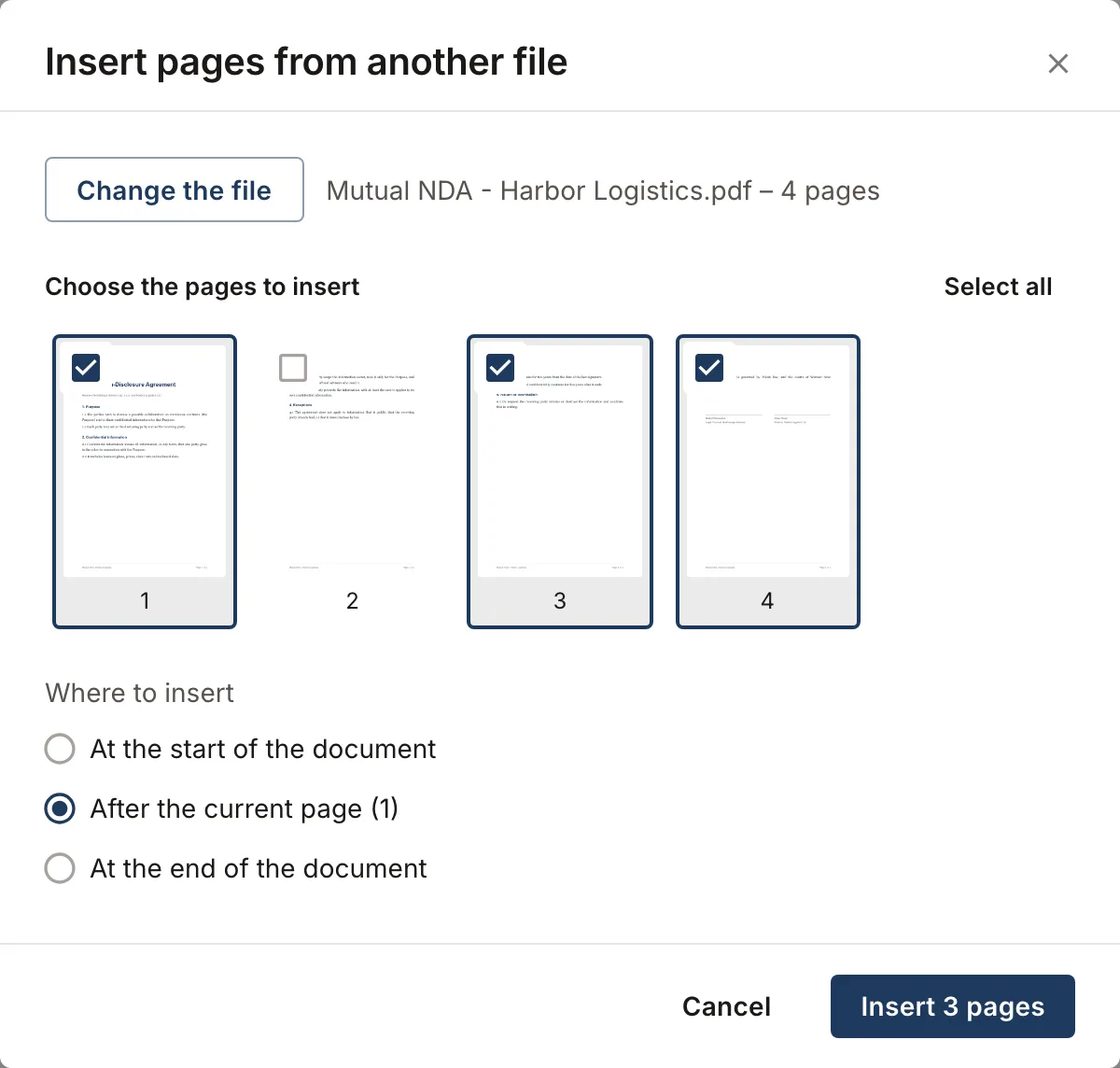
Under Choose the pages to insert, all the file’s pages come in ticked. Click a thumbnail to leave a page out, or use Deselect and then tick the ones you want.
-
Under Where to insert, choose the position.
-
Click the insert button, which counts the pages you ticked: Insert 3 pages. It stays disabled until at least one page is ticked.
Sources
| Choice | What it gives you |
|---|---|
| From computer | One PDF from your computer. |
| From cloud | One PDF from a connected drive: pick the drive, then the file in the Insert pages from a PDF file window. Other files stay listed but greyed out. This appears when you have a drive to open from. |
| From an open file | Another tab, as it looks now: pages you deleted stay out, and the objects you drew are included. That tab itself does not change. The section appears only when you have another file open, and the tab you are inserting into is not listed. |
Where to insert
| Option | Where the pages go |
|---|---|
| At the start of the document | Before page 1. |
| After the current page | After the page you are on, which the option names. This is the default. |
| At the end of the document | After the last page. |
After inserting, the editor takes you to the first new page and confirms how many were added, for example 3 pages inserted. Change the file swaps the source if you picked the wrong one, and Cancel leaves everything as it was. Undo takes the insertion back in one step.
The window takes one file at a time. For a client pack made of four files, open the first and repeat the insertion for each of the others, choosing At the end of the document so they line up in the order you add them.
Pages keep their own size, so an A4 file can take a Letter page or a landscape page. The zoom adapts to the widest page.
A few things to know:
- Only PDFs can be inserted. To bring in a Word document, open it in the editor first so it is converted, then insert it From an open file.
- Pages taken from an open tab arrive with their objects fixed into the page. You can no longer move or restyle those objects.
- Password-protected and damaged files are refused with the same messages as when opening.
- Bookmarks, form fields and document details belong to the file you opened in the tab. Those of an inserted file do not come along.
Moving a page
Section titled “Moving a page”The editor has no way to drag pages into a new order, but you can reach the same result by inserting a page again and deleting the original. To move page 7 of a contract to just after page 2:
-
Go to page 2.
-
Insert only page 7 of the same file, using After the current page. The source can be the file on your computer or drive, or a second tab holding the same file. The tab you are working in is not offered as a source.
-
The original is now page 8. Tick it and delete it.
Objects you placed on the original page do not move with it. Do this before you add text and signatures, or cut and paste them to the new page.
Rotating and other page changes
Section titled “Rotating and other page changes”The editor does not rotate pages, change a page’s size, or create a blank page. If you need an empty page, insert one from any PDF that has one. A page that is rotated inside the file opens the way it was saved, and what you draw on it lands where you see it.