

Add a note in the CRM
Add a note in the CRM writes a note on a deal, a person or an organization in Pipedrive, HubSpot or Copper. Use it to tell your salespeople, where they already look, what happened in Doxtly: who signed and when, why a client declined, what a client asked for in a form.
Available when: your plan includes CRM integrations and the organization has an active CRM integration
Setting it up
Section titled “Setting it up”- Drag Add a note in the CRM from the CRM group onto the canvas and connect it.
- Check the CRM integration. The default one is already selected.
- Choose the Record: Person, Organization or Deal, and fill in Record ID in the CRM.
- Write the Note, or choose Use a template under Message.
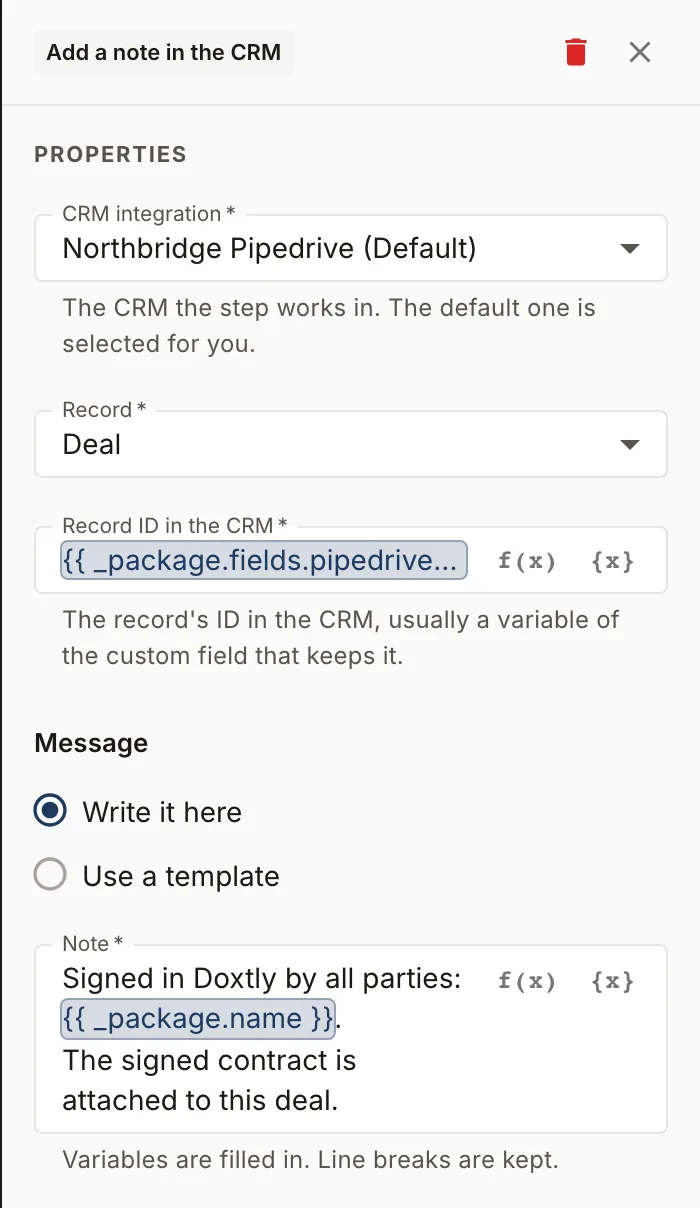
Settings
Section titled “Settings”| Setting | Values and default | What it does |
|---|---|---|
| CRM integration | Required. Your active CRM integrations; the default one is selected for you. | The CRM account. |
| Record | Person (the default), Organization or Deal. | The kind of record the note goes on. |
| Record ID in the CRM | Required. Text and variables. When the integration keeps that kind of ID in a field, a chip offers its variable to people who may view integrations. | The record’s ID in the CRM. |
| Message | Write it here (the default) or Use a template. | Where the text comes from. |
| Note | Required when written here. Text and variables. | What the note says. Line breaks are kept. |
| Message template | Required with a template. Your text message templates. | The text, in each of its languages. |
| Language | With a template. The organization’s, a chosen one or a variable. | Which version of the template is used. |
The note is shown in the CRM exactly as the text came out: a value of the run that looks like markup, such as <b>, is shown as typed, never as formatting. Variables can carry operations and functions, such as {{ _party.signedAt | formatdate("dd.MM.yyyy HH:mm") }}.
Where the note ends up
Section titled “Where the note ends up”| CRM | Where you find it |
|---|---|
| Pipedrive | Among the record’s notes. |
| HubSpot | As a note on the record’s timeline: a deal’s, a contact’s or a company’s. |
| Copper | As an activity of the type Note on the record: an opportunity’s, a person’s or a company’s. Copper shows it as plain text, with its line breaks. |
What the next steps get
Section titled “What the next steps get”Nothing they can use: the step adds no variables and no files. On the run’s page it shows the integration, the record’s kind and Note added.
When it fails
Section titled “When it fails”A failed step stops the run. Rerun starts the workflow again from the beginning, so a note added before a later step failed is added a second time.
| What you see | Why | What to do |
|---|---|---|
Could not work out the ID of the CRM record from "...". Check that every variable it uses exists in the workflow data and is not empty. |
The ID’s variable is missing or empty | Check the custom field, or put a Condition before this step |
Pipedrive has no such record. It may have been deleted or merged into another one. |
The record is gone | Correct the ID kept in the custom field |
The message is empty, so there was nothing to send. |
The whole note came out empty | Add some fixed text |
Text message template "..." was not found |
The template was deleted since the workflow was saved | Choose another template |
The CRM integration of this step is not connected. Connect it again or choose another one. |
The integration was deleted or turned Invalid | Reconnect it, or pick another one |
Pipedrive is limiting the number of requests. Try again in a moment. and the other refusals |
See Update a deal | Rerun later |
The messages name your CRM: where the table says Pipedrive, a HubSpot or Copper integration says HubSpot or Copper.
Example: why a client declined
Section titled “Example: why a client declined”On the A party declines to sign event of Northbridge Advisory’s service agreements, a workflow writes on the deal:
| Setting | Value |
|---|---|
| Record | Deal |
| Record ID in the CRM | {{ _package.fields.pipedriveDealId }} |
| Note | {{ _party.fullName }} declined {{ _package.title }}: {{ _party.declineReason }} |
The salesperson reads the reason on the deal and can call the client the same day.