

Extension requested through a form
A client who wants to stay should only have to say so. With this workflow they fill in the contact form on your website, writing in the message that they’d like to extend their contract. When the message asks for an extension, Doxtly finds the contract by the email address they give and sends them an annex that extends it by a year, to be countersigned by a partner. When no contract has that address, the account manager hears about it and can answer in person.
Available when: the View documents permission to set up Find a contract; an active email integration
What it looks like
Section titled “What it looks like”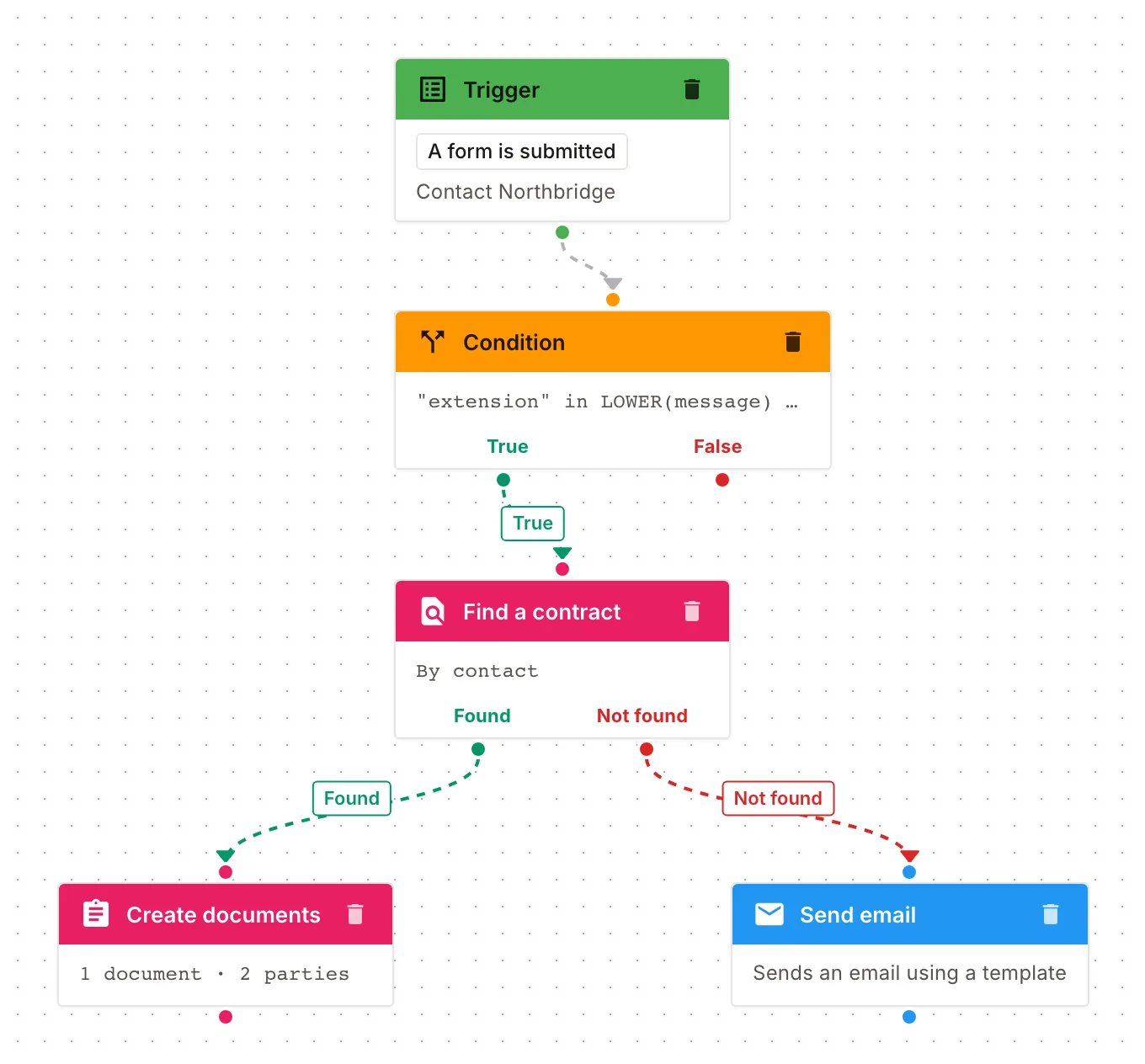
What you need
Section titled “What you need”- A form, here “Contact Northbridge”, with the fields
name,emailand a requiredmessage, in which the client writes that they want an extension. - A document type, here “Client contracts”, that keeps contracts with a term, and contracts of that type with an end.
- A template for the annex, here “Extension annex”, with signature places for
CLIENTandPARTNER. In a Word template it can print${_package.annex.contract.title},${_package.annex.number}and${_package.annex.newEndsOn}. - An email template for the account manager, here “Extension request: no contract found”, saying that a request came in for which no contract was found.
Build it
Section titled “Build it”-
Create a workflow with the trigger A form is submitted on “Contact Northbridge”.
-
From Conditions in the palette, drop Condition and connect it to the trigger. In Properties, set Expression to
"extension" in LOWER(message) or "przedłuż" in LOWER(message)and Node ID toasks. The answer is true when the message contains “extension” or “przedłuż” (the Polish for “extend”), in capitals or not. Leave the False output unconnected, so a message about anything else ends the run here.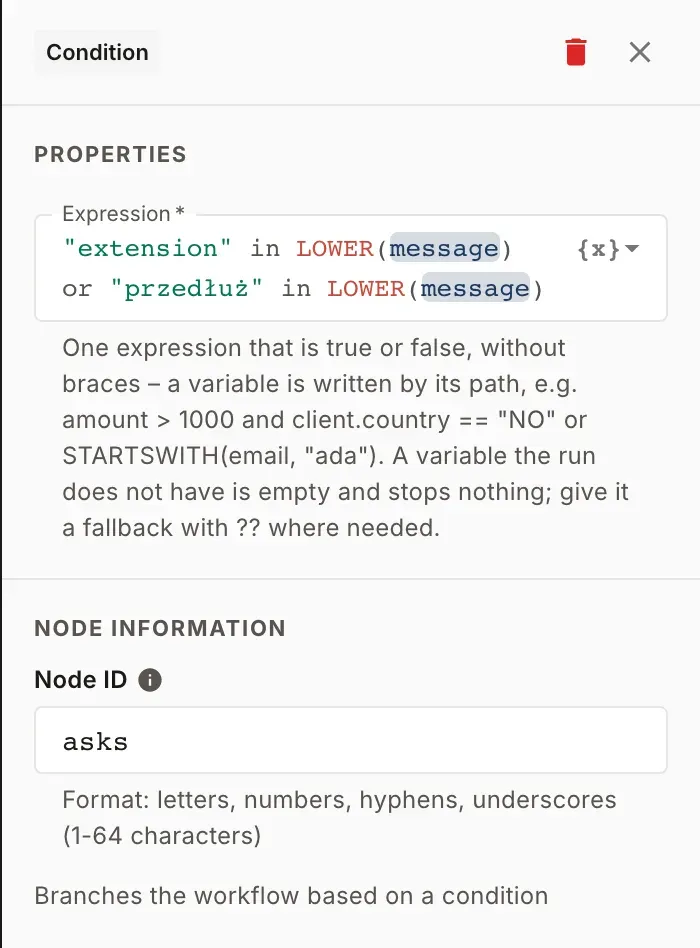
-
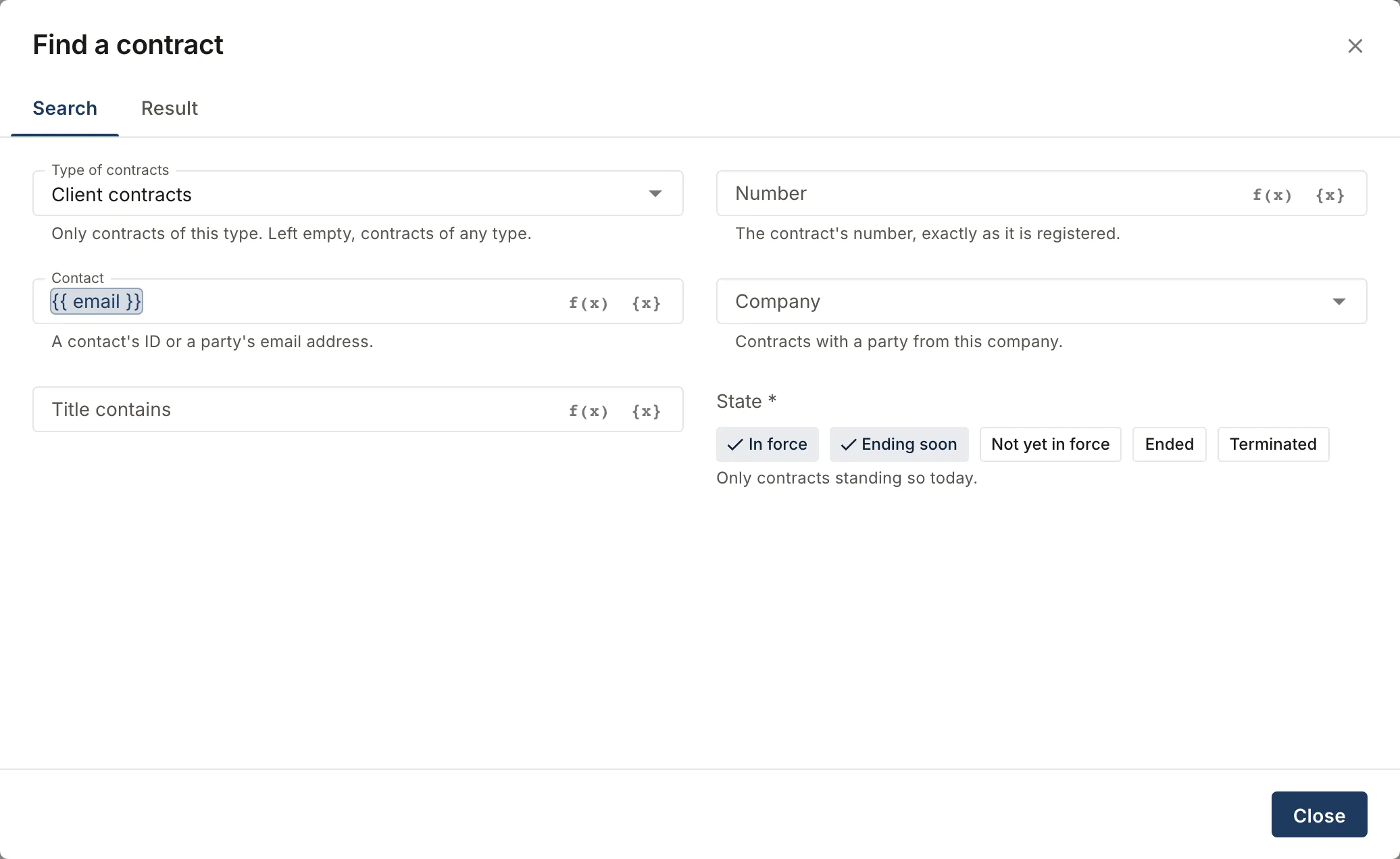
From Documents in the palette, drop Find a contract and connect it to the Condition’s True output. Click Configure this step.
-
On the Search tab, set Type of contracts to “Client contracts” and Contact to
{{ email }}. Keep State at In force and Ending soon, so an ended contract isn’t extended. -
On the Result tab, set When several match to Ending earliest, so a client with two contracts gets the one closest to its end, and keep the Output key
contract. -
From Found, add Create documents and click Configure this step. On Basics, set Document type to “Client contracts”, turn on Change of a contract, set Contract to
{{ contract.id }}, What the change does to Extends the contract, and New end date to{{ contract.endsOn | addmonths(12) }}. -
On Documents, add a document from the Template “Extension annex”, titled
Extension of {{ contract.title }}. -
On People, fill in
CLIENTwith Full name{{ name }}and Email{{ email }}. ForPARTNER, set Who signs to A user of the application and pick the partner. Keep Signature request on in both rows. -
From Not found, add Send email. Set Recipient email address to the account manager’s address and Reply-to address to
{{ email }}, and pick the Email template “Extension request: no contract found”, which prints{{ name }}and{{ email }}. -
Save the workflow and switch it on.
What the run knows
Section titled “What the run knows”| Variable | What it holds |
|---|---|
name, email, message |
What the client typed. |
contract.id, contract.title, contract.number |
The contract found. |
contract.endsOn |
Its last day in force, from which the new end is counted. |
contract.parties |
Its parties, each with indicator, fullName, email and contactId. Approvers are not among them. |
contract.matches |
How many contracts matched the address. |
See Find a contract.
Check the run
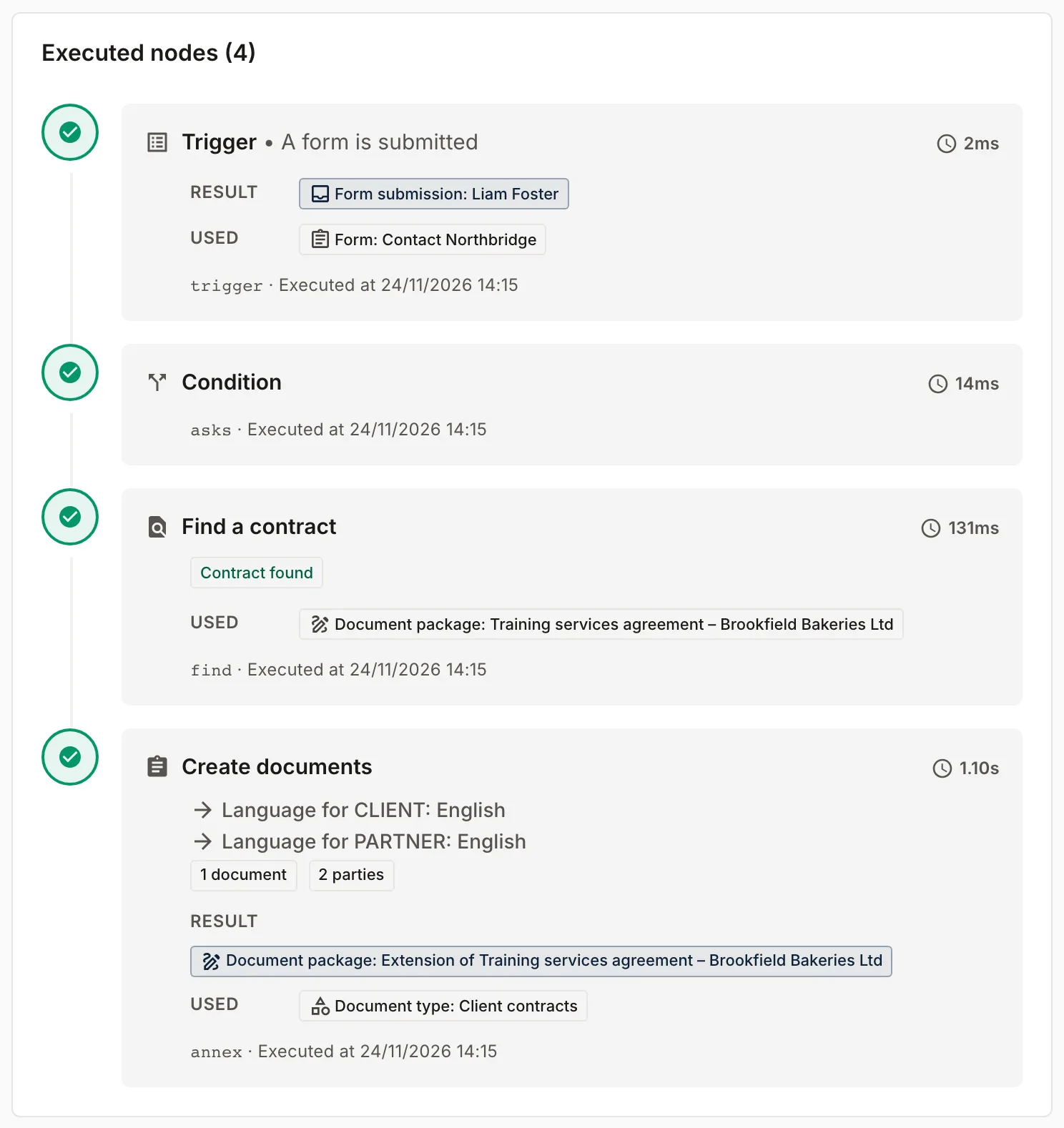
Section titled “Check the run”Send the form twice, each time with a message that asks for an extension: once with the address of a client who has a contract, once with an address that has none. The first run shows Contract found on the Find a contract card, with the contract linked under Used, then the annex’s Document package. When more than one contract matched, the card also says how many, and that one was taken. The second run shows No contract found and goes on to the email. A message that asks for something else ends the run at the Condition.
Variations
Section titled “Variations”- A form only for extensions. If clients use the form for nothing else, leave out the Condition and connect Find a contract straight to the trigger.
- Leave Not found unconnected if you’d rather not hear about it. The run ends without an error, and the list marks it No contract found.
- By the contract’s number. If your clients know it, ask for it on the form and set Number to
{{ contract_number }}as well as Contact: both must then match. - Let the account manager decide. Put a Send email to the account manager on Found instead of Create documents, with
{{ contract.title }}and{{ contract.endsOn }}in the template, and let them make the annex with Create annex in the contract file.