

New package
Most packages come from a workflow, but not every document starts life in one. A one-off contract, a letter of intent you already have as a Word file, or a set of certificates that go to forty different people are quicker to send by hand. New package in the Documents section opens an editor with the same settings as the Create documents step: documents, parties, viewers and a deadline. A package made here is signed and sealed exactly like one a workflow made.
Available when: you may manage documents of the package's type. Adding a template needs permission to view templates; adding a file from a drive needs permission to view cloud files
Put it together
Section titled “Put it together”-
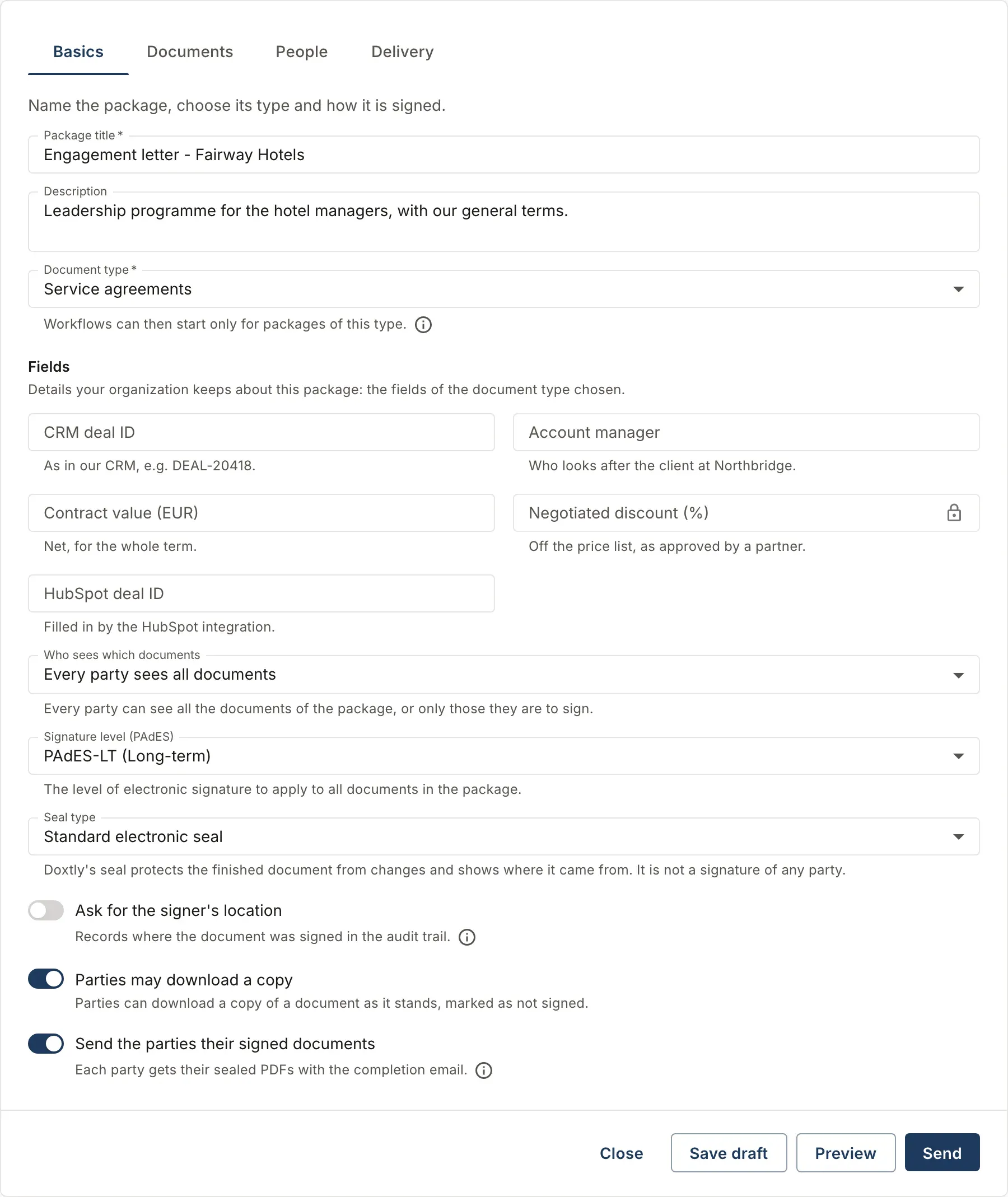
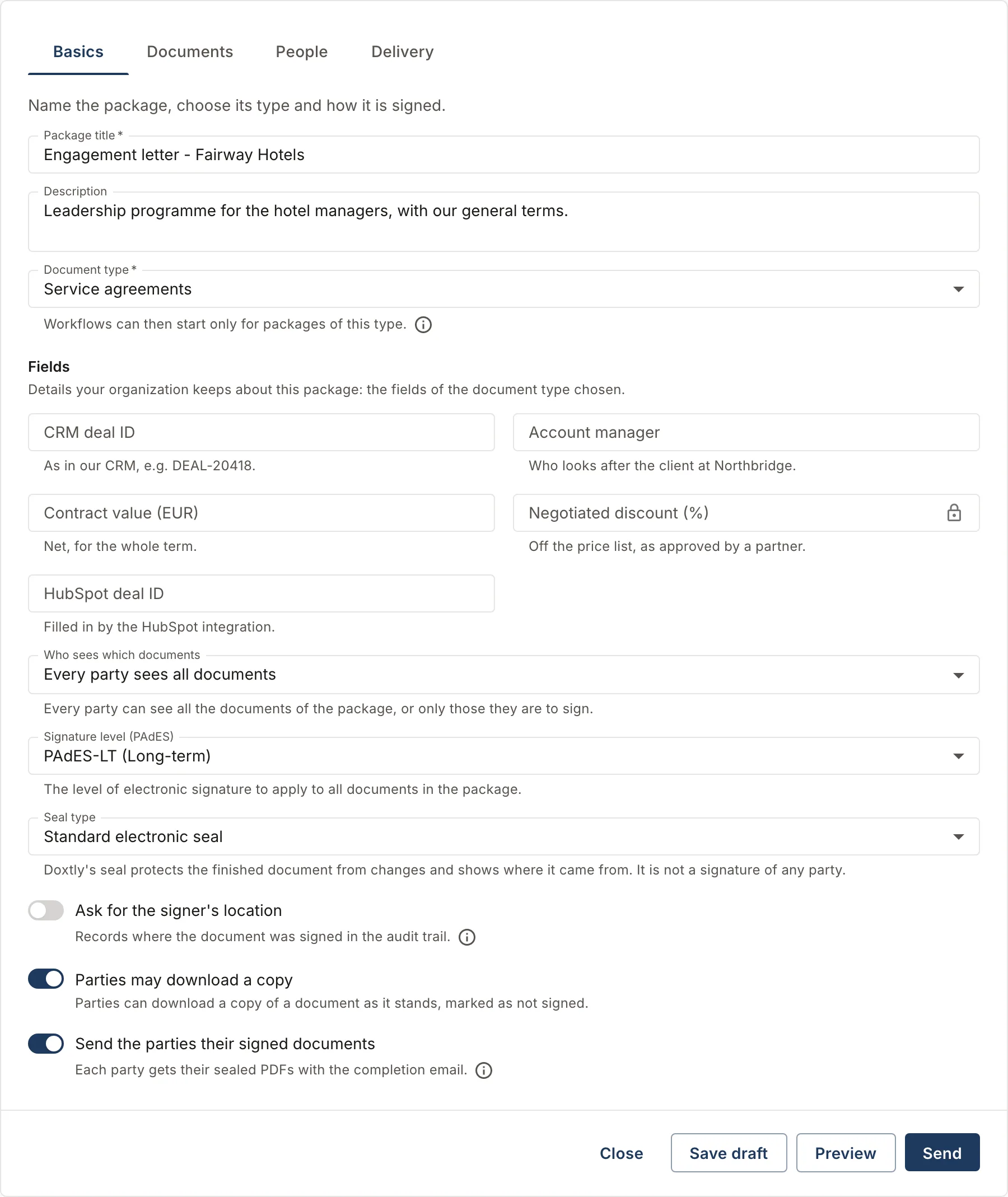
Open Documents and choose New package. Fill in the title and the document type, then choose Save draft. Until then the other tabs are closed, and the bar at the bottom says Save the draft first. The package exists as a draft from this moment, and the other tabs open.
-
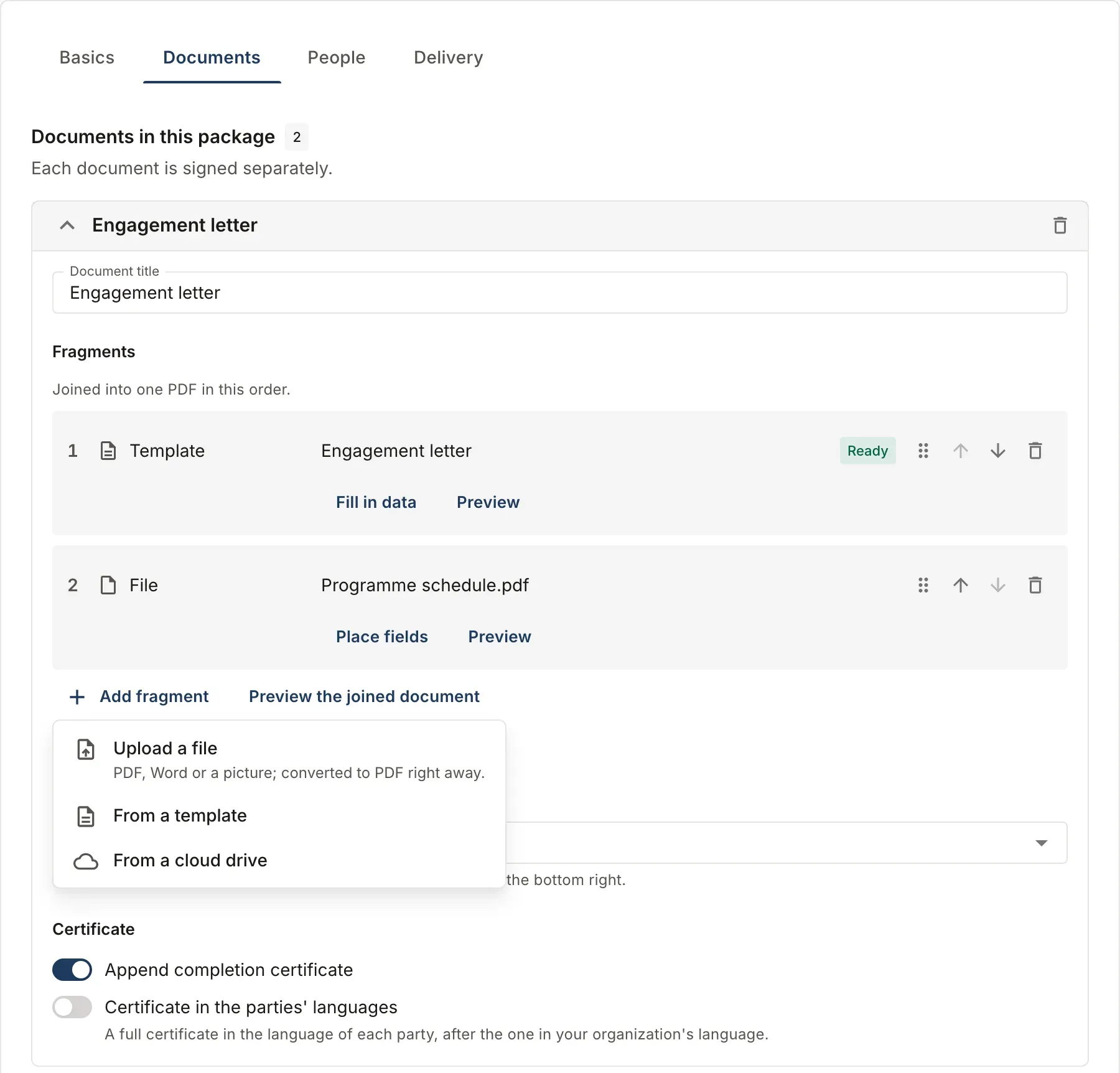
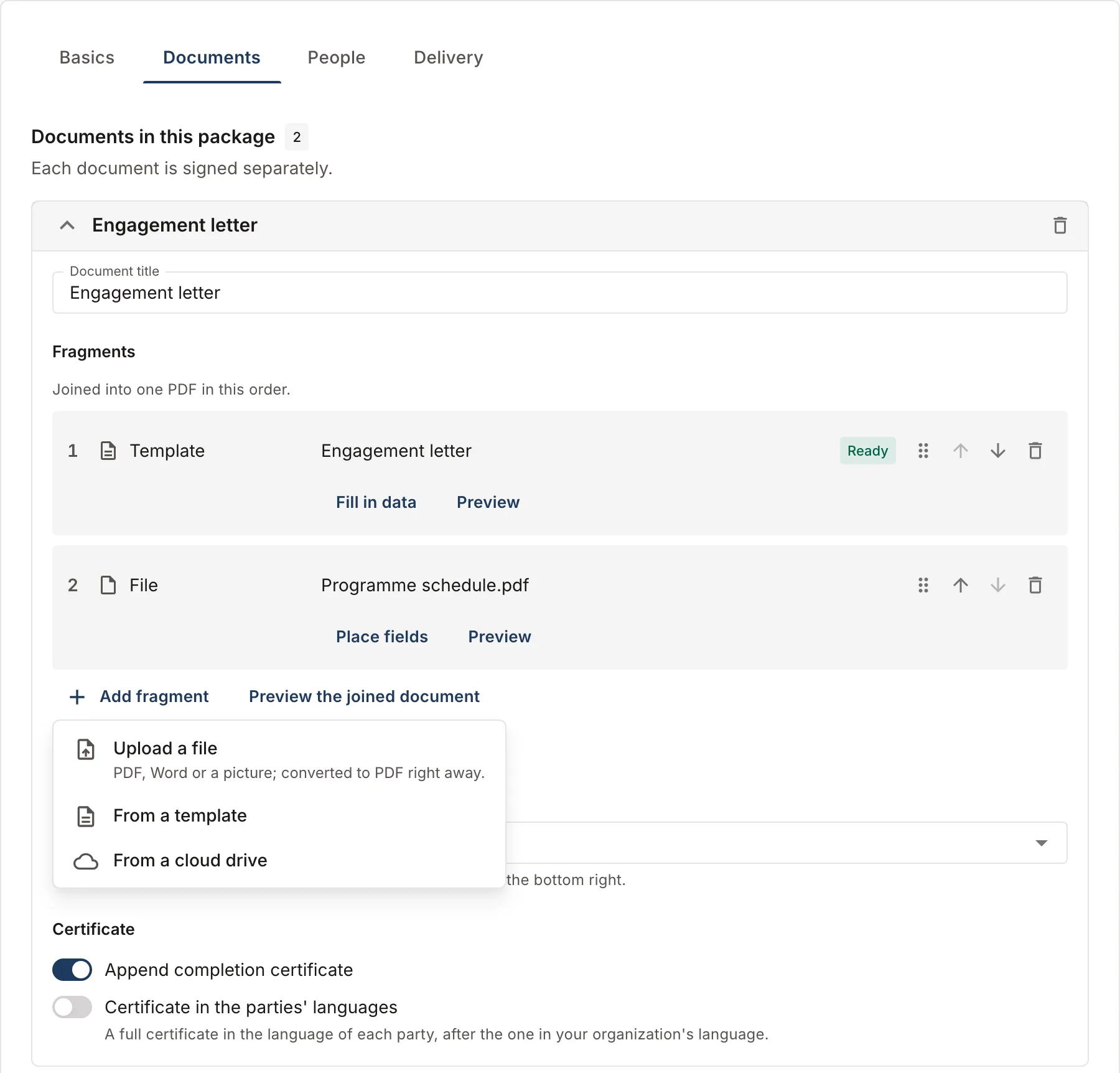
On Documents, an empty package shows the choices directly; later, Add document under the cards opens them. Each document is a card, and everything it is built from is a list of fragments:
- Upload a file: a PDF, a Word or other office document, or a picture. Anything that is not a PDF is converted right away, and only the PDF is kept.
- From a template: a PDF, Word or SVG template of your organization.
- From a cloud drive: a file from a connected drive; with more than one connected you first choose the drive.
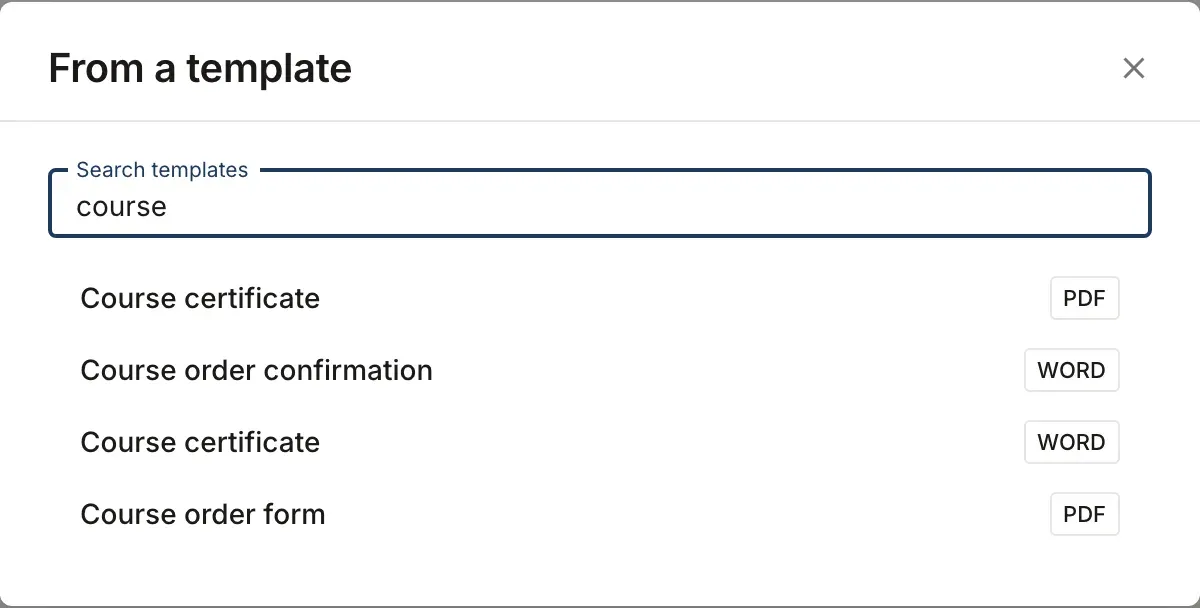
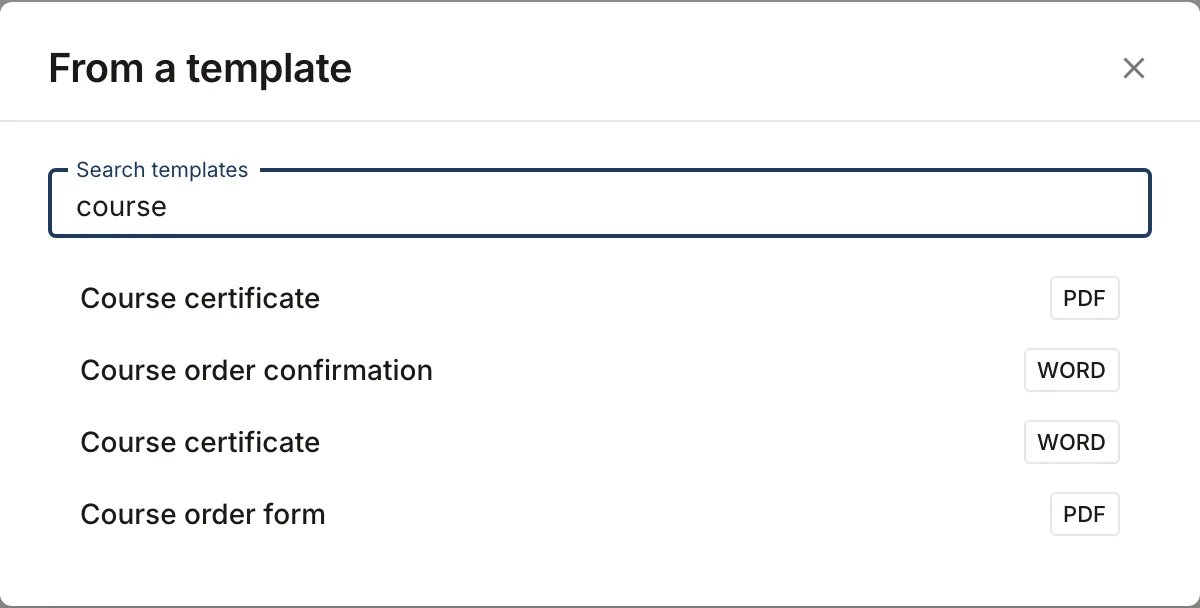
From a template opens a list of your templates with their kind (Word, PDF or SVG) beside each name. Type in Search templates to narrow it: the list shows the first 25 and says how many more there are, or No template matches the search. A template of a kind your plan doesn’t include is greyed out.
-
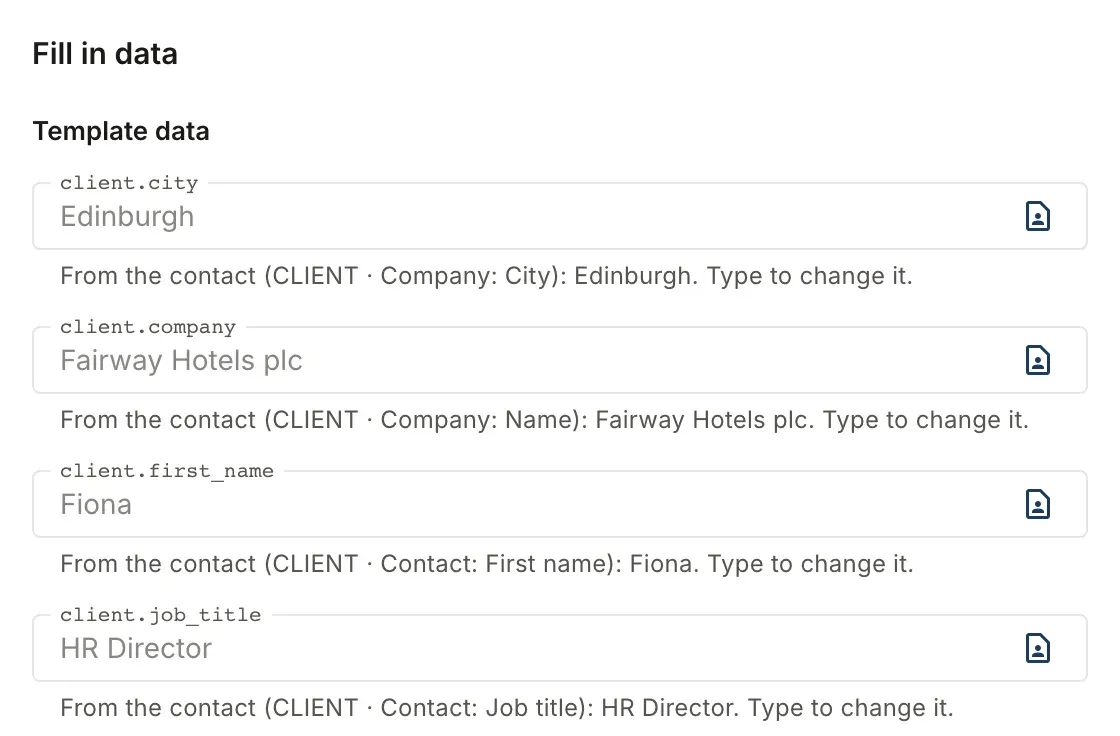
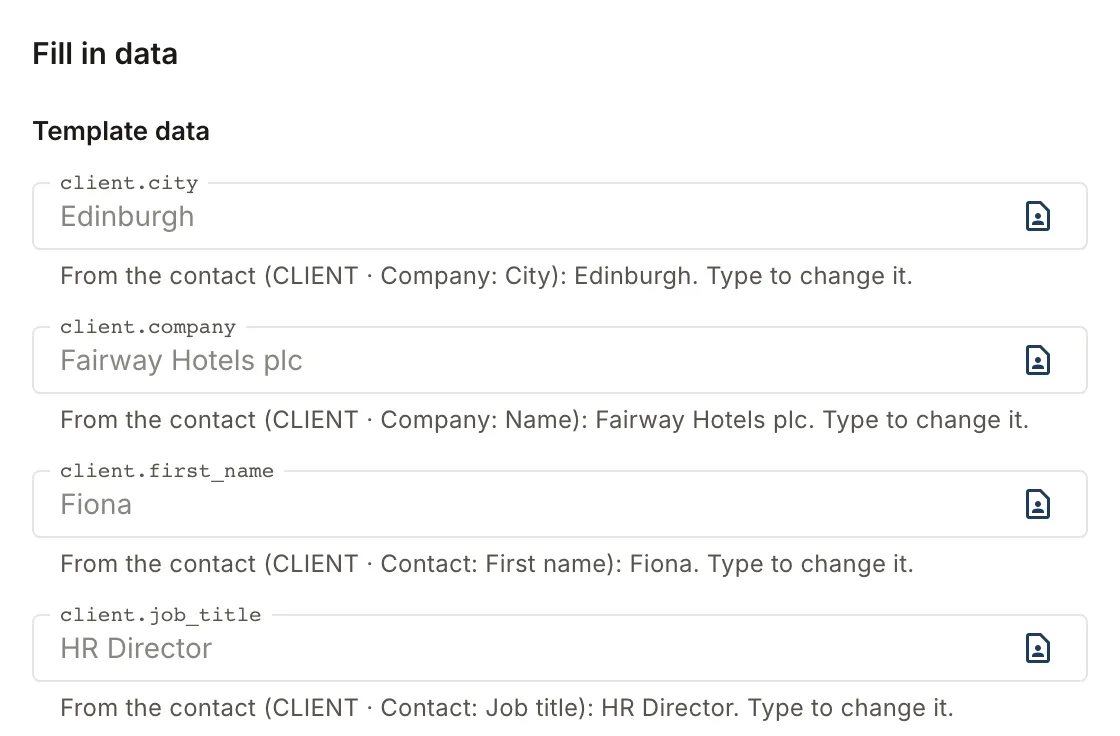
A document from a template says on its card that its data still needs filling in, and until it is complete the package cannot be sent. Choose Fill in data. The form shows a field for each value the template asks for, a switch for what it only tests, a picker for a picture (Choose a picture: JPEG, PNG, WebP or an iPhone’s HEIC photo, from your computer or, once a drive is connected, from the drive; kept as a file of the draft), and rows for a list. Save and preview renders the document as it would be sent. A value can also come from a contact: see Values from contacts.
-
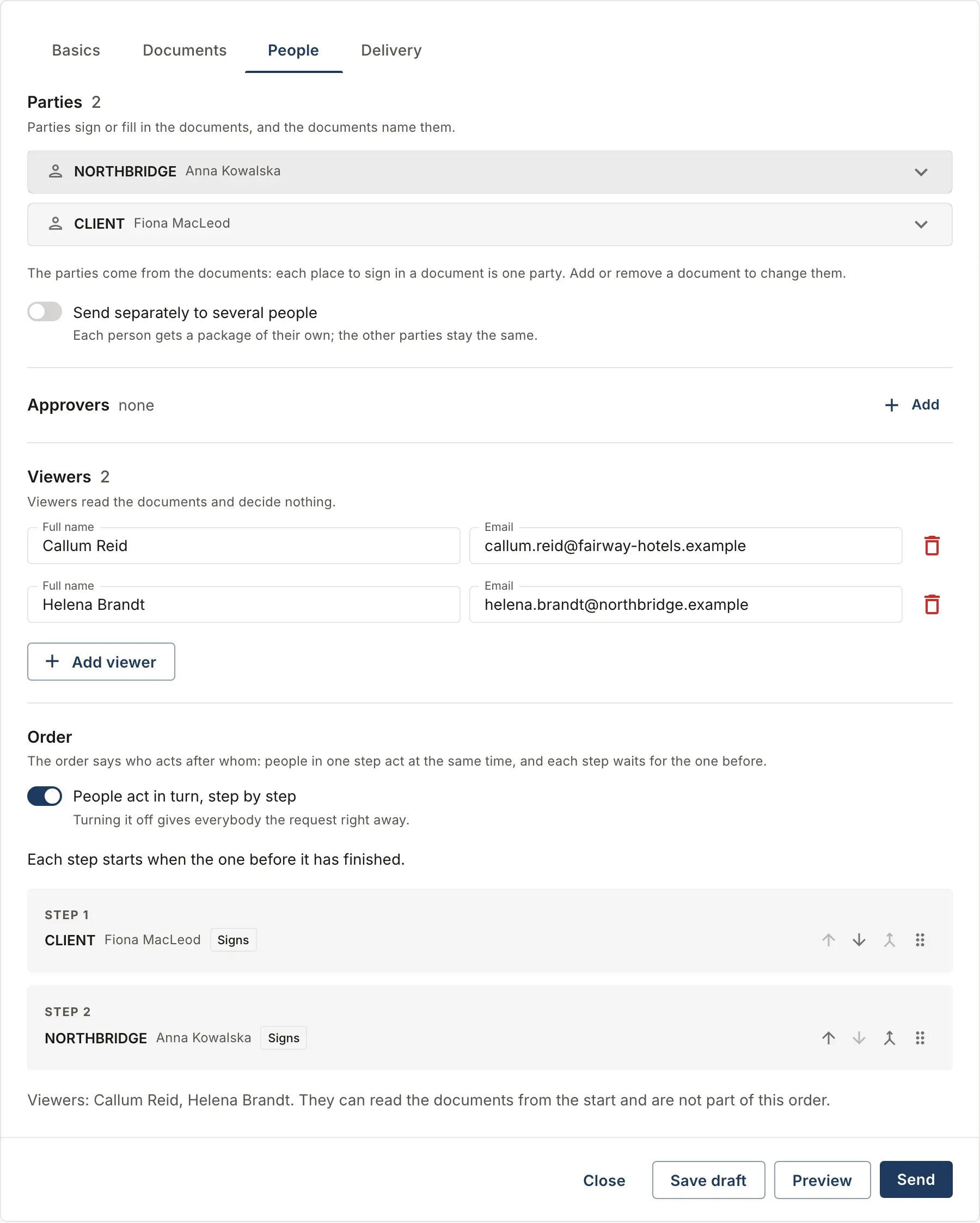
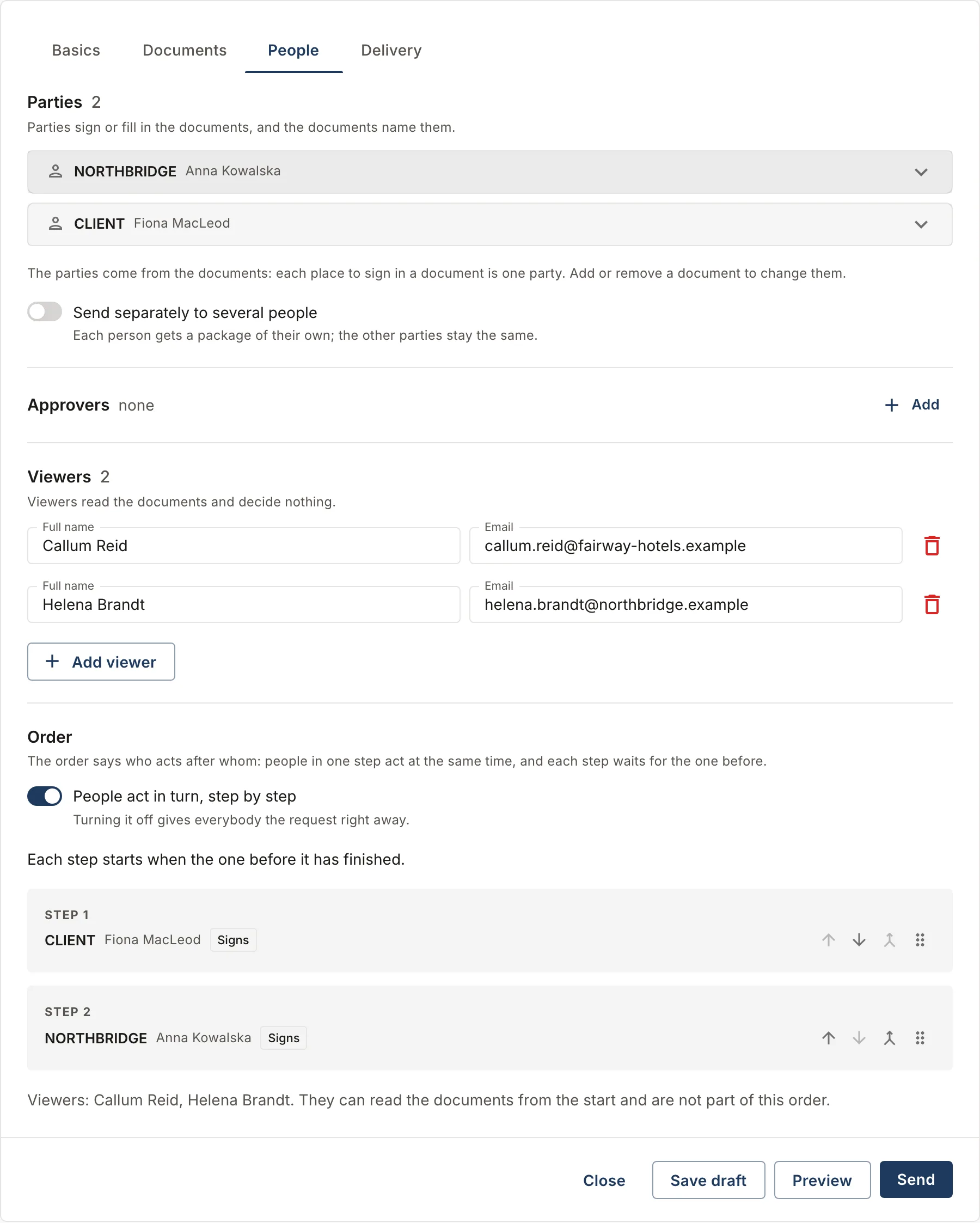
On People, under Parties, each row is a party the documents name. First say Who signs: someone outside the application, a user of the application (choosing one fills the name and email, which you can still change), or anybody in a department. Typing an email suggests your contacts and fills in the rest; the party then stays linked to that contact, and its values can fill the documents. Changing the name or the email by hand removes the link. A package made by hand has no variables, so what you type is what is sent. Open a row to set the party’s language, which their signing page opens in, and how they sign: how they verify who they are, which ways of signing they may use (an uploaded picture of a signature only for a user of the application), whether a job title appears under their signature, and how they are asked to sign.
-
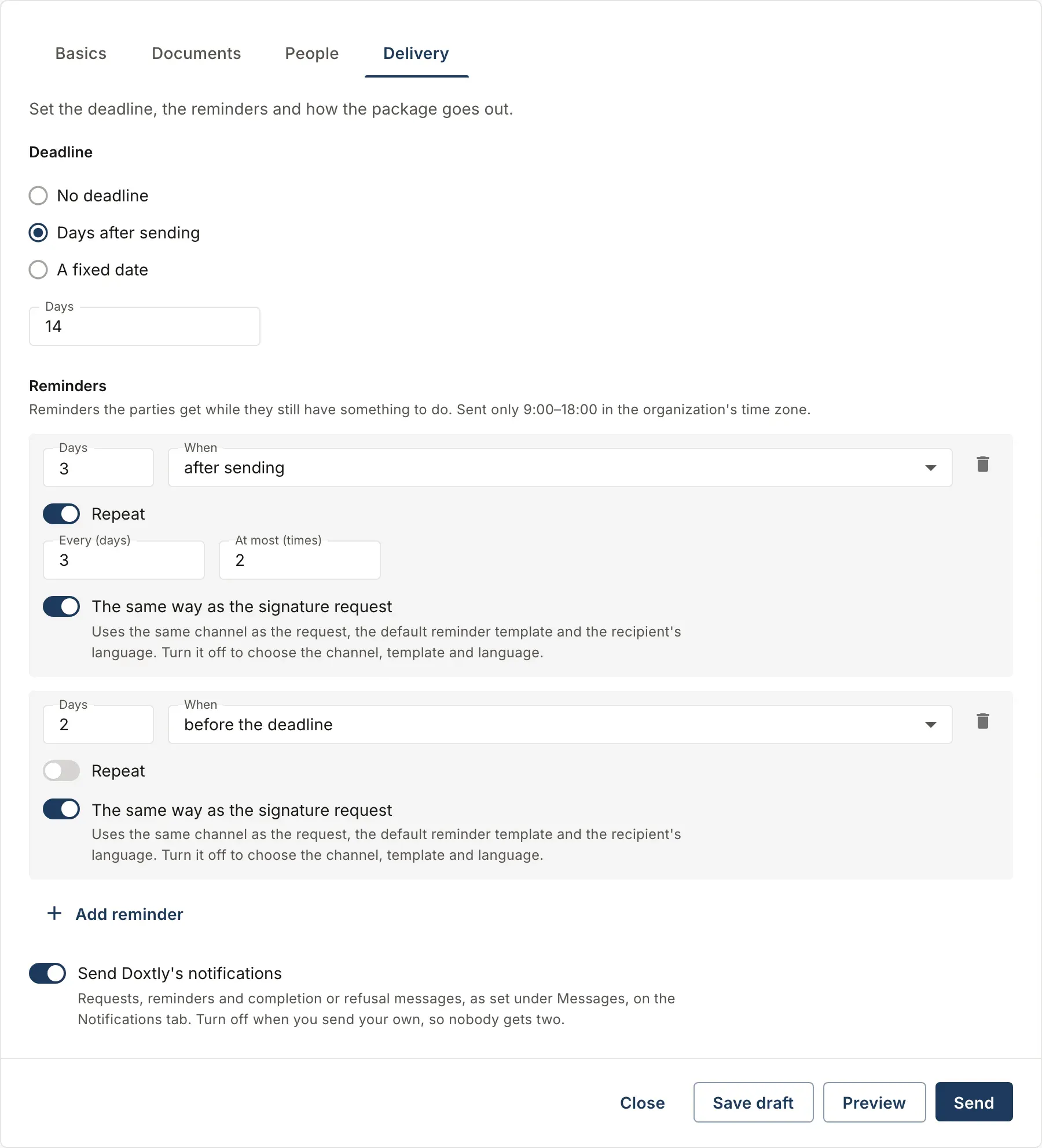
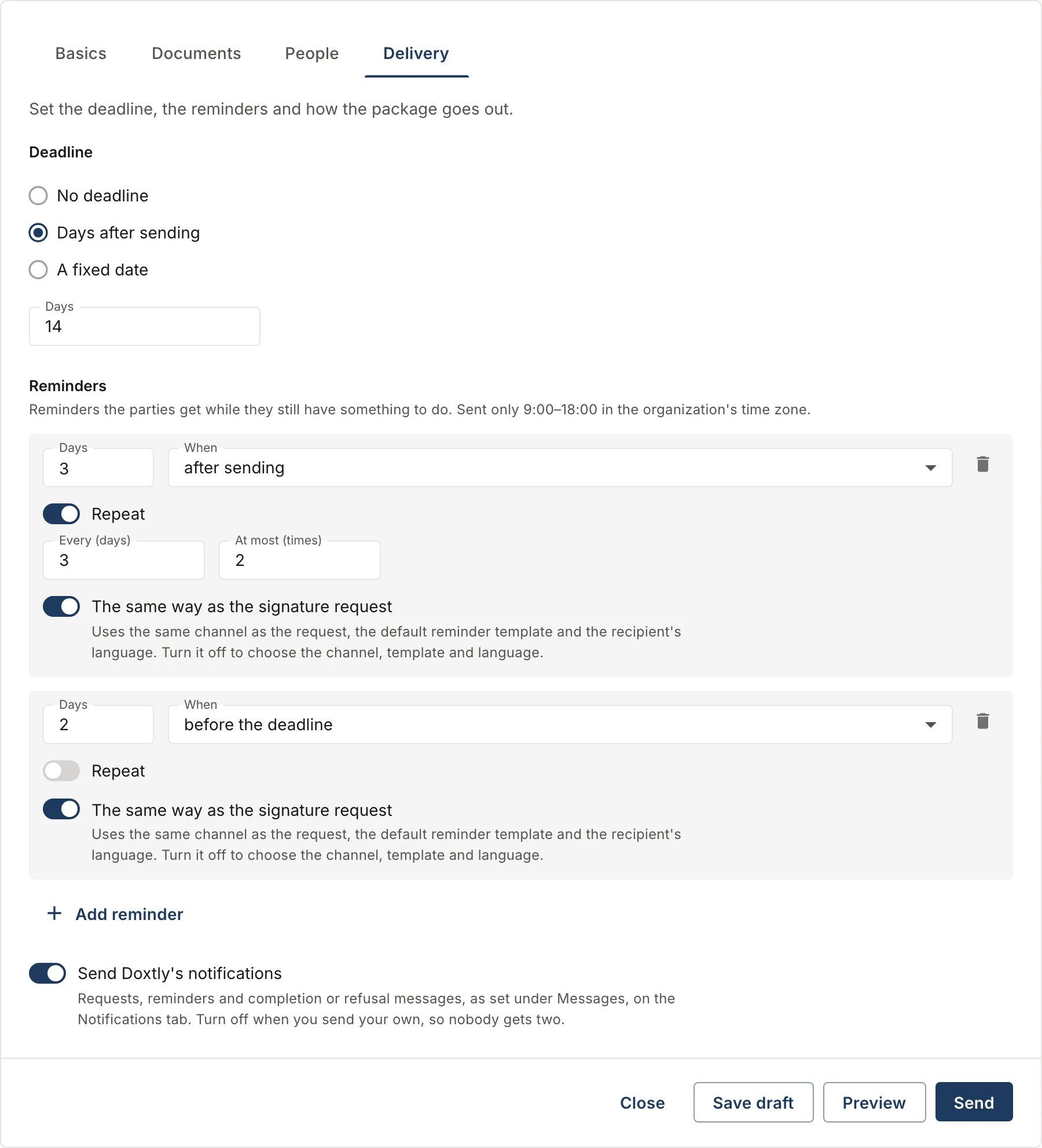
Add anyone who only needs to read the package under Viewers on the same tab, with their Full name and Email. A section with nobody in it is one line with Add. On Delivery, set a deadline: a date, or a number of days after sending.
-
Also on Delivery, under Reminders, say what reminds the parties who still have something to do: see Reminders and deadlines.
-
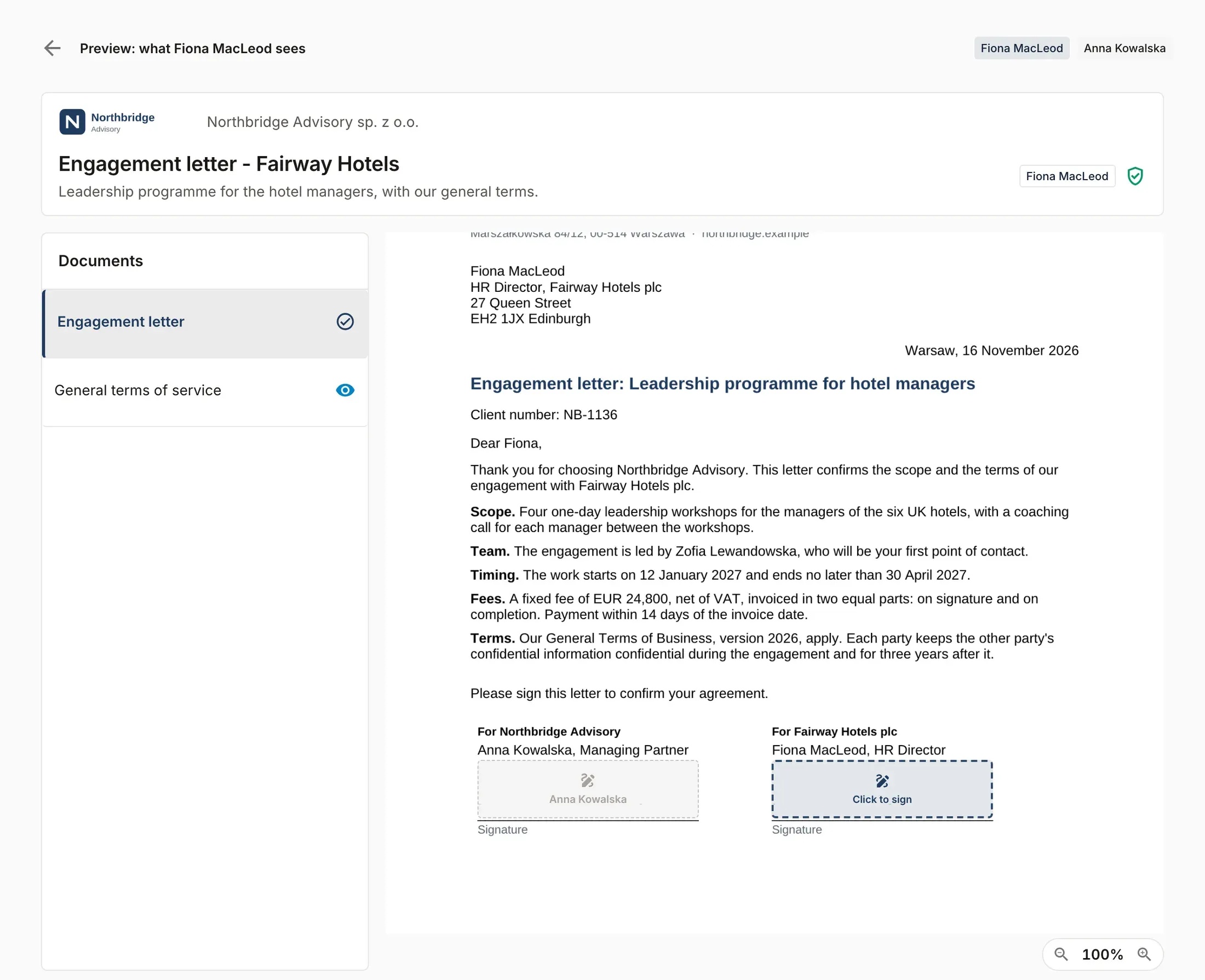
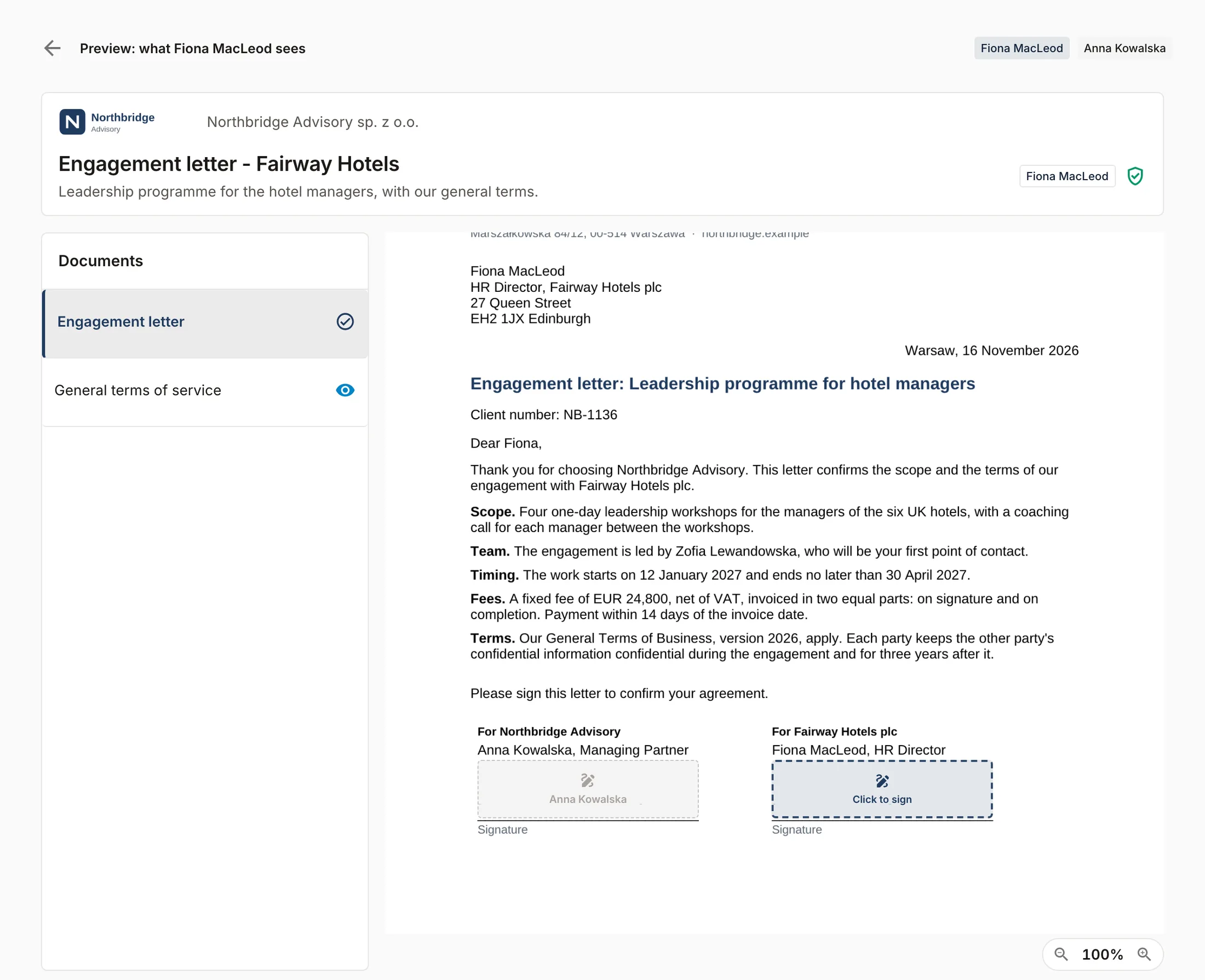
Choose Preview to see the signing page as each party would see it, and Send when it is right. While something is missing, Send is unavailable and the editor names the first thing to put right, with a link that opens the right section with the row in question and the cursor in the field; the same reason is shown on the draft’s row in the list. Preview stays available unless there is nothing to show yet: no document or party, or a template still missing data. The confirmation lists the steps in the package’s order, who is in each and what they do.

Preview opens the page of the first party; the names at the top right switch to another. The header names whose page it is - Preview: what Fiona MacLeod sees - so the instruction on the page is the one that party will read. Nothing can be signed in it, and nothing you do in it is recorded.

What you set on Basics and Delivery
Section titled “What you set on Basics and Delivery”| Setting | What it does |
|---|---|
| Package title, Description | What the parties see at the top of the signing page. |
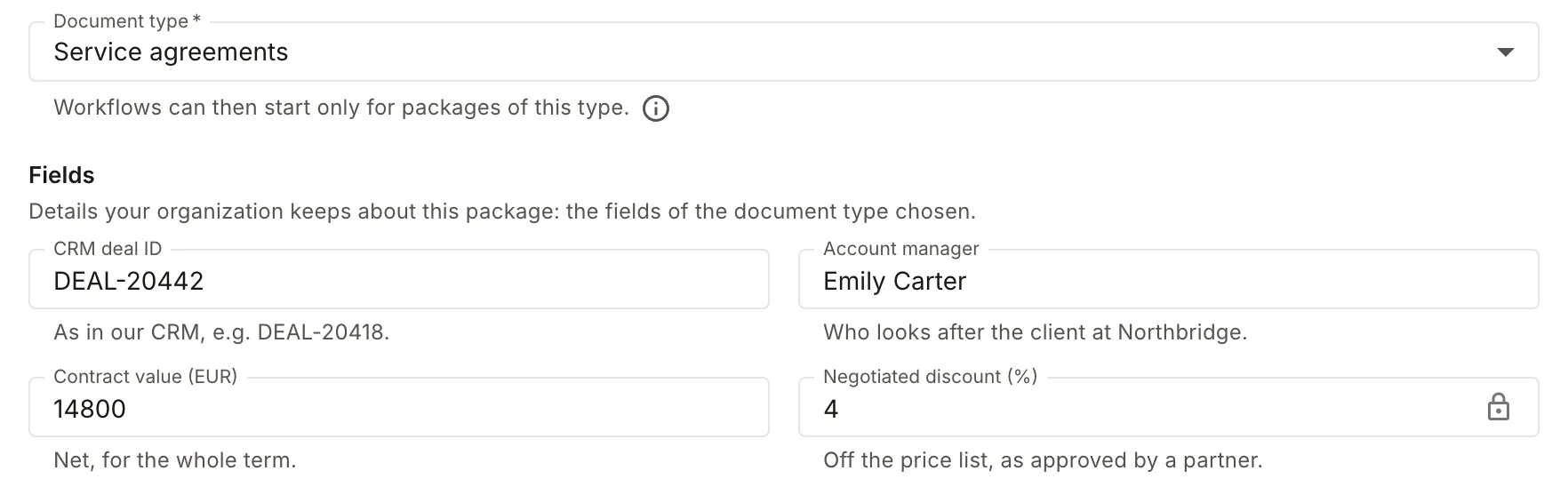
| Document type | The category the package is filed under: it decides who sees it, what starts when it finishes, and any rules it fixes. A new package starts with General chosen. |
| Who sees which documents | Every party sees all documents, or Each party sees only their own. Use the second when one package carries a separate contract for each party. |
| Signature level (PAdES) | How long the seal can be proved: see Signature levels. |
| Seal type | Standard electronic seal, or Qualified electronic seal where one is available; Doxtly’s cloud offers none, so there it is greyed out with Not available: no qualified certificate is set up. A document type can fix it. |
| Ask for the signer’s location | The browser asks each party to share their location, and the location, or the refusal, goes into the audit trail. Refusing doesn’t stop anybody from signing. |
| Parties may download a copy | Parties can keep a copy of a document as it stands, marked as not signed. |
| Send the parties their signed documents | Each party gets their sealed PDFs with the completion email. A document type sets the starting value. |
| Deadline (Delivery) | No deadline, Days after sending or A fixed date. |
| Send Doxtly’s notifications (Delivery) | Requests, reminders and the completion and refusal messages, as set under Notifications. Turn it off when you send your own. |
| Fields | Your organization’s custom fields of packages that the chosen document type has, such as a deal number. Shown once the draft is saved, and only when the type has fields. A value of a unique field another package holds is refused with a message naming that package. |
A contract’s term
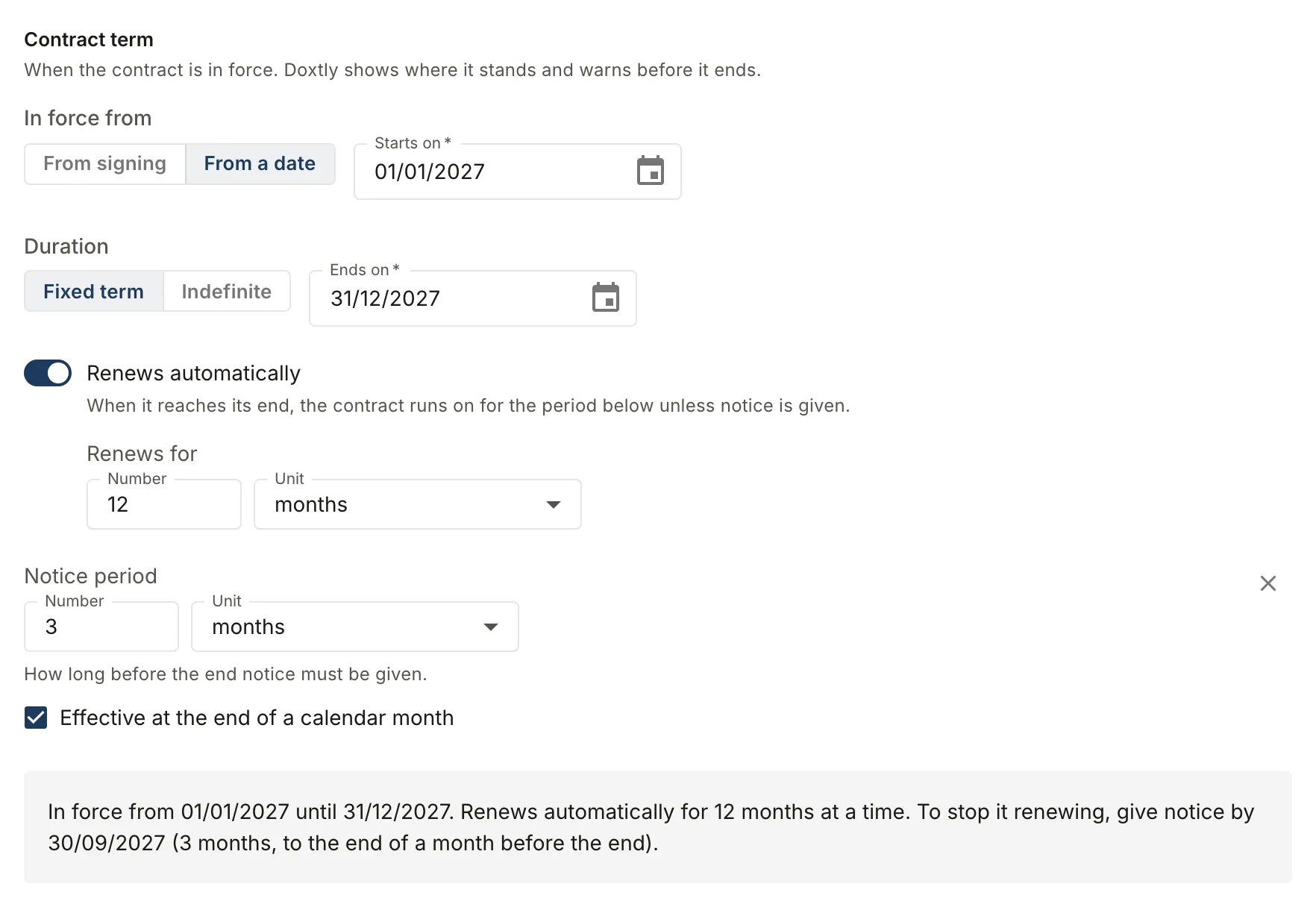
Section titled “A contract’s term”When the chosen Document type is one of contracts with a term, the Basics tab gets a Contract term section under it: When the contract is in force. Doxtly shows where it stands and warns before it ends. A new contract starts From signing and Indefinite.
| Field | What it says |
|---|---|
| In force from | From signing, the day everybody has signed, or From a date, with the day in Starts on. |
| Duration | Fixed term, with its last day in Ends on, or Indefinite. |
| Renews automatically | For a fixed term: at its end the contract runs on for Renews for unless notice is given. |
| Add a notice period | How long before the end notice must be given, in Notice period; tick Effective at the end of a calendar month when notice takes effect only at a month’s end. The cross (Remove the notice period) takes it away. |
Under the fields a sentence says the term back with the days it works out to, such as In force from signing until its last day, and when notice is due. An end before the start is marked The end cannot come before the start., and a period outside 1 to 999 Enter a whole number from 1 to 999. The draft isn’t saved until the term is right: saving opens the Basics tab and says what to put right, such as Correct the contract’s term: The end cannot come before the start. Every field, and what Doxtly does with it, is told under Contract term.
Choose another type and the section follows it: under a type of contracts the draft is a contract, under any other it has no term once you save. Before a contract’s draft moves to a type without contracts, Drop the contract term? asks you to confirm with Change the type, or to stay with Keep the type. A draft saved as a contract stays one under its own type even if the type’s Contracts with a term is turned off later. The term can still be changed after the contract is signed, from its page: see Change the term.
A change of a contract
Section titled “A change of a contract”Create annex, End contract and Add to contract file with Send for signature on a contract make a draft of a change with the contract’s parties already in it, and with a document if its type has a template for that change. The Basics tab of such a draft opens with a panel naming what it is: which contract it changes, as a link, the kind of change, and what it will do once signed, as in Once signed, “Advisory services agreement – Cobalt Engineering GmbH” will be in force until the new end. What a change does is set when it is created, so the panel says it and offers nothing to edit; a different change is made anew from the contract. A change has no Contract term of its own.

In Fill in data of a document made from the type’s template, a value taken from the contract says From the contract, as long as it is still the value the contract gave, followed by the contact’s hint where a contact would fill the field too. Type over it, and the document prints what you typed. The values Doxtly fills in itself, such as the annex’s number or the contract’s title and dates, are no fields: Filled in by Doxtly lists, read-only, each one the draft will have, with what it is now. A change takes no package number, so _package.number is not listed, and an annex value with nothing in it, such as the new end of an annex that changes only the terms, is left out.
A change of a contract added as signed outside Doxtly takes the parties recorded with it that have an email. Under Parties on the People tab, the editor names each one left out for having none, as in Lukas Gruber has no email, so they were not added as a party., until you add them. The contract doesn’t say whom each recorded party signs as, and nothing is guessed: each one has Signs as, with the parties the documents name that nobody stands for yet and Nobody (doesn’t sign). A party on nobody shows Not a signer and signs nothing. The draft can’t be sent until every party the documents name has somebody: see Annexes.
A change goes to the contract’s parties only, so Send separately to several people is off for it, with the reason A change of a contract goes to the contract’s parties only, so it is not sent separately to several people.
Drafts
Section titled “Drafts”Save draft stores the package and asks nobody for anything. Leaving the editor, with Close or otherwise, while something is changed and not saved asks first: Unsaved changes, with Leave and Stay. A draft is listed under Documents with the status Draft, and its menu offers Edit, Send, Preview and Delete draft. Clicking it opens its page, which shows what it holds and what is still missing before it can go.
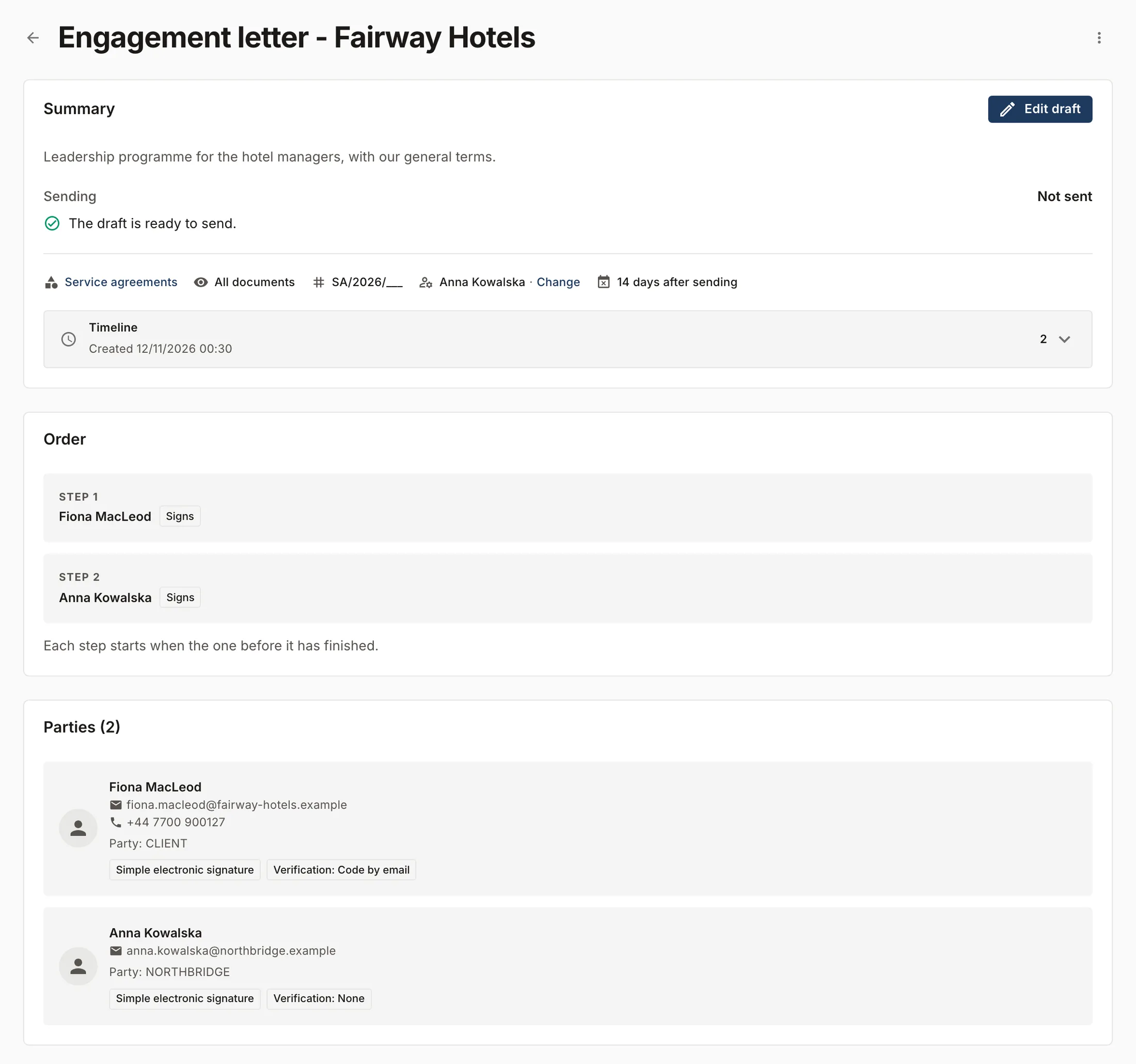
Parties and viewers of a draft see nothing of it, and a link to it answers as if it did not exist. Sending renders every document from the current version of its template and checks the parties: a party with a method that needs an email or a phone number must have one, and a value a template still needs stops the sending and is named.
A Word or SVG document counts towards your document generations when the package is sent. A preview does not.
Values from contacts
Section titled “Values from contacts”A value of a template can come from the contact a party was chosen from, or from that contact’s company, instead of being typed: a client’s tax ID, the company’s address, a custom field such as a client number. In Fill in data, the contact button at the end of a field opens Fill from a contact: choose the party, The contact or The contact’s company, and the field, one of the standard ones or of your custom fields. The field then says where its value comes from and shows what the contact holds now. It is only a suggestion: a value you type in the field is printed instead, in this package only. Do not fill from a contact in the same dialog removes it.
For example, the engagement letter for Fairway Hotels takes the client’s name, job title, company and address from Fiona MacLeod’s contact, so the person preparing it types only the scope, the fee and the dates.
A template can bring such values with it, and every package it is added to gets them; you can still change them in the package.
The value is read from the contact when the package is sent, so a change made to the contact before then is in the document. Where each value came from is kept with the sent package, and the package keeps the link to the party’s contact. A value the contact lacks keeps the package from being sent: the reason names the contact, and Open contact opens it in a new tab so you can fill it in. A party not chosen from the contacts is asked to be, or you type the value.
A sensitive custom field fills the document only when whoever sends the package may view sensitive values. The editor never shows such a value, only that it will be filled; the preview shows it to whoever may see it. Sent by someone without the permission, the package is held back until the value is typed in, or until someone who may see it sends it. A sensitive value never becomes part of the data that workflows triggered on the package read.
Parties, approvers and viewers
Section titled “Parties, approvers and viewers”Three kinds of people can be part of a package, each in their own section on the People tab, with their number beside the heading. A section you can do without shows as one line with Add while it is empty.
- Parties sign or fill in the documents, and the documents name them.
- Approvers neither sign nor fill anything in, and add nothing to the PDF. They confirm who they are when they open their link, read the documents, and choose Approve, or Do not approve and give a reason. Their decision decides whether the people after them are asked at all, and it stays in the audit trail and on the certificate. A package an approver does not approve ends there, as Not approved. At most five.
- Viewers only read. They decide nothing and are no step of the order.
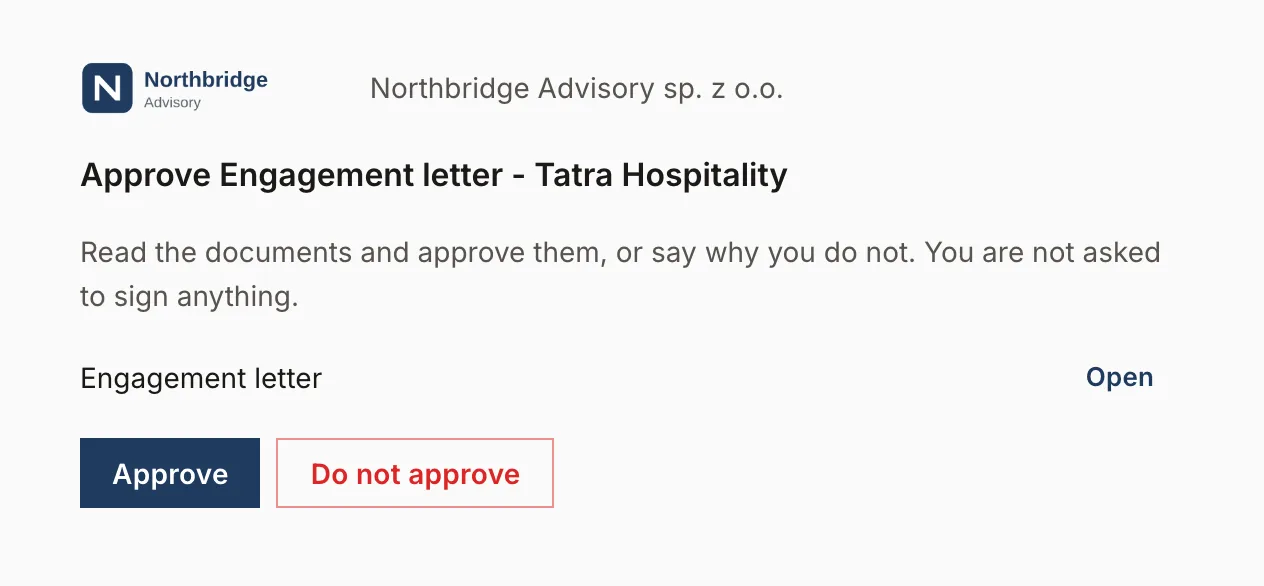
Take a lease. The office manager approves it, the tenant and the landlord sign it, and the accountant needs a look. The manager goes on Approvers, the tenant and the landlord are the two Parties the contract names, and the accountant goes on Viewers.
Signing order
Section titled “Signing order”The Order section, there once a package has two parties or an approver, shows the whole sequence at a glance: a list of steps, each with its people and their role. People in one step act at the same time, and each step waits for the one before: step 2 gets the request only once step 1 is finished. In the lease above, step 1 is the manager, and step 2 is the tenant and the landlord together; the accountant is named under the steps, reading from the moment the package is sent.
A new approver takes the step before the parties, which is nearly always what you want. To change anything, use the arrows on a person to move them up or down, or Together with the previous step, or drag them onto another step.
With no approver, you can turn the order off, and everybody is asked at once. With one, it stays on, because an approval only means something before the next step. An approver who is last in the order has nobody left to hold back, and the tab says so. A party whose turn has not come sees that others go first, and nothing of the documents, and is written to when their turn begins.
Next to each party, Signature request decides how they are asked; for an approver it is Approval request. Turn it off if you deliver the link yourself, for example from a workflow that starts on A party’s turn begins. A warning on the Order tab reminds you when nobody will tell somebody their turn has come. The package is not sent while a party could never get the link: their request is off, they are not a user of your organization and do not sign in person, they are asked for no verification, your organization has no way to send them the link from the package’s page, and no workflow starts on their turn.
A party with a qualified signature has its own step, after every simple signature.
Verification and passwords
Section titled “Verification and passwords”Each party can verify differently. Under How this party signs, Verification offers the organization’s default, none, a code by email, SMS or WhatsApp, or an Access password. A password is at least six characters, and you pass it to the party yourself. Five wrong attempts within fifteen minutes lock the party out for fifteen minutes, and twenty within a day lock them out until a day has passed since the first of them; Change password in their row on the package page sets a new one and unlocks them.
Send the same package to several people
Section titled “Send the same package to several people”To send one agreement to forty clients, turn on Send separately to several people under the parties and, when the documents name more than one party, choose which of them is sent separately; the others stay the same. The party becomes a table with one row a person (one card a person on a phone): name, email, phone, then a column for every value the documents need and nobody has entered for everybody. When the columns do not fit, the table scrolls sideways. Choose Add person, Add from contacts, or Paste a list from Excel or a CSV.
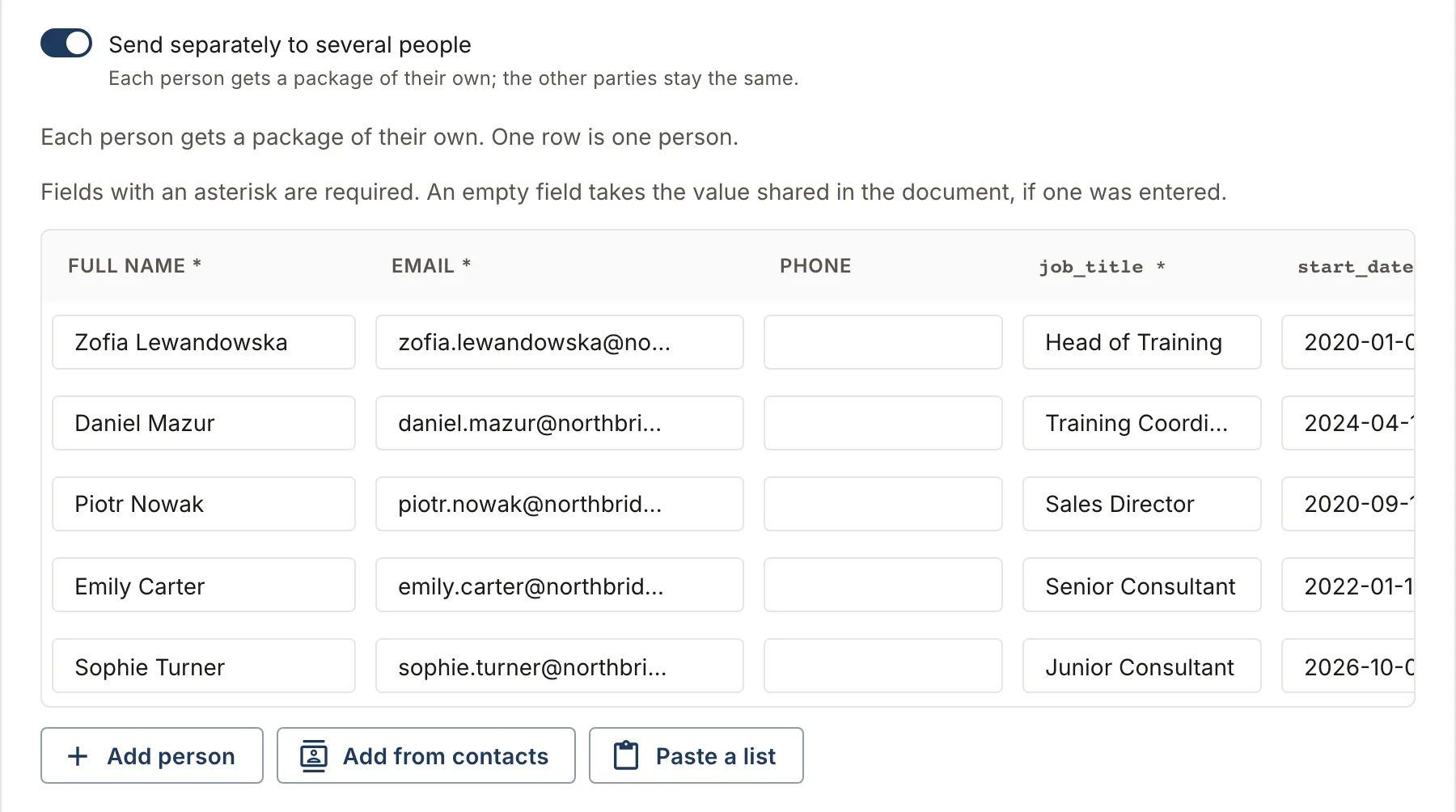
Add from contacts lists your contacts with a search and filters by type and company: tick the people, or All on this page, and Add; each is linked to their contact. With Paste a list, copy the header row with the people, and the columns are matched by their names, in any order and with some left out; without it, they go in the order the dialog lists. The switch stays on, with the party, until you turn it off, even with nobody added yet. The language and the access password appear only when they apply. A required field left empty is marked and keeps the package from being sent. Each person gets a package of their own, with the other parties unchanged, and sees only their own. A batch holds up to 500 people.
Data entered in Fill in data is shared by everybody, and an empty cell in a person’s row takes that shared value. A value filled from the contact of the party sent separately comes from each person’s own contact: a person added from the contacts shows From the contact in its column, and a person added by hand gets a cell to type it in. When a person’s contact lacks a value the documents need, the reason names that person. Beside a field you can choose Different for each person to give it a column even when it has a shared value, or take the value from the recipient’s name, email or phone. The pencil on a row opens the whole form for that person alone.
Choosing Send checks that your plan has room for all of them at once. If it does not, nothing is created and you are told how many fit. The packages are then created one at a time, and the list shows how far it has got, filtered to the batch: “37 of 40 created, 1 failed”. A person whose package could not be created is named with the reason, and the others are not affected. If the first person’s package is the one that failed, the draft stays in the list with only the people who were not served, so sending it again asks nobody twice.
Copy a package
Section titled “Copy a package”Send again on a package that expired, was declined, not approved or voided, and Duplicate on any package, open a new draft with the same documents, parties, viewers and settings. Check the deadline, which is copied as a number of days, and set access passwords again: they are not copied. A copy of a contract is a contract with the same term, as long as its type still makes contracts, and the editor asks you to Check the deadline and the contract’s dates before sending it. A copy of a change of a contract is the next change of the same contract, doing the same, with its title and number following on. The original stays as it was, and its timeline links to the copy.
A document of several files
Section titled “A document of several files”A document can be built from several files or templates: its fragments, joined into one PDF. In its card choose Add fragment, which offers the same sources as adding a document. Drag a row, or use its up and down buttons, to set the order: it is the order of the pages. Preview the joined document shows the result with the page numbers.
Files and templates are joined when the package is sent. A PDF that is a form with fields of its own is printed as it stands: when the document is signed and sealed, what its fields show becomes part of the pages and the fields are gone. A password-protected PDF is marked Password protected on its row, and joining it to other parts needs the password that opens it (Enter the password): Doxtly uses it only to read the file and join it, and the joined document has no password. Doxtly cannot show its pages on their own, so its row has no preview and no fields to place: Preview the joined document shows them once the password is saved. A password-protected file that is a document on its own needs nothing here: each party enters the password on the signing page. Once saved, a password is never shown; Password saved: change or remove changes it, or removes it when you leave the field empty; a file that is already signed or sealed cannot be joined, because joining would invalidate its signature. A document may have up to 20 parts, 500 pages and 50 MB in all. Preview the joined document shows which pages each part takes up, beside the finished PDF.
Choose Preview the joined document to read the result in Doxtly’s viewer: every page, each fragment’s pages in the sidebar, find, zoom, download and print. It opens at once as long as the fragments, their order and their passwords stay the same. When a fragment cannot be opened, every such fragment is named at the same time, on its row and in the banner above the editor, with Enter the password beside it, and the package cannot be sent until they all open.
Place fields on a file
Section titled “Place fields on a file”A PDF or Word file with no fields can still be signed. Choose Place fields on its row and draw where each party signs, initials or fills something in. The party you pick for each field becomes a party of the package.
Initials on every page adds an initials area in the bottom right corner of every page for the parties you choose, skipping pages where that party already initials.
Under Certificate, Append completion certificate adds the Certificate of Completion page at the end of the signed document. With it on, Certificate in the parties’ languages follows it with a full copy in the language of each party - see Languages.
Anybody in a department
Section titled “Anybody in a department”Where your organization has departments, a party’s Who signs can be Anybody in a department, with the department chosen below it. The person’s details, the delivery, the language, signing on paper and in person are then not offered. Nobody is named: the package waits for everyone in that department who may read its type, inside the application. The first to begin takes the party on, and the certificate names that person. Someone who may manage documents can Release a party who got stuck.
Because acting for the department is acting in somebody else’s place, the person who takes the party on confirms it first: with a code sent to their own email, their authenticator app, their own password, or a fresh sign-in at the organization’s identity provider, whichever applies to their account. A wrong code leaves the party to the department.
The signature and the Certificate of Completion say who signed and that they signed on behalf of the department, by the name it had when the party was made.