

Recurring trigger
This trigger starts a run at the times you set, with no event behind it. Use it for chores that come round again and again: a Monday report, a nightly export, a reminder on the first of the month.
Always available
What starts it
Section titled “What starts it”The clock. Frequencies are checked every minute, so a minute is the smallest interval. The workflow has to be active at the time.
Your organization’s time zone decides what the frequency means: 0 9 * * 1 is nine on Monday morning where your organization works. Change the time zone and every recurring workflow follows it.
If the frequencies couldn’t be checked for a while, Doxtly makes up for it when it’s back. It looks back up to 60 minutes, and a workflow that fell due several times in that gap starts once, for the latest time. Anything older is skipped. So are times that passed while the workflow was switched off.
Settings
Section titled “Settings”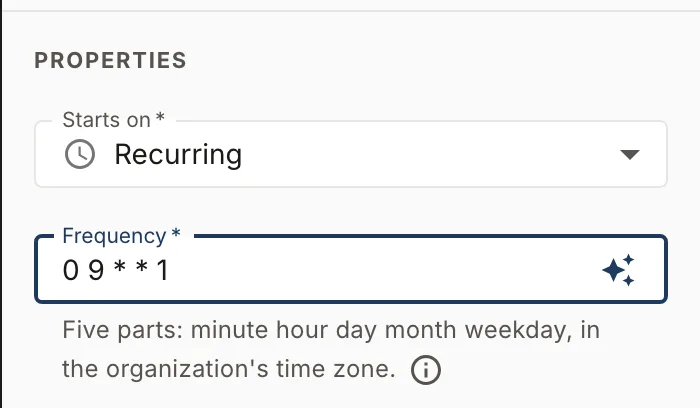
| Setting | What it does |
|---|---|
| Frequency | When to run, as five parts separated by spaces. Required. Variables can’t be used here. |
A recurring trigger has no Trigger source, because it waits for nothing.
Writing the frequency
Section titled “Writing the frequency”The frequency is five parts separated by spaces. Each says which values of that part of the date match, and * means any.
┌───────── minute (0–59)│ ┌─────── hour (0–23)│ │ ┌───── day of the month (1–31)│ │ │ ┌─── month (1–12, or JAN–DEC)│ │ │ │ ┌─ weekday (0–7, or SUN–SAT; 0 and 7 are both Sunday)│ │ │ │ │0 9 * * 1| Write | Meaning | Example |
|---|---|---|
* |
Any value | * * * * * runs every minute |
| A number or name | That value | 30 17 * * FRI runs Fridays at 17:30 |
a-b |
A range | 0 9 * * 1-5 or 0 9 * * MON-FRI runs on weekdays at 9:00 |
a,b |
A list | 0 9,15 * * * runs at 9:00 and 15:00 |
*/n |
Every nth value | */15 * * * * runs every 15 minutes |
a-b/n |
Every nth value in a range | 0 8-18/2 * * 1-5 runs every two hours from 8:00 to 18:00 on weekdays |
More that are often useful:
| Frequency | Runs |
|---|---|
0 7 * * * |
Every day at 7:00 |
0 9 * * MON |
Every Monday at 9:00 |
0 8 1 * * |
On the first of each month at 8:00 |
0 9 1 JAN,JUL * |
On 1 January and 1 July at 9:00 |
0 0 * * 0 |
Every Sunday at midnight |
Names work in capitals or lower case. One trap: if you fill in both the day of the month and the weekday, the workflow runs when either matches, not only when both do. 0 9 1 * 1 runs on the first of the month and on every Monday.
The field checks the frequency as you type and the workflow can’t be saved with a mistake in it. It refuses anything else, including:
- fewer or more than five parts, and shortcuts such as
@daily; - a step on a single value, such as
5/15: write5-59/15, and a step of0; - special letters such as
L,Wor#; - a range written backwards, such as
5-1, or a dash pasted from a document.
| Message | What it means |
|---|---|
| Invalid frequency. It needs 5 parts: minute hour day month weekday | The count is wrong. |
| Invalid value in the frequency | A part isn’t a number or a known name. |
| Invalid range in the frequency | A range is backwards or malformed. |
| Invalid step value in the frequency | The part after / is wrong, or / follows a single value. |
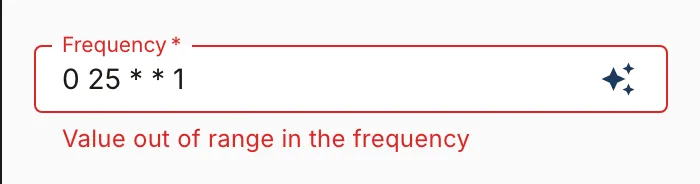
| Value out of range in the frequency | A number is too large or too small for its place. |
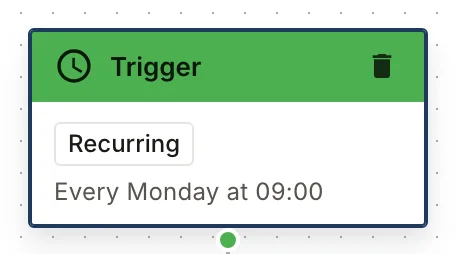
On the canvas, the node says the frequency in words, such as Every Monday at 09:00; a frequency too unusual for that is shown as written, and hovering over it shows the five parts.
Let the AI assistant write or explain it
Section titled “Let the AI assistant write or explain it”Available when: your plan includes AI agents, AI is available to your organization, and your role has both the Manage workflows and Use the AI assistants permissions
You don’t have to learn the notation. The sparkle icon at the end of Frequency, Write or explain the frequency with AI, opens the Frequency writer. It has two tabs:
- Write it for me, always there: describe in your own words, in any language the app speaks, how often the workflow should run, and the assistant writes the frequency.
- Explain this frequency, once the field holds one: the assistant says, in your language, exactly when the workflow runs, part by part.
To write one:
- Select the trigger and press the sparkle icon in Frequency. With an empty field the dialog opens on Write it for me; with a frequency in the field, on Explain this frequency.
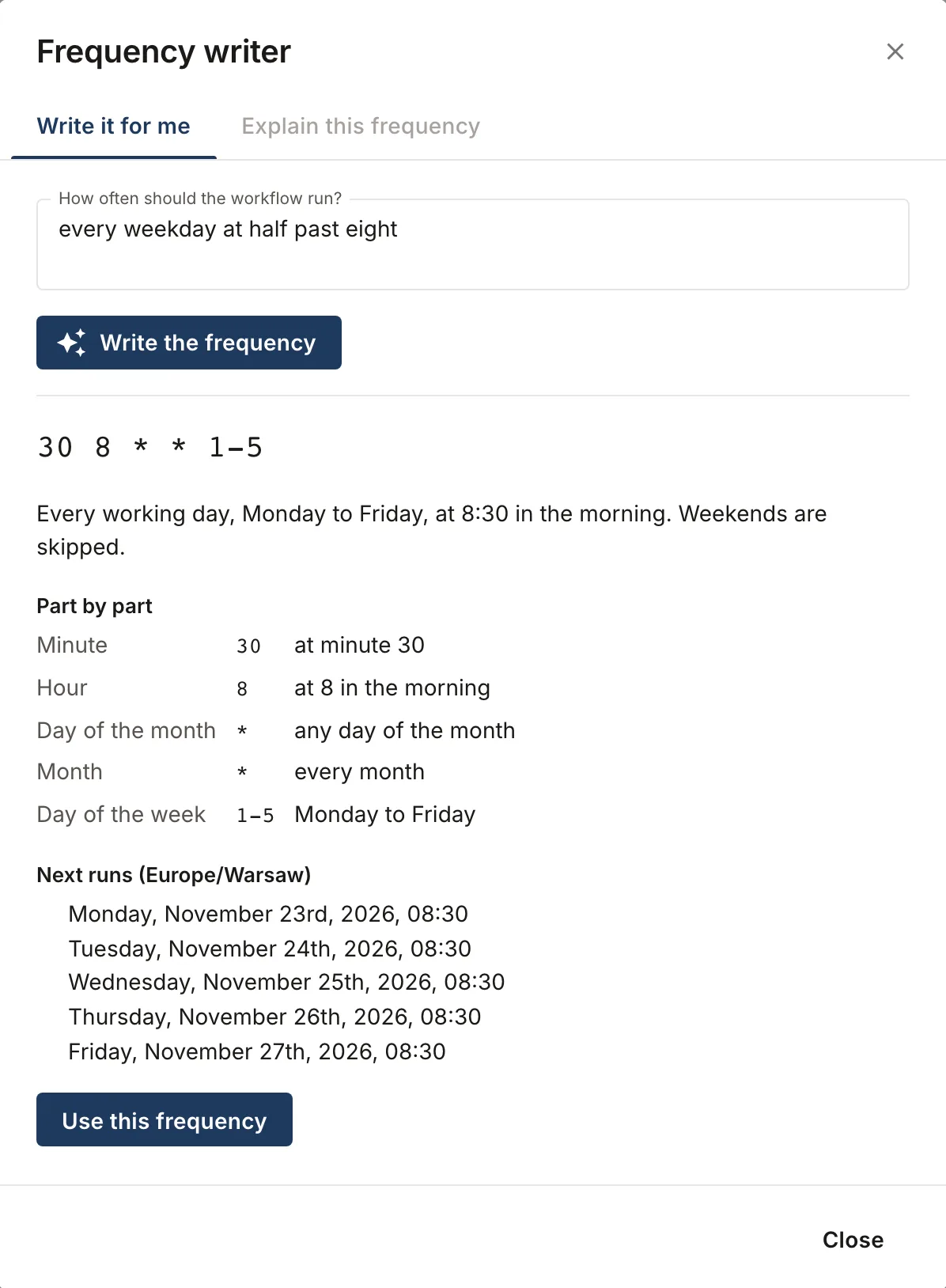
- Under How often should the workflow run?, write it the way you would say it, for example every weekday at half past eight or on the first of each month at 7 in the morning.
- Press Write the frequency. The answer shows the frequency, a sentence on when it runs and any assumption made (an hour you didn’t name, say), what each of the five parts means under Part by part, and the next five runs.
- Press Use this frequency. It goes into the field and the dialog closes. The designer’s Undo takes it back, as it would anything you typed.
- Save the workflow. Until then nothing in the workflow has changed.
To understand one already there, open the dialog on Explain this frequency and press Explain. The answer has the same parts, with nothing to put into the field.
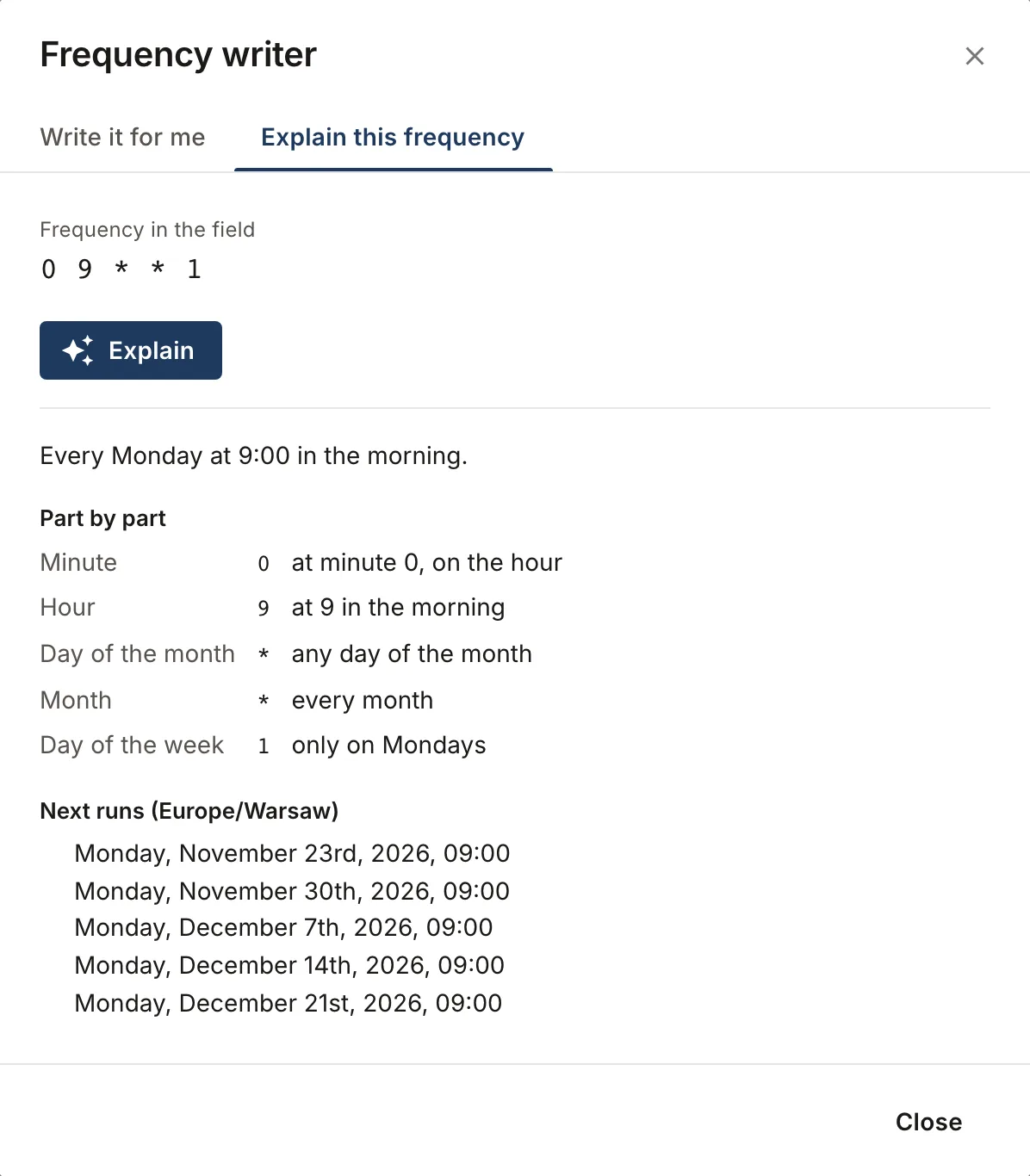
Doxtly, not the AI, decides what is true of a frequency:
- Every frequency is checked the way saving the trigger checks it. A frequency the field already marks as wrong is explained by the field’s own message, without asking the assistant. A frequency the assistant writes that couldn’t be saved goes back to it once, with what was wrong; if the second one can’t be saved either, you get The assistant did not write a frequency that can be used. Describe it differently, or type it yourself.
- The next runs are worked out by Doxtly, in your organization’s time zone, named in the heading Next runs, exactly as the workflow will start.
- When a request can’t be written as one frequency, such as every 90 minutes, the assistant says why and offers the nearest one that can. There is then nothing to use.
The assistant sees only the frequency or your description, and your organization’s time zone: no workflow data and no runs. It runs on the same AI as Doxie, the integration your organization assigned to her or Doxtly AI within the plan, and every answer counts like her own work, the second try included. When no AI is available or the provider fails, the dialog says so and the field stays as it was. The message then comes with Ask Doxie, which opens Doxie told what you tried. The assistant shares the limit of 30 requests a minute per organization with the other AI buttons, the accent color and the Word file to template.
When no AI is available to your organization, or without the permissions, the icon isn’t there and the field works as before.
What later steps get
Section titled “What later steps get”Values
Section titled “Values”None. A recurring trigger brings no form answers and no files, so the data has to come from your steps. Reading a spreadsheet is the usual first move. The picker offers only the Recurring run and This run groups.
The _schedule block
Section titled “The _schedule block”| Variable | Label in the picker | Contents |
|---|---|---|
_schedule.triggeredAt |
Scheduled for (date and time) | The moment the workflow fell due. |
_schedule.cronExpression |
Frequency | The frequency. |
_schedule.nextRunAt |
Next run (date and time) | The next time it falls due. |
_schedule.triggeredAt is the time you asked for. _execution.triggeredAt is when the run really started, a little later. Use the first for “report for the week of…” so that a catch-up doesn’t shift the date.
A sample
Section titled “A sample”{ "_schedule": { "triggeredAt": "2026-11-09T09:00:00+01:00", "cronExpression": "0 9 * * 1", "nextRunAt": "2026-11-16T09:00:00+01:00" }, "_execution": { "id": "…", "eventId": "…", "workflowId": "…", "triggeredAt": "2026-11-09T09:00:04+01:00", "date": "2026-11-09" }}Runs add up
Section titled “Runs add up”Each run counts towards your plan, whether or not it found anything to do, unless it fails on its first step. */5 * * * * is 288 runs a day. See plans and limits before you set something frequent.
Example: the Monday client report
Section titled “Example: the Monday client report”Northbridge wants open client actions in the partners’ inboxes each Monday. The trigger uses 0 9 * * 1, a spreadsheet step reads the actions list, and Send email sends the partners an email template that prints what the read step stored.