

Grading answers by hand
Most answers grade themselves: a choice, a number or an exact text by its answer key, and an open answer by AI against your rubric. When the AI can’t grade an answer, because no AI is set up, the monthly AI budget is spent or the grader gave up, the attempt waits for a person. Here is how you find those attempts, grade them and change any grade later.
Available when: your role has the Grade attempts permission
Who is told
Section titled “Who is told”As soon as an attempt needs review, everyone whose role has Grade attempts gets a notification, An attempt at “Safety training” needs grading, with Grade it leading straight to the attempt’s page. Each person chooses in their preferences whether it also comes by e-mail.
The same moment starts the A quiz attempt needs grading event of the Quiz trigger, and reaches outgoing webhooks as quizAttemptNeedsGrading, for a team that prefers a chat message or a task in its own tool.
The Needs review queue
Section titled “The Needs review queue”On the Responses tab of a quiz’s results, the Needs review tab lists only the attempts that wait for you, with their number on the tab. Until there are none it says Nothing to grade.
Click an attempt, in the queue or under All attempts, or its Grade button, to open the attempt’s page. Its header names the person, or Attempt 2, with the attempt’s status; under it, the quiz and when the attempt ended, and the Examiner copy, the answer sheet and, when there is one, the certificate to download.
- The arrows beside 2 of 4 go to the previous and the next attempt of the list you came from, in its order, also onto its next page.
- The back arrow returns to that list as you left it: the same tab, page and place on it.
- An attempt still being taken and held to one device has Release device in the page’s menu (⋮): the next device the person uses takes it over.
Grade an attempt
Section titled “Grade an attempt”Each question of the attempt is a card:
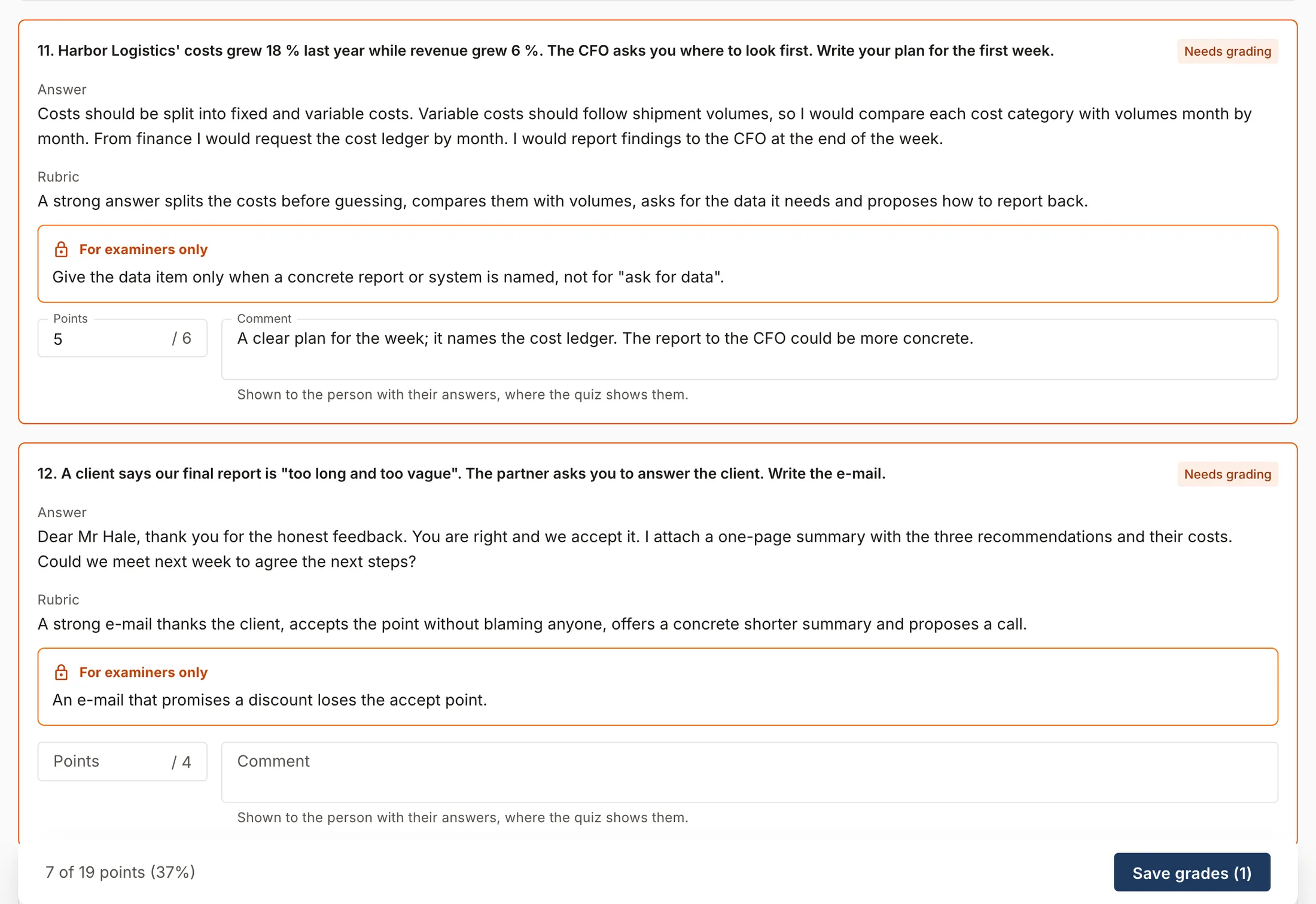
| On the card | What it shows |
|---|---|
| Question | Its number and text, with a chip saying how it stands: Correct, Partly correct, Incorrect, Not answered, Needs grading or Not scored. |
| Answer | What the person answered. A choice shows the option’s label, a single checkbox Ticked or Not ticked. |
| Rubric | For an open answer graded by AI, the rubric you wrote in the designer. |
| For examiners only | The examiner note written for the question in the designer. The person never sees it. |
| Correct answer | For a question with an answer key, the correct options, the accepted texts or the number. |
| Who graded it | Scored by the answer key, Graded by AI or Graded by hand. |
| Points | From 0 to what the question is worth; fractions such as 1.5 are fine. |
| Comment | Up to 2,000 characters for the person. They see it with their answers, if the quiz shows them. It replaces what the AI wrote. |
Questions waiting for you have an orange frame and an empty Points box. Fill in the points, add a comment if you like, and choose Save grades in the bar at the foot of the page, which stays in view as you scroll. The button counts the questions you changed.
What happens next:
- The score is added up again from every question’s points.
- When no answer waits any more, the attempt is Completed, and Passed or Not passed by the pass mark.
- The person’s result page, if it’s still open, shows the final score at once.
- A quiz attempt is finished starts its workflows and webhooks with the final score, once. A certificate workflow generates the certificate now.
You can also grade a completed attempt again, any scored question, for instance after a complaint. The score and pass change, and the history records it, but nothing is sent twice: the finished event went out when the attempt was completed.
History of grades
Section titled “History of grades”Below the questions, Grading history lists every grade given by hand, newest first: Question 2: 0 → 1.5 points, who gave it and when, and the comment. A grade that changes nothing is not recorded. The history stays with the attempt as long as the attempt is kept, also after the grader’s account is removed.
The grading workspace
Section titled “The grading workspace”The Grading tab of a quiz’s results holds only the open answers: closed questions are graded by their correct answers.
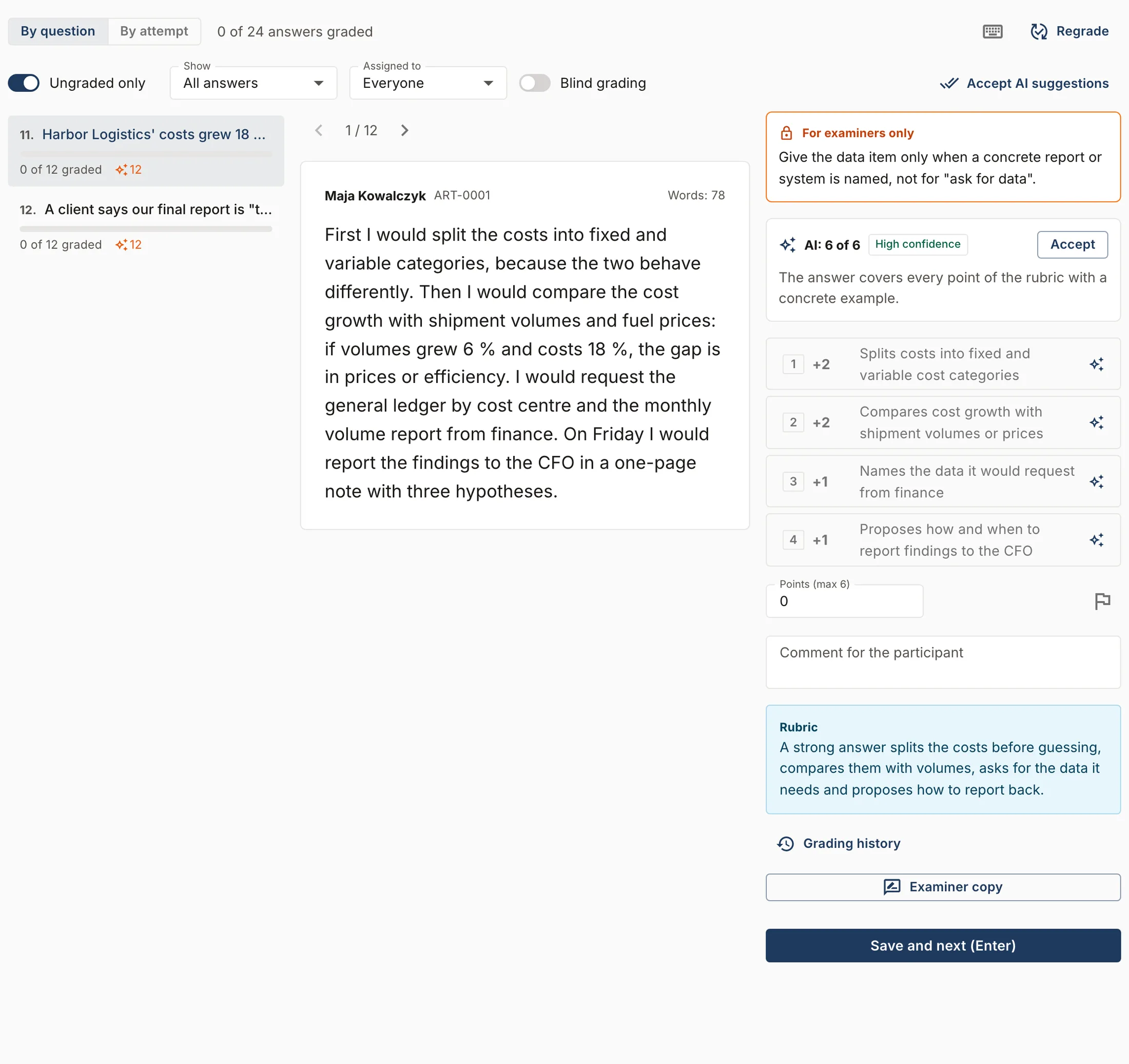
- By question grades one question’s answers across every attempt, one after another. Pick the question in the list on the left (on a narrower screen, in Questions to grade above the answers); its bar shows how many answers are graded. Ungraded only hides the graded ones; Show keeps the answers the AI was unsure of or the flagged ones, Group one group’s people; Blind grading hides names and sheet numbers (“Answer 37”).
- By attempt lists the attempts waiting for grades; each opens the attempt’s page, whose back arrow returns here, and its arrows walk this list.
- On the right: the examiner notes (for examiners only), the AI’s suggestion with its confidence and Accept, the rubric items, the points and the comment - the comments already given on the question are offered under it, one click adds one - and Grading history (who changed the grade, when, from what). Same answer grades every answer of the same text at once; Accept AI suggestions accepts the question’s suggestions in one go: those the AI is sure of, and with Also those the AI is not sure of switched on the others too. The message after it says how many unsure ones are still waiting. With AI points set to Final when the AI is sure the sure ones are final already, so only that switch has something left to accept.
- The keyboard grades without the mouse: 1-9 rubric items, A accept the AI, Enter save and next, J/K next and previous, Z next ungraded, U undo, F flag, P points, C comment, G then Q or A by question or by attempt.
- Each grade is saved as you move on, after five seconds in which Undo takes it back - nothing is stored or sent meanwhile. When another examiner graded the same answer meanwhile, you choose whose grade stays; an answer another examiner has open shows their name.
- On a phone the grade comes under the answer, and a bar at the foot of the screen keeps the points, Accept AI and Next at hand; swipe the answer to the left to go on (saving what you changed), to the right to go back.
- Once every answer is graded, All answers graded offers Release results and the summary.
Rubric items and the AI policy
Section titled “Rubric items and the AI policy”An open question can have rubric items: what an answer earns when each applies - or, scored by deducting, what it loses from full points. Examiners apply them with the number keys; the AI says which apply, so its suggestion is easy to check. A question with Graded by an examiner never goes to the AI.
Settings > Result > AI grading decides what the AI’s points are: Final when the AI is sure (the default: doubtful answers go to an examiner), Suggestions only, or Always final. Reference material - pasted notes, regulations, model answers and up to 10 web pages - is given to the AI with every attempt; participants never see it.
Examiners and second marking
Section titled “Examiners and second marking”By default, everyone who may grade quizzes grades every answer. To share the work, open Settings > Result > Examiners and assign examiners: each can be given some open questions, some groups of people, or both. An examiner then sees and grades only their share; somebody not assigned sees nothing to grade, and whoever manages quizzes still sees everything and can filter the workspace with Assigned to.
Second marking has two examiners mark each open answer. The answer stays open until both have marked it; marks that differ by no more than the largest difference you set give their average, and marks further apart appear under Show > To reconcile, side by side, where the next grade is final. Blind (on by default) hides the other examiner’s mark until you have given your own.
Regrade
Section titled “Regrade”Regrade applies the current correct answers or grading scale to the attempts already finished, or gives everybody full points for a question. Check shows how many attempts change and how many change their outcome before anything is written. Grades given by people stay. A question drawn from the question library is judged by the correct answer the library holds now. Each attempt whose result changes starts the A quiz attempt is regraded event of the Quiz trigger. When results already shown to people change, E-mail the new results sends each of them the result message again.
Grading in a workflow
Section titled “Grading in a workflow”The Grade quiz attempt step writes the grades an earlier step made - your own AI agent’s, for instance - as final grades or as suggestions for an examiner. All of a run’s grades are saved together, or none: the attempt stays with the examiners. Setting up the step takes the Grade attempts permission.
Who can see the answers
Section titled “Who can see the answers”The answers belong to the person who took the quiz, so the list of attempts alone never shows them. Opening an attempt needs Grade attempts. Someone who may only View quizzes, attempts and results sees the list and the scores, and opens nothing; so does a role with Manage quizzes but without Grade attempts, which has no Grading tab either. The built-in Administrator, Manager and Member roles can grade; Viewer can’t. See Roles.
Releasing results
Section titled “Releasing results”A quiz whose result is shown When I release it (see Settings > Result) keeps each graded result from its person until someone who grades releases it, one attempt or all graded ones at once. Each person whose e-mail is known gets the Quiz result message with a link to their result, and the A quiz result is released trigger starts its workflows.
Through the API
Section titled “Through the API”GET /v1/quizzes/{id}/attempts?filter[status][eq]=needs_review is the queue; Get an attempt reads one with its answers and history, and Grade an attempt saves points and comments. An access key needs Read quiz attempts with answers (read_quiz_attempt) and Grade quiz attempts (grade_quiz_attempt).