

Interactive documents
An interactive document is a set of PDF templates and web forms behind one link. Whoever opens the link fills the marked areas right on the PDF pages, answers the forms, and sends everything with one button. You get the filled PDFs and the values behind them, and any workflow waiting for them starts.
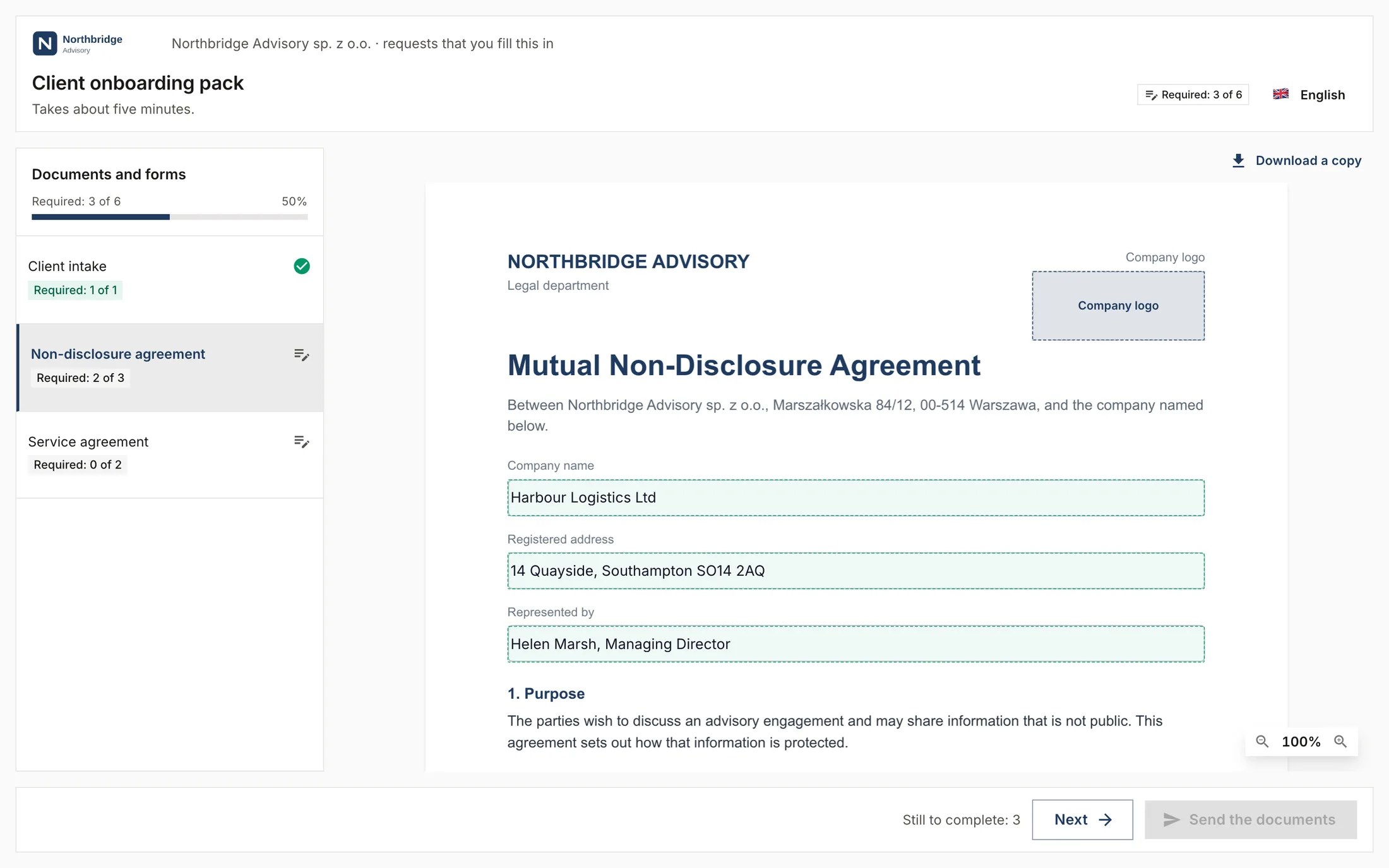
Use one when the paper itself matters: a clinic’s consent form that has to look like the original, a training enrolment made of a registration form and a signed code of conduct, or Northbridge Advisory’s client onboarding pack with an intake form, a filled NDA and a service agreement.
How they differ from forms and signing
Section titled “How they differ from forms and signing”Doxtly has three ways of getting something from a person. They look alike from a distance, so here is how to choose.
| Web form | Interactive document | Signing package | |
|---|---|---|---|
| What the person sees | Fields on a page, in your styling | The real PDF pages, plus forms if you add them | The documents to sign |
| Who it is for | Anyone with the link, again and again | Anyone with the link, again and again | The named parties of that one package |
| What you get | The submitted data | Filled PDFs and the data | Signed documents with proof of who signed |
| Identity check, seal, certificate | No | No | Yes |
| How it reaches people | A link, or embedded on your site | A link | Sent to the parties |
A signature area on an interactive document is not an electronic signature. It takes a drawn or typed mark, which is printed into the PDF as a picture, and that is fine when a mark on paper is all you need. When you need a real electronic signature, connect a workflow that sends the filled documents for signing. The person can even go straight from the filled pages to the signing page: see Signing straight after filling in.
The link stays open. One interactive document can be filled by as many people as you hand it to, and each of them makes a separate submission.
An example from start to finish
Section titled “An example from start to finish”Northbridge Advisory used to email three files to every new client and then chase the replies. Now it keeps one interactive document, Client onboarding pack:
- The items are the web form Client intake, then the Mutual NDA filled as
CLIENT, then the Service agreement. - The client types their company name once, in the form. Both PDFs have a From data area reading the same variable, so the name lands on every page that needs it.
- Submission title is
Onboarding: {{ client.company }}, so the Submissions tab reads like a list of clients. - The account manager sends the link by email with
client=HARBOURattached. The parameter stays on the submission, and a workflow can use it. - When the client presses Submit, the PDFs are rendered and a workflow takes over: it sends the NDA for signature and uploads the service agreement to Google Drive.
- A week later the client reports a wrong postal code. Somebody edits the submission, and the PDFs are rendered again with the change on record.
What you need first
Section titled “What you need first”An interactive document only points at things that already exist, so build these first:
- At least one PDF template with fillable areas, or a web form.
- If you want to use the answers somewhere, a workflow with the trigger An interactive document is filled in.
Because the items are pointers, changing a template or a form changes the interactive document too. The next visitor gets the current version. Submissions already sent keep the PDFs rendered for them.
The list
Section titled “The list”Available when: your role has the View interactive documents and submissions permission
In the sidebar, open Forms → Interactive documents. The page has two tabs: Interactive documents, described here, and Submissions.
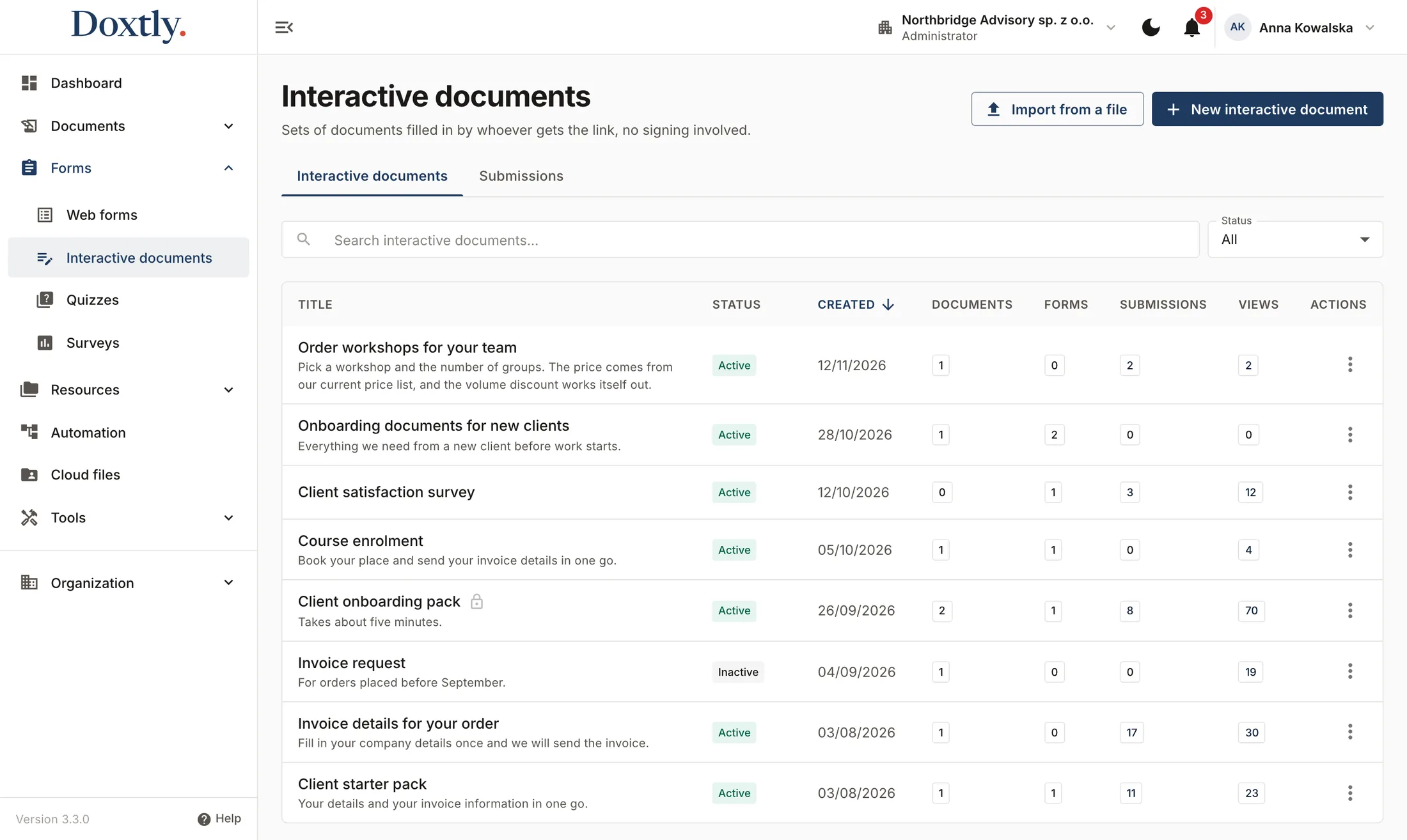
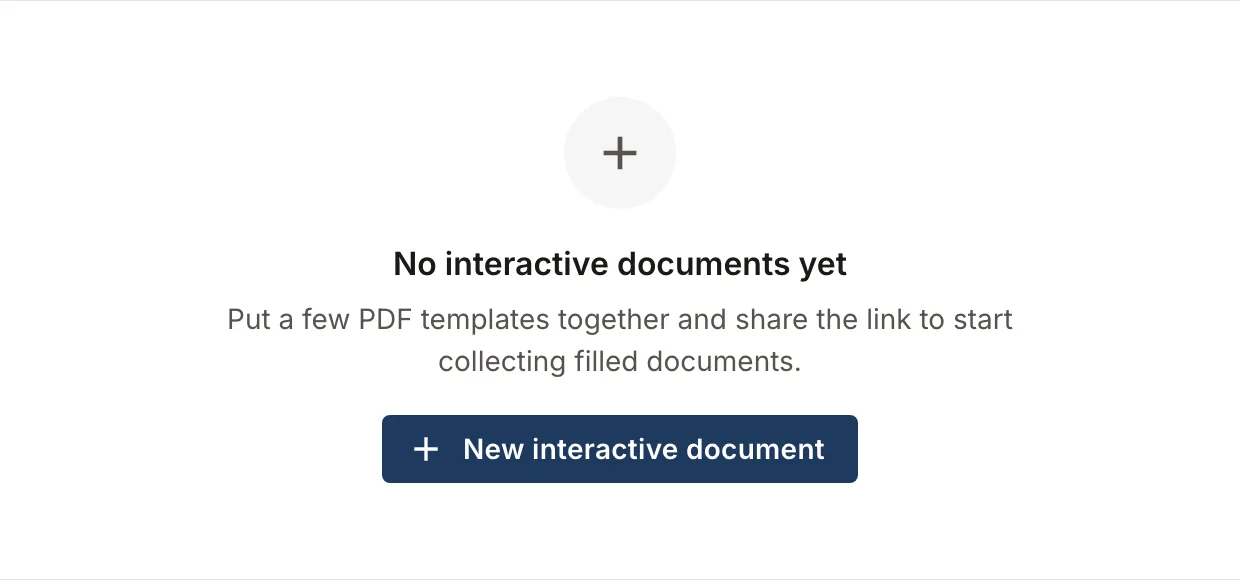
New interactive document and Import from a file sit above the list, for people with the Manage interactive documents permission. Importing makes a new document from a file exported here or in another organization: see Import and export. With nothing created yet, the tab says No interactive documents yet and offers New interactive document in the middle.
| Column | What it shows |
|---|---|
| Title | The title and, under it, the description. A padlock means the link is password protected. |
| Status | Active or Inactive. An inactive document’s link answers as if it did not exist. |
| Created | The day it was created. |
| Documents | How many PDF templates it holds. |
| Forms | How many web forms it holds. |
| Submissions | How many submissions it has received. |
| Views | How many times its content was shown. Point at the number for the views and the opens. |
| Actions | The menu of the row. |
You can sort by Title, Status and Created. Click a heading to sort ascending, again for descending, and a third time to go back to the default order, newest first. Created only switches between its two directions.
The search box looks in the titles. The Status filter offers All, Active and Inactive. Active filters appear as chips you can remove one by one, or all at once with Clear all. If nothing fits, the tab says Nothing matches. Filters live in the page address, so you can bookmark a filtered list or send it to a colleague. The list shows 25 documents per page, and the control under it switches to 10 or 50. On a phone the table turns into cards with the same information, and the counters of views and opens are spelled out on each card.
Click a row to open the document in the editor. This needs the Manage interactive documents permission: without it the rows do not open.
Views and opens
Section titled “Views and opens”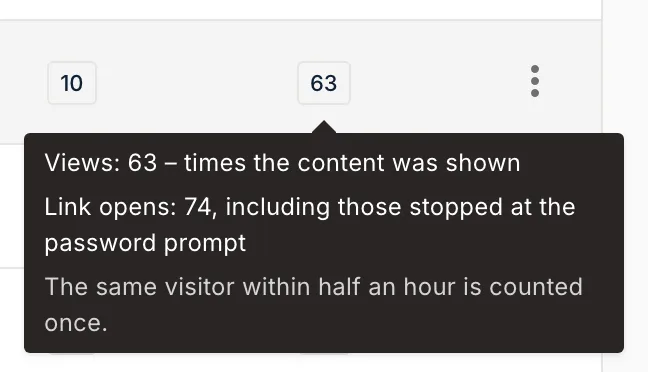
The two counters answer different questions:
- A view counts the content actually being shown.
- An open counts the link being opened, including visits that stopped at the password prompt.
On an unprotected link the two match. On a protected link a big gap between them means many people reach the prompt and go no further: perhaps the password never reached them. The same visitor is counted once in half an hour, so refreshing the page adds nothing. Sending a submission closes the visit, so someone who fills the link in again straight after adds a new view.
The row menu
Section titled “The row menu”Click the three dots at the end of a row.
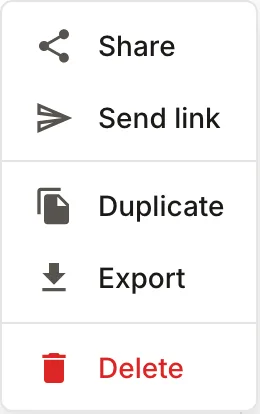
| Item | What it does | Who sees it |
|---|---|---|
| Share | Shows the public link. See Sharing and filling in. | Everyone who can see the list |
| Send link | Sends the link through one of your email templates. See Send the link by email. Greyed out, with an explanation, until the organization has an active email integration. | Manage interactive documents |
| Duplicate | Makes an inactive copy of the document, to change without touching the original. See Duplicating an interactive document. Greyed out, with an explanation, at your plan’s limit. | Manage interactive documents |
| Export | Saves the document as a JSON file, downloaded to this device or, with a drive connected, saved to a cloud drive, which can be imported as a new one, here or in another organization. See Import and export. | Everyone who can see the list |
| Delete | Deletes the document after you confirm. Refused while a workflow uses it: see Deleting what a workflow uses. | Manage interactive documents |
Duplicating an interactive document
Section titled “Duplicating an interactive document”The same agreement pack for another kind of client, a version with one more form, a test copy of a live document: Duplicate gives you a new document to change, with the original untouched.
A short dialog asks for the copy’s name, filled in as the original’s with “ (copy)” at the end; change it or keep it, and press Duplicate or Enter. The copy then opens in the editor. It is made from the document as last saved.
The copy has the original’s description, every setting, the password and its protections, and the theme. Its items are the same, in the same order: each shows the same PDF template or web form, with the same party, and an item that asks for a file asks for the same files. The templates and forms themselves are not copied, so a change to a template shows in both documents. Two things differ, because a new document needs them to: it stays Inactive until you switch it on, and it has a public link of its own.
Submissions, views and opens belong to the original, so the copy starts with none. A workflow is started by one particular document, so connect the copy to a workflow of its own, or duplicate the workflow and point its trigger at the copy.
A copy counts towards your plan’s limit of interactive documents. At the limit, Duplicate is greyed out, and hovering over it tells you why.
Create one in a minute
Section titled “Create one in a minute”- Open Interactive documents and click New interactive document.
- Type a title in the bar at the top.
- In Item 1, pick a PDF template or a web form. Click Add item for each further one.
- Click Create. You stay in the editor, now with a Share button.
- Click Share and copy the link.
The editor page covers every option.
Permissions
Section titled “Permissions”Three permissions in the Interactive documents group of a role control this section. They apply to the whole organization: an interactive document does not belong to a department.
| Permission | What it allows |
|---|---|
| View interactive documents and submissions | See both lists, open submissions, download their documents, get the share link, export interactive documents. |
| Manage interactive documents | Create, import, duplicate, edit and delete interactive documents, send the link by email, delete submissions. |
| Edit submissions | Correct submitted values, where the document allows it. |
The built-in Administrator, Manager and Member roles have all three. Viewer has only the first.
The editor offers only what your role can see. Someone who may manage interactive documents but not view PDF templates gets a note saying so, no templates in the list, and the items keep the templates they already hold.
Plan limits
Section titled “Plan limits”Interactive documents and their submissions are counted on their own, apart from web forms and their submissions.
| Plan | Interactive documents (in total) | Submissions (per billing period) |
|---|---|---|
| Free | 2 | 10 |
| Starter | 15 | 250 |
| Pro | 40 | 1,250 |
| Business | 100 | 5,000 |
Both are hard limits. At the first, New interactive document, Import from a file and Duplicate are greyed out and say You have reached the number of interactive documents your plan allows. Deleting a document frees its place. At the second, the visitor’s submission is refused until the next billing period or a plan with more room, and overage billing does not apply here. People who can act on it get a notification when a limit is reached. Keep an eye on the numbers on your subscription page and the dashboard, and see Plans and limits for the whole picture.
A submission counts when it is accepted. If its documents fail to render, the use goes back to your plan. Editing a submission uses nothing, unless the edit renders a failed one again. Deleting a submission later does not give the use back.
What people upload and the PDFs Doxtly renders take up your organization’s space like any other file.
How long submissions are kept
Section titled “How long submissions are kept”Your organization chooses this under Data retention, which has a separate period for Interactive document submissions: anything from 1 day to 3,650 days, or for good. Unless you change it, submissions are kept for 1,825 days, about five years. Older ones are removed every night with their values, files and rendered documents.