

Authorizations (delegated signing)
An authorization lets a colleague accept or refuse document packages addressed to you, while you are away or because you can’t read everything yourself. Think of a managing partner at Northbridge Advisory whose signature every client contract waits for: she authorizes the head of operations to handle them for the two weeks of her holiday.
It works like a power of attorney. The authorized person acts as themselves, in your name, and the document says so beside the signature. Nobody impersonates you, and the record shows exactly who did what.
Anyone in your organization can use authorizations, on every plan and without any role permission. There is nothing to switch on: an administrator can only turn them off for the whole organization.
This page explains how authorizations work, with the legal side and what a signed document shows. For the tab itself, row by row, see Authorizations in the account section.
How it works
Section titled “How it works”The person who gives the authorization, you, stays the party on the package. The authorized person gets:
- the packages addressed to you that the authorization covers, in their own Documents list, with the ones waiting on you marked with your name
- the choice of signing or refusing them, as far as you allowed
- a fresh confirmation on every act: a new sign-in at the organization’s identity provider, a code from their authenticator app or to their own email, or their own password
And you get a notification each time they act.
Their signature on the document reads “on behalf of” your name, next to the date and reference of the authorization. The certificate names both of you. So the other side of the contract sees plainly that somebody signed for you, and on what basis.
Authorize somebody
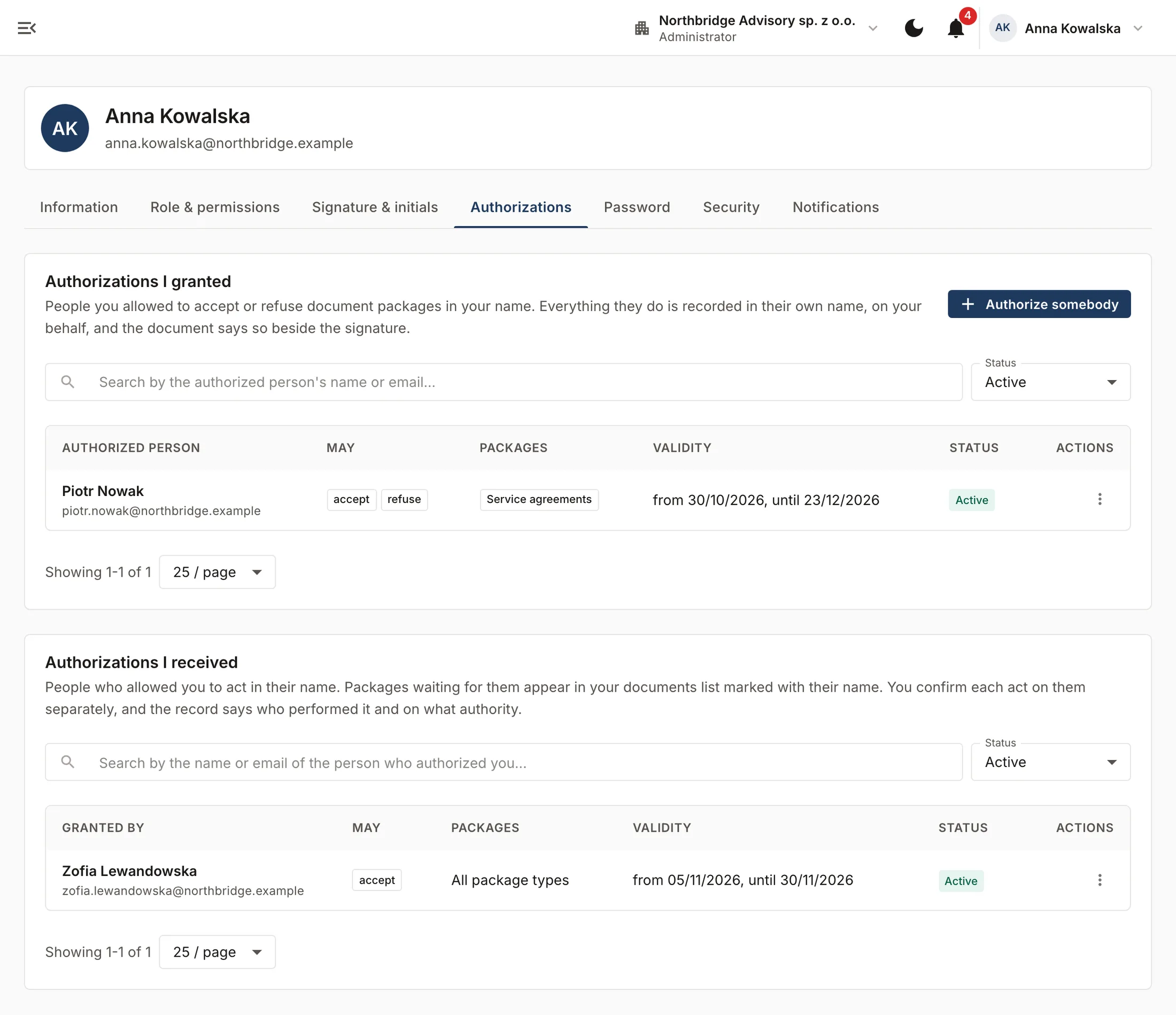
Section titled “Authorize somebody”Authorizations live in your profile, on the Authorizations tab. Each one is yours: nobody else can grant it for you, and no administrator can withdraw it for you.
-
Open your profile and go to Authorizations.
-
Under Authorizations I granted, click Authorize somebody.
-
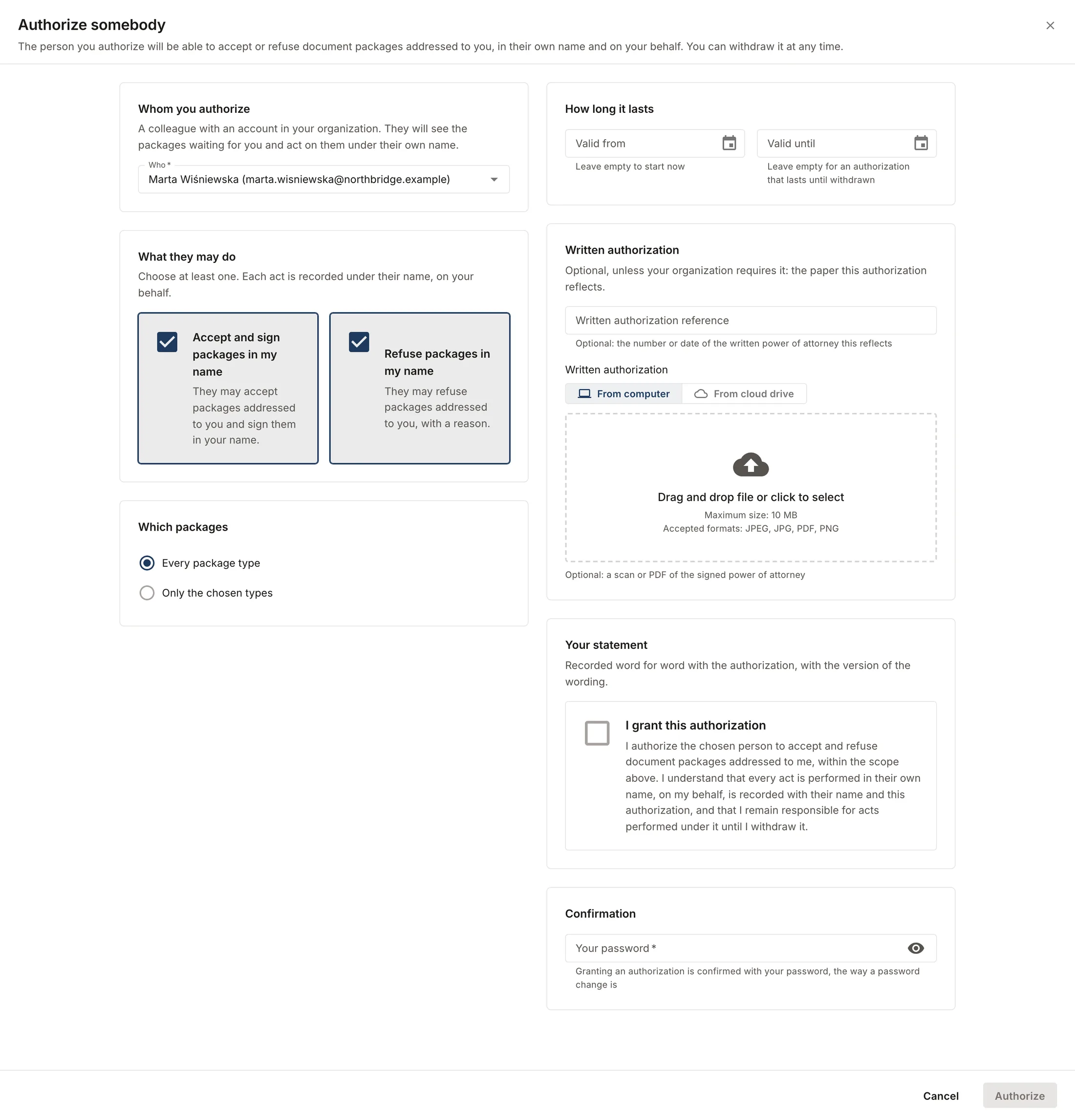
Fill in the form, described below.
-
Tick your statement, enter your password and click Authorize.
Both of you are notified. If the button stays off, point at it: it names the first thing still missing.
What you choose
Section titled “What you choose”| Section | Field | What it does |
|---|---|---|
| Whom you authorize | Who | A colleague with an active account in your organization. Type a name or an email address. You can’t choose yourself. Their role doesn’t matter: you can pick somebody who can’t normally see documents. |
| What they may do | Accept and sign packages in my name | They may sign, and fill in what the package asks. On by default. |
| Refuse packages in my name | They may decline, with a reason. On by default. At least one of the two has to stay on. | |
| Which packages | Every package type | Covers everything addressed to you. This is the default. |
| Only the chosen types | Covers only the document types you list under Package types, such as “Client contracts” and not “Employment”. The list holds the types you can see yourself. | |
| How long it lasts | Valid from | When it starts. Leave empty to start now. |
| Valid until | When it ends, which must come after the start. Leave empty for an authorization that lasts until withdrawn. If your organization sets a limit, an end date is required, and the field tells you the latest one allowed. | |
| Written authorization | Written authorization reference | Optional, up to 255 characters: the number or date of a paper power of attorney. It is printed with the signature, and shown in the banner to the person acting. |
| Written authorization | Optional, unless your organization requires it: a scan or PDF of the signed power of attorney. PDF, PNG or JPEG, up to 10 MB. | |
| Your statement | I grant this authorization | The exact words are kept with the authorization, along with the version of the wording. |
| Confirmation | Your password | Proof that it is really you, not whoever found your computer unlocked. Repeated wrong tries are limited. |
You can’t have two overlapping authorizations for the same person, whatever their scope. To change one, withdraw it and grant a new one. Authorizations are never edited, because the record has to show what was true at the time.
If you sign in only with Google, Microsoft or Facebook, your account has no password yet. Open the Password tab of your profile and choose Send me a link to set a password. Setting it signs you out everywhere, so sign in again and come back.
The written authorization can come from your computer or, once a drive is connected and you may see cloud files, from that drive: choose From computer or From cloud drive above the area, as in Importing from a drive. If the file can’t be attached while you grant, the authorization still stands and you are told. Attach the file later from its details.
Choosing the scope well
Section titled “Choosing the scope well”Start narrow. An authorization limited to one document type for two weeks does the job for most holidays, and it ends by itself. If you’d like a colleague to reject obvious junk but not to sign anything, grant only Refuse packages in my name. And if a paper power of attorney already exists, enter its number and attach the scan, so the other side of a contract can see what the signature rests on.
Acting for somebody
Section titled “Acting for somebody”Authorizations others gave you are listed under Authorizations I received. As soon as one is in force, the packages addressed to that person that it covers appear in your Documents list, even if you normally can’t see documents of that type. You see what they would see, and no more: where the package shows each party only their own documents, that is their documents alone.
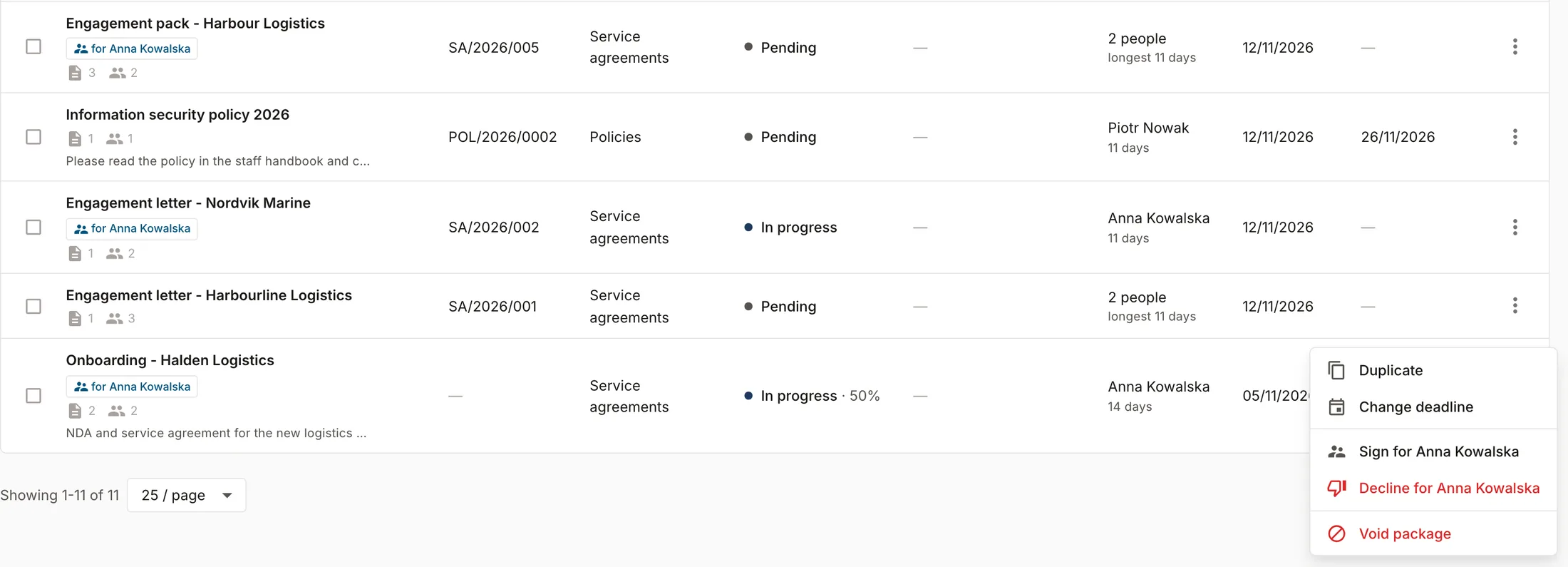
You’ll find them:
- under Waiting for you on your dashboard
- in Documents, with Waiting set to Waiting on me (also as a delegate), each marked “for” the person’s name
- on the package page, where their row says You can sign for them or You can decline for them
Choose Sign for the person in the list’s menu, or Sign on their behalf on the package page. A click on the row under Waiting for you does the same when you can sign for just one person on that package. The signing page opens, the same one everyone uses, with a banner on top.

The banner stays while you work, saying whose place you are in, under which authorization and until when, and a chip beside the party’s name reads “acting:” with your own name. Then:
-
Fill in what the document asks, and sign with your own signature: draw it, type it, or use your saved one.
-
Press the signing button. The confirmation shows a declaration of a person acting under an authorization, not the usual disclosure. You confirm that the authorization is in force and covers this act.
-
Confirm that it is you. If you signed in through single sign-on, you sign in again at your identity provider, unless it is Google Workspace. Otherwise you enter a code from your authenticator app, if you use two-factor authentication, or the code sent to your own email. If your organization has no email configuration, you are asked for your own account password instead.
-
Tick the statement and confirm.
Refusing works the same way, with Decline for the person or Decline on their behalf, and it costs the same code or password. The dialog warns that you are refusing on their behalf, and the refusal is recorded in your name.
Your own code or password is always asked for, whatever the package requires of its parties. Being signed in isn’t enough for an act in somebody else’s name. If your account has no password and your organization has no email configuration, you have nothing to confirm with yet, so the dialog tells you what to do and links to it: turn on two-factor authentication or, if your plan doesn’t include it, set a password.
What you can’t do
Section titled “What you can’t do”- Use a signing link. Acting for somebody happens only inside Doxtly, signed in as yourself. Their link isn’t yours to use.
- Go beyond the rights you were given. With refusal only, you read the documents and can only decline. With signing only, there is no Decline.
- Act on both sides. If you are a party to the same package yourself, you can’t also act for another party on it.
- Act for somebody outside Doxtly. The party has to be the person who authorized you: linked to their account, or matched by their email address.
- Pass it on. An authorization goes to one person. They can’t authorize somebody else in your place.
Every check is made at the moment of the act. If an authorization is withdrawn while you have the page open, your signature is refused.
What the record shows
Section titled “What the record shows”| Where | What it says |
|---|---|
| On the signature | The signer’s own mark, with “on behalf of” the party’s name and “authorization of” its date and reference. Without a reference, the start of the grant hash stands in. |
| Certificate of Completion | Acted by, On behalf of, Authorization and Authorization hash, and Access reading that the person was signed in and acting for the party. |
| Package audit log | Access On behalf of the party, Performed by with the person’s name, the note that the party didn’t perform this act, and the Authorization hash. |
| Authorization history | Signed on behalf of or Refused on behalf of the party, with the package’s title. |
| Workflows | Triggers fire as for any party. The data of an A party declines to sign run says who declined on the party’s behalf. |
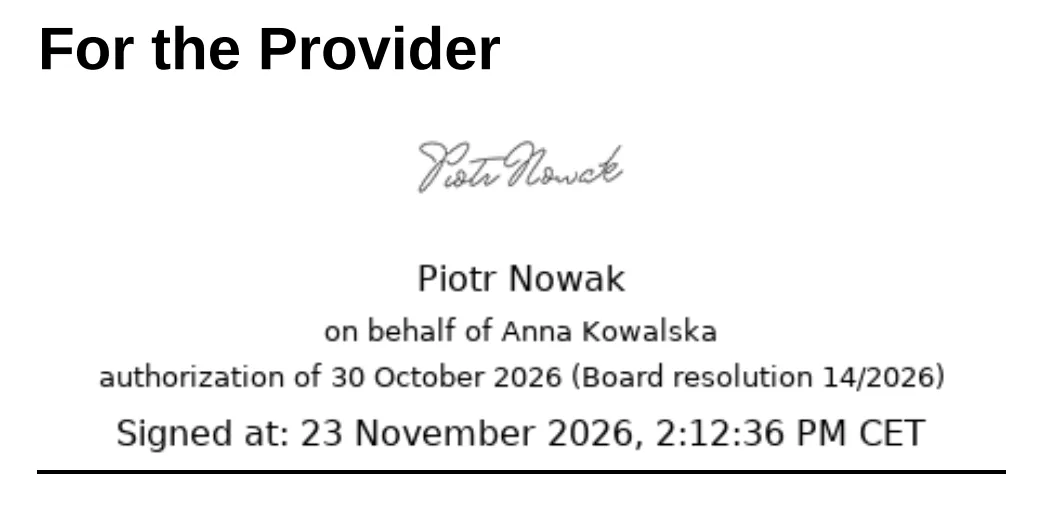
The Grant hash is a fingerprint of what was agreed: who, what, which types, from when to when. Every act carries it, so the act can be tied to the exact authorization, even years later.
Follow and withdraw
Section titled “Follow and withdraw”Both lists show what still stands by default: Status set to Active, which also takes in authorizations not yet started and suspended ones. Set it to Ended or All for the rest, and search by name or email. Each list keeps its own search and filter. The columns are Authorized person or Granted by, then May (accept, refuse), Packages, Validity, Status and Actions.
| Status | Meaning |
|---|---|
| Active | In force now. |
| Not yet started | Valid from is in the future. |
| Suspended | The account of one of the two people is blocked, and the row says Account blocked. It works again once the account is unblocked. |
| Expired | Valid until has passed. It stopped working at that moment. Both of you are told shortly afterwards. |
| Withdrawn | The person who granted it ended it. |
Click a row, or choose Details and history in its menu, to read everything about it.
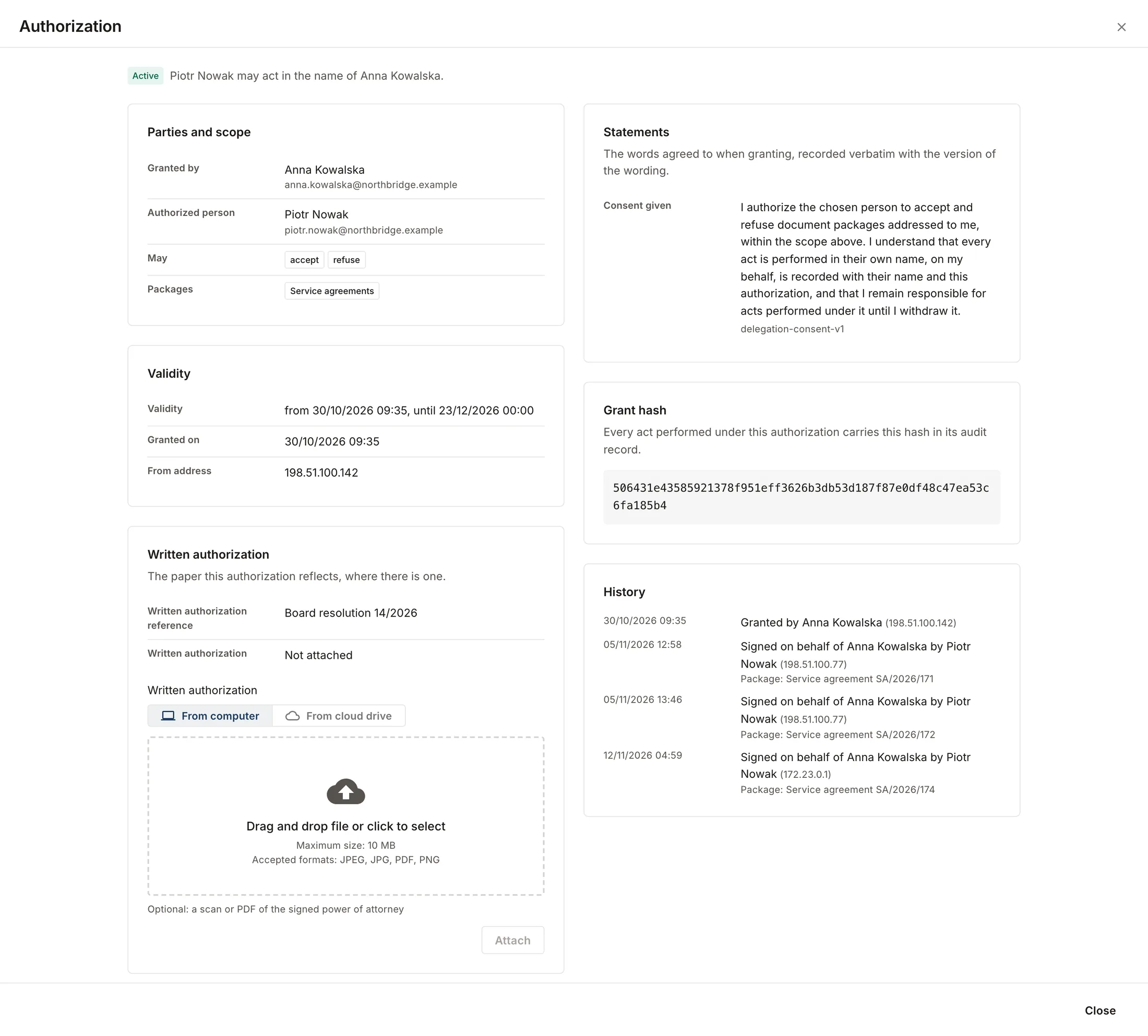
The details hold the parties and scope, the validity, when and from which address it was granted, the written authorization, the statement word for word, the Grant hash and the History. That history lists every step: Granted, Written authorization attached, each act, and Expired or Withdrawn. Both people can read it.
As the person who granted it, you can add the written authorization here with Attach, if none is on file yet and the authorization hasn’t ended, from your computer or a drive as when granting. The history records it.
To stop an authorization early, choose Withdraw in its menu, give a reason if you wish (up to 1,000 characters), and confirm. It is offered to the person who granted it, while it is active, not yet started or suspended. Somebody who received an authorization and doesn’t want it can’t hand it back here: they just don’t use it, or ask you to withdraw it.
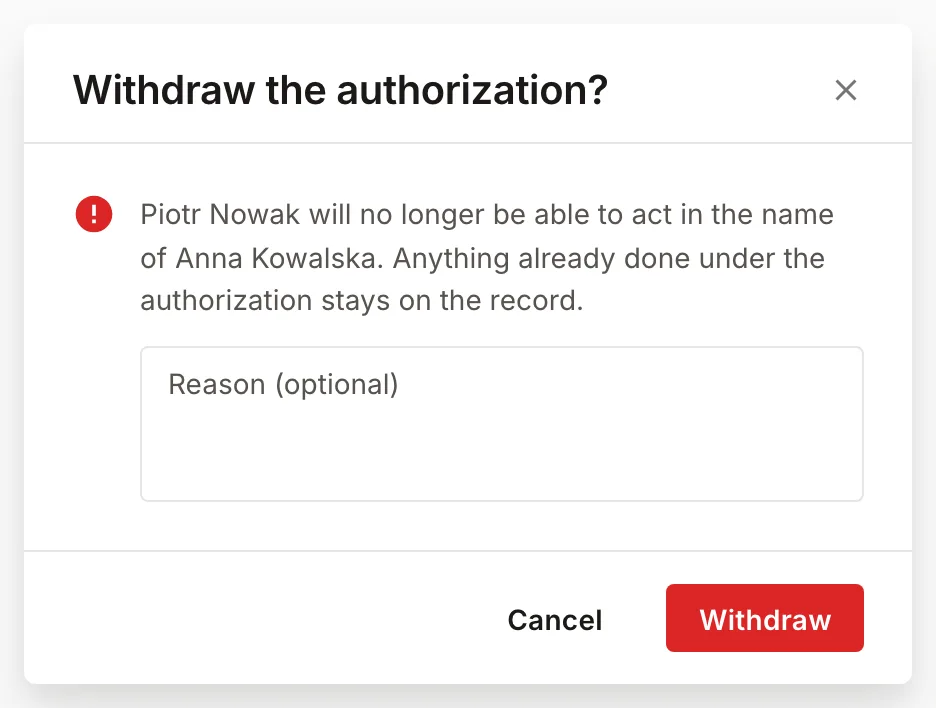
It takes effect immediately. Anything already done stays on the record and stays valid as far as Doxtly is concerned. Both people are notified. Authorizations can’t be deleted: ended ones remain in the list, under Ended. For the same reason, a person who ever gave or held one can’t be deleted from the organization, only deactivated.
Notifications
Section titled “Notifications”| Event | Who hears | Setting in your preferences |
|---|---|---|
| Granted | Both | Authorization granted |
| Withdrawn or run out | Both | Authorization withdrawn or expired |
| Somebody signed or refused in your name | You | Somebody acted on your behalf |
The last one is what makes this safe to use: you learn about each act, with a link to the package, and can withdraw at once if something looks wrong. Consider leaving it on. Channels are chosen in your preferences.
Rules for your organization
Section titled “Rules for your organization”Available when: you may manage the organization's settings to change these; anyone who may view the settings can read them
An administrator sets the rules under the organization’s settings, on the Authorizations section.
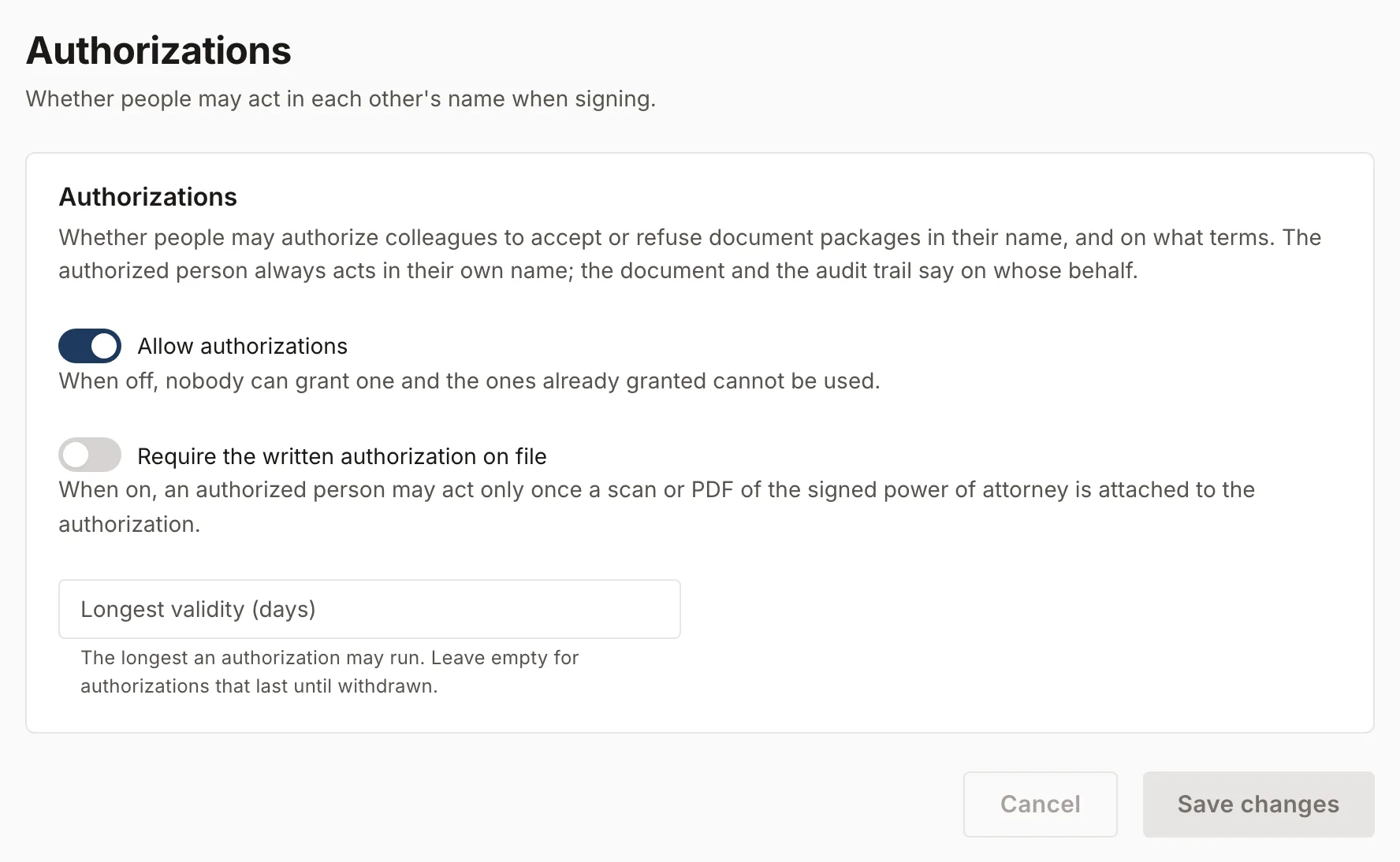
A law firm whose partners must hold a notarized power of attorney would turn on Require the written authorization on file. A company wary of open-ended mandates would set Longest validity (days) to 90, so that every authorization comes up for renewal each quarter.
| Setting | Default | What it does |
|---|---|---|
| Allow authorizations | On | When off, nobody can grant one and the ones already granted can’t be used. Authorize somebody disappears, the tab says the feature is switched off, and people can still read and withdraw what they have. Authorizations come back into force if you turn it on again, as long as their dates still hold. |
| Require the written authorization on file | Off | An authorized person may act only once a scan or PDF of the signed power of attorney is attached. The grant form requires the file. |
| Longest validity (days) | No limit | The longest an authorization may run, from 1 to 3,650 days. Every new one then needs an end date within the limit. Leave it empty for no limit. |
These rules are checked at the moment of acting, not only when granting. So tightening them has an immediate effect on what already exists:
- Set a limit, and open-ended authorizations, as well as those longer than the limit, stop working. People have to grant new ones.
- Require the file, and authorizations without one can’t be used until the person who granted them attaches it.
The rules don’t rewrite the authorizations themselves, which stay as they were granted and may still show Active. Tell your people before you tighten anything, or a colleague will find out in the middle of signing.