

Protecting forms
A public form is an open door. Most of the time that is the point, but bots will find it, and some forms are meant for a few people only. Doxtly gives you several locks, each for a different problem, and you can combine them. A newsletter sign-up can do with a honeypot, while a partner survey wants a password as well.
Almost all of them are in the designer: open Settings, go to the Security section, and press Save on the form afterwards.
| The problem | The lock | Set up in |
|---|---|---|
| The form is only for people you told | Password | Access |
| The form should only run on your website | Validate request origin | Access |
| One address keeps causing trouble | Block IPs from list | Access |
| Bots send the form | reCAPTCHA and honeypot | Spam protection |
| A script hammers the form | Rate limits | Spam protection and the organization |
| Random gibberish arrives in your fields | Anti-spam protection | Spam protection and each field |
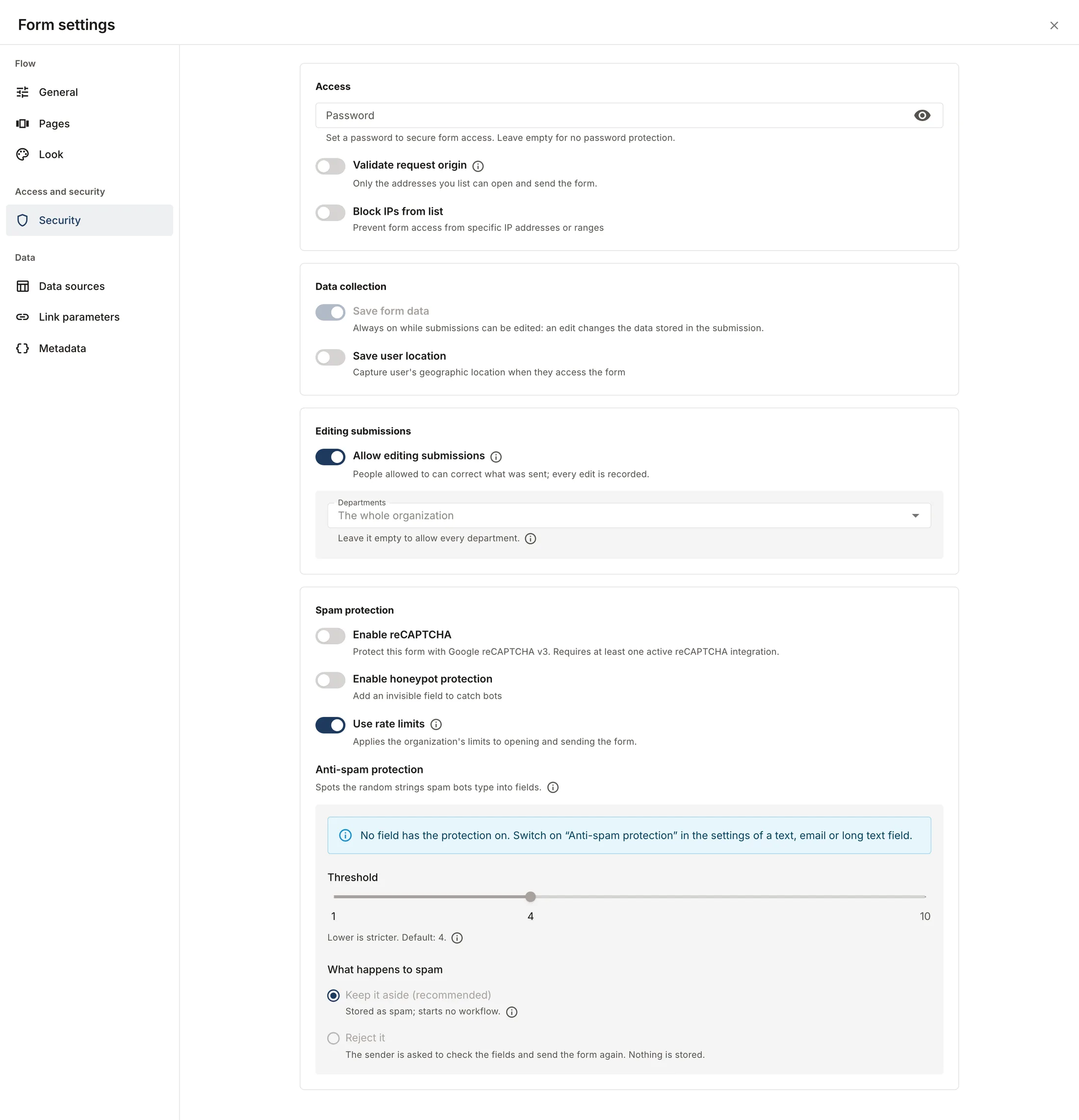
The Data collection and Editing submissions cards in the same section are covered in Form settings.
What every form does on its own
Section titled “What every form does on its own”Some protection needs no setting. Each visit to a form gets a one-time session, and Doxtly refuses a submission that does not bring one:
- A session is good for one submission of that form. A double click cannot send the form twice.
- A session lasts 30 minutes, and the open page renews it every 20 minutes, and at once when the visitor comes back to the tab after a longer break, since a phone stops a page left in the background. Nobody has to reload anything, however long the form stays open. If a session has still run out when the form is sent, the page renews it and sends the form again by itself, once, without a word. Only if that fails too does the visitor read “This form’s session has ended. Please try sending the form again.”, and what they typed stays in the form.
- A form sent less than a second and a half after the page was first opened is refused as too fast; a renewed session still counts from that first opening. A person who really is that quick has the form sent again a moment later, but a script is refused.
A visitor who reloads the page, or whose phone reloads it, gets back what they typed: see A long break or a reload.
Password
Section titled “Password”The simplest lock. Type a word into Password and the form asks for it before showing anything. Northbridge Advisory protects its partner survey this way, and tells its partners the password when it invites them.
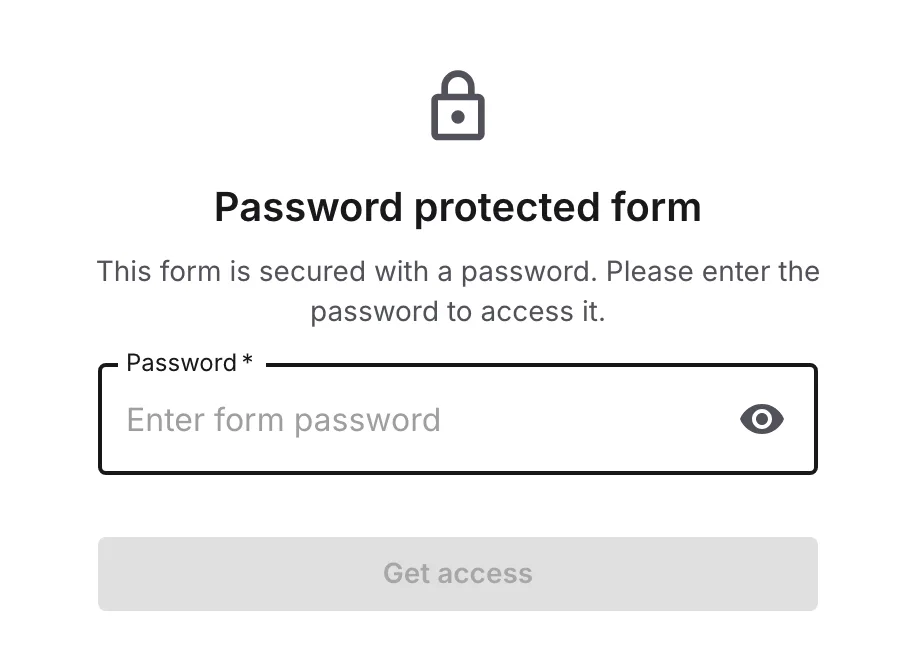
A few things to know:
- There is one password per form, shared by everyone. It says “you know the word”, not who you are.
- It has to match exactly, capital letters included. A wrong one gets “Incorrect password. Please try again.”
- Nothing of the form is visible before the right password, including its pictures. Embedded forms ask for it too.
- A visitor who gave the right password isn’t asked again while the page stays open, however long: the renewed session carries it. With the link alone, nobody gets the form’s data sources or can send it.
- Change the password, and pages opened with the old one lose access to the form’s data from then on.
- To remove it, empty the field and save.
- People with Manage forms can read the password in the settings. An export leaves it out.
Protection against password guessing
Section titled “Protection against password guessing”Once a password is set, a new choice appears: what stops someone from trying one password after another. Every password a visitor gives counts as an attempt, the one in the prompt as well as the one that goes with each submission.
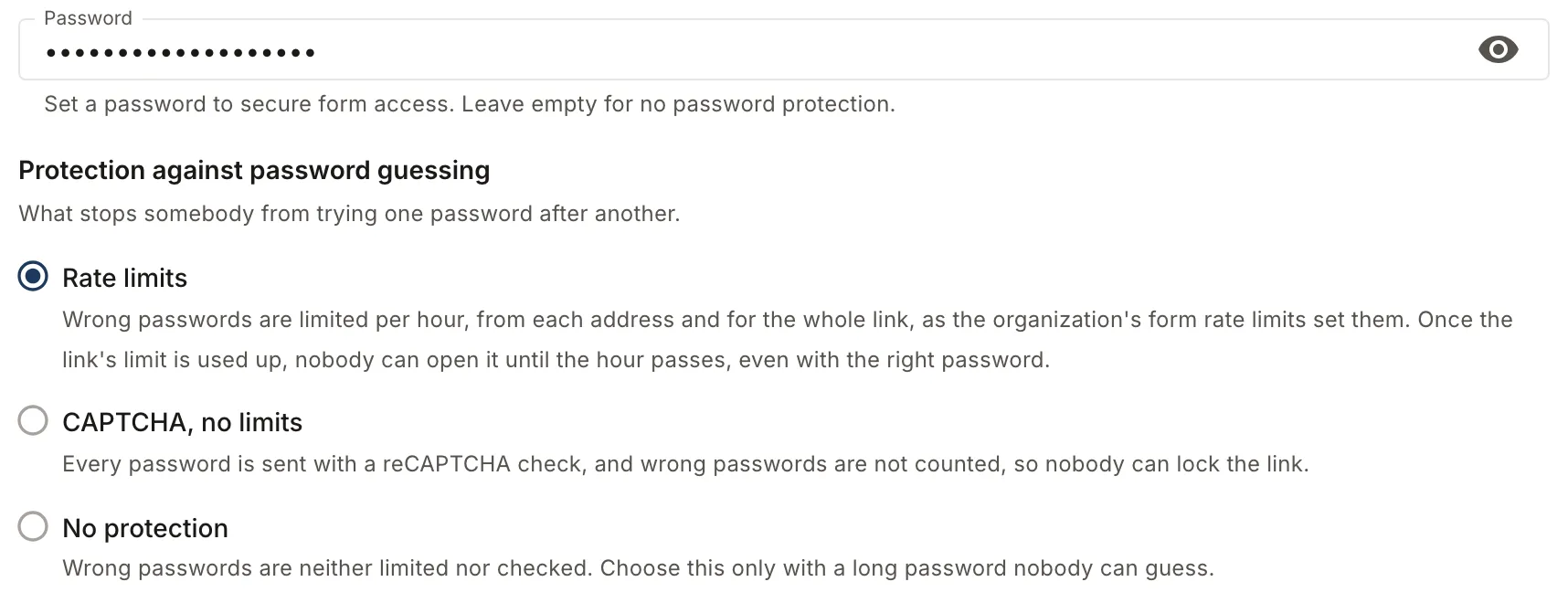
| Option | What it does | The trade-off |
|---|---|---|
| Rate limits (default) | Wrong passwords are counted per hour, from each address and for the whole form, up to the organization’s limits. A right password is not counted. | Once the form’s own limit is used up, nobody can open it until the hour passes, even with the right password. With the default limits, about ten addresses are enough to do this. |
| CAPTCHA, no limits | Each password is sent with a reCAPTCHA check. Wrong passwords are not counted, so nobody can lock the form. | Needs a reCAPTCHA integration. A visitor who blocks reCAPTCHA cannot get in, and is told to allow google.com in their blocker. |
| No protection | Nothing is counted or checked. | Use it only with a long password nobody can guess. |
CAPTCHA, no limits can be chosen only with an active reCAPTCHA integration that has passed its test. You pick the integration under the option, as reCAPTCHA integration. Without a choice, the organization’s default does the work. This is the same integration that checks submissions when reCAPTCHA is on, so a form has one integration for both.
If that integration is later deactivated, fails its test or is deleted, the form does not stand unguarded: it falls back to rate limits until an integration is active again. The settings show a warning, and you cannot save the form with this option until you activate an integration or choose another option.
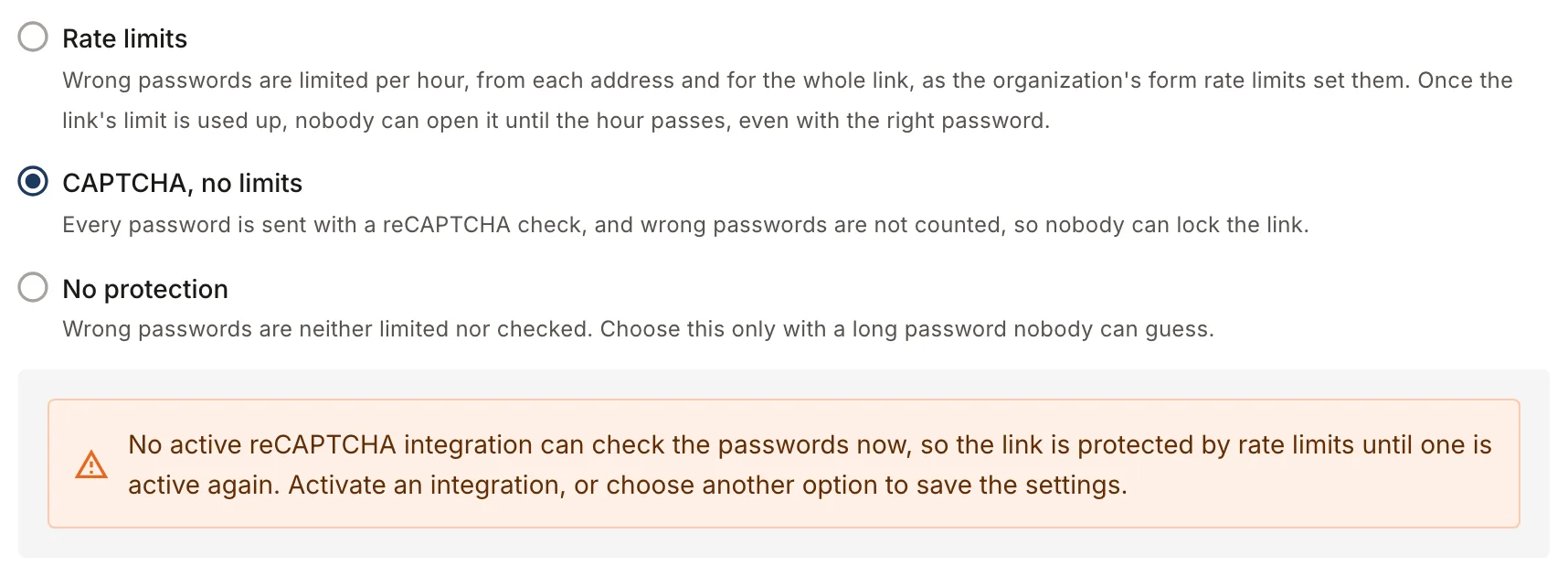
Use rate limits further down the section has no say over wrong passwords. They follow the choice made here.
Validate request origin
Section titled “Validate request origin”This limits the websites that can load your form. When someone opens or sends the form, the browser tells Doxtly the address of the page asking for it. With Validate request origin on, that address has to be on your list, or the visitor gets Form not found. It stops others from placing your form on their own site with the embed script or in a frame.
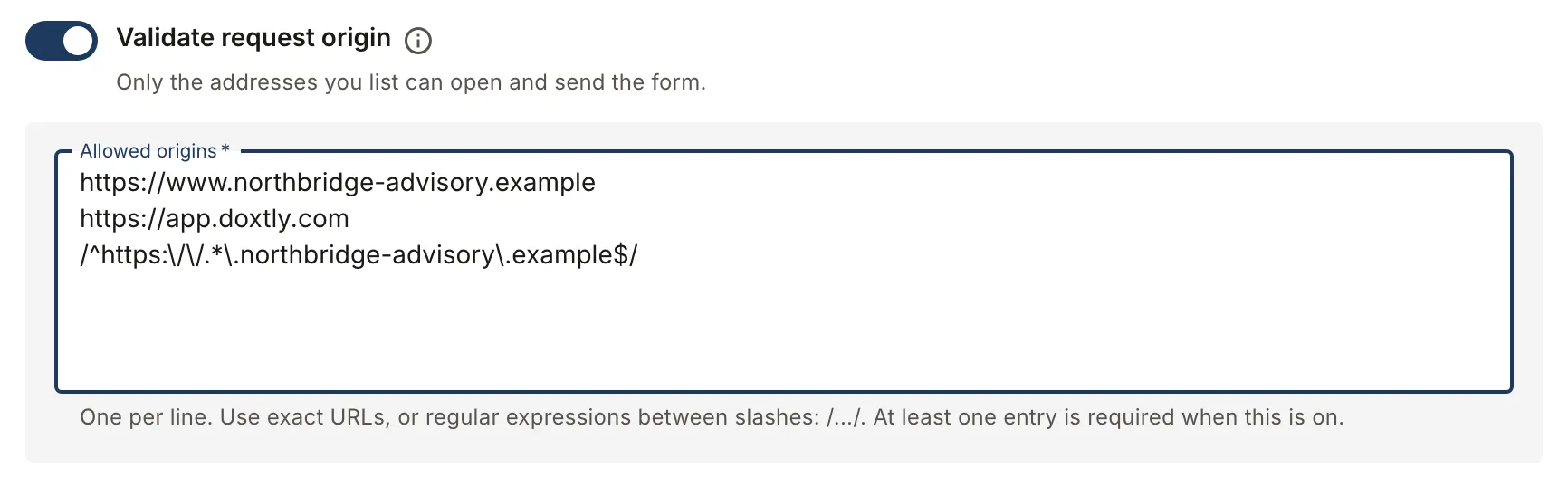
Write one entry per line under Allowed origins. At least one is required.
| Entry | Matches |
|---|---|
https://www.example.com |
That site, on any of its pages |
https://www.example.com/contact |
The same: only the site part of an address counts, so the path is ignored |
/^https:\/\/.*\.example\.com$/ |
A pattern between slashes, here every subdomain of example.com. Modifiers may follow the closing slash, as in /.../i. A pattern that is not valid is refused when you save. |
An entry always needs its https://, because an entry written as example.com matches nothing. Remember that https://example.com and https://www.example.com are two different sites, and so are http and https. A port counts too, unless it is the standard one.
Block IPs from list
Section titled “Block IPs from list”Every device on the internet reaches Doxtly from an IP address. Block IPs from list turns away the ones you name, on opening and on sending alike. Use it when one source keeps sending junk. A blocked visitor gets Form not found, with no hint that they were blocked.
Write one entry per line under Blocked IPs/Ranges. At least one is required.
| Format | Example |
|---|---|
| A single address, IPv4 or IPv6 | 192.168.1.100 |
| A CIDR range, IPv4 or IPv6 | 10.0.0.0/24 or 2001:db8::/32 |
| A dashed range, IPv4 only | 192.168.1.0-192.168.1.255 |
An entry in another format is refused when you save. Keep in mind that one address is often many people, such as a whole office or a mobile network.
reCAPTCHA
Section titled “reCAPTCHA”Google reCAPTCHA v3 watches how a visitor behaves and scores how likely they are to be a person, with no puzzle to solve. A submission Google does not accept is refused with “reCAPTCHA verification failed. Please try again.” The score a visitor needs is set on the integration, so it is the same for every form using it.
Available when: the organization has an active reCAPTCHA integration
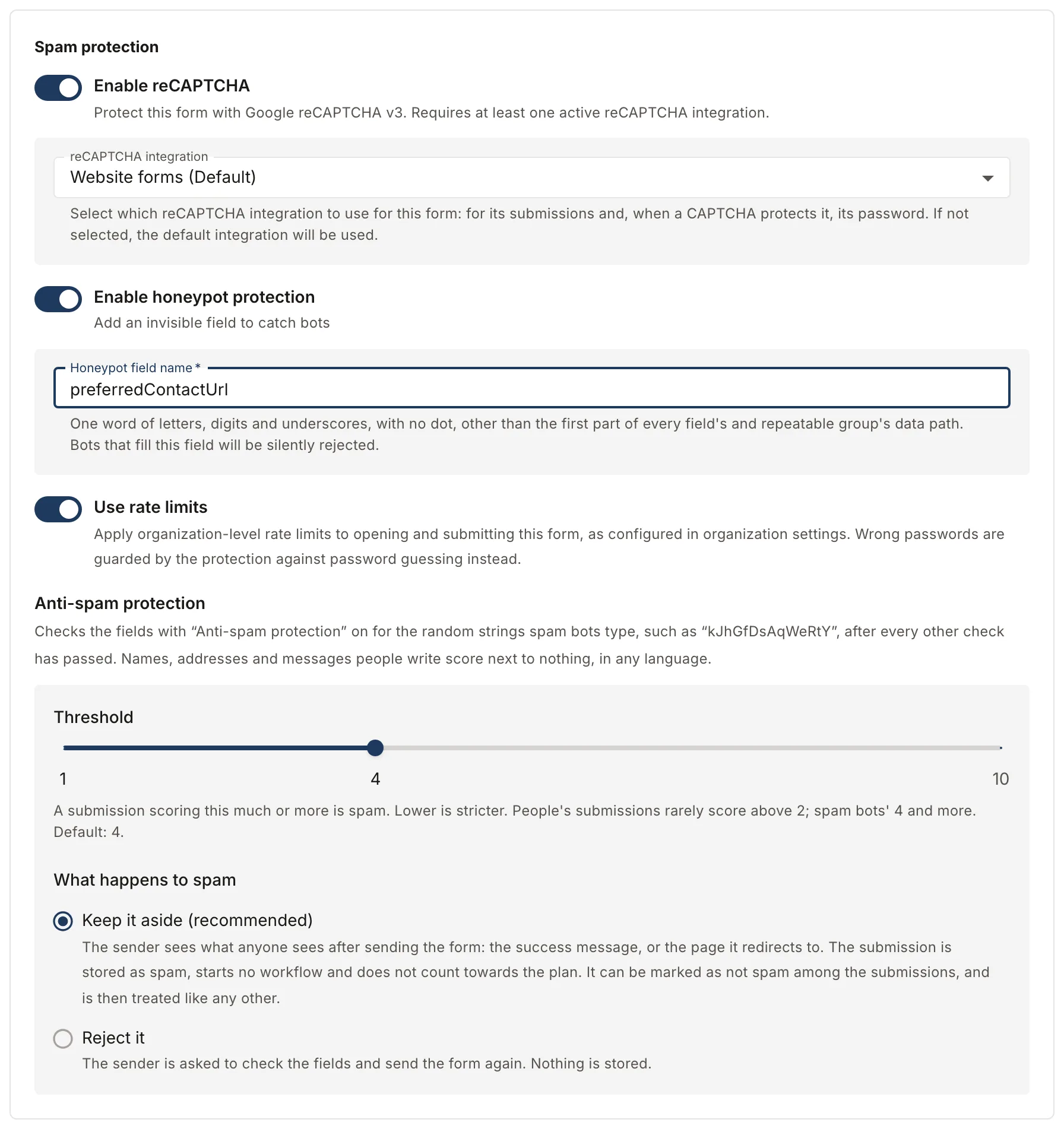
Switch on Enable reCAPTCHA and choose the reCAPTCHA integration. If you choose none, the organization’s default is used. Without an active integration the switch cannot be turned on, so add one first.
The integration has to stay active and tested. If it stops being so while the switch is on, the form still opens but refuses every submission with “This form cannot be submitted right now. Please try again later.”, until you activate an integration or turn the switch off.
A visitor whose ad blocker stops reCAPTCHA cannot send the form. They are told so before they start filling it in, with advice to allow google.com. On a form for a very wide audience you may prefer the honeypot and anti-spam protection, which have no such side effect.
Honeypot
Section titled “Honeypot”A honeypot is a trap field: hidden from people, but visible to the bots that read a page’s code and fill in everything they find. Whoever fills it in gives themselves away.
Nothing tells the sender they were caught. The submission goes through every check any other does, so answers a field refuses are refused the same way. If it passes, it gets the same answer as any other: your success message, or your redirect with its parameters. Nothing is stored or counted and no workflow runs, and the reference and ID in that answer belong to no submission.
Switch on Enable honeypot protection and give the field a name in Honeypot field name. Pick something a bot would want to fill in, such as preferredContactUrl. The name is one word of letters, digits and underscores, it starts with a letter or an underscore, and it cannot be the name a real field or repeatable group of the form sends its value under.
A missing or refused name shows under the field and in the designer’s Problems list as Honeypot protection, and Save stays disabled until it is fixed. That entry takes you straight to the Security section.

When the trap is filled in, the sender sees your usual success message, so the bot learns nothing. The submission is dropped: nothing is stored, nothing starts, and it never shows up in Submissions or on your plan.
The field is hidden from keyboards, screen readers and browser autofill too, so a real person does not fill it in by accident.
Rate limits
Section titled “Rate limits”Rate limits cap how often one address may open and send your forms in an hour. They are there to stop a script, not a person, so the defaults leave plenty of room for an office behind one address, or a reception desk registering visitors all day.
The limits belong to the organization and apply to all forms and interactive documents; portals count their opens and passwords against them too. Find them in Settings > Request limits, in the Access and security group, on the Forms tab. The first four are in the Form opening & password validation limits card and the last two in Form submission limits.
Available when: your role has the Change organization settings permission
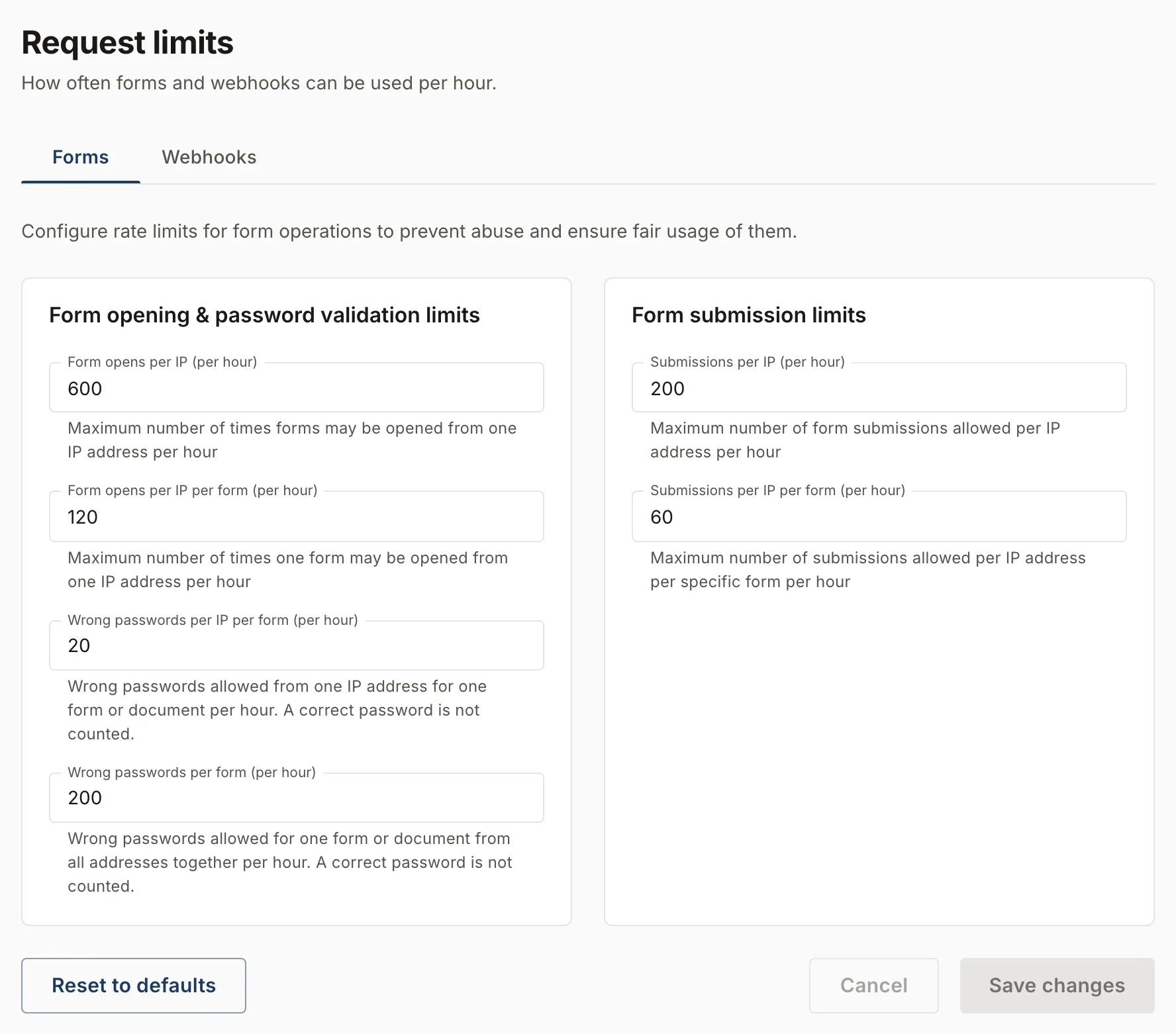
| Limit | Default | What it counts per hour |
|---|---|---|
| Form opens per IP (per hour) | 600 | Opening any form from one address |
| Form opens per IP per form (per hour) | 120 | Opening one form from one address |
| Wrong passwords per IP per form (per hour) | 20 | Wrong passwords for one form from one address |
| Wrong passwords per form (per hour) | 200 | Wrong passwords for one form from all addresses together |
| Submissions per IP (per hour) | 200 | Sending any form from one address |
| Submissions per IP per form (per hour) | 60 | Sending one form from one address |
Each limit is a whole number from 1 to 100,000. Reset to defaults fills in the values above. Like any other change, it counts once you press Save changes, and Cancel drops it.
A visitor over a limit is refused for the moment. While sending, or typing a password, they read how long to wait, such as “Too many requests. Try again in 5 min.” While opening, they see Failed to load form.
Each form has a Use rate limits switch, on by default. Turn it off for a form that is used very often from one address, such as a tablet at your front desk. It covers opening and sending, while wrong passwords follow the form’s own choice.
Anti-spam protection
Section titled “Anti-spam protection”Some bots get past everything else and fill your fields with random strings such as “kJhGfDsAqWeRtY”. Anti-spam protection reads what was typed, scores how random it looks, and catches those submissions. It works alongside the other locks, needs none of them, and runs last, after every other check has passed.
It looks at words, in any language. Names, addresses, messages, codes such as a VIN or an IBAN, and words in other alphabets score next to nothing.
Setting it up
Section titled “Setting it up”It takes two steps, one per field and one per form.
First, choose the fields to check. In the designer, select a Text input, Email input or Text area field and switch on Anti-spam protection in its properties. Choose fields where bots show themselves, typically the name and the message. Other field types cannot be checked.
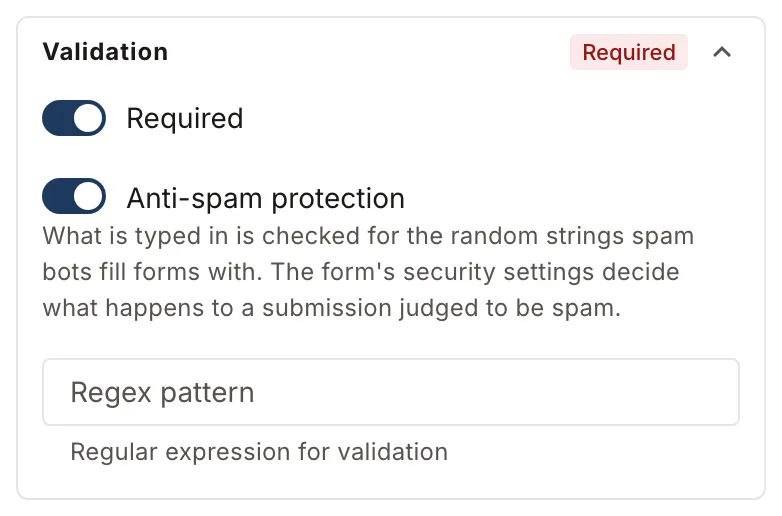
Then decide what counts as spam, under Anti-spam protection in the Spam protection card. Until at least one field has the switch on, these settings are greyed out with a note saying so, and the form is not checked at all.
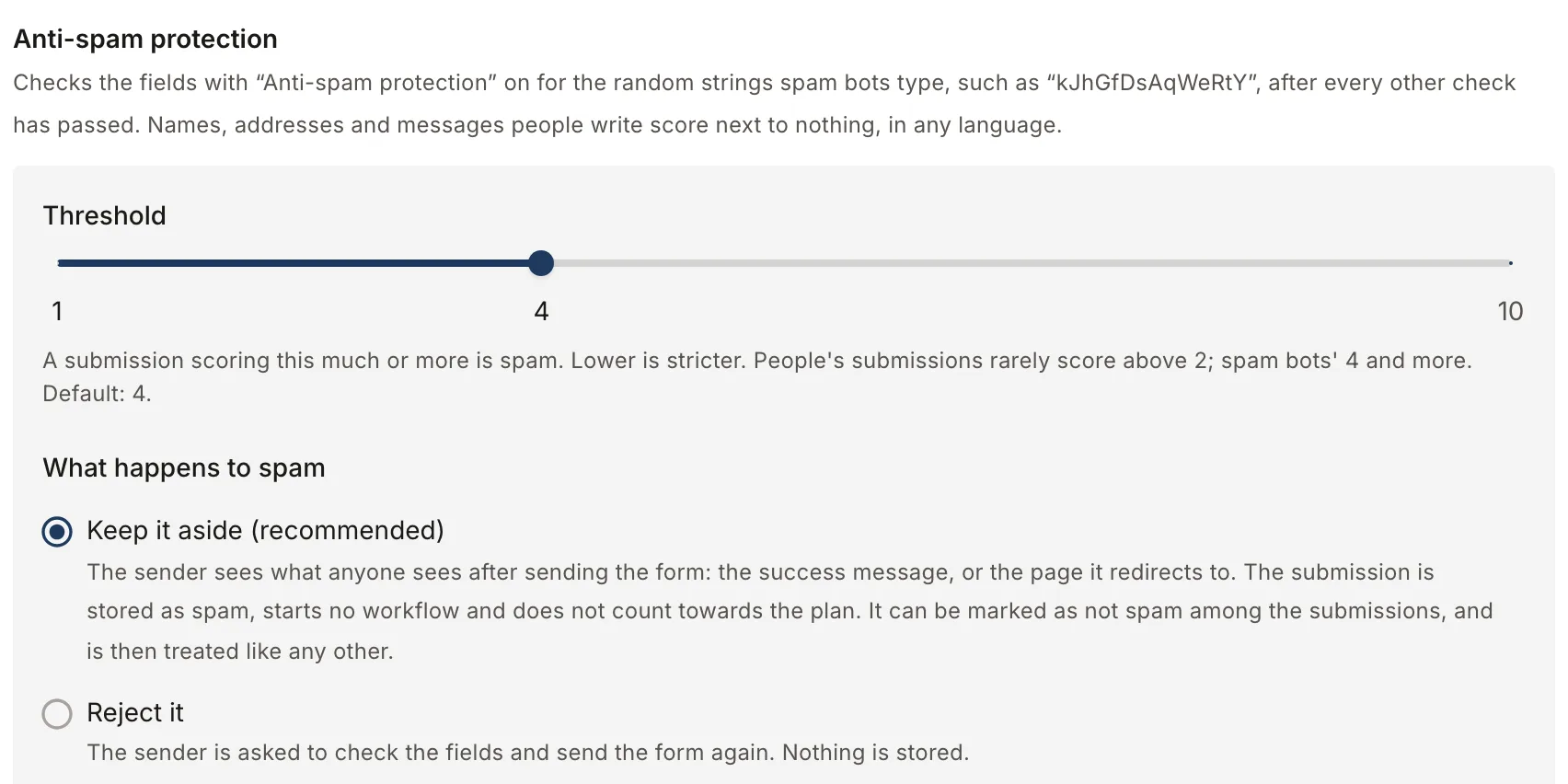
| Setting | Choices |
|---|---|
| Threshold | From 1 to 10 in steps of 0.5. The default is 4. A submission scoring this much or more is spam, so a lower value is stricter. |
| What happens to spam | Keep it aside (recommended) or Reject it |
What people type rarely scores above 2, while the strings bots type score 4 and more, which is why 4 is the default. Only the checked fields that were filled in count, including those in the rows of a repeatable group. Filling the other fields with sensible text does not save a submission either: one field that looks thoroughly random can be enough, however fine the rest looks.
Keep it aside or refuse it
Section titled “Keep it aside or refuse it”Keep it aside (recommended) treats the sender as if all went well: they see your usual success message, or go to your redirect page with its parameters, so a bot learns nothing. Your page gets these visits too. On a form that goes straight to signing nothing is prepared to sign, so the sender sees the message and your page if you set one, as a real visitor does when signing can’t start. The submission is stored as spam, with these effects:
- it starts no workflow, opens no signing session and sends nothing;
- it does not count towards your plan;
- it is left out of the Submissions list and of the count in the forms list, until you set the Spam filter to Spam only or All;
- it cannot be edited until you mark it as not spam.
On a form that takes a payment, a submission kept aside also asks for no payment, and it can’t be marked as not spam later, because nobody paid for it.
Reject it stores nothing and tells the sender: “The form could not be sent: what was typed into it looks like it was filled in automatically. Check the fields and send it again.” Choose this when a real person who is told can fix it, and you do not want to review anything.
Rescuing a submission
Section titled “Rescuing a submission”If a real person’s submission was kept aside, open it in Submissions and press Not spam. You need Manage forms for this.
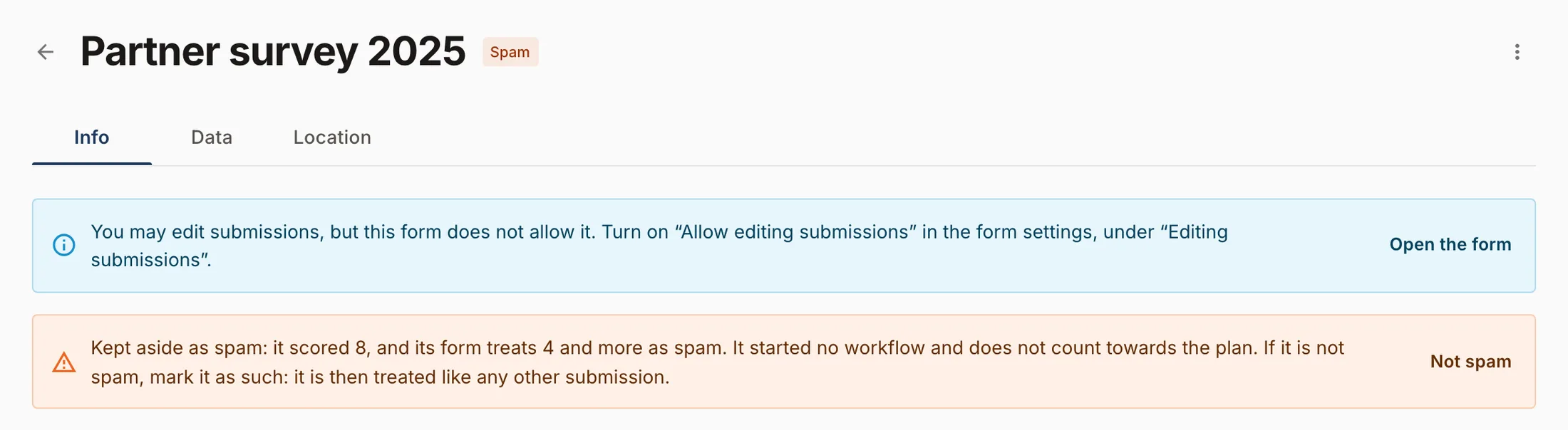
After you confirm under Mark as not spam?, the submission is treated like any other. It counts towards your plan, and it is refused if that plan’s limit has been passed. The form’s workflows run on it now. Nobody is on the form’s page any more, so the signing link of a document that would have opened there is sent instead, the way the main party’s Signature request says. The submission remembers who released it and when, in a note at the top of its page.
Tuning the threshold
Section titled “Tuning the threshold”Every checked submission shows its Anti-spam score on its Info tab, spam or not, next to the threshold it was judged by and a score for each checked field. If spam gets through, look at what it scored and lower the threshold a little. If real people get caught, raise it. A new threshold applies to what comes in from then on and does not change where earlier submissions stand.
The order of the checks
Section titled “The order of the checks”When a form is opened, Doxtly checks that it is active, then the blocked IPs, the allowed origins and the rate limits, and finally the password. A form that is sent passes the same checks, followed by the session, reCAPTCHA and any required parameters. Then the answers go through the fields’ validation, and anti-spam protection comes last. A filled honeypot changes none of this: it only decides that a submission which passed everything is dropped.
What to use when
Section titled “What to use when”| Form | A sensible setup |
|---|---|
| Contact form on your website | Honeypot, anti-spam on the name and message fields, keep spam aside |
| Lead form that gets a lot of bot traffic | The above, plus reCAPTCHA |
| Client onboarding through a personal link | A required parameter, or a password with CAPTCHA, no limits |
| Internal survey | A password with Rate limits |
| Kiosk at the front desk | Rate limits off for that form |
These settings apply to the form on its own link and embedded on your site. A form placed on an interactive document is protected by the document’s own settings instead.