

Download from the cloud
This node fetches one file from your cloud storage and hands it to the run, so later steps can use it like any other file. Reach for it when the document lives on your drive rather than in Doxtly: the current terms a client has to sign, a price list to attach to an offer, a spreadsheet to read.
Available when: the organization has an active Google Drive, OneDrive, SharePoint, Dropbox or Box integration, and your role has View cloud files
In the palette it appears once per provider, as Download from Google Drive, Download from OneDrive, Download from SharePoint, Download from Dropbox and Download from Box under Cloud files. All of them are this node. An entry you cannot use is greyed out and says why: no active integration of that provider, or a permission your role lacks.
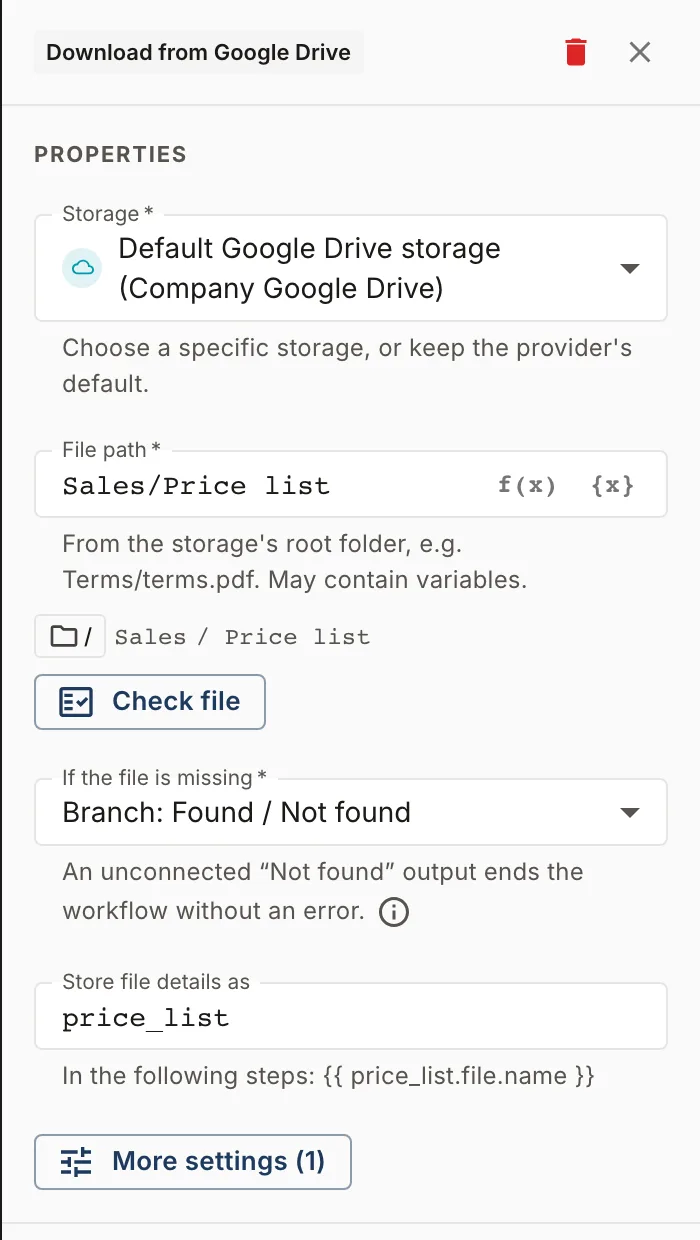
Set it up
Section titled “Set it up”- Drag Download from Google Drive, Download from OneDrive, Download from SharePoint, Download from Dropbox or Download from Box onto the canvas.
- In File path, type the path from the storage’s root folder, for example
Terms/terms.pdf. - Press Check file to see whether the file is there.
- Choose what happens if the file is missing.
- In the steps after it, pick the file in Downloaded from the cloud, for example as an email attachment.
Settings
Section titled “Settings”| Setting | What it does | Allowed values | Default |
|---|---|---|---|
| Storage | Which connected storage to read from. Required. | Default Google Drive storage, Default OneDrive storage, Default SharePoint storage, Default Dropbox storage, Default Box storage, or one named storage | The default of the provider you dragged in |
| File path | The file to fetch, from the storage’s root folder. Required. | A path, which may contain variables | Empty |
| If the file is missing | What happens when nothing is at the path. | Stop with an error, Continue without the file, Branch: Found / Not found | Stop with an error |
| Store file details as | Optional variable with the file’s name, size and link. | A variable name, such as file or terms.file |
Empty: no variable |
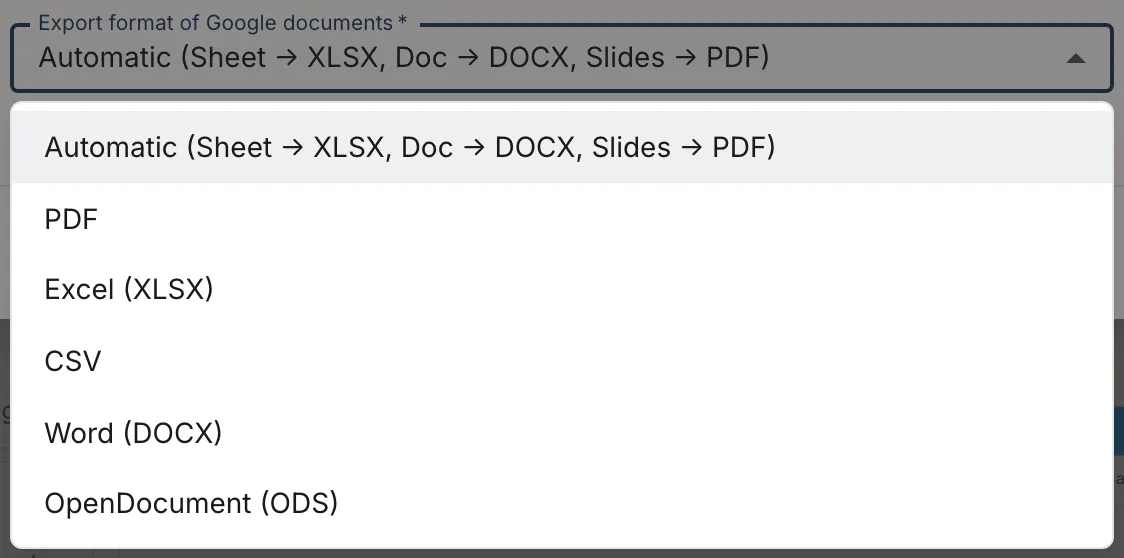
| Export format of Google documents (More settings) | How a Google Sheet, Doc or Slides file is turned into a file. Shown for Google Drive only. Other files download as they are. | See below | Automatic (Sheet → XLSX, Doc → DOCX, Slides → PDF) |
Variables in these fields can carry operations and functions, such as {{ id | first(8) }} or {{ nickname ?? firstName }}: click a variable and then Operations, or use f(x).
Storage works as it does for uploads: a default follows whichever storage is the default when the run happens, and a named storage stays that one. See Storage.
File path follows the path rules. It has to name a file, not the root folder. There is no file browser in the node. Use Copy path in Cloud files and paste it here. A variable’s value is always one name, and an empty variable fails the node rather than dropping a folder level.
Under the field you see the full path. Check file looks the file up the way the node will. It answers The file exists: with the name, the size, when it changed, what kind of Google document it is if it is one, and a link to open it in Cloud files. Otherwise it says The file was not found. or This path leads to a folder, not a file. It cannot check a path containing variables, since the file is only known when the workflow runs.
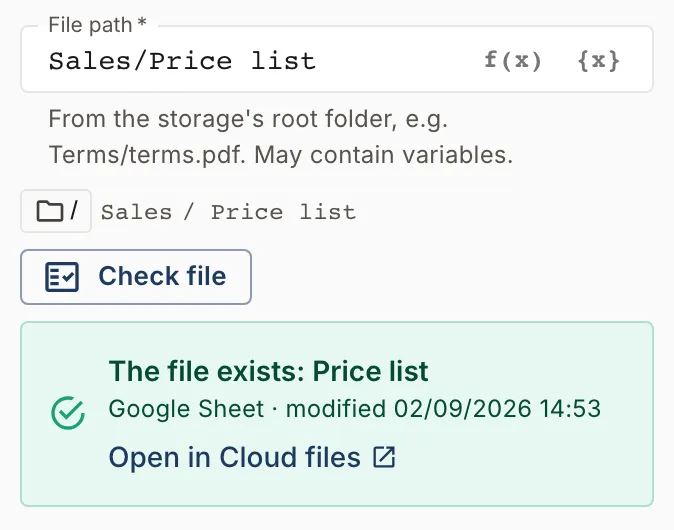
On a Google Drive connection that only sees the files Doxtly added, a file uploaded directly on Drive reads as not found, and the message says so. Upload it through Cloud files and it works.
Store file details as suggests the name file, which you can take with a click, and shows how to use it in the following steps. It warns you if the name is taken. No two nodes may store under the same name, or one nested in another, and the names _metadata, _params, _execution, _recipients and _nodes are reserved.
How a path finds a spreadsheet
Section titled “How a path finds a spreadsheet”A spreadsheet can be an uploaded file or a Google Sheet, and the path does not have to know which. That means a workflow keeps working after someone converts the price list to a Google Sheet:
prices.xlsx(also.xlsand.ods) finds that file or, on Google Drive, the Google Sheetprices;prices, with no extension, finds the Google Sheet or the fileprices.xlsx, and on OneDrive, SharePoint, Dropbox and Box it findsprices.xlsx;.csvand.tsvpaths mean exactly that file;- when both forms exist, the node stops and asks you to rename or remove one, rather than guess.
Google documents
Section titled “Google documents”Google’s own documents have no file behind them, so Doxtly exports them.
| Document | Automatic gives | Can also be |
|---|---|---|
| Google Sheet | Excel (XLSX) | CSV, OpenDocument (ODS), PDF |
| Google Doc | Word (DOCX) | |
| Google Slides or anything else | nothing else |
The file takes the format’s extension. A format the document cannot take, such as Word (DOCX) for a Sheet, fails the node.
What it produces
Section titled “What it produces”A file. The run gains the file, offered to the steps after it under Downloaded from the cloud: email attachments, signing packages, uploads and the spreadsheet nodes.
A variable, if you named one. With the name file:
| Variable | What it holds |
|---|---|
{{ file.found }} |
true or false |
{{ file.file.name }} |
The file’s name, with the export’s extension for a Google document |
{{ file.file.path }} |
Its path in the storage |
{{ file.file.size }} |
Its size in bytes |
{{ file.file.mimeType }} |
Its type, such as application/pdf |
{{ file.file.modifiedAt }} |
When it last changed |
{{ file.file.webUrl }} |
The link that opens it in the provider |
When nothing was found, found is false and file is empty.
When something goes wrong
Section titled “When something goes wrong”| Situation | What happens |
|---|---|
| File missing, Stop with an error | The node fails: nothing was found at the path, which the error shows as you wrote it. |
| File missing, Continue without the file | The run goes on. Later steps have no such file. |
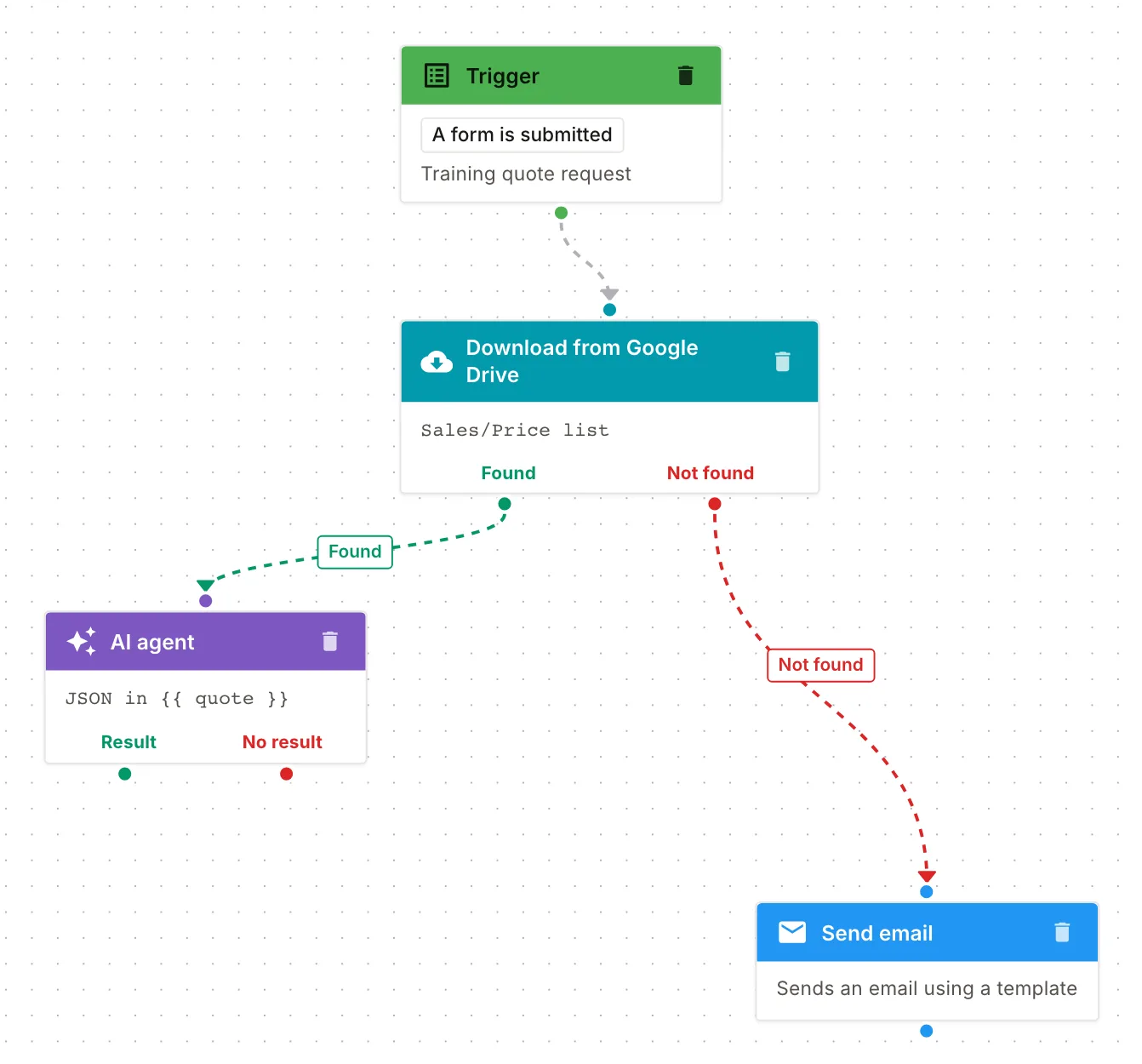
| File missing, Branch: Found / Not found | The node gets two outputs and the run takes Not found. |
| Not found left unconnected | The run ends there without an error. The execution list marks it Not found, and you can filter by that under Outcome. |
| The path leads to a folder | The node fails, whatever you chose above. |
| The file is larger than 25 MB | The node fails. The limit counts the exported size for a Google document, and Google itself exports a document of at most 10 MB. |
| A variable in the path is empty | The node fails. |
| File and Google Sheet of one name | The node fails, asking you to remove one. |
| The storage is gone, or its connection expired | The node fails with a message saying what to do, usually to connect the integration again. |
The run’s card shows the storage, File downloaded with the size, File not found, and Document exported for a Google document.
Example
Section titled “Example”Northbridge Advisory keeps its terms of service on Google Drive, one PDF per year. Each signing package should carry the current ones.
| Setting | Value |
|---|---|
| File path | Terms/terms-{{ _execution.date | first(4) }}.pdf |
| If the file is missing | Branch: Found / Not found |
| Store file details as | terms |
Found goes to Create documents, which picks the file from Downloaded from the cloud. Not found goes to an email telling the office manager the new year’s terms have not been uploaded. Nobody receives a package with last year’s terms by accident.