

Doxtly e-mail
Doxtly e-mail is an email integration that every organization already has. It sends your messages through Doxtly’s own e-mail provider, so an organization with no mailbox to connect can still send workflow e-mails, links to forms, documents and portals, reminders and signing requests in its own words. It starts switched off, and it can be switched off again, but never deleted.
Available when: you hold Manage integrations
Who can switch it on
Section titled “Who can switch it on”Under Organization, Integrations, open Doxtly e-mail. Until it can be switched on, the page lists what is missing:
- a paid plan after its trial, or a Doxtly balance your organization bought;
- one day since the organization was created;
- your own e-mail address confirmed.
Switching it on costs nothing and needs no balance.
Switch it on
Section titled “Switch it on”- Open Doxtly e-mail under Organization, Integrations.
- Click Switch on. Switch on is also in its row’s three-dot menu on the Integrations page, beside Settings.
- Read the rules in the dialog, tick the box accepting the acceptable-use terms of Doxtly e-mail and click Switch on.
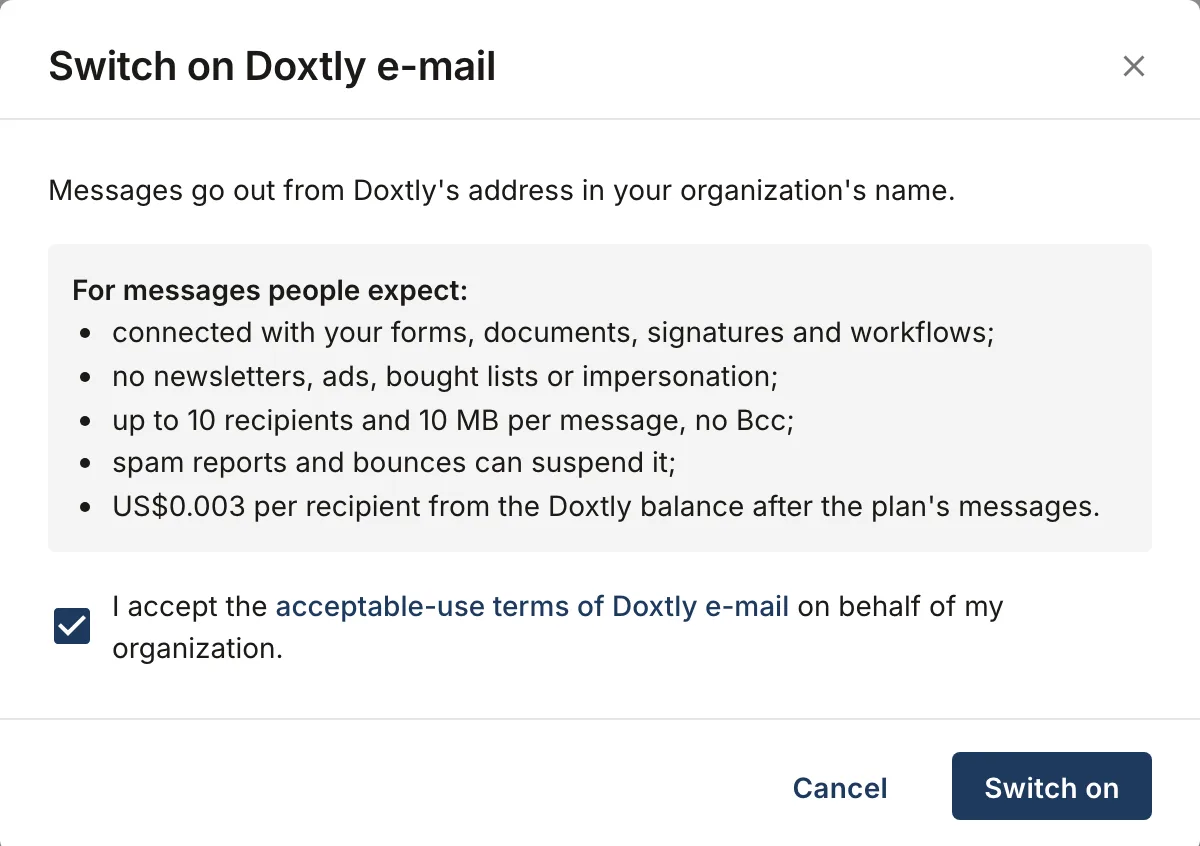
From then on it is offered wherever an email integration is chosen, such as the Send email step, and it is used when it is your only active email integration or your default one.
What it costs
Section titled “What it costs”Every recipient, copies included, is one message. Messages are paid for in this order:
- The messages included in your plan this period, the same ones Doxtly’s mailbox uses (see Plans and limits). A message is paid from them when they cover all of its recipients.
- The Doxtly balance, the one prepaid balance Doxtly AI also uses: 0.003 USD per recipient, taken before the message goes. If the provider does not take the message, the amount goes back to the balance.
Doxtly e-mail itself has no monthly fee. Only sending from your own domain takes a fee of 5 USD every 30 days from the balance, while you send from it.
What the balance paid for messages and the own domain’s fee follows the balance’s refund rules (see Terms of the balance): no cash refunds, and the fee is not refunded for the days left of a period in which you removed the domain. If Doxtly stops providing Doxtly e-mail, the unused balance and the days left of the fee are refunded.
When the plan’s messages are used up and the balance cannot pay for another message, sending stops: messages are refused, not queued, the page shows Sending has stopped with Top up the balance (for those who manage the subscription), and whoever manages integrations gets a notification once a day. Limits on the page shows the price and the balance left to spend.
Sender
Section titled “Sender”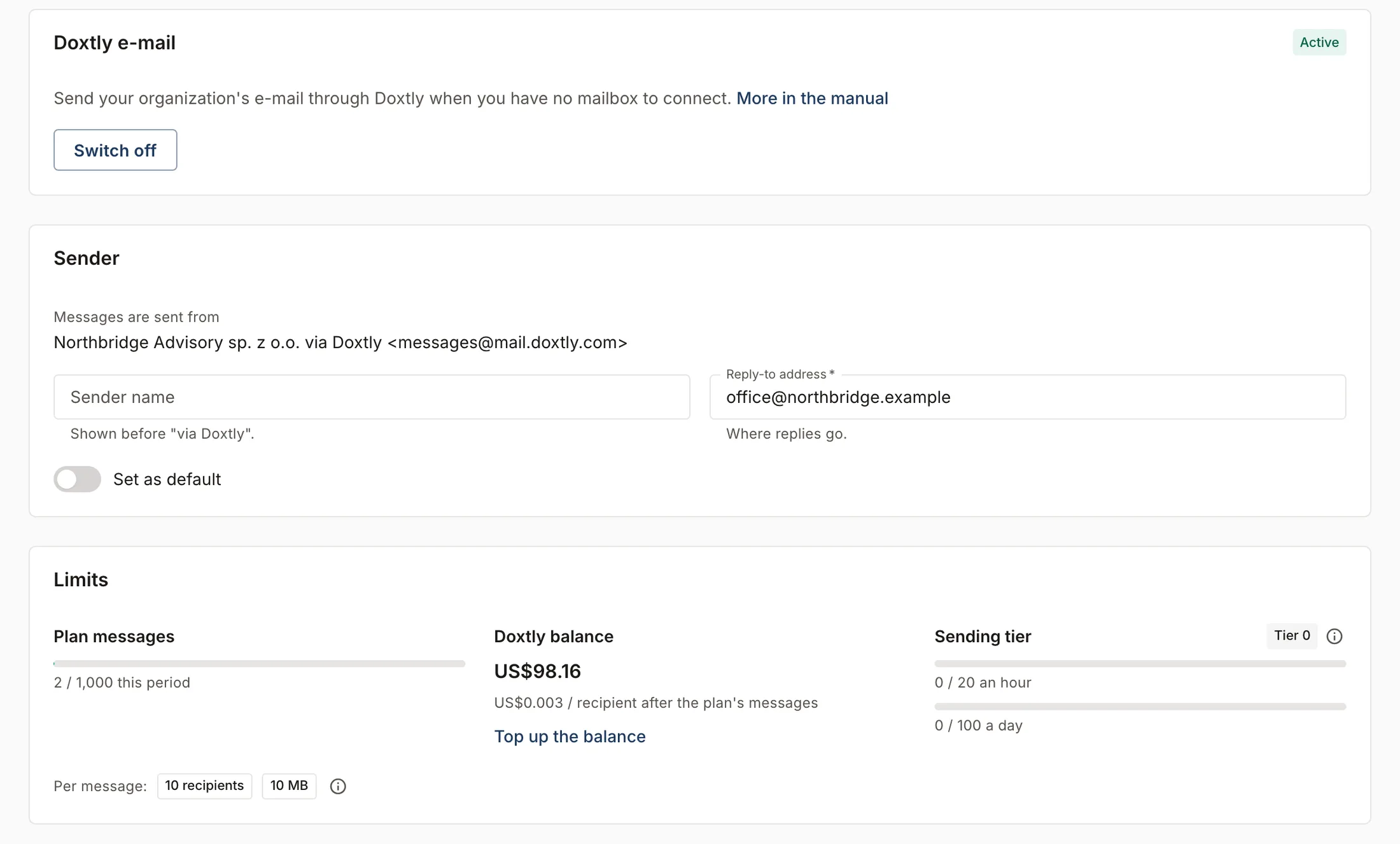
| Setting | What it does |
|---|---|
| Messages are sent from | The address your messages leave from: your organization’s name followed by “via Doxtly”, at Doxtly’s address. |
| Sender name | The name shown before “via Doxtly”. Left empty, your organization’s name. It cannot contain an e-mail or web address, or the word Doxtly. |
| Reply-to address | Where replies go: your organization’s address, a member’s, or another address once whoever reads it confirms it. A workflow’s Send email step can name another in its Reply-to address field. |
| Set as default | Makes Doxtly e-mail the one used where no integration is chosen. Available while it is on. |
Replies to another address
Section titled “Replies to another address”To have replies go to an address that is neither your organization’s nor a member’s (a shared inbox, say), enter it under Reply-to address and click Save. The page says the address is not confirmed yet: click Send link. Doxtly e-mails a confirmation link to that address; once it is followed, within 72 hours, click Save again. Nobody can put a stranger’s address under your messages.
Every message ends with a line saying it was sent by your organization through Doxtly, with a link to unsubscribe from your organization’s messages and one to report abuse. Your templates cannot leave them out. The messages also carry the one-click unsubscribe that Gmail, Yahoo and other mailbox providers ask of senders.
Own domain
Section titled “Own domain”Instead of Doxtly’s address, your messages can go from an address on your own domain, such as office@yourcompany.com, with your sender name and without “via Doxtly”. Everything else on this page stays as it is: limits, prices, the footer and suppressed addresses.
Sending from your own domain costs 5 USD every 30 days from the Doxtly balance. The fee is taken when the domain is verified, that is when your messages start going from it, and then every 30 days while you keep it; the section says so before you add the domain, and a domain can be added only while the balance covers the fee (Top up the balance is offered there). Adding a domain again within a period already paid for takes nothing.
- Under Own domain, enter the address to send from and click Add the domain. Addresses at mailbox providers (Gmail, Outlook, Onet and the like), at Doxtly, or on a domain another organization uses are refused, and so is a domain that receives no mail.
- The page shows three CNAME records and a recommended DMARC record. Copy each Name and Value into your domain’s DNS, at whoever hosts it. If your DNS host offers a proxy (such as Cloudflare’s orange cloud), leave these records DNS only.
- Click Verify. Each record says Found or Not found yet, and what Doxtly found at that name instead. DNS changes can take up to 48 hours to be seen.
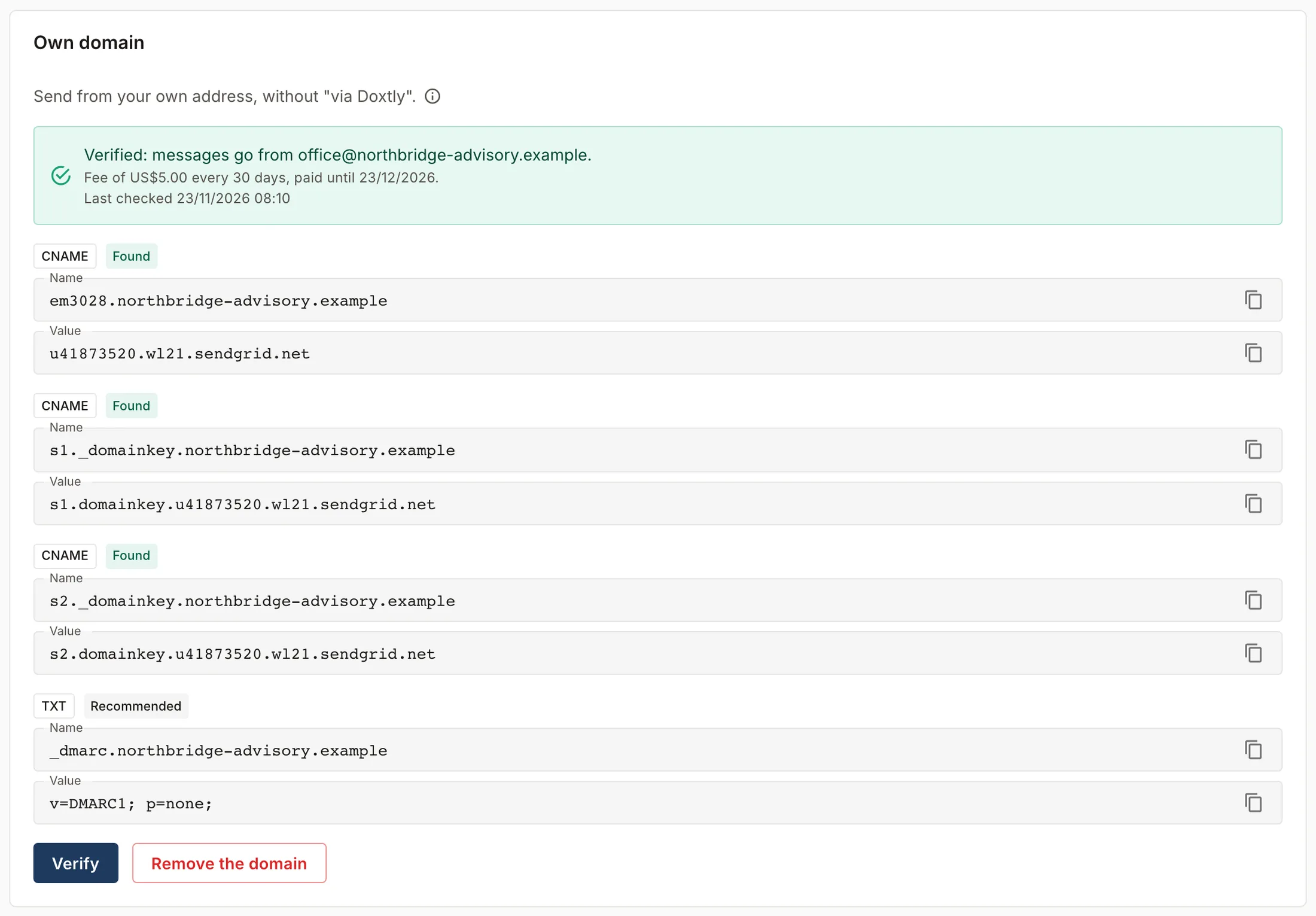
| Record | Name | Value | What it is for |
|---|---|---|---|
| CNAME | dx-<label>.yourcompany.com |
rp.<label>.cust.mail.doxtly.com |
Bounces come back to Doxtly, and receivers check that Doxtly may send for your domain (SPF) |
| CNAME | dx1._domainkey.yourcompany.com |
dx1.<label>.cust.mail.doxtly.com |
The key your messages are signed with (DKIM) |
| CNAME | dx2._domainkey.yourcompany.com |
dx2.<label>.cust.mail.doxtly.com |
The place of Doxtly’s next key, so it can be changed without you |
| TXT (recommended) | _dmarc.yourcompany.com |
v=DMARC1; p=none; |
Your domain’s policy for messages that fail these checks |
<label> is a random code of your domain, the same in all three. The CNAME records point at names Doxtly keeps, not at any e-mail provider, so you never have to change them: not when Doxtly renews its key, nor if Doxtly moves to another e-mail provider. If you already have a DMARC record, keep yours.
Doxtly also checks by itself: every 15 minutes for the first 72 hours, then once a day. Once every record is found, Doxtly’s e-mail provider confirms the domain, which the section shows as All records found; after that the domain is verified and messages go from your address, and whoever manages integrations is told. A domain not verified within 72 hours keeps being checked once a day.
If the records later disappear, the domain is marked lost: messages go from Doxtly’s address again, marked “via Doxtly”, until the records are back, and whoever manages integrations is told. Remove the domain removes it here, at the provider and from Doxtly’s names; messages then go from Doxtly’s address, the fee is no longer taken, and you can delete the three records. The period already paid is not refunded.
If the balance cannot cover the fee when it falls due, the domain stops being used: messages go from Doxtly’s address, with replies to yours, and whoever manages integrations is told. Doxtly e-mail itself stays on. Once the balance is topped up, Doxtly takes the fee within the hour and your messages go from your own address again.
Your organization can have one domain and one address. To change them, remove the domain and add the new one.
Limits
Section titled “Limits”Every recipient, copies included, counts as one message, paid as What it costs says.
Each organization starts at tier 0, and moves up a tier on its own once it has spent the days and delivered the messages below without problems: fewer than 2 % of messages bouncing and fewer than 0.05 % reported as spam.
| Tier | Recipients an hour | A day | Per message | Reached |
|---|---|---|---|---|
| 0 | 20 | 100 | 10 | on switching on |
| 1 | 100 | 500 | 25 | 7 days at tier 0 and 100 messages delivered |
| 2 | 300 | 2,000 | 50 | 14 days at tier 1 and 1,000 delivered |
| 3 | 1,500 | 10,000 | 50 | 30 days at tier 2 and 5,000 delivered |
A message beyond the hour or the day is not refused: it waits and goes, in order, as soon as there is room. The page shows how many recipients wait. While it waits, its email under Emails says Waiting for sending capacity, and a workflow’s Send email step says so too, with the time it goes after; the run carries on, and the email turns Sent once it goes, or Failed with the reason if it does not. A message that waited longer than 72 hours is not sent, and no more than three days of messages may wait at once. On tiers 0 and 1 your organization can write to at most twice its hourly limit of new people a day.
Your organization’s tier, its limits, what it sent in the last hour and day and what waits are under Limits on its page.
What a message may be:
- no blind copies (Bcc);
- at most 10 MB as it is sent, attachments included, and at most 10 attachments: sent, an attachment takes about a third more than its file, so files of up to about 7 MB in all fit;
- no programs, scripts, web pages, SVG images or archives (ZIP, RAR, 7z) as attachments, whatever their names;
- links only to named sites over
httpsorhttp, andmailto:addresses: no links to an IP address, no link shorteners, no link whose text shows another address than it leads to, and at most 20 different sites; - no forms, scripts, embedded frames, event handlers (
onclickand the like) or remote style sheets in the HTML: such a message is refused rather than sent with them removed, so you see what to change in the template; - no role addresses such as
abuse@,postmaster@ornoreply@as recipients, and only addresses whose domain receives e-mail.
A message refused for any of these is neither sent nor counted; the workflow run or the page says why.
Messages set off by public forms
Section titled “Messages set off by public forms”A Send email step of a workflow started by something anybody can do sends through Doxtly e-mail only from a protected source:
- a public form: reCAPTCHA switched on;
- an interactive document: a password;
- a quiz (an attempt started or finished): reCAPTCHA on its link, or a password or access list;
- a payment for a form: one paid or refunded is protected, since money moved; one that ended unpaid only when its form has reCAPTCHA.
A portal starts no workflow of its own: what is opened through it counts as the form, document or quiz it is. Then:
- an address taken from the submission’s own answers (sending the person who filled it in a copy) gets one message per submission and at most three a day;
- one visitor sets off at most 10 such messages an hour; more wait for the next hour;
- a fixed address written in the step, your organization’s own notification, is held to your tier alone.
Suppressed addresses
Section titled “Suppressed addresses”Under Suppressed addresses on its page are the addresses that receive none of your organization’s messages through Doxtly e-mail: those that bounced (an address that does not exist is suppressed for every organization), those whose recipients reported a message as spam or unsubscribed, and those you added. A message to any of them is refused before it is sent.
You can add an address, and take off one you added or one that bounced, up to 20 a day. A spam report or an unsubscribe is the recipient’s decision: only the recipient can undo it, from the unsubscribe page.
What recipients can do
Section titled “What recipients can do”The footer’s links open a page in Doxtly:
- Unsubscribe: the recipient receives no more of your organization’s messages through Doxtly e-mail, and can subscribe again from the same page;
- Report abuse: the message counts towards a suspension, and the address receives no more of your messages.
Opening a link changes nothing until the recipient clicks the button on the page, so a mail program checking links unsubscribes nobody.
Warnings, suspension and blocking
Section titled “Warnings, suspension and blocking”Doxtly watches what recipients say of your organization’s messages over the last 30 days. A first warning holds your tier, and a second lowers it. Your organization’s Doxtly e-mail, and Doxtly’s mailbox with it, is suspended at:
- 3 spam complaints, when they are at least 0.1 % of the messages;
- 20 hard bounces, when they are at least 5 %;
- 3 messages dropped by the provider for their content;
- 3 abuse reports through the footer’s link.
Only Doxtly support lifts a suspension. Doxtly may also block Doxtly e-mail for an organization, or pause it for everyone during an incident: messages then wait instead of going.
Switch it off
Section titled “Switch it off”Click Switch off on its page. A workflow step that names it then reports that the integration is switched off; choose another email integration there, or switch Doxtly e-mail on again.