

Quiz summary
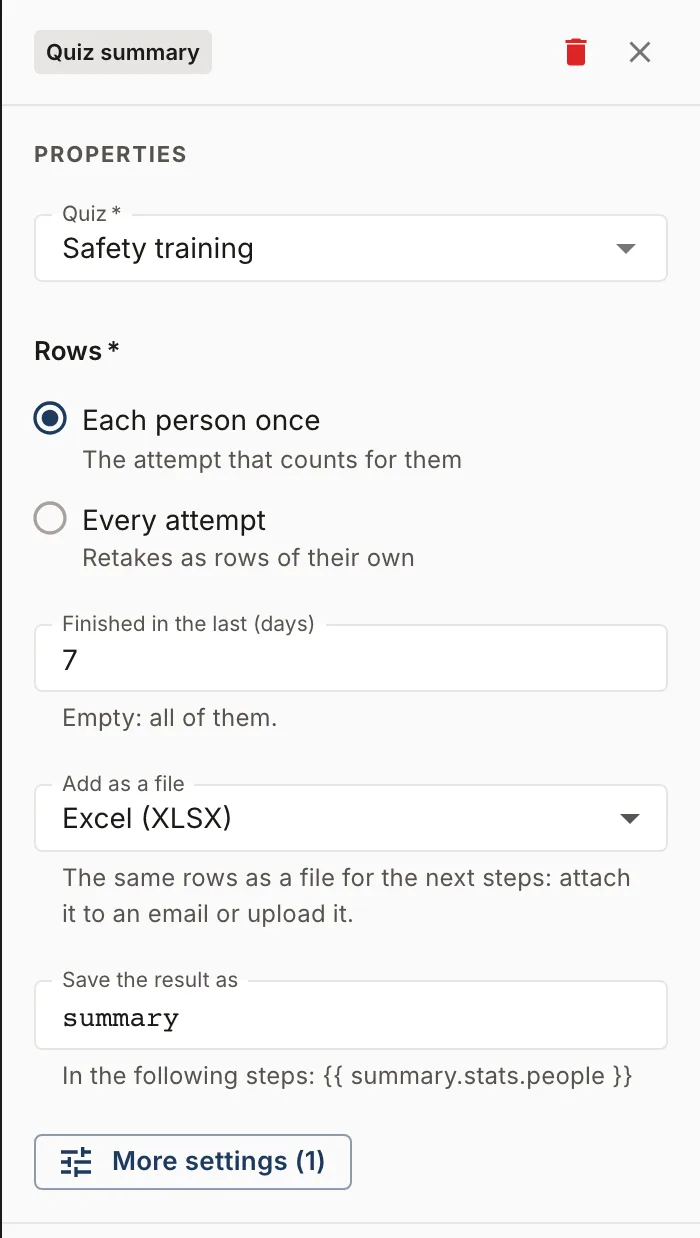
The Quiz summary node reads a quiz’s Summary while the workflow runs: “Reads a quiz’s results as rows for a spreadsheet or a message”. The rows are the ones the Summary tab and its Excel file show, by the same column headings in the quiz’s language. Use it with a recurring trigger (“every Friday at 16:00, the week’s results to the school’s spreadsheet and the head teacher”) or after a quiz closes.
Available when: the Manage workflows and View quizzes, attempts and results permissions to set up
You find it in the Quizzes group of the palette.
Settings
Section titled “Settings”| Setting | What it does |
|---|---|
| Quiz | Required. One of your organization’s quizzes. |
| Rows | Each person once (the default): “The attempt that counts for them”. Every attempt: “Retakes as rows of their own”. |
| Finished in the last (days) | Only the attempts finished in so many days, counted in your organization’s time zone with today included. Empty: all of them. |
| Group | Under More settings. Only the people of this group, such as 3B or {{ group }}. |
| Add as a file | No file (the default), Excel (XLSX) or CSV: “The same rows as a file for the next steps: attach it to an email or upload it.” The Excel file is the one the Summary tab exports, with its Summary and Questions sheets. |
| Save the result as | summary by default. “The next steps read it under this name: {{ summary.rows }}, {{ summary.count }}.” |
What it gives the next steps
Section titled “What it gives the next steps”| Variable | What it holds |
|---|---|
summary.rows |
The rows, in sheet-number order, each by the column headings: {{ item["Points"] }} in a Write to a sheet step that writes one row per item of summary.rows. |
summary.count |
How many rows there are. |
summary.stats |
attempts, people, meanPercent, medianPercent and passRate over the rows. |
At most 5,000 rows, the most a spreadsheet step writes at once. With Add as a file set, the file is offered by the step’s name in the file pickers of the steps after it, such as the attachments of Send email or Upload to the cloud.
A quiz of another organization is never read: the step fails, saying the quiz no longer exists in your organization.