

Upload to Google Drive
Upload to Google Drive saves the run’s files into a Drive folder: the signed contract into the client’s folder, the course certificate into the training archive. Choose it when your team keeps its documents in Google Workspace.
Available when: the organization has an active Google Drive integration, and your role has View cloud files and Manage cloud files
This is the Upload to the cloud node started on Google Drive. On the canvas it is titled Upload to Google Drive, and its settings, path rules and failure behaviour are the same. This page lists them briefly and covers what only Google Drive has.
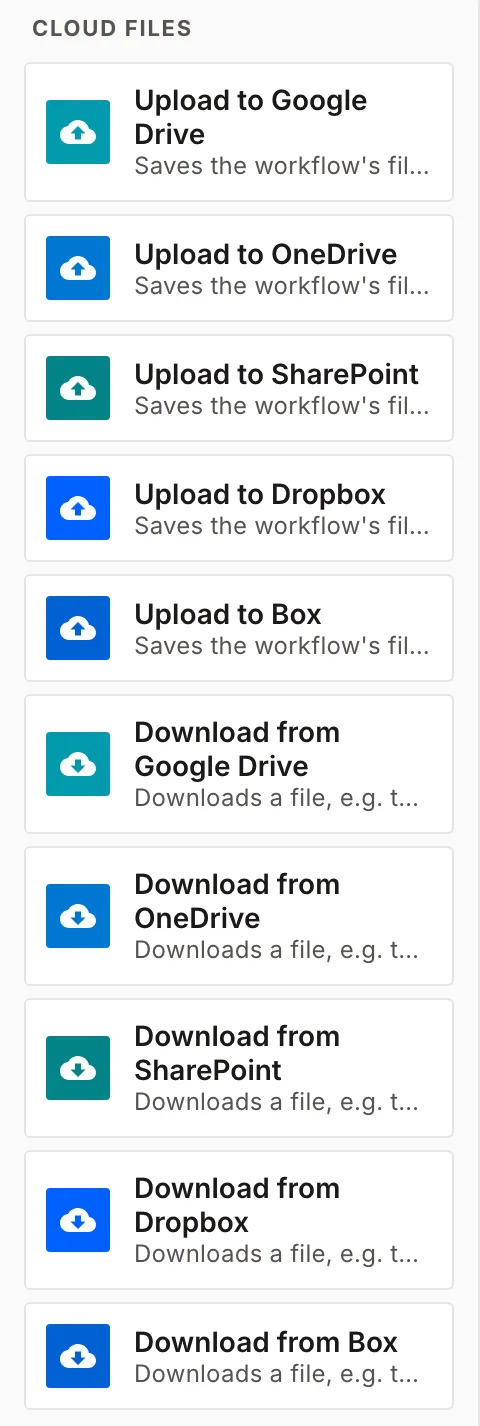
Without an active integration the entry is greyed out and says No active Google Drive integration. Connect Google Drive in the integrations. You connect one in the integrations. If your role lacks one of those permissions, the entry says Adding this step requires permissions your role does not have: and names them.
Settings
Section titled “Settings”| Setting | Allowed values | Default |
|---|---|---|
| Storage | Default Google Drive storage, one named storage, or a storage of another provider, which moves the node there | Default Google Drive storage |
| Target folder | A path from the storage’s root folder, may contain variables | Empty: the root folder |
| Files to upload | Upload all available files, or chosen files | All available files |
| File name (More settings) | Text with variables, or empty to keep each file’s name | Empty |
| If a file with this name exists (More settings) | Keep both (add a number), Replace, Skip the file, Stop with an error | Keep both (add a number) |
| If there are no files to upload (More settings) | Stop with an error, Skip this step | Stop with an error |
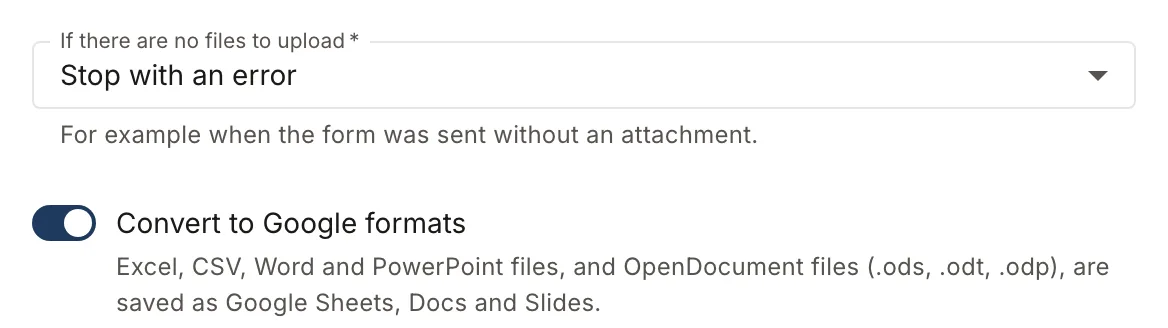
| Convert to Google formats (More settings) | On, off | Off |
| A slash in a variable creates a folder (More settings) | On, off. Only on nodes from the old upload nodes. | On for those nodes |
Variables in these fields can carry operations and functions, such as {{ id | first(8) }} or {{ nickname ?? firstName }}: click a variable and then Operations, or use f(x).
Each is explained under Settings on the main page.
Convert to Google formats
Section titled “Convert to Google formats”With this switch on, an office file is stored as Google’s own document, ready to edit in the browser. It loses its extension on the way, since Google’s documents have none.
| File | Becomes |
|---|---|
.xlsx, .xls, .ods, .csv |
Google Sheet |
.docx, .doc, .odt |
Google Doc |
.pptx, .odp |
Google Slides |
Any other file is uploaded as it is, and that includes PDFs and old .ppt presentations. Turn the switch on for files your team will go on editing, such as an attendance list. Leave it off when the file has to stay exactly as generated, such as a contract someone may compare with the original.
What Doxtly can see on your Drive
Section titled “What Doxtly can see on your Drive”Depending on what the connection was granted, Google may let Doxtly see only the files Doxtly added. Uploading works either way, since those are Doxtly’s own files. The limit shows with a folder someone created by hand on Drive: Doxtly does not see it, so Check folder says it will be created, and the upload makes a second folder of the same name. Create such folders through Cloud files and they will be visible.
What it produces, and what can go wrong
Section titled “What it produces, and what can go wrong”The node adds no variable and no file. Apart from a storage it cannot use and an empty variable in the folder or file name, it fails only when every file failed, or when there was nothing to upload and it is set to Stop with an error. The full table is under When something goes wrong. If the connection to Google has expired or was revoked, the error asks you to connect the integration again.
Example
Section titled “Example”A training company’s trainers edit attendance lists in Google Sheets. The form trigger brings an Excel list, and the workflow files it for them.
| Setting | Value |
|---|---|
| Target folder | Courses/{{ course }}/Attendance |
| Files to upload | The form’s file field |
| File name | Attendance {{ _execution.date }} |
| Convert to Google formats | On |
The trainers open a Google Sheet called Attendance 2026-11-05 in Courses/GDPR Basics/Attendance. A later Read from a sheet node can use the path with or without .xlsx: it finds the sheet either way.