

Sent emails
The Sent tab is your record of everything that left through a template, however it was sent. Come here when a client says the message never arrived, when you need to show what you told someone and when, or when you want to know if an invitation has been opened. Say a client of Northbridge Advisory phones to ask where their NDA is: you search for the template, see the row marked Sent with a green envelope, and can tell them when it went out and when it was opened.
Available when: your role includes View email templates and sent emails
Open Resources > Messages in the sidebar and switch to the Sent tab. With an SMS or WhatsApp integration, a Channel filter beside Status chooses which messages the list shows; email comes first.
Every message built from an email template appears here, your default messages included, such as a signature request or a reminder. A one-time code has no template, so it isn’t listed, and neither is a message sent from Doxtly’s mailbox, which shows on the party’s row of the package.
The list
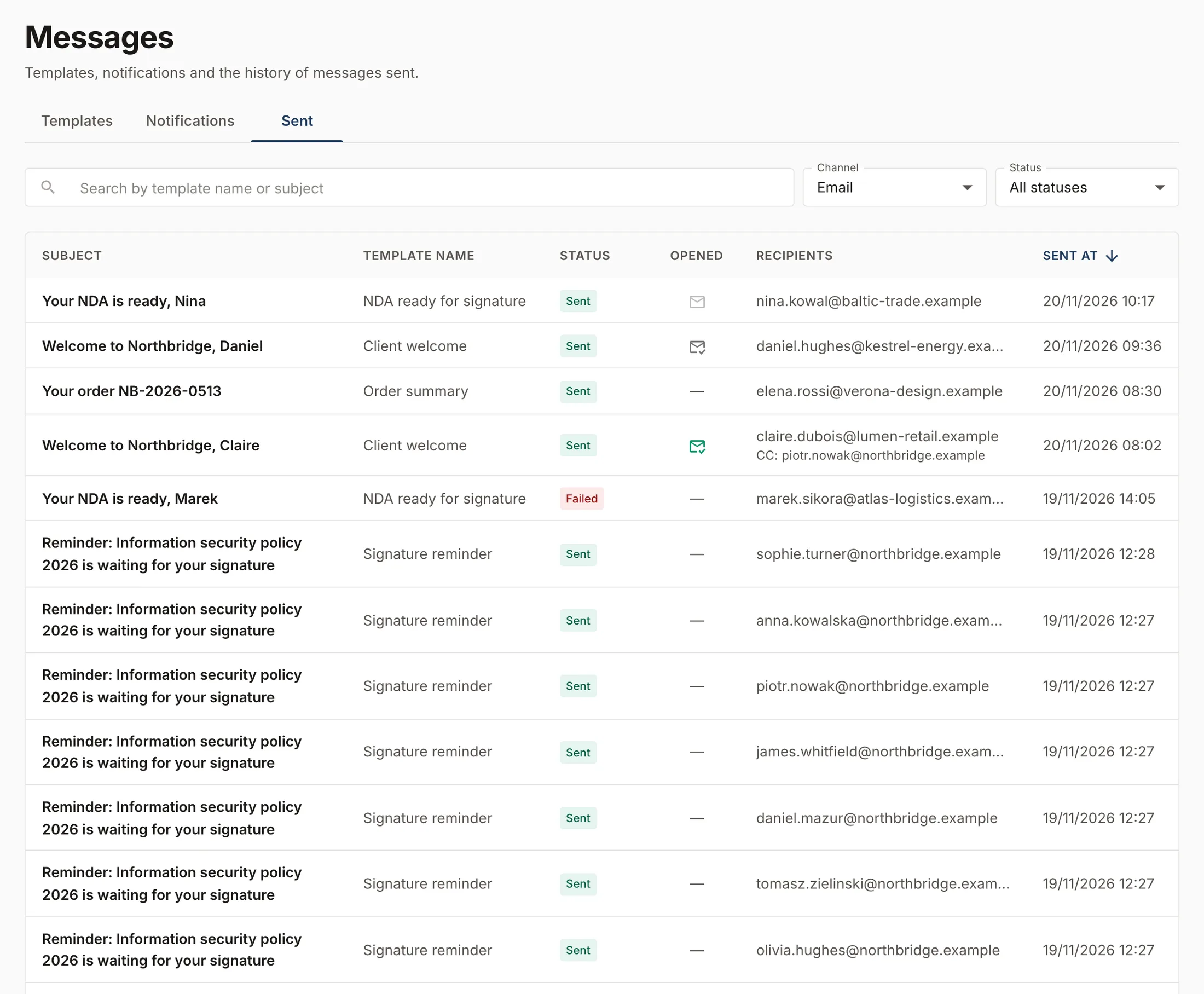
Section titled “The list”Each row is one message to one recipient. A send to twenty people gives twenty rows, each with its own status.
| Column | What it shows |
|---|---|
| Subject | The subject as the recipient saw it, with variables filled in. A very long subject goes out whole, and this record keeps its first 255 characters. |
| Template name | The template it came from. Sortable. |
| Status | Sent, Waiting for sending capacity or Failed. Sortable. |
| Opened | An icon for what’s known about opens. See below. Hover to read it. A dash means opens of that email weren’t tracked. |
| Recipients | Each recipient on a line of their own, with any copied addresses under them as CC. An address too long for the column is cut short; hover to read it whole. |
| Sent at | The date and time it was sent or attempted. Sortable. |
The newest emails come first until you sort by a column, and a second click on a header reverses the order, and a third goes back to newest first. Below the list you can choose to show 10, 25 or 50 rows a page. On a phone each row becomes a card with the same information.
You can Search by template name or subject, and filter by Status: All statuses, Sent, Waiting for sending capacity or Failed. Searching by recipient address isn’t available. Filters show up as chips that you can remove one by one or with Clear all, and they’re kept in the page address, so you can bookmark a filtered view.

The Failures widget on the dashboard leads here too. Its Email sending link opens the failed emails of the period it counts, with one chip for the status and one reading Since and the starting moment. Remove the chips to see everything again.
Waiting for sending capacity marks an email sent through Doxtly e-mail beyond its hourly or daily limit. It isn’t refused: it goes, in order, as soon as there is room, and then turns Sent, or Failed with the reason if it can’t go.
Before anything has gone out, the tab says No sent emails. If your filters match nothing, it says No results, with Clear all filters beneath it.
Click a row to open that email.
Did they open it?
Section titled “Did they open it?”Doxtly tracks opens for templates that have Track opens on, which is the default. You can turn it off in the template’s email settings.
| In the list | On the email’s page | Meaning |
|---|---|---|
| Green envelope with a tick | Opened | The recipient’s mail program registered an open. The tooltip gives the date. |
| Grey envelope with a tick | Fetched automatically | A mail program picked the message up by itself, as Apple Mail with privacy protection does and sometimes the Gmail app. Whether anybody read it is unknown. |
| Faint envelope | No open recorded | Nothing has registered so far. |
| Nothing | Not tracked | Opens of this email weren’t tracked. |
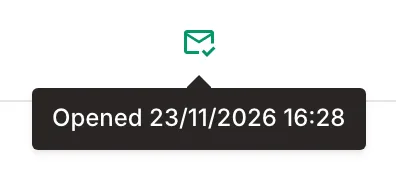
Read this as a hint about what happened. “No open recorded” doesn’t mean unread, because some mail programs, such as classic Outlook in its default setup, never report an open. “Opened” is good evidence but no guarantee, since a company mail filter that inspects incoming messages can register the same way a reader does.
The number of opens is a minimum. A first open is reliable, but repeat opens often go unnoticed, so the real figure may be higher. Addresses in CC receive the same message, so an open may be theirs and not the recipient’s. Looking at the email in Doxtly doesn’t count, so open its page as often as you like.
In practice this helps you decide who to chase. If half the clients you invited to a survey show No open recorded after a week, a friendly reminder to them is worth sending. For something with legal weight, such as a signed agreement, rely on e-signing and not on an open.
A single email
Section titled “A single email”The page title is the template’s name with the status beside it. The back arrow returns to the list. There are up to four tabs: Attachments appears only when the email had attachments, and Variables only when the template read any.
Information
Section titled “Information”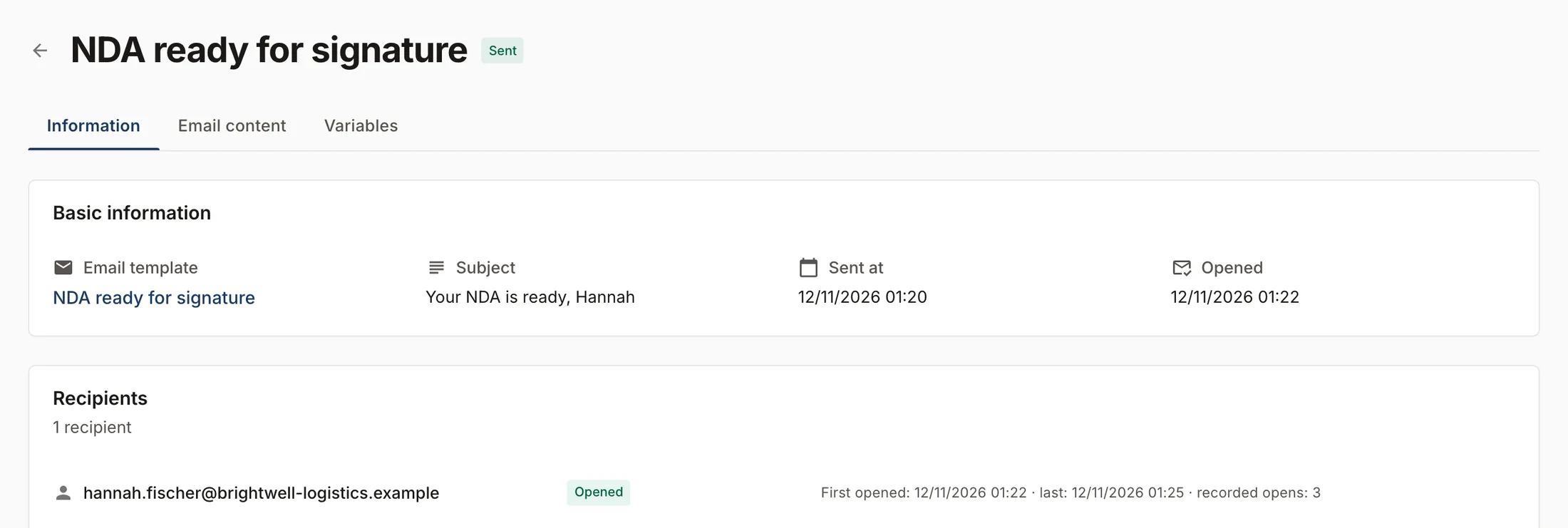
Basic information gives the Email template, Subject, Sent at with the time, and Opened. The last one shows the date of the first open, or the status from the table above. A failed email has no Opened field. If you can edit templates, the template’s name links to the designer.
Recipients lists each address and its open status, with details beside it:

| Status | Details shown |
|---|---|
| Opened | First opened, last, and the number of recorded opens |
| Fetched automatically | When it was fetched |
| No open recorded | Nothing |
For an email without tracking, or one that failed, you see the addresses alone. Any addresses copied in follow under Copied in (CC). A note at the bottom of a sent email sums up the limits of tracking, or says that its opens weren’t tracked.
Email content
Section titled “Email content”The message as it was sent, with To, Cc and Subject above the body. The switch at the top right shows it at Mobile or Desktop width. Its text is the copy Doxtly kept at the time, so rewording the template later doesn’t touch it.
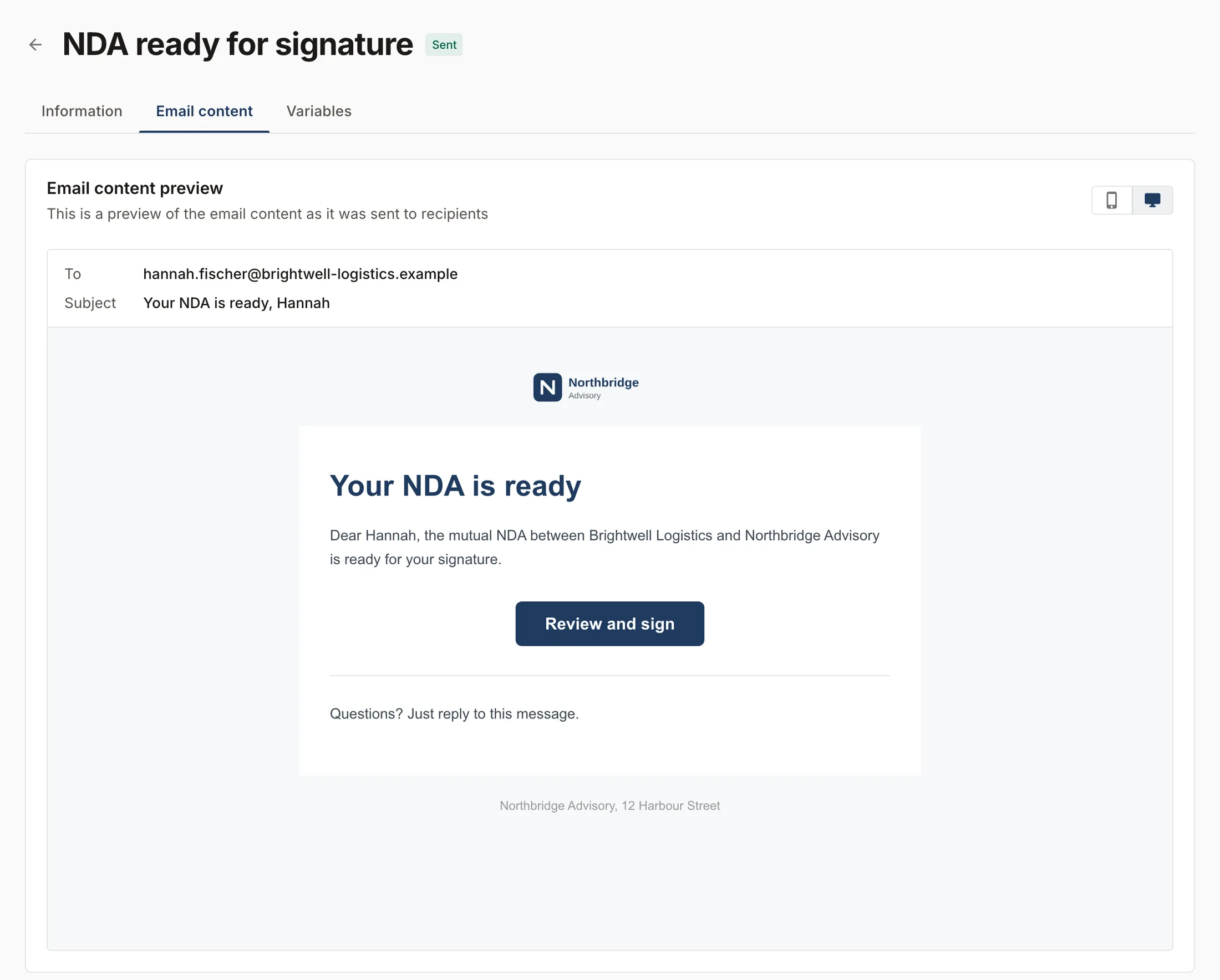
If the email carried a link for signing a document, that link is taken out of the stored copy, and a notice at the top says so. Anyone holding such a link could sign in the recipient’s place. The recipient received a working link.

Attachments
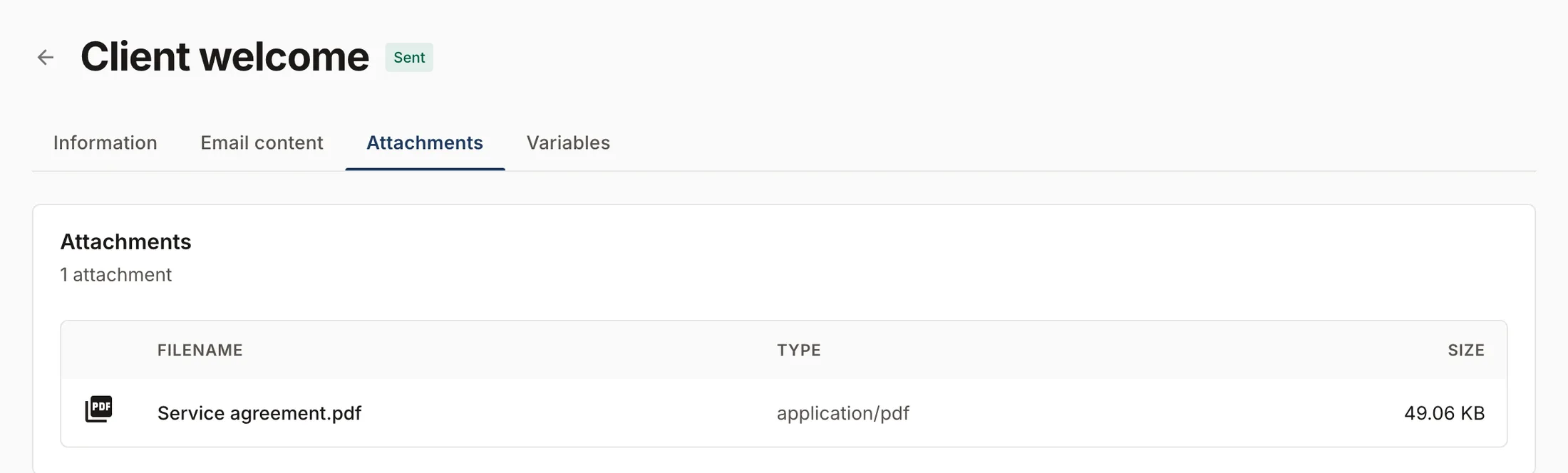
Section titled “Attachments”The Filename, Type and Size of each attached file. This is a record of what was attached. The files themselves aren’t kept here, so you can’t download them from this tab.
Variables
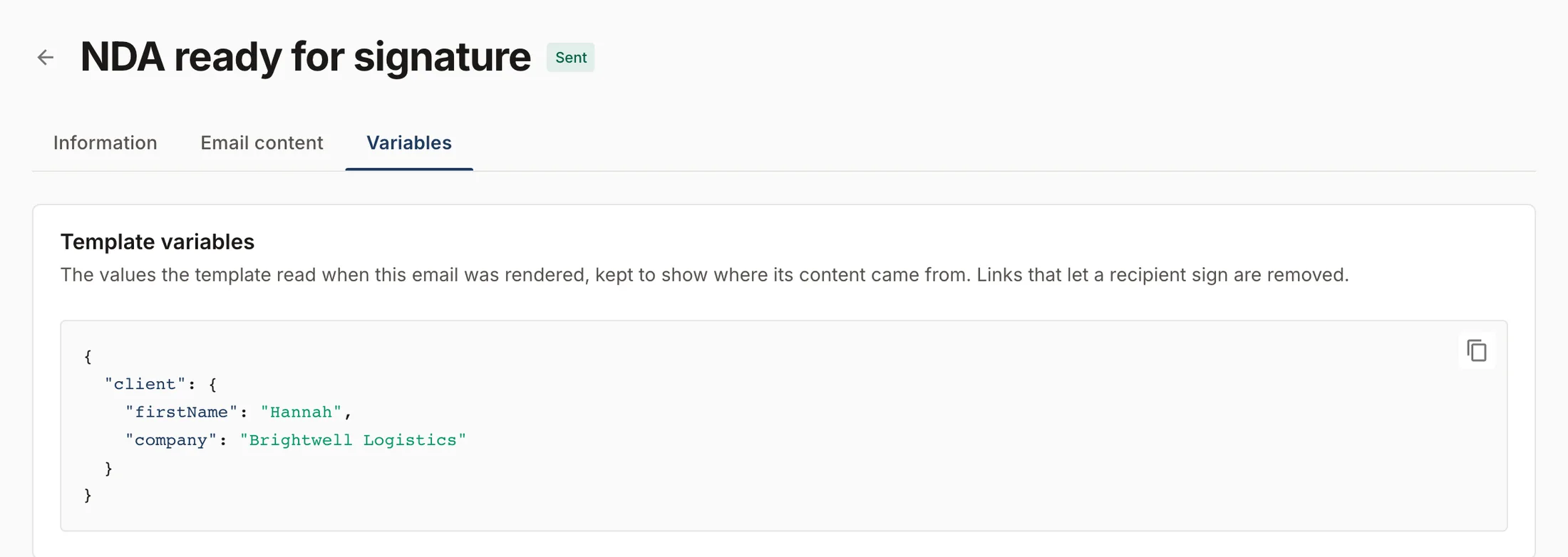
Section titled “Variables”The values the template read when this email was rendered, as JSON, with a Copy to clipboard button. This is how you find out why an email said what it said: why the greeting was blank, or why a recipient got the else branch of a condition. Only what the template read is kept, not everything it was given, and signing links are removed.
When an email fails
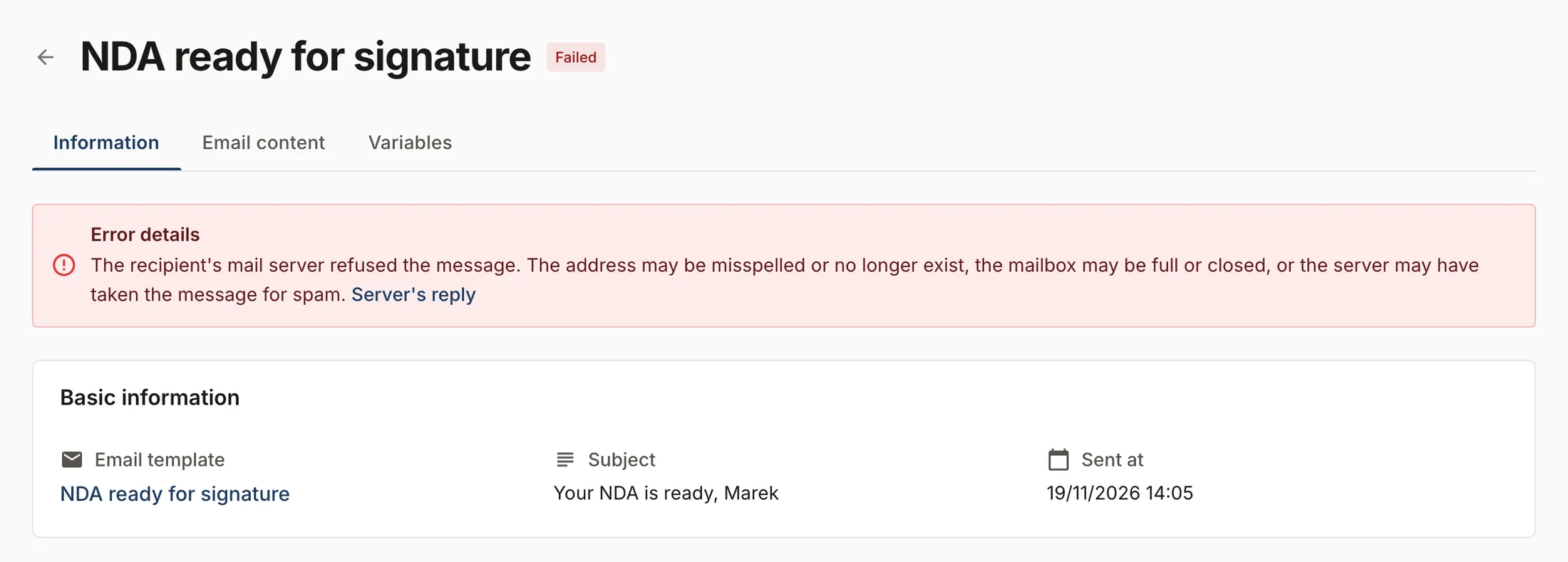
Section titled “When an email fails”A failed email has the Failed status, and its Information tab opens with Error details saying what went wrong, for example that the mail server refused the address. The Email content tab shows what was meant to be sent. If the template itself couldn’t be rendered, that tab and the subject show the template as written, with its variables unfilled.
| Situation | What to do |
|---|---|
| The mail server refused the login or connection | Check the email integration. |
| The address was refused | Correct the address at its source, then send again. |
| The template couldn’t be rendered | Preview it with the values from the Variables tab. |
There’s no resend button on this page. To retry, send again the way the email was first sent: with Send link on the form or interactive document, by rerunning the workflow, or through the API. Failed emails don’t count towards your plan.
Some sends are refused before a message exists, so no row appears here. That happens when the template isn’t Active, when there’s no usable email integration, when attachments exceed 25 MB, or when your plan’s limit stops the send. The person or the workflow step that tried to send gets the error directly.
When a workflow sends the email, its run’s page links to the row here, failed or sent.
How long emails are kept
Section titled “How long emails are kept”Sent emails are kept for 1,825 days, about five years, unless you choose otherwise. Change this under Data retention in the organization settings, on the Sent emails card: set the Number of days, or turn Remove older records off to keep them for good. Older records are removed every night with their content, variables and recipients, and that can’t be undone. Failed emails follow the same rule. The kept copies count towards your plan’s data space.