

Update a deal
Update a deal changes a deal in Pipedrive or HubSpot, or an opportunity in Copper, while the workflow runs: it moves the deal to a stage, marks it won or lost, sets its value and currency, or fills in its fields. The usual case: once the client signs the contract, the deal is won and carries the contract’s number, without a salesperson touching it.
Available when: your plan includes CRM integrations and the organization has an active CRM integration
The step only changes a deal that exists. It never creates one, and a deal the CRM doesn’t have fails the step. The page speaks of Pipedrive; what differs in HubSpot and Copper is under With HubSpot and Copper.
Which deal
Section titled “Which deal”The step names the deal by its ID in the CRM. A run knows it in one of two ways:
- a workflow started by the CRM’s A CRM deal changes stage or status has it in
{{ _opportunity.id }} - a package keeps it in its Deal ID field (Opportunity ID for Copper), the custom field of packages the integration keeps deals’ IDs in. See Pipedrive IDs. A workflow on a Document package event reads it as
{{ _package.fields.<key> }}
When the integration has a Deal ID field, the Record ID in the CRM field offers it as a chip to people who may view integrations, such as Use {{ _package.fields.pipedriveDealId }}: click it to fill it in. To put a deal’s ID into a package, fill in that field in the Create documents step’s Fields with {{ _opportunity.id }}.
Setting it up
Section titled “Setting it up”- Drag Update a deal from the CRM group onto the canvas and connect it.
- Click Configure this step in the panel. In the dialog, on the Deal tab, check the CRM integration and fill in Record ID in the CRM.
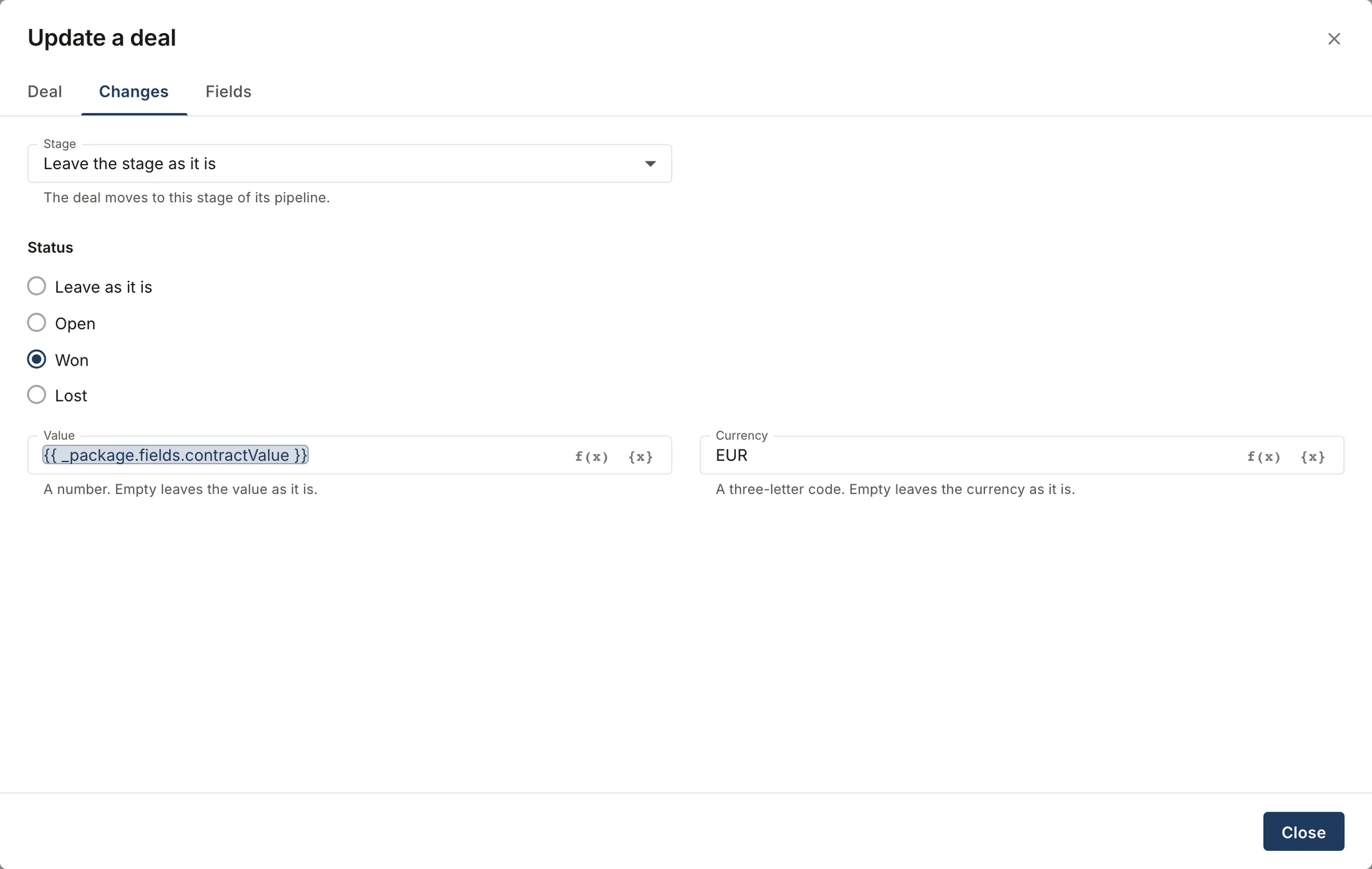
- On the Changes tab, choose a Stage, a Status, or both, and fill in Value and Currency if they should change.
- On the Fields tab, click Add a deal field for each field of the deal to set, and give it a value.
Settings
Section titled “Settings”| Tab | Setting | Values and default | What it does |
|---|---|---|---|
| Deal | CRM integration | Required. Your active CRM integrations; the default one is selected for you. | The CRM account the deal is in. |
| Record ID in the CRM | Required. Text and variables. | The deal’s ID. A variable that gives nothing fails the step. | |
| Changes | Stage | Leave the stage as it is (the default), or a stage, listed under its pipeline. | Moves the deal to this stage, and into its pipeline. |
| Status | Leave as it is (the default), Open, Won or Lost. | Marks the deal. | |
| Value | Text and variables. Empty by default. | The deal’s value, a number. A comma works as the decimal mark, so 1500,50 is 1500.50. |
|
| Currency | Text and variables, such as EUR. Empty by default. |
A three-letter code, in capitals or not. | |
| Fields | Deal fields | Add a deal field for each one; the bin removes it. | Sets each chosen field of the deal, the CRM’s own or your company’s custom ones, to the value given. |
A value that fills in to nothing leaves that part of the deal as it is, so {{ total }} from a form where nobody gave a total changes nothing. The step must change something: a step with no stage, no status, no value, no currency and no field can’t be saved, and says “Choose at least one change: a stage, a status, a value, a currency or a field.”
The stages and fields are read from the CRM as you choose them. If a stage or field was deleted in the CRM since, the step says “The CRM no longer has this stage. Choose another one.”, or that the CRM no longer has the field, naming its code, with “Remove it.”
What the next steps get
Section titled “What the next steps get”Nothing they can use: the step adds no variables and no files. On the run’s page it shows the integration, Record: Deal and what the step set, such as Changed: stage, status, even where the deal already had those values. Nothing changed means every value filled in to nothing, so the step only checked that the deal exists. A field of the deal is named by the CRM’s code for it: Pipedrive’s key, HubSpot’s internal name of the property, the ID of Copper’s custom field.
With HubSpot and Copper
Section titled “With HubSpot and Copper”The step works the same way on a HubSpot or Copper integration, with these differences:
- In HubSpot, won and lost are stages. A Status without a stage moves the deal to its pipeline’s first stage of that outcome: Won to the closed won stage, Lost to the closed lost one. Open alone can’t reopen a closed deal, and HubSpot refuses the step: choose the stage it should go back to instead.
- In Copper the step changes an opportunity. Value and Currency are its monetary value and unit, and the fields are Copper’s custom fields. Status sets Open, Won or Lost; an opportunity Copper has as abandoned is read as lost.
- In both, a stage of another pipeline moves the deal into that pipeline, as in Pipedrive.
When it fails
Section titled “When it fails”A failed step stops the run, and people who may view workflows get a Workflow failed notification. Within the step, Doxtly waits out a short burst over the CRM’s limits (Pipedrive’s, HubSpot’s, Copper’s), and tries again after a brief outage when repeating the request is harmless. A step that failed isn’t retried: Rerun on the run’s page starts the workflow again with the same trigger data.
The messages name your CRM: where the table says Pipedrive, a HubSpot or Copper integration says HubSpot or Copper.
| What you see | Why | What to do |
|---|---|---|
Could not work out the ID of the CRM record from "...". Check that every variable it uses exists in the workflow data and is not empty. |
The package has no deal ID, or the variable is wrong | Check the package’s field, or put a Condition before this step |
Pipedrive has no such record. It may have been deleted or merged into another one. |
The deal is gone | Nothing to update. Correct the package’s deal ID if the deal was merged |
The deal's value "..." is not a number. |
The value isn’t a number | Check the variable |
Pipedrive did not accept the request. |
The CRM refused a value, such as an unknown currency or an option its field doesn’t have, or HubSpot was asked to reopen a closed deal without a stage | Check the values; to reopen a HubSpot deal, choose its stage |
The CRM integration of this step is not connected. Connect it again or choose another one. |
The integration was deleted or turned Invalid | Reconnect it, or pick another one |
Doxtly's connection to Pipedrive may not do this. ... |
The connected user can’t see or change the deal | Reconnect as a user who sees every deal, such as an admin |
Pipedrive is limiting the number of requests. Try again in a moment., Pipedrive cannot be reached right now. Try again in a moment. or Your Pipedrive company has used up its requests for today. Try again tomorrow. |
The CRM’s limits, or it is down | Rerun later. See the CRM’s limits above |
Example: won when signed
Section titled “Example: won when signed”Northbridge Advisory’s deals move to Contract sent when the client agrees. A workflow on the CRM’s trigger for that stage writes the service agreement and sends it with Create documents, whose Fields put {{ _opportunity.id }} into the package’s Pipedrive deal ID. A second workflow, on The package is fully signed for that document type, has two CRM steps:
| Step | Setting | Value |
|---|---|---|
| Update a deal | Record ID in the CRM | {{ _package.fields.pipedriveDealId }} |
| Status | Won | |
| Deal fields | Contract number: {{ _package.number }} |
|
| Attach files in the CRM | Record | Deal, {{ _package.fields.pipedriveDealId }} |
| Files | The signed documents |
The deal is won in Pipedrive the moment the last party signs, with the signed PDF on it.