

Doxie, the AI assistant
Doxie is Doxtly’s AI assistant. Ask her how something works, which approach suits your business, or what is waiting for you, and she answers in a few sentences with links to the pages of this manual she took it from. In the app she can also do the work: draft a form, place the fill-in areas on a PDF template, write an AI agent’s instructions or set up a workflow step. She always shows you first what she has prepared, and nothing changes until you approve it.
Available when: your role has the Use Doxie permission, which every built-in role has
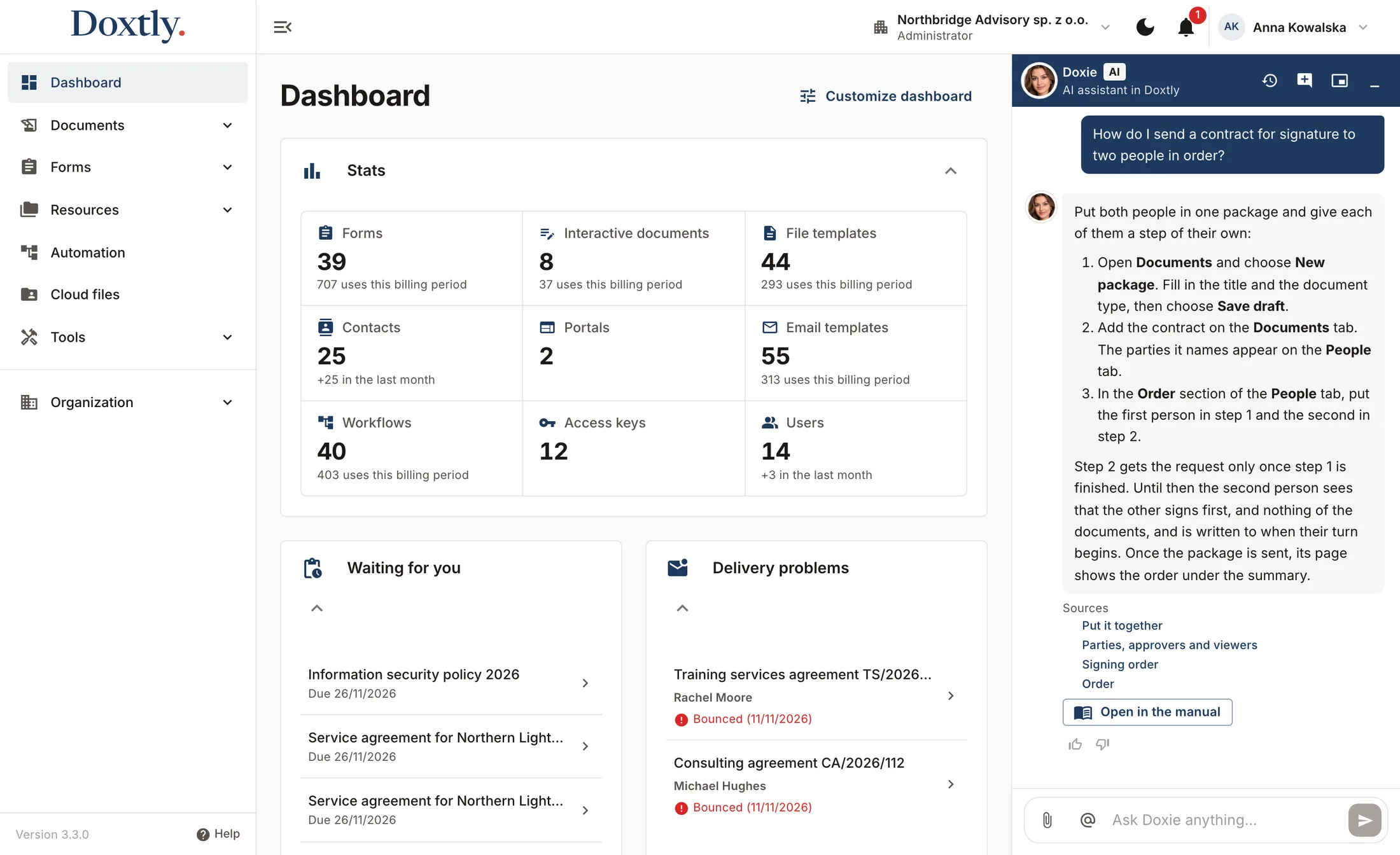
Where you meet her
Section titled “Where you meet her”| Where | Who | What she does |
|---|---|---|
| In the app | Everyone signed in whose role has Use Doxie | Answers questions about Doxtly, advises, tells you what awaits you, prepares work for you to approve. See Talk to Doxie. |
| On doxtly.com and in this manual | Anyone, without an account | Answers questions about Doxtly and its plans, and can draft a message to our team for you to send. See On the website below. |
Doxie is always marked as AI: her name comes with an AI label, and she never claims to be a person. Ask her, and she says so.
What she can do
Section titled “What she can do”- Answer questions about Doxtly, from this manual and the website’s pages on features, use cases, plans, security and plugins. Every answer lists its Sources, and she can open the manual at the exact section.
- Advise how Doxtly fits a situation you describe: which features to combine, which plan includes them, which role or permissions to give a colleague.
- Tell you what is waiting for you: documents to sign or approve, your unread notifications, failed workflow runs. See What Doxie can see.
- Prepare work in the app: a form, the areas of a PDF template, an AI agent or a skill, the code of a data transformation, the settings of a workflow step, a custom role. You apply it, or create it, yourself. See Work Doxie prepares.
- Help after an AI button fails. When a button such as Import from a link can’t finish, its message offers Ask Doxie, and she picks up from there. See Which AI runs Doxie.
What she won’t do
Section titled “What she won’t do”- Guess. When the documentation doesn’t answer something, she says so and suggests writing to our team, instead of making something up.
- Change anything by herself. Every change she prepares waits for your Apply or Create, and you can undo what you applied.
- Go beyond your permissions. She works as you: she sees only what you may see, and prepares only what you could do yourself. A viewer’s Doxie can’t build a form.
- Talk about anything but Doxtly. She steers an off-topic conversation back once; the second time she ends it politely.
- Give legal advice, or talk about how she is built.
Languages
Section titled “Languages”Doxie replies in the language you write in. In the app she speaks all of the app’s languages; on the website she speaks English, Polish and Spanish. Her links lead to the manual in the language of your app or of the page you are on, or in English where the manual has no translation.
On the website
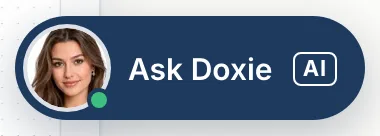
Section titled “On the website”On doxtly.com and on every page of this manual, the Ask Doxie button sits in the bottom corner: Doxie’s portrait with the AI label beside it. The dot on the portrait is green when she can answer now and grey when she can’t.
Click it and the chat opens. Ask about anything Doxtly does, which plan fits you, or how to get started. Under an answer you’ll find where she found it (Where I found this), and often a button that takes you there, such as Show me in the manual, See the plans or Open the case. When she can’t help, she can draft a message to our team: you read it, add your name and email, and send it with Send to the Doxtly team.
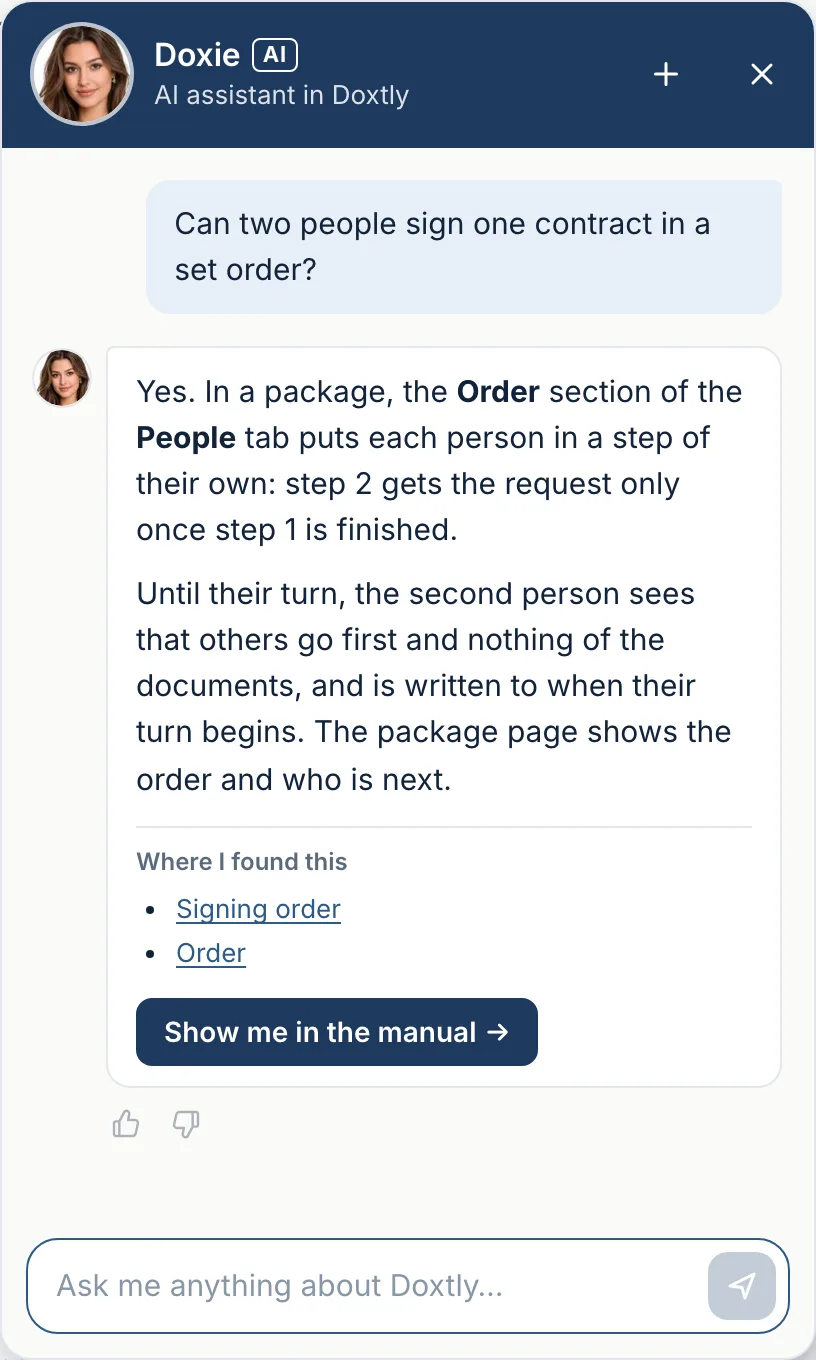
The chat stays with you as you move between pages, and a reply being written goes on. Good to know:
- What you write is kept for 30 days and then deleted. See the privacy policy.
- The chat is protected by Google reCAPTCHA, which loads only once you reach for the chat: point at its button, move to it with the keyboard or click it.
- One network can start three conversations a day, two of them at once, each with up to 20 of your messages of up to 1,000 characters. When none is left, the chat says when you can start a new one, and Write to us takes you to the contact form.
- When Doxie is unavailable, the chat says so at once and offers Write to us instead.
Who may use her in the app
Section titled “Who may use her in the app”Use Doxie is a permission in the Tools group, and every built-in role has it, Viewer included. Doxie works within the person’s own permissions, so giving her to everyone shares nothing they couldn’t already see. Without the permission, Doxie’s button doesn’t appear. See Roles and permissions.
Two settings of the organization shape her, under AI assistant (Doxie) in the organization settings: which AI she runs on, and whether she may read the organization’s records. Everyone also decides for themselves what she remembers about them: see What Doxie remembers.