

HubSpot integration
A HubSpot integration connects your company’s HubSpot account, the CRM where your sales team keeps its contacts, companies and deals, to Doxtly. Your salespeople stay in HubSpot, and the paperwork follows them: a deal moved to Contract sent starts a workflow that writes the agreement, and once the client signs, the deal moves to Closed won and the signed PDF is attached to it.
Available when: your plan includes CRM integrations (Pro and Business), and you hold Manage integrations
On a plan without CRM integrations, HubSpot isn’t offered among the types. An integration made earlier stays in the list, and opening it shows “CRM integrations are not in your plan” with See the plans. See Plans and limits.
What needs it
Section titled “What needs it”- the four workflow steps of the CRM group: Sync a contact with the CRM, Update a deal, Attach files in the CRM and Add a note in the CRM
- the CRM trigger, which starts a workflow when a deal changes stage or a contact is saved in HubSpot
- contacts from HubSpot suggested wherever you type an address, such as a party of a package, and brought into your contacts when you pick one. See Where contacts help you
You can connect several HubSpot accounts, each as its own integration.
How Doxtly knows which record is which
Section titled “How Doxtly knows which record is which”Doxtly copies nothing of HubSpot’s deals and keeps no deal of its own. It remembers HubSpot’s IDs in custom fields you choose: a contact’s field holds the ID of its contact in HubSpot, a company’s field the ID of its HubSpot company, and a document package’s field its deal’s.
Before you connect, it helps to add three text fields, one of contacts, one of companies and one of packages, such as “HubSpot contact ID”, “HubSpot company ID” and “HubSpot deal ID”. You can also add them later.
Connect HubSpot
Section titled “Connect HubSpot”- Go to Organization, Integrations, click New integration and pick HubSpot in the CRM group.
- Fill in Integration name, such as “Northbridge HubSpot”.
- Click Connect HubSpot.
- HubSpot asks you to sign in, to choose the account and to install Doxtly’s app in it, listing what the app asks for: contacts, companies and deals, their properties, and files. Agree to it.
- You return to the integration, which is now Active and shows “Connected as” with your address and the account’s domain.
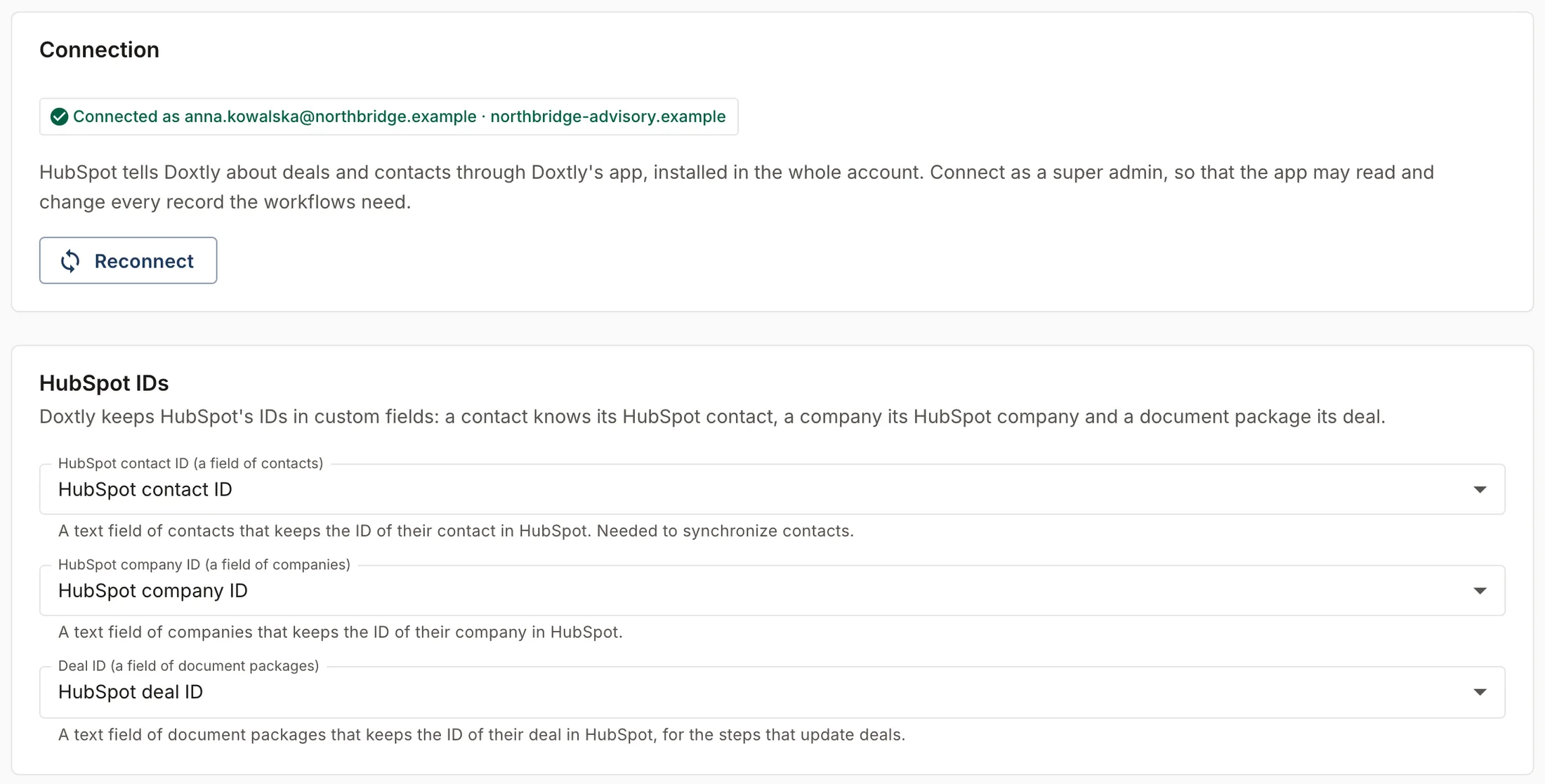
Until it is connected, the page says “Connect your HubSpot account to continue: you’ll be asked to install Doxtly’s app in it.” Connecting is what creates the integration, so there is no Save button yet. If you stop at HubSpot’s page, you find a Draft in the list. Open it and click Connect HubSpot again.
The app works on the whole account, not on one salesperson’s records. Install it as a super admin, so that it may read and change every record your workflows need. Everything Doxtly writes in HubSpot, such as a contact, a note or a file, is shown as written by the app.
HubSpot IDs
Section titled “HubSpot IDs”Once the integration is Active, choose the custom field that keeps each kind of ID, then click Save.
| Field | A field of | What needs it |
|---|---|---|
| HubSpot contact ID (a field of contacts) | Contacts | Sync a contact with the CRM, and the HubSpot contacts suggested where you type an address. Without it, neither works. |
| HubSpot company ID (a field of companies) | Companies | Finding a contact’s company in HubSpot by its ID rather than by its name. |
| Deal ID (a field of document packages) | Document packages | Steps that work on a package’s deal: they offer the field’s variable to fill in with one click. |
The rules are those of every CRM integration: a field can keep the IDs only if it is a Text field, not sensitive, unique and not another integration’s ID field, and Make it unique turns uniqueness on. See Pipedrive IDs, which work the same way.
Field mapping
Section titled “Field mapping”The Field mapping card says which values of contacts and companies go to which properties of HubSpot’s contacts and companies, and back. A fresh integration maps First name, Last name, Email, Phone and Job title to the HubSpot properties of the same name, and Company name to the company’s Name. Add rows for more, pick any HubSpot property, including your own (they carry the chip Custom field), and Restore defaults brings the mapping above back.
- Tax ID can go only to a property your account added, because HubSpot has none of its own for it.
- Only values that hold something are copied. An empty value never clears the other side.
- A HubSpot contact has one primary email address and one phone number. Sending a contact fills them in when HubSpot has none, and leaves an address or number HubSpot already holds as it is.
Changes in HubSpot reach Doxtly
Section titled “Changes in HubSpot reach Doxtly”HubSpot tells Doxtly about changes through Doxtly’s app, for every account it is installed in. There is nothing to set up, and nothing appears among your account’s own webhooks.
- A deal moved to another stage, won or lost, starts the workflows listening to it within moments. Winning and losing are stages in HubSpot (Closed won, Closed lost), so the trigger’s Status filter matches the deal’s stage. HubSpot doesn’t say which stage the deal left, so a run of a HubSpot deal has no previous stage.
- A contact created or changed starts the workflows listening to contacts. Several properties changed at once start one run.
- A change Doxtly made itself starts no workflow.
- When records are merged in HubSpot, the merged record gets a new ID. Doxtly moves the new ID into the contact, company or package that kept an old one, so the link holds; a conflict is handled as for Pipedrive, with the notification A CRM merge unlinked a record.
Moving deals
Section titled “Moving deals”An Update a deal step that sets a Status without a stage moves the deal to its pipeline’s first stage of that outcome: Won to the closed won stage, Lost to the closed lost one. To reopen a closed deal, choose the stage it should go back to. A stage of another pipeline moves the deal into that pipeline.
Files attached in HubSpot are uploaded as private files to the folder Doxtly in your account’s files, and attached to the record by a note that names them.
When the connection stops working
Section titled “When the connection stops working”The integration turns Invalid when HubSpot no longer takes the connection, for example because Doxtly’s app was uninstalled from the account. Steps on it fail with “HubSpot no longer accepts Doxtly’s connection. Connect the integration again.” Open the integration and click Reconnect: your HubSpot IDs and field mapping are kept. Reconnecting must reach the same HubSpot account. To work with another account, add a new integration.
Test connection reads the account’s deal pipelines. Nothing is changed in HubSpot.
HubSpot’s limits
Section titled “HubSpot’s limits”HubSpot lets an app make a limited number of requests to an account in every ten seconds. Over it, Doxtly waits a few seconds and tries again by itself; if that’s not enough, the step fails with “HubSpot is limiting the number of requests. Try again in a moment.” Rerun the run a little later. When the account’s requests for the day are used up, the step fails until HubSpot’s new day begins.
Delete a HubSpot integration
Section titled “Delete a HubSpot integration”Deleting the integration ends the connection; to remove the app from HubSpot too, uninstall it among your account’s connected apps. Workflow steps on it then fail, and workflows listening to it no longer start. The custom fields keep the IDs they hold, and nothing in HubSpot is deleted. See Delete an integration.