

Update contact
The Update contact node changes the contact a run is about with the run’s answers. Its natural partner is a form sent through a personal link: the client corrects their details in the prefilled form, and this step writes them back to the contact, so nobody retypes them. Unlike Save contact, it finds the contact by its ID, not by an email address, so it can change the address too.
Available when: the View contacts and Manage contacts permissions to set up
You find it in the Contacts group of the palette.
Settings
Section titled “Settings”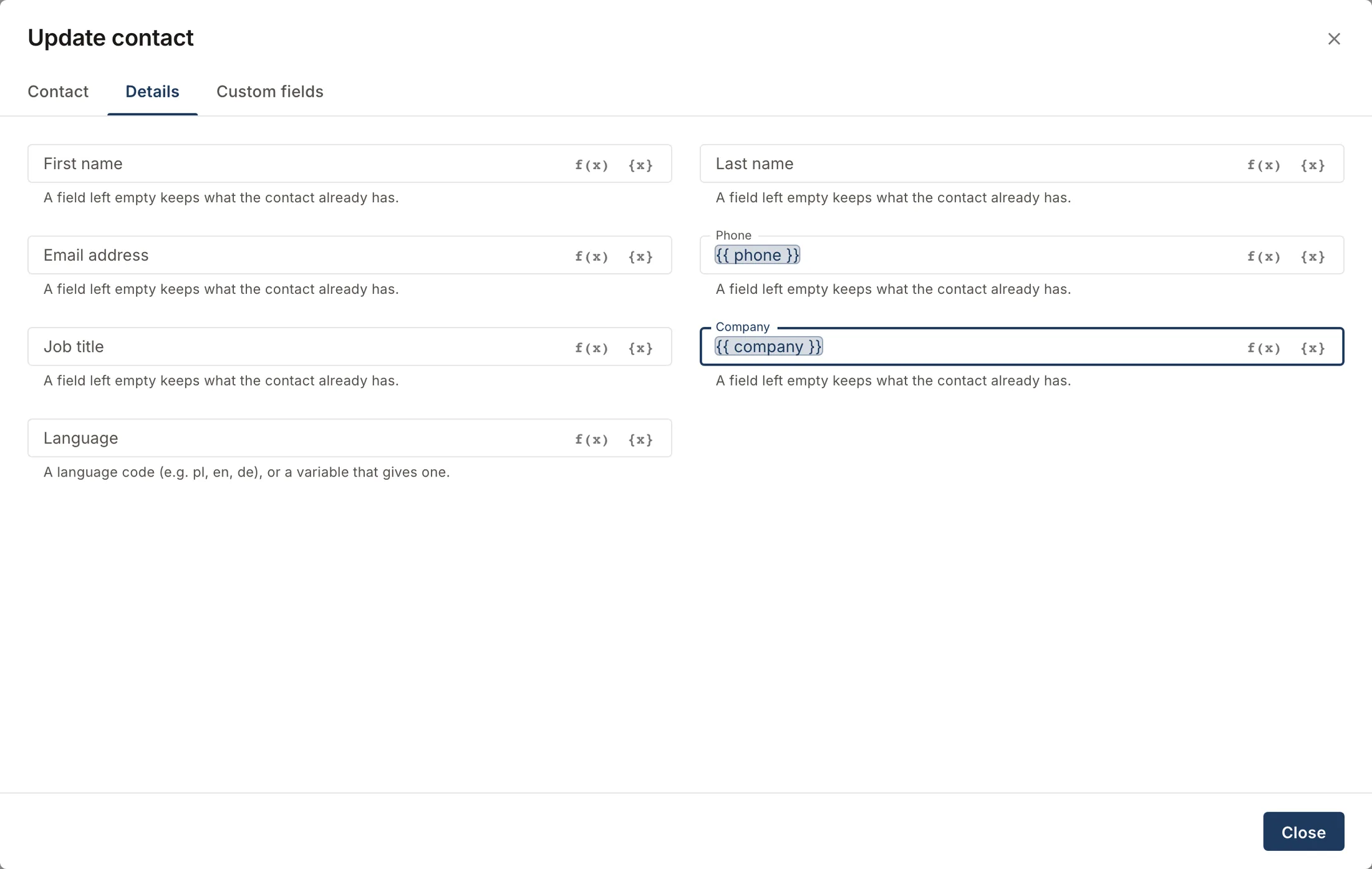
| Tab | Setting | What it does |
|---|---|---|
| Contact | Contact ID | Which contact to change. {{ _contact.id }}, the default, is the contact a personal link was sent to. Required. |
| Details | First name, Last name, Email address, Phone, Job title, Company, Language | What each built-in field gets, usually a form field such as {{ phone }}. Left empty, or rendering empty, the contact keeps its value. |
| Custom fields | One field per custom field of contacts | The same for your organization’s own fields. Sensitive fields are not offered: a workflow never writes one. |
On the run’s page
Section titled “On the run’s page”The step’s card says Contact updated with the fields it changed, No change, or No contact to update when the run names no contact of your organization: a submission through the form’s own link has no _contact, and the run goes on. The step fails when a value is wrong, for example an invalid email address, or when the new email address is another contact’s.
The change appears in the contact’s History, naming the workflow and the run, and starts the Contact saved workflows like any other change.