

Data sources
A data source reads a spreadsheet or a JSON file from a connected drive, so that a form or a PDF template can use what it holds: as a value in a formula, as the options of a select, or to block slots that are already taken.
Available when: your plan includes data sources and a cloud drive is connected. Choosing a file also takes the View cloud files permission.
Add a data source
Section titled “Add a data source”- In a form, open Settings and the Data sources section. In a PDF template, open its designer, then Template settings (⚙ in the top bar) and the Data sources section. See Template settings.
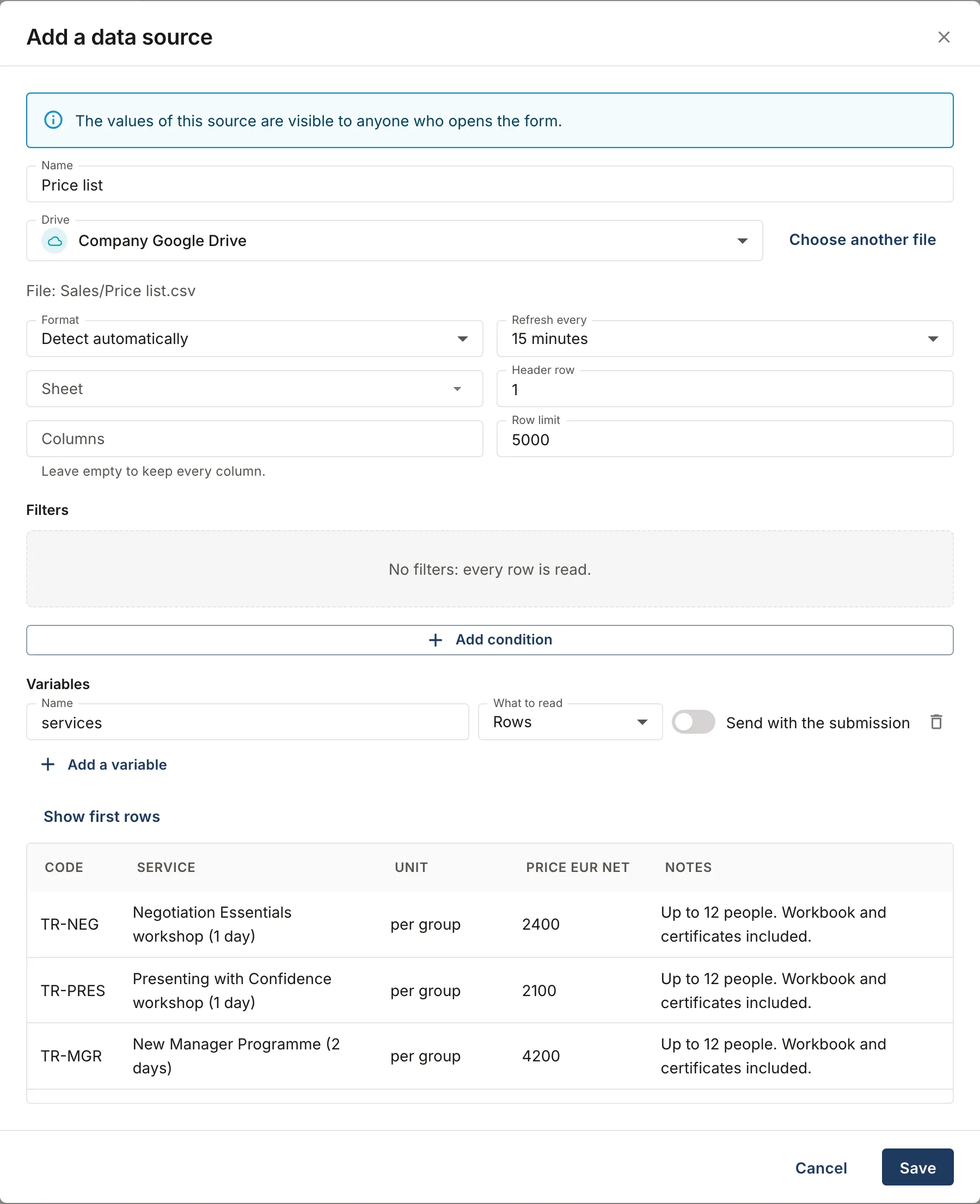
- Select Add data source and give it a name.
- Choose the Drive and select Choose a file.
- Set how it is read. Format is Detect automatically unless you pick Native spreadsheet (a Google Sheet), Excel (.xlsx), Excel 97-2003 (.xls), CSV, OpenDocument (.ods) or JSON. For a spreadsheet choose the Sheet, the Header row (1 by default), the Columns to keep (empty keeps them all) and the Row limit (5,000 by default). For JSON give a JSON pointer such as
/slots. - Optionally, under Filters, Add condition to read only the rows that match, for example
Unitisper group. With none, the dialog says No filters: every row is read. - Under Variables, name what you want to use and choose What to read. Add a variable reads something else from the same file.
- Choose Refresh every: 1 minute, 5 minutes, 15 minutes (the default), 1 hour or 1 day. Show first rows reads the file there and then and shows its first rows, so you can check the header row and the columns. Save the source, then save the form or template.
Once the form is saved, the Data sources section lists each source with its file and its status, and buttons to refresh, edit and remove it.
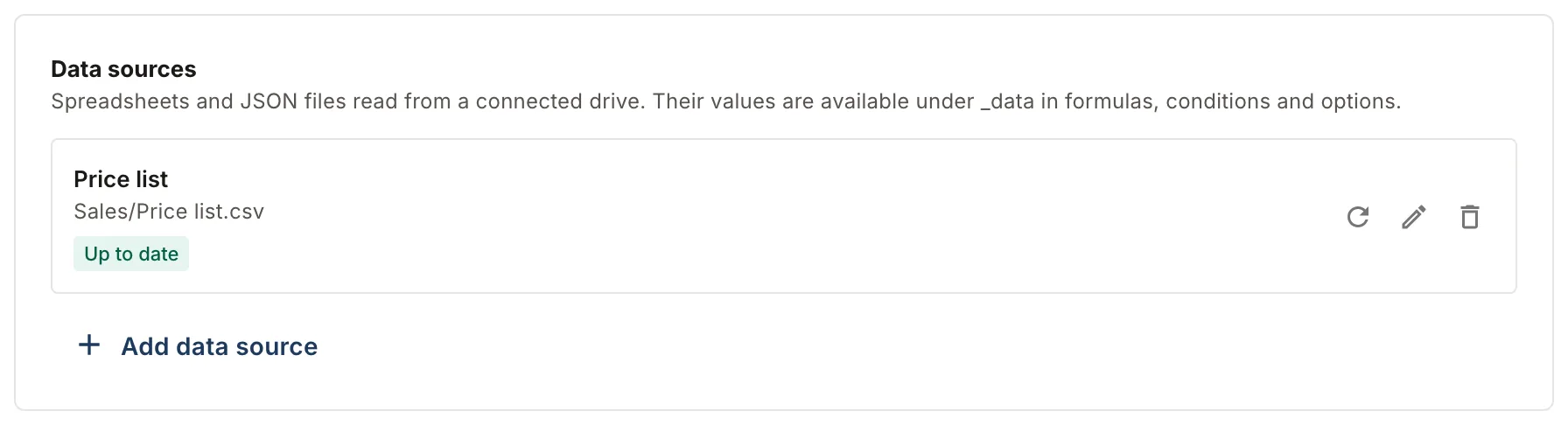
With no drive connected yet, the page offers a link to Integrations in place of Add data source.
Variables and shapes
Section titled “Variables and shapes”Each variable is read as _data.name in formulas and conditions, and as {{ _data.name }} in text, and is offered by the {x} button.
| Shape | What the variable holds |
|---|---|
| Rows | Every row, each a set of column values. Use it for options and LOOKUP. |
| Column | The values of one column, as a list. |
| First row | The first row, a set of column values. |
| Cell | One column of the first row. |
| Whole value | The JSON value at the pointer, as it is. |
Send with the submission keeps the variable’s value with each submission, under _data, and makes it available to the form’s workflows. It’s always the value on the server, never one a browser could change. A value larger than 256 KB is not kept.
Options from a data source
Section titled “Options from a data source”A Select or Single choice field, and a Choice list in a PDF template, can take their options from a data source. At the top of the field’s Options, switch from Typed in to From a data source. The options you typed stay on the field, so switching back brings them back.
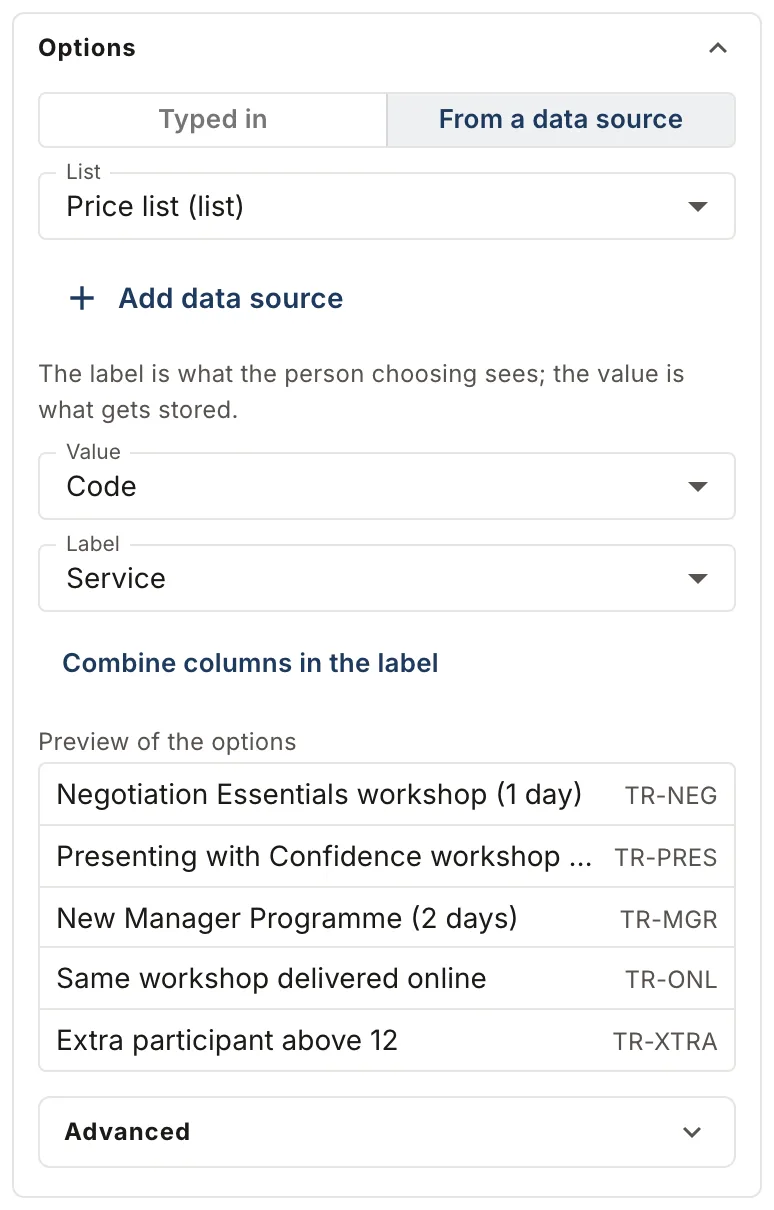
If no cloud drive is connected yet, the panel tells you so and links to Integrations. With a drive connected, Add data source opens the same dialog as the form’s settings, right where you are, and brings you back with the new source’s list already chosen.
Then pick what the options are made of:
| Option | Meaning |
|---|---|
| List | A list of a data source, named after it, such as Bookings (list). A source with a single list is chosen for you. A variable of shape Rows or Column makes a list. |
| Value | The column stored as the answer. |
| Label | The column the person choosing sees. Same as the value shows the value itself. |
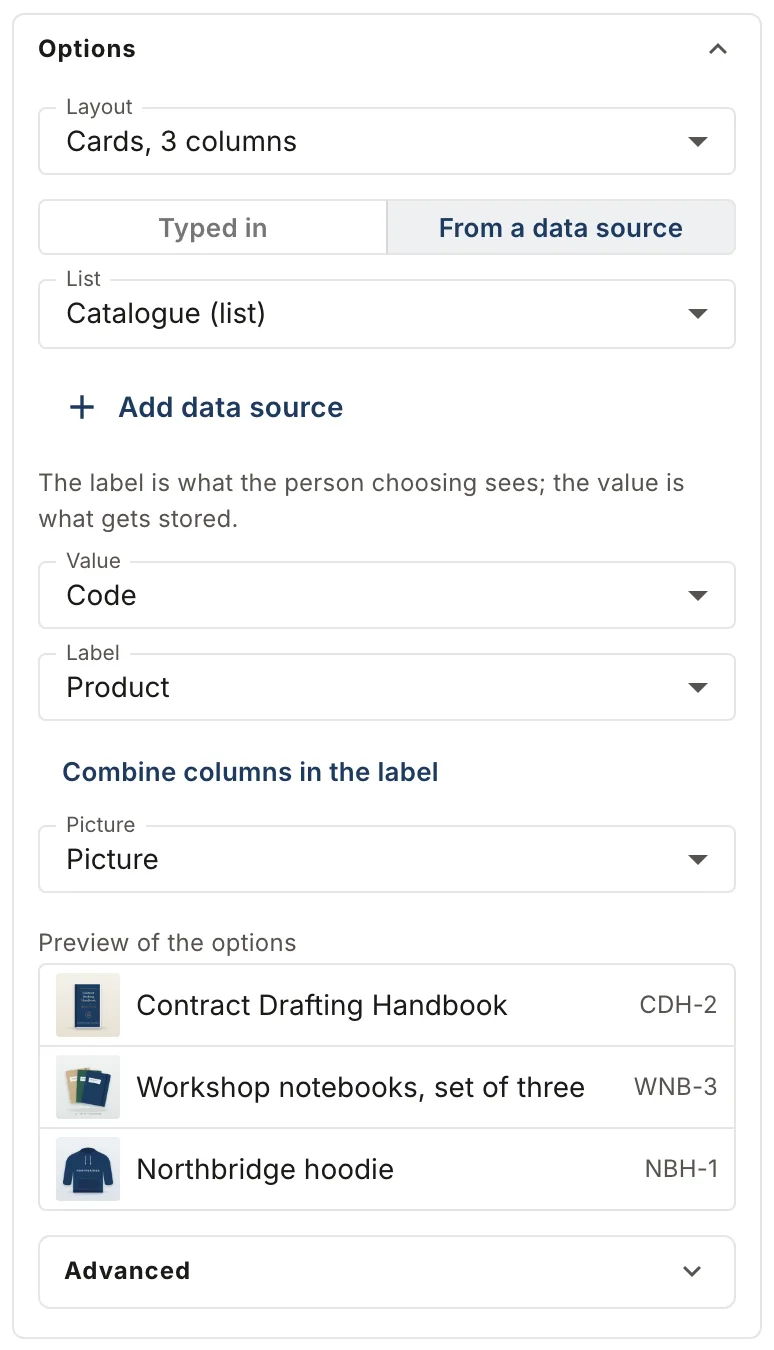
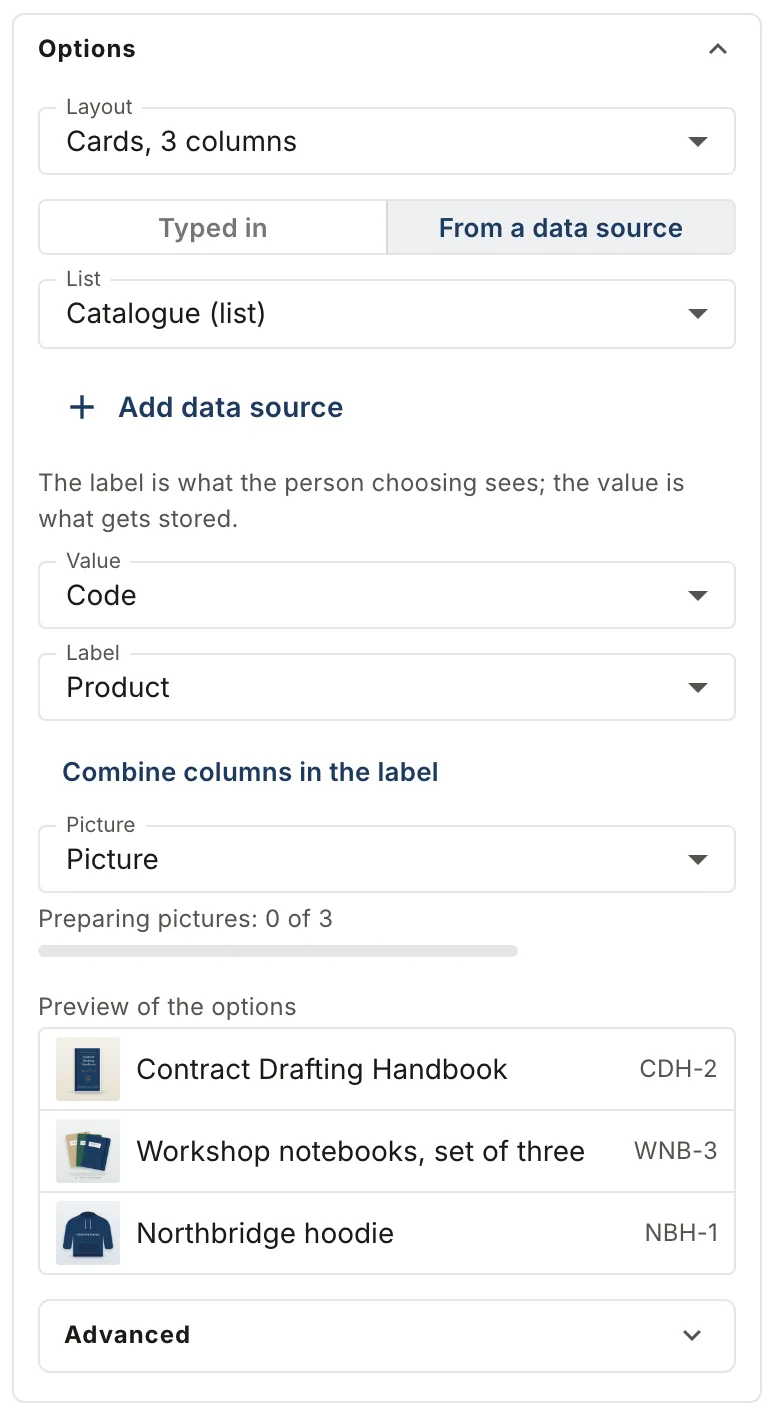
| Picture | Single and Multiple choice only: the column holding each option’s picture, or No pictures. See Pictures from a column. |
The label is what the person choosing sees, and the value is what gets stored. Doxtly reads the column names from the file, or the keys of a JSON file, and suggests a Value and a Label from names like id, value or code and name, label or title. Below them a preview shows the first options exactly as they’ll appear, with the stored value in small text. A list whose rows are plain values, such as a Column variable, has no columns to choose: each entry is both its label and its value.
Combine columns in the label replaces the label’s column with a formula that reads the row’s columns, for example time ~ ' – ' ~ trainer. A column whose name isn’t a plain name, such as first name, is written $["first name"]. Use one column goes back.
Under Advanced:
| Option | Meaning |
|---|---|
| Filters | Keep only rows matching a fixed value, or another field of the form. Filters comparing another field aren’t applied in the preview, since nobody has filled the form yet. |
| Skip options already on the list | Removes options that appear in another list, for example slots already booked. |
| Check availability when submitting | Reads the file again just before a submission, so a slot taken in the meantime is refused. |
Reading column names and the preview needs the permission to view cloud files. Without it you can still type the column names, and what’s saved isn’t changed.
Pictures from a column
Section titled “Pictures from a column”A product catalogue, a menu or a list of rooms often already sits in a spreadsheet with a picture for each row. A Single choice or a Multiple choice can show those pictures on its option cards: set the field’s Layout to cards (see Pictures as choices) and choose the column under Picture. Doxtly suggests it when the column is called something like Image, Picture, Photo or Zdjęcie.
Each cell of the column holds one of:
- the address of a picture on the web, starting with
https://, such ashttps://shop.example.com/img/mug.png; - the name of a picture file on the same cloud drive, in the sheet’s folder or a folder under it, such as
mug.pngorpictures/mug.png.
Doxtly downloads each picture and keeps its own copy, so the published form never loads a picture from another site or from your drive. A picture is a JPEG, PNG, GIF or WebP of up to 5 MB, judged by its content and not by its name. A source keeps up to 2,000 pictures and 200 MB, and the copies count towards your organization’s disk space.
While the pictures are being downloaded, the source shows Preparing pictures: 120 of 300 in the form’s data sources and under Picture. The published form keeps showing the options as they were until every picture is ready, then switches to the new ones all at once. A source read for the first time offers its options once its pictures are ready. A catalogue of a few hundred pictures usually takes a minute or two; when a site or a drive asks Doxtly to slow down, it takes longer, and no picture is skipped.
A picture is downloaded again only when its cell or the file changes. Pictures from the web are also checked once a day. A picture removed from the sheet is deleted with its copy.
When a picture can’t be shown, its option appears without it and the source says how many pictures can’t be shown. That happens when the cell isn’t an https:// address or a file in the sheet’s folder, the picture doesn’t exist, it’s too big or it isn’t a picture, or your disk space is full. When a site or a drive is unavailable for a while, the option keeps the picture it had.
When something changes in the file
Section titled “When something changes in the file”Your settings stay on the field in every case below, so the form keeps its configuration while you fix the cause.
| What you see | What to do |
|---|---|
| The file is no longer in the drive | Use Change the file in the message to open the source and choose another. |
| The drive has to be connected again | Follow Go to Integrations and reconnect it. |
| A column is marked as no longer in the file | Choose another column, for example after a column in the sheet was renamed. |
| This list is empty right now | Options appear once the file has rows. |
When an option is no longer available, the visitor sees This option is no longer available, choose another and the list reloads, so they can pick again.
Example: a booking form against a spreadsheet
Section titled “Example: a booking form against a spreadsheet”Northbridge Advisory runs short trainings and keeps the dates in a Google Sheet with the columns id, date and trainer. A second sheet holds the bookings made so far.
The form’s Date select takes its options From a data source: the list of dates as List, id as Value, and Combine columns in the label with date ~ ' – ' ~ trainer. Skip options already on the list points at the bookings list, so a booked date disappears, and Check availability when submitting reads the file once more, so two people can’t take the last place. A workflow on the form’s submission writes the booking back with a Spreadsheet write step, which refreshes the source. See the booking recipe.
Status and refreshing
Section titled “Status and refreshing”Each source shows its status: Up to date, Refreshing, Failed, File missing or Drive must be reconnected. Refresh now reads the file straight away. When a read fails, visitors keep seeing the last values that were read. A source with a picture column also shows Preparing pictures while its pictures are downloaded, and how many pictures can’t be shown.
A source is also read again when you save it, when the drive reports the file changed, and after a workflow writes to or uploads that file. On a schedule, only forms and documents someone opened in the last day are refreshed.
Limits
Section titled “Limits”A file can be up to 10 MB, with up to 5,000 rows and 50 columns read per source, and 512 KB of data sent to one page. A JSON file can nest up to 32 levels deep. A form or template can have up to 5 sources, each with up to 10 variables. How many sources you can keep in total depends on your plan: 1 on Free, 5 on Starter, 25 on Pro and 100 on Business; see Subscription.
In a signing package
Section titled “In a signing package”Created from a template with a data source, a document keeps the values as they were when the package was created: signers never see the data change.