

Webhook
The Webhook node sends one HTTP request to an address you choose, which is how one program tells another that something happened. With it a workflow can reach anything that has an API: create a client in your CRM, post to a team chat, ask your invoicing system for a number and use the answer later on.
This node calls out. To have other systems call Doxtly and start a workflow, see Webhooks. In the API, Workflow nodes gives this node’s JSON, and Incoming webhooks covers the addresses other systems call.
Always available
You find it in the Notifications group of the palette. It needs no integration: the address and the credentials live in the node. On the canvas the node shows its method and address, without the query string.
Setting it up
Section titled “Setting it up”The side panel holds one button, Configure this step. It opens a dialog with five tabs, one per part of the request. A change lands on the node as you make it, and Close just closes the dialog.
-
On Request, choose the Method and enter the URL.
-
On Headers, add what the other system asks for, usually an API key. Mark that header Secure.
-
On Body, write what you send.
-
On Response, decide whether later steps need the answer.
-
Save the workflow and run it once, then read the step on the run’s page.
Request
Section titled “Request”
| Setting | Values and default | What it does |
|---|---|---|
| Method | GET, POST (default), PUT, PATCH, DELETE |
The kind of request. The other system’s documentation says which one it expects. |
| URL | Required. An https:// address, with variables if you need them. Only an address that begins with a variable may start any other way. |
Where the request goes: https://api.example.com/orders/{{ order.id }}. |
Variables in these fields can carry operations and functions, such as {{ id | first(8) }} or {{ nickname ?? firstName }}: click a variable and then Operations, or use f(x).
Doxtly treats the address more carefully than other text, because it decides where your data goes.
- Values are encoded. A value filled into the address stays one value. A submitted
a@b.c&role=adminreaches the other side as a single parameter and can’t add another. - A missing or empty variable stops the step. The request isn’t sent at all, rather than sent to a half-finished address.
- A value can’t change where the request goes. In the server’s name, a value may hold only letters, digits and hyphens, so
api-{{ region }}.vendor.examplecan’t turn into another domain. In the path, a value of.or..is refused. - An address can start with a variable.
{{ endpoint }}is used as it is, and only then may the value supply the whole address. Such an address can’t carry secure values, as explained below.
Private and reserved network addresses are refused, so a workflow can’t reach into internal networks. Redirects aren’t followed: an answer of 301 or 302 counts as a failure, and the error names the new address for you to enter.
A new address must start with https://, and so must one you change: saving refuses a plain http:// address with “must use an https:// address”. A step saved with an http:// address earlier keeps working, and you can still save the workflow while its address stays exactly as it was. The step then shows a warning, because the request, with its data and any secure headers or signature, travels unencrypted. Change the address to https:// when the receiver supports it.
The address is not a safe place for a password. The path shows on the run’s page, so if a service gives you a secret web address, as team chats often do, anyone who can read your runs can read it. An API key belongs in a secure header wherever the service allows it.

Headers
Section titled “Headers”Headers are short labelled values that travel with a request, such as an API key. A new node starts with Content-Type: application/json. Click Add header for more.
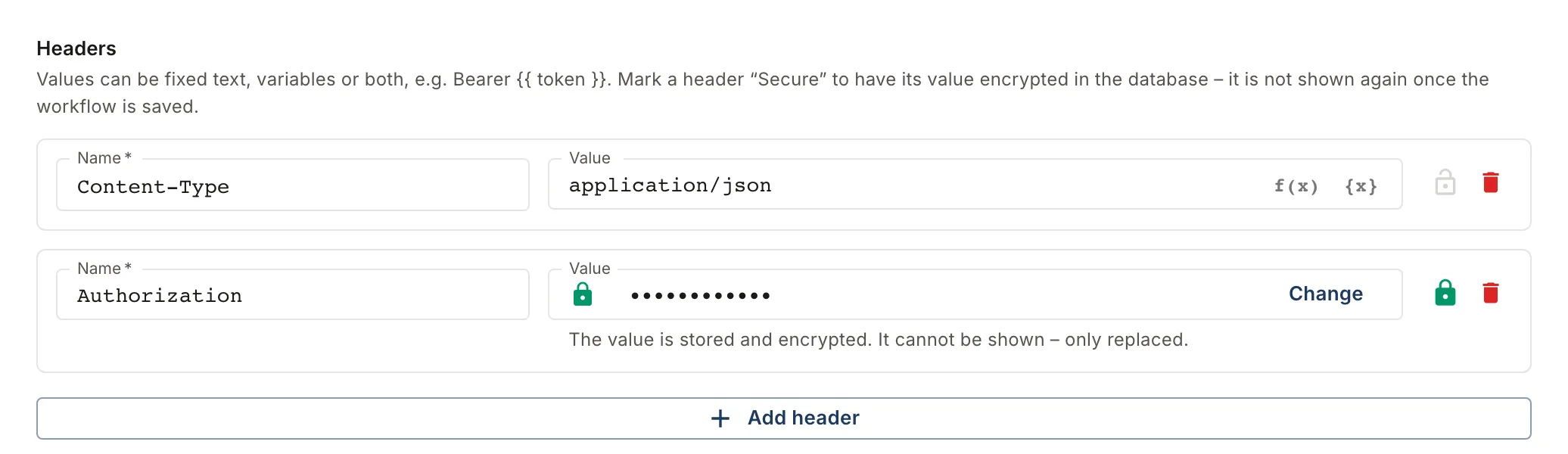
| Setting | Values and default | What it does |
|---|---|---|
| Name | Required. Letters, digits and -, with at least one letter. A few other marks that headers allow, such as _, work too. |
The header’s name. Each name can appear once, whatever its case. |
| Value | Text and variables, such as Bearer {{ token }}. |
What it carries. A line break in the filled-in value stops the step. |
| Secure | The padlock on the row. Off by default. | Encrypts the value when the workflow is saved. It is never shown again. |
You can’t set these headers yourself: Host, Content-Length, Transfer-Encoding and Connection are worked out from the request, and Doxtly-Workflow-Chain is Doxtly’s own. While signing is on, webhook-id, webhook-timestamp and webhook-signature are taken as well.
Unless you set your own User-Agent, the request says Doxtly-Webhooks/1.0.
Secure values
Section titled “Secure values”Mark anything that works like a password as Secure. Once saved, the field shows dots and Change, and the value can only be replaced. Typing a new one replaces it on the next save, and leaving that empty keeps the stored one. Removing the mark deletes the stored value.
A secure value is tied to the server you entered it for, which guards it against being sent anywhere else:
- The address must spell out its server up to the path.
https://api.example.com/{{ path }}is fine, while{{ endpoint }}orhttps://{{ host }}/ordersis refused on saving. Otherwise a value from a form could choose who receives your key. - If you point the node at another server later, saving asks you to enter the secure values again. A new scheme or port counts as another server, so moving from
http://tohttps://does too. Changing only the path keeps them.
A secure value can contain variables too. Here the rule is strict: if one is missing or empty, the request isn’t sent. In a normal header a variable that gives nothing just leaves a gap.
Requests with POST, PUT and PATCH can carry a body. For GET and DELETE the tab is greyed out, and what you wrote is kept in case you switch back.
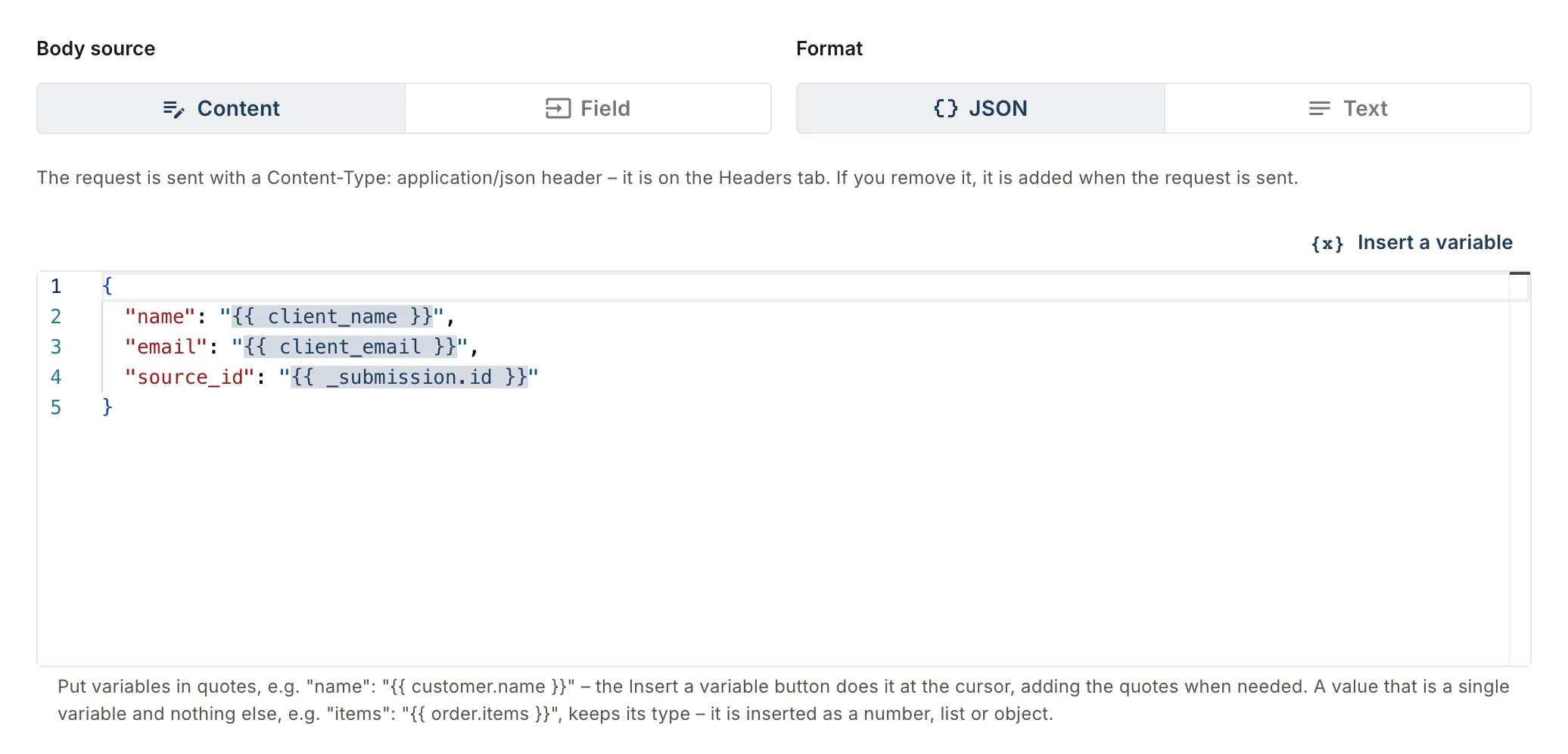
| Setting | Values and default | What it does |
|---|---|---|
| Body source | Content (default), Field | Write the body here, or send a variable as it is. |
| Format | JSON (default), Text. Only with Content. | How the body is written. |
| Body | Your JSON or text. Empty sends no body. | What goes out. JSON is checked when you save. |
| Variable holding the body | Required with Field. One variable’s path, without braces, such as payload or order.details; a step with a hyphen in its ID is written _nodes["crm-lookup"].row. |
The variable sent as JSON. It has to exist on the run. |
Writing JSON
Section titled “Writing JSON”Put variables in quotes. A value that is one {{ … }} and nothing else keeps its type, so a number stays a number and a list stays a list, even with a function in it: "{{ order.total | round(2) }}" sends a number. Mixed text stays text.
{ "name": "{{ client.name }}", "items": "{{ order.items }}", "total": "{{ order.total }}", "note": "Order {{ order.id }} from the website"}That could go out as:
{ "name": "Harlow & Sons Ltd", "items": [{ "sku": "A1" }], "total": 120.5, "note": "Order 42 from the website"}A quote or a line break in the data can’t break the document, because each value is filled in on its own. The Insert a variable button adds the quotes when needed. Put the cursor where a value goes, after a colon or inside quoted text, because a variable can’t be a field name. The editor colours each {{ … }} like any other field. In a body, a variable that gives nothing becomes null when it’s a value on its own, and a gap inside text, so check your variables on a test run or give them a default: "{{ order.note ?? '' }}".
When the shape you need differs from your data, prepare it in a Data transformation step and send the result with Field. A body from a variable is always JSON.
What the receiver is told
Section titled “What the receiver is told”With a JSON body, the Headers tab holds Content-Type: application/json. If you remove the header, it is added when the request goes out. You can use another JSON type, such as application/vnd.api+json, and it is kept.
A text body goes out as text/plain; charset=utf-8. If the receiver expects something else, like application/xml, set your own Content-Type on the Headers tab.
The designer keeps the Headers tab in step with what you do. Switching to Text, or to GET or DELETE, takes a JSON Content-Type off the list and leaves any other. Switching back to JSON, with a method that sends a body, puts application/json on the list, replacing a type that isn’t JSON. So set a type like application/xml last.
Response
Section titled “Response”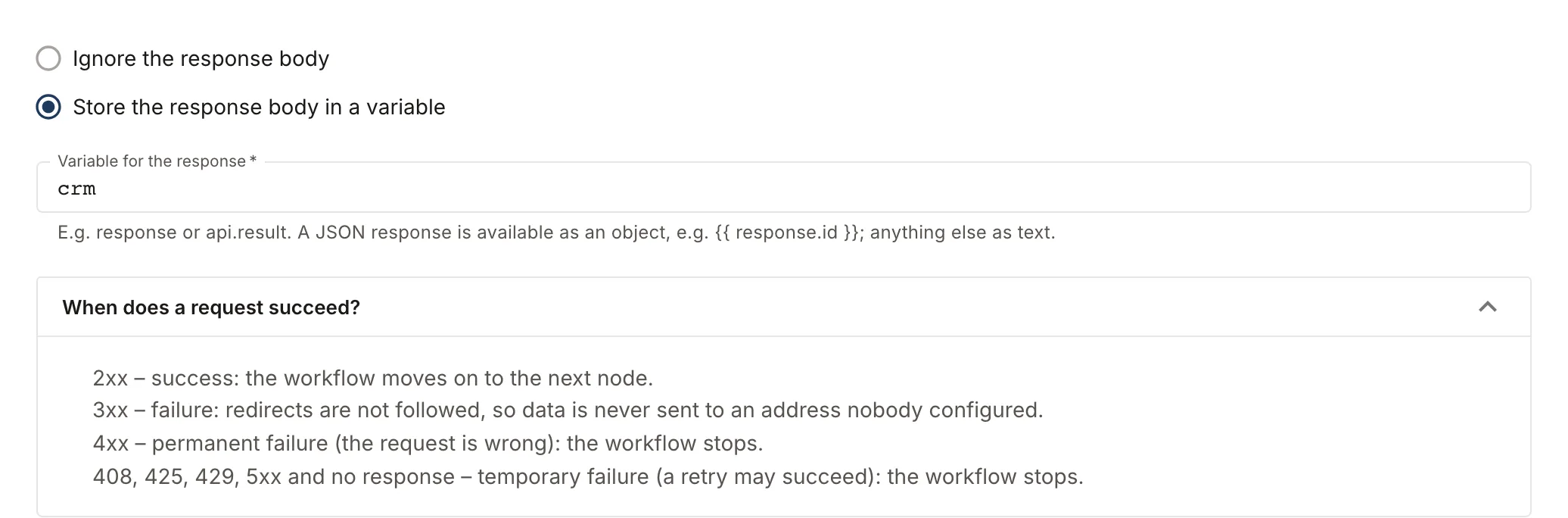
| Setting | Values and default | What it does |
|---|---|---|
| Ignore the response body | Default | The answer’s status decides what happens, and its content is dropped. |
| Store the response body in a variable | Keeps the content for later steps. | |
| Variable for the response | Required when storing. For example response or api.result. |
Where the content goes. It can’t sit under _metadata, _params, _execution, _recipients, _nodes, _contact or _company, which Doxtly fills in itself. |
What the variable holds depends on the answer:
| The answer | The variable holds |
|---|---|
| JSON | The structure itself, so {{ response.id }} or {{ response.items.0.sku }} work |
| Anything else | The text |
| Empty | Nothing |
Doxtly goes by the label on the answer. It counts as JSON when its Content-Type says application/json or ends in +json. JSON sent under another label arrives as text, and so does an answer labelled JSON that turns out not to be. Text in an older encoding, such as windows-1250, is converted as long as the answer names its encoding.
If the variable already exists, the answer replaces it. A stored answer can be at most 2 MB. If it is larger, the step fails, even though the other system did its work.
The rules for success are under When does a request succeed? on the same tab.
| The answer | What it means | The workflow |
|---|---|---|
| 2xx | Success | Moves on |
| 3xx | Failure, as redirects aren’t followed | Stops |
| 4xx | Permanent failure, the request is wrong | Stops |
| 408, 425, 429, 5xx, no answer | Temporary failure, a retry may succeed | Stops |
The other system has 10 seconds to start or continue answering, and 30 seconds for the whole exchange.
Signature
Section titled “Signature”Signing lets the receiver check that a request really came from this workflow and wasn’t altered. It follows the public Standard Webhooks specification, so libraries exist for most languages.
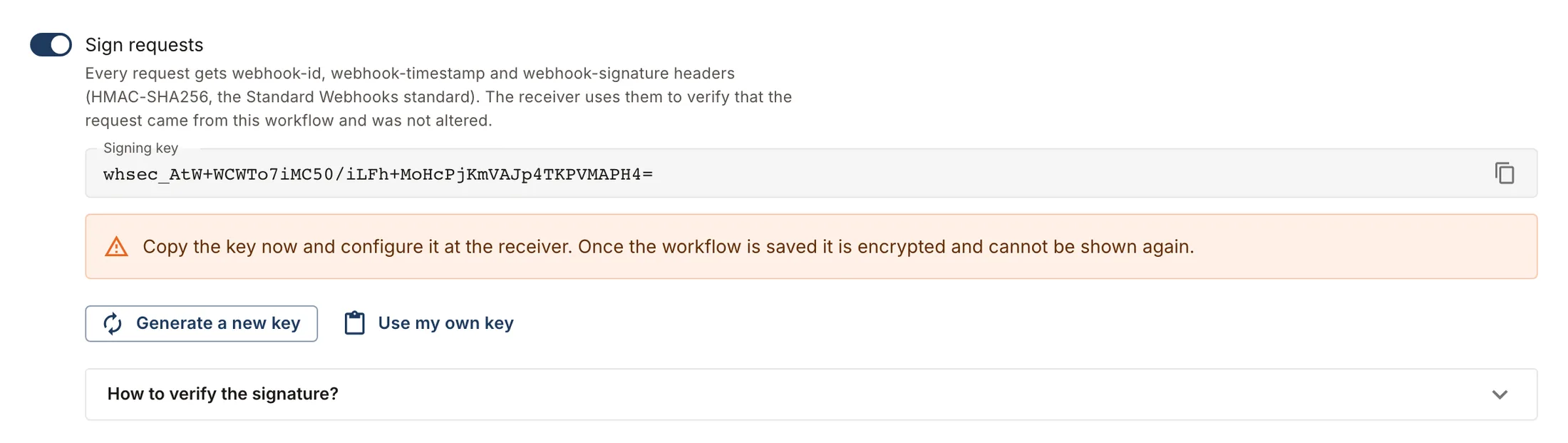
-
Turn on Sign requests. A Signing key is generated for you.
-
Copy it now and set it up at the receiver. After you save the workflow it is encrypted and can’t be shown again.
| Control | What it does |
|---|---|
| Sign requests | Off by default. Turning it off forgets the key, and turning it on later makes a new one. |
| Generate a new key | Replaces the key when the workflow is saved. Update the receiver then. |
| Use my own key | For a receiver that issues keys itself. Paste it into Key from the receiver and click Use, or Cancel to go back. It takes the whsec_… format: base64 of 24 to 64 bytes. |
Once the workflow is saved, the tab says The signing key is stored and encrypted. A lost key can’t be recovered, so generate a new one and update the receiver.
Each signed request carries three headers: webhook-id, unique for each delivery, webhook-timestamp and webhook-signature. How to verify the signature? on the tab shows how to check one by hand, which goes like this:
signed   = webhook-id + "." + webhook-timestamp + "." + bodykey      = base64_decode(secret without "whsec_")expected = "v1," + base64(HMAC_SHA256(key, signed))
valid when expected equals a signature in webhook-signature       and webhook-timestamp is at most 5 minutes old
The signature covers the body, not the address. A signed GET or DELETE proves who sent it, but says nothing about the address it was sent to. Signing counts as a secure value, so the rule about the server applies here too.
What the next steps get
Section titled “What the next steps get”A variable, if you store the response. It appears in the variable picker of the steps after this one, and you can test it in a Condition, for example response.status == "approved". A Data transformation replaces it along with the rest of the run’s data, so read it before one or carry it through.
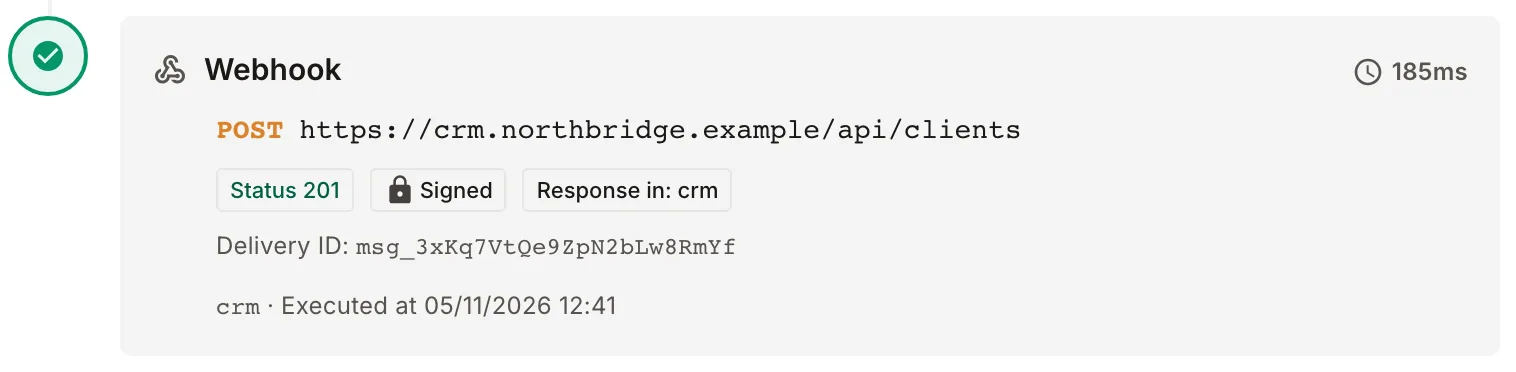
Nothing else: the node adds no files. On the run’s page a successful step shows the method, the address without its query string, Status, Signed if it was, Response in if stored, and the Delivery ID. Headers and bodies aren’t recorded. A failed step shows the address as you wrote it and the error, with the start of what the other system answered.
When it fails
Section titled “When it fails”Only a 2xx lets the workflow continue, so nothing after this node acts on a call that didn’t happen. The run stops, and people who may view workflows get a Workflow failed notification.
| What you see | Why |
|---|---|
The endpoint answered 401 Unauthorized: ... |
The other system refused. Its own words follow the status, up to 300 characters. |
The endpoint answered 301 ... and redirected to "..." |
The address has moved. Update the URL. |
The webhook address "..." could not be found |
No server goes by that name. Check the address for a typo. |
The webhook request to "..." did not get a response: ... |
The connection failed, or it took too long. |
The webhook address "..." points to a private or reserved network |
Workflows may not call such addresses. |
The webhook URL "..." uses a variable that is missing or empty in this run |
Nothing was sent. |
A value of this run would change the webhook URL "..." itself |
A value would have changed the server or the folder. Nothing was sent. |
The webhook URL "..." is not an http:// or https:// address. |
The address came out wrong, usually from a variable that begins it. |
The secure header "..." uses a variable that is missing or empty in this run |
Nothing was sent. |
The value of the "..." header contains a line break |
Nothing was sent. |
The webhook body is taken from the variable "...", which does not exist in this run. |
Nothing was sent. |
The variable "..." cannot be written as JSON. |
Nothing was sent. |
The response is larger than ... and cannot be stored in a variable. |
The other system did answer, and the step failed afterwards. |
Doxtly doesn’t retry by itself. Rerun on the run’s page starts a new run with the same trigger data, from the beginning of the saved workflow.
That matters more here than anywhere else. The other system may have received the first request, so a rerun can create a second order or a second client. The webhook-id header won’t help it notice, as it is new with every delivery. If the receiver can drop duplicates, send it a value of your own that stays the same, such as {{ _submission.id }} in a workflow started by a submission, in the body or in a header.
Example: a new client in the CRM
Section titled “Example: a new client in the CRM”When Northbridge Advisory’s onboarding form comes in, the client goes into the CRM, and the CRM’s client number goes onto the agreement.
| Tab | Setting | Value |
|---|---|---|
| Request | Method, URL | POST, https://crm.northbridge.example/api/clients |
| Headers | Authorization |
Bearer and the API key, marked Secure |
| Body | Content, JSON | See below |
| Response | Variable for the response | crm |
{ "name": "{{ client_name }}", "email": "{{ client_email }}", "source_id": "{{ _submission.id }}"}The CRM answers with { "id": 8124 }. A Generate document step after this one can now print {{ crm.id }} on the agreement, and if the CRM is down, no agreement goes out without a client number.
Example: asking another system first
Section titled “Example: asking another system first”A webhook can also fetch something rather than report it. Before a course certificate goes out, Northbridge asks its training system whether the participant passed.
| Tab | Setting | Value |
|---|---|---|
| Request | Method, URL | GET, https://training.northbridge.example/api/results/{{ participant_id }} |
| Headers | Authorization |
The API key, marked Secure |
| Response | Variable for the response | result |
A Condition after it tests result.status == "passed", and only that branch generates the certificate.