

Data and variables
Every run carries a bundle of data. The trigger starts it, each step can read it, and some steps add to it. A variable is one value in that bundle, reached by its path: client.name, _execution.date. This is how the name a client typed into your form ends up on their contract, in the subject of your email and in the name of the file in Google Drive, without anybody retyping it.
What a run holds
Section titled “What a run holds”Take a Northbridge client who sends the onboarding form from a link in a newsletter. By the time the workflow’s first step runs, the data looks like this:
{ "client": { "name": "Halden Logistics", "email": "ops@halden.example" }, "services": "training", "participants": [ { "name": "Ola Berg", "age": 34 }, { "name": "Jan Lund", "age": 41 } ], "_submission": { "id": "019a…", "title": "New client: Halden Logistics", "submittedAt": "2026-10-11T12:00:00+02:00", "submittedDate": "2026-10-11", "revision": 0, "editedAt": null, "editedBy": null }, "_metadata": { "branch": "Oslo", "owner": { "email": "marta@northbridge.example" } }, "_params": { "utm_source": "newsletter" }, "_execution": { "id": "019b…", "eventId": "019c…", "workflowId": "019d…", "triggeredAt": "2026-10-11T12:00:03+02:00", "date": "2026-10-11" }}You read a value by walking down that tree with dots. {{ client.name }} gives Halden Logistics, and {{ _metadata.owner.email }} gives marta@northbridge.example.
| Part | Where it comes from | After a Data transformation |
|---|---|---|
| The trigger’s values, at the top level | What was filled in, sent or generated | Replaced |
Trigger blocks: _submission, _schedule, _package, _party, _contact, _contactChange, _webhook, _crm, _opportunity, _person, _personChange, _payment, _refund, _form, _interactiveDocument, _quiz, _attempt, _results, _closure, _survey, _response, _answers, _quota |
Added by the trigger | Replaced |
| Results of steps | Each step’s output name | Replaced |
_metadata |
Fixed values set on the form, document or template | Kept, read only |
_params |
The parameters of the link | Kept, read only |
_execution |
The run itself | Kept, read only |
_recipients, _nodes |
Signing parties of packages the run created | Kept, read only |
The last column is for a transformation that replaces the data, the default. One that stores its result under a key changes none of this: it adds its result like any other step.
Names starting with an underscore belong to Doxtly. Each block exists only when it has something in it: a form with no metadata gives a run with no _metadata. Reading one that isn’t there is harmless: it gives nothing, see When a value is missing.
Files travel beside this data, not inside it. See Files below.
How a form field reaches a workflow
Section titled “How a form field reaches a workflow”The bridge is the field’s Data path, which you set in the form designer. It decides where the answer lands in the run.
| Field in the form | Data path | Someone types | In the workflow |
|---|---|---|---|
| Company name | client.name |
Halden Logistics | {{ client.name }} |
client.email |
ops@halden.example | {{ client.email }} |
|
| Service | services |
training | {{ services }} |
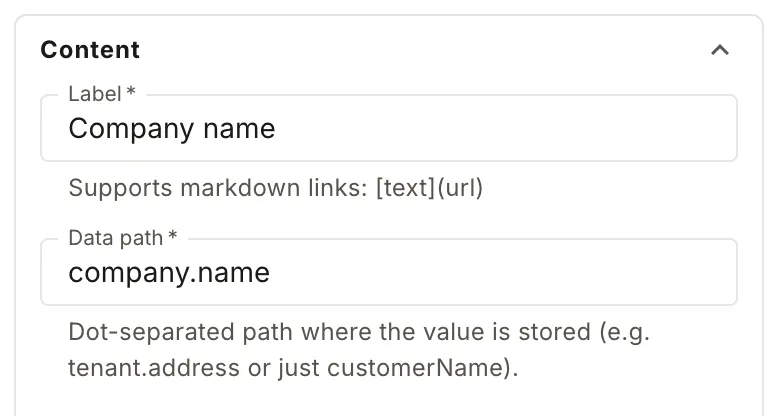
A dot creates nesting, so client.name and client.email sit together under client. Layout elements such as sections and containers have no effect: a field inside one still sits exactly where its data path says.
A few things to know:
- Repeatable groups become lists. A repeating fieldset with the data path
participantsand a fieldnamegives the listparticipants, each item holdingname. A list can’t go into a text field as one value, but a template can repeat a row for each item, and a spreadsheet step can write a row for each one. - A list of plain values, such as the answer to a multi-select, prints in a Word template joined with commas:
${tags}givesa, b. - A grid prints as readable text, and each of its rows can be read on its own: see A grid in a workflow. A ranking arrives as the list of the items’ values, first to last, so
{{ topics[0] }}is the one put first. - Uploaded files, photos and drawings appear as a reference (
file:…) at the field’s path, which is also what a webhook body gets for them. The file itself is offered in every file picker. See Files. - A field with no data path stores nothing and never reaches a workflow.
- A field behind a display condition exists only if it was shown. The picker marks it May have no value – the field has a display condition.
- An optional field left empty may be missing from the run. Plan for it, as in When a value is missing.
If you need the exact shape of what a form collects, or what a template expects, use Data structure in the form designer’s or template’s menu. It shows the data with each value replaced by its type, and you can copy or download it.
{ "client": { "name": "string", "email": "string", "vatId?": "string" }, "participants": [{ "name": "string", "age": "number" }]}A name ending in ? may be left out.
A grid in a workflow
Section titled “A grid in a workflow”A grid of a form, a quiz or a survey reaches the workflow so that each use reads naturally. For a grid with the data path satisfaction, rows Communication (communication) and Price (price), and the answers Good (good) and Poor (poor):
| You write | You get |
|---|---|
{{ satisfaction }} |
Communication: Good; Price: Poor, the rows answered, in the grid’s order |
{{ satisfaction.communication }} |
good, the value of the answer chosen in the row |
{{ satisfaction.communication.label }} |
Good, its label |
satisfaction._rows |
The list of the rows, each with value, label, answer and answerLabel, for a loop |
A row left unanswered prints nothing, and so does its .label.
- The picker lists the grid, then each row under the grid’s name (Satisfaction › Communication), its label, and Satisfaction › all rows.
- Conditions and switches. In a Condition the picker also lists each answer a row can take, such as Satisfaction › Communication is “Poor”, and writes the comparison for you:
satisfaction.communication == "poor". A Switch onsatisfaction.communicationtakes the answers’ values as its cases. - Documents. A Word template prints
${satisfaction}and${satisfaction.communication.label}, and repeats a table row for each row of the grid with${satisfaction._rows.label}and${satisfaction._rows.answerLabel}in its cells, or a block between${satisfaction._rows}and${/satisfaction._rows}with${label}and${answerLabel}inside. An e-mail’s Loop block goes throughsatisfaction._rowsthe same way. - Spreadsheets. A cell set to
{{ satisfaction }}gets the text. For a column per row, map Satisfaction – Communication to{{ satisfaction.communication.label }}, and so on. Keep in a spreadsheet of a quiz or a survey writes the text, one column per grid, as the summary export does. - Webhooks and automation apps. An outgoing webhook, Zapier, Make and n8n receive the grid as
{"rows": [{"value": "communication", "label": "Communication", "answer": {"value": "good", "label": "Good"}}, …], "text": "Communication: Good; Price: Poor"},answerbeingnullfor a row left unanswered. - Quizzes and surveys give the same shapes at the question’s data key and in the
answerof its entry in_resultsor_answers. - A Data transformation sees the grid as an object: the row’s value is
data.satisfaction.communication.value, the rowsdata.satisfaction._rows.
An answer stored before the grid changed still reads: a column removed since prints its value, and a row removed since comes after the grid’s rows, named by its value.
What each trigger brings
Section titled “What each trigger brings”The fields by data path, plus _form, _submission, _metadata, _params and _execution. A form with a Payment element adds _payment, what was paid.
When the workflow runs on an edit rather than a new submission, it gets the corrected data. _submission.revision tells them apart: 0 for a submission, then the number of the edit. Use it in a condition when one workflow handles both: _submission.revision > 0.
The answers of its web forms, joined with what was typed into its PDF areas, under each area’s Variable path. If both give the same path, the PDF area wins.
| PDF area | Value |
|---|---|
| Text | The text, trimmed |
| Checkbox | "1" ticked, "0" unticked, missing if nobody touched it |
| Picture | A file reference, and the file itself |
An area reaches workflows only if it is a text, checkbox or picture area with a valid path that doesn’t start with _. The picker lists the others greyed out, with the reason, and a link to open the template.
If Store the submitted values is off, no values are passed on. _interactiveDocument names the document, in place of _form. As with a form, a run started by an edit gets the corrected data, and _submission.revision tells the two apart.
The data the document was generated from. When a Generate document step produced it, that means the whole data of that run: its fields, blocks and step results. When your system called the API, it means what the request sent.
The picker can list what such a document will bring because Doxtly looks at the template and at the workflows that generate from it.
Only _schedule and _execution. No person filled anything in, so a recurring workflow usually starts by reading a spreadsheet or calling a system to get its data.
The Document package events bring the data of the run that created the package, plus everything typed into its documents so far. The _metadata and _params of that first run come along too, so a signing workflow reads them exactly as the workflow that sent the documents did.
They add _package, with the contract the package is or changes, and an event of one party adds that party, _party.
The fields of the object the request brought, from its body or its address, as the webhook’s settings say, plus _webhook and _params. A webhook takes every parameter of its address, whatever it is called, and it has no metadata of its own.
If the webhook has a JSON Schema, the picker lists its fields, and marks those the schema doesn’t require with May have no value – the field is not required. Without a schema, nothing says what requests contain, so you type the paths yourself.
For POST …?source=shop with the body {"orderId": "A-17", "total": 120.5}, you read {{ orderId }}, {{ total }} and {{ _params.source }}. If the data is not an object but a list, a number or plain text, it has no fields to spread out, so you find it whole in _webhook.body.
Only blocks: _crm, and _opportunity for a deal’s change or _person with _personChange for a person’s. No values at the top level. See the CRM trigger.
Only blocks: _contact, the contact as it is when the run starts, its custom fields included, and _contactChange, what the save changed. No values at the top level, and no metadata or link parameters. See the Contact saved trigger.
Only blocks: _payment, the payment as it is when the event comes in, and _refund when a payment is refunded. The run doesn’t get the form’s answers: _payment.subject.id is the submission, should a step need it. See the Payment trigger.
The answers, by each question’s data key, plus _quiz and _attempt, and _results, one entry per question, once the attempt is scored. The quiz’s metadata and the link parameters come too. The events about no single attempt bring less: A quiz closes only _quiz and _closure, A quiz recipient does not respond _quiz and the recipient. See the Quiz trigger.
The answers, by each question’s data key, plus _survey and _response, and _answers, one entry per question, once the response is sent. The survey’s metadata and the link parameters come too, except that an anonymous survey brings no link parameters. A survey closes brings only _survey and _closure, A survey quota is full _survey and _quota, A survey recipient does not respond _survey and the recipient. See the Survey trigger.
Built-in values
Section titled “Built-in values”The label is what the picker shows.
_execution: this run
Section titled “_execution: this run”Always there.
| Variable | Label | Example |
|---|---|---|
_execution.id |
Run ID | Unique per run |
_execution.eventId |
Event ID | Shared by a run and all its reruns |
_execution.workflowId |
Workflow ID | |
_execution.triggeredAt |
Started at (date and time) | 2026-10-11T12:00:03+02:00 |
_execution.date |
Run date | 2026-10-11 |
_execution.eventId is what you want when another system must not process the same event twice: a rerun keeps it, while _execution.id changes.
_form, _interactiveDocument: what was filled in
Section titled “_form, _interactiveDocument: what was filled in”| Variable | Label |
|---|---|
_form.id |
Form ID (forms) |
_form.title |
Form title (forms) |
_interactiveDocument.id |
Interactive document ID (interactive documents) |
_interactiveDocument.title |
Interactive document title (interactive documents) |
They name the record the way _quiz and _survey do for quizzes and surveys, so one workflow listening to several forms can tell them apart. Workflows set up before them read an interactive document as _submission.interactiveDocumentId and _submission.interactiveDocumentTitle: those names keep working, though the picker no longer offers them.
_submission: forms and interactive documents
Section titled “_submission: forms and interactive documents”| Variable | Label |
|---|---|
_submission.id |
Submission ID |
_submission.title |
Submission title |
_submission.submittedAt |
Submitted at (date and time) |
_submission.submittedDate |
Submitted on (date) |
_submission.language |
Language of the page: the language of the page it was sent from, such as en |
_submission.revision |
Edit number (0 on a submission) |
_submission.editedAt |
Edited at (date and time) |
_submission.editedBy |
Edited by |
_submission.personalLink |
Sent in through a personal link: true for a submission through a personal link, false otherwise |
_submission.editedAt and _submission.editedBy are empty on a new submission.
The same names work in a form’s success message and redirect, which also have _submission.reference, a short reference to quote, and _form.title.
_schedule
Section titled “_schedule”| Variable | Label |
|---|---|
_schedule.triggeredAt |
Scheduled for (date and time) |
_schedule.cronExpression |
Frequency |
_schedule.nextRunAt |
Next run (date and time) |
_package, _party: signing
Section titled “_package, _party: signing”| Variable | Label |
|---|---|
_package.id, .title, .description, .type, .number |
Package ID, Package title, Package description, Package type, Package number |
_package.expiredAt |
Expired at (date and time) |
_package.voidedAt, .voidReason |
Voided at (date and time), Reason for voiding |
_package.contract.state, .startsOn, .endsOn, .noticeDeadline, .renews, .terminatedOn |
Contract state, Contract start (date), Contract end (date), Notice deadline (date), Contract renews automatically, Last day in force set by a contract change (date). Empty for a package that is no contract. |
_package.contract.parties |
Contract’s parties (list): each party’s indicator, fullName, email and contactId, approvers left out. A contract signed outside Doxtly lists the parties recorded with it, with an empty indicator. Read one with _package.contract.parties[0].email. |
_package.annex.kind, .number, .effectiveOn, .newEndsOn, .indefinite, .lastDay |
Kind of contract change, Annex number, Annex applies from (date), New contract end set by the annex (date), Annex extends the contract indefinitely, Last day in force set by the change (date). Empty for a package that changes no contract. |
_package.annex.contract.id, .title, .number, .signedOn, .startsOn, .endsOn, .noticeDeadline, .renews, .notice |
The contract a change amends: Amended contract ID, Amended contract title and the rest. |
_package.annex.contract.fields |
Amended contract’s custom fields: the contract’s own custom fields by key, sensitive ones left out. |
_package.contract.change.cause, .before.*, .after.*, .annex.* |
What changed the contract (Cause of the change (annex, manual, renewal, removed)) and its days before and after. Only when a contract changes. |
_package.contractAlert.kind, .forDate |
Alert kind (ending_soon, notice_deadline_soon, ended), Day the alert is about (date). Only when a contract is ending soon or has ended. |
_party.recipientIndicator |
Party indicator |
_party.fullName, .email, .phone |
Full name, Email address, Phone number |
_party.channel |
How they sign |
_party.identityVerification.method, .country |
Identity verification method, Country of the identity document |
_party.signingOrder, .language |
Place in the signing order, Party’s language. Only when a party’s turn begins. |
_party.deliveredBy, .signingUrl |
Who delivers the link, Signing link. Only when a party’s turn begins; the link only when nobody else delivers it. |
_party.documentTitle |
Signed document title |
_party.signedAt |
Signed at (date and time) |
_party.viewedAt |
Opened at (date and time) |
_party.approvedAt |
Approved at (date and time) |
_party.approvalRejectedAt, .approvalRejectionReason |
Rejected by the approver at (date and time), Approver’s reason for rejecting |
_party.declinedAt |
Declined at (date and time) |
_party.declineReason |
Reason for declining |
_party.onBehalf |
Whether declined on the party’s behalf |
_party.actedByName, .actedByEmail |
Full name of the person acting for the party, Email address of the person acting for the party. Empty when the party declined in person. |
_contact, _contactChange: contacts
Section titled “_contact, _contactChange: contacts”The Contact saved trigger adds the contact as it is now, and what changed.
| Variable | Label |
|---|---|
_contact.id, .email, .firstName, .lastName, .fullName |
Contact ID, Email address, First name, Last name, Full name |
_contact.phone, .jobTitle, .companyName, .language |
Phone, Job title, Company, Language |
_contact.company.taxId, .street, .postalCode, .city, .country, .email, .phone, .website, .id |
Company tax ID and likewise for the others |
_contact.type.id, .type.name |
Type ID, Type |
_contact.createdAt, .updatedAt |
Created at (date and time), Updated at (date and time) |
_contactChange.event, .changedFields |
What happened (created or updated), Changed fields |
_contactChange.previous.firstName, .lastName, .email, .phone, .jobTitle, .companyName, .language, .type |
First name before and likewise for the others |
_contactChange.source, .changedBy |
Saved by (user, workflow, api or crm), Saved by (name). The source is crm when a CRM integration corrected the contact. |
_contact, _company: personal links
Section titled “_contact, _company: personal links”A form’s or an interactive document’s submission through a personal link adds the contact and the company the link was sent to, as they were when it was sent in. The picker lists them in the From a personal link group; a submission through the form’s own link has none of them, so check _submission.personalLink in a condition before a step that needs them. An attempt at a quiz or a response to a survey made through a contact’s personal link brings _contact and _company too, unless the survey is anonymous; the picker lists them in the same group after every trigger of an attempt or a response.
| Variable | Label |
|---|---|
_contact.* |
The same values as the Contact saved trigger’s _contact, above |
_company.id, .name, .taxId, .street, .postalCode, .city, .country, .email, .phone, .website |
Company ID, Company name, Tax ID and likewise for the others. For a link sent to a contact, the contact’s company; there is no _contact for a link sent to a company’s own address. |
_contact.<key>, _contact.company.<key>, _company.<key> |
Each custom field holding a value, under its key and labelled by its label. Never a sensitive field. |
The Contact saved trigger’s _contact has the custom fields too. A step cannot write into _contact or _company: its output key may not start with either.
_crm, _opportunity, _person, _personChange: CRM
Section titled “_crm, _opportunity, _person, _personChange: CRM”The CRM trigger adds the integration and the deal or the person, as Pipedrive has them when the change comes in. The picker lists them under CRM, Deal, CRM person and What changed in the CRM.
| Variable | Label |
|---|---|
_crm.integrationId, .integrationName, .provider |
Integration ID, Integration name, CRM (pipedrive, hubspot, copper) |
_opportunity.id, .title |
Deal ID, Title |
_opportunity.pipelineId, .pipelineName, .stageId, .stageName |
Pipeline ID, Pipeline, Stage ID, Stage |
_opportunity.previousStageId, .previousStageName, .previousStatus |
Stage ID before, Stage before, Status before |
_opportunity.status, .value, .currency |
Status (open, won or lost), Value, Currency |
_opportunity.personId, .organizationId, .customFields |
Person ID, Organization ID, Custom fields, the last by Pipedrive’s field code |
_opportunity.packageId, .contactId, .companyId |
Package ID, Contact ID, Company ID: the package, contact and company linked to the deal |
_person.id, .name, .firstName, .lastName |
Person ID, Name, First name, Last name |
_person.email, .emails, .phone, .phones, .jobTitle |
Email address, All email addresses, Phone, All phone numbers, Job title |
_person.organizationId, .customFields, .contactId, .companyId |
Organization ID, Custom fields, Contact ID, Company ID |
_personChange.event, .changedFields |
What happened (created or updated), Changed fields |
_payment, _refund: payments
Section titled “_payment, _refund: payments”A form with a Payment element hands its Form submission runs what was paid: _payment.id, .amount, .amountMinor, .currency, .status, .provider and .paidAt, empty on a form that takes no payment. The Payment trigger hands over the whole payment, and the refund when one is made. The picker lists them under Payment and Refund.
| Variable | Label |
|---|---|
_payment.id |
Payment ID |
_payment.amount, .amountMinor, .currency |
Amount (decimal), Amount in minor units (cents, grosze), Currency: such as 490.00, 49000 and PLN |
_payment.status |
Payment status: succeeded, expired, partially_refunded or refunded |
_payment.provider, .testMode |
Payment provider (przelewy24, stripe, payu or paypal), Test mode |
_payment.description, .payerEmail |
Description, Payer’s email. Payment trigger only. |
_payment.refundedAmount, .refundedAmountMinor |
Refunded (decimal), Refunded in minor units: everything given back so far. Payment trigger only. |
_payment.paidAt, .endedAt, .createdAt |
Paid at (date and time), Ended at (date and time), Created at (date and time). The last two Payment trigger only. |
_payment.integrationId, .integrationName |
Integration ID, Integration name. Payment trigger only. |
_payment.subject.type, .id, .title, .formId, .formTitle |
Paid for (type) (form_submission), Submission ID, Form name at payment, Form ID, Form name. Payment trigger only. |
_refund.id |
Refund ID. Only when a payment is refunded, as are the rest of _refund. |
_refund.amount, .amountMinor |
Amount refunded (decimal), Amount refunded in minor units: this refund only |
_refund.reason, .note |
Reason (manual or late_payment), Note |
_refund.requestedAt, .refundedAt |
Requested at (date and time), Refunded at (date and time) |
Nothing the provider knows of the payer’s card or bank account ever reaches a run.
_quiz, _attempt, _survey, _response: quizzes and surveys
Section titled “_quiz, _attempt, _survey, _response: quizzes and surveys”A quiz’s events hand over _quiz, the quiz (id, title), and _attempt, the attempt: who took it and when, its score, pass mark and grade, its certificate code. A survey’s events hand over _survey and _response the same way, without scores. The lists _results (quizzes) and _answers (surveys) hold one entry per question, for a list mapping such as one spreadsheet row per question. Every variable, with its label in the picker, is listed under the Quiz trigger and the Survey trigger.
The same values fill the message a quiz or a survey shows at the end, such as {{ _attempt.percent }} or {{ _response.number }}.
_webhook
Section titled “_webhook”| Variable | Label |
|---|---|
_webhook.requestId |
Request ID |
_webhook.correlationId |
Correlation ID (X-Request-ID) |
_webhook.webhookId, .webhookName |
Webhook ID, Webhook name |
_webhook.method, .contentType |
HTTP method, Content type |
_webhook.receivedAt |
Received (date and time) |
_webhook.headers.<name> |
A request header, name in lower case. Never a credential. Not listed in the picker, so type it. |
_webhook.body |
The request’s data when it is not an object: a list, a number, plain text. Otherwise empty. Not listed in the picker, so type it. |
Dates and time zones
Section titled “Dates and time zones”Every date and time above is in your organization’s time zone, so {{ _party.signedAt | formatdate("HH:mm") }} prints local time. A recurring trigger’s frequency reads in the same zone. _schedule.triggeredAt is when the workflow fell due, and _execution.triggeredAt is when the run actually started, a moment later.
_params: link parameters
Section titled “_params: link parameters”Link parameters let one form serve many purposes. Publish …/f/abc?utm_source=newsletter&ref=mk and each submission remembers where it came from.
Turn this on in the Link parameters section of the form’s settings (and the same section of an interactive document).
| Setting | What the run gets |
|---|---|
| Off | Nothing. The run has no _params. |
| On, with no names listed | Every parameter of the link, whatever it is called. |
| On, with names listed | Only those names. |
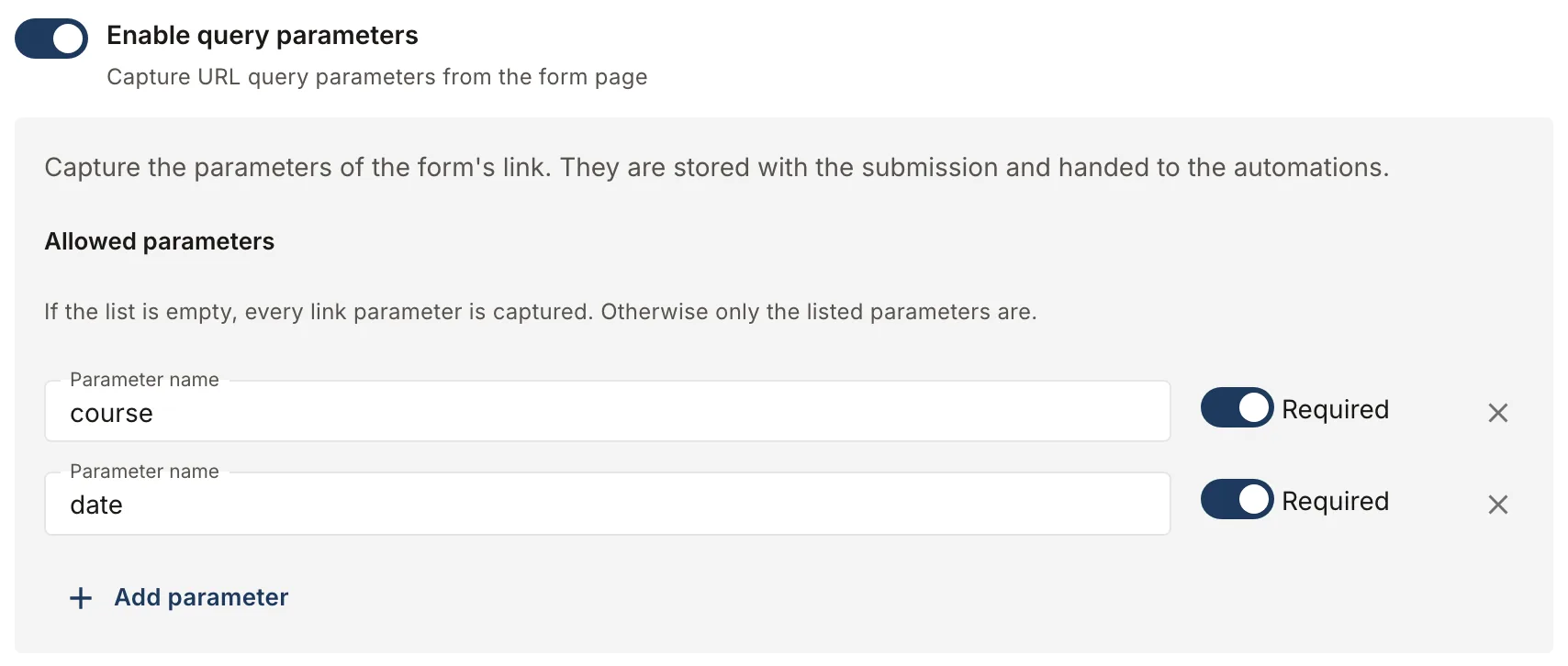
- Values are always text. If a name is repeated in the link, the first value counts.
- A parameter marked required that is missing or empty stops the page before anyone fills anything in, and a submission without it is refused.
- Names you list use letters, digits and
_, and don’t start with a digit.
A webhook needs no such setting: every parameter of its address reaches the run.
Example: an email reminder sends clients to the survey with ?client=H-204. The workflow finds their row in a spreadsheet by {{ _params.client }}, so nobody has to retype their client number.
_metadata: fixed values
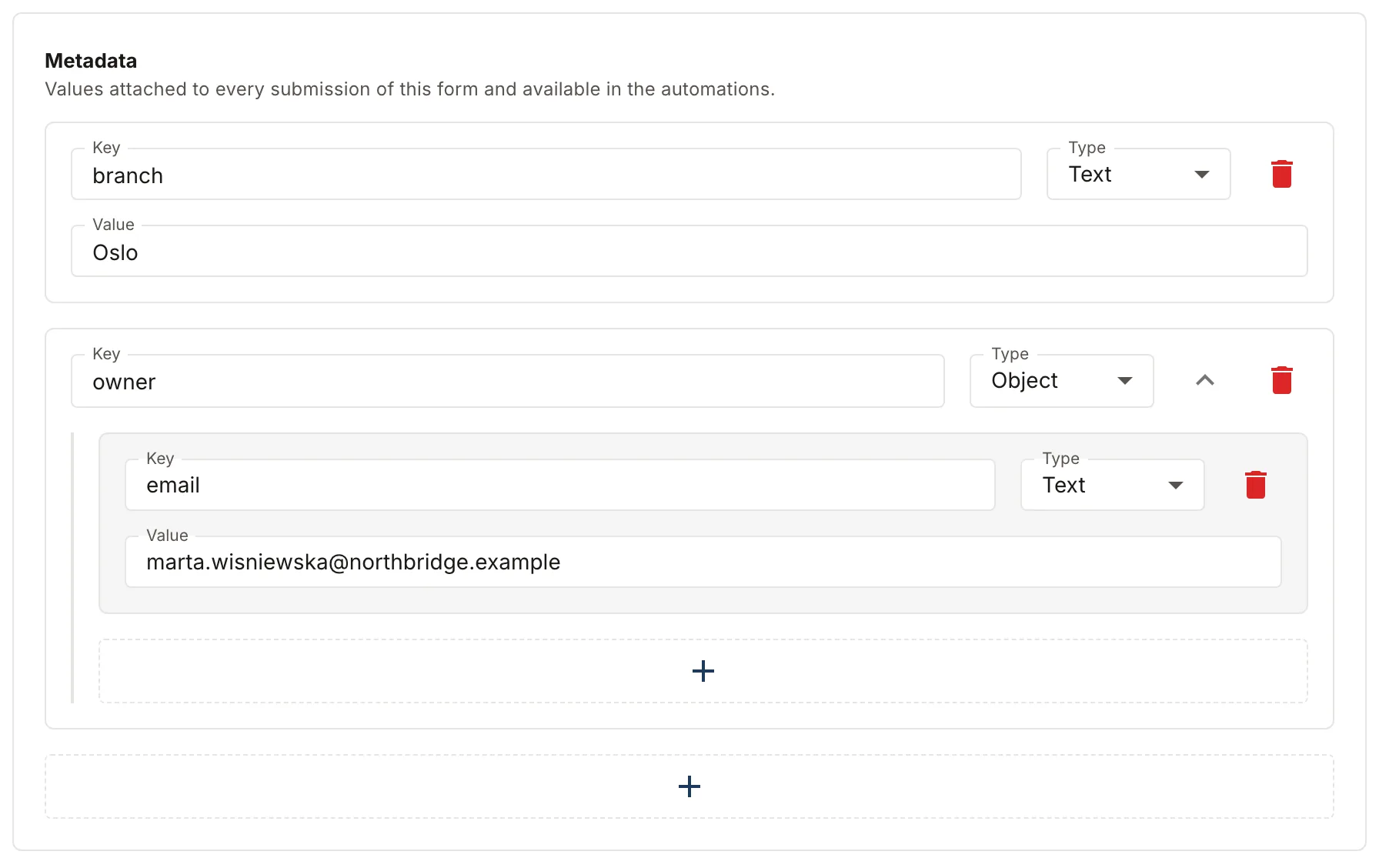
Section titled “_metadata: fixed values”Metadata is a set of values you attach to a form, an interactive document or a template. Nobody fills them in. Think of a branch code, the partner responsible, a campaign name. Put it there instead of hard-coding it into every step, and one change reaches all of them.
| Set on | Where | What the run gets |
|---|---|---|
| Form | Metadata section of the form’s settings | As it stood when the submission was sent. A later change doesn’t rewrite older submissions. |
| Interactive document | Metadata section of its settings | The same. |
| Template | The template’s Metadata | Added when a step renders that template. |
| Package | Nothing of its own | The metadata of the run that created it. |
| Webhook | Nothing of its own | Nothing from the trigger. Only the templates the run renders add metadata. |
Values can be text, numbers or nested groups: {{ _metadata.owner.email }}. A key can’t be empty, can’t start or end with a space, can’t contain a dot or a control character, and at the top level can’t start with _. A key with a space or another sign is read in brackets: {{ _metadata["client name"] }}.
How metadata adds up
Section titled “How metadata adds up”A run’s metadata grows as it goes. The trigger brings its source’s, and each template a step renders adds its own for the steps after it. Groups merge name by name, and where two give the same value, the later one wins:
form: { "firm": { "vat": "111" }, "campaign": "spring" }template of step 1: { "firm": { "name": "ACME" } }template of step 2: { "firm": { "vat": "222" }, "tags": ["a"] }after step 2: { "firm": { "vat": "222", "name": "ACME" }, "campaign": "spring", "tags": ["a"] }One exception: while a template is being rendered, its own metadata wins over everything the run brought. A template always prints its own firm.name.
Using other steps’ results
Section titled “Using other steps’ results”Steps pass results forward in three ways.
Under an output name
Section titled “Under an output name”A step that fetches something stores it under a name you choose. The picker groups these by step, and the name becomes the start of the path.
| Step | You set | Later steps read |
|---|---|---|
| Find a row | client |
{{ client.found }}, {{ client.count }}, {{ client.rowNumber }}, {{ client.row.<column> }}, {{ client.display.<column> }}, {{ client.sheet }}, {{ client.file.name }} |
| Load rows | rows |
The above, plus the lists rows.rows and rows.displayRows, and {{ rows.truncated }} |
| Count rows | total |
{{ total.found }}, {{ total.count }} |
| Write to a sheet | saved |
{{ saved.action }}, .appended, .updated, .skipped, .rowNumbers, .rowAvailable, .row.<column>, .fileCreated, .sheetCreated, .fromReceipt, .file.name, .file.path |
| Find a contract | contract |
{{ contract.id }}, .title, .number, .state, .startsOn, .endsOn, .noticeDeadline, .renews, .typeId, the list contract.parties, {{ contract.matches }}. See Find a contract. |
| Save contact | contact |
{{ contact.id }}, .created, .updated, .email, .fullName, .type.name. See Save contact. |
| Sync a contact with the CRM | crmContact |
{{ crmContact.personId }}, .organizationId, .contactId, .created. See Sync a contact with the CRM. |
| Download from the cloud | contract |
{{ contract.found }}, {{ contract.file.name }}, .file.path, .file.size, .file.mimeType, .file.modifiedAt, .file.webUrl |
| Webhook, set to keep the response | crm |
{{ crm.<whatever the server answered> }} |
| AI agent, text answer | summary |
{{ summary }} |
| AI agent, JSON answer | triage |
{{ triage.<property> }}, as your schema declares |
| AI agent, image | Nothing to set | No variable. The picture is a file, offered in the file pickers. |
| Send a quiz, Send a survey | invitation |
{{ invitation.link }}, .entryId, .kind. See Send a quiz. |
| Quiz summary | summary |
The list summary.rows, {{ summary.count }}, summary.stats. See Quiz summary. |
| Data transformation, replacing the data | Nothing to set | An object becomes the variables, anything else {{ result }}. See Expressions and functions. |
| Data transformation, stored under a key | summary |
{{ summary }}, or {{ summary.<property> }} for an object the code returns |

Output names use letters, digits and _, with dots between parts, and start with a letter or _. A name under _metadata, _params, _execution, _recipients or _nodes is refused. If a name matches a variable the trigger brings, the designer warns you, because from that step on the result replaces the value.
By party: _recipients and _nodes
Section titled “By party: _recipients and _nodes”Create documents adds the signing parties of the package it made, so a later step can send the signing link in your own email or SMS.
| Variable | What it holds |
|---|---|
_recipients.CLIENT.signingUrl |
The party’s signing link, from the latest package with that indicator |
_recipients.CLIENT.fullName, .email, .phone |
Their details |
_recipients.CLIENT.indicator, .recipientId |
Their indicator and ID |
_nodes.nda._recipients.CLIENT.signingUrl |
The same party in the package of the step nda, whatever came later |
Replace CLIENT with your party’s indicator and nda with the step’s Node ID.
Use _recipients when the workflow makes one package. With two Create documents steps that both have a CLIENT, _recipients.CLIENT points at the second, and a party only the first had stays reachable. To reach the first package’s CLIENT, use _nodes.
Later wins
Section titled “Later wins”The data is one collection, and each step sees what the steps before it left. If two things write the same name, the later one replaces the earlier one. A step on a branch the run didn’t take adds nothing, so the picker offers a step’s results only to steps that come after it on some path.
Inside a list: item
Section titled “Inside a list: item”When a spreadsheet step writes A row for each list item, the column values can use the current item. The picker adds a group, Current list item:
| Variable | What it holds |
|---|---|
{{ item.name }} |
A field of the current item. |
{{ itemIndex }} |
Item number (counted from 0). |
With the list participants, the step writes one row per person, with {{ item.name }} in one column and {{ client.name }} in the next.
How data reaches a template
Section titled “How data reaches a template”Generate document hands the run’s whole data to the template. Send email does the same with an email template. Nothing has to be mapped by hand: a template’s variable finds the value with the same path. So a Word template with ${client.name} prints the form field whose Data path is client.name.
The syntax depends on the template, but the paths are the same:
| Template | Writes a value as | Metadata | Details |
|---|---|---|---|
| Word | ${client.name} |
${_metadata.branch} |
Word templates |
A data area with the Variable path client.name |
_metadata.branch |
PDF fields | |
| SVG | {{ client.name }} |
{{ _metadata.branch }} |
SVG templates |
{{ client.name }} |
{{ _metadata.branch }} |
Email designer |
_params, _execution, _recipients and step results work the same way: ${_execution.date} in Word, {{ crm.status }} in Twig.
A worked example
Section titled “A worked example”Northbridge issues a certificate when a course participant completes a form.
- The form has fields with the data paths
participant.name,course.titleandcompleted_on. - The certificate is a Word template with
${participant.name},${course.title}and${completed_on}, and its own metadata{ "issuer": "Northbridge Advisory" }, printed by${_metadata.issuer}. - A Generate document step picks the template. Under Template variables the designer confirms that all the variables the template uses are available at this step.
- Output filename is
Certificate {{ participant.name }} {{ _execution.date }}. Doxtly adds.pdf. A name that comes out empty becomesdocument.pdf. - A Send email step attaches the certificate. Its email template can also read
{{ _metadata.issuer }}, because the rendered template’s metadata has joined the run’s.
What happens when a value is missing
Section titled “What happens when a value is missing”A document does not go out with a gap. If a template needs a value the run doesn’t have, Generate document fails and names what is missing, and the run shows it on the step. That goes for metadata too. To avoid it:
- Give the value a default in the template, such as
${vat_id|none}in Word, and it prints that instead. - Watch the Template variables check in the designer. It finds the problem before any run.
An email is more forgiving: it goes out with an empty place. A PDF template used by Create documents differs again: a data area with no value stays open for its recipient to fill in.
Pictures and signatures
Section titled “Pictures and signatures”A picture uploaded in a form reaches the template as a picture, at the field’s data path: a File upload’s picture, a Take photo field’s photo and a drawing, which is a PNG file. So a Word image marker or a PDF image area with that path prints it, with nothing extra to set up: ${damage:300:150} in a Word template prints the car with the damage marked on it. A signature works the same way, though it isn’t a file: its value is the picture itself, a PNG data URI.
Files are not variables. A form’s uploads, generated documents and downloaded files travel next to the data, and you choose them in file pickers: an email’s attachments, the documents of a package, the file to upload to a drive. A picker offers what exists by that step: the trigger’s files and those of steps before it. If the step that made a file goes, the picker says so and asks you to choose another.
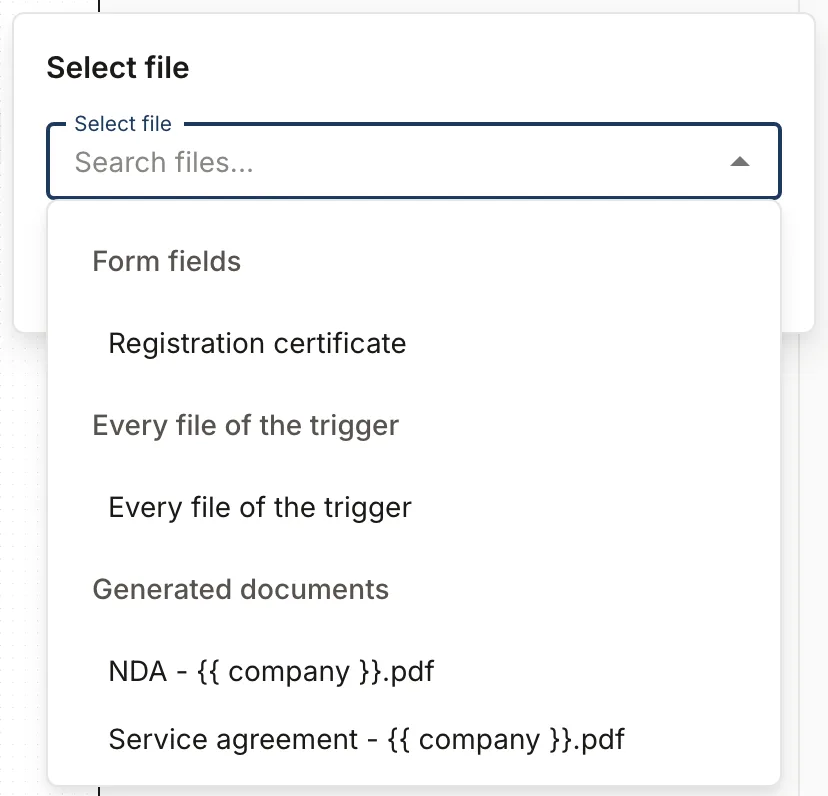
The picker sorts them into groups, showing the ones that apply:
| Group | What it holds |
|---|---|
| Form fields | Uploads, one entry per File upload, Take photo or Drawing field. |
| Every file of the trigger | All the trigger brought, as one choice. |
| Trigger document | The document the trigger A document is generated brought. |
| Generated documents | What Generate document steps made. |
| Filled documents | The documents of an interactive document. |
| Signed documents | The documents of the package, on a signing trigger. |
| Package attachments | The package’s attachments, which nobody signs. |
| Answer sheet | The attempt’s answer sheet as a PDF, when A quiz attempt is finished or A quiz attempt is regraded: printed for the grades it has, to attach to an e-mail, file in storage or put into a package to sign. |
| Response sheet | A survey response’s response sheet as a PDF, when A survey response is submitted: the answers as given. None for an anonymous survey. |
| Requested attachments | Files people were asked to attach, in a package or an interactive document, under the data path their request names. |
| Uploaded pictures | Pictures people put into image areas. |
| Downloaded from the cloud | What Download from the cloud fetched. |
| Spreadsheets from the workflow | Files Write to a sheet made or changed. |
A Data transformation leaves files alone.
The variable picker
Section titled “The variable picker”Every field that takes variables has a {x} button. The picker is the quickest way to get a path right, and it shows only what the step can really use.
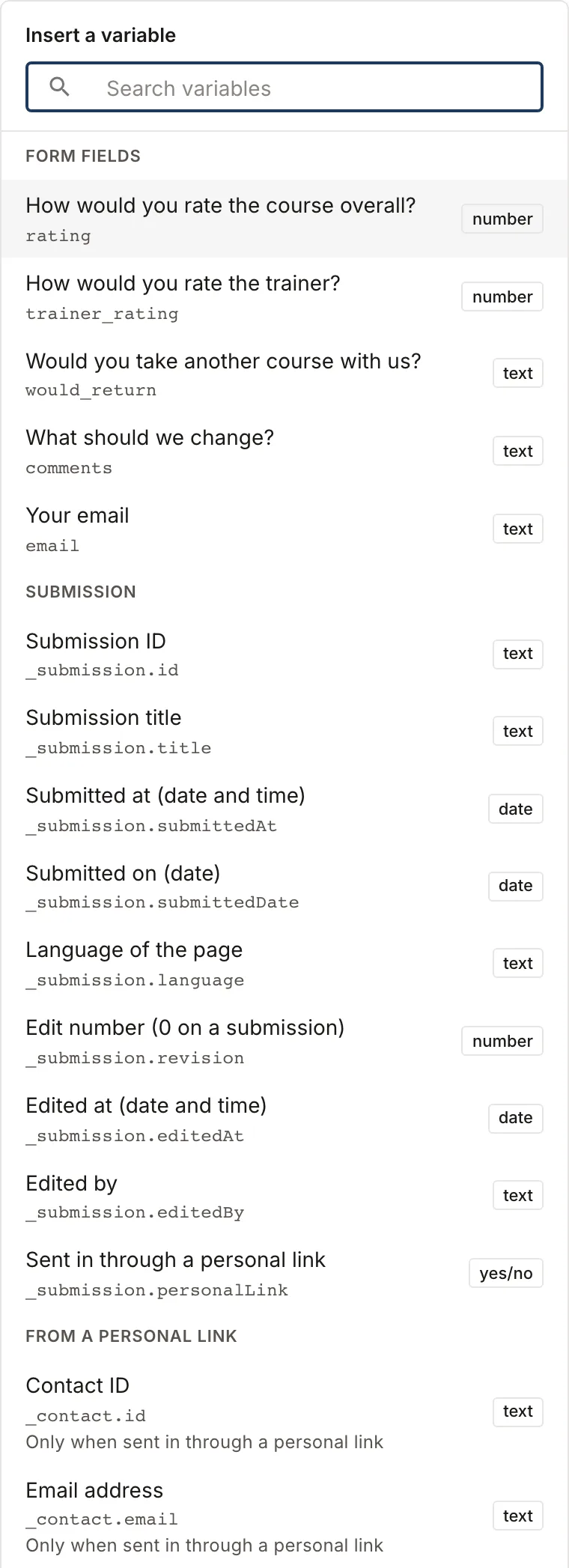
Each entry shows its label, the path it writes, and its kind: text, number, date, yes/no, file, list or object. A line under it may add something useful, such as 1 – ticked, 0 – unticked for a PDF checkbox. Search variables looks through them. In order, the groups are:
| Group | Holds | Listed when |
|---|---|---|
| Current list item | item.*, itemIndex |
Inside a list mapping |
| Form fields, Interactive document fields, Generated document data, Package data, Webhook request data, Quiz answers, Survey answers | The trigger’s values | No Data transformation replacing the data stands before the step |
| Submission, Recurring run, Package, Party, Contact, What changed, Webhook request, CRM, Deal, CRM person, What changed in the CRM, Payment, Refund, Form, Interactive document, Quiz, Recipient, Attempt, Results, Closure, Survey, Response, Answers, Quota | Trigger blocks | The same |
| From a personal link | _contact.* and _contact.company.*, with the custom fields of contacts and companies, each marked Only when sent in through a personal link |
The trigger is a form or an interactive document. For A quiz recipient does not respond and A survey recipient does not respond, the same entries are marked Only when the recipient is a contact |
| Link parameters | Each listed parameter, marked Required or Optional, or A link parameter (type its name) when all are captured | The source captures parameters |
| Form metadata, Interactive document metadata, Quiz metadata, Survey metadata, Metadata, Package source metadata | Each key, with Value: … as a preview | There is metadata |
| Package parties (latest package) | _recipients.* |
An earlier step creates a package |
| Package of … | _nodes.*: the package’s number and its parties, one group per Create documents step |
The same |
| One group per earlier step | Its results | The step stores something |
| This run | _execution.* |
Always |
Metadata previews appear only for people allowed to view the form, document or template they come from.
Greyed-out entries
Section titled “Greyed-out entries”An entry the field can’t use stays in the list, greyed out, with the reason under it.
| Field | Greyed out |
|---|---|
| A text field | Objects: An object – this field takes a single value, such as one of its fields. A list can be picked: it prints its items joined with commas. |
| A spreadsheet cell, a JSON value, a path field, a condition or a switch | Nothing: they keep a value’s type, so an object can be picked too |
Notes above the list
Section titled “Notes above the list”If something you expect isn’t there, a note above the list often explains:
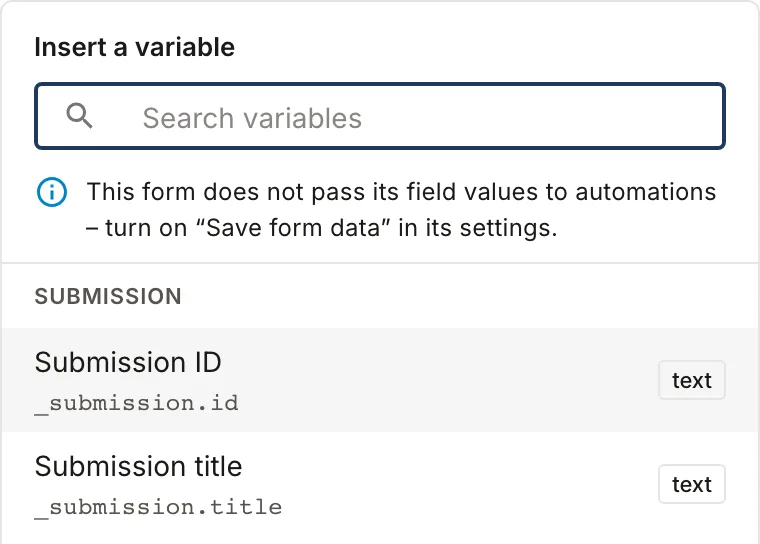
- This form does not pass its field values to workflows – turn on “Save form data” in its settings. Interactive documents have the same note, about Store the submitted values.
- Some template fields do not reach workflows – they have no variable path, or their path starts with “_”. Fix them in the template editor. A link opens each template.
- No workflow creates packages of this type yet – their data appears here once a “Create documents” step with this package type is added.
- Results of steps run earlier in the workflow supplying this data (a spreadsheet read, for example) are available too – they are not listed, so type their path by hand.
- The webhook has no JSON Schema, so nothing says which fields its requests bring – type their paths by hand. It goes on to remind you of
_webhook.headers.<name>and_webhook.body.
You may always type a path yourself. The picker only offers what it can see: a transformation’s output is not listed, and neither is the inside of a stored webhook response.
For a trigger like The package is fully signed, the picker looks through your workflows, including inactive ones, for the steps that make that kind of package, and shows what they carry. So a signing workflow lists the original form’s fields even though it isn’t the form’s own trigger.
Where a variable goes, and how to write it
Section titled “Where a variable goes, and how to write it”| Field | Write | Example |
|---|---|---|
| Text fields: addresses, file names, package titles, messages, sheet names | {{ path }}, mixed with text |
Order {{ order.id }} for {{ client.name }} |
| Several addresses | Separated by commas | {{ client.email }}, office@northbridge.example |
| The JSON body of a webhook | {{ path }} in a string. A string that is only one {{ … }} keeps the value’s type, so a list stays a list and a number a number. |
{"items": "{{ order.items }}", "note": "Order {{ order.id }}"} |
| The webhook’s URL | {{ path }}. Each value is encoded to fit its part of the address. |
https://api.example.com/orders/{{ order.id }} |
| A spreadsheet cell | {{ path }}. A cell that is only one {{ … }} keeps the type. |
{{ amount }} |
| Path fields, such as the webhook’s Field or a list to repeat over | The bare path | order.details |
| Conditions and switches | An expression with bare paths, no braces | client.country == "NO" |
| Data transformation | JavaScript, reading data |
data.client.name |
Inside {{ … }} you can write more than a path: a function, a calculation, a default, as in {{ client.name | upper }}, {{ qty * price }} or {{ client.nickname ?? client.firstName }}. Click a variable and then Operations to add them without typing. Expressions and functions describes all of it, and the fields that have a language of their own. Email templates are one of those.
Any key can be read, whatever it’s called: a name with a space or a hyphen is written in brackets, {{ _metadata["client name"] }}, _nodes["nda-check"].found. The picker writes it that way.
When a value is missing
Section titled “When a value is missing”A variable can be absent from a run: an optional field left empty, a parameter the link didn’t have, a field hidden by a condition. Reading it never fails by itself: it gives nothing, null. What the field then does depends on what it’s for:
| Where | The value doesn’t exist or is empty |
|---|---|
| Most text fields, such as a file name, a package title, an SMS or WhatsApp message | Nothing is printed in its place |
| Reply-to address, CC | Nothing is printed: the fixed addresses stay, and an empty reply-to is none |
| An SMS or WhatsApp recipient | The step fails and nothing is sent |
| Recipient email address of Send email | The step fails with Could not work out the email recipient from the variables. |
| A document template | The step fails, unless the template gives a default |
| An email template | An empty place |
| The webhook’s Field | The step fails when the value doesn’t exist |
| The webhook’s URL, a secure webhook header | The step fails and nothing is sent |
| A spreadsheet cell or filter | Empty |
| A sheet name, a storage path | The step fails |
| A document password | The step fails |
| A condition | It reads null: discount > 10 is false, and a bare discount counts as false |
| A switch | The run takes Default |
Wherever a value may be missing, give it a stand-in: {{ client.nickname | default(client.firstName) }}, {{ _params.ref ?? "direct" }}, or in a condition (discount ?? 0) > 10. A stand-in counts as a value, so it also keeps the strict fields from failing. Missing values and defaults explains the three ways.
A variable no run can have at that step, because nothing before it gives one, is named under the field: “_approver.fullName” is not available here: nothing before this point gives it, so it will be empty. Pick the right one from the picker, such as {{ _party.fullName }}. Where the designer can’t know everything a step will have, behind a data transformation or before a trigger is chosen, it says nothing.
Worked examples
Section titled “Worked examples”A package title with the client and a short reference.
Agreement with {{ client.name }}, ref {{ _execution.id | first(8) | upper }}Routing by campaign. A condition sends newsletter sign-ups down their own path. A link without the parameter reads as empty, so the answer is False and the run takes the other path:
_params.utm_source == "newsletter"Copying the account owner. The onboarding form’s metadata holds the owner. In Send email, CC reads {{ _metadata.owner.email }}, so changing the owner on the form changes it everywhere.
A signing link in your own words. After Create documents with the party CLIENT, an SMS body reads:
Hi {{ client.name }}, please sign here: {{ _recipients.CLIENT.signingUrl }}A file named by date and client, in a dated folder.
Clients/{{ _execution.date | first(7) }}/{{ client.name }} - NDA.pdfUsing a lookup in the document. Find a row with the output name crm finds the client in a spreadsheet by {{ client.email }}. The Word template prints ${crm.row.account_manager}. The Template variables check lists it under Cannot be verified before the run if the columns aren’t known, which is fine.
A thank-you only on the first send. With When set to Either, a condition _submission.revision == 0 keeps the thank-you email from going out again after an edit.