

Upload to the cloud
This node files things away. It takes files the run holds, such as a signed NDA, a generated certificate or a form attachment, and puts them into a folder of your connected cloud storage. Use it when your team works from a shared drive and you want every document to land in the right folder without anybody dragging it there.
Available when: the organization has an active Google Drive, OneDrive, SharePoint, Dropbox or Box integration, and your role has View cloud files and Manage cloud files
In the palette the node appears once per provider, as Upload to Google Drive, Upload to OneDrive, Upload to SharePoint, Upload to Dropbox and Upload to Box under Cloud files. All five are this same node, set to a provider. This page describes every setting, and the provider pages add what is special about each. An entry you cannot use is greyed out and says why: no active integration of that provider, or a permission your role lacks.
Set it up
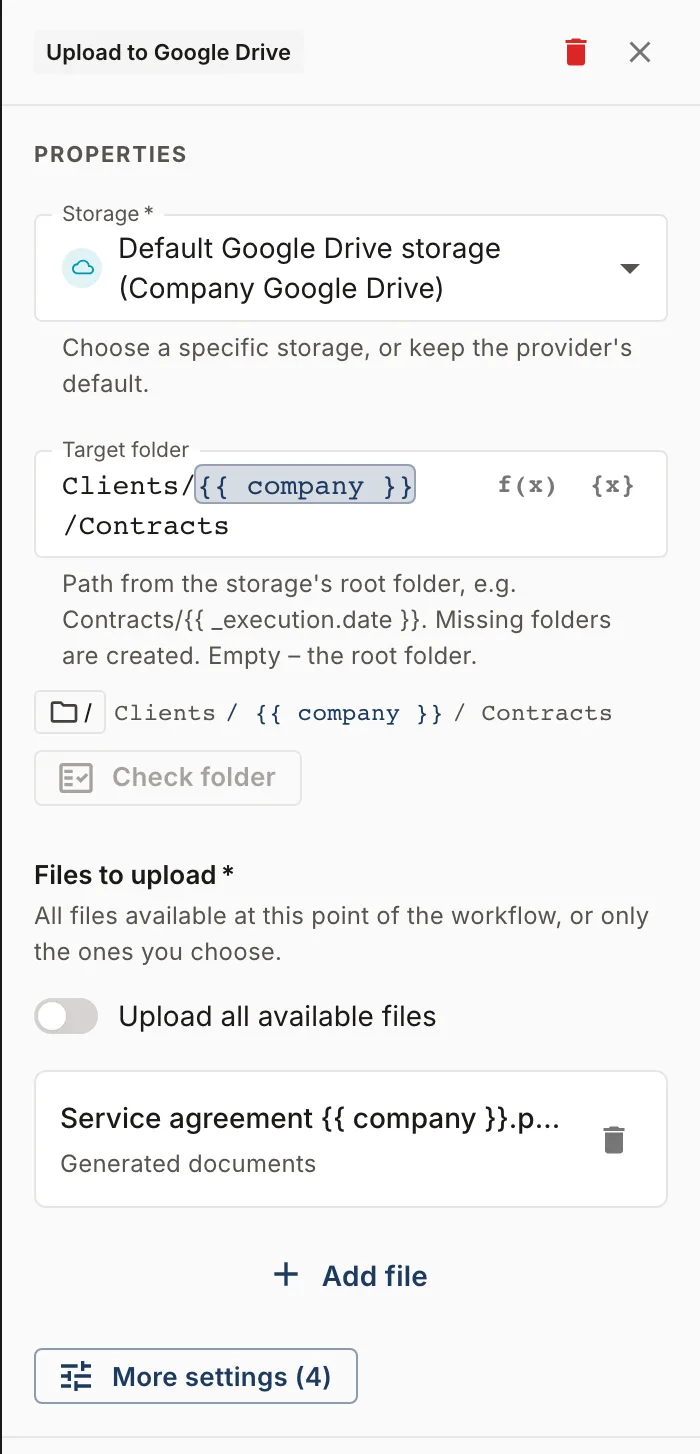
Section titled “Set it up”- Drag Upload to Google Drive, Upload to OneDrive, Upload to SharePoint, Upload to Dropbox or Upload to Box onto the canvas and connect it after the step that produces the file.
- In Target folder, type the path, for example
Clients/{{ company }}/Contracts. Leave it empty to use the storage’s root folder. - In Files to upload, keep all available files or pick the ones you want.
- Open More settings if you want your own file name or a different rule for name clashes.
Settings
Section titled “Settings”In the side panel
Section titled “In the side panel”| Setting | What it does | Allowed values | Default |
|---|---|---|---|
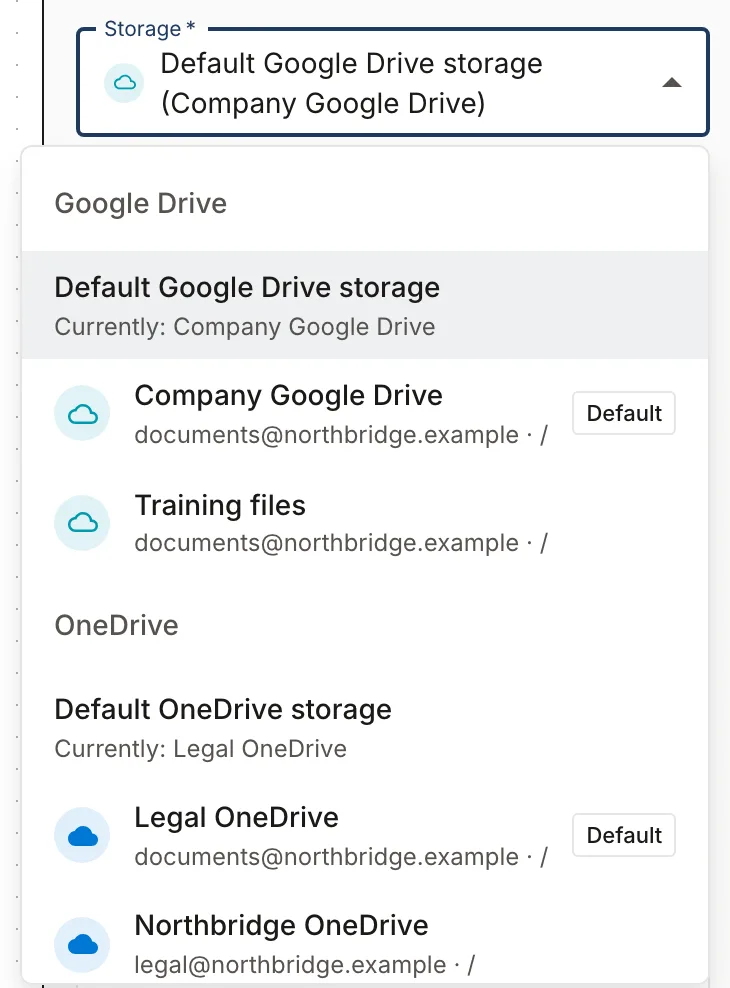
| Storage | Which connected storage receives the files. Required. | Default Google Drive storage, Default OneDrive storage, Default SharePoint storage, Default Dropbox storage, Default Box storage, or one named storage | The default of the provider you dragged in |
| Target folder | The folder to upload into, counted from the storage’s root folder. Missing folders are created. | A path, which may contain variables | Empty: the root folder |
| Files to upload | Which of the run’s files go up. Required. | Upload all available files, or a list made with Add file | All available files |
Variables in these fields can carry operations and functions, such as {{ id | first(8) }} or {{ nickname ?? firstName }}: click a variable and then Operations, or use f(x).
Storage. The two kinds of choice behave differently, and that matters when drives change:
- Default Google Drive storage follows whichever storage is the default when the workflow runs. The menu shows which one that is today (Currently: and its name). Pick this and the workflow keeps working after someone reconnects or replaces the drive.
- A named storage stays with exactly that one. If it is disconnected, the node fails. It never sends files somewhere else instead.
With one storage of a provider, that one is the default. Which storage is the default among several is set in the integrations. The menu lists each storage with its account and root folder, and marks the default with a Default chip. Picking a storage of the other provider moves the node there, and its title on the canvas follows. Nothing already uploaded is copied across.
The field tells you when the choice cannot work:
| What the field says | What it means |
|---|---|
| You have several Google Drive storages and none is the default – choose one. | Saving works, but a run fails until you pick a storage here or mark a default. In the menu the default entry reads No default – choose a storage. |
| This storage was disconnected or removed. Choose another one. | The field shows Unavailable storage. Runs fail until you choose another. |
| No Google Drive storage is connected. | The node follows a provider with no active storage. A Go to integrations link follows, or Ask an administrator to connect the storage. if your role cannot open that page. |
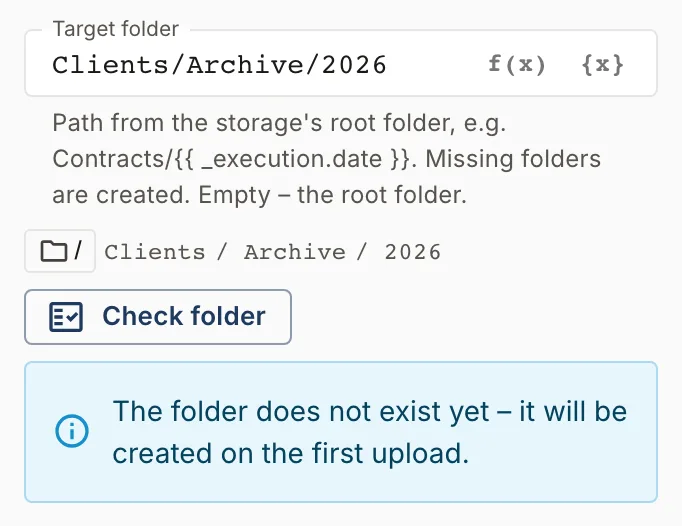
Target folder. You type the path rather than pick it, because it can name a folder that does not exist yet and a different one for every run. Under the field you see the full path as the run will use it, starting from the root folder of the integration. Variables show in colour.
Once the field holds a path, Check folder asks the storage whether the folder is there. It answers The folder exists: with the name and a link to open it in Cloud files, The folder does not exist yet – it will be created on the first upload., or This path leads to a file, not a folder. The button stays unavailable until a storage is chosen and the path is valid, and while the path contains variables, since the folder is only known once the workflow runs.
The path rules below apply to this field.
Files to upload. With Upload all available files on, the node sends every file the run holds at this point. Turn it off and use Add file to choose. The list only offers what can exist at this step, grouped by where it comes from:
| Group | What is in it |
|---|---|
| Form fields | Files people attached to the form, photos they took, as JPEGs, and drawings they made, as PNGs |
| Trigger document, Every file of the trigger | What the trigger brought, one file or all of them |
| Generated documents | Files made by Generate document and pictures made by an AI agent |
| Signed documents, Package attachments | A signing package’s files, when the trigger brings a package |
| Requested attachments | Files people were asked to attach, in a package or an interactive document |
| Filled documents, Uploaded pictures | What an interactive document brought |
| Answer sheet, Response sheet | The PDF of a finished quiz attempt’s answer sheet, or of a survey response’s response sheet, which an anonymous survey does not bring |
| Downloaded from the cloud | Files fetched by Download from the cloud |
| Spreadsheets from the workflow | Files made or changed by Write to a sheet |
Turn the switch off and choose nothing, and the workflow cannot be saved. A chosen file whose form field or step was later removed is marked as no longer in the workflow, and you have to replace it before saving.
In More settings
Section titled “In More settings”| Setting | What it does | Allowed values | Default |
|---|---|---|---|
| File name | The name for the uploaded files. May contain variables. A name, not a path: it cannot contain folders. | Text, or empty | Empty: each file keeps its own name |
| If a file with this name exists | What to do when the folder already holds a file of that name. | Keep both (add a number), Replace, Skip the file, Stop with an error | Keep both (add a number) |
| If there are no files to upload | What happens when the selection comes up empty, for example a form sent without an attachment. | Stop with an error, Skip this step | Stop with an error |
| Convert to Google formats | Saves office files as Google’s own documents. Shown for Google Drive only. See Upload to Google Drive. | On, off | Off |
| A slash in a variable creates a folder | Shown only on nodes that came from the old upload nodes. See below. | On, off | On for those nodes |
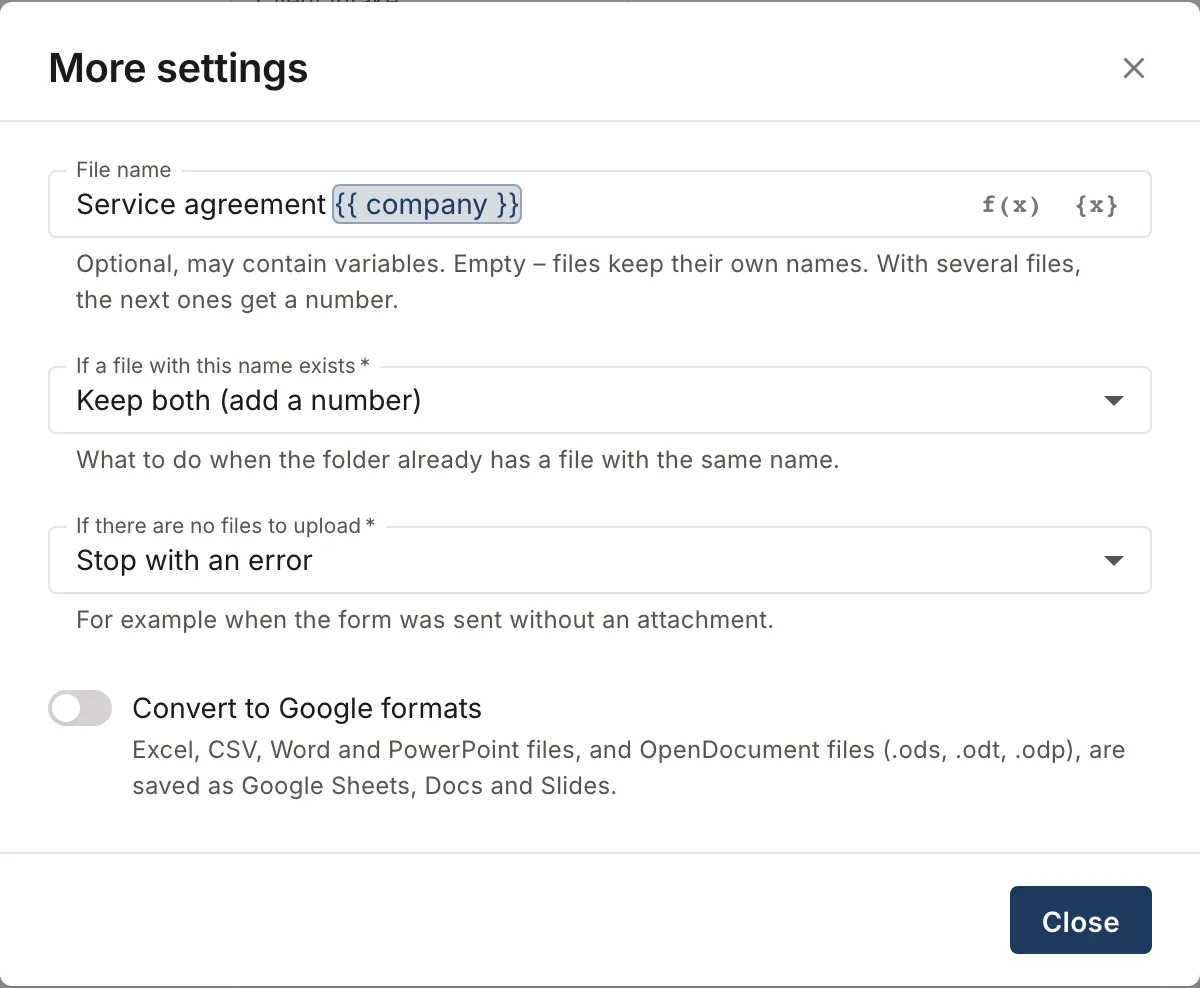
File name. A typed name may not contain /, \, ", *, :, <, >, ? or |. If the name you give has a different extension from the file, or none, the file’s own extension is added. Certificate {{ surname }} uploads a PDF as Certificate Nowak.pdf. With several files and one name, the first takes the name and the next ones get a number, such as Certificate Nowak (2).pdf.
If a file with this name exists is about files that were in the folder before this run:
- Keep both (add a number) leaves the old file alone and uploads the new one as
Certificate Nowak (2).pdf. Good for an archive, where nothing may be lost. - Replace swaps the old file for the new one. Good when only the latest version matters, such as a current price list.
- Skip the file leaves the old file alone and does not upload the new one. Good when the first version must stay, such as the copy a client signed.
- Stop with an error counts that file as failed, so someone looks into it.
Two files of the same run that end up with one name always both stay, whatever you chose here. An upload never replaces something it has just uploaded.
Path rules
Section titled “Path rules”A path is relative to the integration’s root folder and uses / between names. Nothing outside the root can be reached. Doxtly refuses to save a workflow whose typed text breaks these rules:
- no
",*,:,<,>,?or|, and no control characters; - no
.or..as a name, and no name made only of dots; - at most 255 characters per name, 1024 per path, and 32 levels.
Spaces at the start and end of a name are trimmed, and so are trailing dots. A backslash is read as /, and double slashes collapse into one.
Variables follow stricter rules, because their values come from outside:
- A value is always one name. A
/or any forbidden character in a value becomes_. A client who typesAcme/Legalinto a form gets the folderAcme_Legal, so submitted data can never create a folder level or climb out of one. A value longer than 255 characters is cut. - An empty variable stops the node.
Clients/{{ company }}/NDA.pdfnever quietly becomesClients/NDA.pdf. The run fails and the error shows the path as you wrote it.
A slash in a variable creates a folder
Section titled “A slash in a variable creates a folder”Workflows built with the old upload nodes keep working as they did, so they carry this switch, on. While it is on, a slash in a variable’s value makes a folder, a forbidden character in the folder path becomes _, and the typed folder path is not checked when you save. Turn it off to bring the node under the rules above, so form data cannot create folders. Once it is off, the switch disappears for good.
What it produces
Section titled “What it produces”Nothing for the steps after it. The node sets no variable and adds no file, and the run’s files stay in the run. Later steps can still attach them.
When something goes wrong
Section titled “When something goes wrong”Every selected file is tried, even if an earlier one failed.
| Situation | What happens |
|---|---|
| Some files fail, others make it | The run goes on. The run’s card shows how many went up and how many did not. |
| Every file fails, none uploaded or skipped | The node fails with the reason of the first file: the provider is limiting requests, the connection has expired, and so on. |
| No files, Stop with an error | The node fails. |
| No files, Skip this step | The run goes on quietly, with nothing uploaded. |
| File exists, Skip the file | That file is counted as skipped and the run goes on. |
| File exists, Stop with an error | That file counts as failed. With one file, or when every file fails, the node fails. |
| A variable in the folder or name is empty | The node fails and shows the path as written. |
| The storage is gone, or several storages and no default | The node fails with a message saying which. |
| Someone else is writing a file of that name | The upload waits its turn, up to two minutes (45 seconds in a run a person is waiting on, such as signing on the page). After that, the file counts as failed. |
The run’s card on the Executions page shows the storage, the folder the files went to, with the run’s values filled in (Root folder when the field is empty), and the counts Files uploaded, Skipped and Not uploaded. The last one is in red, and it is worth a look, because a run that lost one file of three still counts as a run that went on.
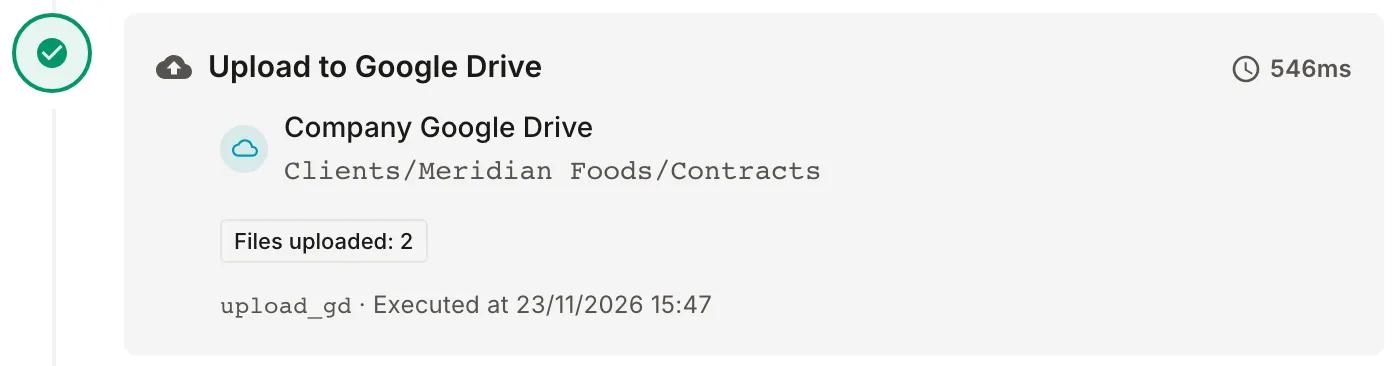
A rerun uploads again. With Keep both (add a number) you get a second copy, and with Replace the file is written over.
An integration a workflow relies on cannot be deleted: Doxtly refuses and names the workflows, inactive ones included. A node relies on a storage when it names that storage, and also when it follows the default and no other storage of the provider could take over. Switch such nodes to another storage first.
Example
Section titled “Example”Northbridge Advisory wants every signed service agreement filed by client and year.
| Setting | Value |
|---|---|
| Storage | Default Google Drive storage |
| Target folder | Clients/{{ company }}/{{ _execution.date | first(4) }} |
| Files to upload | The signed documents of the package |
| File name | Service agreement {{ company }} |
| If a file with this name exists | Keep both (add a number) |
| If there are no files to upload | Stop with an error |
When Acme Ltd signs in 2026, the file lands at Clients/Acme Ltd/2026/Service agreement Acme Ltd.pdf. A second agreement that year becomes Service agreement Acme Ltd (2).pdf, and the first stays untouched.