

reCAPTCHA integration
Google reCAPTCHA v3 watches how a visitor behaves and gives them a score from 0.0 (a bot) to 1.0 (a person), with no puzzle to solve. Connect it when a public form starts collecting spam, or when you want to stop people guessing the password of a form. Say the enquiry form on your website starts filling up with adverts: one integration and one switch in the form’s settings keep those submissions out, and real clients notice nothing.
Available when: you hold Manage integrations
What needs it
Section titled “What needs it”- Enable reCAPTCHA in a form’s spam protection, which checks each submission. reCAPTCHA integration beside it says which integration does the checking.
- CAPTCHA, no limits as the password protection of a form or an interactive document
Neither can be switched on until you have an active integration. The password protection asks for more: saving it is refused unless the integration has also passed its test, with “A CAPTCHA on the password needs an active reCAPTCHA integration that has passed its test.”
If you choose no integration in the settings, the only active one is used, or else the default.
Prepare your keys
Section titled “Prepare your keys”- Go to the reCAPTCHA admin console and sign in with a Google account.
- Choose Score based (v3). Keys of the challenge type (“I’m not a robot”) don’t work with Doxtly.
- Under Domains, add every address where visitors open your forms:
app.doxtly.com, your organization’s own address such asacme.app.doxtly.comif you have one, and your website if you embed forms there. - Submit, and copy the site key and the secret key.
Set it up
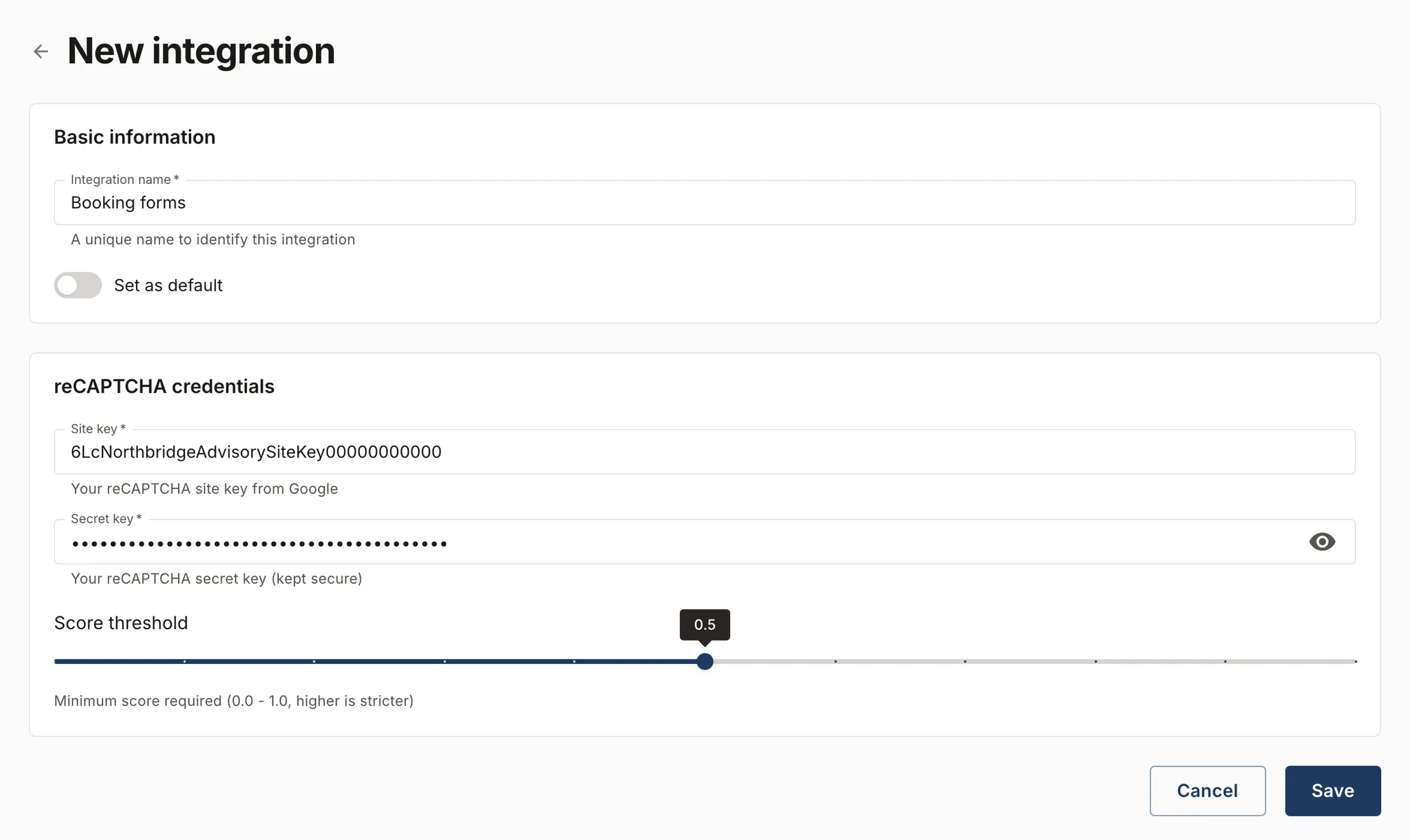
Section titled “Set it up”- Go to Organization, Integrations, click New integration and pick reCAPTCHA.
- Fill in Integration name.
- Paste the Site key and the Secret key.
- Set the Score threshold, or leave it at 0.5.
- Click Save. The integration is a Draft, and you land on its page.
- Click Test connection. When it passes, the integration is Active.
- Turn reCAPTCHA on in the form’s settings, and send the form once yourself.
The test asks Google whether it knows the secret key. It also refuses either key if it’s shorter than 20 characters. It can’t check that the site key is the right one, or that your domains are listed. That’s why the last step matters: a mistake in either shows up only when a real visitor sends a form.
If Google can’t be reached during the test, the test fails but the integration keeps its status and verified mark, so forms go on working. Only a key Google rejects makes it Invalid.
Every field
Section titled “Every field”| Field | What it does |
|---|---|
| Integration name | Your label, such as “Website forms”. Up to 255 characters, unique among your reCAPTCHA integrations. A repeat is refused with “An integration of this type with this name already exists.” |
| Set as default | Makes this the integration used when a form doesn’t name one and you have several active ones. |
| Site key | The public key your visitors’ browsers load the check with. Required, up to 255 characters. |
| Secret key | The private key Doxtly checks the answers with. Required, up to 255 characters, stored encrypted and never shown again. On edit, leave it empty to keep the stored one. |
| Score threshold | The lowest score that gets through, from 0.0 to 1.0 in steps of 0.1. Starts at 0.5. |
Pick a score threshold
Section titled “Pick a score threshold”A higher number is stricter. A submission scoring below the threshold is refused with “reCAPTCHA verification failed. Please try again.”
Start at 0.5, which suits most forms. If spam still gets through, go to 0.7. If real clients complain they can’t send the form, go down to 0.3. A new threshold applies from the moment you save, with no need to test again.
What affects your forms
Section titled “What affects your forms”A reCAPTCHA integration works only while it is Active and has passed its test. If it stops being usable, the two features react differently:
| Form with Enable reCAPTCHA | Password with CAPTCHA, no limits | |
|---|---|---|
| The integration is Invalid, deleted or has untested keys | The form still opens, but every submission is refused with “This form cannot be submitted right now. Please try again later.” | Falls back to rate limits, until an integration can check passwords again |
So a problem here can stop your forms. If submissions dry up, check this integration first.
Keep in mind that a visitor whose ad blocker stops reCAPTCHA can’t send the form. Protecting forms explains this and the alternatives.
Change the keys
Section titled “Change the keys”Changing the name or the threshold has no such effect.
What you see once it’s set up
Section titled “What you see once it’s set up”Click the row in the list for the summary: Site key, Score threshold and a Verified on chip with the date of the last passed test. The integration’s page shows “reCAPTCHA configuration verified successfully”.
