

Custom fields
Custom fields hold what your organization knows about a contact or a company beyond the name and address: a client number, a date of birth, a contract number, a credit limit. A dental clinic keeps each patient’s insurance number, a recruitment agency the date a candidate can start. Contacts, companies and document packages have fields of their own, and every contact or company gets each field of its kind. A field can be unique, so that no two records share a value: a client number, or the ID a record has in your CRM.
Available when: View contacts to see the fields of contacts and companies and Manage custom fields to define them; View documents and Manage custom fields of packages for the fields of packages
Define a field
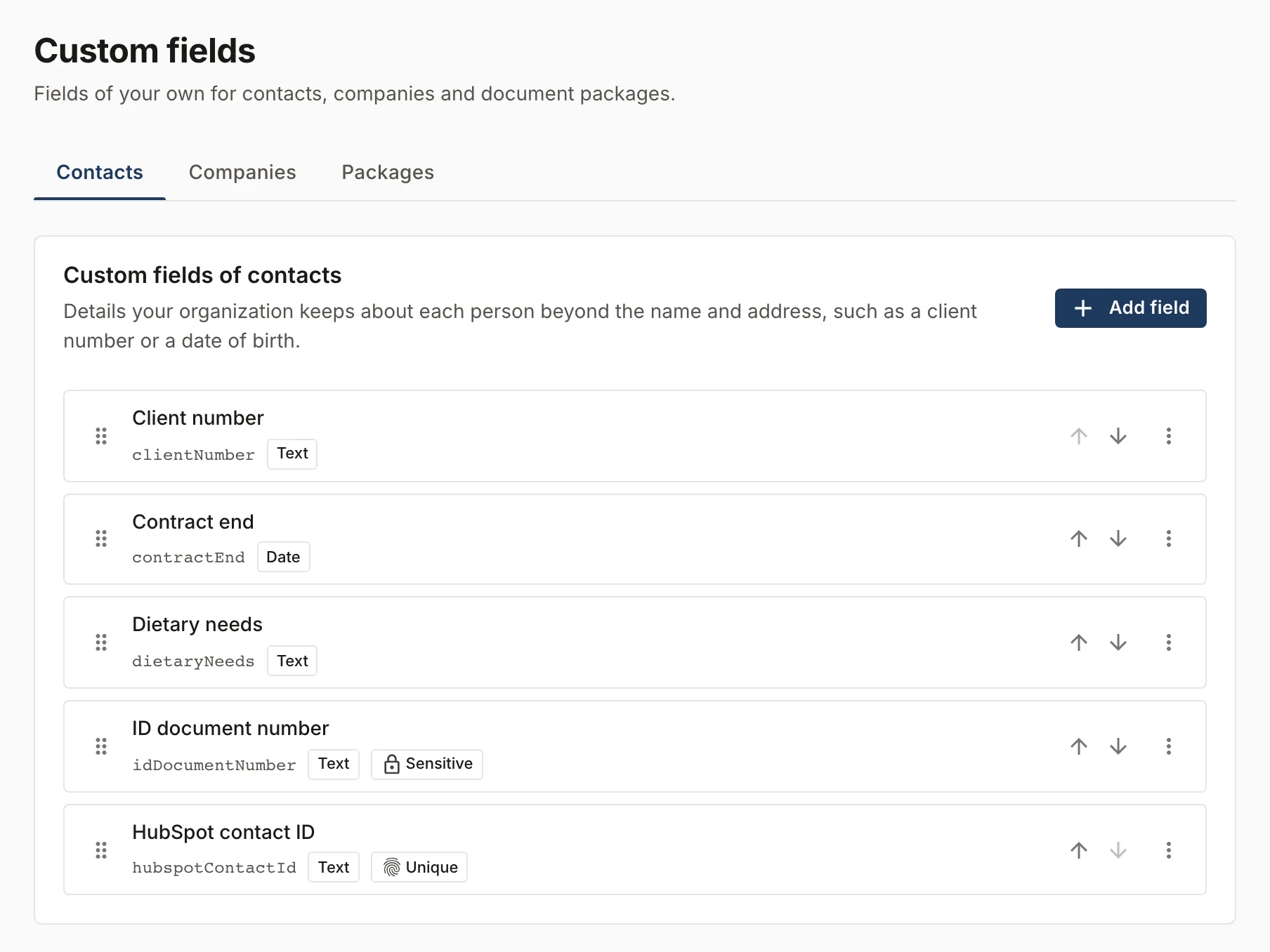
Section titled “Define a field”Fields are defined in Settings > Custom fields, on the Contacts, Companies or Packages tab. Everyone with View contacts opens that section, even without access to the other settings, and sees the fields of contacts and companies read-only; changing them takes Manage custom fields. The Packages tab is there for everyone with View documents, and changing its fields takes Manage custom fields of packages.
-
Press Add field.
-
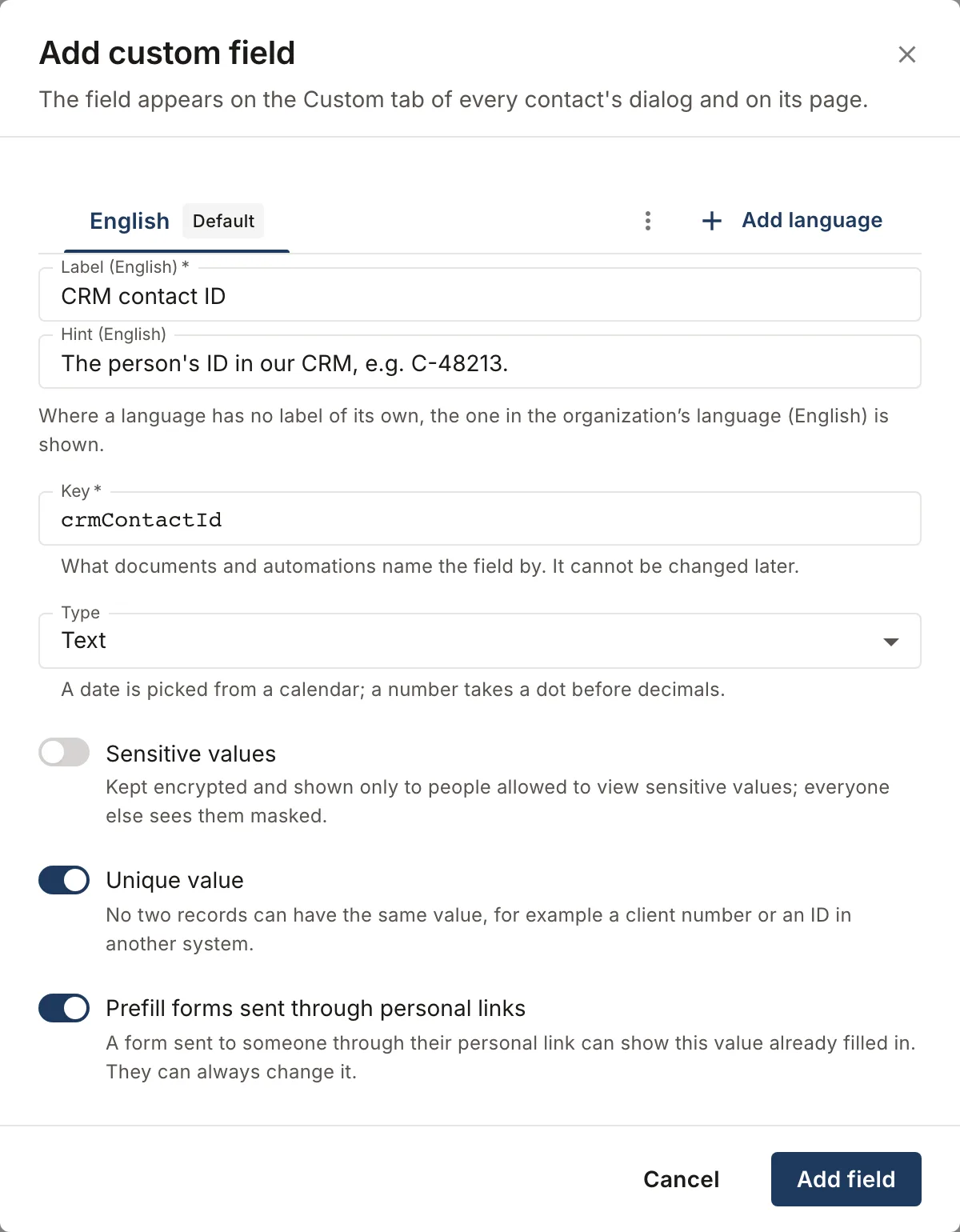
Enter the Label people see in the dialog and on the page, and a Hint if the field needs explaining. Both can be written in several languages, as the text of a form’s submit button can: the label is required in your organization’s language, which a reader without a label in their own language is shown.
-
Check the Key, which is offered from the label as you type it:
clientNumberfor “Client number”. -
Choose the Type. Switch on Sensitive values if the field holds something few people should see, or Unique value if no two records may have the same value. For a field of packages, choose the Document types it is for.
-
Press Add field.
| Setting | What it decides |
|---|---|
| Label, Hint | What the field is called and the line under it, in each language you write them in. Up to 100 and 300 characters. |
| Key | The name documents and workflows use for the field. It starts with a letter and has only letters, digits and underscores, up to 64 of them. It cannot be the name of a built-in field, such as email or city, nor another field’s key in any letter case, and it cannot be changed once the field exists. |
| Type | Text, up to 1,000 characters; Date, picked from a calendar; or Number, with a dot before the decimals, such as 1500.25. A number is kept exactly as it was entered, never rounded. |
| Sensitive values | The values are kept encrypted and shown only to people with the View sensitive values permission. Everyone else sees them masked. |
| Unique value | No two records of your organization can have the same value: see Unique values. A sensitive field cannot be unique, so the switch is off and blocked while Sensitive values is on. |
| Prefill forms sent through personal links | Whether a form sent to someone through their personal link may show this value already filled in. The person can always change it. It is switched off when the field is made sensitive, whether it is added so or changed to it; you can switch it on again. A field of packages does not have it. |
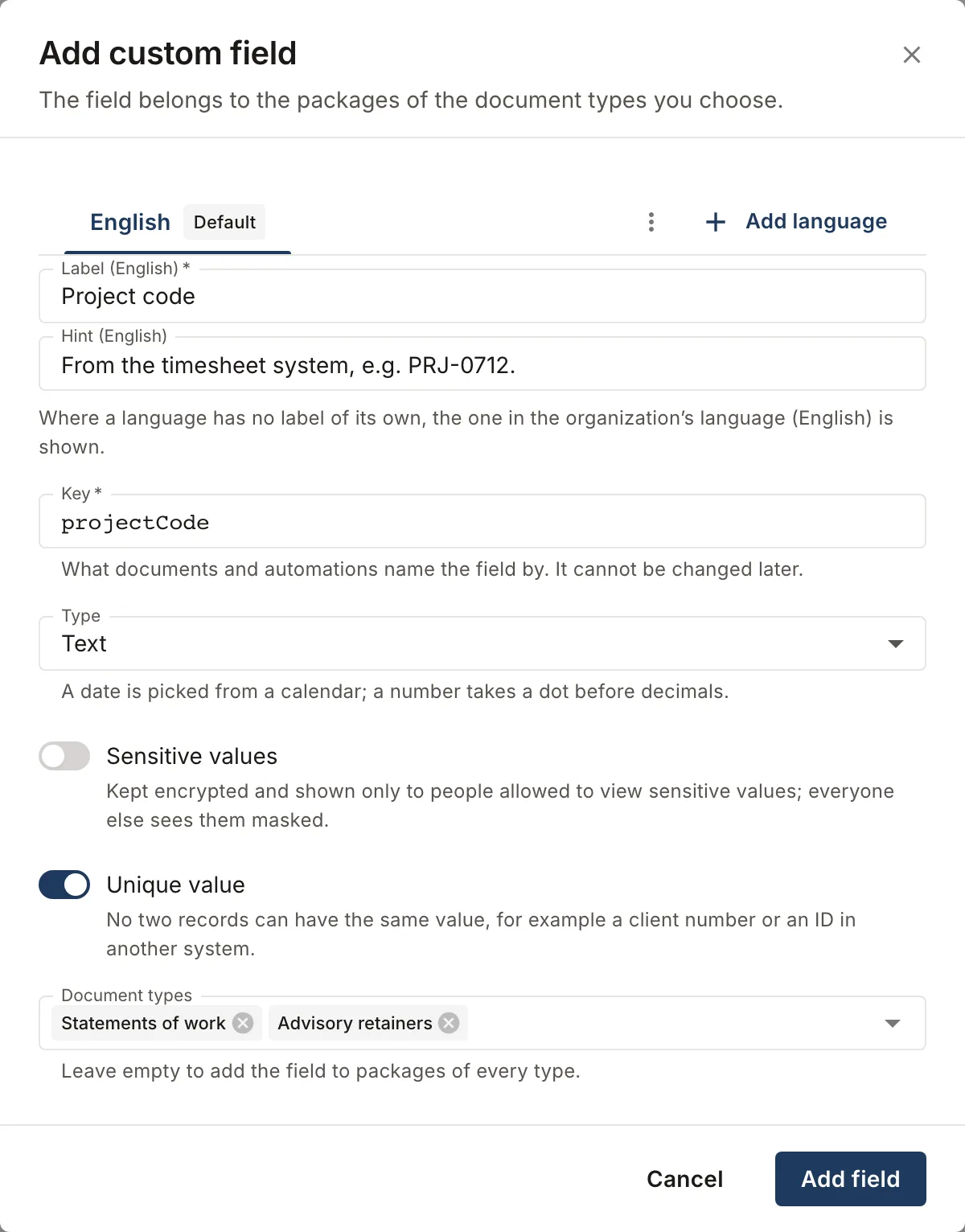
| Document types | Only for a field of packages: the document types whose packages have the field. Left empty, every type has it. |
Fields are optional: a contact or company can be saved without any of them. Contacts, companies and packages can have up to 50 fields each.
Unique values
Section titled “Unique values”A unique field keeps one value for one record: a client number belongs to one client, a CRM’s ID to one contact. When you save a contact, a company or a package with a value another one of your organization already has, the save is refused and nothing is changed, with a message naming who has it, such as Anna Nowak already has the value “NB-1042” in “Client number”, which must be unique. Values are compared exactly, after the spaces at their start and end are removed, so NB-1042 and nb-1042 are two values. Two people saving the same value at the same moment cannot both succeed: the later save is refused.
You can switch Unique value on for a field that already holds values only while no two records share one. Otherwise the change is refused and names the records that do, up to five of them, so you can correct them first. A sensitive field cannot be unique, because its values are kept encrypted and cannot be compared, and a unique field cannot be made sensitive until Unique value is switched off.
Fields that keep your CRM’s IDs
Section titled “Fields that keep your CRM’s IDs”A CRM integration, Pipedrive, HubSpot or Copper, keeps the IDs of the CRM’s records in fields you choose: a field of contacts for people, of companies for organizations, of packages for deals or opportunities. Such a field must be a unique text field that is not sensitive, and the integration’s settings offer Make it unique for one that isn’t yet. While an integration keeps its IDs in a field, the field can’t be deleted, made sensitive, given another type or made not unique, and Doxtly says which integration holds it: “The integration “Northbridge Pipedrive” keeps the CRM’s ids in this field. Choose another field in the integration’s settings first.”
Fields of packages
Section titled “Fields of packages”The Packages tab holds the fields of your document packages, such as a deal number from your CRM or a contract’s value. They are defined like the fields of contacts, with two differences: a field of packages can be for some document types only, chosen in Document types, and it is never used to prefill a form, so it has no Prefill forms sent through personal links. Its key cannot be the name of a package’s own value, such as title, number or type.
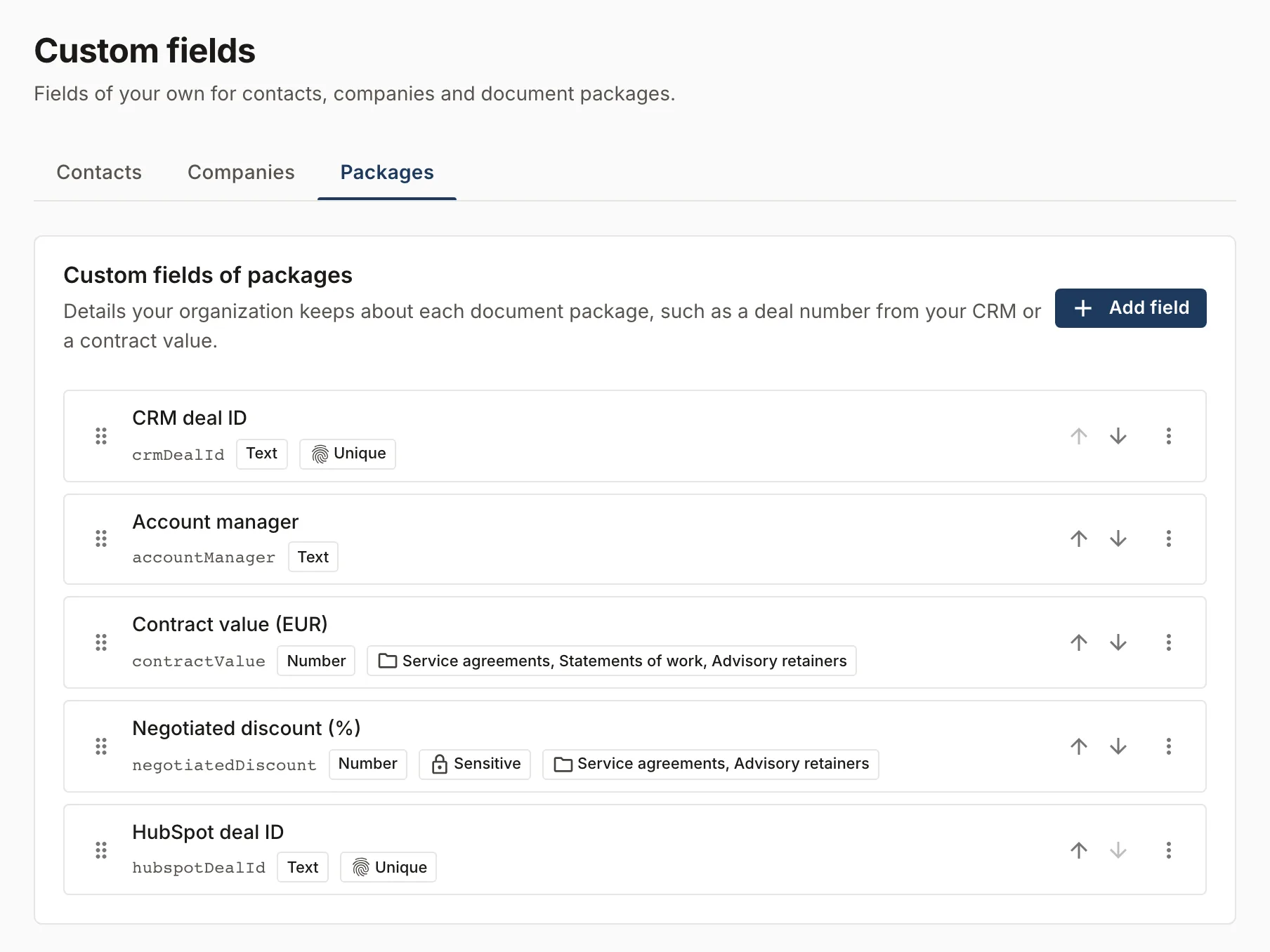
Add field on this tab opens the same dialog, with Document types at its foot and no switch for personal links.
Who may define them is decided apart from the fields of contacts: Manage custom fields of packages, which the built-in Administrators and Managers have and Members and Viewers do not. Everyone with View documents sees them.
Their values are filled in in the Fields section of a draft’s Basics tab, and changed on the package’s page in the Fields card, also once the package is sent: see What you set on Basics and Delivery and Fields. The documents list filters by them and shows up to three of them as columns, and an export lists them. Documents and workflows read them as {{ _package.fields.<key> }}, an annex or a termination its contract’s as {{ _package.annex.contract.fields.<key> }}, never a sensitive one.
Order the fields
Section titled “Order the fields”The dialogs and the pages show the fields in the order of the list. Drag a field by its handle, or move it with its arrows, which also work from the keyboard. On a phone only the arrows are shown.
Fill in the values
Section titled “Fill in the values”Once your organization has fields, the contact and company dialogs have two tabs: Basic with the built-in details, and Custom with your fields. A tab with a value that could not be saved is marked with a dot, and the field says what is wrong.
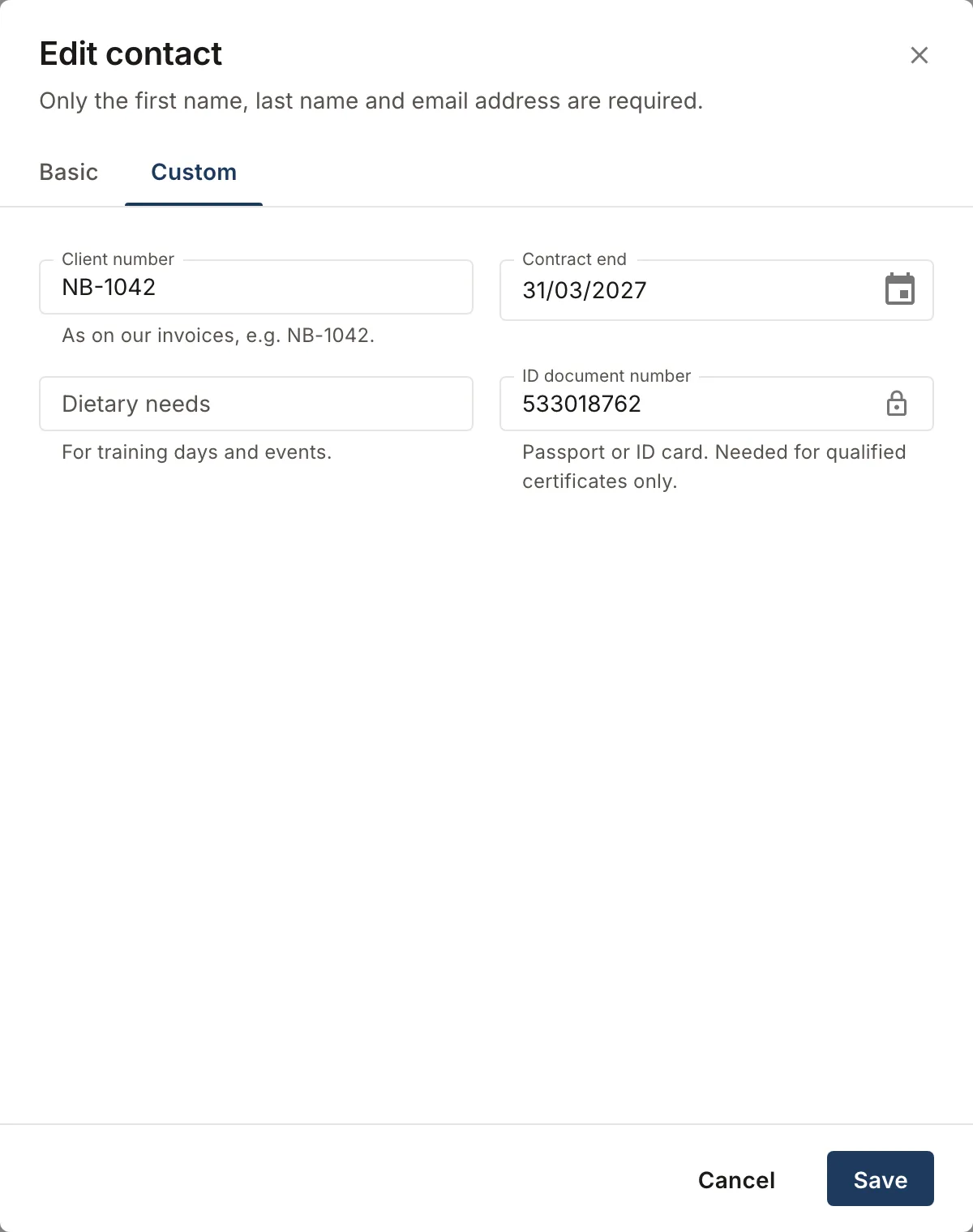
Without View sensitive values a sensitive field is locked: masked, with Hidden: you cannot view sensitive values. under it, when it holds a value, and empty, with Not filled in, when it does not. Saving the dialog leaves its value as it was. Changing a sensitive value takes both Manage contacts and View sensitive values.
On the contact’s and the company’s page
Section titled “On the contact’s and the company’s page”The Custom fields card under the details lists every field with its value, or Not filled in. A sensitive value is masked. With View sensitive values, Show sensitive reveals the values and Hide sensitive masks them again. They are fetched only when you press the button, and are never part of the list of contacts or companies.
The fields that are not sensitive can also be columns of the contacts and companies lists: choose them under Columns beside the list’s filters. Your browser remembers the choice.

A contact’s history records every change of a custom field, with its label, the value before and the value after. A sensitive value is recorded encrypted and masked in the history as on the card: only people with View sensitive values reveal it, with Show sensitive.
Change or delete a field
Section titled “Change or delete a field”Edit in a field’s menu changes the label, hint, type, the switches and, for a field of packages, its document types. The key stays as it is.
- Type. A field changes its type only when every value it holds is valid for the new one. A text field becomes a number field when all its values are numbers; otherwise the change is refused and names the contacts, companies or packages whose values are not of the new type, up to five of them, so you can correct them first.
- Sensitive values. Switching it on or off moves the values already entered. With many contacts this takes a moment, and until then each value is already shown, or masked, as the field now says.
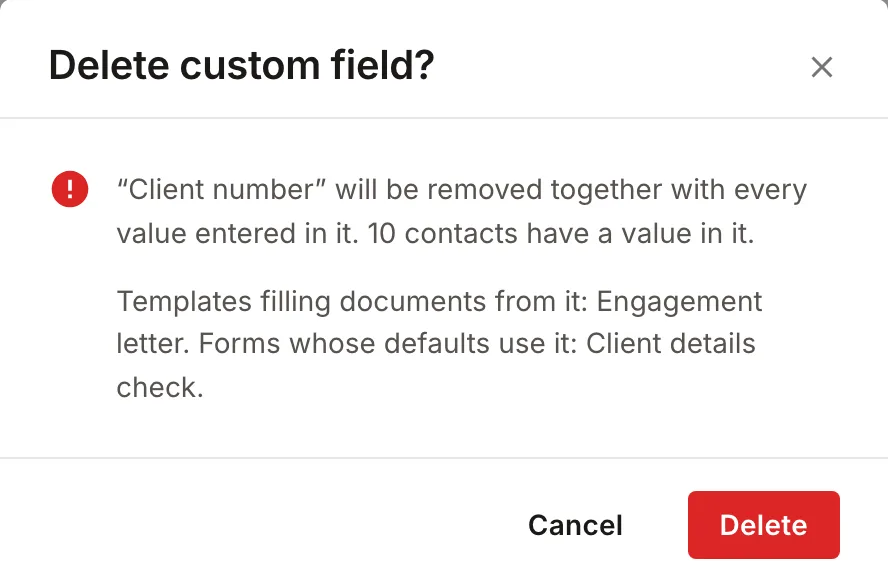
Delete in a field’s menu asks first and says how many contacts, companies or packages have a value in it, which templates fill documents from it, which forms’ default values use it, which workflows read it and which CRM integrations keep their IDs in it or map it, as these are left pointing at nothing. A field a CRM integration keeps its IDs in can’t be deleted until another one is chosen in the integration’s settings; one only used in a field mapping can, and the mapping then skips it. The field disappears at once, and so do those templates’ values filled from it; drafts lose theirs before the key can be used again, so a field added later under the same key fills nothing nobody chose. Its values are removed from every contact, company or package in the background. Its key can be used again once they are gone.
In documents and workflows
Section titled “In documents and workflows”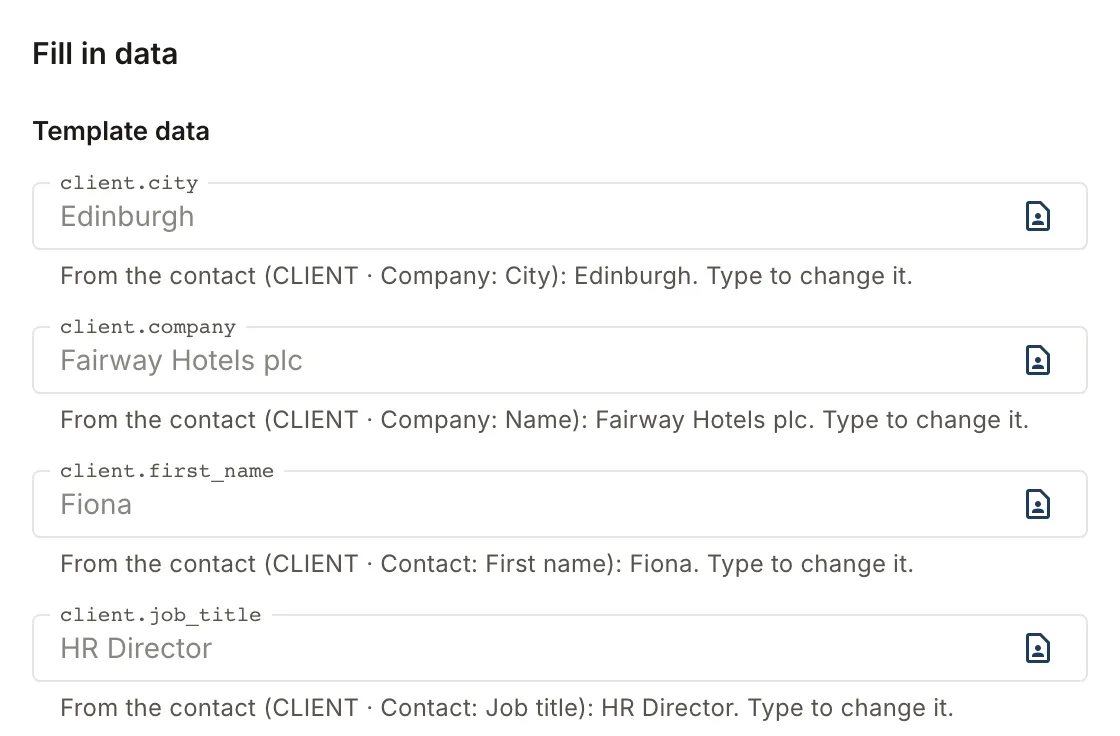
A document’s value can come from a custom field of the contact a party was chosen from, or of that contact’s company: see Values from contacts. A sensitive value fills a document only when whoever sends it may view sensitive values, and never a workflow’s. A date fills it as it is kept, such as 1979-11-02, like a date from a form; an SVG template can print it in another form with formatdate.
A save that changes custom fields starts a Contact saved workflow like any other change, and the run gets the values of the fields that are not sensitive, by key.
Who can do what
Section titled “Who can do what”| Permission | What it allows |
|---|---|
| View contacts | Seeing the fields, in the settings, the dialogs and on the pages, with the values that are not sensitive. |
| Manage contacts | Filling in the values of contacts and companies. |
| Manage custom fields | Adding, editing, ordering and deleting the fields of contacts and companies. |
| View sensitive values | Showing sensitive values and, with Manage contacts, changing them. |
| View documents | Seeing the fields of packages in the settings. |
| Manage custom fields of packages | Adding, editing, ordering and deleting the fields of packages. |
Administrators, Managers and Members have the first four; Viewers have View contacts only. Manage custom fields of packages belongs to Administrators and Managers. See Roles and permissions.