

The interactive document editor
The editor is where you decide what an interactive document holds, in what order, and how its link behaves. You reach it with New interactive document, or by clicking a row in the list. Nothing you do here reaches visitors until you save.
The editor has the whole window: the app’s menu, notifications, organization switcher and light/dark switch are hidden while you build, and the back arrow at the top left is the way out. The description and the documents stand in one centred column that scrolls under the top bar, which stays in view.
Available when: your role has the Manage interactive documents permission
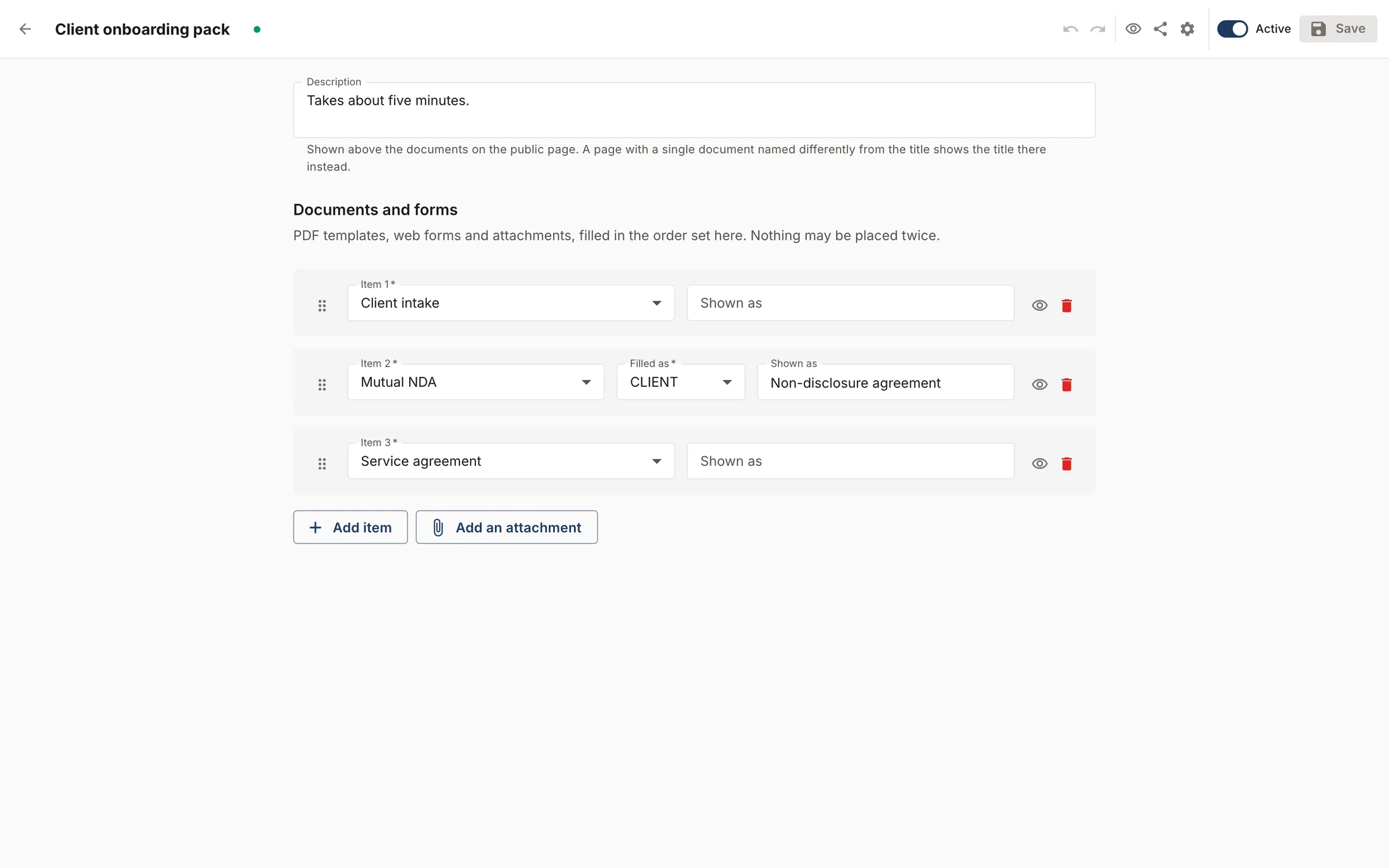
The top bar
Section titled “The top bar”
| Control | What it does |
|---|---|
| Back arrow | Goes back to the page you opened the editor from, or to the list. Its tooltip says where. If something is unsaved, Doxtly asks first: Stay on page or Leave page. |
| Title | The name of the document, up to 255 characters. Required. The visitor sees it too. |
| Status | A green dot when the document can be saved (point at it to read Ready), or Problems: N when something needs your attention. In orange they are only warnings, and you can still save. Unsaved changes appears beside it after any change. |
| Undo / Redo | Take your last change back, and make it again. What you type into one field counts as one step, until you leave the field or stop typing for a second; every other change, such as an item added, moved or removed, a switch turned or a setting chosen, is a step of its own. Outside a field, Ctrl+Z undoes and Ctrl+Shift+Z or Ctrl+Y redoes (⌘ on a Mac); in a field they work on its text. |
| Preview (eye icon) | Shows the document as it stands in the editor, item by item, at the width of a phone, a tablet or a desktop. See Previewing the whole document. Hidden until an item holds something. |
| Share (icon) | Shows the public link. Appears once the document has been created. |
| Settings (icon) | Opens the settings. |
| Active / Inactive | Switches the link on or off. While inactive, the link answers as if it did not exist, but existing submissions stay and can still be edited. New documents start active. |
| Create / Save | Stores everything, settings included, and keeps you in the editor: a new document gets its own address. Ctrl+S (⌘+S on a Mac) does the same. Save stays greyed out until something changes. |
On a tablet or a phone the top bar takes two rows: the back arrow, the title, the status and Save first, then the tools and Active.
Click Problems: N to see what stands in the way. Each entry takes you to the spot: the title, the items, the Metadata section, or the settings, where the submission title, the success message or a redirect parameter has a mistake, such as a variable never closed or one the document doesn’t have.
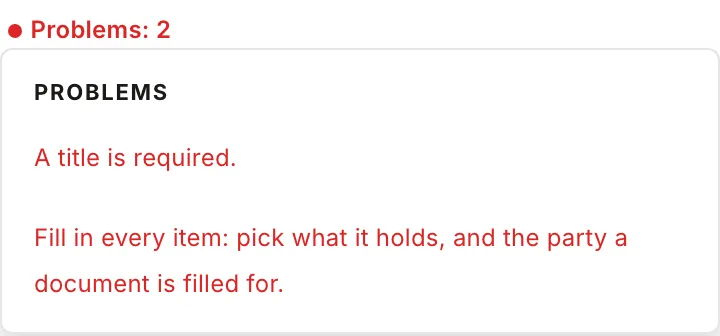
Five things block saving: an empty title, an item that is not filled in, a metadata key that is not allowed, a Redirect to another page whose address is not a valid http or https address or whose parameters are incomplete, and an error in the submission title, the success message or a redirect parameter, such as a variable never closed or a function that doesn’t exist. Pressing Save or Create with one of them outstanding marks it in red and stores nothing, and the API refuses the same text when it comes another way. A warning there, in orange, such as a variable the document doesn’t have, doesn’t stop you saving: that variable is empty when the document is submitted. Mistakes in the Security and Link parameters sections, such as an empty address list or a repeated parameter name, are marked in the field itself, and saving answers with a message saying what to fix.
Description
Section titled “Description”Description is an optional text shown above the documents on the public page. Use it for one line of guidance, such as “Takes about five minutes. Have your company registration number ready.”
There is one exception. With a single item named differently from the document, the item’s name becomes the heading and the document’s title goes under it, where the description would be. If the two names are the same, the description stays.
Documents and forms
Section titled “Documents and forms”Each item is one row in Documents and forms, and the visitor sees them in this order. You can mix them freely: a form first, then two PDFs, or a form between them.

| Field | What it does |
|---|---|
| Drag handle | Drag a row to move it. It also works from the keyboard. |
| Item N | What this item holds. The list has two groups: PDF templates and Web forms. Required. |
| Filled as | Which party fills this document. Appears only for a template that addresses more than one party. Required then. |
| Shown as | The name the visitor sees for this item. Leave it empty to use the name of the template or form. It also names the rendered PDF file, so Non-disclosure agreement gives non-disclosure-agreement-1.pdf. |
| Preview (eye icon) | Shows what this item puts in front of the person filling it. See Previewing an item. |
| Delete icon | Removes the item. An interactive document needs at least one, so the last row cannot be removed. |
Add item adds a row at the end.
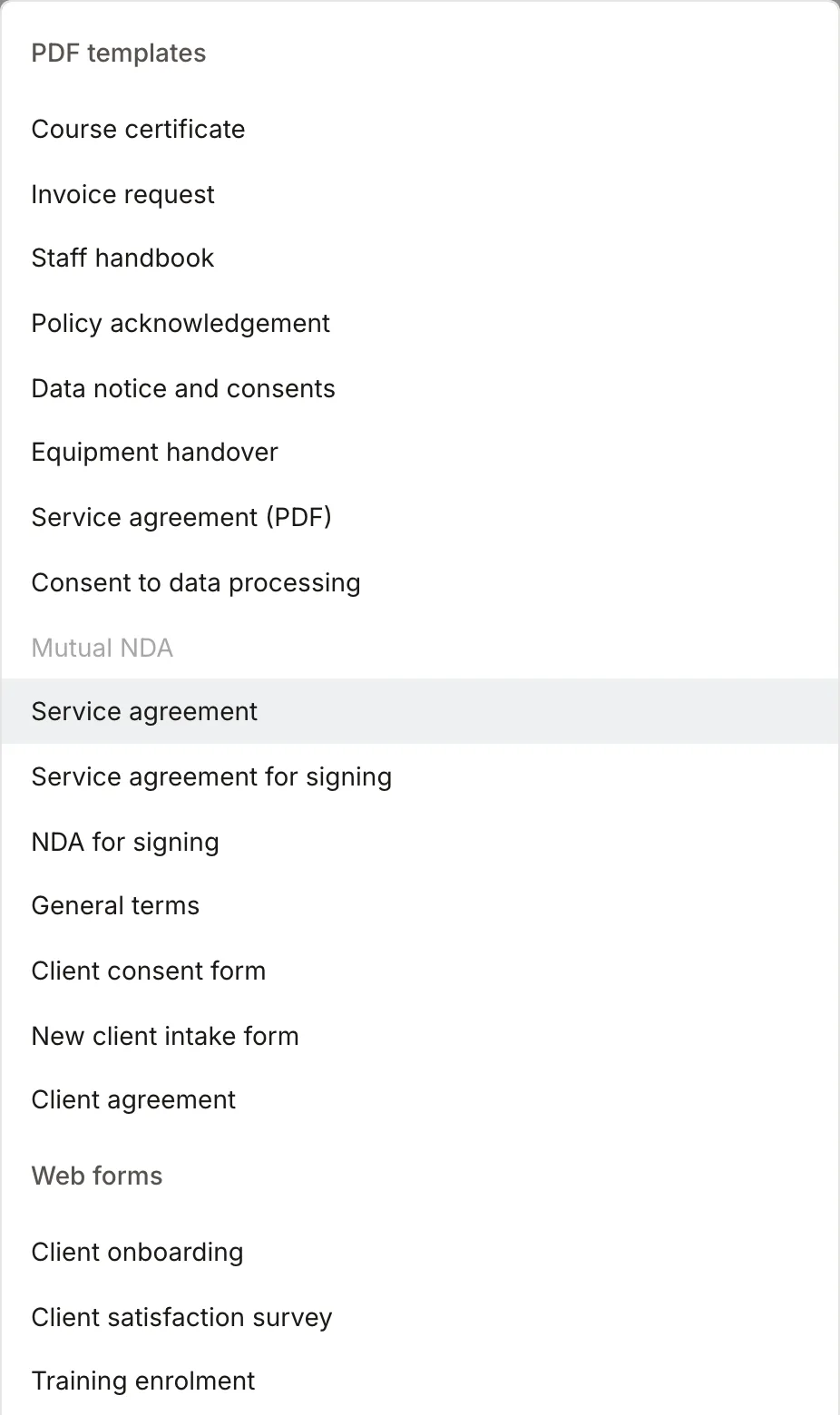
Nothing can be placed twice: the list offers every PDF template and web form your role can see, and whatever another item already holds is greyed out. A form that takes a payment can’t be placed: an interactive document sends all its forms together, with no step to pay. Saving the document says “Form … takes a payment, so it cannot be placed on an interactive document.” If the same paper has to be filled twice, for two people, use two interactive documents.
Asking for a file
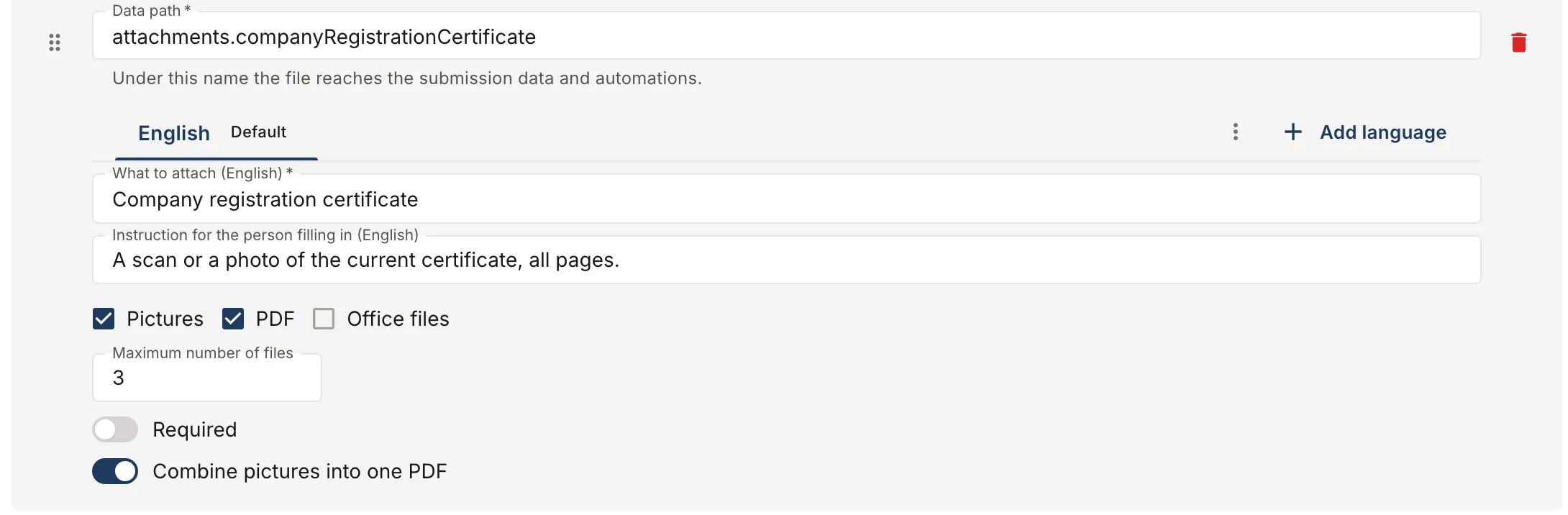
Section titled “Asking for a file”Add an attachment adds an item that asks the person for a file, such as a company’s certificate of registration or a photo of an ID. It has no PDF of its own: the person adds the file from the list of documents, and it is kept with the submission as a PDF.
| Field | What it does |
|---|---|
| Data path | Where the file lands in the submission’s data and in workflows. Doxtly suggests one from the first name you give, such as attachments.companyRegistrationCertificate, and you can change it. Required; letters, digits, dots and underscores only; no other attachment or field of the document may use it, and names Doxtly keeps for itself are refused. |
| Language tabs | What to attach (required in your organization’s language, up to 255 characters) and Instruction for the person filling in (optional, up to 2,000 characters), one tab per language. Add language adds another; the person reads the language the page is shown in. |
| Pictures, PDF, Office files | What the person may add. Pictures are JPEG, PNG, HEIC and WebP; office files are Word documents (DOCX, DOC), ODT and RTF. Each file is turned into a PDF, up to 25 MB. New items take pictures and PDFs. |
| Maximum number of files | From 1 to 10. A submission takes at most 20 attached files across all its attachment items. |
| Required | The person cannot submit without at least one file. |
| Combine pictures into one PDF | Shown when more than one file is allowed: the pictures become pages of a single PDF, so a scan of several pages arrives as one document. |
A client asked for their certificate of registration might send three phone photos of its pages; with Combine pictures into one PDF on, the submission and the workflows get one PDF of three pages.
Previewing the whole document
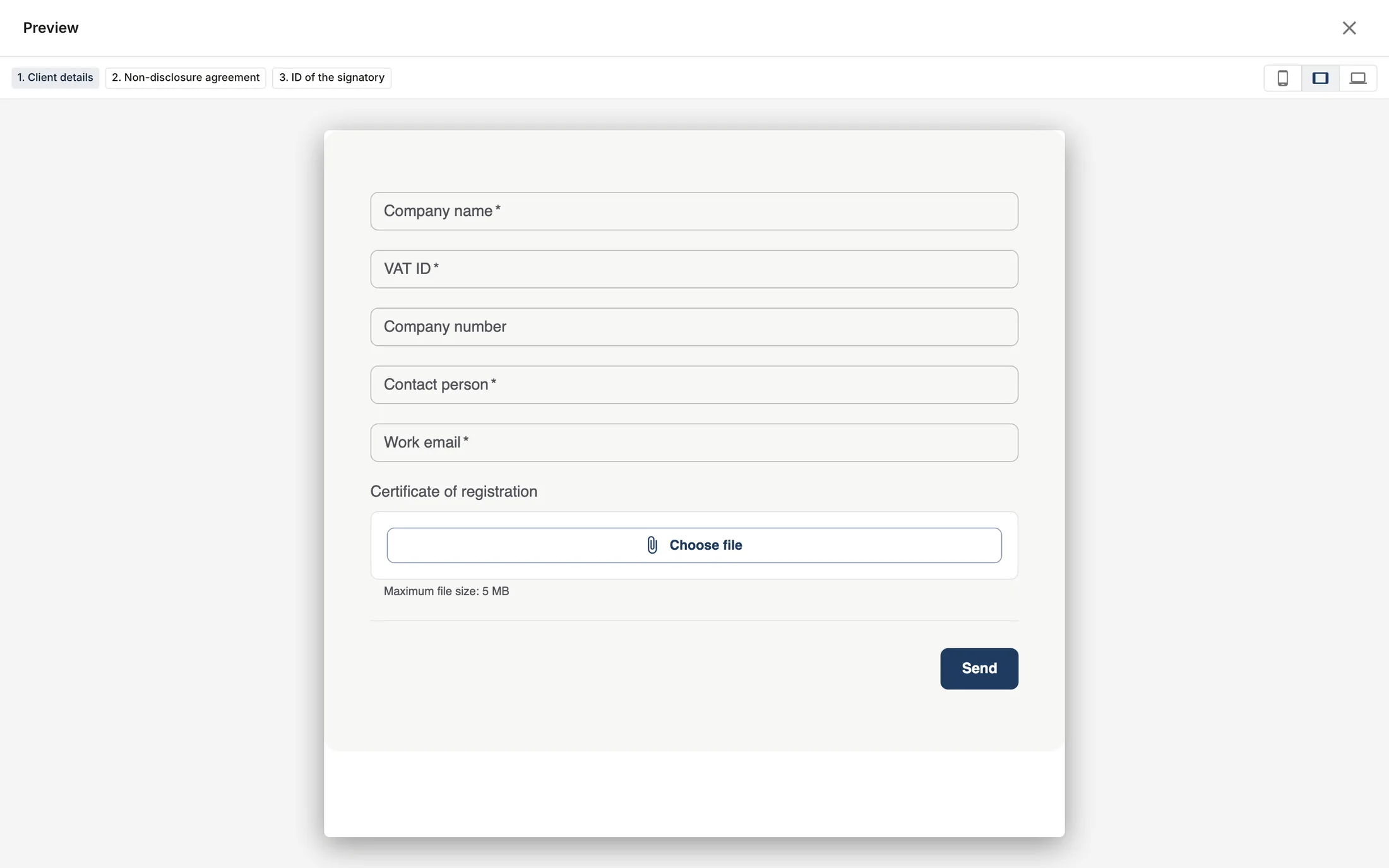
Section titled “Previewing the whole document”Preview on the top bar opens the document as it stands in the editor, saved or not, full screen. The bar under the title lists its items in order (click one to show it) and, on the right, the widths of a phone, a tablet and a desktop. A web form is drawn as the public page draws it, in the document’s look; a PDF template shows its areas with those of the item’s party standing out; a file request shows what the person is asked to add. Nothing can be filled in or sent, and opening the preview isn’t counted as a visit. On a phone the widths are hidden: the phone is the width.
Previewing an item
Section titled “Previewing an item”The eye icon of a row shows the item as the person filling the document will see it, without leaving the editor:
- A web form opens in the form designer’s own preview, at the width of a phone, a tablet or a desktop, drawn exactly as the public page draws it.
- A PDF template opens with its fillable areas and places to sign drawn over the pages. Those of the party chosen in Party, at the top of the window, stand out, and the other parties’ are faded, so you can check who fills what. It starts on the item’s Filled as. Zoom with the buttons in the corner. Nothing can be filled in here.
The icon is greyed out until the row holds something, and for an item your role does not let you see; point at it to read why. If the template or the form cannot be loaded, the window says so and the editor carries on.
Choosing a party
Section titled “Choosing a party”PDF templates can address parties, so that one file can serve both sides of an agreement. An NDA template might have areas for CLIENT and for NORTHBRIDGE. See PDF fields for how areas get a party.
The party is chosen per item:
- A template with no parties needs no choice. Every fillable area is offered.
- A template with one party answers for itself. Doxtly sets it the moment you pick the template.
- A template with several parties shows Filled as.
The visitor gets the areas of that party and the areas that name no party. Areas of other parties stay untouched. That is useful when the visitor fills the client’s side now and your own side is completed later, for example when a workflow sends the document for signing.
QR codes and barcodes are never offered: they are drawn from the data when the PDF is rendered.
A From data area works differently here than in a generated document: it is offered on the page too, as an optional area. If the person leaves it empty, Doxtly prints what the data holds under its variable path when it renders the PDF, such as a form answer, _params.client or _metadata.region. So the client can type their company name once in a form and see it on every PDF, and the area only needs filling when the data has nothing for it. See Value for the two sources.
Notes you may see
Section titled “Notes you may see”| Message | What it means |
|---|---|
| Not among the templates and forms you can see; it stays as it is unless you pick another | The item holds something your role does not show you. Saving leaves it alone. |
| Your role does not let you see PDF templates… or …web forms… | Your role hides that whole list. Existing items stay. |
| The PDF templates and web forms to pick from could not be loaded. | The lists failed to load. Existing items keep what they hold. Reload the page. |
| Nothing to pick — create a PDF template or a form first | The organization has neither yet. |
How a mounted form behaves
Section titled “How a mounted form behaves”A web form placed on an interactive document is part of that document. Its own settings stay on its own page:
- Its password, security settings, anti-spam protection, Active switch and link parameters do not apply. The interactive document’s settings do.
- Its styling does not apply either. The form takes the look of the page, including the visitor’s light or dark mode.
- It has no submit button. Everything is sent from the one bar at the bottom of the page.
- Its fields, rules, validation, conditional logic and pages all work.
- A file picked in it is always stored, whatever Store the file permanently says on the field, because workflows run only after the documents are rendered and need the file then.
- A submission here is not a form submission. It does not appear among the form’s submissions, does not count against form submissions, and does not start workflows listening to that form. It starts the ones listening to the interactive document, with the document’s metadata and link parameters, not the form’s.
Nothing is rendered for a form. Its answers become data and can fill PDF areas that read the same variables, but only PDF templates produce files.
If two forms use the same variable, the later one wins. A value typed into a PDF area wins over a form answer on the same variable.
Settings
Section titled “Settings”Click the gear icon to open Interactive document settings. Its sections are listed down the left side under three headings: Flow (General, Look), Access and security (Security) and Data (Link parameters, Metadata). On a phone, pick one from the Section list at the top. Your changes are kept in the editor while you work and are stored only when you click Save or Create, so closing the dialog is not saving. A link to the editor ending in ?settings= and a section opens the dialog there: main, look, security, queryParams or metadata.
General
Section titled “General”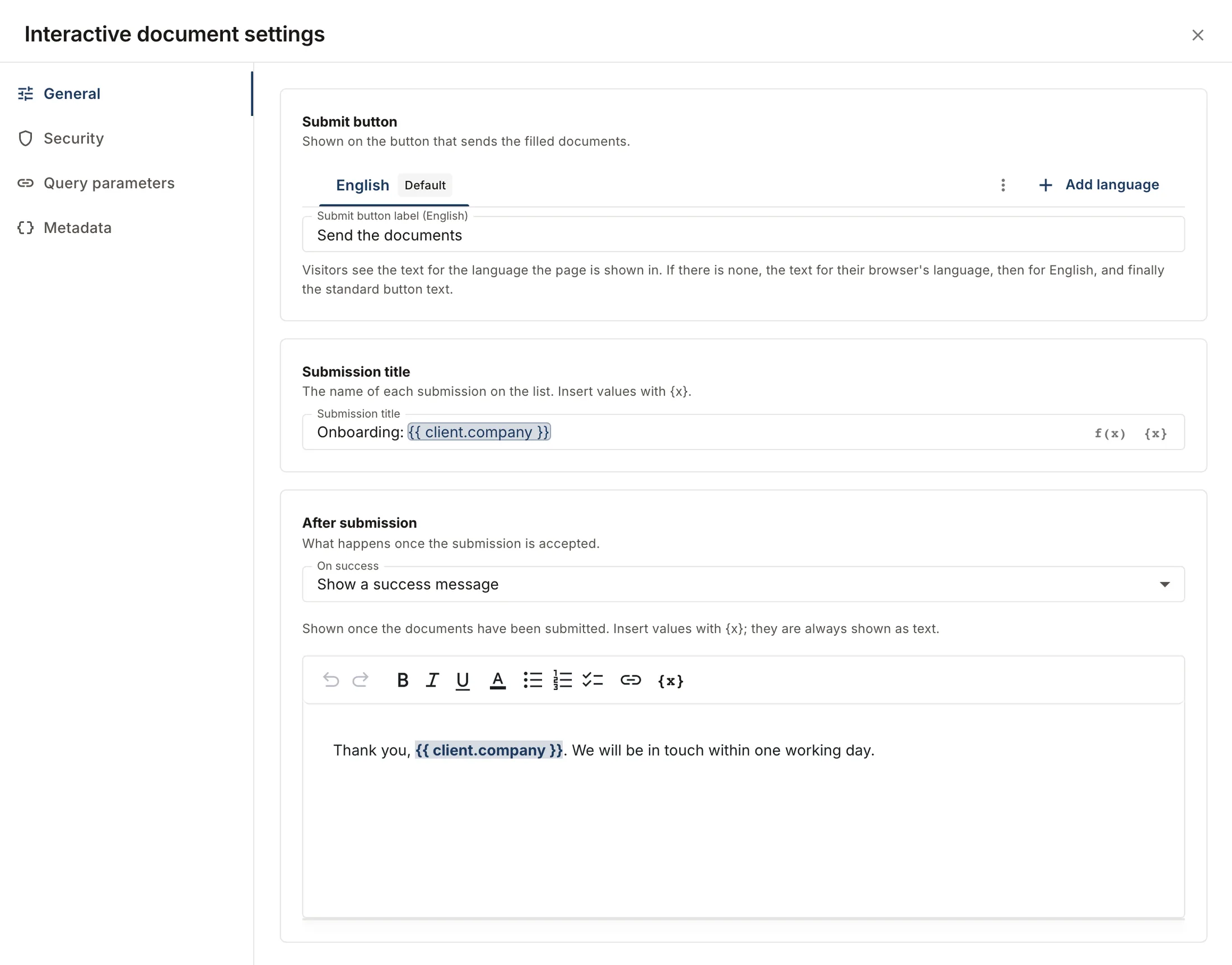
| Setting | What it does | Default |
|---|---|---|
| Submit button label | The text on the button that sends everything, in each language. Something specific such as Send the documents tells people what happens next. | Submit, in the page’s language |
| Submission title | How each submission is named in your list, and what the list’s search looks in. Insert values from the {x} button to tell them apart, such as Agreement with {{ customer.name }}. They can carry operations and defaults, such as `{{ customer.name |
upper }}or{{ customer.name ?? client.company }}`: put the caret on one and click Operations. Cut to 255 characters. |
| After submission | A success message, or a redirect to another page, chosen as for a form. The message is written in each language you need, and the person sees the version of the page’s language, of their browser’s or of your organization’s. | Success message: The documents have been submitted. You can safely close this window. |
The success message is rich text, so it can carry a link to your next steps. The {x} button offers the answers of the forms and the areas that pass a value on (see what workflows receive), the submission’s reference, the document’s title, link parameters and metadata; the title offers only the answers. A value is always shown as text, never as HTML, and a form’s password, signature or drawing prints nothing. When a submission is edited, its title is worked out again from the corrected values.
With Redirect to another page, the person goes to the address you give, an http or https address, with the parameters you choose. They see a short confirmation while the browser leaves, with a Continue button for a browser that stays (see After submitting). A document that goes straight to signing opens the signing page instead.
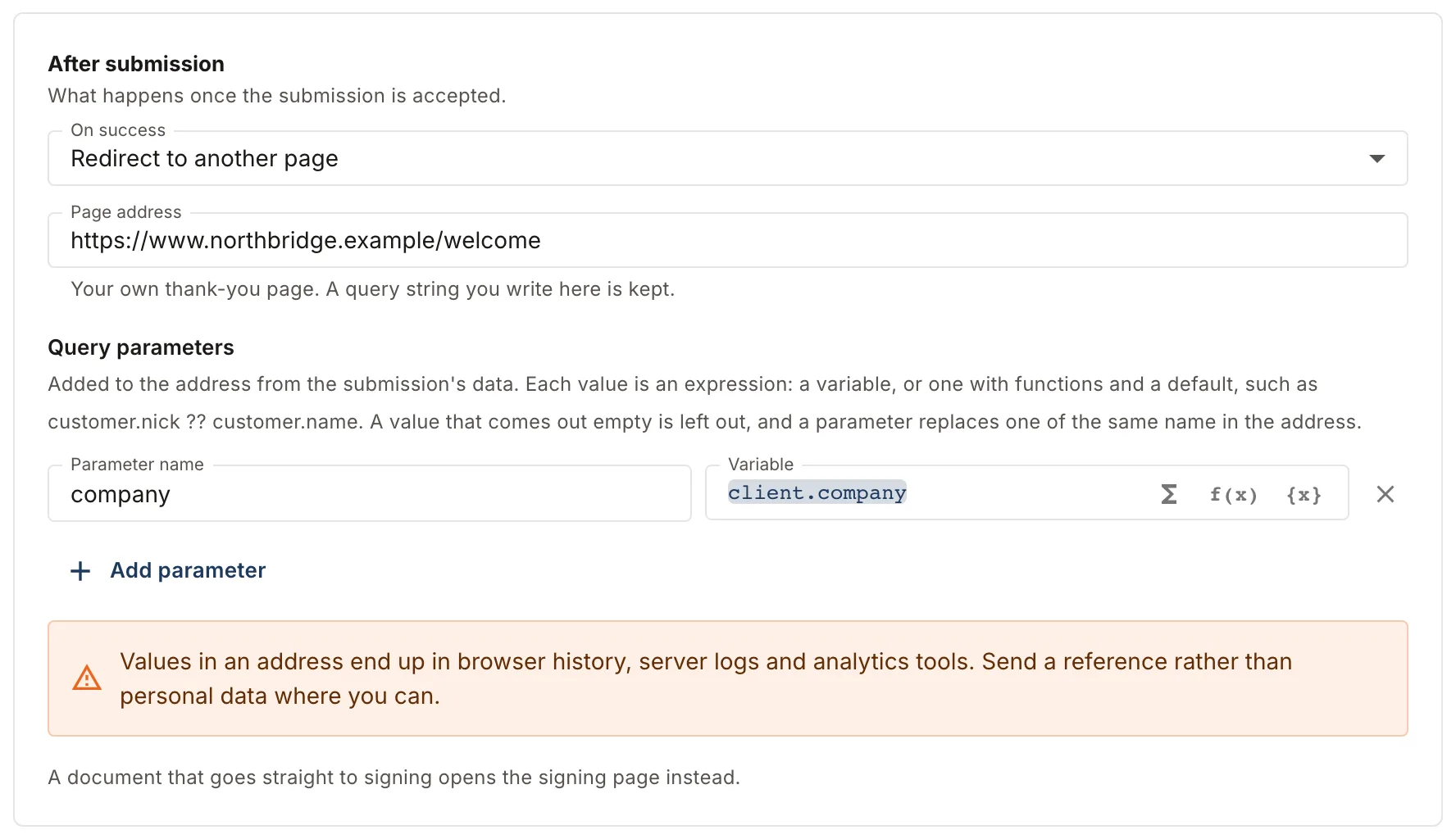
For example, https://www.northbridge.example/welcome with the parameter company read from client.company takes Harbour Logistics to https://www.northbridge.example/welcome?company=Harbour%20Logistics%20Ltd, a welcome page your website can greet them on.
Submit button text in each language
Section titled “Submit button text in each language”The field has a tab for your organization’s language, marked Default, which is always there; Add language adds another of the fourteen languages, and the ⋮ menu copies the text from another language or removes a version, as for a form. Fill in only the ones you need. The person sees the first text that exists for the language the page is shown in, then each of their browser’s languages, then your organization’s language; with none of those, the button says Submit in the page’s language. A language left blank counts as not filled in.
Security
Section titled “Security”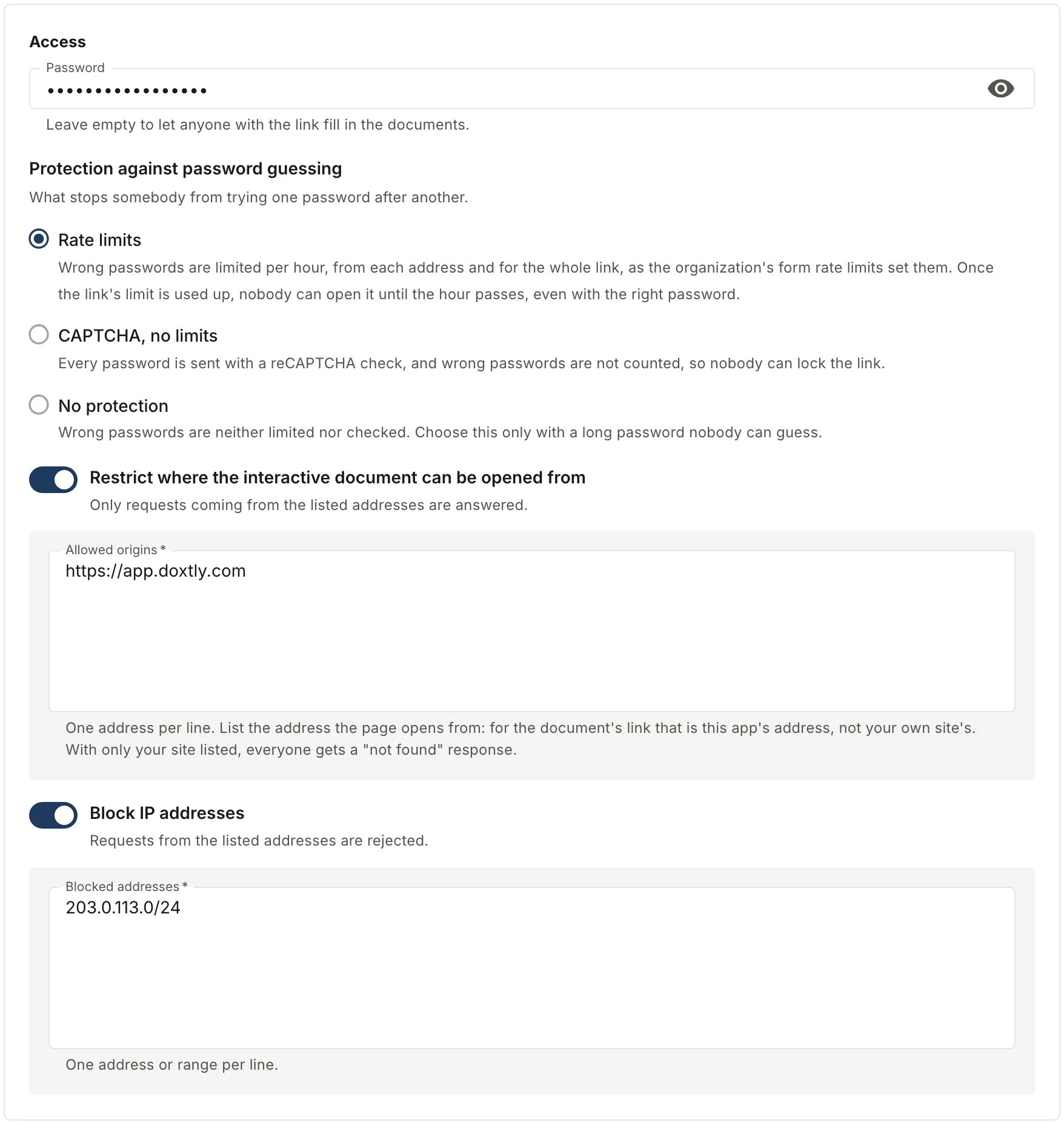
Access
| Setting | What it does |
|---|---|
| Password | Leave it empty to let anyone with the link fill in the documents. With a password, the visitor has to enter it before seeing anything, and the list shows a padlock. It is kept so that you can read it back here with the eye icon, which is handy when a client has lost it. The check is exact, capitals included. If you change it while someone is filling in, their submission is refused, so pick a moment when nobody is midway. |
| Protection against password guessing | Appears once a password is set. See below. |
| Restrict where the interactive document can be opened from | Only requests coming from the addresses under Allowed origins are answered. One address per line, and at least one is required. List the address the page opens from: for the document’s link that is the address of the Doxtly app itself, which the field shows as its placeholder, not your own site’s. With only your site listed, everybody is answered “not found”. A line starting with a slash is read as a regular expression. |
| Block IP addresses | Requests from the addresses under Blocked addresses are turned away. One entry per line: a single address (192.168.1.1), a CIDR range (192.168.1.0/24) or a range (192.168.1.0-192.168.1.255). At least one entry is required. |
A blocked or disallowed visitor gets the same answer as someone with a wrong link, so they learn nothing about whether the document exists. After changing these lists, open the link yourself to check it behaves as you expect.
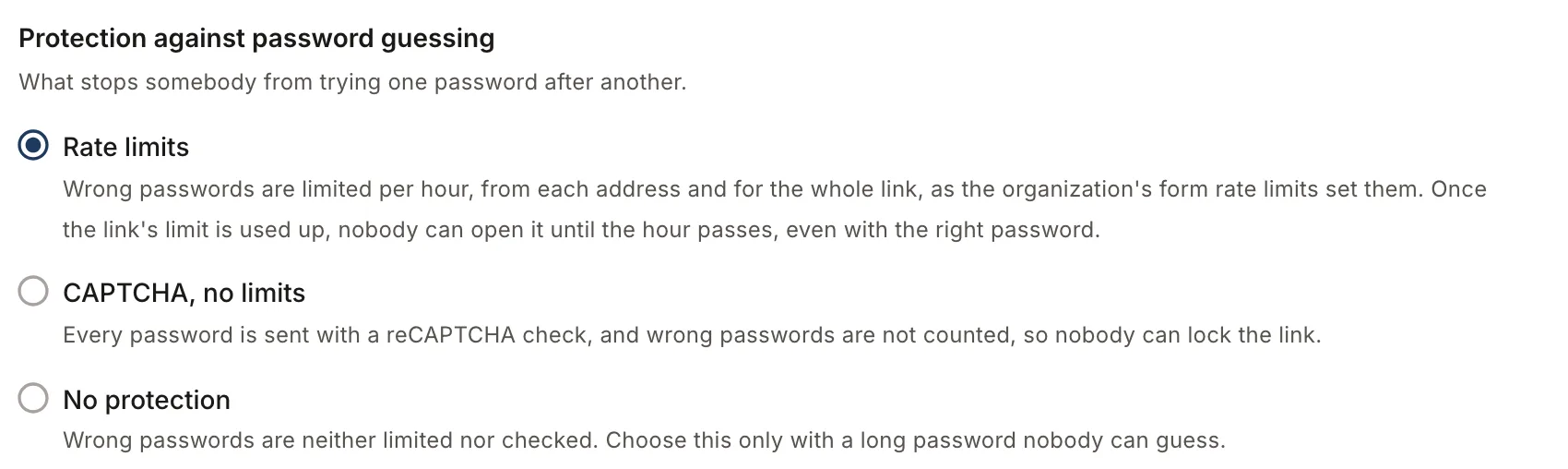
Protection against password guessing
| Option | How it works | Choose it when |
|---|---|---|
| Rate limits (default) | Wrong passwords are limited per hour, from each address and for the whole link, as set in your organization’s request limits. Correct passwords are not counted. Once the link’s limit is used up, nobody can open it until the hour passes, not even with the right password. | Usually. |
| CAPTCHA, no limits | Every password goes with a reCAPTCHA check and wrong ones are not counted, so nobody can lock the link. Needs an active reCAPTCHA integration. Pick one under reCAPTCHA integration, or leave it to the organization’s default. | The link is widely shared and a lockout would hurt. |
| No protection | Wrong passwords are neither limited nor checked. | You use a long password nobody can guess. |
If the reCAPTCHA integration later stops being active, the link falls back to rate limits and a warning appears here. You cannot save the settings with CAPTCHA until an integration is active again or you choose another option.
Data collection and Editing submissions
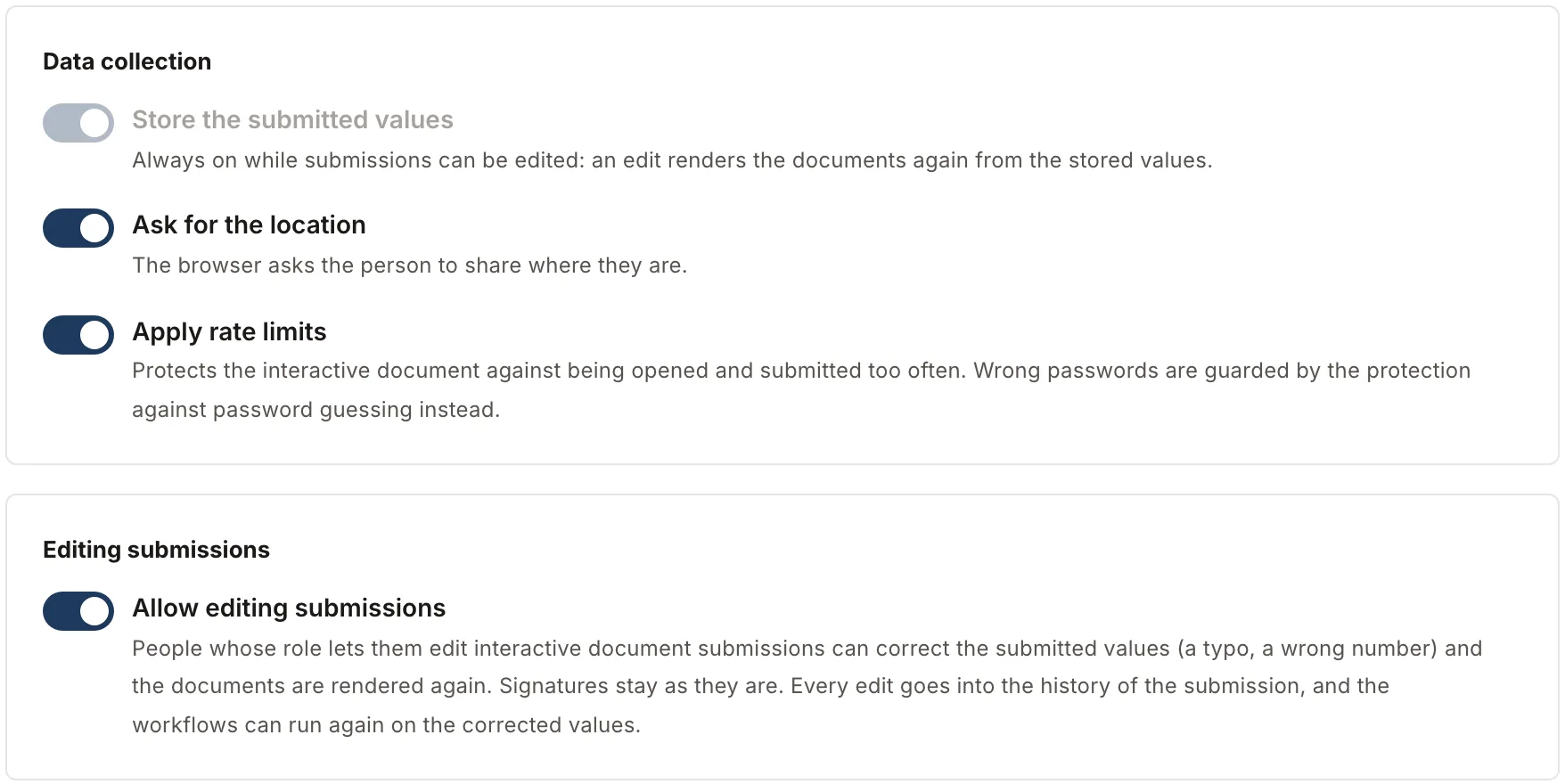
| Setting | What it does | Default |
|---|---|---|
| Store the submitted values | When off, the typed values and form answers are used to paint the PDFs and then emptied, whether the render worked or not, and workflows get none of them. The rendered documents, uploaded files and pictures, the submission’s title, IP address and location stay. | On |
| Ask for the location | The browser asks the person to share where they are, for instance when you need evidence of where a site inspection form was filled in. The answer, or the reason there is none, goes on the submission. | Off |
| Apply rate limits | Limits how often the document can be opened and submitted, as set in your organization’s request limits. Wrong passwords are not affected: the protection above guards those. Turn it off for a reception desk tablet that opens and submits the link all day. | On |
| Allow editing submissions | In its own Editing submissions section. People with the Edit submissions permission can correct a submission, and workflows can run again on the corrected values. | On for new documents |
Allow editing submissions and Store the submitted values are tied together. An edit renders the PDFs again from the stored values, so while editing is allowed the storing switch is on and locked. To stop storing values, for instance on a form with sensitive health data, turn off Allow editing submissions first.
What is stored is decided the moment a submission arrives, so a submission sent without stored values can never be edited, even if you turn the setting on later. Allow editing submissions itself is read when somebody tries to edit: turn it off and no submission can be edited until you turn it back on.
Link parameters
Section titled “Link parameters”Use this section to carry information in the link itself. If you email Northbridge’s clients a link ending in ?client=HARBOUR&source=newsletter, each submission can remember both.
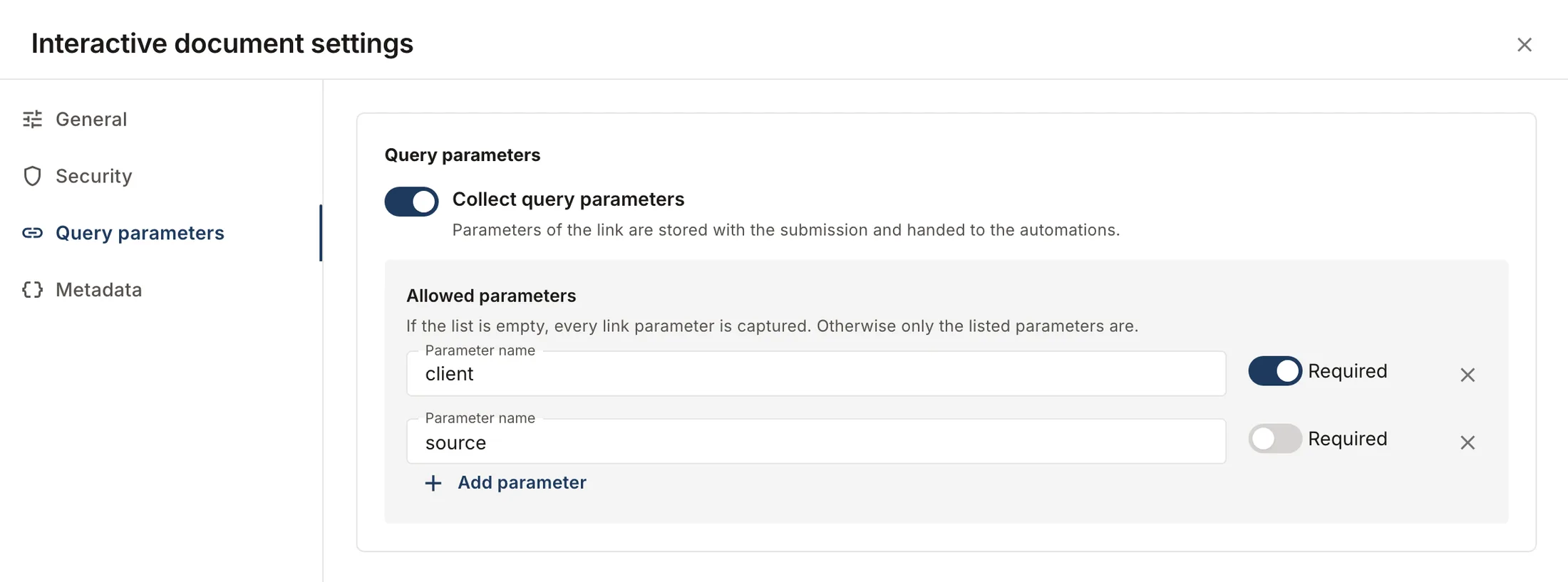
Turn on Accept link parameters, then fill in the Allowed parameters:
- With an empty list, every parameter of the link is captured,
languageincluded. The section says so with No parameters defined – every link parameter will be captured. - With entries, only the listed ones are. Click Add parameter for each.
- A Parameter name starts with a letter or underscore and holds only letters, digits and underscores. No name can appear twice. If a link repeats a name, the first value counts.
- Switch on Required if the link is useless without it. A link that lacks the parameter or leaves it empty shows Missing required parameters instead of the documents.
Captured parameters appear on the submission, reach workflows as _params, and can be read by the print conditions of PDF areas as _params.client. A parameter does not fill anything in by itself: to print one, give a From data area the variable path _params.client.
Metadata
Section titled “Metadata”Metadata is a set of fixed values you attach to every submission, for your own use. Say department: training and priority: 2, which a workflow reads to route the documents without any visitor seeing them. Keep it for what is the same for everyone who uses this link. What differs per person belongs in a query parameter.
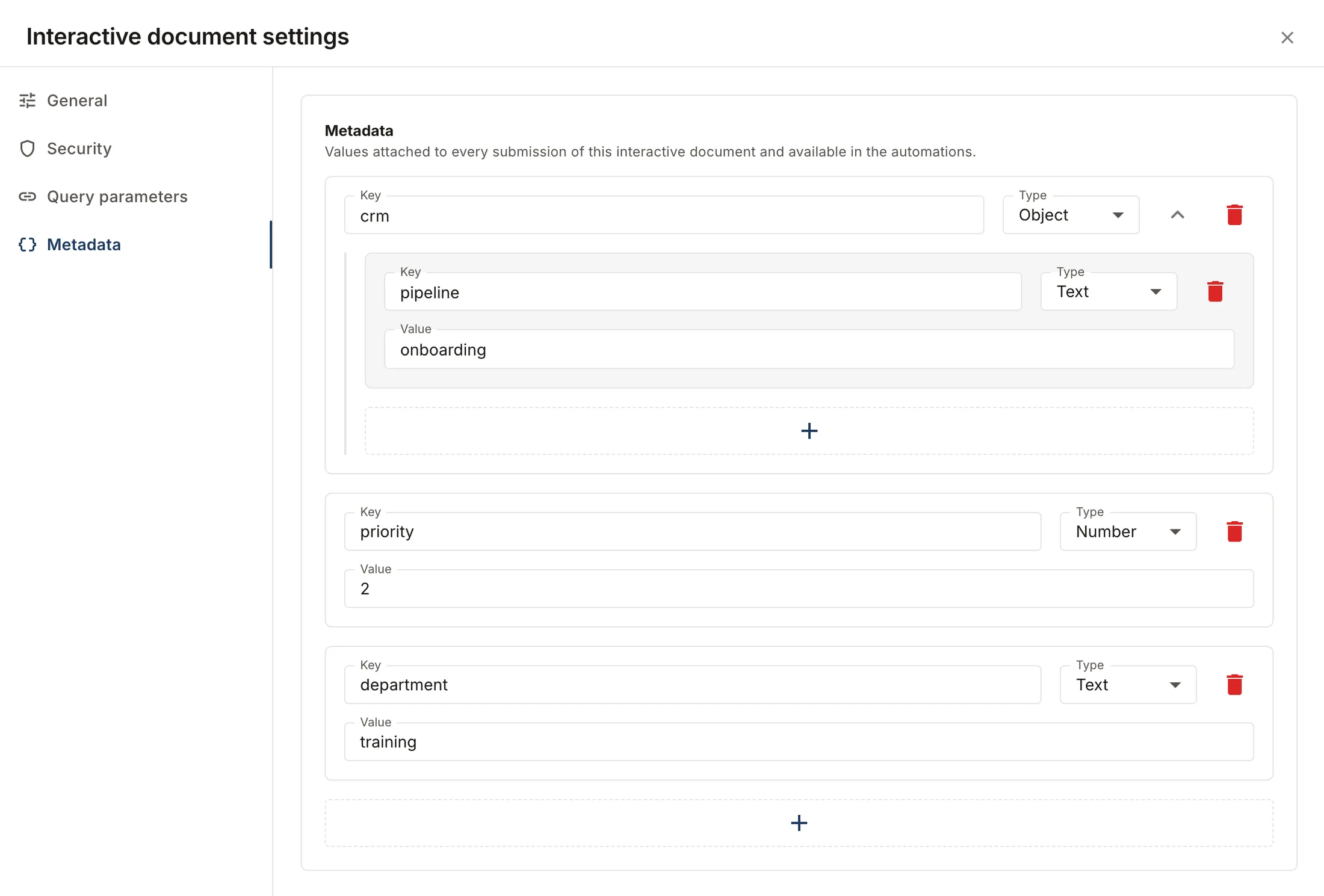
Click the + button (Add field) for each entry, then give it a Key, a Type (Text, Number or Object) and a Value. An Object holds further fields inside it. A key cannot be empty, start or end with a space, or contain a dot or a control character such as a line break. Two entries at the same level cannot share a key. A top-level key cannot start with _, which is reserved for Doxtly. A bad key is marked and blocks saving.
Metadata reaches workflows as _metadata, and print conditions of PDF areas can read it as _metadata.department. An area such a condition rules out is not offered on the page at all. Each submission keeps the metadata as it was when it arrived, so changing it here does not rewrite the past.
The Look section picks the theme the document’s public page is shown in, the same themes as quizzes, surveys and forms: the built-in ones and your organization’s own. Every document has a theme: a new one starts in your organization’s default theme, Organization branding unless you chose another, and a document made before themes existed has Doxtly standard look, the look it always had. Theme library opens the organization’s Themes. Picking a theme takes only Manage interactive documents; people with Manage themes also get New theme and Edit theme, which open the theme editor.
A theme’s custom CSS applies inside the document area, to the documents and the forms in it. The page’s header and the action bar keep their look.
What workflows receive
Section titled “What workflows receive”Connect a workflow with the trigger An interactive document is filled in and pick this document. It starts after the PDFs are rendered, so every workflow receives the same finished files. The run gets:
| What | Where to find it |
|---|---|
| Answers of the forms and the values of PDF areas | At the root of the data, under their variables |
| The rendered PDFs | filledDocuments[] for all, or filledDocuments[0] for the first. PDFs are numbered among themselves: a form between them does not shift the numbers. |
| Uploaded files and pictures | By the variable of their field or area |
| The document | _interactiveDocument: id and title |
| Details of the submission | _submission: id, title, submittedAt, submittedDate, revision (0 on a new submission) and, for an edit, editedAt and editedBy |
| Files added to an attachment item | At its data path, as a file: reference like a form’s upload: documents.idScan for one file, a list of references for several; in file pickers under the same path. Each is a PDF. |
| Link parameters | _params |
| Metadata | _metadata |
A PDF area passes its value on only if it is a text, checkbox or image area with a variable that does not start with _, and it is addressed to the item’s party or to no party. A checkbox gives 1 or 0, and nothing if it was never touched. Signature areas never pass anything on, and neither does an area hidden by its print condition. Every area is still printed in the PDF, whether or not it passes a value on.
With Store the submitted values off, workflows get _submission, the parameters, the metadata and the files, but none of the typed values or answers.
More on this in Data and variables.