

Webhooks and workflows
A webhook on its own only takes requests. What happens next is up to a workflow with the Webhook request trigger, which starts each time its webhook accepts a request and carries the request’s data through its steps.
Available when: your role includes Manage workflows and the organization has a webhook that is switched on
Connecting a workflow
Section titled “Connecting a workflow”-
Create the webhook first. A JSON Schema is optional but saves time here, since its fields appear in the variable picker.
-
In the designer, click the workflow’s trigger.
-
Set Starts on to Webhook.
-
Under Trigger source, choose the webhook.
-
Build the steps, using the request’s data as variables.
-
Save the workflow and set it to Active.
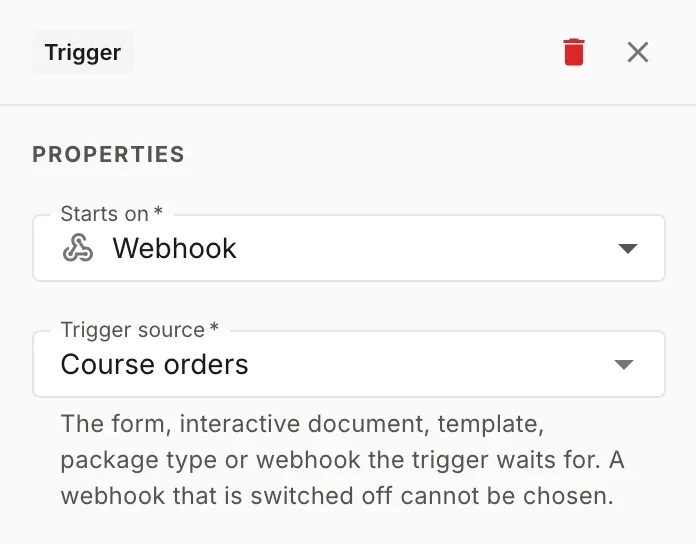
A workflow listens to one webhook. A webhook can have many workflows listening: every active one starts on each accepted request, each as its own run. So one Course orders webhook can feed both a workflow that sends the certificate and another that updates the accounts spreadsheet.
The webhook’s page lists the workflows that name it, under Workflows. The trigger itself has its own page: Webhook request.
When a run starts
Section titled “When a run starts”Only requests that pass every check start anything. A run needs all of these:
- the webhook is Active;
- the workflow is Active;
- the request was accepted, or it’s a retry of an earlier request that failed before its workflows started.
A run counts against your plan’s workflow runs by the usual rule. If no runs are left, the request is refused with Plan limit reached, and the other system can send it again later. A repeat with the same idempotency key starts nothing, so a sender’s retries don’t produce a second invoice, and it gets its answer even when no runs are left.
Runs carry on after the other system has its answer, and each one runs on its own. A failure in a run doesn’t change what the caller was told. To catch one, look at the run or rely on workflow failure notifications.
The request’s data
Section titled “The request’s data”For this request:
curl -X POST 'https://api.doxtly.com/v1/webhooks/<id>?source=shop' \ -H 'Authorization: Bearer <token>' \ -H 'Content-Type: application/json' \ -H 'X-Shop-Region: eu' \ -d '{"orderId": "A-17", "customer": {"name": "Anna Kowalska"}, "items": [{"sku": "GDPR-1"}]}'the run gets:
| Variable | Value |
|---|---|
{{ orderId }} |
A-17 |
{{ customer.name }} |
Anna Kowalska |
{{ items }} |
The whole list, for a step that takes a list, such as Data transformation |
{{ _params.source }} |
shop |
{{ _webhook.headers["x-shop-region"] }} |
eu |
{{ _webhook.method }} |
POST |
A step can shape a value where it uses it: {{ customer.name | upper }} gives ANNA KOWALSKA, and {{ customer.phone ?? "no phone" }} writes a fallback when the request brought no phone. Every function is in Expressions and functions.
Fields of the request
Section titled “Fields of the request”If the data is a JSON object, or a form, its fields sit at the top level of the run’s data. Nested objects are read with dots. For a GET webhook, or a DELETE set to read the address, the fields are the address parameters.
If the data isn’t an object, such as a JSON list, a number or a text body, nothing is at the top level. Read it as {{ _webhook.body }}. For an object, _webhook.body is empty.
The _webhook block
Section titled “The _webhook block”Every run also gets these values, shown in the picker as Webhook request.
| Variable | What it holds |
|---|---|
_webhook.requestId |
Request ID: the request’s own identifier. For a retry that resumes a failed request, that first request’s. |
_webhook.correlationId |
Correlation ID (X-Request-ID): what the caller was sent back. |
_webhook.webhookId |
Webhook ID. |
_webhook.webhookName |
Webhook name. |
_webhook.method |
HTTP method. |
_webhook.contentType |
Content type. |
_webhook.receivedAt |
Received (date and time), in your organization’s time zone. |
_webhook.headers["<name>"] |
A header by its name, in lower case. A repeated header’s values are joined with commas. A name with a hyphen, as most have, goes in brackets and quotes, _webhook.headers["user-agent"]: written after a dot, the hyphen would be read as a minus. |
_webhook.body |
The data, when it’s not an object. |
Headers with credentials don’t reach a run, and neither does the signature header. A field in the request named _webhook is overwritten by this block.
Address parameters
Section titled “Address parameters”Address parameters are in _params, whichever method the request used, so ?source=shop is {{ _params.source }}. Only parameters with a single value are there, and a token parameter used for authentication is removed. The picker lists them as Link parameters. Type the name yourself, because a webhook accepts any. In a Condition or a Switch, _params.source reads as empty when the request didn’t bring it, so a shop’s optional ?source= can decide a branch without failing the step.
The variable picker
Section titled “The variable picker”With a JSON Schema on the webhook, the designer lists its fields under Webhook request data, each by its title if it has one and otherwise by its name. Objects open into their fields, and lists into the fields of their items. A property that isn’t required is marked May have no value – the field is not required, since a request may leave it out, so handle that case in the workflow.
The picker only shows what the schema states plainly. Properties declared through allOf, oneOf or a $ref aren’t listed, but they still reach the run. Type their paths by hand.
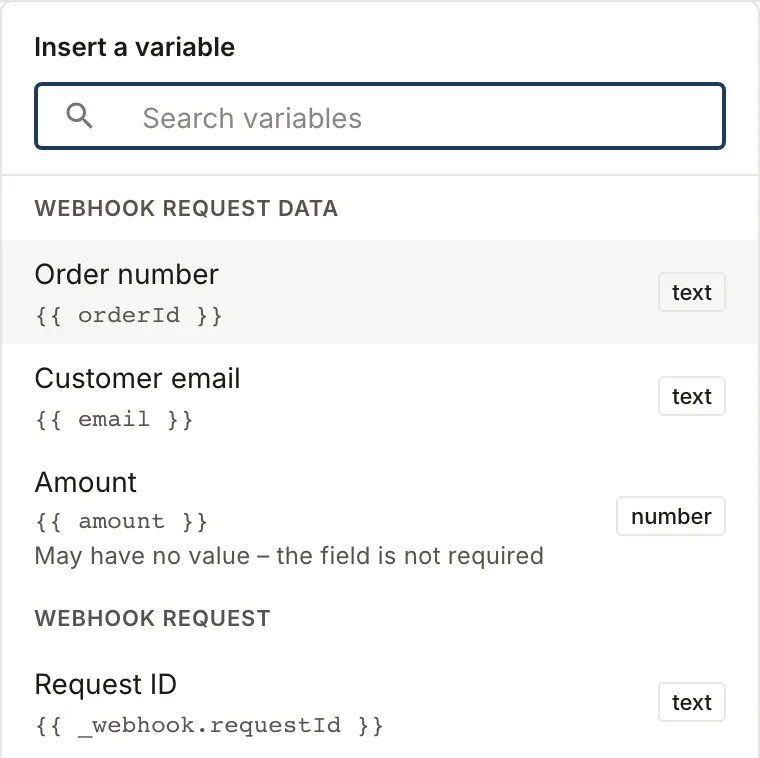
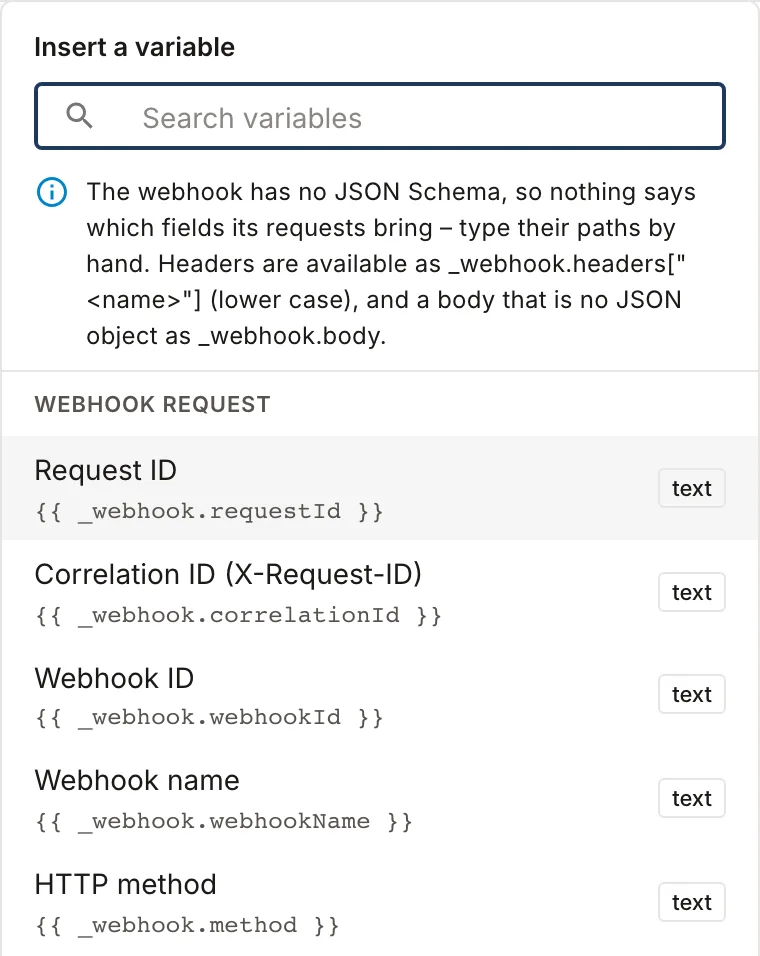
Without a schema, the picker says that nothing tells it which fields requests bring. Everything still works: look at a real request’s Body tab and type the paths by hand.
More on using values in steps is in Data and variables.
Following a request and its runs
Section titled “Following a request and its runs”A request’s Workflows tab lists its runs. The run’s page links back in its Webhook request field, named after the webhook, with the request’s internal ID in its tooltip, if you hold View webhooks and their requests, so you can go from a failed step to the exact body that caused it.
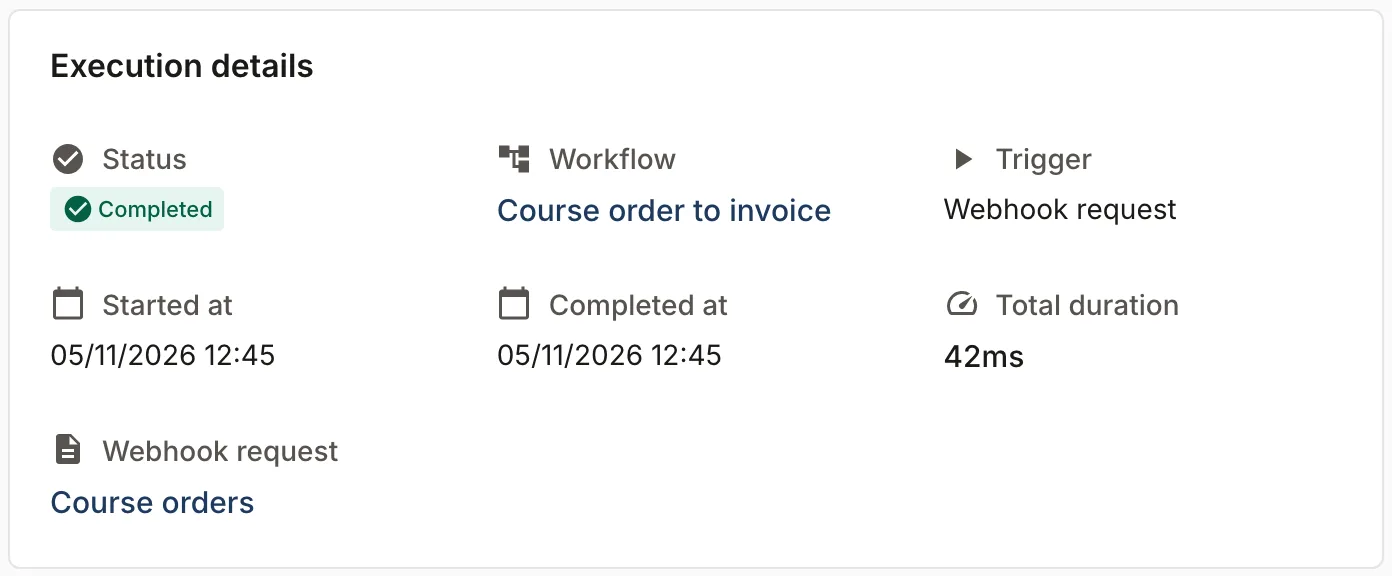
Run data keeps what the workflow received, whatever the webhook keeps. Keep the requests’ content only affects the request’s own page.
What happens when things change
Section titled “What happens when things change”| You do this | The effect |
|---|---|
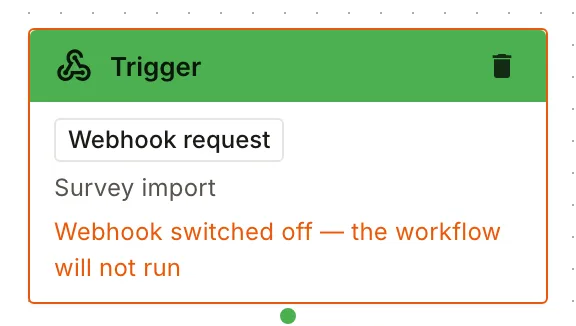
| Switch the webhook off | The workflow stays Active, but nothing starts it. The designer shows Webhook switched off — the workflow will not run on the trigger. |
| Choose a switched-off webhook | Not possible. It’s listed as (switched off) only for a trigger that already names it, and saving a workflow that newly points to one is refused. Switch the webhook on first. |
| Delete the webhook | Refused while a workflow listens to it, inactive workflows included: change the trigger or delete the workflow first. See Deleting what a workflow uses. |
| Switch the workflow off | The webhook goes on accepting requests. If no other active workflow listens, they show an amber 0 runs. |
| Change the JSON Schema | New requests are held to it at once, and the picker offers the new fields. Variables already used in steps don’t change, so check them after renaming a field. |
| Change the token or the secret | Workflows aren’t affected. The other system needs the new value, or its calls get a 401. |
For a worked example from start to finish, see the recipe Invoice data by webhook.