

Preferences
Three things decide how Doxtly talks to you: your notification preferences, the language, and the theme. The first lives on the Notifications tab of your profile, the other two in the header. They don’t all travel with you, as this table shows.
| Preference | Where you set it | Where it applies |
|---|---|---|
| Notifications | Notifications tab of your profile | You, in the organization you are working in, on every device |
| Language | Language in the account menu | Every browser you sign in on, and the emails Doxtly sends you in the organization you are working in |
| Theme | Switch theme in the header | This browser |
Notifications
Section titled “Notifications”Choose for each kind of notice whether it reaches you in the app, by email, on Slack or Microsoft Teams, in several of these ways or not at all. The table lists every kind there is, including those your role never gets (see below). A project lead at Northbridge Advisory might want Workflow failed by email, because a stuck client onboarding can’t wait, and keep Authorization granted in the app only.
-
Open your profile and choose Notifications.
-
For each type, turn In app and Email on or off. Once your organization has connected Slack or Microsoft Teams, there is a column for it too.
-
Click Save changes.
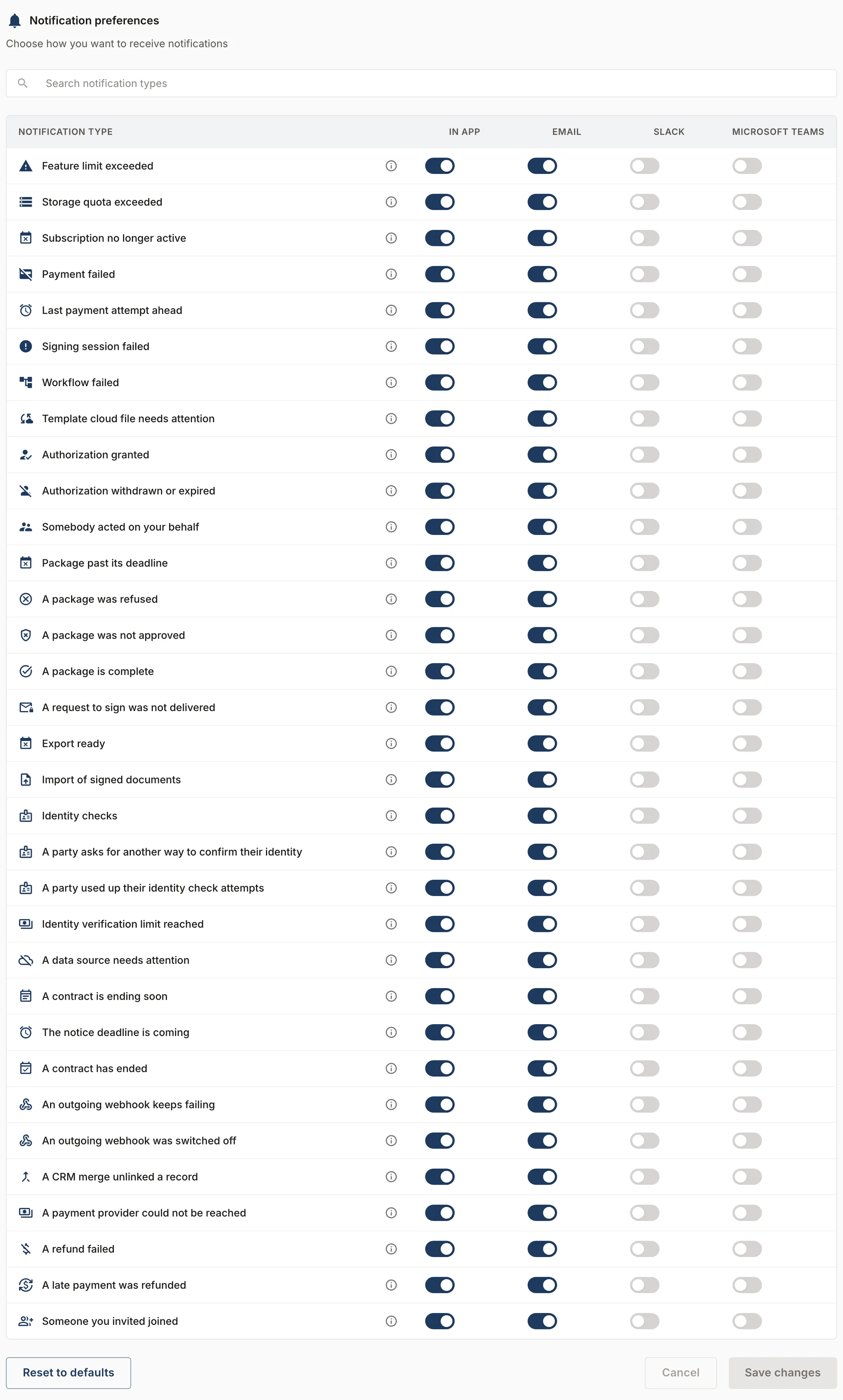
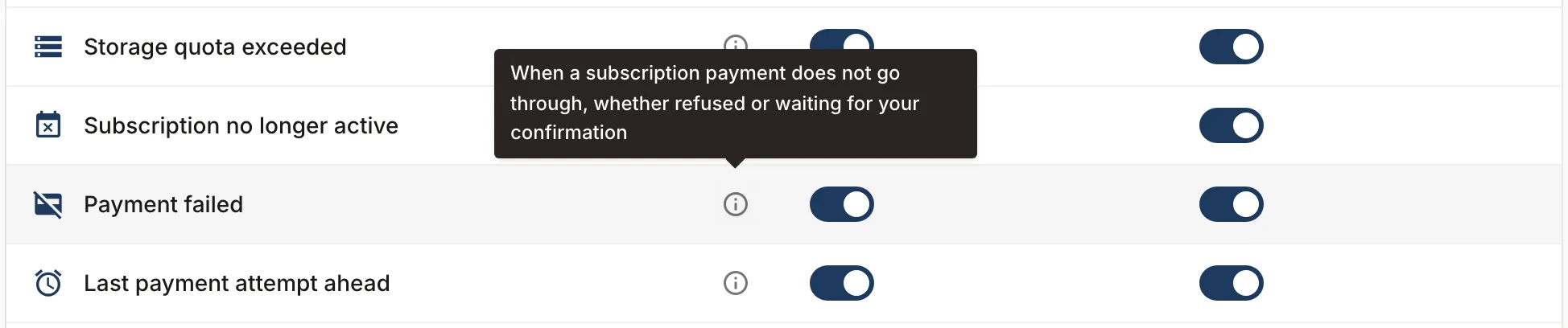
Hover the info icon beside a type for a one-line reminder of what it covers. On a phone, each type is a card with a switch for each channel, and a tap on the icon shows the same reminder.
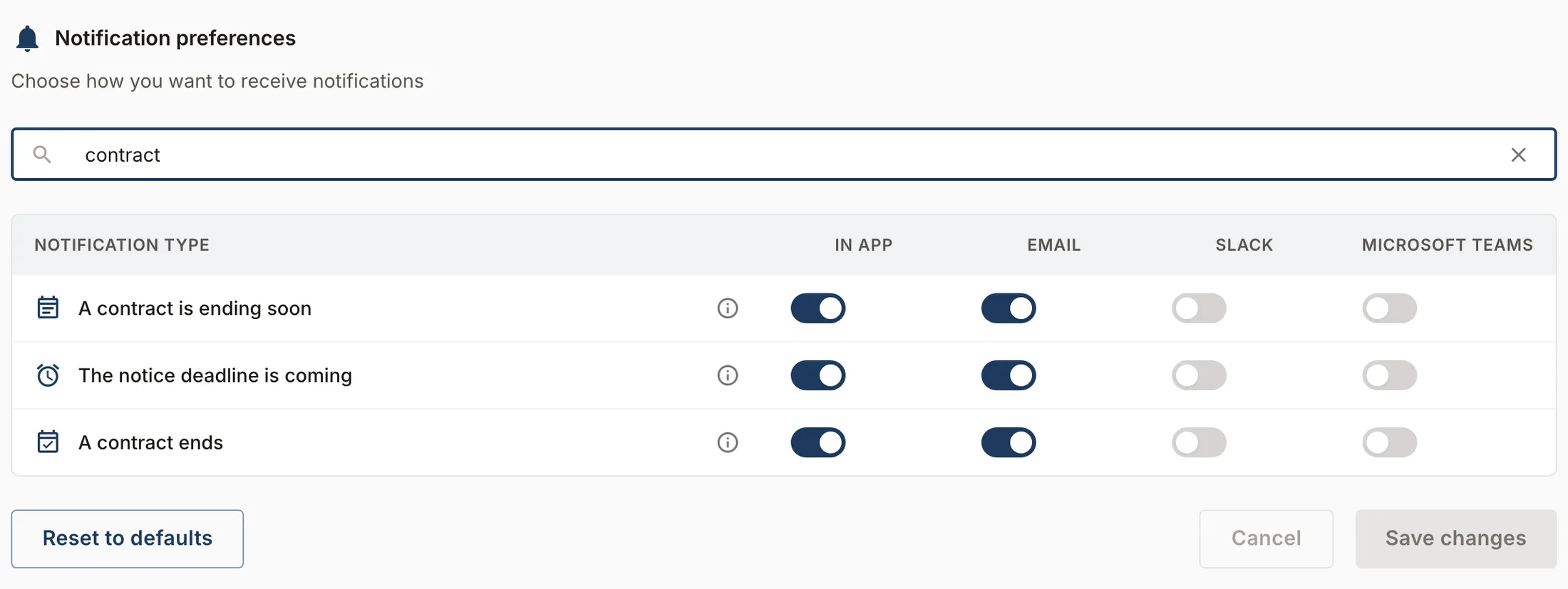
The list is long, so the search box above it narrows it to the types whose name or reminder contains what you type: contract leaves the three about contracts, refund the two about refunds. The switches work as usual while the list is narrowed, Save changes keeps every change, including those to types you searched away, and Reset to defaults still resets them all. When nothing matches, Clear search brings the whole list back.
The switches
Section titled “The switches”| Type | You are told when |
|---|---|
| Feature limit exceeded | A plan limit is reached |
| Storage quota exceeded | Disk or data space has run out |
| Subscription no longer active | The subscription ends, is left unpaid or is paused, and plan features stop working |
| Payment failed | A subscription payment doesn’t go through, whether refused or waiting for your confirmation |
| Last payment attempt ahead | An invoice is still unpaid and the next attempt to collect it is the last |
| Signing session failed | The signing session of a form or interactive document submission fails after retries |
| Workflow failed | A run of a workflow fails or runs out of time |
| Template cloud file needs attention | A template file changes in the cloud and awaits approval, fails validation or becomes unavailable |
| Authorization granted | Somebody authorizes you to act in their name, or you authorize somebody |
| Authorization withdrawn or expired | An authorization you granted or received is withdrawn or runs out |
| Somebody acted on your behalf | An authorized person accepts or refuses a package in your name |
| Package past its deadline | A package you sent passes its deadline before everyone has signed |
| A package was refused | A party refuses to sign a package you are responsible for |
| A party did not pay | A party signs a package you are responsible for but doesn’t pay within 24 hours |
| A package was not approved | An approver doesn’t let through a package you are responsible for |
| A package is complete | Everyone has signed a package you are responsible for |
| A request to sign was not delivered | A signing request can’t be delivered to a party after every retry, for example because the address doesn’t exist |
| Trial ending | 3 days and 1 day before your organization’s trial ends, and when it has ended |
| Doxtly AI | The monthly Doxtly AI limit is nearly or wholly used, the balance is low, used up or about to expire, or a top-up is credited |
| Doxtly e-mail | Doxtly e-mail stops sending for want of messages, its monthly fee can’t be paid, a waiting message is given up, or a warning or suspension is issued |
| Export ready | An export of finished packages you asked for is ready to download |
| Quiz summary export ready | An export of a quiz summary you asked for is ready |
| Answer and response sheets ready | Answer sheets or response sheets you printed are ready |
| AI analysis of results | An AI analysis of results you started ends |
| Results counted in the background | The results you opened, too many responses to count at once, are counted |
| Export of responses ready | An export of responses you asked for, too large to make at once, is ready |
| Import of signed documents | An import of documents signed outside Doxtly that you started is done |
| Identity checks | A party needs a decision about their identity check |
| A party asks for another way to confirm their identity | A party of a package you are responsible for asks to confirm their identity another way |
| A party used up their identity check attempts | A party of a package you are responsible for can no longer try to verify their identity |
| Identity verification limit reached | The limit your organization set for identity verification costs this billing period has been reached |
| A data source needs attention | A form or template can no longer read its data source |
| A quiz attempt needs grading | Open answers the AI could not grade wait for you |
| A contract is ending soon | A contract you are responsible for enters its type’s warning days before its last day |
| The notice deadline is coming | The last day to give notice on a renewing contract you are responsible for is near |
| A contract ends | A contract you are responsible for has ended, by its term or by a change |
| An outgoing webhook keeps failing | Events have not reached another system for a day |
| An outgoing webhook was switched off | Doxtly switched off a webhook that kept failing or whose address is gone |
| A CRM merge unlinked a record | Two records merged in the CRM were linked to two different contacts, companies or packages; one of them has to be linked again |
| A payment provider could not be reached | A payment ended unpaid because its provider could not be asked whether it was paid |
| A refund failed | A payment provider did not give a payer’s money back |
| A late payment was refunded | A payer paid after the time to pay had run out, and the payment is refunded automatically |
| Someone you invited joined | A person you invited accepts the invitation and joins the organization |
| Channel | What it means |
|---|---|
| In app | The notice appears under the bell in the header |
| The notice goes to your sign-in address, in the language you chose for Doxtly, or in your organization’s if you never chose one. Doxtly writes these emails in all 14 of its languages. An organization set to a language Doxtly doesn’t write in, such as Dutch or Korean, or to none, gets them in English. | |
| Slack | The notice comes as a direct message from the Doxtly app in your organization’s Slack workspace, to the Slack account with your sign-in address, in the same language as the email. It comes when the email would: once for each entry under the bell. Without a Slack account with that address, nothing comes there. |
| Microsoft Teams | The notice comes in a chat with your organization’s connected Teams account, to the Microsoft 365 account with your sign-in address, in the same language and at the same moments as on Slack. |
Turn them all off and that type stops reaching you. It isn’t held back for later: nothing appears under the bell and no email goes out. Think twice before doing this with Workflow failed, Payment failed or Somebody acted on your behalf. That last one is how you find out that a colleague signed in your name.
Starting over
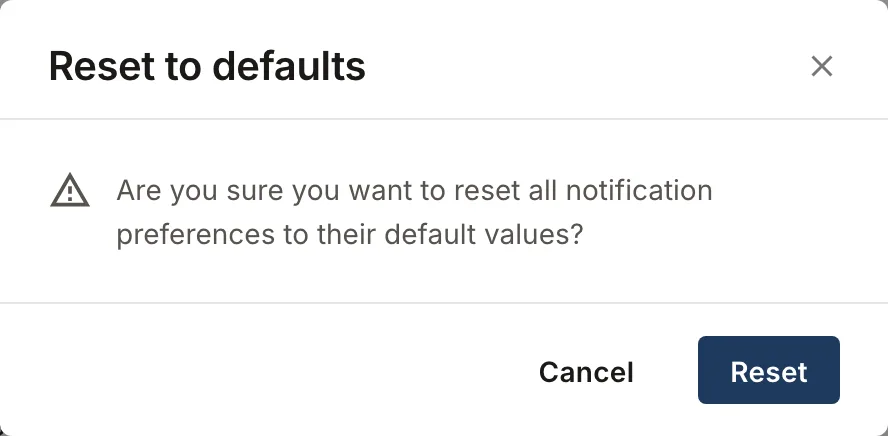
Section titled “Starting over”Every type starts with In app and Email switched on. Slack and Microsoft Teams start off, so they bring only the types you turn on there. Reset to defaults puts every type back that way, after you confirm: In app and Email on, Slack and Microsoft Teams off. That only changes the form: click Save changes to keep it, or Cancel to go back to what was saved.
What the switches can’t do
Section titled “What the switches can’t do”- They can’t add notices. Your role decides what you can be told. A switch for Payment failed does nothing if you don’t hold the permissions that notice needs. The notifications page lists who gets what.
- They hold for one organization. Your preferences belong to your membership. To keep one client’s organization quiet and follow your own closely, switch organization before changing them.
- They cover notices to you, not messages your workflows send. Emails to clients, signing invitations and security emails, such as a password reset, don’t depend on these switches.
Language
Section titled “Language”Doxtly speaks 14 languages: Polish, English, Spanish, German, Portuguese, French, Ukrainian, Thai, Chinese (Simplified), Hindi, Arabic, Japanese, Turkish and Italian. In Arabic, the app reads from right to left: the sidebar moves to the right and text is aligned to the right. To switch, click your name in the header, choose Language and pick one in the Select language window. The menu entry shows your current language, and the change is immediate.
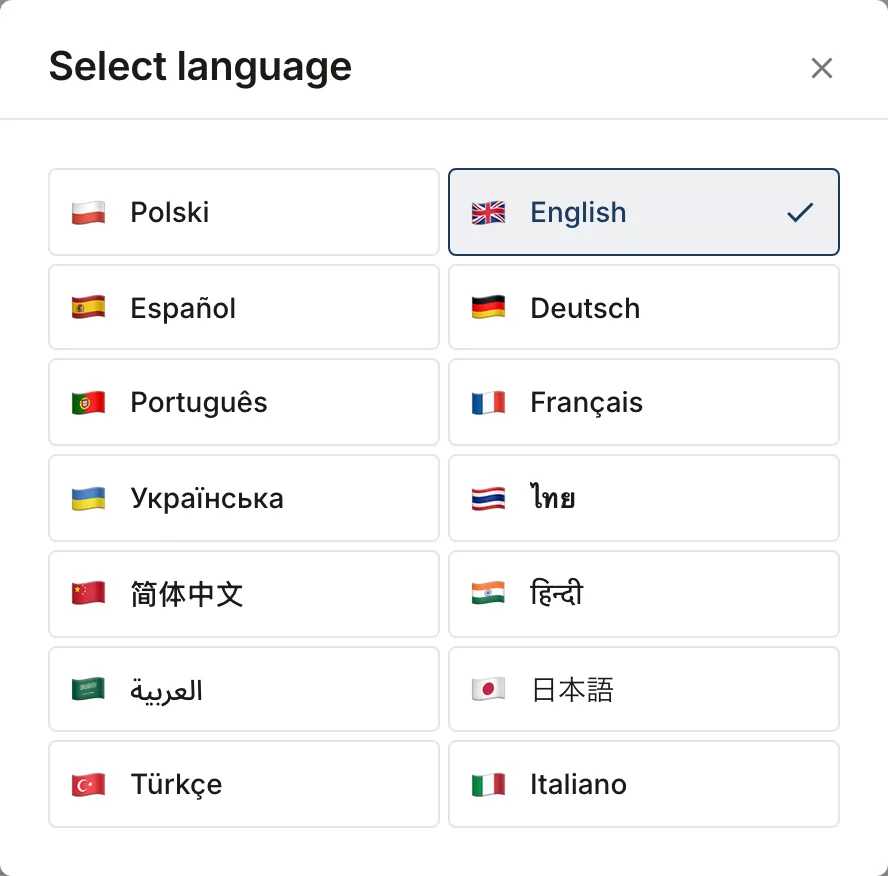
On the sign-in and registration pages, and on the two-factor setup page, a language switch sits in the footer.
Your choice is kept on your membership of the organization you are working in, so it follows you to any browser or device you sign in on, and Doxtly writes to you in it: notification emails, and the emails a package sends you when you are one of its parties or viewers. Until you choose one, the interface goes by the browser’s own language settings, and uses English if they name none of these languages.
The language changes the interface and what Doxtly itself says to you, such as error messages and plan names. Some things follow your organization instead, so a colleague who works in the other language sees them the same way:
| Follows your choice | Follows the organization |
|---|---|
| Menus, buttons, messages | Which time zone dates show |
| How most dates and numbers are written | Certificates of Completion |
| Error messages | |
| Plan names and descriptions | |
| The email with a password link | |
| Notification emails |
Where the organization’s language is the one you read in, it also decides that language’s regional way of writing dates: in an organization set to English (United States), you read 10/16/2026 in English, and a colleague who reads Doxtly in Polish sees 16.10.2026 on the same record.
The organization’s language and time zone are set in the organization settings. Content your organization wrote, such as a form’s questions, stays in the language it was written in.
A link to a public page can name a language of its own. That applies to that page only and doesn’t touch your choice.
The sun or moon button in the header, Switch theme, moves between the light and dark themes. Light is the default. Doxtly doesn’t follow your computer’s dark mode by itself, so choose the one you want and it stays that way in this browser. The footer of the sign-in pages has the same switch.

The theme is kept in this browser alone, so colleagues and clients don’t see your choice. A few things stay white in the dark theme on purpose: the signature pad, because a signature goes on white paper, and a two-factor QR code, because scanners need dark on light.
The sidebar
Section titled “The sidebar”The button at the left of the header, Toggle sidebar, collapses the sidebar to a rail of icons, which gives wide pages such as the form designer more room. That choice too is remembered in this browser. On a phone the same button opens the menu over the page. More on it in the app tour.