

Installing the module
Doxtly Forms adds a block, a field, a CKEditor button and a tag to Drupal, so a form you built in Doxtly can sit on any page of your site. This page takes you from download to a published form, and covers updating and removing the module.
Before you start
Section titled “Before you start”| You need | Details |
|---|---|
| Drupal | 10.3 or newer |
| PHP | 8.1 or newer, with the sodium extension |
| Access to your site’s files, and a Drupal user who can install modules | Usually an administrator, or whoever looks after the site |
| A Doxtly form set to Active | See Forms. A form that is not active shows Form not found on the page. |
| CKEditor 5 | Optional. The button appears only in a text format that uses it. |
| Layout Builder | Optional. The block works there as well, if the site uses it. |
API access, which the optional access key uses, is part of every plan. The module’s settings and the fields for choosing a form follow the language of the screen, when that is Polish, Spanish, German, Portuguese, French, Ukrainian, Thai, Chinese (simplified), Hindi, Arabic, Japanese, Turkish or Italian, and are in English otherwise. The rest of its labels come with the module in the same languages and are used once your site has that language installed.
Installing
Section titled “Installing”Get the module from the module’s page of the Doxtly website. The file is always the latest version, and the page shows its checksum if your company verifies downloads.
-
Download
doxtly-forms-drupal.zip. -
Unpack it into
modules/customof your Drupal site, creating that folder if there isn’t one. You should end up withmodules/custom/doxtly_forms. -
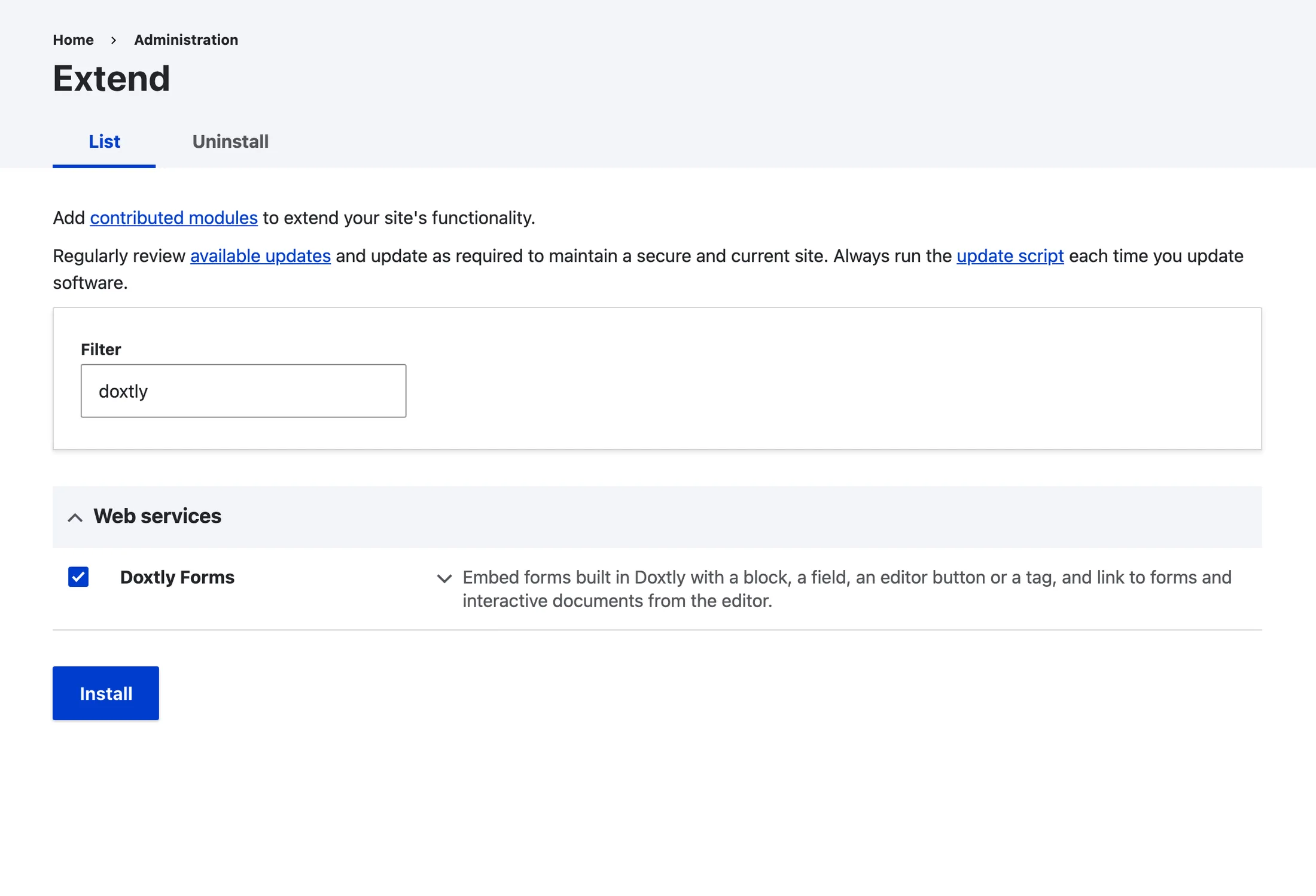
In Drupal, go to Extend. Type “doxtly” in the filter, tick Doxtly Forms under Web services and click Install. With Drush,
drush en doxtly_formsdoes the same.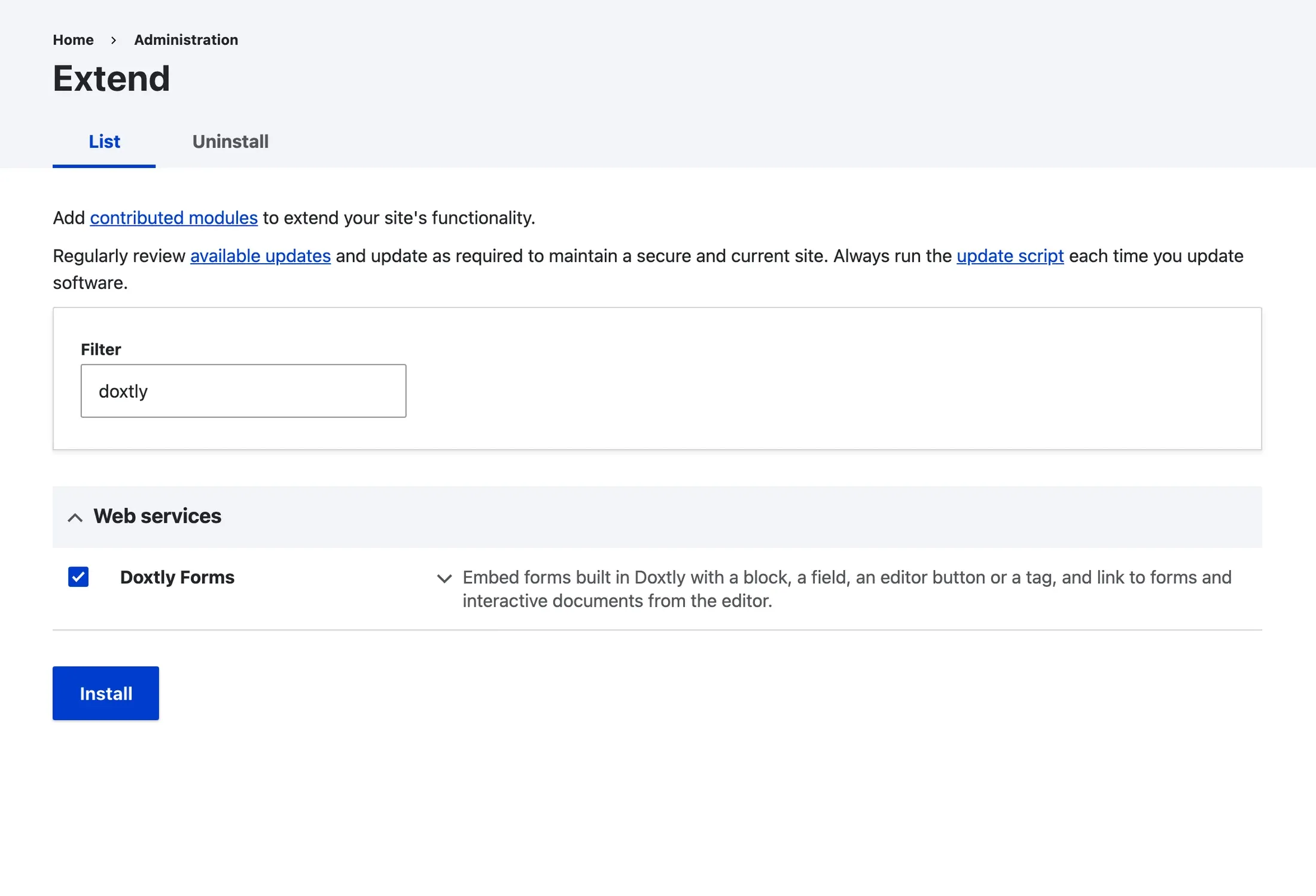
Drupal 10.3 also takes the file on Extend → Add new module, and then keeps it in modules/doxtly_forms, which works just as well. Later versions no longer have that page.
The module is now on the Extend page. Open its description to see the version and the Permissions and Configure links.

Give your authors the permission
Section titled “Give your authors the permission”Drupal gives a new permission to the administrator role and to nobody else, and the module changes nothing about that. Until you act, only administrators can use it.
-
Go to People → Permissions, or click Permissions on the Extend page.
-
Tick Use Doxtly Forms for each role that places forms, such as Content editor.
-
Click Save permissions.
Without it, the Doxtly button in the editor is greyed out and the block and the field ask for a typed ID. See Who can do what.
Your first form
Section titled “Your first form”This is the shortest way to a live form. You can add the access key later.
-
If your organization has its own subdomain, open Configuration → Web services → Doxtly Forms, enter your address as the Application URL and click Save changes. Everyone else can skip this: the module starts with
https://app.doxtly.com. -
In Doxtly, open the form’s Share dialog and copy its Public link. The ID the plugin asks for is the last part of that link, after
/f/: the form’s public token. -
In Drupal, go to Structure → Block layout and click Place block beside the region you want, such as Content.
-
Find Doxtly Form, click Place block and paste the ID into Form.
-
Under Pages, list the page that should show the form, then click Save block.
-
Open the page. The form is there, ready to use.
To let authors put forms into the text of a page, turn on the filter and the button in a text format.
Updating
Section titled “Updating”Drupal’s Available updates report doesn’t list this module, so look at the module’s page from time to time. It shows the current version, and the settings page shows yours in its top right corner.
-
Download the new
doxtly-forms-drupal.zip. -
Replace the
doxtly_formsfolder with the one from the file. Leave the module enabled. -
Run
drush updatedb, or open/update.phpon your site.
Your settings, the access key and the forms on your pages all stay as they were.
Switching the module off and removing it
Section titled “Switching the module off and removing it”What stays behind depends on how far you go.
| What you do | Your pages | Settings and access key |
|---|---|---|
| Remove the saved access key in the settings | Forms keep working. Authors enter IDs by hand again. | The key is deleted from Drupal. The addresses stay. |
| Turn off the Doxtly forms filter in a text format | A tag in that format appears on the page as plain text, such as [doxtly_form id="…"]. Blocks and fields keep working. |
Kept. |
| Uninstall the module | Placed blocks are removed, and a block in Layout Builder shows nothing. Tags stay as plain text. | Deleted, including the encrypted access key. |
Drupal won’t uninstall the module while something uses it, and it tells you what. Before you start:
-
Delete each Doxtly form field from its content type. The forms chosen in that field go with it.
-
In each text format that uses it, untick Doxtly forms.
-
Go to Extend → Uninstall, tick Doxtly Forms and click Uninstall, then confirm.
Uninstalling also takes the button off your editors’ toolbars and the two permissions off your roles. It leaves two things alone:
- Your text. Tags stay in it and links keep working. If you install the module again, turn the filter on and add the button again, and tags work again. Settings and permissions need entering once more.
- Your Doxtly account. Forms and submissions are untouched, and the access key is still valid. If you no longer need the key, disable or delete it in Doxtly.