

Document list
The document list is where every signing package in your organization ends up. Open it when a client asks “did you get my signature?”, when you want to chase whatever is still open, or when something is waiting for your own signature.
You find it under Documents > Document list in the sidebar. New package at the top puts one together by hand, and Export writes finished packages to ZIP files: see Exporting finished packages.
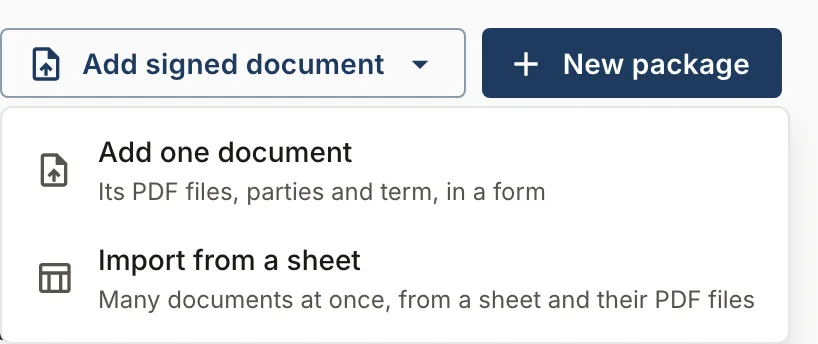
Add signed document, beside New package, records documents that were signed outside Doxtly, on paper or in another tool, so that they sit in the same list as the rest. It is there for people who may manage documents and opens a menu of two: Add one document fills in its PDF files, parties and term in a form, and Import from a sheet adds many at once, from a sheet and their PDF files. Both are told under Documents signed outside Doxtly: Add one document and Import from a sheet.
What people use it for
Section titled “What people use it for”At Northbridge Advisory the list does a few different jobs in a normal week:
- Monday morning, an account manager chases clients. The Waiting on column shows who each package is waiting for and for how many days. She opens anything that has sat too long and sends the signing link again. My responsibility and Due soon under More filters narrow it to her own packages that are about to run out.
- A partner clears his own desk. He sets Waiting to Waiting on me (also as a delegate) and signs what’s there. The Waiting for you widget on the dashboard shows the same packages, and its Show all link opens this list with that filter on.
- A deal has gone quiet. Filtering by Declined shows which packages were refused, and the package page says who refused and why.
- The office manager keeps a saved view. Filters live in the address, so “all expired training packs” can be a browser bookmark.
What a row is
Section titled “What a row is”Each row is a package: one or more documents sent out together to the same group of people, for example an NDA and a service agreement for a new client. People sign a package in one sitting, and its status is worked out from the documents inside it.
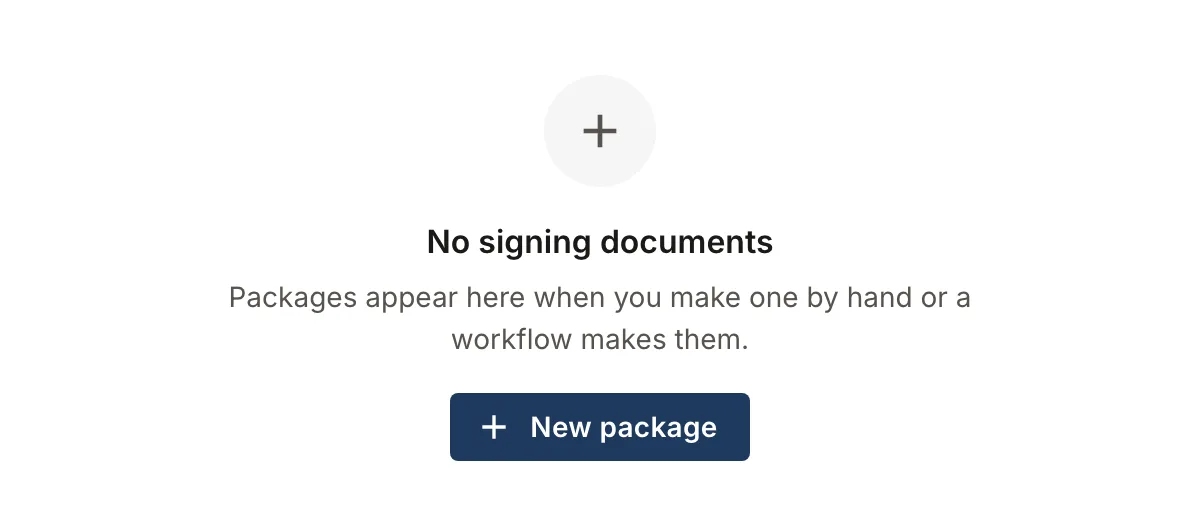
Packages come from workflows, or are made by hand with New package (New package). If the list is empty you see No signing documents, with New package below for those who may make one. To set up your first package, read Sending for signature.
If your role has View document types, a second tab, Types, sits next to Documents. That’s where the categories packages are filed under are managed, and it has its own page: Document types.
Who sees which packages
Section titled “Who sees which packages”Everyone in the organization has this list, even with a role that grants no permissions, but not everyone sees the same rows. A package appears for you if any one of these is true:
| You see the package because | What you see |
|---|---|
| Your role has View documents and it reaches the package’s document type | All packages of the types open to you. A role scoped to the whole organization sees every package. A role scoped to your own department sees the types open to everyone and the types open to your department. |
| You are a recipient on the package | That package, whatever its type and whatever your role. A recipient counts as you if it is linked to your account or uses your account’s email address. |
| You are a viewer on the package, linked to your account or using its email address | That package, until your access is withdrawn. Viewers are covered on the package page. |
| A recipient on the package has authorized you to act for them | That package, as long as the authorization covers its document type and your organization hasn’t switched authorizations off. |
Roles and departments are set up under Roles and Departments. The departments a type is open to are set on Document types. So if a colleague can’t find a package you can see, check which type it’s filed under before anything else.
Reading a row
Section titled “Reading a row”
| Column | What it shows |
|---|---|
| (box) | Ticks the package for an action on several at once. Shown to people who may manage documents. |
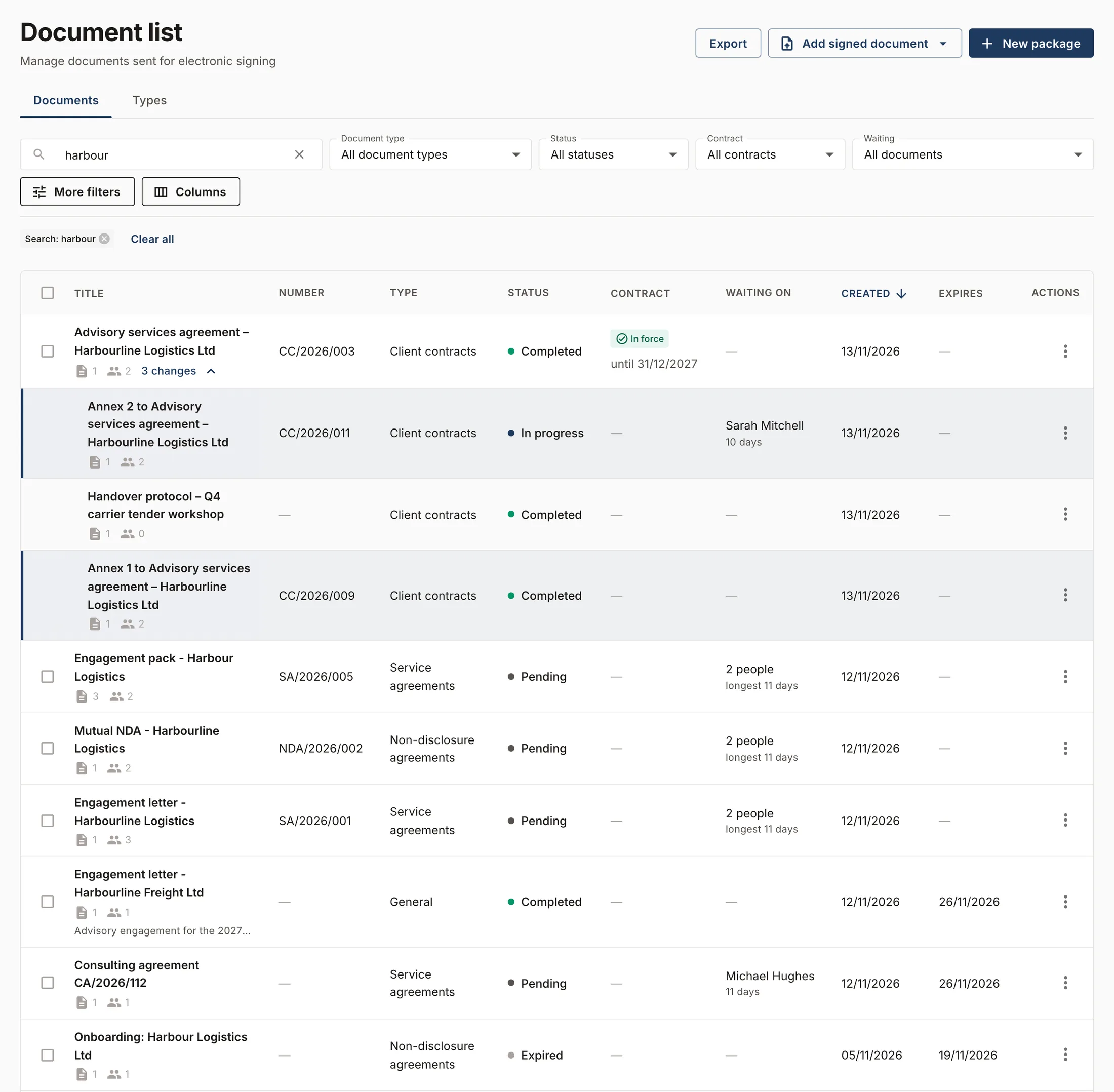
| Title | The package’s title. Under it, the number of documents and the number of parties, then the description if the package has one. A draft’s counts are of what it holds so far. A change of a contract listed on its own row, not under its contract, also names the contract it changes, as in Annex 2 to: Advisory services agreement – Harbourline Logistics Ltd. |
| Number | The number its type gave it when it was sent, or a dash. A change of a contract has none: its title names it. |
| Type | The document type the package is filed under. Every package has one: a package nobody chose a type for is under General. A long name takes two lines at most and is cut short after that; hover it to read it whole. |
| Status | Where the package stands, as a coloured dot and a word. Once an In progress package has at least one finished document, you also see the share of its documents that are done, such as In progress · 50%. |
| Contract | Shown once your organization has a type of contracts with a term. For a contract, a chip with where it stands, Not yet in force, In force, Ending soon, Ended or Terminated, and the day that goes with it: until its last day, indefinite, or from the day a contract not yet in force starts. A contract still being signed shows only starts once signed. A contract that never came into force and other packages have a dash. Click the heading to sort by the day each contract ends; packages that are no contract, and contracts with no end, come last either way. |
| Waiting on | Who the package is waiting for now and for how long: a name with 6 days, or 3 people with the longest wait; hover the count to read the names. A department nobody has taken on yet appears under its own name. If you see the package only because you are on it, the column just says You when it is your turn, and shows nobody else. |
| Created | The day the package was created. Click the heading to sort. |
| Expires | The package’s deadline, or a dash if it has none. Click the heading to sort by it; packages without a deadline come last either way. |
| Actions | The three-dot menu, when there is anything for you to do. See The row menu. |
Click anywhere on a row, or on its title, to open the package page.
If you can act for somebody on this package, an orange chip such as for Anna Kowalska sits under the title. It means the package is waiting on that person and their authorization lets you step in. Hover the chip to read this; on a phone the card says it under the chips.

What each status means
Section titled “What each status means”| Status | Meaning |
|---|---|
| Draft | Being put together and not sent yet. Only people who may view documents of its type see it, and nobody has been asked for anything. |
| Pending | Created, and nobody has signed or filled in anything yet. |
| In progress | Somebody has started, by signing a document or finishing filling one in, and the package isn’t finished. |
| Completed | Every document is done: sealed after the last signature, or with nothing left to do, like an attachment or a document that was only filled in. |
| Declined | Somebody declined at least one document. |
| Not approved | An approver refused the package, so its parties are never asked to sign. |
| Voided | Somebody in your organization cancelled the package. |
| Expired | At least one document ran past its deadline unsigned. |
When documents in a package end differently, the package takes the first of these that applies: not approved, declined, voided, expired, completed, in progress, pending. So a package with one sealed and one declined document reads Declined.
A Declined package isn’t always over. A refusal closes the documents that person was due to sign. Other documents in the package stay open, and their signers can still sign them. The package page shows the status of each document.
A package expires shortly after its deadline passes, whether or not anyone opens it, and each document that ran out gets an entry in its audit log. Nobody can sign or decline a document past its deadline, even in the short moment before the status changes.
Each of these changes can start a workflow on the package’s type: a party’s turn beginning, a party opening the documents, an approver’s decision, a party signing or declining, every document finishing, the deadline passing and the package being voided. See Document package triggers.
Finding a package
Section titled “Finding a package”
| Control | What it does |
|---|---|
| Search by title or party | Finds packages by title, by number, or by the name, email or phone number of a party, ignoring upper and lower case. If you type several words, each must appear somewhere, so nda halden finds “Mutual NDA - Halden Logistics”. A phone number has to be written whole, with its country code, in any form: +48 600 100 200 or 0048600100200. Parties are only searched on packages your role lets you read; on a package you only signed, the search looks at the title. Until it is sent, a draft is found by its title, not by its parties. It doesn’t search inside documents. |
| Document type | Shows one type. The default is All document types. |
| Status | Shows one of the statuses above. The default is All statuses. |
| Contract | Shows the contracts in one state: In force, Ending soon, Not yet in force, Ended or Terminated. The default is All contracts. It is there once your organization has a type of contracts. |
| Waiting | Waiting on me (also as a delegate) keeps only the packages where you still have something to sign or decline, for yourself or for somebody who authorized you. The default is All documents. |
More filters opens the rest; on a phone they sit in the Filters panel with the others.
| Under More filters | What it does |
|---|---|
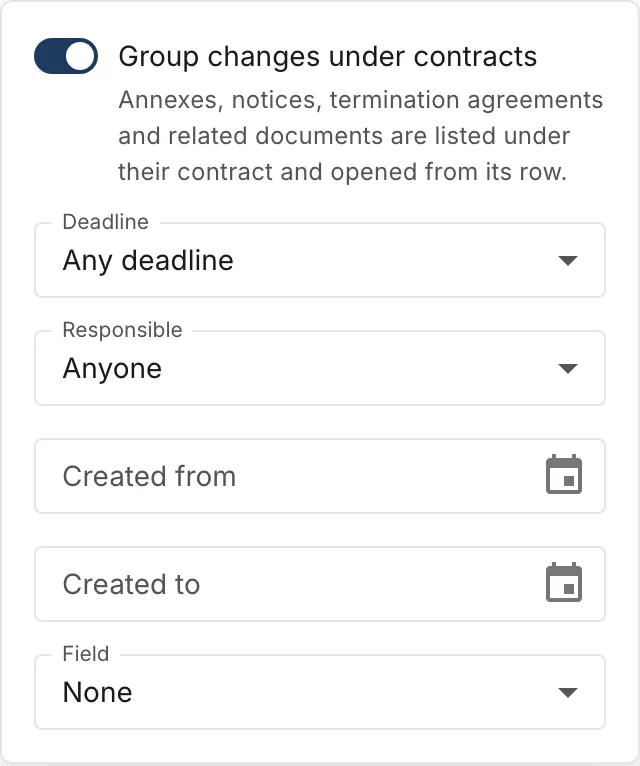
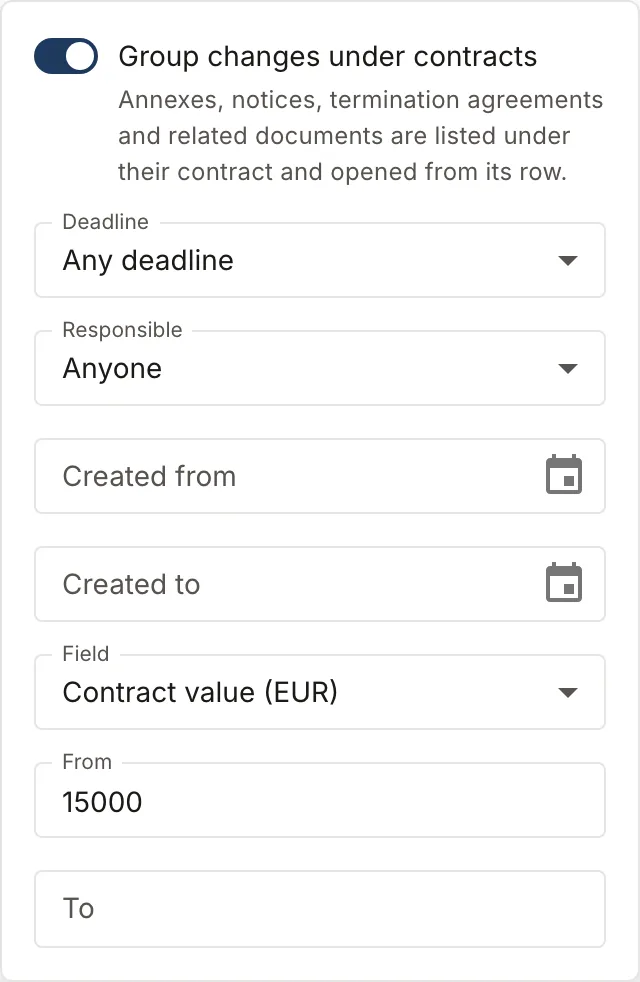
| Group changes under contracts | On by default, and there once the list has its Contract column. Annexes, notices, termination agreements and related documents are listed under their contract instead of on rows of their own: see Changes under their contract. Turn it off to see every package on its own row. |
| Deadline | Any deadline by default. Due soon keeps the packages still waiting whose deadline is within the next three days. |
| Responsible | Anyone by default. My responsibility keeps the packages you answer for: those you made unless they were handed to someone else, and those handed to you. Drafts count. |
| Created from and Created to | Keeps the packages created in those days. Either end may be left empty. |
| Field | One of your custom fields of packages that is not sensitive: Contains for a text field, From and To for a date or a number. None by default. |
Every filter you set appears as a chip under the bar. Click the cross on a chip to remove that filter, or Clear all to remove them all. If nothing matches, the page says No results and offers the same Clear all. A link from the dashboard or a batch can add chips that have no control of their own: From a batch, In progress and Not delivered, and a contract with many changes adds Changes of one contract.
Waiting answers a different question from Status. A package can be Pending because your client hasn’t signed yet, with nothing in it for you to do. Waiting on me shows only your own to-do list.
The list starts with the newest package first. Click the Title heading to sort A to Z, again for Z to A, and a third time to go back to newest first. Click Created to switch between oldest first and newest first, and Expires to sort by deadline. Below the table you can move between pages and show 10, 25 or 50 packages per page. The default is 25.
Filters, sorting and the page are kept in the address, so you can bookmark a view such as “all declined NDAs” or send the link to a colleague. They see it through their own permissions.
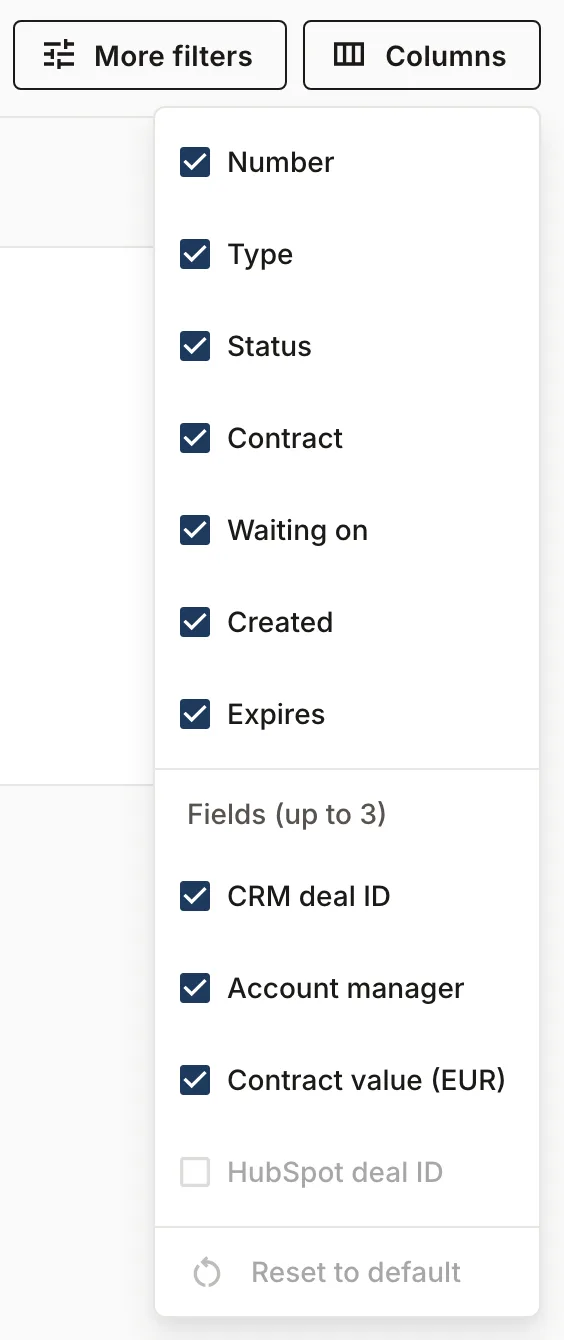
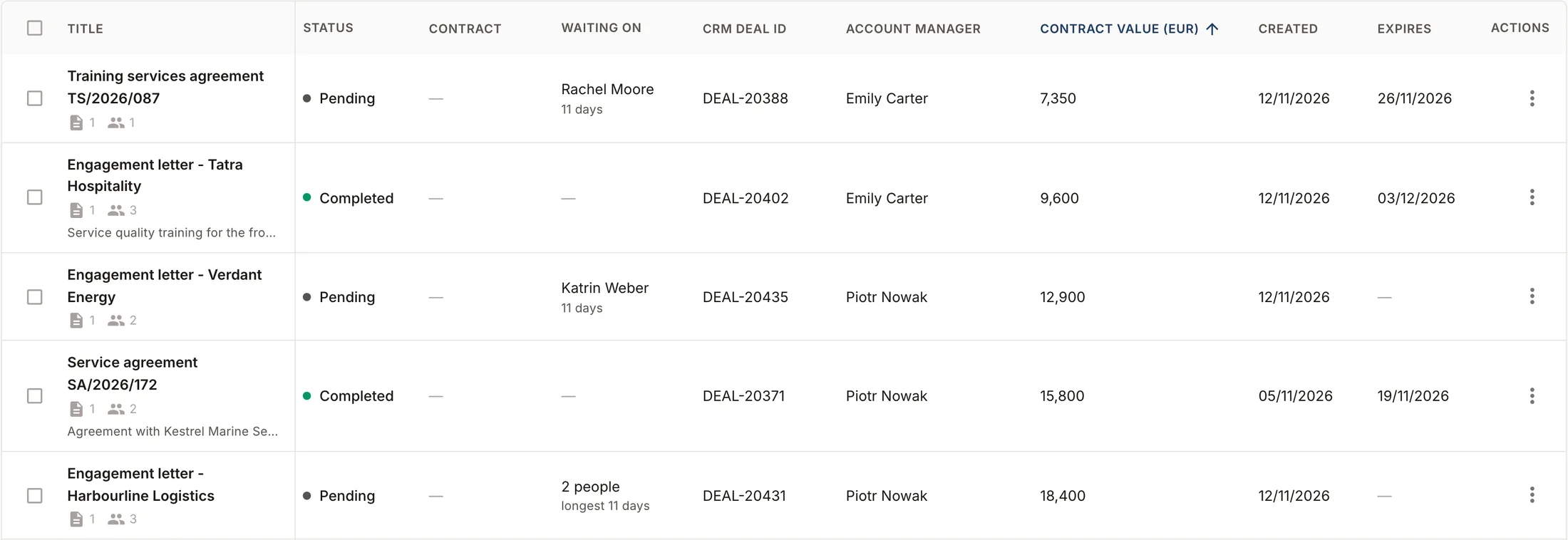
Columns, beside the filters, shows or hides the list’s own columns, such as Number or Expires, and on a phone the same facts on each card; your browser remembers that choice, and Reset to default brings the standard columns back. Under Fields (up to 3) it adds up to three of your fields of packages that are not sensitive to the list as columns of their own, after Waiting on; on a phone they show on each card. Click a field’s heading to sort by it, a number as a number, with the packages without a value last. The fields you choose are kept with your account, on every device you use.
With those three ticked, the list of Service agreements shows them after Waiting on, here sorted by contract value:
Changes under their contract
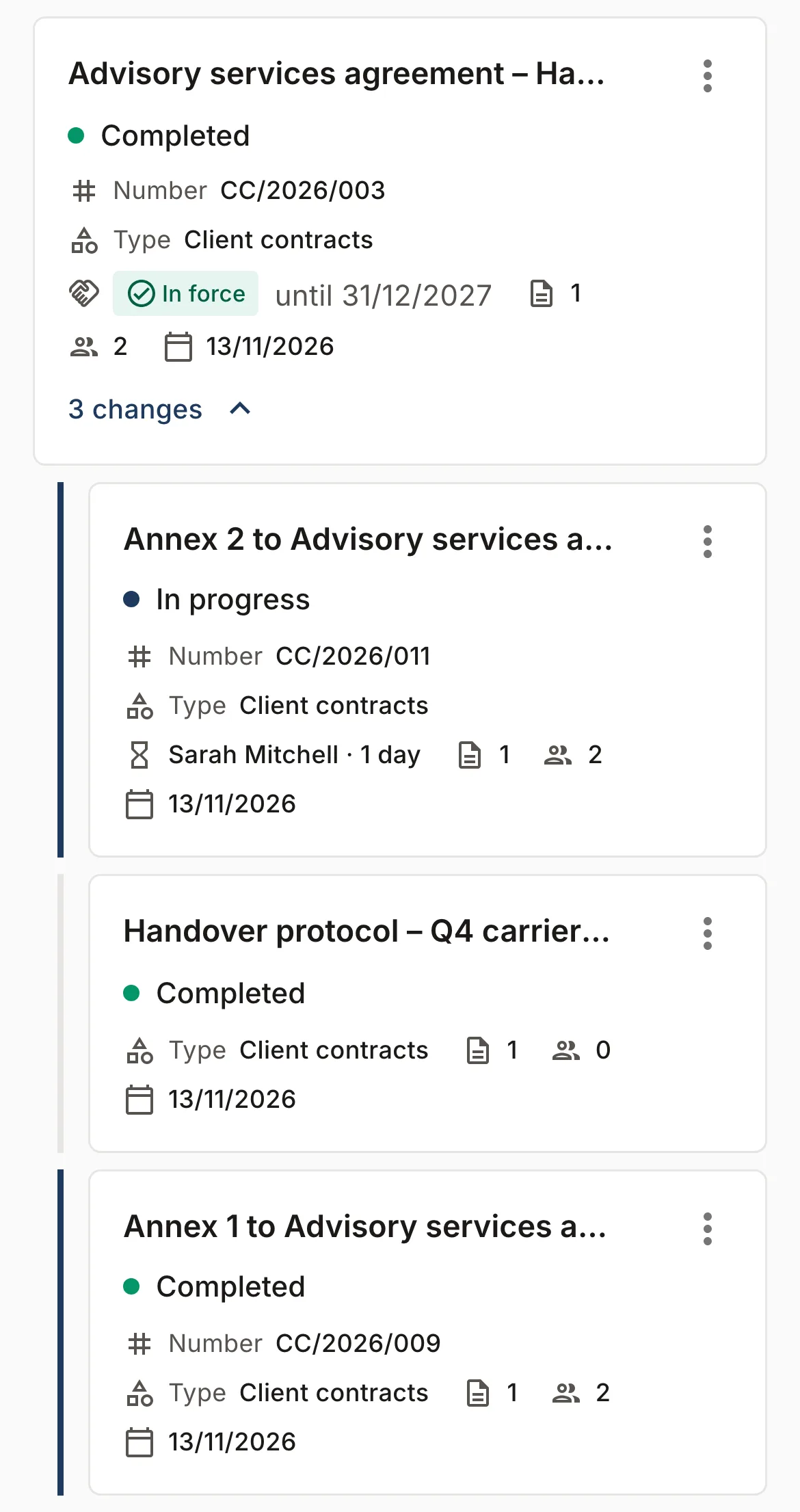
Section titled “Changes under their contract”While Group changes under contracts is on, a contract’s annexes, notices and related documents leave the list’s own rows and wait under their contract. Its row shows a button with their count, such as 3 changes, beside the document and party counts; click it to open their rows under the contract, newest first and indented, and again to close them. Click the row itself, as always, to open the contract.
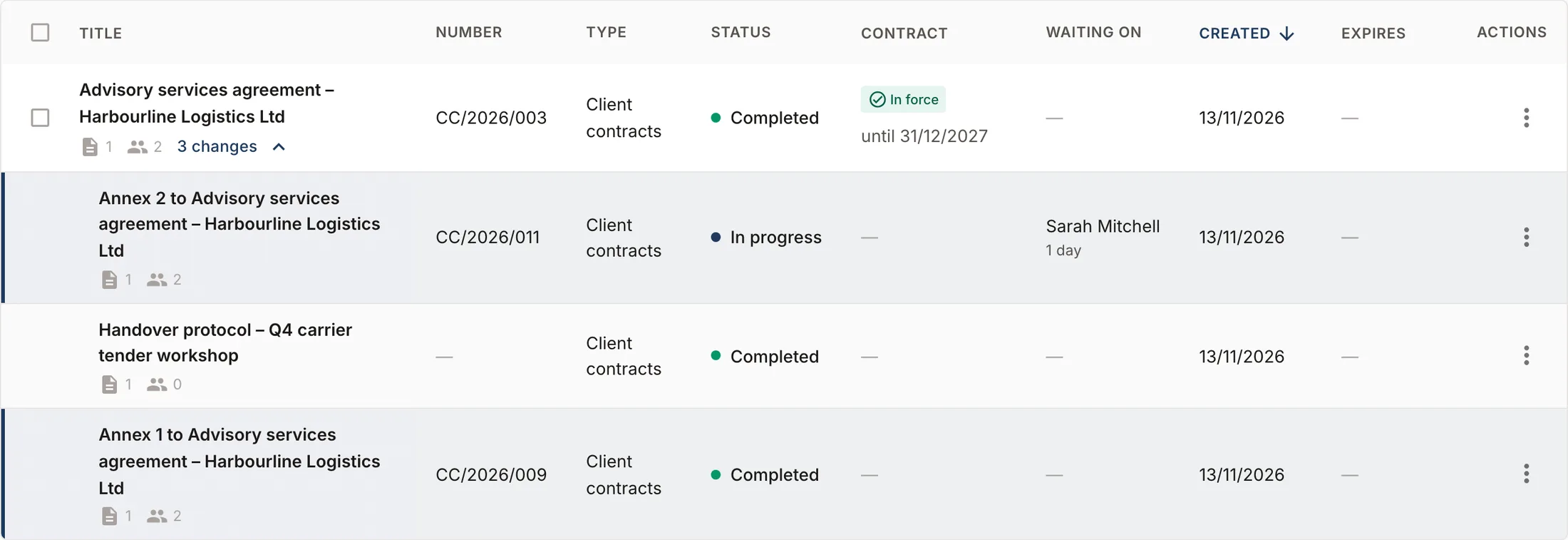
The filters still look at every package. When one of a contract’s changes matches but the contract itself doesn’t, the contract comes onto the list for that change and opens by itself, with the matching changes marked by a tinted row and a coloured edge. A change whose contract you may not see keeps a row of its own.
The pages below the table count the rows of the list, so a contract and its changes take one place. A row opens up to 100 changes; with more, a link such as and 20 more changes opens a list of every change of that contract, under the chip Changes of one contract.
A change under its contract has no box to tick: actions on several packages at once and Select all matching take the list’s own rows. To act on changes themselves, turn grouping off.
Acting on several packages at once
Section titled “Acting on several packages at once”Available when: Your role has the Manage documents permission
Tick the box at the start of a row, or the one in the heading for the whole page (Select all on the page). On a phone, press Select above the list, then tap the cards, and Done selecting when you have them.
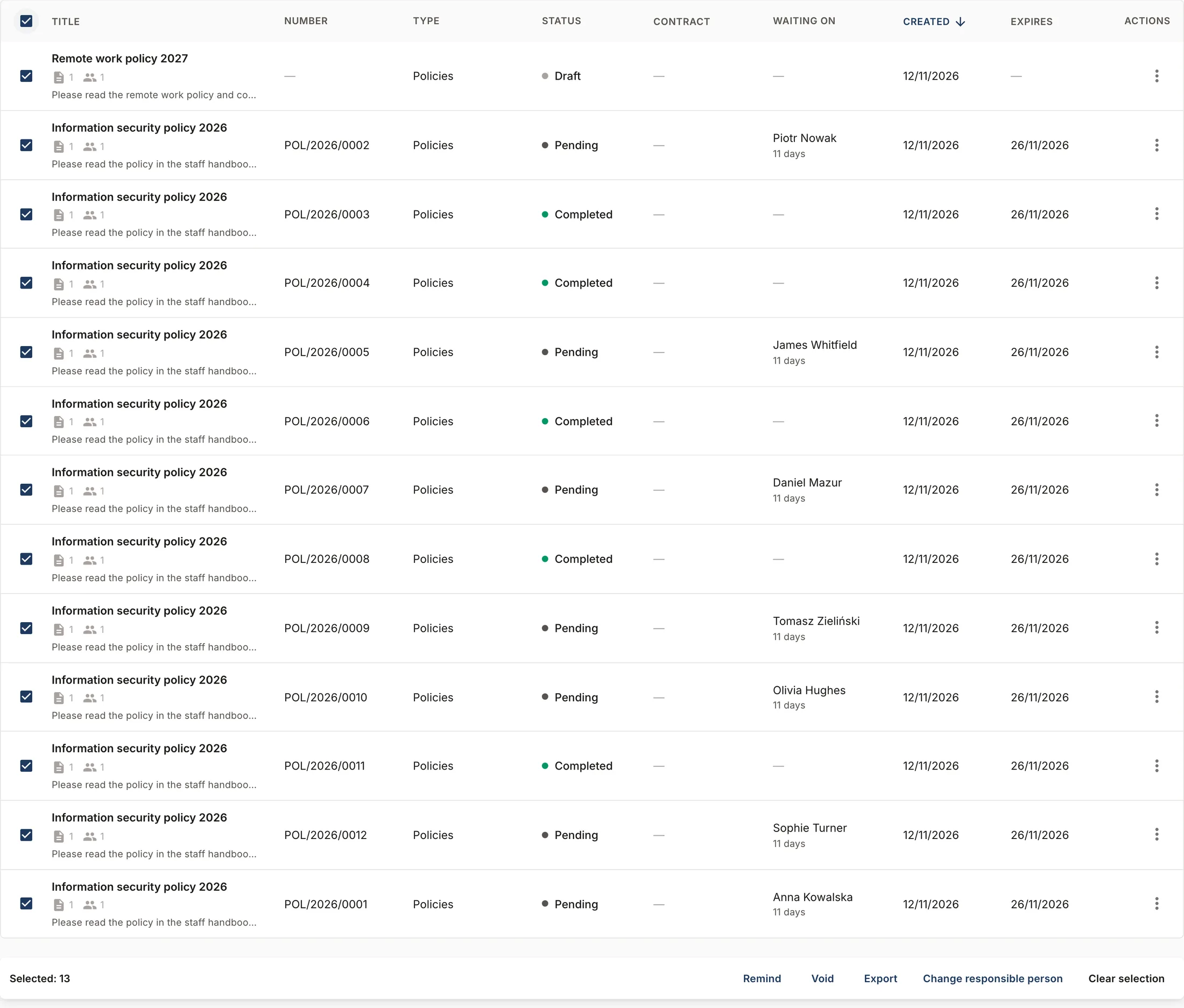
Once something is selected a bar stays at the bottom of the list, with Selected: and the count, the actions, and Clear selection.
| Action | What it does |
|---|---|
| Remind | Sends the parties waiting to sign a reminder, the same way as sending their link again. Remind those waiting asks you to confirm, with the number of packages on the button. |
| Void | Void the packages? asks for a Reason for voiding, required, up to 500 characters, and says how many packages it is for. Tell the parties and Tell them the reason work as when you void one package. |
| Export | Starts an export of the selected packages that have ended completed, declined or voided. |
| Change responsible person | Hands the packages to another person to answer for: only somebody who can read documents of each package’s type takes it. |
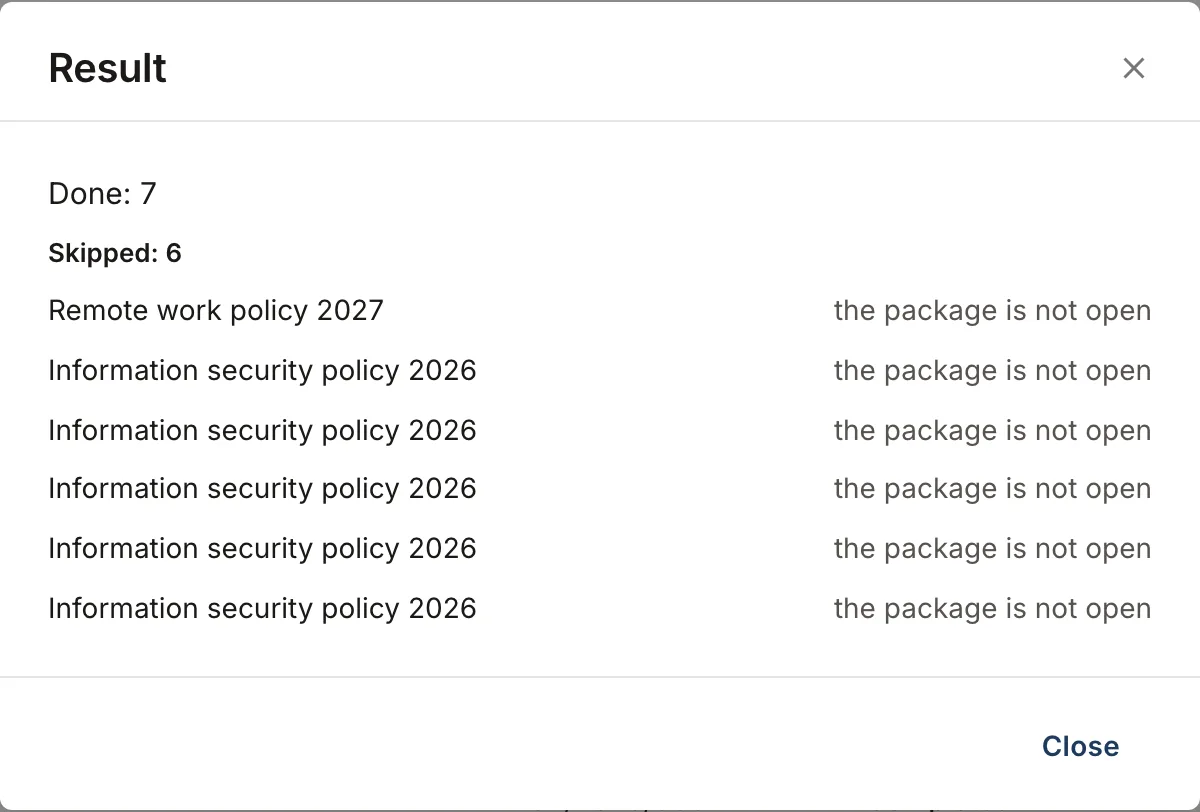
Only the rows that can be acted on are acted on. A reminder skips a package that is over or has nobody waiting, voiding skips one already finished, a package outside what your role reaches is left out. Everything runs in the background, so you can keep working: Result tells you how many were done (Done:) and how many were not (Skipped:), and lists each package that wasn’t with the reason: the package is not open, nobody is waiting, could not be sent, not allowed, this person cannot read documents of this type, or error. Your organization can start 30 such actions an hour, counting everybody’s and those started through the API; one more is refused with Too many bulk actions were started. Please try again later.
For example, two weeks into the Information security policy 2026, the office manager ticks all thirteen Policies packages and chooses Remind: the seven people who haven’t signed get a reminder, and the six packages already signed are skipped.
With a whole page selected and more packages beyond it, Select all matching extends the selection to every package the current filters find, up to 500; with more than that, the first 500 are selected and the bar says so.
On a batch, Remind everyone waiting sends a reminder for all of the batch’s packages at once.
The row menu
Section titled “The row menu”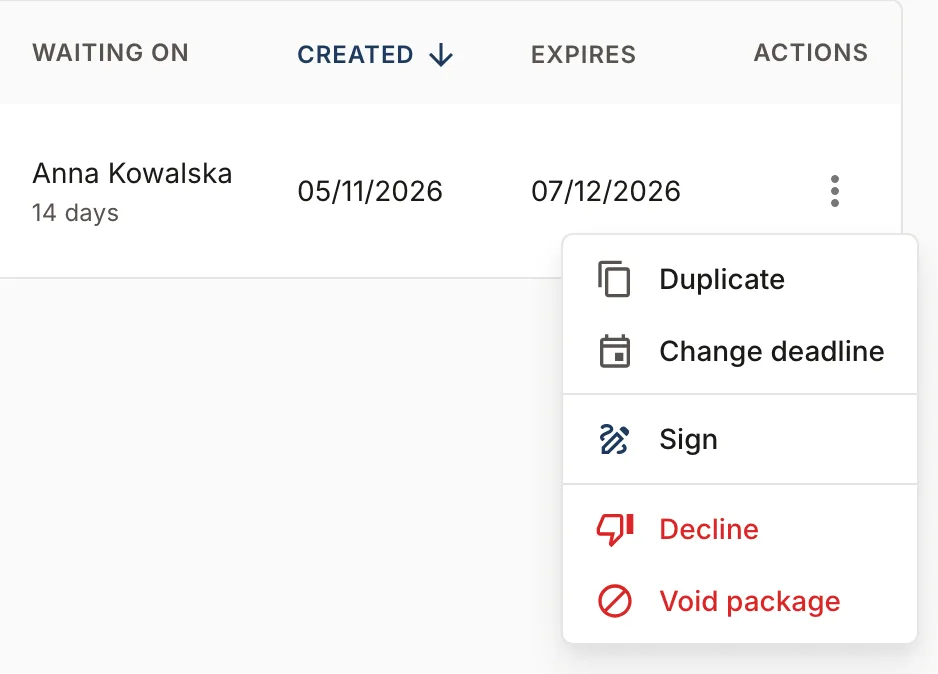
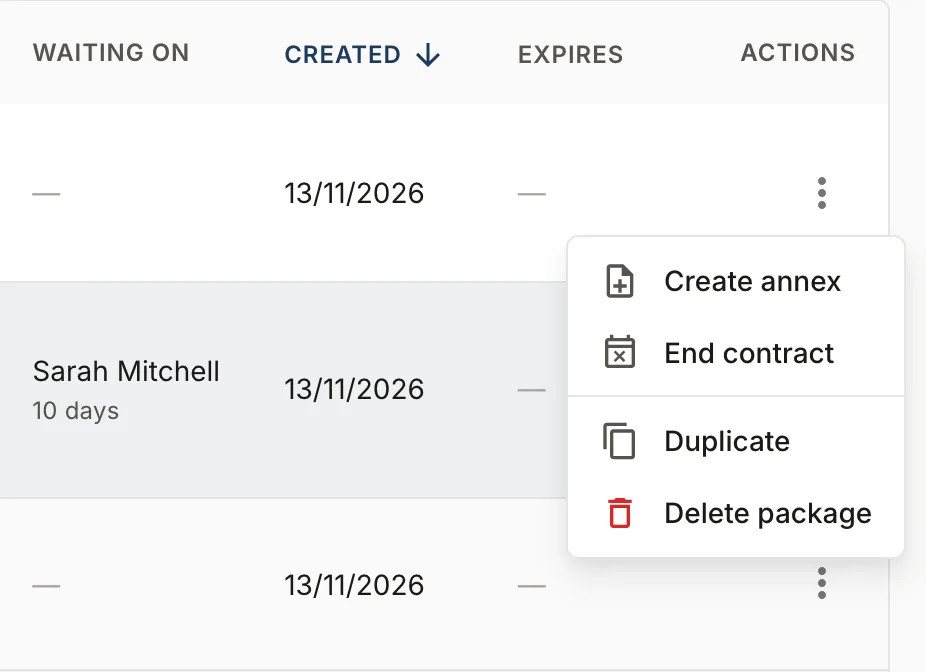
The menu holds only what you can do to this package right now. If there is nothing, the row has no menu at all. To read a package, click the row.
| Item | When you see it | What it does |
|---|---|---|
| Create annex, End contract | The package is a contract that hasn’t ended or been terminated, and you may manage it. A contract that never came into force, because its package was voided, declined, expired or not approved before everybody signed, doesn’t show them. While it is being signed they are greyed out, with Available once the contract is signed. | Opens the dialog that makes a draft of an annex, or of a notice or termination agreement: see Contract changes. |
| Sign | You are a recipient and something still waits for your signature. | Opens the signing page inside the app. |
| Sign for name | A party is waiting and their authorization lets you sign for them. | Opens the same page, acting for that person. There is one item per person. |
| Decline for name | A party is waiting and their authorization lets you decline for them. | Opens the decline dialog, acting for that person. |
| Decline | You are a recipient and something still waits for your signature. | Opens the decline dialog for your own part. |
| Edit, Send, Preview, Delete draft | You may manage this package and it is a draft. | Open the editor, send it, see the signing page, or remove the draft. Send is greyed out, with the reason, until the package is ready. |
| Send again, Duplicate | You may manage this package. Send again only once it expired, was declined, not approved or voided, Duplicate always. | Opens a new draft with the same documents and parties: see Copy a package. |
| Change deadline | You may manage this package, something is still open, and its type doesn’t lock the deadline. | Moves its deadline: see Reminders and deadlines. |
| Delete package | You may manage this package and it is over. | Deletes it for good, with its documents and audit trail. A contract that has changes is refused until its changes are deleted. |
| Void package | You may manage this package and at least one document is still open. | Opens the dialog that cancels the whole package. |
Declining
Section titled “Declining”Declining is your answer as a party. Use it when you won’t sign, for instance because the terms in the service agreement are wrong.
- Choose Decline from the row menu. The dialog warns that the document will no longer be valid.
- Type a reason in Reason (optional), up to 1,000 characters. Your organization’s people read it on the package page, so it saves a phone call.
- If the package asks its signers for a one-time code, enter it in Verification code. It is sent as soon as the dialog opens, by email, SMS or WhatsApp, whichever the package uses. Send the code again asks for another one.
- Click Decline. The button stays disabled until the 6-digit code is complete.
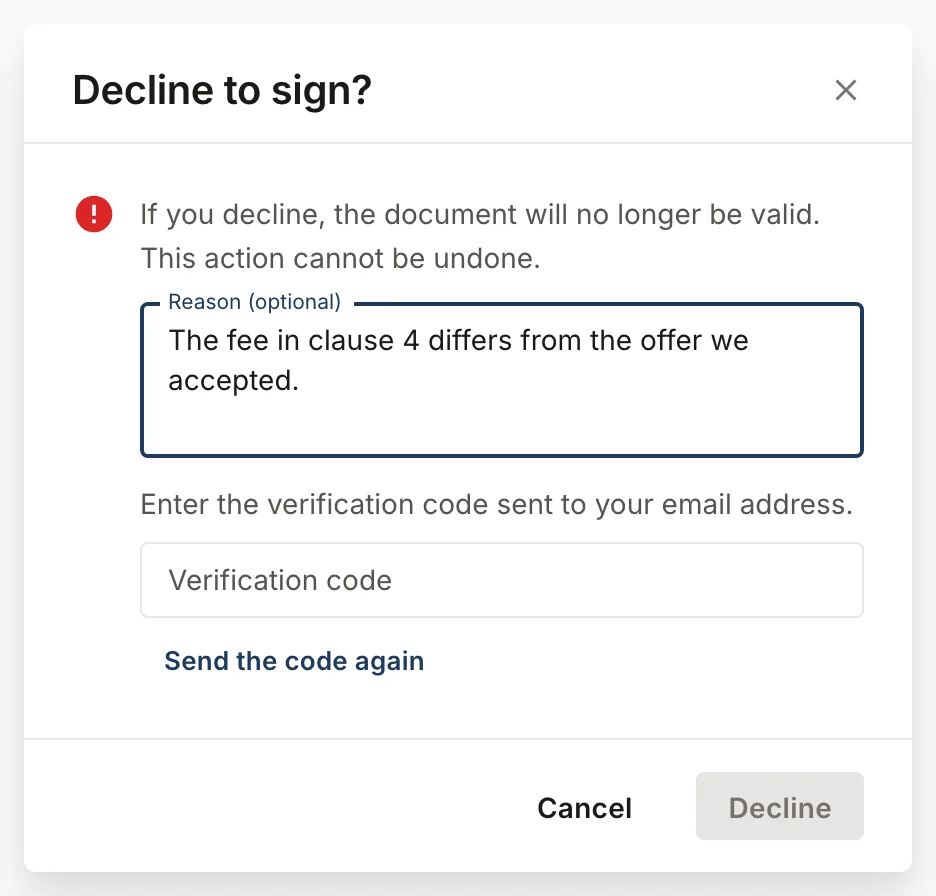
A refusal can’t be undone. It closes every document that was waiting for your signature, and other parties can no longer sign those documents. The reason appears on the document’s Parties tab.
The person responsible for the package gets a notification of every refusal, and when the refusal ends the package, the other parties who signed or whose turn has come get the Package refused message. To do something else as well, use a workflow with the A party declines to sign trigger, which starts on every refusal and receives the reason.
Declining for somebody else
Section titled “Declining for somebody else”Available when: a recipient on the package has authorized you to decline for them
The dialog is the same, with a warning at the top that says who you are refusing for. The refusal is recorded in your name, under their authorization.
You also confirm with something of your own, because an open browser isn’t proof enough for an act in another person’s name. A code goes to your own email address as the dialog opens. If your organization has no way to send email, the dialog asks for Your password, the one for your own account, instead.
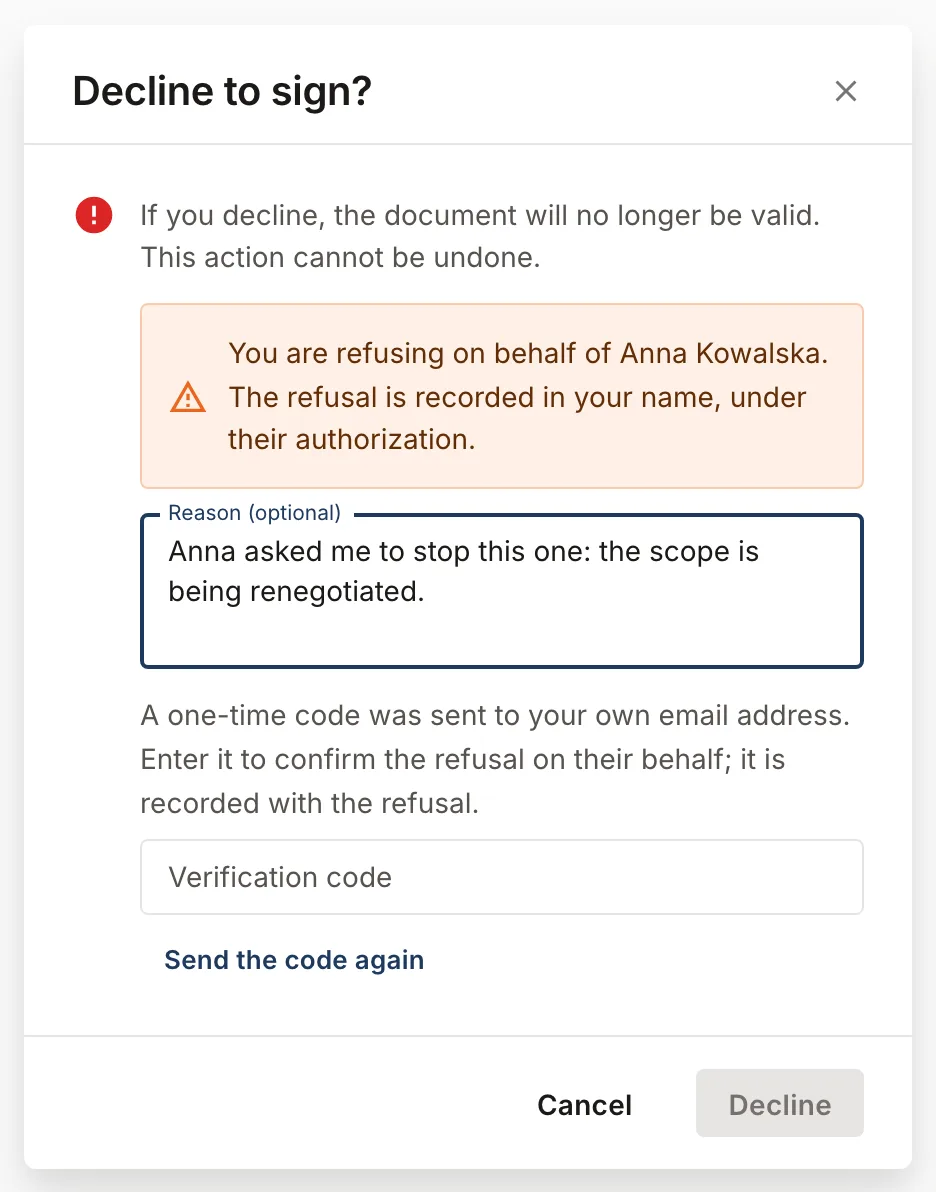
The person you refused for hears about it through their notifications. Authorizations are explained in Delegations.
Voiding
Section titled “Voiding”Available when: your role has Manage documents and it reaches this package's document type, and at least one document in the package is still open
Voiding is your organization calling the package off, say because the client’s details were wrong and a corrected package has gone out.
- Choose Void package from the row menu. Void the package? opens.
- Write why in Reason for voiding. It is required, up to 1,000 characters.
- Leave Tell the parties ticked, or untick it, and tick Include the reason in the message if they should read why.
- Click Void package in the dialog.
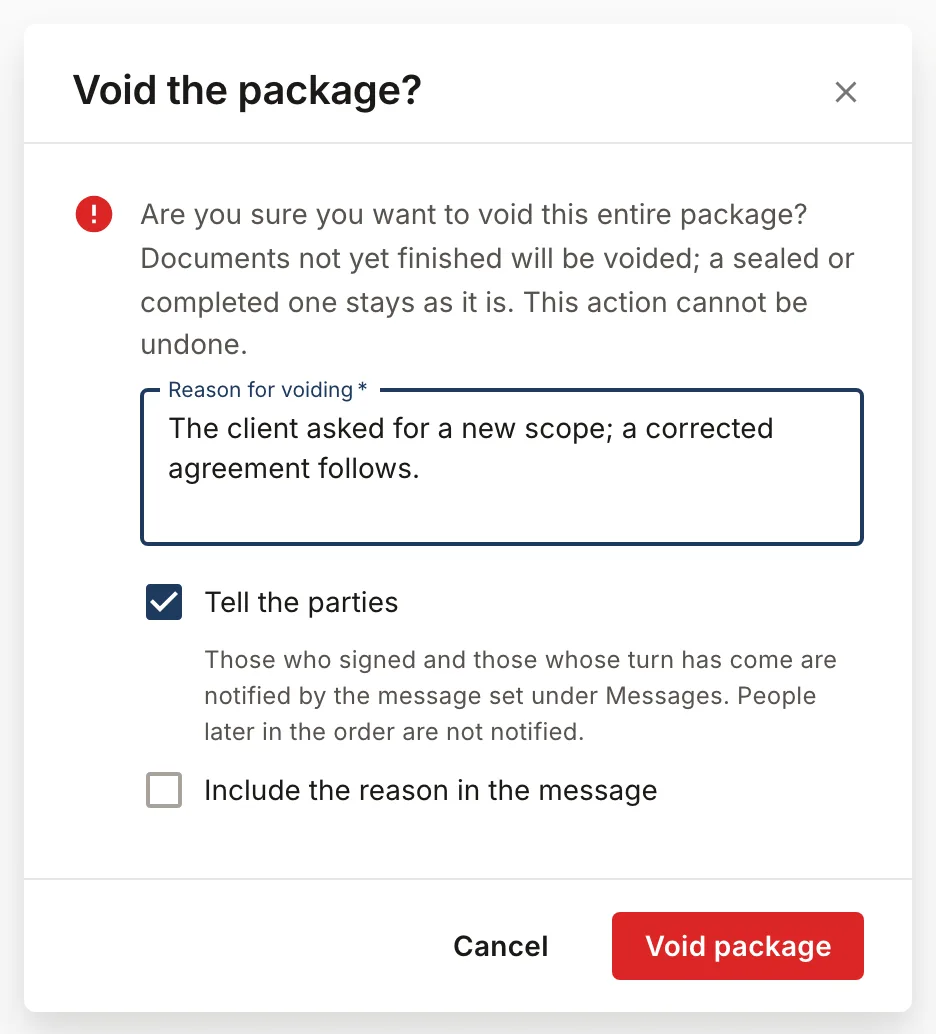
Every document that is still open becomes Voided. A document that had already finished keeps its state, so a sealed NDA stays sealed. Voiding can’t be undone. Tell the parties, checked by default, sends those who signed or whose turn has come the Package voided message; others learn when they open their link, which then shows Package voided in place of the documents. If they need to hear sooner, tell them yourself.
The same action is on the package page, together with what happens next. A package can also be voided from the other direction: when someone corrects a form submission, Doxtly offers to withdraw the packages made from the old data. See Editing submissions.
On a phone
Section titled “On a phone”At phone width each package becomes a card with the same facts: title, status, description, Number if it has one, Type, who it is waiting on and for how long, document and party counts, the creation date and Expires if it has a deadline, Contract with its chip and day for a contract, the contract a change belongs to, and the same menu in its corner. Tap the card to open the package. While changes are grouped under their contract, a contract’s card has the button with their count at its foot, which opens their cards under it.
Exporting finished packages
Section titled “Exporting finished packages”Available when: your role has View documents
Export above the list writes finished packages to ZIP files: a folder per package with its sealed documents, and an index.csv with a row for each document: the package’s ID, title, number, type and status, when it was created and finished, the document, its signers, its signature level and the SHA-256 of the sealed PDF, and for a contract its state, the day it came into force and the day it ends. A Certificate of Completion goes beside a document only where none is sealed into it. Use it to keep your own archive, or to hand the year’s signed contracts to an auditor.
- Choose Export. The exports page opens.
- Choose New export. In Export finished packages, set From and To, and tick the outcomes to include: Completed, Declined, Voided. You are told how many packages it will be and about how many megabytes.
- Choose New export.
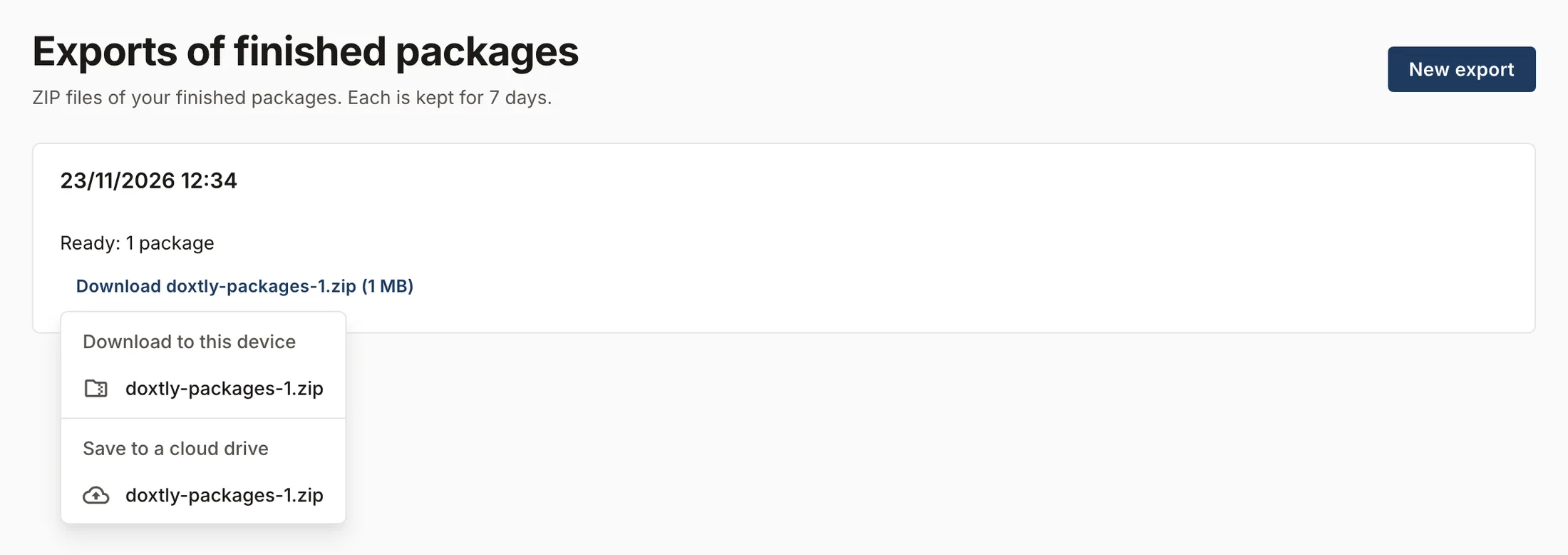
The export is built in the background, and you are notified when it is ready. The exports page, Exports of finished packages, lists them with their state: Waiting to start, Being built…, Ready with the number of packages, or Failed. A ready export has a Download link for each ZIP file; a large export is split into several files, each with at most 2,000 packages and 2 GB. Files are kept for 7 days. With a connected drive, each file of 50 MB or less can also be saved to a drive (Save to a cloud drive); a larger one is only downloaded.
One export runs at a time for the organization. An export holds what the person who started it can read, and only they see it, unless you can read every package of the organization, in which case you see all its exports. To export packages you picked on the list, tick them and choose Export on the bar: the selected packages that ended completed, declined or voided are exported, whatever their dates.