

PayU integration
A PayU integration connects a point of sale (POS) of your organization’s PayU shop to Doxtly. Your forms can then take payments: the visitor pays with BLIK, an online bank transfer or a card on PayU’s page, and the money goes to your PayU account, under your agreement with PayU. Doxtly takes no fee and never sees the payer’s card or bank details.
Available when: your plan includes payments (Starter, Pro and Business), and you hold Manage integrations
On a plan without payments, PayU isn’t offered among the types, and opening an integration made earlier shows “Payments are not in your plan” with See the plans.
What needs it
Section titled “What needs it”- the Payment element of a form, which names the integration the money goes through
- refunds of the payments made through it
Each integration is one POS, and a POS takes payments in one currency. To be paid in PLN and in EUR, for example, set up a POS for each currency in PayU and add an integration for each here. You choose one integration per form.
Before you start
Section titled “Before you start”You need a PayU business account that has been verified and can take payments, with a shop and a POS in it. You’ll copy up to four values from PayU’s panel: they are under Online payments → My shops → POS → Configuration keys (in the Polish panel, Płatności elektroniczne → Moje sklepy → POS → Klucze konfiguracyjne).
To try things out first, sign up for PayU’s sandbox too. It is a separate PayU account, with its own shop, POS and keys, and takes test payments only.
Connect PayU
Section titled “Connect PayU”- Go to Organization, Integrations, click New integration and pick PayU in the Payments group.
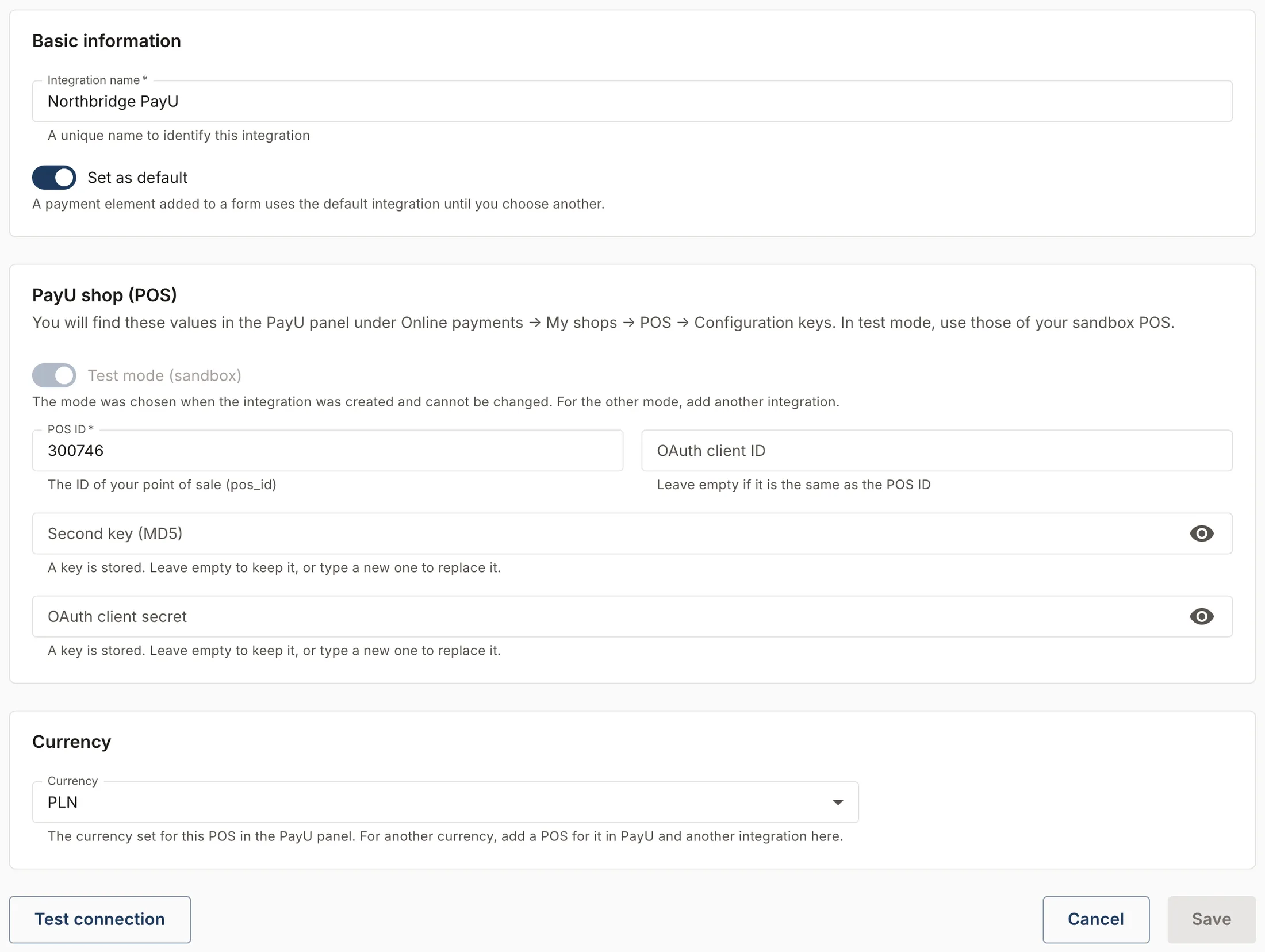
- Fill in Integration name, such as “Northbridge PayU”.
- Leave Test mode (sandbox) off for real payments, or switch it on for your sandbox POS. You can’t change it later.
- Type the POS ID, and the OAuth client ID if your POS shows one different from it.
- Paste the Second key (MD5) and the OAuth client secret.
- Under Currency, choose the currency set for this POS in PayU’s panel.
- Click Save. The integration is a Draft.
- Click Test connection. Once PayU accepts the keys, the integration turns Active and forms can use it.
Until it passes its test, the page says “Test the connection to start taking payments: forms can use this integration only after a successful test.” Saving a new POS ID, client ID or key makes it a Draft again, so test once more after you change them.
Every field
Section titled “Every field”| Field | What it does |
|---|---|
| Integration name | Your label, shown wherever a payment integration is chosen, such as the form’s payment element. Up to 255 characters, unique among your PayU integrations. |
| Set as default | Makes this the integration a new payment element takes. “A payment element added to a form uses the default integration until you choose another.” |
| Test mode (sandbox) | Payments go through PayU’s sandbox, and no real money changes hands. Chosen when you create the integration, and fixed from then on: “The mode was chosen when the integration was created and cannot be changed. For the other mode, add another integration.” |
| POS ID | The ID of your point of sale (pos_id in PayU’s panel), the number only. Required. |
| OAuth client ID | The client ID (client_id) of the POS. Leave it empty if it is the same as the POS ID, which it usually is. |
| Second key (MD5) | The key that signs PayU’s notifications, so Doxtly can tell they really come from PayU. Required. |
| OAuth client secret | The key (client_secret) with which Doxtly creates payments and refunds in your shop. Required. |
| Currency | The one currency this POS takes, as set in PayU’s panel: PLN, EUR, USD, GBP, CZK, HUF, RON, BGN, CHF, DKK, NOK or SEK. |
| Test connection | Asks PayU for access with the saved client ID and secret. Nothing is paid. It works once your changes are saved. |
Both keys are stored encrypted and never shown again. Once saved, their fields say “A key is stored. Leave empty to keep it, or type a new one to replace it.” A key can be at most 64 characters long.
The test checks the client ID and secret only. The second key is used only when a notification arrives, so copy it with care.
Payments through PayU
Section titled “Payments through PayU”The smallest payment PayU takes depends on the currency:
| Currency | Minimum | Currency | Minimum |
|---|---|---|---|
| CHF, EUR, GBP, USD | 0.01 | CZK | 0.30 |
| PLN, RON | 0.05 | HUF | 5 |
| BGN, DKK, NOK, SEK | 1.00 |
Doxtly sets no upper limit; your PayU agreement may have one.
- The payer chooses among the payment methods your POS offers on PayU’s page. The page opens in the payer’s language when PayU has it (Polish, English, Czech, German, Spanish, Italian, Dutch, Portuguese or Slovak), and in English otherwise.
- The payer’s email address goes to PayU when the form names a Payer’s email field. PayU doesn’t require it.
- PayU requires the IP address of the payer’s device with every payment, and Doxtly sends it.
- PayU’s page stays valid until the 24 hours to pay run out. PayU then cancels the unpaid order itself.
- You don’t set a notification address in PayU’s panel: Doxtly gives PayU its address with each payment.
If your POS has automatic collection switched off, PayU holds each payment until the seller confirms it. Doxtly confirms every payment made through this integration, so you don’t collect them by hand.
Refunds
Section titled “Refunds”You refund a PayU payment from its page in Doxtly, in full or in part, several times if you need, up to what was paid. See Refunds.
- PayU pays refunds from your PayU balance. If the balance can’t cover one, it is refused: “Your PayU balance can’t cover this refund. Top it up in PayU and try again.”
- PayU keeps its fee for the original payment.
- PayU accepts refunds only for a limited time after the payment, and doesn’t publish how long. Past it, a refund is refused: “The time for refunds through PayU has passed for this payment.”
The refund window lists these rules before you ask, and names PayU’s fee for the payment. The payment’s page shows the fee as Provider’s fee.
When it stops working
Section titled “When it stops working”| What you see | What to do |
|---|---|
| The integration turns Invalid: “The last connection test with PayU failed: the keys were not accepted. Check them, save and test the connection again.” | Copy the values from Configuration keys again, save and test. Check that test mode matches the account the keys come from: sandbox keys don’t work for real payments, and the other way round. |
| “PayU does not accept payments in this currency for this integration.” | The currency chosen here isn’t the POS’s. Choose the one set for the POS in PayU’s panel. |
While PayU can’t be reached, payments waiting for confirmation stay Pending, past their 24 hours if need be, and Doxtly keeps asking until PayU answers. If PayU still can’t be asked by then, because the keys have stopped working, the payment ends unpaid, and the people who manage integrations get the notification A payment provider could not be reached. Its Open the integration opens this page.
What you see once it’s set up
Section titled “What you see once it’s set up”Click the row in the list for the summary: the POS ID, the Currency, and Test mode or Live mode.

What Doxtly reads and writes in PayU
Section titled “What Doxtly reads and writes in PayU”| Reads | Writes | |
|---|---|---|
| Orders | The status of the orders it created, with the payment method and PayU’s fee | An order for each attempt to pay: the amount, currency, the payment’s description, the payer’s email address, language and IP address, and the addresses PayU returns the payer to and sends its notifications to |
| Collection | PayU’s notification that a payment was made | Its confirmation of each payment PayU holds for collection |
| Refunds | Their status | The refunds you ask for, and the automatic ones for late payments |
Doxtly doesn’t read your shop’s other orders, its balance or payouts.
Delete a PayU integration
Section titled “Delete a PayU integration”An integration with a payment still waiting for the payer can’t be deleted: “This integration has payments waiting for the payer. It can be deleted once they have ended.” Make the forms that pay through it inactive, then wait until the last payment has ended, at most 24 hours.
Once deleted, its payments stay on the Payments page, marked Integration deleted, and can only be refunded in PayU’s panel. A form whose payment element named it can’t be sent, and its visitors read “This form cannot take payments at the moment. Try again later or contact the organization.” until you choose another integration in the element. See Delete an integration.