

Taking payments
A form can ask for money: a workshop fee, a consultation booked in advance, an application fee. The visitor fills in the form, pays on the payment provider’s page, and only then does the submission count and its workflows start. Northbridge Advisory sells places on its workshops this way: the participant pays 490.00 PLN with BLIK while signing up, and the confirmation with the invoice request goes out only once the money is in.
Available when: your plan includes payments (Starter, Pro and Business)
Your account, your money
Section titled “Your account, your money”You take payments through your own account at a payment provider: Przelewy24 or PayU, popular in Poland for BLIK, fast bank transfers and cards, Stripe, for cards, wallets and local payment methods around the world, or PayPal, for PayPal accounts and cards. Your organization is the seller. The payer pays you, the provider pays the money out to you under your agreement with it, and its fees are between you and the provider.
Doxtly takes no fee and no part in the payment. It never sees a card number or a bank login: the payer types those on the provider’s page, not on yours. Doxtly tells the provider what to collect, sends the payer there, and asks the provider afterwards whether the payment was made.
What you need
Section titled “What you need”- A merchant account at Przelewy24, a Stripe account, a PayU shop or a PayPal business account, ready to take payments.
- A Przelewy24, Stripe, PayU or PayPal integration, connected and Active.
- A form with the Payment element: how much, in which currency and through which integration.
How a payment runs
Section titled “How a payment runs”- The visitor fills in the form. The payment element shows the amount, and the button at the end says Pay and submit instead of the usual one.
- They click it. Doxtly checks the answers and works out the amount on the server, from the form’s own settings and formulas. What the browser shows or sends about the amount is never trusted.
- The submission is stored as Awaiting payment, and the visitor goes straight to the provider’s page: the checkout of Przelewy24, Stripe, PayU or PayPal, in their language where the provider has it.
- They pay there, with whatever your account offers.
- The provider sends them back to Doxtly’s payment page, which shows the amount and the form’s name. While it waits for the provider’s word it says Confirming your payment…. Doxtly asks the provider itself whether the payment was made, so a page left open never waits for long.
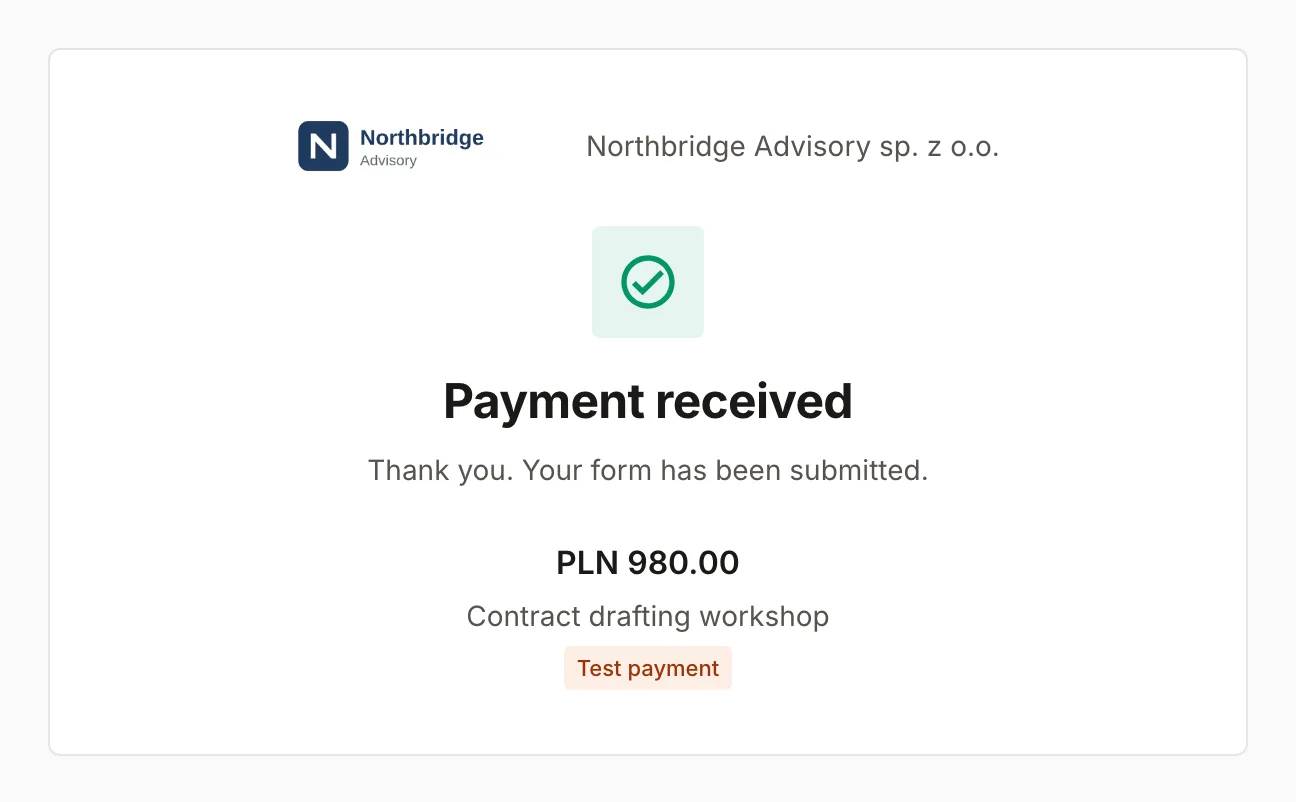
- Once the provider confirms, the page says Payment received with your form’s success message, or sends the visitor on to the page your form redirects to. The submission becomes an ordinary one, and its workflows start.
A notification the provider sends counts only as a hint. Before a payment counts as paid, Doxtly asks the provider directly, and where the provider needs it, also completes the payment: it confirms the transaction with Przelewy24, without which Przelewy24 doesn’t pay the money out, captures the payment the payer approved at PayPal, and confirms a payment PayU holds for collection. A payment is paid once however often the provider reports it, so its workflows start once.
When nobody pays
Section titled “When nobody pays”The payer has 24 hours from sending the form to pay. Until then the submission waits:
- it is in the form’s submissions, marked Awaiting payment, but it is left out of the results, counts and exports, and doesn’t use up your plan’s submissions
- no workflow runs and no outgoing webhook is sent for it
- it can’t be edited
Meanwhile the visitor can try as often as they need. When an attempt fails, Doxtly’s payment page says The payment did not go through with Try again, which takes them to the provider again for the same amount, with their answers kept. A payer who comes back from the provider’s page without paying finds Doxtly’s payment page still confirming, because the provider hasn’t said no; after about twenty seconds it offers Go back to payment.
After 24 hours the payment ends unpaid: it is Expired on the Payments page, the submission is marked Unpaid (expired), and nothing ever starts for it. The visitor who opens the payment page then reads The time to pay has run out, and to send the form they fill it in again.
No new attempt can be started once the 24 hours are over, but one already under way may finish. With Stripe, a payment page opened in the last half hour stays open for a full 30 minutes, so the payment ends only when that page closes.
A payment that arrives too late
Section titled “A payment that arrives too late”Sometimes the provider confirms a payment only after the 24 hours have passed. The submission has already ended unpaid and isn’t brought back, so Doxtly gives the money back automatically and in full, and the people who may refund payments get the notification A late payment was refunded. The refund shows on the payment’s page as made Automatically (late payment), and once it goes through the payment shows Refunded.
Payment after signing
Section titled “Payment after signing”A party of a package can also be asked to pay once they have signed, through the same integrations: a deposit with a lease, a retainer with an engagement letter. The package waits for the payment before it moves on. See Sign and pay.
Refunds
Section titled “Refunds”Anyone with Refund payments can give a paid payment back, in full or in part, from its page on Payments. The money goes back to the payer through the provider, to the card or account they paid with. See Refunds.
Test mode
Section titled “Test mode”Each integration is made either in test mode or for real, and stays that way. Use a test integration to try a form end to end before you go live: the sandbox of Przelewy24, PayU or PayPal, or Stripe’s test mode, takes test payments, and no real money changes hands. Payments made through it carry a Test chip on the Payments page and in submissions, and the payer’s page shows Test payment.
To go live, add a second integration that isn’t in test mode and choose it in the form’s payment element.
Who may do what
Section titled “Who may do what”| Permission | What it allows | Built-in roles |
|---|---|---|
| View payments | The Payments page, each payment’s attempts and refunds, and the payer’s email address. Also setting up the Payment trigger. | Administrator, Manager, Member |
| Refund payments | Giving money back to payers, in full or in part, and the notifications about refunds. | Administrator, Manager |
| Manage integrations | Connecting Przelewy24, Stripe, PayU and PayPal, and the notification A payment provider could not be reached. | Administrator, Manager, Member |
| Manage forms | Adding the payment element to a form. | Administrator, Manager, Member |
See Roles. A program can read payments and refund them through the API.
Your plan
Section titled “Your plan”Payments are part of the Starter, Pro and Business plans. On Free, Przelewy24, Stripe, PayU and PayPal aren’t offered among the integrations, the Payments page isn’t in the sidebar, and a form with a payment element can’t be saved or sent.
If your plan loses payments, nothing already started is dropped: payments under way are still confirmed, expired or refunded as usual, because it’s your payers’ money. New ones can’t be taken until the plan has payments again.