

Expressions and functions
Wherever Doxtly fills something in from your data, it uses one language: a file name in a workflow, a form’s submission title, a dynamic value on a PDF, a condition, a numbering pattern, an email’s subject. A variable looks the same in all of them, client.name, and the same functions work in all of them, so what you learn in one place works in the next. This page is the reference for all of it.
Most of the time you only pick a variable from a list. When you need more, such as a client number in capitals, a date written your way, a total of a list or a stand-in for a value that may be missing, you add it with the same editor wherever you are.
Three kinds of field
Section titled “Three kinds of field”A field takes the language in one of three ways. You see which from the field itself: a text field shows variables as {{ … }}, an expression field has no braces at all.
| Kind | What you write | Example | Where |
|---|---|---|---|
| Text with variables | Ordinary text, with a variable or an expression between double braces wherever a value belongs | Agreement {{ agreement.id }} for {{ client.name | upper }} |
Titles, messages, file names and folders, addresses, phone numbers, email subjects and bodies, webhook addresses and bodies, spreadsheet cells, AI prompts, numbering patterns |
| An expression | One expression, the whole field, without braces | qty * price, fee > 10000 and client.country == "NO" |
A form’s dynamic values, QR codes and barcodes, conditions written as an expression and allowed dates; a PDF template’s dynamic values and codes; the Condition and Switch nodes; a redirect parameter’s variable; the label of an option from a data source |
| A path | One variable and nothing else | order.products |
The webhook’s Field, the list a spreadsheet step repeats over |
Inside the braces of a text field you write exactly what an expression field holds. Total: {{ qty * price }} prints the product, while {{ qty }} * {{ price }} prints the two values with * between them, because the text outside the braces is kept as written. A literal {{ in a text field is written {{ "{{" }}; a single brace, and }} outside braces, are plain text.
The places, with their own pages:
| Where | Fields |
|---|---|
| Workflows | Every text field of a step, the Condition and Switch nodes. See Data and variables. |
| Forms | Submission title, success message and redirect, default values and conditions, dynamic values and codes, allowed dates, option labels from a data source |
| Interactive documents | Submission title, success message and redirect |
| Quizzes and surveys | A quiz’s success message and redirect, the message a survey shows at the end |
| PDF templates | Dynamic values and codes |
| Document types | The numbering pattern |
| Emails and text messages | The subject and the body, which are Twig with the same functions and a few differences |
Word templates have markers of their own, ${client.name}, described in Word templates. The Data transformation node runs JavaScript, see below.
The editor
Section titled “The editor”Every field that takes variables is the same editor, in a workflow, a form, a PDF template or an email. It colours what you write as you type: variables, functions, text in quotes, numbers and operators each have their colour, the same in every field, and a whole {{ … }} is framed as one unit.
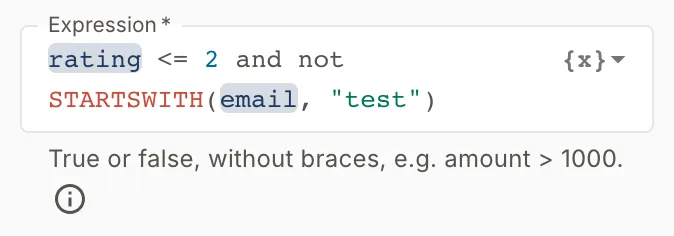
At the end of the field are its buttons.
| Button | What it does |
|---|---|
{x} Insert a variable |
Lists the variables this place can use, grouped and searchable, each with its label, path and kind. Click one to put it at the cursor: in a text field as {{ path }}, inside braces or in an expression field as the bare path. A name that isn’t a plain word goes in quoted, such as client["first name"]. |
Σ Operations on this variable |
In an expression field, opens the operations of the variable under the cursor, or of what you selected. In a text field the same window opens from the variable itself. |
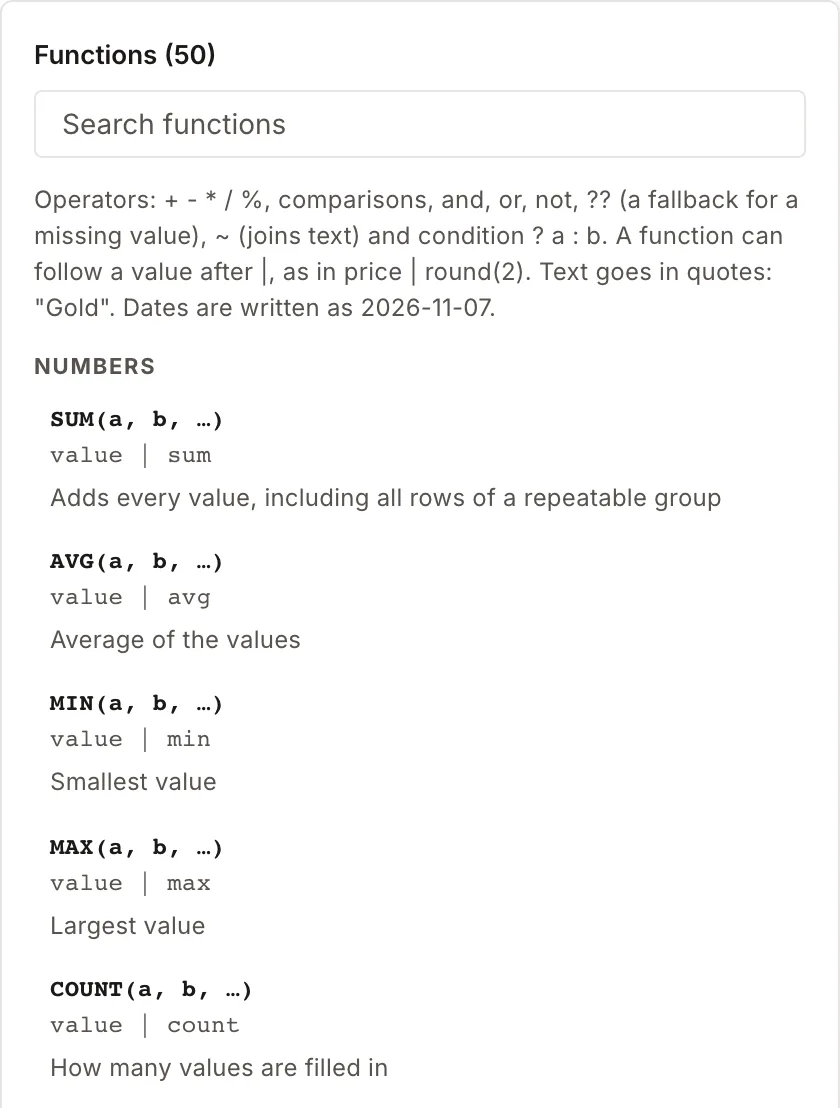
f(x) Functions |
The list of every function, by group, each with what it takes, how it’s written after a | and what it does. Search it by name or description. Click one to put it at the cursor with the cursor between its brackets, in a text field as {{ NAME() }}. |
In a text field, a closed {{ … }} behaves as one unit: the arrow keys skip over it, and Backspace or Delete removes it whole. You change what’s inside through its operations, below.
A long value wraps onto the next line between words (only a word longer than the whole line is split) and the field grows with it, so you can always read all of it, in a narrow side panel and on a phone too. While you aren’t typing in the field, a variable and a quoted text such as "Partner-led" move to the next line whole. Enter doesn’t start a new line in a field of one line. Where a field is too narrow for its buttons, they’re gathered under one {x}▾ button, Variables and functions: open it and pick Insert a variable, Functions or Operations on this variable, with the mouse or the keyboard.
Operations on a variable
Section titled “Operations on a variable”You don’t have to type a function to change a value. Put the cursor on a variable and a small Operations button appears beside it. Click it, or press Alt+Enter. Esc puts it away. On a touch screen, tap it.
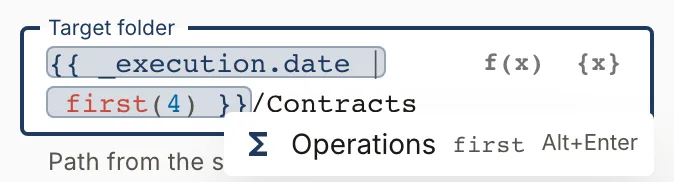
The Operations on this variable window shows the value at the top and its operations below it, which run from top to bottom.
- Click Add operation and pick one. The list is grouped like the functions and says in plain words what each does.
- Fill in what it asks for, such as the number of characters, or the fallback of Default value. A field that takes a value is an expression field with its own
{x}, so a fallback can be another variable. - Add more if you need them. The arrows change the order, and the bin removes one.
- Check Result, which shows the operations on an Example value. Type a value of your own there to try it.
- Click Apply. Ctrl+Z takes the change back, and Cancel, Esc or a click outside the window leaves the variable as it was.
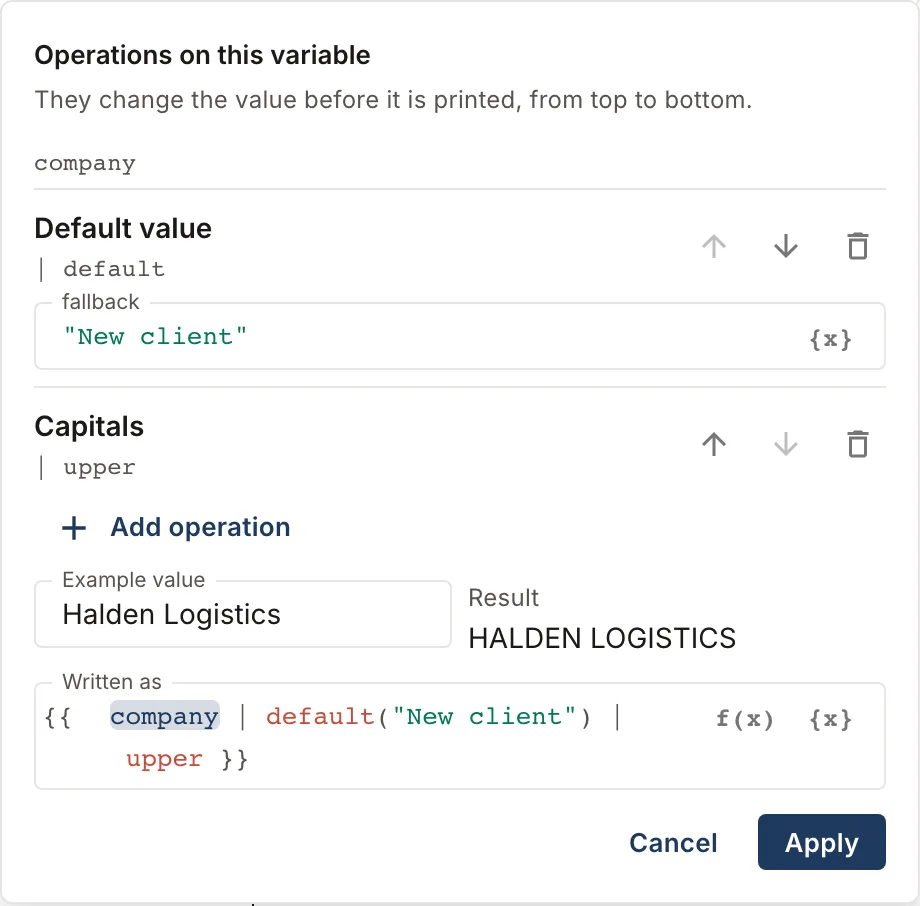
Written as shows the exact text the window writes, and you can edit it: what you type there shows up in the rows above, and the other way round. A value made of several parts, such as company ~ " - " ~ _execution.date, gets its operations as a whole. In an expression field the window works on the variable under the cursor, or on what you selected.
The window knows what each operation can work on. An operation that can’t work where it stands, such as Pad on the left after Split, is marked with the reason and the window won’t apply it. One that changes nothing, such as Capitals before Digits only, gets a note and can stay. Add operation shows what can’t follow greyed out, with the reason.
Mistakes are pointed out as you write
Section titled “Mistakes are pointed out as you write”Under the field, the editor says what is wrong and where, for every part that can’t be read, and marks the spot with a wavy line:
- red, an error: text that isn’t the language, such as
{{ id | first:4 }}or a{{that is never closed, a function that doesn’t exist (Unknown function “frist”), a function with too few or too many values, a value a function can never take (first(0), a date pattern with letters it doesn’t know) - orange, a warning: a variable this place doesn’t have, such as a form field that isn’t on the form or a step that comes later. It would be empty when the run gets there.
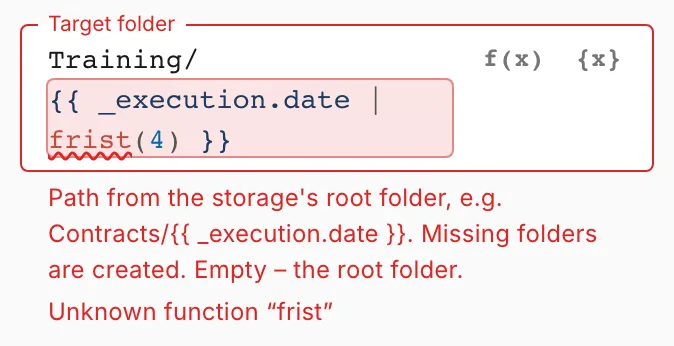
Errors are listed under Problems in the workflow designer, the form designer and the interactive document editor. A workflow, a form or an interactive document with one can’t be saved, and the app refuses the same text when it comes another way, with the reason. A warning doesn’t stop you saving. In a field that must be complete for the step to work, such as a recipient’s address or a document password, a variable the place doesn’t have is an error.
Writing an expression
Section titled “Writing an expression”Values
Section titled “Values”| Value | Written as |
|---|---|
| A variable | Its path: client.name, items[0].sku (see Paths) |
| Text | In double or single quotes: "approved", 'approved'. A quote of the same kind inside is written \", a line break \n. |
| A number | 10000, 2.5, 1e3. A minus in front is an operator: -5. |
| Yes and no | true, false |
| Nothing | null |
| A list | ["NO", "SE", "DK"] |
A date is text: "2026-11-07", see Dates. The words true, false, null, and, or, not and in may be written in any letter case, and so may function names.
A path reads a value from the data of the place: a form’s answers, a run’s variables, a row.
| Path | Reads |
|---|---|
client.name |
The name of client |
items[0].sku |
The sku of the first item of a list, counted from 0 |
items[].price |
The price of every item, as a list: SUM(items[].price) |
items[]._length |
The number of items of a list |
client["first name"] |
A key with a space, a hyphen or a dot in it |
$["first name"] |
Such a key at the top: a column of a data source’s row, a webhook’s field |
_nodes["umowa-najmu"].number |
A step whose ID has a hyphen |
_metadata["client name"] |
A metadata key with a space |
The {x} button writes every path the right way, so you rarely type the brackets yourself.
A path that leads nowhere never stops anything. A key that isn’t there, a client that is missing altogether, a step into a text, or items[5] on a list of three all give nothing, null, without an error. That’s what lets a default take over.
Operators
Section titled “Operators”| Operator | Means | Example |
|---|---|---|
+ - * / |
Add, subtract, multiply, divide | qty * price * (1 + vat / 100) |
% |
Remainder | number % 2 == 0 |
~ |
Joins as text | firstName ~ " " ~ lastName |
== != |
Equal, not equal, forgiving about types: "5" == 5 is true |
status == "approved" |
=== !== |
Equal including the type: "5" === 5 is false |
count === 0 |
< <= > >= |
Comparison: numbers as numbers, otherwise text, so ISO dates compare in time order | signedOn < "2027-01-01" |
in, not in |
On a list, or part of a text | country in ["NO", "SE"], "@" in email |
and (or &&) |
Both | paid and approved |
or (or ||) |
At least one | vip or amount > 5000 |
not (or !) |
The opposite | not agreed |
? : |
If, then, else | amount > 1000 ? "large" : "small" |
?: |
This, or that if this is empty | nickname ?: firstName |
?? |
This, or that if this is missing | discount ?? 0 |
| |
Passes the value to a function | client.name | upper |
Brackets group: (country == "NO" or country == "SE") and fee > 5000.
Some things to know:
+adds numbers and joins anything else.2 + 3is5and"2" + 3is5too, because"2"reads as a number."Ada" + " " + "Lovelace"isAda Lovelace.~always joins:1 ~ 2is12.- Dividing by zero gives 0, so a calculation never stops on an empty field.
inis forgiving like==.5 in ["5", "6"]is true, and spaces at the ends of text don’t count. On text,inasks whether one text is part of the other, with letter case counting.- Letter case counts in
==andin:"a" == "A"is false. CompareLOWER(country) == "no", or useMATCHESwith the flag"i".
Functions
Section titled “Functions”A function is written by its name with its values in brackets, ROUND(total, 2), or after a value and |, which hands that value in as the first one: total | round(2) is the same as ROUND(total, 2). Several in a row run left to right:
{{ agreement.id | first(6) | upper }}Names may be written in any letter case. The editor writes them in capitals as a call and in lower case after |. Not every function can follow a |: those that don’t start from one value, such as IF or TODAY, are only written as calls. The list of functions says which can.
A function after | belongs to the value right before it, not to the whole calculation: qty * price | round(2) rounds only price. Write (qty * price) | round(2) or ROUND(qty * price, 2).
A function never stops anything either. Given what it can’t use, such as a date that isn’t a date, it gives nothing, as a missing variable does.
Missing values and defaults
Section titled “Missing values and defaults”A value can be missing: an optional field left empty, a nickname a contact never gave, a parameter the link didn’t carry. Give it a stand-in in one of three ways.
| Write | Gives the stand-in when the value is | Example |
|---|---|---|
value ?? stand-in |
Missing or null |
discount ?? 0 |
value | default(stand-in) |
Missing, null, empty text or an empty list |
client.nickname | default("there") |
value ?: stand-in |
Anything that counts as false: also 0 and false |
nickname ?: firstName |
default is offered as Default value in the Operations window. The stand-in can be any expression, another variable included:
Dear {{ client.nickname | default(client.firstName) }},This reads nickname, and when there is none, the first name. It works however much is missing: when the contact has no nickname key at all, when there is no client, or when client is a text rather than a record. 0 and false are values, not gaps, so default keeps them; use ?: to replace them too.
All functions
Section titled “All functions”Each function, what it does, and an example with its result. The ones marked with | can also be written after a value.
Numbers
Section titled “Numbers”| Function | What it gives | Example | Result |
|---|---|---|---|
SUM(a, b, …) | |
The total. Lists are added item by item, empty values left out. | SUM(items[].amount) |
2000 for 1200 and 800 |
AVG(a, b, …) | |
The average | AVG(8, 9, 10) |
9 |
MIN(a, b, …) | |
The smallest | MIN(fee, 5000) |
4200 when fee is 4200 |
MAX(a, b, …) | |
The largest | MAX(fee, 500) |
500 when fee is 300 |
COUNT(a, b, …) | |
How many are filled in: not empty, null or false |
COUNT(phone, email) |
1 when only the email is given |
ROUND(value, digits) | |
Rounded, half up, to that many decimals (0 when left out); a negative number rounds to tens, hundreds and so on | ROUND(19.987, 2) |
19.99 |
FLOOR(value) | |
Rounded down to a whole number | FLOOR(4.7) |
4 |
CEIL(value) | |
Rounded up | CEIL(4.2) |
5 |
ABS(value) | |
Without the minus | ABS(-30) |
30 |
NUMBER(value) | |
Text read as a number, a comma counting as the decimal point; what isn’t a number is 0 | NUMBER("4,5") |
4.5 |
FORMATNUMBER(number, places, decimalSeparator, thousandsSeparator) | |
The number as text with exactly that many decimals (0 to 10), after the decimal separator (a dot when left out) and with the thousands separator between each three digits (none when left out) | FORMATNUMBER(12500, 2, ",", " ") |
12 500,00; FORMATNUMBER(1250, 2) gives 1250.00 |
POWER(base, exponent) | |
The base raised to the exponent | POWER(2, 10) |
1024 |
Choices
Section titled “Choices”| Function | What it gives | Example | Result |
|---|---|---|---|
IF(condition, then, else) |
then when the condition holds, otherwise else (nothing when left out) |
IF(fee >= 10000, "partner", "manager") |
partner for 12000 |
SWITCH(value, match1, result1, …, default) |
The result of the first match; a last value without a pair is the default | SWITCH(plan, "basic", 100, "pro", 250, 0) |
250 for pro |
IFS(condition1, result1, …, default) |
The result of the first condition that holds | IFS(value >= 10000, 10, value >= 5000, 5, 0) |
5 for 7500 |
IN(value, a, b, …) |
Whether the value is one of the others | IN(country, "NO", "SE", "DK") |
true for SE |
DEFAULT(value, fallback) | |
The fallback when the value is missing, null, empty text or an empty list |
nickname | default("there") |
there for no nickname |
XOR(a, b) |
Whether exactly one of the two holds | XOR(hasDiscount, hasVoucher) |
false when both do |
SWITCH and IN compare like ==, ignoring spaces at the ends of text, with letter case counting.
| Function | What it gives | Example | Result |
|---|---|---|---|
CONCAT(a, b, …) | |
The values joined with nothing between them | CONCAT(firstName, " ", lastName) |
Ada Lovelace |
LEN(value) | |
The number of characters, or of items of a list | LEN("Łódź") |
4 |
UPPER(text) | |
In capitals, Polish letters included | "h204" | upper |
H204 |
LOWER(text) | |
In lower case | "OPS@Halden.example" | lower |
ops@halden.example |
TRIM(text) | |
Without spaces, tabs and line breaks at the ends | " H 204 " | trim |
H 204 |
CAPITALIZE(text) | |
The first letter a capital, the rest lower case | "hELLO" | capitalize |
Hello |
DIGITS(value) | |
Only the digits 0 to 9, leading zeros kept | "+48 600-100-200" | digits |
48600100200 |
PAD(value, length, character) | |
Filled up on the left to the length (1 to 1000), with zeros or the character given. A longer value stays whole; an empty one stays empty. | 42 | pad(6), 42 | pad(6, "#") |
000042, ####42 |
REPLACE(text, search, replacement) | |
Every occurrence replaced, letter case counting | "UM/2026/7" | replace("/", "-") |
UM-2026-7 |
STARTSWITH(text, prefix) | |
Whether the text starts with it | STARTSWITH(postcode, "41") |
true for 41-200 |
ENDSWITH(text, suffix) | |
Whether the text ends with it | ENDSWITH(email, "@northbridge.example") |
true for a colleague |
MATCHES(text, pattern, flags) | |
Whether a regular expression finds a match; the flag "i" ignores letter case |
MATCHES(code, "^H-\d+$", "i") |
true for h-204 |
SPLIT(text, separator) | |
A list of the parts. With "" as the separator, the single characters; an empty text gives an empty list. |
"red, green" | split(", ") |
the list red, green |
| Function | What it gives | Example | Result |
|---|---|---|---|
TODAY() |
Today’s date in your organization’s time zone | TODAY() |
2026-11-12 |
NOW() |
The date and time now, in the same zone | NOW() |
2026-11-12T14:30 |
DATE(year, month, day) |
The date; an overflow rolls on | DATE(2026, 13, 1) |
2027-01-01 |
ADDDAYS(date, days) | |
That many days later, or earlier when negative | ADDDAYS("2026-11-12", 14) |
2026-11-26 |
ADDMONTHS(date, months) | |
That many months later, on the last day of a shorter month | ADDMONTHS("2026-01-31", 1) |
2026-02-28 |
ADDYEARS(date, years) | |
That many years later | ADDYEARS("2026-11-12", 2) |
2028-11-12 |
DAYS(end, start) |
Whole days from the start to the end | DAYS("2026-12-24", "2026-11-12") |
42 |
YEAR(date), MONTH(date), DAY(date) | |
The year, the month (1 to 12), the day of the month | MONTH("2026-11-12") |
11 |
WEEKDAY(date) | |
The day of the week, 1 for Monday to 7 for Sunday | WEEKDAY("2026-11-12") |
4 |
FORMATDATE(date, pattern) | |
The date written in a pattern | "2026-11-12" | formatdate("dd.MM.yyyy") |
12.11.2026 |
| Function | What it gives | Example | Result |
|---|---|---|---|
LOOKUP(list, matchKey, value, resultKey) | |
From a list of rows, resultKey of the first row whose matchKey equals the value |
LOOKUP(_data.prices, "Code", order.workshop, "Price EUR net") |
The price of the workshop ordered |
CONTAINS(list, value) | |
Whether a list holds the value, or a text contains it | CONTAINS(tags, "vip") |
true when ticked |
INDEX(list, n) | |
The item at position n, counted from 1 |
INDEX(items, 1) |
The first item |
FIRST(value, count) | |
Of a list, its first item, or the first count items; of text, the first count characters (1 when left out) |
"agr123456789" | first(6) |
agr123 |
LAST(value, count) | |
The same from the end | national_id | last(6) |
803628 for 02070803628 |
SLICE(value, start, length) | |
A part of a list or a text, from start (0 is the first, negative counts from the end), length long or to the end |
"2026-11-12" | slice(0, 7) |
2026-11 |
JOIN(list, separator) | |
The items as one text, with ", " between them unless you give another separator |
tags | join(" / ") |
vip / partner |
first and last count characters, not bytes: ż is one, and so is an emoji. A text shorter than the count stays whole.
A date is text in one of these forms, with spaces around it ignored:
| Form | Example |
|---|---|
| A date | 2026-06-15, also 2026-6-5 |
| A date and time | 2026-06-15T14:30, 2026-06-15 14:30:00 |
| A moment with its offset, like the ones a trigger hands over | 2026-06-15T14:30:00+02:00, also with Z or a fraction of a second |
| Day first | 15.06.2026, 5.6.2026, 15.06.2026 14:30 |
A moment is read on the clock it’s written in, and the dates triggers hand over are in your organization’s time zone, so formatdate(_party.signedAt, "HH:mm") prints local time. An impossible date such as 31.02.2026, 15/06/2026 or a bare number isn’t a date: a date function given one gives nothing.
Date patterns
Section titled “Date patterns”FORMATDATE writes a date in a pattern built from these letters:
| Letters | Prints | Example |
|---|---|---|
d, dd |
Day, without and with a leading zero | 5, 05 |
M, MM |
Month as a number | 6, 06 |
MMM, MMMM |
Month name, short and full | Jun, June |
LLLL |
Month name standing on its own, as in a heading | June |
yy, yyyy |
Year, two and four digits | 26, 2026 |
E or EEE, EEEE |
Day of the week, short and full | Mon, Monday |
H, HH |
Hour, 0 to 23 | 9, 09 |
h, hh |
Hour, 1 to 12 | 2, 02 |
m, mm |
Minute | 5, 05 |
s, ss |
Second | 0, 00 |
a |
AM or PM | PM |
Anything else between letters, such as ., -, /, :, a comma or a space, is printed as it is. Words go in apostrophes, 'at', and an apostrophe itself is written ''. Other letters are refused, so the editor tells you about a mistake straight away.
| Pattern | Gives for 15 June 2026, 14:05 |
|---|---|
"dd.MM.yyyy" |
15.06.2026 |
"yyyy-MM-dd" |
2026-06-15 |
"d MMMM yyyy" |
15 June 2026 |
"dd.MM.yyyy 'at' HH:mm" |
15.06.2026 at 14:05 |
"EEEE, d MMM" |
Monday, 15 Jun |
"MM/yy" |
06/26 |
Month and day names are written in the language of the place: a form in the language it’s shown in, an email in the language of its version, every step of a workflow in your organization’s language. A workflow’s TODAY() and NOW() are your organization’s day and time too, so a run just before midnight in New York still counts the day that is ending there. In Polish, MMMM is the form used after a day, 15 czerwca 2026, and LLLL the form on its own, czerwiec.
Regular expressions
Section titled “Regular expressions”MATCHES checks text against a pattern. It finds a match anywhere in the text, so anchor it with ^ and $ to check the whole of it: MATCHES(postcode, "^\d{2}-\d{3}$"). A backslash is written once.
| You can use | Means |
|---|---|
| A character | Itself; \ before one of \ ^ $ . | ? * + ( ) [ ] { } / - makes it plain |
. |
Any character but a line break |
\d \w \s, and \D \W \S |
A digit 0 to 9; a letter A to Z without accents, a digit or _; a space, a tab or a line break; and anything but those |
\b |
The edge of a word, where a \w character meets something else |
\n, \t, \u0041 |
A line break, a tab, a character by its four-digit code |
[abc], [a-z], [^0-9] |
One of these, a range, anything but these |
^, $ |
The start and the end of the text |
(…) or (?:…), | |
A group, one or the other |
* + ? {2} {2,} {2,5} |
Repeated: any number, at least once, maybe once, exactly, at least, between; a count up to 1,000 |
A pattern can be up to 256 characters long and is checked against text of up to 10,000 characters. Look-ahead, back references, named groups and a repeated group that repeats inside, such as (a+)+, aren’t allowed; the editor says so.
What gets printed
Section titled “What gets printed”When an expression’s value goes into text:
| The value is | Prints |
|---|---|
| Text or a number | As it is. A whole number has no .0. |
true, false |
true, false |
Missing or null |
Nothing |
| A list | Its items joined with ", " |
A record, such as client |
Nothing: pick one of its fields. A grid’s answer is the exception: it prints the rows answered. |
Arithmetic with decimals can leave long tails, as in any computer: 0.1 + 0.2 prints 0.30000000000000004. Round with ROUND or write a fixed number of decimals with FORMATNUMBER before printing an amount: {{ total | formatnumber(2, ",", " ") }} prints 45 000,50, with the separators your clients read.
In a spreadsheet cell, a JSON body’s value and an AI agent’s data, a field that holds one variable and nothing else, {{ total }}, passes the value with its type, so a number stays a number and a list a list. With text around it, it’s text.
When a value is missing, field by field
Section titled “When a value is missing, field by field”What the place does with an empty result depends on what it’s for:
| Field | What happens |
|---|---|
| Most text fields: titles, messages, file names of generated documents, an AI agent’s prompt, webhook headers and text bodies, email subjects and bodies, CC and Reply-to address | The empty part prints nothing, the rest stays. An empty file name takes the default name. |
| A party’s name, email address and phone number in Create documents | The same, and the step then fails if a party is left without what it needs to sign |
| A form’s or interactive document’s success message and submission title | The same: nothing is printed in its place |
| A redirect parameter, a field’s default value, a personal link’s prefill | Left out: no parameter, no prefill |
| A spreadsheet cell, a JSON body’s value, an AI agent’s data | Empty |
| A contact’s field in Save contact or Update contact | The contact keeps what it has |
| Recipient email address, Recipient phone number, a document password, a folder or file path in the cloud, a sheet name, the webhook’s URL and secure headers, the responsible person | The step fails, and nothing is sent or saved. A half-filled value here would be worse than none. |
| A Condition | Missing counts as null, so discount > 10 is false and the run goes on. See Condition. |
| A Switch | Takes Default |
The warning under the field tells you beforehand about a variable that won’t be there. For a value that only may be missing, add a default.
Examples
Section titled “Examples”A greeting for someone who may have no nickname. Use the nickname, otherwise the first name, otherwise a neutral word:
Hello {{ contact.nickname | default(contact.firstName) | default("there") }},A number padded to six digits. An order number 42 becomes 000042 in a file name:
Order-{{ order.number | pad(6) }}.pdfA date written your way. A form’s date 2026-11-12 printed as 12.11.2026:
Signed on {{ signedOn | formatdate("dd.MM.yyyy") }}A total with SUM. In a form’s dynamic value, the total of a repeatable group’s line totals, with VAT:
SUM(items[].lineTotal) * (1 + vat_rate / 100)A folder per month. _execution.date is like 2026-11-12, so its first seven characters are the month:
Invoices/{{ _execution.date | first(7) }}A client code from a name. The first three letters in capitals, then the year: HAL-2026.
{{ client.name | first(3) | upper }}-{{ TODAY() | year }}Text that depends on a value. In an email subject or a title:
{{ fee >= 10000 ? "Partner review needed" : "Ready to sign" }}: {{ client.name }}A price from a list. In a PDF template’s dynamic value, the price of the workshop ordered, from a data source’s table:
LOOKUP(_data.prices, "Code", order.workshop, "Price EUR net") * order.groupsDocument passwords
Section titled “Document passwords”Generate document can lock its PDF: turn on Password protection and fill in Document password. The password is text with variables like any other, worked out once per document, so every client can get their own.
| Document password | Data | Password |
|---|---|---|
{{ agreement.id }} |
agreement.id is UM/2026/42 |
UM/2026/42 |
{{ national_id | last(6) }} |
national_id is 02070803628 |
803628 |
PWD-{{ tenant.code | upper }} |
tenant.code is abc |
PWD-ABC |
{{ vat | digits | last(4) }}{{ birthDate | formatdate("ddMMyyyy") }} |
vat is 123-456-78-90, birthDate is 1990-05-17 |
789017051990 |
{{ _execution.id | first(8) }} |
Any run | The first 8 characters of the run’s ID |
Unlike most text fields, a password is all or nothing. If a variable gives nothing or the result comes out empty, no document is made, and the step fails with The document password could not be completed: a variable it uses is empty, missing or could not be transformed. Otherwise the document would be locked with half a password, or not at all. A default counts as a value, so {{ client.code ?? "NB" }} never fails.
So build passwords from values every run has: a required form field, or _execution.id. The picker marks optional fields.
Keep in mind:
- Doxtly doesn’t store the finished password. Lists show only whether a document has one.
- The password’s text is part of the workflow, so anyone who can view the workflow can read it. Put the secret part in the data, in a field only the recipient knows.
- A password made from data is only as secret as that data, and the data stays with the record in Generated files.
Your own systems can do the same through the API by sending password with the generation request. See the API overview.
Conditions and switches
Section titled “Conditions and switches”A Condition node asks a yes-or-no question and takes True or False. A Switch reads a value and takes the path of the case that equals it. Both hold one expression, written without braces, in the language above:
amount > 10000 and client.country == "NO"A condition is true unless its value is false, null, 0, empty text or an empty list. The text "0" and the text "false" are text, so they count as true: compare them, consent == "1". A variable the run doesn’t have is null and never stops the run. Saving refuses an expression that can’t be read, with the reason and its position.
The node pages cover the rest: Condition and Switch.
Everyday conditions
Section titled “Everyday conditions”| You want | Expression |
|---|---|
| Fee above a threshold | fee > 10000 |
| Only clients from the Nordics | client.country in ["NO", "SE", "DK", "FI"] |
| A tick in a PDF checkbox | consents.marketing == "1" |
| A new submission, not an edit | _submission.revision == 0 |
| One branch of the firm | _metadata.branch == "Oslo" |
| A row was found | client.found |
| The landlord signed | _party.recipientIndicator == "LANDLORD" |
| A company address | not ENDSWITH(email, "@gmail.com") |
| A discount code was given | discount_code | default("") != "" |
| A valid postcode | MATCHES(postcode, "^\d{2}-\d{3}$") |
| More than ten participants | LEN(participants) > 10 |
Data transformation
Section titled “Data transformation”The Data transformation node runs a short piece of JavaScript over the run’s data. Reach for it when the functions above aren’t enough: reshaping a webhook’s answer, filtering a list, preparing rows for a spreadsheet. It’s JavaScript, not the language of this page, so {{ }} and the functions above don’t apply in it.
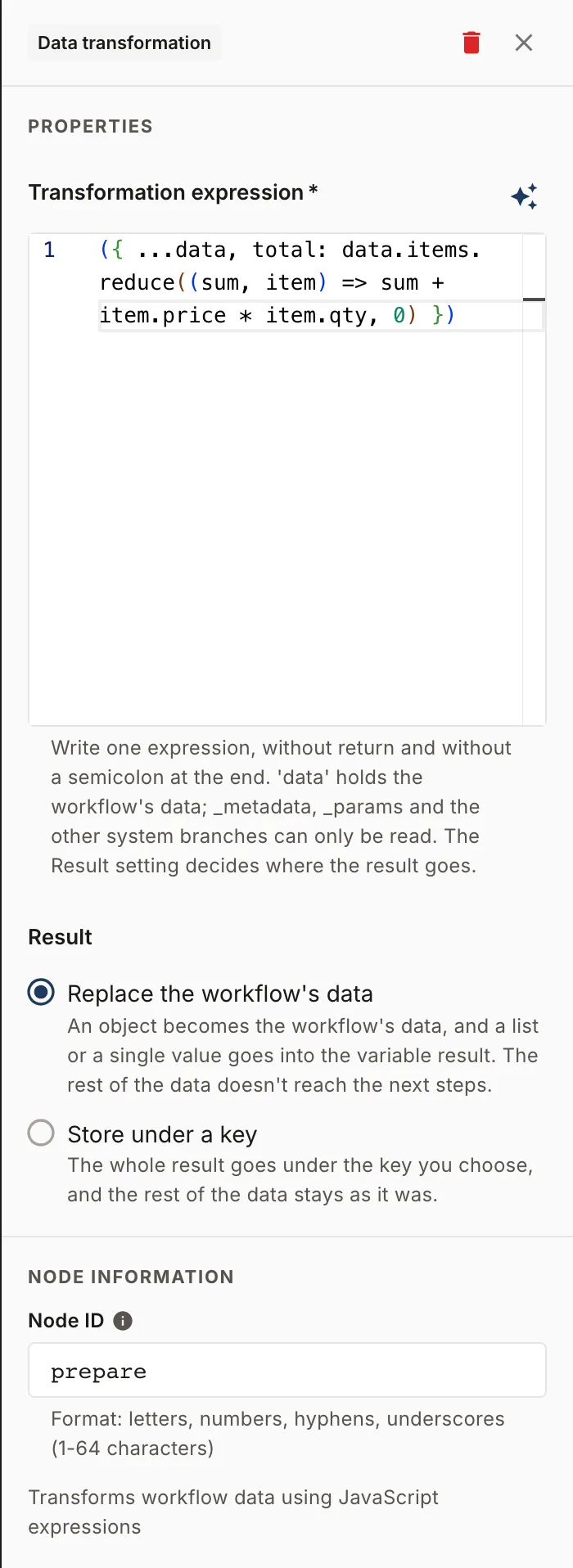
In Transformation expression you write one expression, without return and without a semicolon at the end. The variable data holds everything the run has at that step: its values and blocks, including data._metadata, data._params and data._execution. It is the only name you get: _metadata on its own means nothing here. The editor highlights your code and suggests data as you type, then, after data., _metadata, _params and the variables this step can read, each with its label.
({ fullName: data.first_name + ' ' + data.last_name, total: data.items.reduce((sum, item) => sum + item.price * item.qty, 0),})Note the parentheses around the object. Without them, JavaScript reads the braces as a block of code.
What the result does
Section titled “What the result does”This is the part to read carefully. The Result setting under the code decides it. With Replace the workflow’s data, the default:
| The expression returns | Afterwards |
|---|---|
| An object | Its properties replace the run’s variables: ({ total: 20 }) gives {{ total }}. |
| A list | Kept under result. Later steps read the list result. |
| A single value | Kept under result: {{ result }}. |
null |
result is there, and empty. |
Nothing (undefined) |
The step fails. |
The replacement is complete. After ({ total: 20 }), the form’s fields and _submission are gone, for every later step, and an empty ({}) leaves no variables at all. What stays is _metadata, _params, _execution, _recipients, _nodes and all files. Your code can’t change those: a property with one of those names in the result is ignored.
To add to the data rather than replace it, spread what is there:
({ ...data, total: data.items.reduce((sum, i) => sum + i.price * i.qty, 0) })Everything is still available this way, but the picker can’t see past a transformation that replaces the data, so you type those paths yourself. For the same reason, a Generate document step after a transformation shows its variables as Cannot be verified before the run.
To give a list a name of your own, wrap it: ({ rows: data.items.map(...) }).
With Store under a key and a Result key such as summary, nothing is replaced. The result goes whole under the key, an object’s properties as {{ summary.total }} and a list or a single value as summary, and the rest of the data stays, still listed by the picker. Return only the new values then, without ...data. See Store under a key.
Examples
Section titled “Examples”Keep what you need from a list.
data.orders .filter(order => order.status === 'paid') .map(order => ({ number: order.id, amount: order.total }))Later steps read this as result, for example in a spreadsheet step set to A row for each list item.
Count the paid orders.
({ ...data, paidCount: data.orders.filter(o => o.status === 'paid').length })Then a condition can test paidCount > 10. To count a whole list you need no transformation: LEN(orders) > 10.
Clean up a phone number and a name.
({ ...data, phone: (data.phone ?? '').replace(/[^0-9+]/g, ''), name: (data.name ?? '').trim().toUpperCase(),})Join a list of names into a single line for an email.
({ ...data, attendees: data.participants.map(p => p.name).join(', ') })Several statements. The field takes one expression, so wrap longer logic in a function that calls itself:
(() => { const net = data.items.reduce((sum, i) => sum + i.price * i.qty, 0); const vat = Math.round(net * 23) / 100; return { ...data, net, vat, gross: net + vat };})()This is the one place return belongs.
What the code can use
Section titled “What the code can use”Ordinary JavaScript: Math, Date, String, Number, Array, Object, Map, Set, RegExp, JSON, the array methods, ?. and ??, spreading.
| Limit | Detail |
|---|---|
| Time | 5 seconds. After that the step fails. |
| Memory | 48 MB. |
| Data going in | About 5 MB. |
| Nesting of the result | Up to 510 levels of lists and objects. |
| Outside world | None. No network, no files, no require or import. To call another system, use a Webhook step. |
| Asynchronous code | Doesn’t run. Only the immediate value counts, so promises and async are no use. |
| Locale formatting | Not available. toLocaleString('pl-PL') falls back to a fixed format, so build dates and numbers yourself. |
console.log |
Accepted, but nothing is shown anywhere. |
The result has to be plain data: text, numbers, true or false, lists and objects. Each transformation runs on its own, and nothing is kept between runs.
When it fails
Section titled “When it fails”Any error in the code fails the step, and the run stops with the message on the step. The usual suspects:
| You see | Likely cause | Fix |
|---|---|---|
unexpected token in expression: 'return' |
return outside a function |
Remove it, or wrap the code as shown above. |
expecting ')' |
A semicolon after the expression | Remove it. |
cannot read property |
Reading inside something missing | Use ?. and ??: data.client?.vat ?? ''. |
Transformation exceeded 5000 ms |
Too much work, or an endless loop | Simplify it. |
Transformation aborted: it exceeded the sandbox limits |
It ran out of memory, or a function called itself without end | Work on less data at a time, or fix the recursion. |
The run’s page shows the start of the code that ran. Executions covers reading a failed run and starting it again.
Limits
Section titled “Limits”| Limit | Value |
|---|---|
| One expression: what’s between one pair of braces, or an expression field | 4,000 characters |
| Brackets and conditions inside each other | 64 levels |
| A function’s text result | 100,000 characters |
PAD length |
1 to 1,000 |
FORMATNUMBER decimals |
0 to 10 |
MATCHES pattern, text |
256, 10,000 characters |
A repetition count in a MATCHES pattern, {…} |
1,000 |
| A numbering pattern | 200 characters |