

Microsoft Teams integration
A Microsoft Teams integration connects one Microsoft 365 account to Doxtly, and Doxtly posts to Teams as that account: a failed workflow in the Operations team’s Alerts channel, a partner’s own notifications in a chat with them, a “Contract signed” message in Sales. It does what the Slack integration does, in Teams.
Available when: you hold Manage integrations
What needs it
Section titled “What needs it”- Notifications in channels, set on this integration’s page: which of your organization’s notifications are posted to which channel
- a Microsoft Teams column on the Notifications tab of every person’s profile, for the notifications they want in Teams. See Notification preferences
- the workflow step Send to a messenger, which posts to a channel or to a person
Doxtly only posts. It doesn’t read your chats or channels.
Every message comes from the connected account
Section titled “Every message comes from the connected account”Teams has no Doxtly bot. Each message is posted by the account you connect, so it shows that account’s name and picture, and replies in a chat go to that account. Connect an account made for this, such as doxtly@northbridge.example, rather than a person’s own: their colleagues would see Doxtly’s notices as messages from them, and the connection would end if they left the company.
Connect Microsoft Teams
Section titled “Connect Microsoft Teams”You need a Microsoft 365 work or school account with Teams. A personal Microsoft account has no Teams and can’t be connected. Doxtly asks only for permissions any user can grant, so no administrator’s approval is needed unless your company requires it for every app.
- Sign in to Teams with the account you’re going to connect, and join it to the teams whose channels Doxtly should post in.
- In Doxtly, go to Organization, Integrations, click New integration and pick Microsoft Teams.
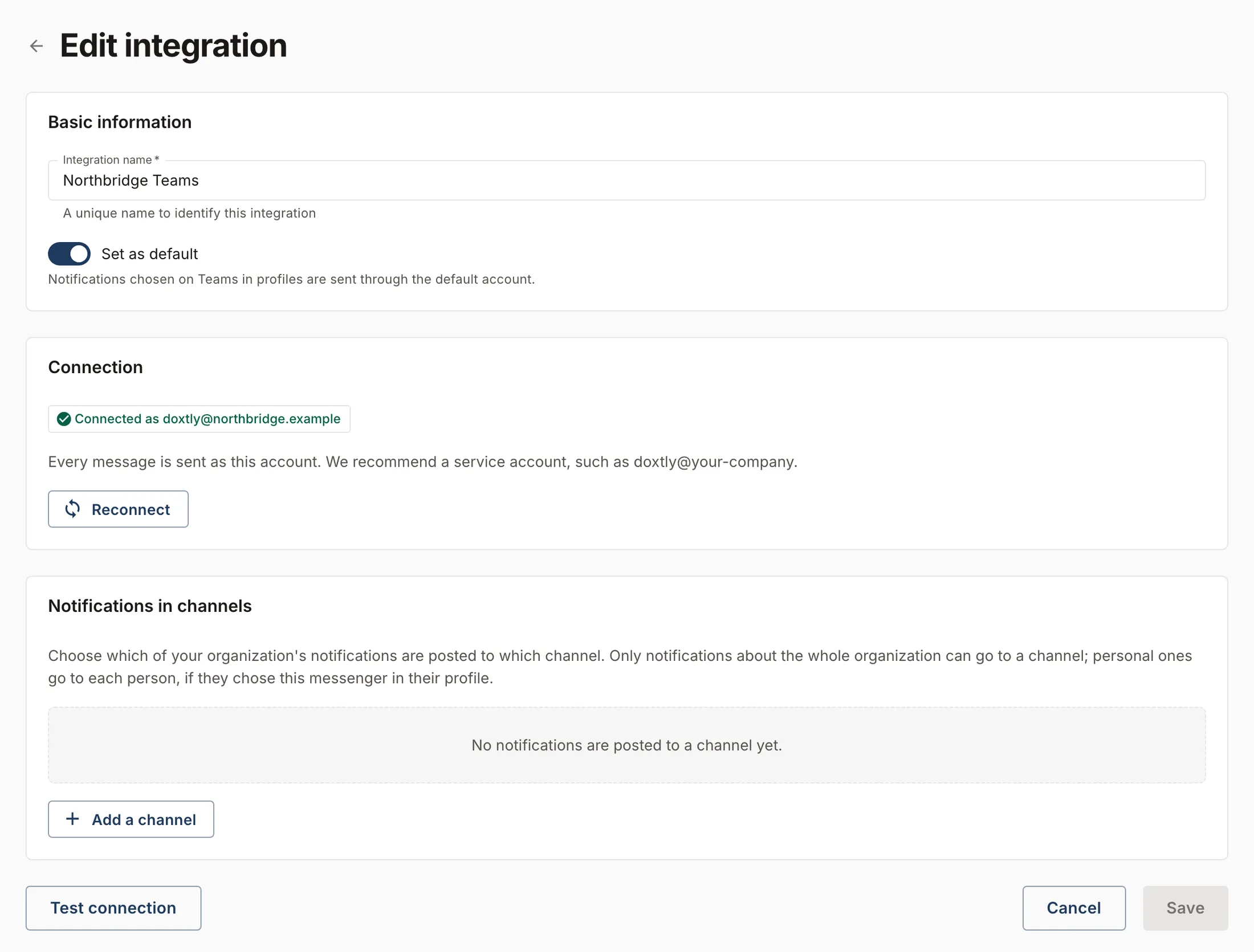
- Fill in Integration name, such as “Northbridge Teams”.
- Click Connect Microsoft Teams.
- Microsoft asks you to sign in and lists what Doxtly asks for: sending messages to channels and chats, creating chats, reading the names of teams and channels, and reading people’s basic profiles. Sign in as the account from step 1 and click Accept.
- You return to the integration, which is now Active and shows “Connected as” with the account’s address.
Until it is connected, the page says “Sign in with a Microsoft 365 work account to continue. Messages will be posted as this account.” A new integration has no Save button at this point, because connecting is what creates it. If you stop at Microsoft’s page, you find a Draft in the list. Open it and click Connect Microsoft Teams again.
If Microsoft says the app needs an administrator’s approval, your company lets only approved apps in. Ask your Microsoft 365 administrator to approve Doxtly, then connect again.
Which channels Doxtly can post in
Section titled “Which channels Doxtly can post in”The account sees the channels of the teams it belongs to, including private and shared channels it is a member of. To post somewhere else, add the account to that team or channel in Teams. Channels are listed as Team › Channel.
Every field
Section titled “Every field”| Field | What it does |
|---|---|
| Integration name | Your label, shown wherever people pick a messenger. Up to 255 characters, unique among your Microsoft Teams integrations. |
| Set as default | Makes this the account people’s own notifications go through, and the one a new workflow step picks for you. See the default integration. |
| Connect Microsoft Teams, Reconnect | Signs in at Microsoft. |
| Test connection | Asks Microsoft whether the connection still works. |
Notifications in channels
Section titled “Notifications in channels”Once the integration is Active, its page has a Notifications in channels card, which works as it does for Slack: click Add a channel, pick the Channel, tick the notifications to post there and click Save. Only notifications about the whole organization can go to a channel, and a channel is told about the same thing once a day. See Notifications in channels for the details.
Each person’s own notifications
Section titled “Each person’s own notifications”Once an account is connected, everyone in your organization sees a Microsoft Teams column on the Notifications tab of their profile. Whoever turns it on for a notification gets it in a one-to-one chat with the connected account. Doxtly finds the person in your Microsoft 365 organization by the email address they sign in to Doxtly with. Someone without an account with that address isn’t sent anything in Teams.
When the connection stops working
Section titled “When the connection stops working”The connection ends when the account’s password is reset with sign-out everywhere, the account is blocked or removed, Doxtly’s access is removed from it, or it hasn’t been used for a long time. The integration turns Invalid the next time Doxtly posts, and workflow steps on it fail with “Microsoft Teams no longer accepts Doxtly’s connection. Connect the integration again.”
Open the integration and click Reconnect. Your channels and their notifications are kept.
What you see once it’s set up
Section titled “What you see once it’s set up”Click the row in the list for the summary: Account, the address messages are posted from.

Delete a Microsoft Teams integration
Section titled “Delete a Microsoft Teams integration”Deleting the integration ends posting to Teams: the channels and their notifications go with it. Workflow steps that post through it then fail, so check them first. Messages already posted stay in Teams. See Delete an integration.