

Skills
A skill is a set of instructions for one kind of situation: Summarise a contract, Classify a delivery complaint, Extract the billing details. An agent that handles several kinds of input stays readable this way: its main instructions hold what is always true, and each skill holds what to do in one case. Keep a skill in the library, and any number of agents can share it.
Available when: your plan includes AI agents and your organization has an active AI integration. Creating and changing skills takes the Build AI agents permission
How an agent uses a skill
Section titled “How an agent uses a skill”A skill has three parts: a name, a description of when it applies, and instructions. Every skill the agent has goes to the model with every run, and the model is told to apply the skill whose situation matches the request, to apply several if several match, and to follow the main instructions where none does.
So the description decides whether a skill is used. When the input is a contract or an agreement gives the model something to recognise. An empty description leaves it only the name to go on.
Take a Northbridge Advisory agent that reads everything clients send to a shared form. Its instructions say how to log the request. One skill says how to summarise an NDA, another how to read a training enquiry, a third how to handle an invoice request. A client who sends an NDA triggers only the first.
Own skills and library skills
Section titled “Own skills and library skills”| An agent’s own skill | A library skill | |
|---|---|---|
| Lives in | That one agent | The organization’s library, on the Skills tab |
| Saved | With the agent, when you press Save | At once, when you save the skill |
| Edited in | The builder | The Skills tab only |
| A change reaches | That agent, once saved | Every agent that links it, from its next run |
| Name | Free to repeat in other agents | Unique in the organization, ignoring capitals |
Use an own skill for something only this agent needs. Use the library for what several agents should do the same way, such as your firm’s way of summarising a contract: when the rule changes, you change it in one place.
Both count towards the limit of 30 skills per agent.
Writing good agents covers when a skill is worth having and when it belongs in the main instructions.
The skill library
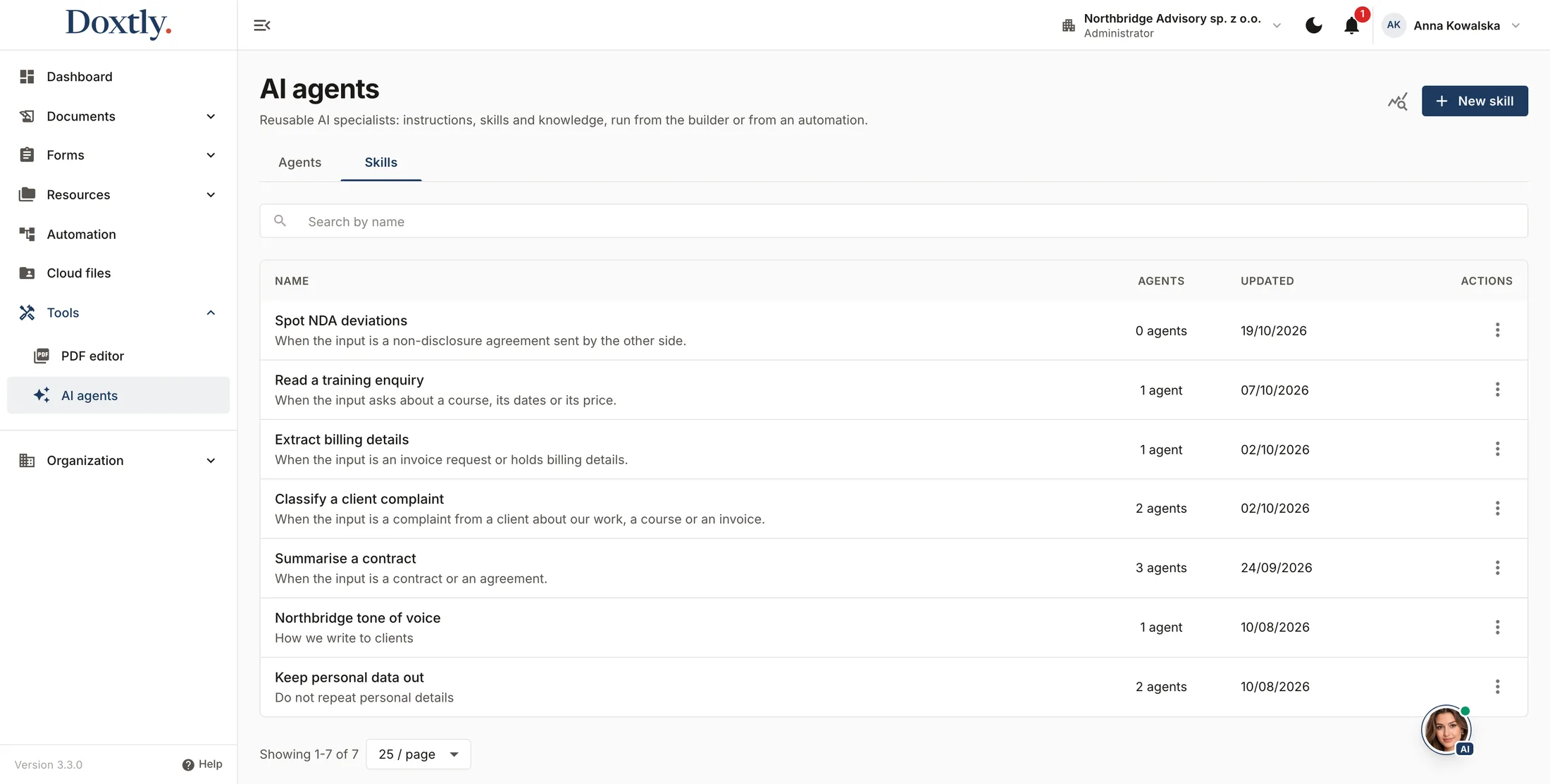
Section titled “The skill library”Open Tools, choose AI agents and go to the Skills tab.
| Column | What it shows |
|---|---|
| Name | The name and the first lines of the description. You can sort by it. |
| Agents | How many agents link the skill. |
| Updated | When it last changed. You can sort by it. |
| Actions | The row’s menu, Edit and Delete, for people who may build agents. |
The search box finds skills by name, and a search that finds nothing says No skills match, with Clear all filters. Click Name or Updated to sort. The list shows 25 skills a page, and the control under it switches to 10 or 50. On a phone each row becomes a card.
An empty library says No skills in the library yet and offers New skill to whoever may build. With Build AI agents, clicking a row opens the skill for editing. With Use AI agents alone you see the list and nothing opens; the instructions of a linked skill can be read in the agent’s builder.
Add a skill to the library
Section titled “Add a skill to the library”-
On the Skills tab, press New skill.
-
Fill in Name, When to use it and Instructions, or let Doxie write them (see below).
-
Press Save to the library.
The skill is not used by anyone yet. Link it to the agents that need it.
Change or delete a library skill
Section titled “Change or delete a library skill”Click the row or choose Edit, change the fields and press Save to the library. The new version applies to every linking agent from its next run, including the ones in live workflows. The Agents column tells you how many that is, so look at it first.
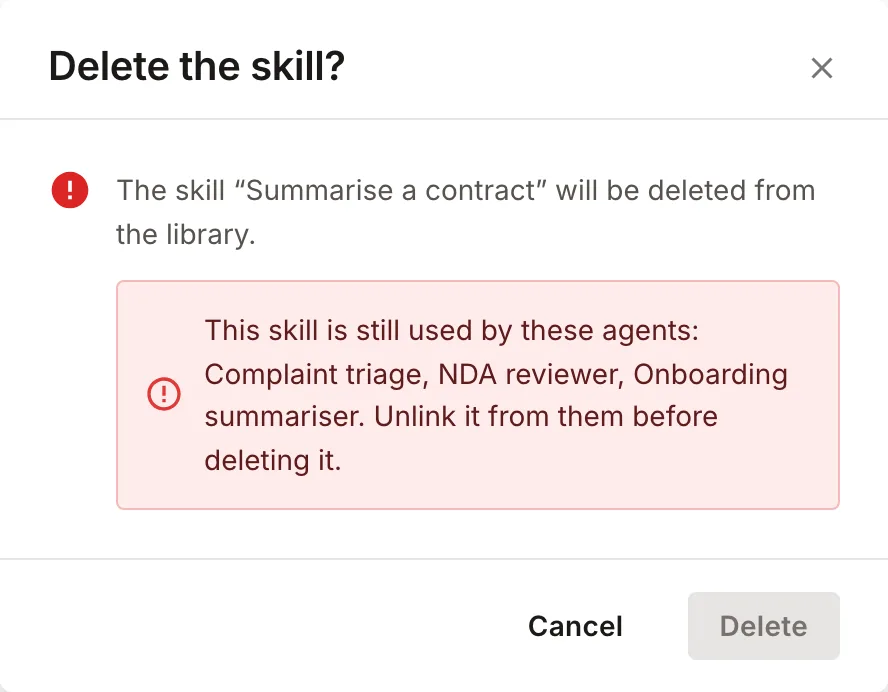
Delete asks you to confirm. A skill that an agent still links cannot be deleted: when you press Delete, a red message in the dialog names the agents and the button stays disabled, so unlink it from them first.
The skill form
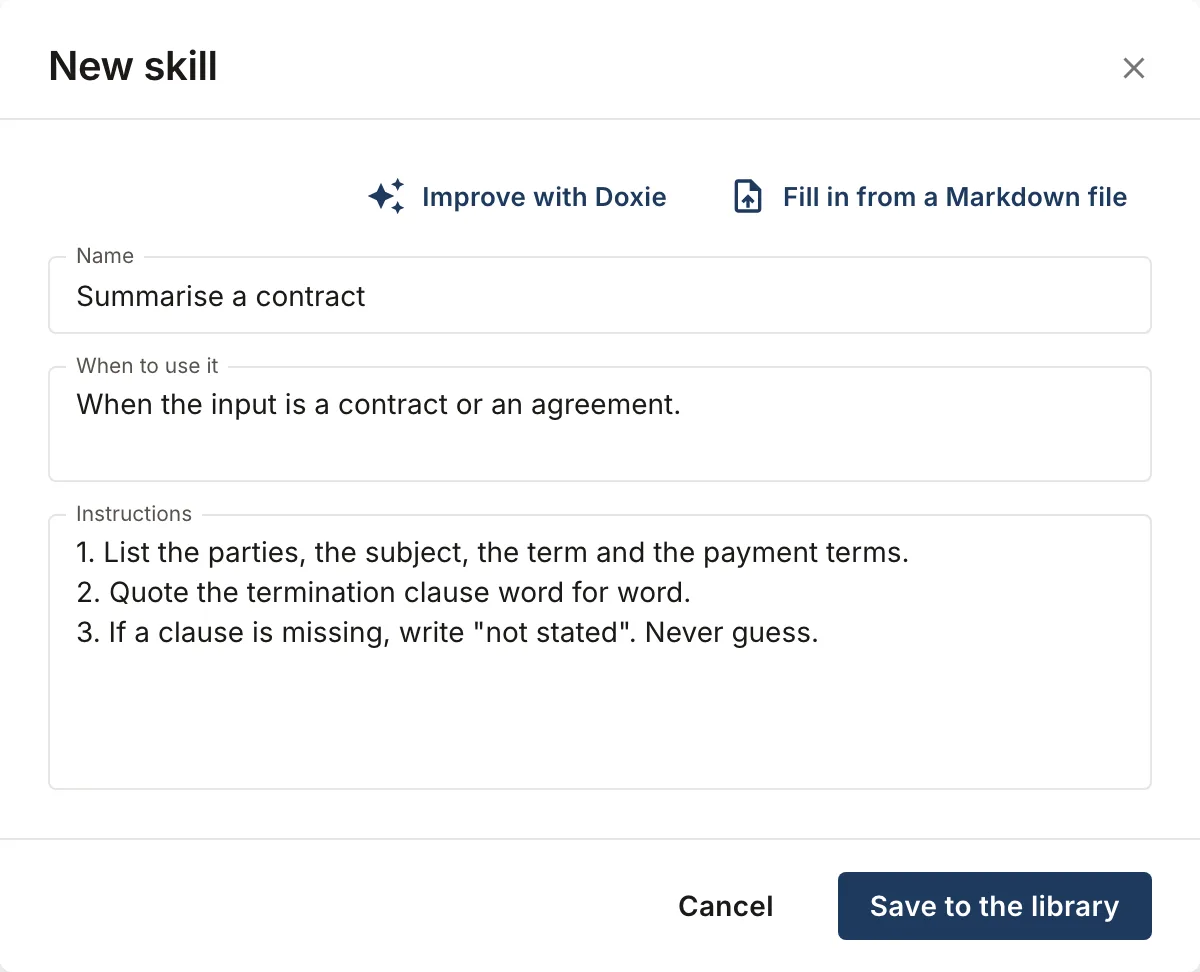
Section titled “The skill form”The same form opens from the library and from the builder. Only its save button differs: Save to the library on the Skills tab, Save the skill in the builder.
| Field | What goes in it | Limit |
|---|---|---|
| Name | A short name for the situation or task. Required. | 120 characters |
| When to use it | One sentence the agent can recognise the situation by. | 1,000 characters |
| Instructions | What to do then, step by step. Required. | 10,000 characters |
The Name field stops at its limit. The other two take more text, then show a message under the field and refuse to save until you shorten it. In the library, a name already in use is refused with A skill with this name already exists.
Close the form with something typed in it and not saved, and it asks Discard what you entered?: Keep editing takes you back to it, Discard closes it and loses what you typed.
Fill it in from a file
Section titled “Fill it in from a file”If your firm already keeps its procedures as documents, you need not retype them. Fill in from a Markdown file reads a .md, .markdown or .txt file into the form, replacing what the fields hold:
- A
# headingon the first line with text becomes the name. Without one, the file name is used, with dashes and underscores turned into spaces. - The first paragraph after the heading becomes When to use it, unless it is itself a heading, a list or a quotation.
- Everything under the heading becomes Instructions, the first paragraph included.
# Summarise a contract
When the input is a contract or an agreement.
1. List the parties, the subject, the term and the payment terms.2. Quote the termination clause word for word.3. If a clause is missing, write "not stated". Never guess.
A file with no text apart from its heading is refused, and you see The file holds no instructions.
Once a cloud drive is connected and your role has View cloud files, the button opens a menu: From computer, or From cloud drive to pick the file in the drive. It is read exactly as the same file from your computer. See Importing from a drive.
Let Doxie write it
Section titled “Let Doxie write it”Write with Doxie (or Improve with Doxie, once the fields hold something) opens Doxie, the AI assistant in Doxtly, beside the dialog, with a request ready to send. Say what the skill is for, or send the request as it is, and she writes the name, when it applies and the numbered steps. Improve with Doxie asks her to sharpen what is already there.
What she writes comes as a proposal. Apply fills in the fields, and Undo on the proposal puts back what they held while you haven’t changed them since. Nothing is stored until you save the form. Opened from an agent’s builder, Doxie is told that agent’s name, description and instructions, so the skill fits it and does not repeat it. This takes Build AI agents and Use Doxie. See Work Doxie prepares.
Skills in the builder
Section titled “Skills in the builder”The Skills card of the builder lists what the agent has, linked skills first. Click a row to read its instructions.
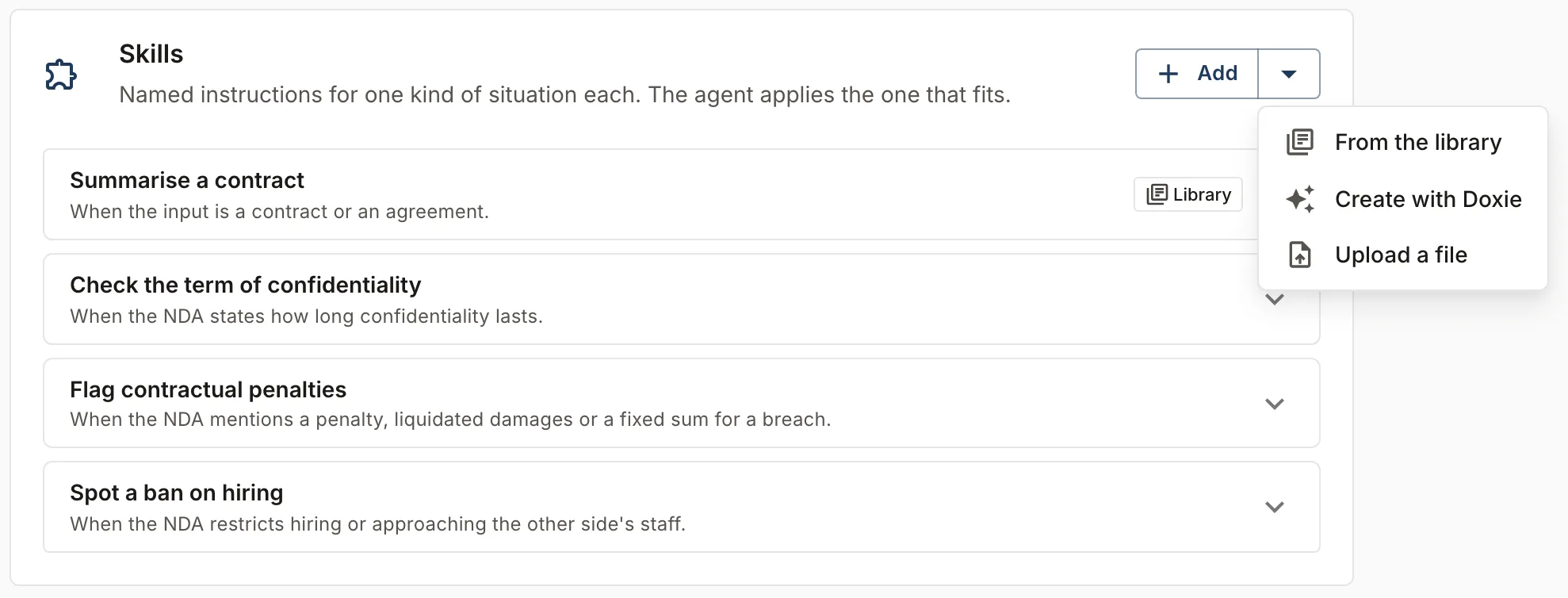
Add opens the skill form for a new own skill, and Save the skill puts it on the agent. The arrow beside it, More ways to add a skill, gives you the rest:
| Option | What it does |
|---|---|
| From the library | Opens the list of library skills to link. |
| Create with Doxie | Opens the skill form with Doxie open beside it, ready to write the skill, so you can read it before it goes on the agent. Asking Doxie from the builder for a skill puts one straight on the form instead. |
| Upload a file | Adds one own skill per Markdown or text file, read the same way. You can pick several files at once, from your computer or, with a connected drive, From cloud drive. A file with no text in it is skipped. |
Remember that an own skill, like everything on the card, is stored when you press Save on the agent.
Link a library skill to an agent
Section titled “Link a library skill to an agent”-
In the Skills card, open the arrow beside Add and choose From the library.
-
Tick the skills this agent should have. The arrow at the end of a row shows its instructions, and Search skills narrows the list without losing what you ticked.
-
Press Link 2 skills. The button counts everything ticked, skills already linked included.
-
Press Save on the agent.
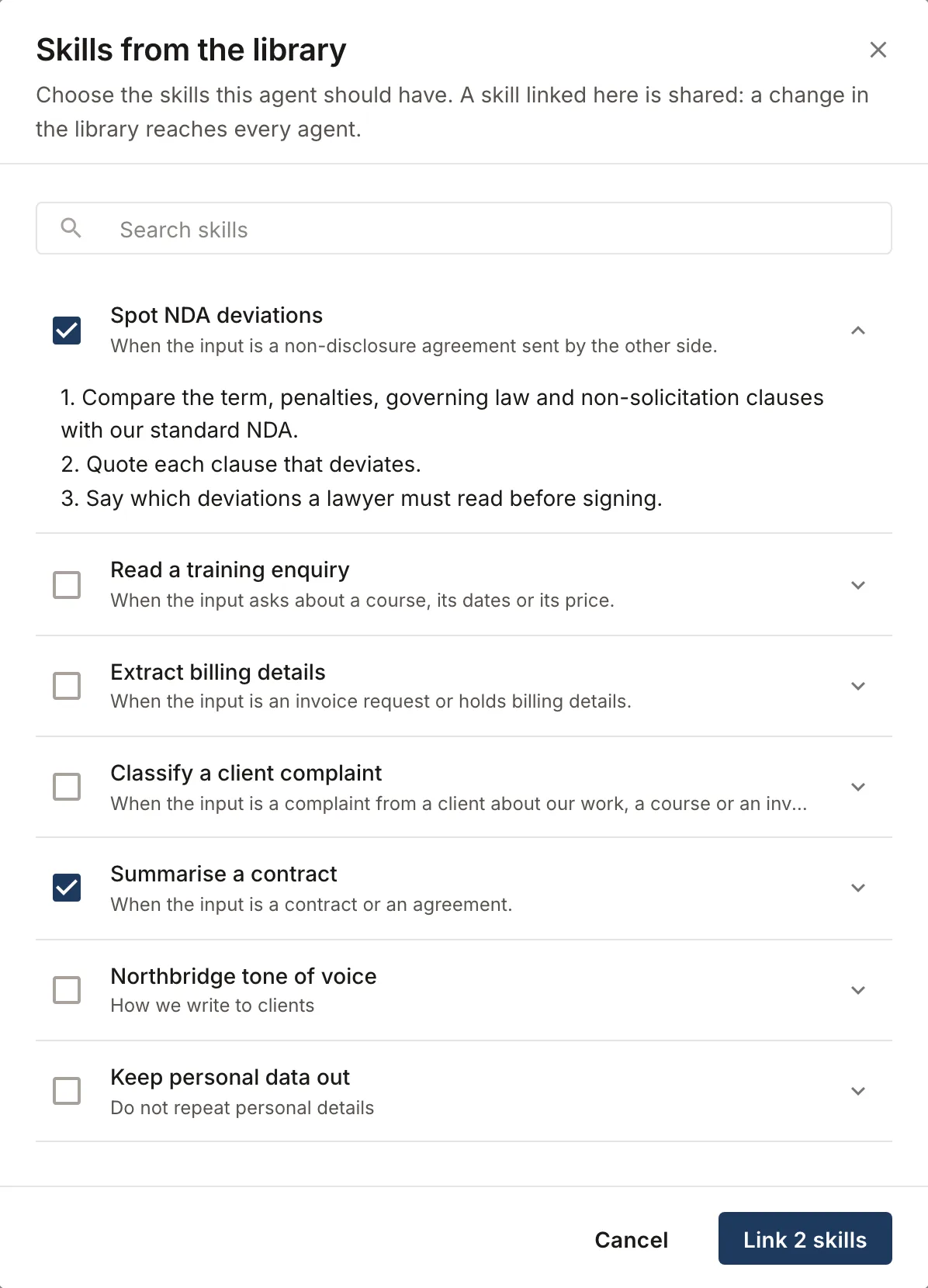
Skills already linked are ticked when the list opens, so you can also unlink here by clearing a box. With nothing ticked, the button reads Link none. The list shows up to 100 skills; in a larger library, search for the one you want.
A linked skill carries a Library chip. In the builder you can read it, follow Open the library to change it there (save the agent first, since the link takes you out of the builder), or press Unlink from the agent, which removes it from this agent only.
Move an own skill to the library
Section titled “Move an own skill to the library”Open an own skill and press Save to the library, the first of its three icons. The other two are Edit the skill and Delete the skill.
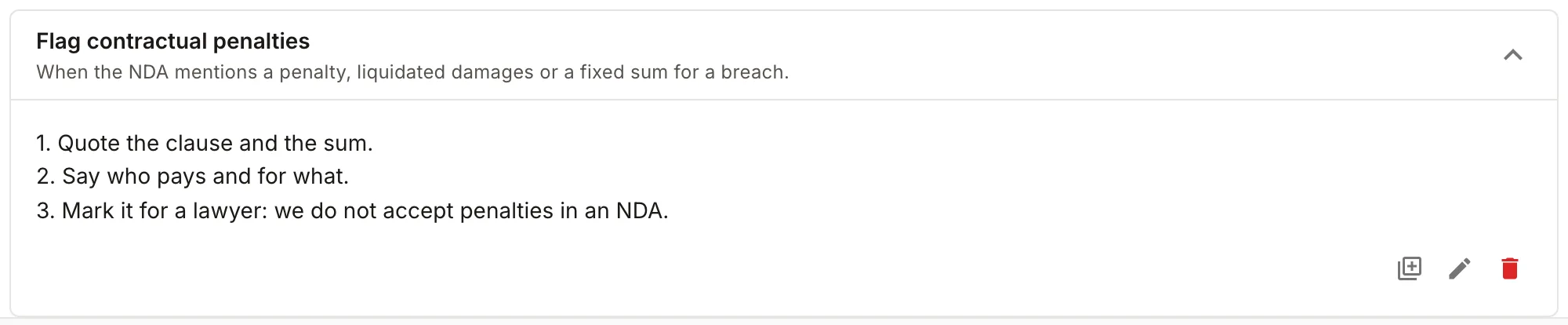
The skill goes into the library right away, and on the form the own skill gives way to a link. If a library skill already has that name, the move is refused and the own skill stays as it was. The link itself is stored when you save the agent. Should you leave without saving, the skill remains in the library and the agent keeps its own copy.