

Send WhatsApp message
Send WhatsApp message sends a text to a phone number on WhatsApp while the workflow runs. It suits clients who live in the app and rarely open an email: a confirmation, a link to a document, a note that something needs their attention.
The step works exactly like Send SMS. Only the channel differs.
Available when: the organization has an active WhatsApp integration
Without one, the node is greyed out in the Notifications group of the palette. You connect your Meta or Twilio account under Integrations. Messages go through that account, so its costs and limits are yours, and they don’t count towards a Doxtly plan limit.
Setting it up
Section titled “Setting it up”-
Drag Send WhatsApp message onto the canvas and connect it.
-
Check the WhatsApp integration. Your default one is already selected.
-
Fill in Recipient phone number, usually with
{x}(Insert a variable). -
Write the Message.
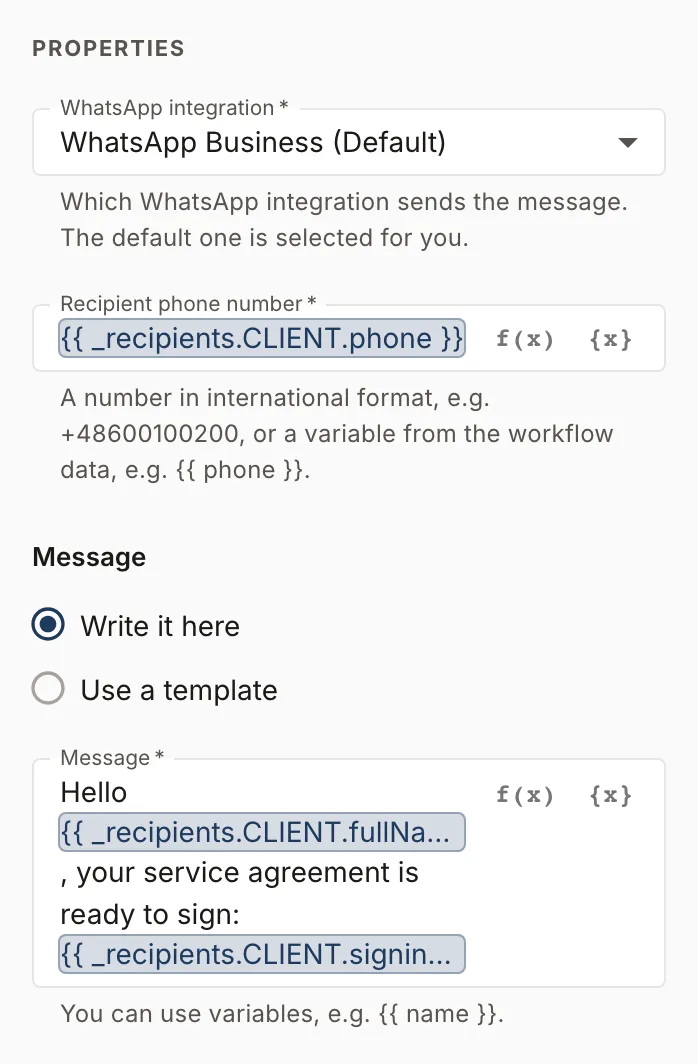
Settings
Section titled “Settings”| Setting | Values and default | What it does |
|---|---|---|
| WhatsApp integration | Required. Your active WhatsApp integrations. The default one, or your only one, is selected for you. | Which account sends the message. The choice stays in the step, so a new default later doesn’t change it. |
| Recipient phone number | Required. A number, a variable, or both. | Who gets it. The number must be on WhatsApp. On the canvas the node shows this value, which tells two message nodes apart. |
| Message | Write it here or Use a template. Written here by default. | Where the text comes from. |
| Message (the text box) | Required when written here. Text and variables. | What it says. |
| Message template | Required with a template. Your SMS and WhatsApp templates for no occasion. | The text, in each of its languages. |
| Language | With a template. The organization’s, a chosen one or a variable, with a fallback. | Which version of the template goes out. |
Variables in these fields can carry operations and functions, such as {{ id | first(8) }} or {{ nickname ?? firstName }}: click a variable and then Operations, or use f(x).
The number follows the same rules as for SMS: international format, such as +48600100200. Spaces, brackets, dots and hyphens are dropped, a leading 00 becomes +, and 7 to 15 digits must remain, the first not a zero. See The phone number.
In the message, a variable that gives nothing, an optional field left empty or one the run doesn’t have, leaves a gap, and the message still goes. Give it a stand-in where a gap would read badly: {{ first_name ?? "there" }}.
What the next steps get
Section titled “What the next steps get”Nothing they can use: the step adds no variables and no files.
On the run’s page the step shows the number, the integration and, for a message from a template, the language it went in. A message from a template is also listed on the Sent tab of text message templates, with WhatsApp chosen under Channel. A message written in the step is recorded only on the run’s page, without its text. A step that succeeded means your provider accepted the message, not that it was read.

When it fails
Section titled “When it fails”The run stops at this step and nothing after it happens. People who may view workflows get a Workflow failed notification.
| What you see | Why | What to do |
|---|---|---|
Could not work out the recipient phone number from "..." |
A variable in the number is missing or empty | Make the field required, or put a Condition before this step |
"..." is not a valid phone number. |
The value doesn’t fit the format | Fix the data, or add the country prefix |
The message is empty, so there was nothing to send. |
The whole text came out empty | Add some fixed text |
The WhatsApp message could not be sent. |
Your provider refused it | Check the integration, the number and your provider’s messaging rules |
Integration "..." is not active. or was not found. |
The chosen integration was switched off or removed | Pick another one |
Choose which "WhatsApp" integration this step uses. |
The field is empty, and you have several integrations and no default | Pick one, or set a default |
No active "WhatsApp" integration is configured. |
The field is empty and no provider is active | Connect one, or switch one back on |
Doxtly doesn’t retry by itself. Rerun on the run’s page starts a new run with the same trigger data, from the beginning of the saved workflow, so earlier steps happen again.
Example: a document is waiting
Section titled “Example: a document is waiting”A client of Northbridge Advisory has answered the firm’s message on WhatsApp, and their NDA is ready. After Create documents:
| Setting | Value |
|---|---|
| WhatsApp integration | WhatsApp Business |
| Recipient phone number | {{ _recipients.CLIENT.phone }} |
| Message | Hello {{ _recipients.CLIENT.fullName }}, your NDA is ready to sign: {{ _recipients.CLIENT.signingUrl }} |
Make sure the party has a Phone number on the People tab of that step, or the variable comes out empty and this step stops the run. If some clients won’t have WhatsApp, put a Condition in front and send them an email instead.