

Attach files in the CRM
Attach files in the CRM puts files of the run on a record in Pipedrive, HubSpot or Copper: a deal, a person or an organization. Your salespeople then find the signed agreement on the deal itself, under its files, without asking anyone for it.
Available when: your plan includes CRM integrations and the organization has an active CRM integration
Setting it up
Section titled “Setting it up”- Drag Attach files in the CRM from the CRM group onto the canvas and connect it.
- Check the CRM integration. The default one is already selected.
- Choose the Record: Deal, Person or Organization.
- Fill in Record ID in the CRM. When the integration keeps that kind of ID in a field, a chip offers its variable to people who may view integrations, such as Use
{{ _package.fields.pipedriveDealId }}. - Choose the Files, or switch on All files of the run.
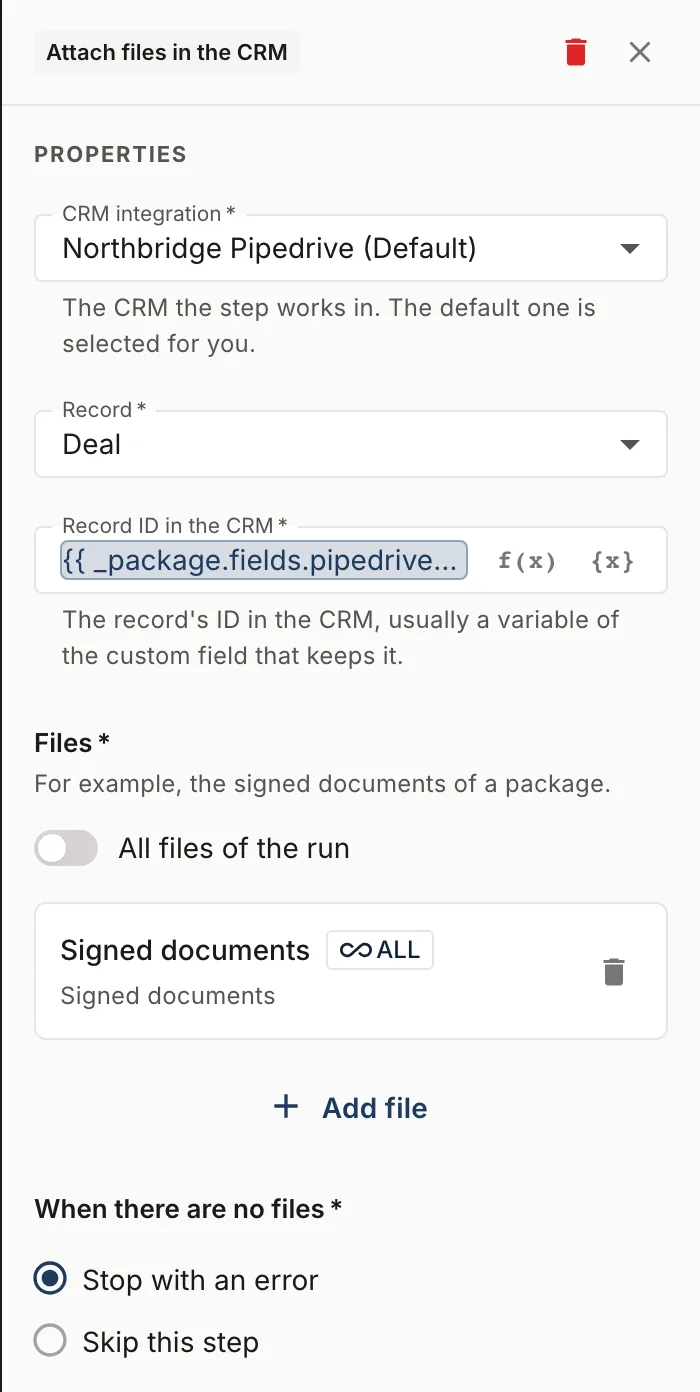
Settings
Section titled “Settings”| Setting | Values and default | What it does |
|---|---|---|
| CRM integration | Required. Your active CRM integrations; the default one is selected for you. | The CRM account. |
| Record | Deal (the default), Person or Organization. | The kind of record the files go on. |
| Record ID in the CRM | Required. Text and variables. | The record’s ID in the CRM: a deal’s from {{ _package.fields.<key> }} or {{ _opportunity.id }}, a person’s from {{ _contact.<key> }}, an organization’s from {{ _contact.company.<key> }}, or a synchronization’s result. |
| Files | Required. Files of the run, chosen in the picker, or All files of the run. | What is attached. On a signing trigger, the Signed documents. See Files. |
| When there are no files | Stop with an error (the default) or Skip this step. | What happens when the run has none of the chosen files. |
A step that picks no file can’t be saved.
What it does
Section titled “What it does”Each file is attached in turn, under its own name. If the CRM refuses one, the step fails there, and the files before it stay attached. Rerunning the run attaches them again, so check the record before you rerun.
The step adds no variables. On the run’s page it shows the integration, the record’s kind and Files attached: with the number, which is 0 when the step was skipped because there were no files.
Where the files end up
Section titled “Where the files end up”| CRM | Where you find them |
|---|---|
| Pipedrive | Under the record’s files. |
| HubSpot | In your account’s files, as private files in the folder Doxtly, and on the record: each file is attached to it by a note that names the file. A deal, contact or company in HubSpot is the record here. |
| Copper | Under the record’s files: an opportunity’s, a person’s or a company’s. |
When it fails
Section titled “When it fails”| What you see | Why | What to do |
|---|---|---|
No files were selected for upload. Please ensure files are available in the workflow context. |
The run has none of the chosen files, and the step is set to Stop with an error | Choose other files, or Skip this step |
Could not work out the ID of the CRM record from "...". Check that every variable it uses exists in the workflow data and is not empty. |
The ID’s variable is missing or empty | Check the package’s or contact’s field |
Pipedrive has no such record. It may have been deleted or merged into another one. |
The record is gone | Correct the ID kept in the custom field |
The file is larger than Pipedrive accepts. |
The CRM’s limit on a file | Attach a smaller file, or store it on a drive and add a note with the link |
The CRM integration of this step is not connected. Connect it again or choose another one. |
The integration was deleted or turned Invalid | Reconnect it, or pick another one |
Pipedrive is limiting the number of requests. Try again in a moment. and the other refusals |
See Update a deal | Rerun later |
The messages name your CRM: where the table says Pipedrive, a HubSpot or Copper integration says HubSpot or Copper.