

PayPal integration
A PayPal integration connects your organization’s PayPal business account to Doxtly. Your forms can then take payments: the visitor pays on PayPal’s page with their PayPal account or a card, and the money goes to your PayPal account, under your agreement with PayPal. Doxtly takes no fee and never sees the payer’s card or PayPal login.
Available when: your plan includes payments (Starter, Pro and Business), and you hold Manage integrations
On a plan without payments, PayPal isn’t offered among the types, and opening an integration made earlier shows “Payments are not in your plan” with See the plans.
What needs it
Section titled “What needs it”- the Payment element of a form, which names the integration the money goes through
- refunds of the payments made through it
You can connect several PayPal accounts, each as its own integration, and choose one per form.
Before you start
Section titled “Before you start”Doxtly connects to your account through a REST app, a set of credentials you create for it in PayPal’s developer dashboard. You need a PayPal business account that can take payments, then:
- Sign in at developer.paypal.com with that account and open Apps & Credentials.
- Create a REST app: a Sandbox app to try things out, or a Live app for real payments.
- Keep the page open: you’ll copy the app’s Client ID and Secret from it.
A Sandbox app takes payments only from PayPal’s test accounts, and no real money changes hands. For real payments you make a second integration with the Live app’s credentials.
Connect PayPal
Section titled “Connect PayPal”- Go to Organization, Integrations, click New integration and pick PayPal in the Payments group.
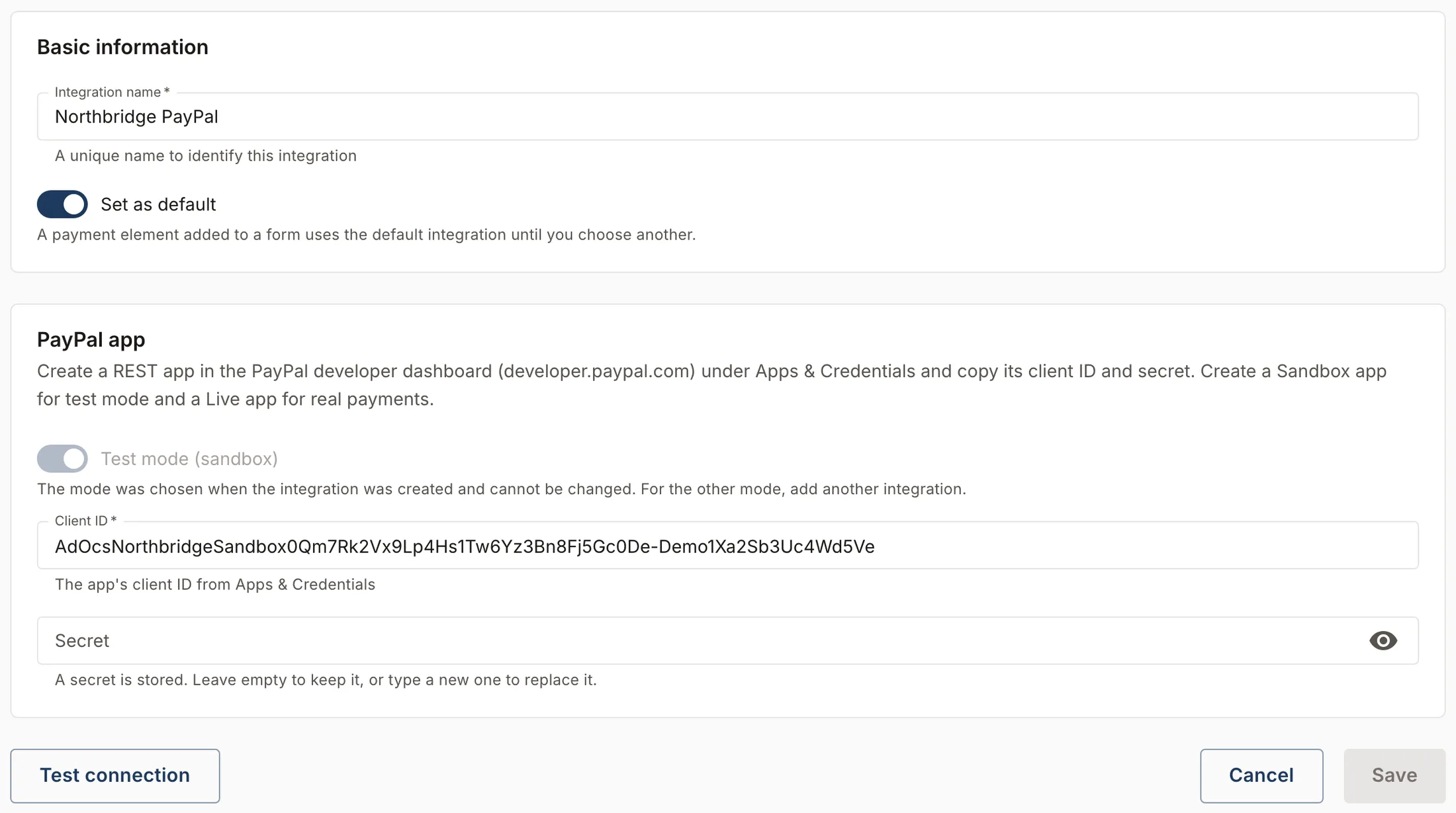
- Fill in Integration name, such as “Northbridge PayPal”.
- Leave Test mode (sandbox) off for a Live app, or switch it on for a Sandbox app. You can’t change it later.
- Paste the app’s Client ID and Secret.
- Click Save. The integration is a Draft.
- Click Test connection. Doxtly checks the credentials and subscribes to the app’s payment notifications. Once both succeed, the integration turns Active and forms can use it.
Until it passes its test, the page says “Test the connection to start taking payments: the test checks the credentials and subscribes Doxtly to the app’s payment notifications. Forms can use this integration only after a successful test.” Saving a new client ID or secret makes it a Draft again, so test once more after you change them.
Payment notifications
Section titled “Payment notifications”PayPal tells Doxtly about payments and refunds through a webhook: an address in Doxtly that PayPal sends news of the app’s payments to. You don’t set it up yourself. Test connection adds it to your app, and PayPal shows it in the app’s settings in the developer dashboard. Doxtly asks PayPal to confirm every notification it receives before it acts on it.
PayPal allows an app at most ten webhooks. If yours already has ten, the test fails with “The PayPal app already has ten webhooks, the most PayPal allows. Remove one in the PayPal developer dashboard and test the integration again.” Remove one you no longer use, or create a new app for Doxtly.
If you switch the integration to another app’s credentials, the next test adds the webhook to that app. The webhook in the previous app stays there until you remove it in the developer dashboard.
Every field
Section titled “Every field”| Field | What it does |
|---|---|
| Integration name | Your label, shown wherever a payment integration is chosen, such as the form’s payment element. Up to 255 characters, unique among your PayPal integrations. |
| Set as default | Makes this the integration a new payment element takes. “A payment element added to a form uses the default integration until you choose another.” |
| Test mode (sandbox) | Payments go through PayPal’s sandbox with test accounts, and no real money changes hands. Chosen when you create the integration, and fixed from then on: “The mode was chosen when the integration was created and cannot be changed. For the other mode, add another integration.” |
| Client ID | The app’s client ID from Apps & Credentials. Required, at most 128 characters. |
| Secret | The app’s secret, shown under its client ID. Required, at most 256 characters. |
| Test connection | Checks the saved credentials with PayPal and subscribes Doxtly to the app’s payment notifications. Nothing is paid. It works once your changes are saved. |
The secret is stored encrypted and never shown again. Once saved, its field says “A secret is stored. Leave empty to keep it, or type a new one to replace it.”
Payments through PayPal
Section titled “Payments through PayPal”- PayPal takes AUD, CAD, CHF, CZK, DKK, EUR, GBP, HKD, HUF, ILS, JPY, MXN, NOK, NZD, PHP, PLN, SEK, SGD, THB, TWD and USD.
- The smallest payment is 0.01 in each currency. HUF, JPY and TWD have no decimals at PayPal, so in them the smallest payment is 1 and an amount must be whole. Doxtly sets no upper limit; PayPal and your account may have one.
- The payer pays with their PayPal account or a card, as PayPal offers them, on PayPal’s page in their language where PayPal has it.
- The payer’s email address goes to PayPal when the form names a Payer’s email field. PayPal doesn’t require it.
- Each attempt on PayPal’s page lasts six hours, the time PayPal keeps an order for the payer to approve, but no longer than the 24 hours to pay. After that the payer starts a new attempt from Doxtly’s payment page.
Once the payer approves the payment on PayPal’s page, Doxtly captures it, which is the step that moves the money to your account. A payment approved only after its time to pay ran out is never captured, so no money moves and nothing needs refunding.
Payers in the United States can also pay with Venmo. Doxtly’s payment page shows PayPal’s own buttons when a payment through PayPal hasn’t gone through yet: when the payer comes back without paying, or after a while of waiting on PayPal’s word. Among them is Venmo, where PayPal offers it. Whatever the payer chooses, Doxtly makes the order and asks PayPal itself whether it was approved before it captures it, as for any payment through PayPal.
PayPal decides when the Venmo button shows:
- your PayPal business account is in the United States, and so is the payer
- the payment is in USD
- the payer has the Venmo app
- PayPal shows it on a phone or a computer as it sees fit
There’s nothing to switch on in Doxtly. See PayPal’s Pay with Venmo for your account’s side.
Refunds
Section titled “Refunds”You refund a PayPal payment from its page in Doxtly, in full or in part, several times if you need, up to what was paid. See Refunds.
- PayPal accepts refunds for 180 days after the payment. The payment’s page shows the last day as Can be refunded until. Past it, Doxtly doesn’t ask PayPal at all: Refund is greyed out, with “PayPal no longer accepts a refund of this payment: its time for refunds has passed.”
- PayPal pays refunds from your PayPal balance. If the balance can’t cover one, it is refused: “Your PayPal balance can’t cover this refund. Top it up in PayPal and try again.”
- PayPal keeps the fee it took for the original payment. The payment’s page shows it as Provider’s fee.
The refund window lists these rules before you ask, with the fee’s amount and the last day for refunds.
When it stops working
Section titled “When it stops working”| What you see | What to do |
|---|---|
| The integration turns Invalid: “The last connection test with PayPal failed: the credentials were not accepted, or the app already has ten webhooks, the most PayPal allows. Check the credentials or remove a webhook you no longer use from the app, then test the connection again.” | Test connection tells you which: “PayPal does not accept these keys. Check them in the integration’s settings.” or the message about ten webhooks above. Copy the credentials from Apps & Credentials again, and check that test mode matches the app (Sandbox or Live), or remove a webhook. Then save and test. |
| The summary shows Payment notifications “Not yet: test the connection” | The integration hasn’t passed a test since it was made or since you switched it to another app’s client ID. Click Test connection. |
While PayPal can’t be reached, payments waiting for confirmation stay Pending, past their 24 hours if need be, and Doxtly keeps asking until PayPal answers. If PayPal still can’t be asked by then, because the credentials have stopped working, the payment ends unpaid, and the people who manage integrations get the notification A payment provider could not be reached. Its Open the integration opens this page.
What you see once it’s set up
Section titled “What you see once it’s set up”Click the row in the list for the summary: the start of the Client ID, enough to tell two apps apart, Payment notifications (Subscribed, or “Not yet: test the connection”), and Test mode or Live mode.

What Doxtly reads and writes in PayPal
Section titled “What Doxtly reads and writes in PayPal”| Reads | Writes | |
|---|---|---|
| The app | Whether PayPal accepts its credentials | One webhook, added at the first successful test and removed when you delete the integration |
| Orders | The status of the orders it created, with the payment method and PayPal’s fee | An order for each attempt to pay: the amount, currency, the payment’s description, the payer’s email address and language, and the addresses PayPal returns the payer to |
| Captures | PayPal’s notification that a payment was approved, confirmed with PayPal | The capture of each approved payment |
| Refunds | Their status | The refunds you ask for |
Doxtly doesn’t read your account’s other transactions, its balance or payouts.
Delete a PayPal integration
Section titled “Delete a PayPal integration”An integration with a payment still waiting for the payer can’t be deleted: “This integration has payments waiting for the payer. It can be deleted once they have ended.” Make the forms that pay through it inactive, then wait until the last payment has ended, at most 24 hours.
Deleting the integration removes its webhook from your PayPal app. If PayPal no longer accepts the credentials, the integration is deleted all the same, and you remove the webhook in the developer dashboard yourself. The payments stay on the Payments page, marked Integration deleted, and can only be refunded in your PayPal account. A form whose payment element named it can’t be sent, and its visitors read “This form cannot take payments at the moment. Try again later or contact the organization.” until you choose another integration in the element. See Delete an integration.