

Opening and saving files
Files reach the editor from your computer or from a connected drive, and leave it the same way, or through the printer. This page covers each route, what happens to Word documents, and what the editor does to protect unsaved work.
Opening a file
Section titled “Opening a file”Every file opens in its own tab, so you can work on several at once. You can open a file in any of these ways:
| How | Details |
|---|---|
| Open from computer, on the empty editor | Choose one or several files at once. |
| Open a file in the toolbar, or + at the end of the tabs | A menu with From computer and From cloud. |
| Ctrl+O (Cmd+O on a Mac) | Goes straight to choosing a file on your computer. |
| Dragging files onto the editor | Drop them anywhere on it, even when another file is open. Several at once work too. The editor marks the area with Drop PDF files to open them, and Word documents work the same way. Drops are ignored while a window is open, or while a file is still loading or a PDF is being prepared. |
| Open from cloud, or From cloud in the menu | Choose a drive, then one file. |
| From Cloud files | See below. |
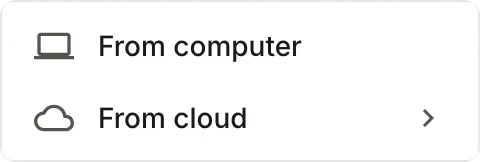
The editor opens PDFs, plus the Word documents it can convert: doc, docx, odt and rtf.
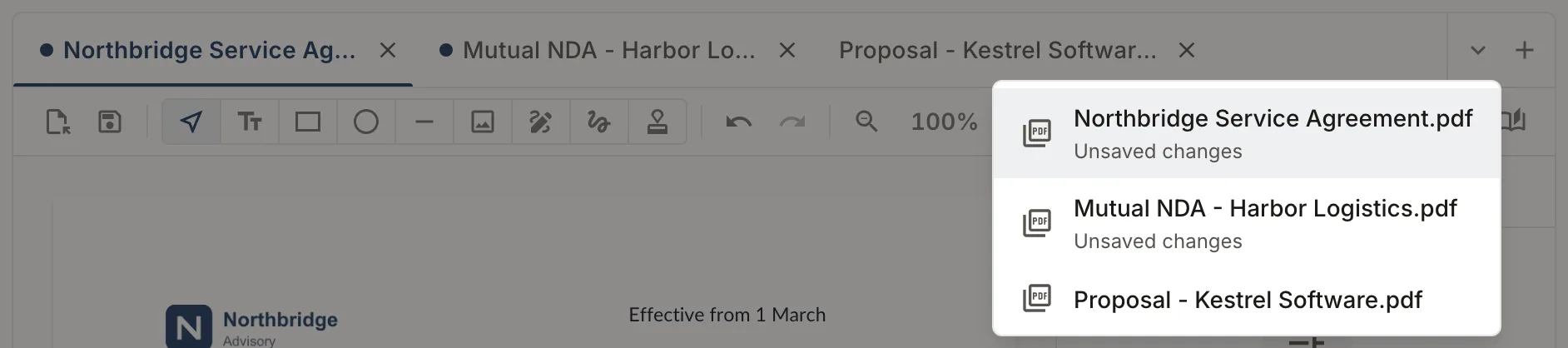
Click a tab to switch to its file, and the × on it to close it. The neighbouring tab takes over, and closing the last one brings back the empty editor. A dot in front of a name means the file has unsaved changes. Long names are shortened, and hovering over one shows it in full.
When the tabs no longer fit, the row scrolls sideways. With two or more files open, All open files, the arrow at the end of the row, lists them all with Unsaved changes under the ones that have some. You can open the same file twice, and each tab is independent, which is useful when you want two different extracts of one report.
Each tab remembers its own page, zoom and undo history. Switching tabs puts you back on Select. The clipboard is shared, so you can copy an object from one file to another.
From a cloud drive
Section titled “From a cloud drive”Available when: your organization has an active Google Drive, OneDrive, SharePoint, Dropbox or Box integration and you have the View cloud files permission
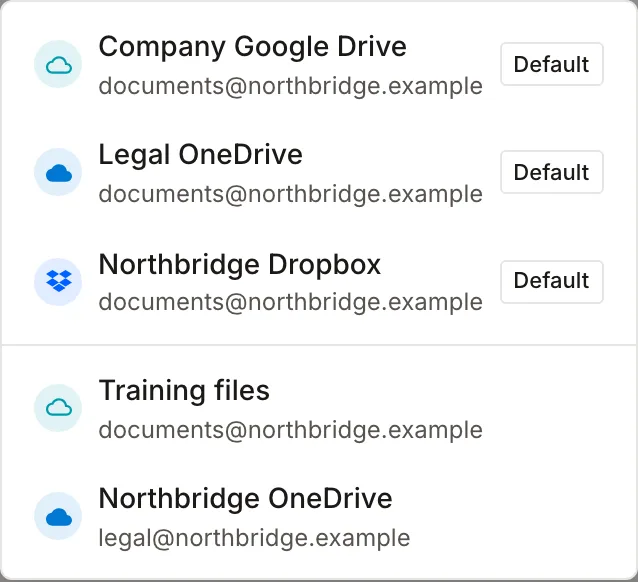
Choosing the cloud lists every drive you may browse, each with its name and connected account, with the default drives first and marked Default. Your organization may have several, such as a shared OneDrive for contracts and a Google Drive for training materials. Drives are set up in Integrations, and a drive whose connection has stopped working is not listed until someone reconnects it.
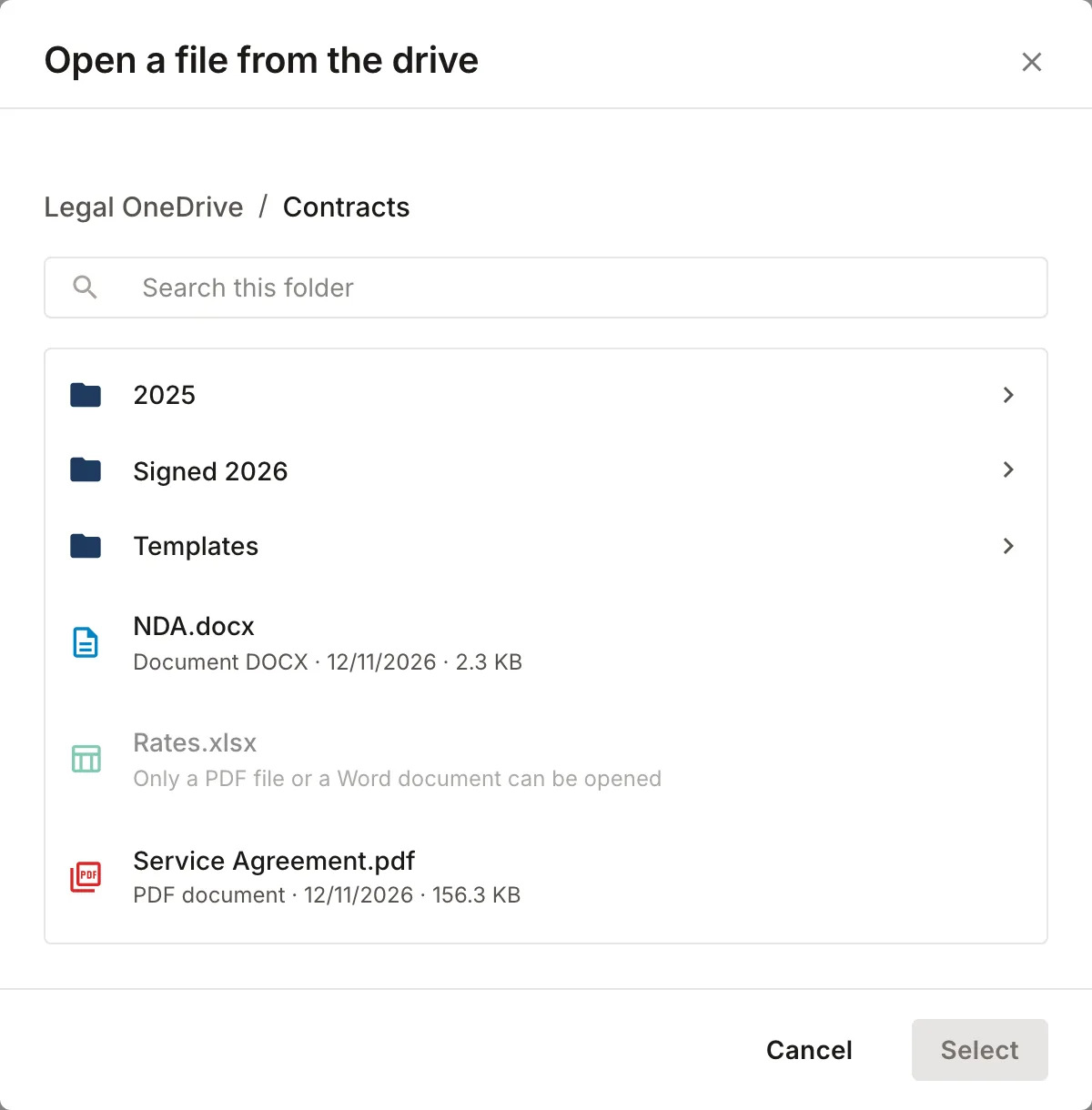
A window like your computer’s open dialog follows, titled Open a file from the drive. Click a folder to go into it, and use the path at the top to climb back up. Search this folder looks in the folder you are in. Double-click a file, or select it and click Select. In a long folder, Load more at the bottom brings the next files. Files the editor cannot open stay listed but greyed out, marked Only a PDF file or a Word document can be opened. The next time, on the same browser, the window starts in the folder you used last on that drive.
Some Google Drive connections only let Doxtly see files added through Doxtly. In that case the window shows Only files added through Doxtly are shown here, and files you put in the drive directly do not appear. Add them through Cloud files instead, or ask someone who manages the files to do it.
A file opened from a drive remembers where it came from, so saving it back starts in the same folder.
Open from Cloud files
Section titled “Open from Cloud files”If you are already browsing files in Cloud files, you do not have to go to the editor first. The menu of a PDF or a Word document has Edit in the PDF editor. The file’s details offer the same thing, either as a button or under Open in → PDF editor for files that can also open at the provider.
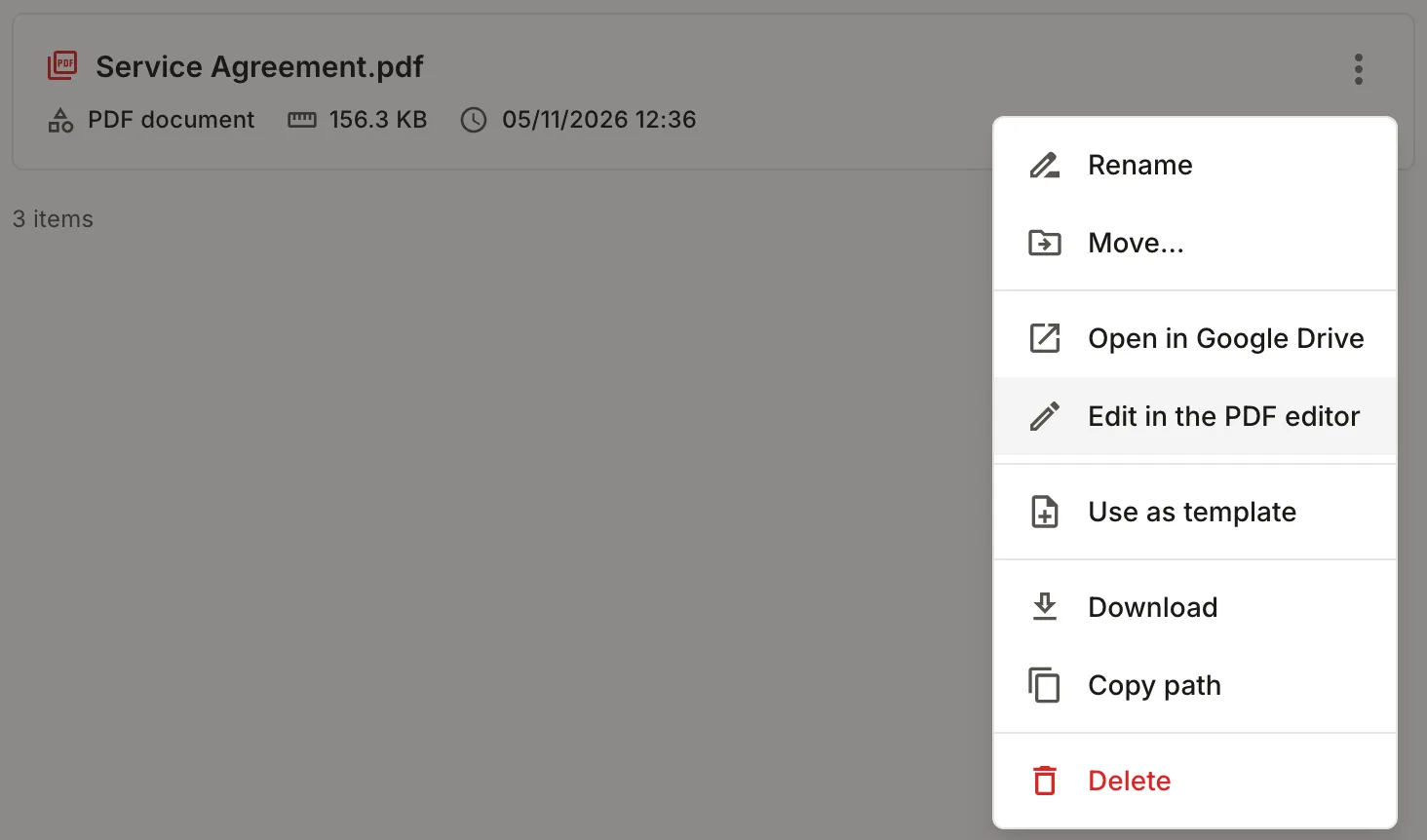
The entry appears only for people who have the editor, and only for files the editor opens. A native Google Doc, for one, does not get it.
When a file will not open
Section titled “When a file will not open”The file is skipped and a message says why. Other files you opened at the same time still open.
| Message | What it means |
|---|---|
| “…” is password-protected and cannot be edited. | Remove the password in the program that set it, then try again. |
| “…” is not a valid PDF file. | The file is damaged or is not really a PDF. This also covers rare files whose page structure could not be read reliably. |
| “…” has no pages. | The file is empty. |
| “…” cannot be opened: the editor opens PDF files and Word documents (doc, docx, odt, rtf). | The file is of another type. |
| The file could not be downloaded from the drive | The drive did not hand the file over. The message may carry the drive’s own reason. Try again, and check the connection in Integrations if it persists. |
Word documents
Section titled “Word documents”The editor works on PDFs, so a Word document is converted first. It asks before doing anything.
-
Open a doc, docx, odt or rtf file in any of the ways above.
-
In Convert to PDF?, click Convert and open. Cancel drops it, and nothing opens.
-
Wait while the document is converted, which can take a few seconds. The PDF opens in a new tab.
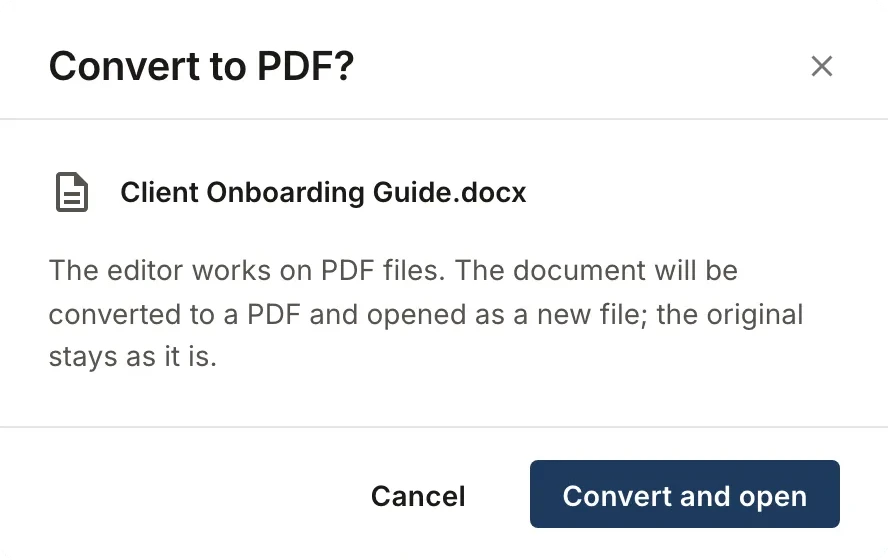
The original stays as it is. The tab has the document’s name with a .pdf extension and starts with the unsaved mark, because this PDF exists nowhere else until you save it. A document from a drive still offers its own folder when you save.
This is also the quickest way to turn a Word file into a PDF when you have nothing else to change: open it, convert it, and save. Look through the result before you send it.
If you open several documents at once, the windows follow one after another. A document can be up to 50 MB. If the conversion fails, the window says why and Close ends it without opening anything. It is worth checking that the document opens properly in a word processor.
When the PDF opens, a message may warn you about the conversion. If the document uses fonts Doxtly does not have, the message names them: they were replaced, so the text may run differently. To keep them, embed the fonts in Word (File > Options > Save > Embed fonts in the file) and open the document again. If Doxtly could not check the conversion fully, the message asks you to compare each page with the original.
The document is sent for conversion and the PDF is returned straight to your browser. Doxtly does not keep the document or the PDF.
Saving
Section titled “Saving”Nothing is saved automatically. Use Save or print in the toolbar.
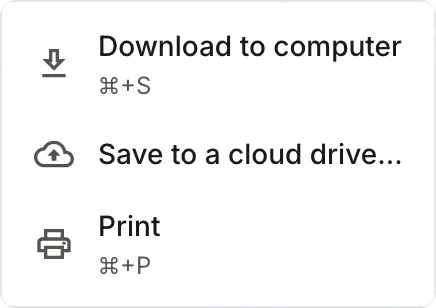
Each option builds a fresh PDF from the file as it looks at that moment, with your objects drawn into the pages. The result keeps what the original file carried, such as bookmarks and form fields, and its title in the document details becomes the file name.
| Option | Shortcut | The file counts as saved afterwards |
|---|---|---|
| Download to computer | Ctrl+S | Yes |
| Save to a cloud drive… | Yes, once it reaches the drive | |
| Ctrl+P | No |
Download to computer
Section titled “Download to computer”The PDF goes to your browser’s downloads under the tab’s name. It is a new file, so the original on your computer stays as it was. Saving again produces another copy, which your browser usually numbers. If the PDF cannot be built, you see The PDF file could not be prepared. Please try again. The same message can appear for the other two options.
Save to a cloud drive
Section titled “Save to a cloud drive”Available when: your organization has an active Google Drive, OneDrive, SharePoint, Dropbox or Box integration and you have both the View cloud files and Manage cloud files permissions
If either is missing, the option is not in the menu.
-
Choose Save to a cloud drive….
-
Pick the Drive. A file that came from a drive starts in its own drive and folder; any other file starts at the top of the default drive.
-
Walk through the folders. New folder creates one on the spot.
-
Check the File name. Below it, the window says which folder the file goes to. Change the name to keep the original intact, for example
Service agreement - signed.pdf. -
Click Save. A message confirms the file, the folder and the drive, and its Open folder takes you to that folder in Cloud files.
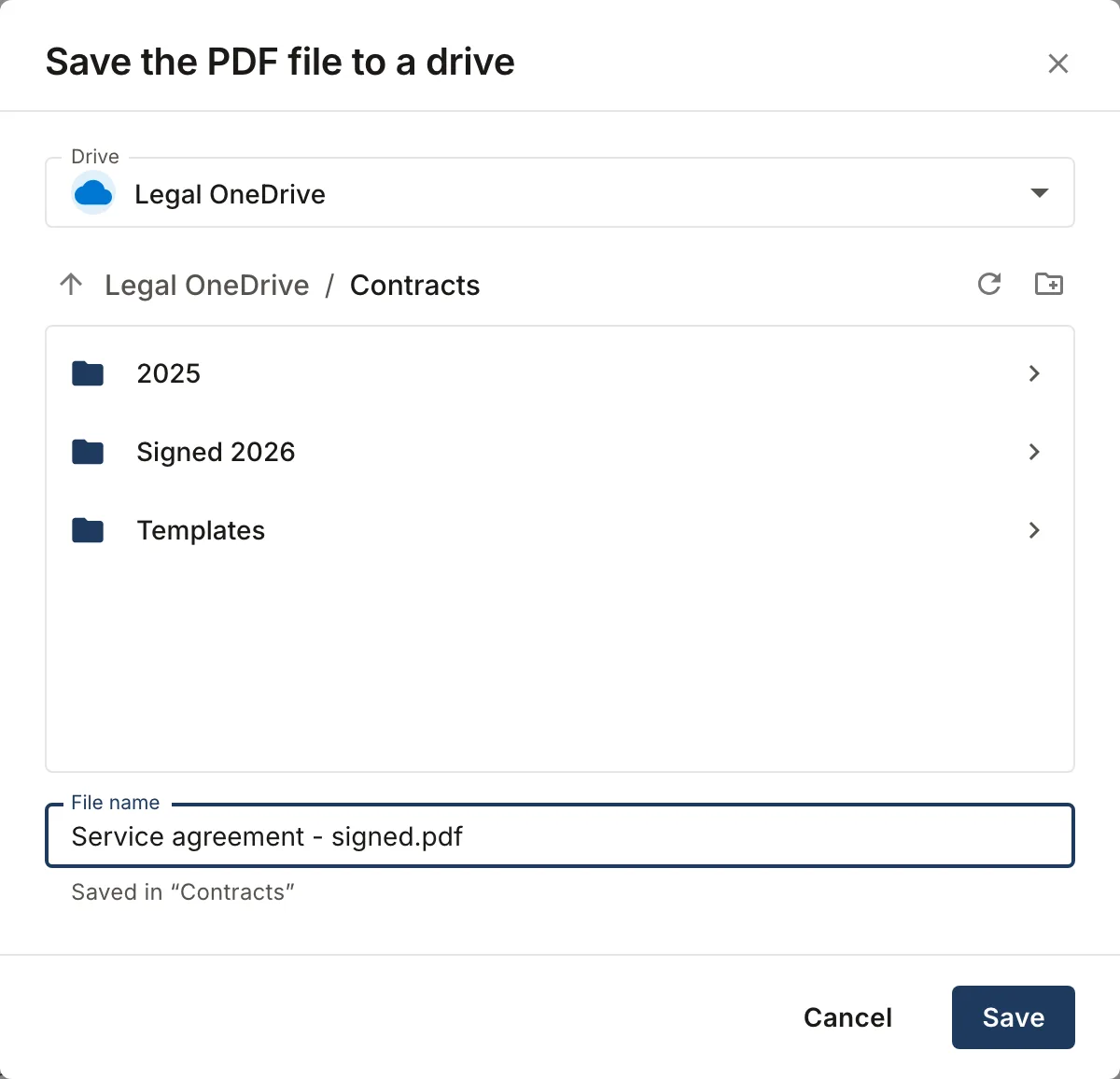
The PDF is prepared first, so a short wait before the window opens is normal. Cancel closes the window, nothing is saved and the tab stays marked as unsaved.
A name can have up to 255 characters and cannot contain / \ " * : < > ? | or consist of dots only. The file can be up to 50 MB, the same limit as any upload to a drive. If the drive refuses the file, the reason appears in the window and you can try again.
After saving, the tab keeps its own name and its starting folder, even if you saved under another name or elsewhere. Saving again therefore offers the original name and folder.
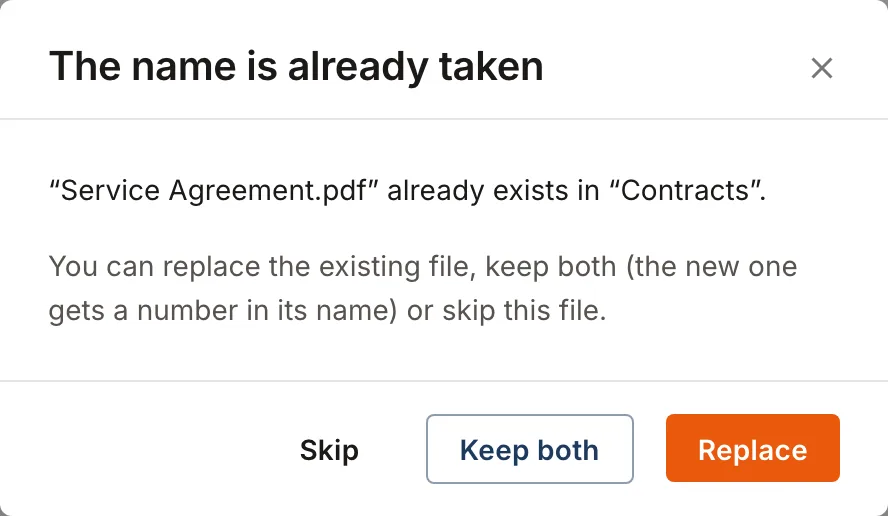
Nothing is replaced without asking. If the name is taken, The name is already taken offers three ways out:
| Choice | What happens |
|---|---|
| Replace | The file in the drive gets this new content. It stays the same file at the provider, so shares and links keep working. |
| Keep both | The new file is saved with a number in its name. |
| Skip | Nothing is saved, and you return to the window to pick another folder or name. |
The saved file then appears in Cloud files like any other, where a colleague can open it. Two things follow from that:
- A PDF you tidied up here can become a document template. If you may manage templates, choose Use as template in the file’s menu in Cloud files, as Cloud templates explains.
- If a PDF template already follows the file you replace, your change counts as a new version and waits for someone to review it. Documents keep coming from the approved version until then.
Print sends the PDF with your objects to the browser’s print window. In Safari, and in every browser on an iPhone or iPad, the PDF opens in a tab of its own instead, where you print with that viewer’s button. Printing does not count as saving, so the unsaved mark stays.
Protecting unsaved work
Section titled “Protecting unsaved work”Because an open file lives only in the browser tab, the editor asks before anything would lose your changes.
- Closing a tab with unsaved changes brings up Close the file without saving? with Close without saving and Cancel.
- Leaving the editor with unsaved changes in any tab brings up Leave the editor without saving? with Leave the editor and Stay.
- Reloading or closing the browser tab shows your browser’s own warning.
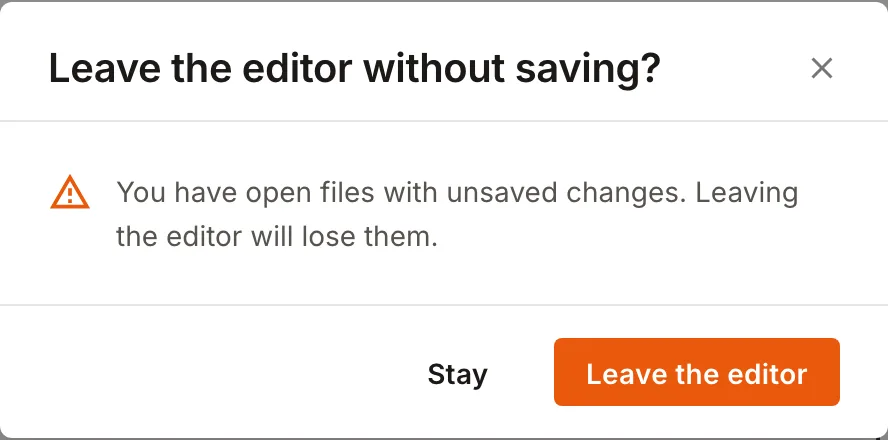
Leaving the editor closes every open file, saved or not, and empties the clipboard. Signing out does the same, and so does someone else signing in on that tab, so nobody finds another person’s files in the editor. Only your remembered styles stay behind.