

A contact's page
Open a contact from the list to see everything your organization knows about the person: how to reach them, the packages they are part of, the notes your team wrote and what has changed.
Available when: the View contacts permission
The header
Section titled “The header”The card at the top holds the photo or initials, the email with a link that starts a message, the phone with a link that starts a call, the company with a link to its page, job title and language, and the type as a chip beside the name. A contact who declined surveys has a Declined surveys chip there too: point at it, or tap it on a phone, to see the day. Earlier addresses lists the emails and phone numbers the contact no longer has, each with the day it stopped being current, or, for one added by hand, the day it was added. With Manage contacts, the menu beside the title holds Edit and Delete.
When your organization has custom fields, the Custom fields card under the header lists each of them with its value, or Not filled in. Sensitive values are masked; with View sensitive values, Show sensitive reveals them and Hide sensitive masks them again.
Documents
Section titled “Documents”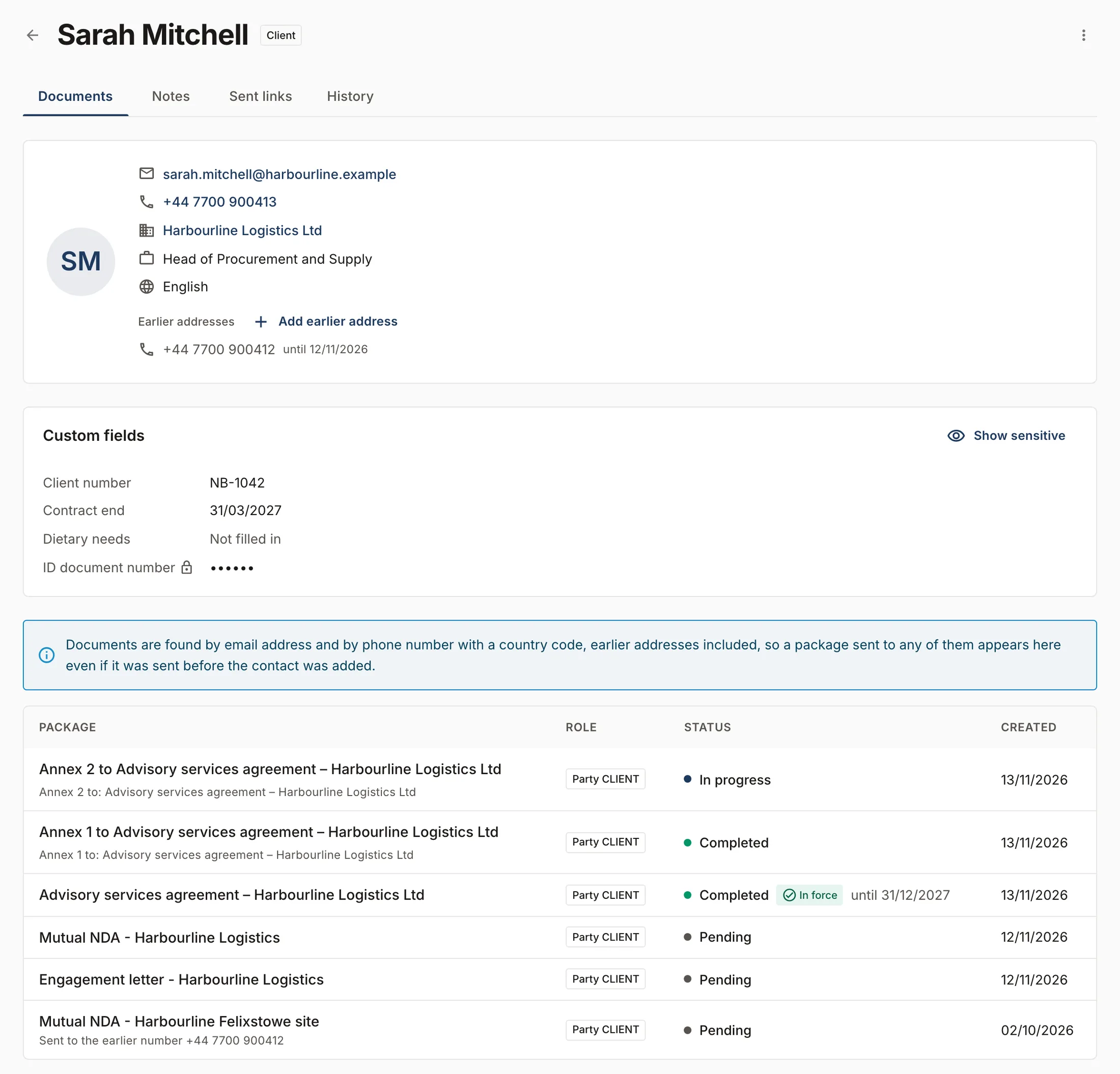
The packages this person is a party to or a viewer of, with their Role, Status and creation date. Role says which party they are, such as Party B, or Viewer. A row opens the package.
A contract has its state beside the status, such as In force or Ending soon, and the day it runs until, or the day it starts for one not yet in force. A change of a contract, such as an annex or a notice, says under its title which contract it changes, as in Annex 2 to: Advisory services agreement – Harbourline Logistics Ltd.
Packages are found by email address and by phone number with a country code, including the contact’s earlier addresses, so a package sent to one of them appears even if it was made before the contact was added, or under a different letter case of the address. A phone number written without a country code, such as 600 100 200, never matches: the same digits are a different number in another country. A package found by an address the contact no longer has says Sent to the earlier address, or Sent to the earlier number for a phone, and names it as it was written. The package itself never changes: it keeps the name and address it was sent to.
When an address changes
Section titled “When an address changes”Change a contact’s email or phone and the old one becomes an earlier address: the packages sent to it stay on this tab, and new ones follow the new address. If the address later becomes another contact’s, the packages from before that moment stay with this contact and the new ones go to the other. A phone number can be several contacts’ at once, a company’s number for example: every one of them sees the packages sent to it from the day they got it; only an email is one contact’s at a time.
Adding an earlier address
Section titled “Adding an earlier address”Someone who signed years ago with an old email was added later with the new one, so that package is not on this tab. With Manage contacts, Add earlier address in the header takes an email or a phone number with a country code, and the packages sent there appear at once, marked with the earlier address. An address added this way has a Remove button, which takes its packages off the tab again; addresses from the contact’s own history cannot be removed. An email another contact has now is refused, naming that contact with a link, because that is a duplicate and contacts cannot be merged. A phone number may be shared. Whatever another contact held before stays with them: the address counts only from the moment they stopped having it. The change is in History with who made it.
You see only the packages you are allowed to see in the documents list: a package from a department you have no access to stays hidden.
The tab appears only with View documents. Without it the page opens on Notes.
Dated, signed notes about the contact, newest first, up to 5,000 characters each. With Manage contacts you write new ones and edit or delete your own. Nobody changes someone else’s note, so a signature always means what it says.
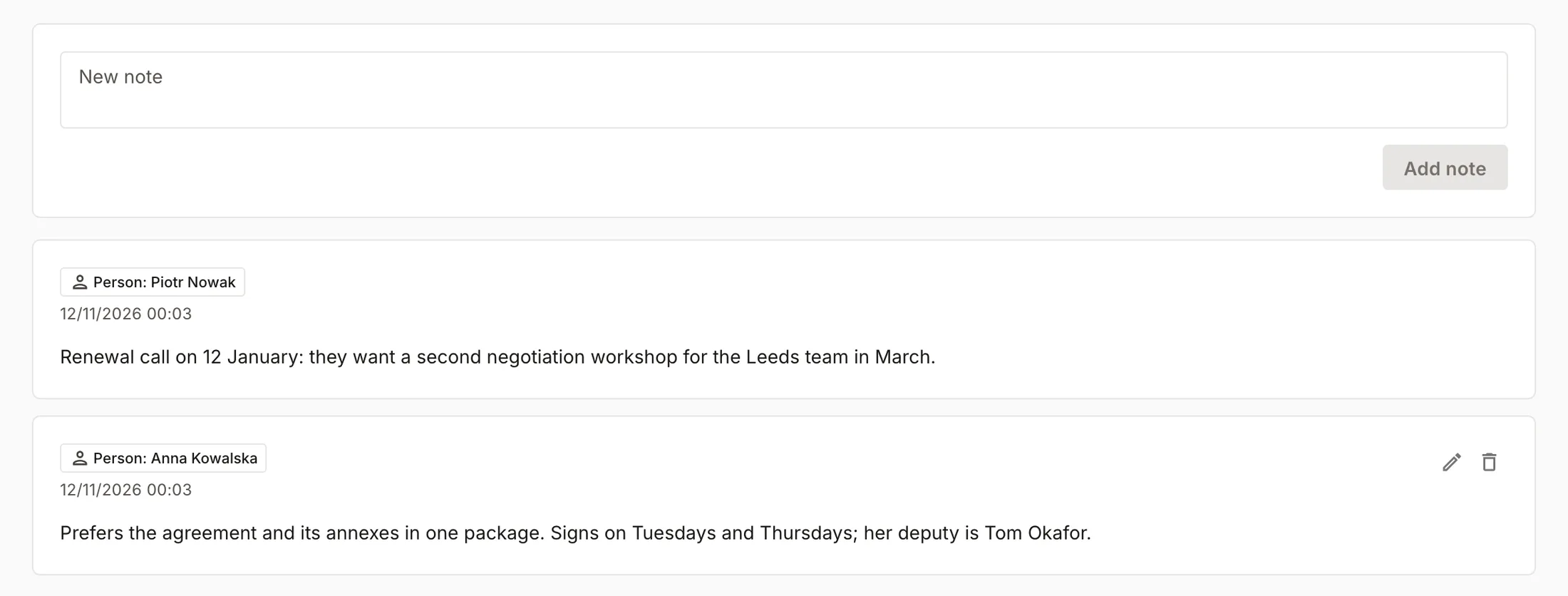
A note can also come from a workflow’s Save contact step or an access key, and is signed by it.
Sent links
Section titled “Sent links”The personal links sent to the contact with Send to fill in, from the header’s menu: what each opens, how and where it went, whether it was opened and filled in, and when it expires. Revoke stops one at once. You see the links to what you may view yourself: to forms with View forms and submissions, to interactive documents with View interactive documents and submissions, to quizzes with View quizzes, attempts and results and to surveys with View surveys, responses and results.

History
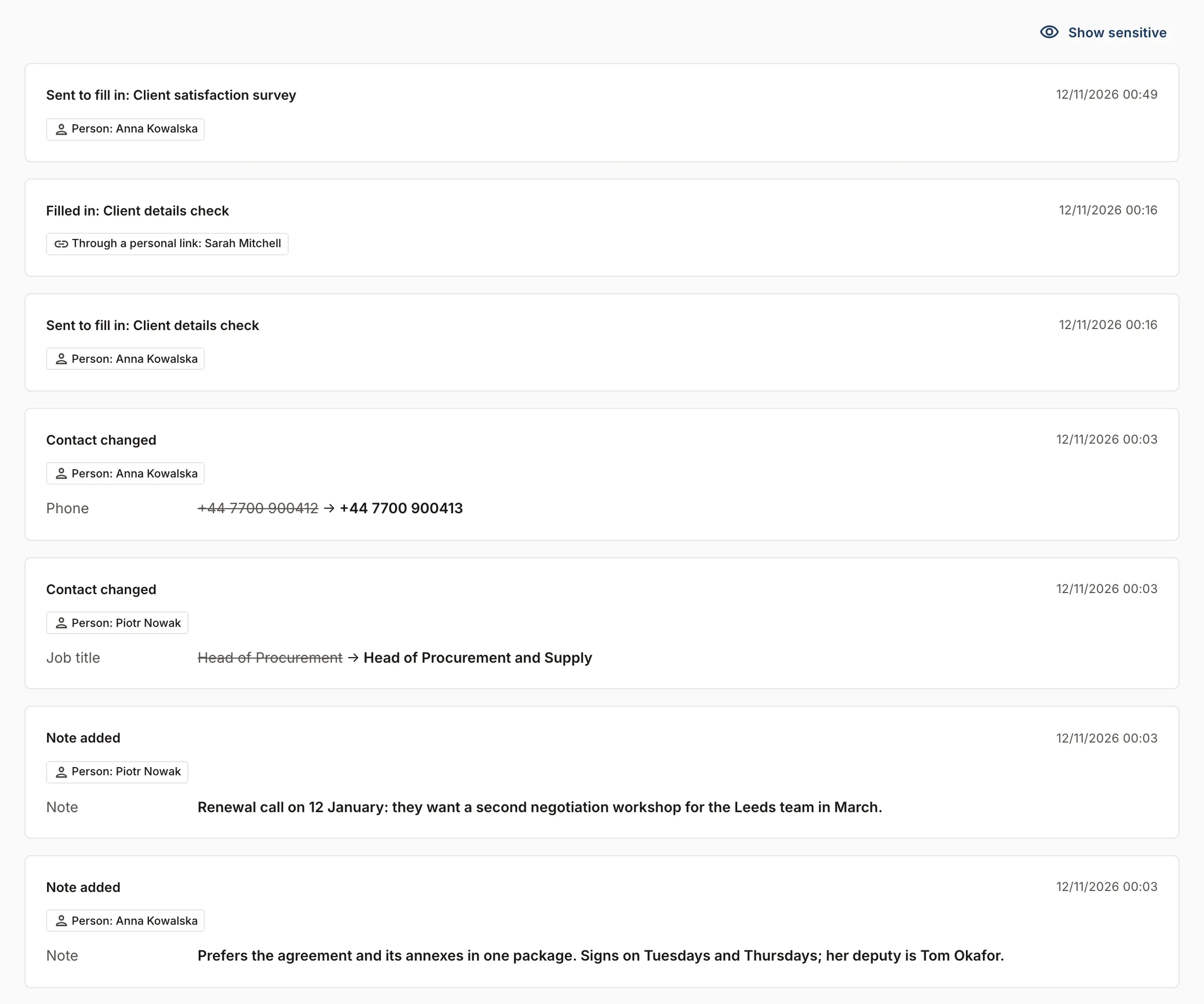
Section titled “History”Everything that happened to the contact, newest first: created, changed, notes added, edited or deleted, and a link sent to fill in and filled in, named by what it opened. A quiz filled in shows how it came out: the points, Passed or Failed and the grade, or Awaiting grading; a survey shows Answered. These entries follow the same permissions as Sent links: someone who works only with surveys sees the contact’s surveys and never their quizzes or forms. Each entry says when, who did it, and, field by field, the old value struck through and the new one in bold. For a photo it says only whether it was added, replaced or removed. A custom field is named by its label. The value of a sensitive one is masked, as on the Custom fields card: with View sensitive values, Show sensitive above the entries reveals the values and Hide sensitive masks them again.
| Who | What you see |
|---|---|
| A person | Their name, linked to the user list with View people. |
| A workflow | Its name, linked to its editor with Manage workflows, and View run, linked to that run with View workflows and their runs. |
| An access key | Its name, linked to the key with View access keys. |
| The contact, filling in a personal link | Through a personal link and the contact’s name. |
| A CRM | CRM and the integration’s name, when two records were merged in the CRM, such as Pipedrive or HubSpot, and the contact’s ID from it changed with them. |
The name stays even after the account, workflow or key is gone. A save that changes nothing adds no entry.