

Quizzes
A quiz is a set of questions with correct answers, worth points, taken through a link one attempt at a time. Use it for a training test, an entrance exam, a certification or a recruitment test: each attempt gets a score, a share in per cent and, with a pass mark, passed or not passed.
Northbridge Advisory, an example consulting firm, closes its workplace safety training with a quiz of twelve questions. Each participant gets 20 minutes, sees the questions in an order of their own, and learns their score as soon as they send it. Everyone who passes gets a certificate by email from a workflow.
To collect opinions rather than check knowledge, use a survey: a product of its own, with no correct answers and no scores.
How a quiz differs from a form
Section titled “How a quiz differs from a form”A web form also collects answers, so here is when to choose which.
| Web form | Quiz | |
|---|---|---|
| Correct answers and points | No | Yes, per question |
| Order of the questions | As you built it | Fixed or shuffled for each attempt |
| Time limit | No | Optional, kept by the server |
| What the person sees at the end | Your message or another page | Nothing more than “sent”, the score, or the score and the answers |
| What you get | A submission | An attempt with its score, each question’s result and, with a grading scale, a grade |
The questions themselves are form fields: a quiz offers 15 answer types, from single choice to a date picker, and content such as headings and videos between them. See Creating a quiz.
The list
Section titled “The list”Available when: your role has the View quizzes, attempts and results permission
In the sidebar, open Forms → Quizzes. The Quizzes tab lists your quizzes, newest first, and the Grading scales tab holds your organization’s grading scales. The questions saved to reuse in any quiz are under Resources > Question library, on its Quizzes tab: see Question library.
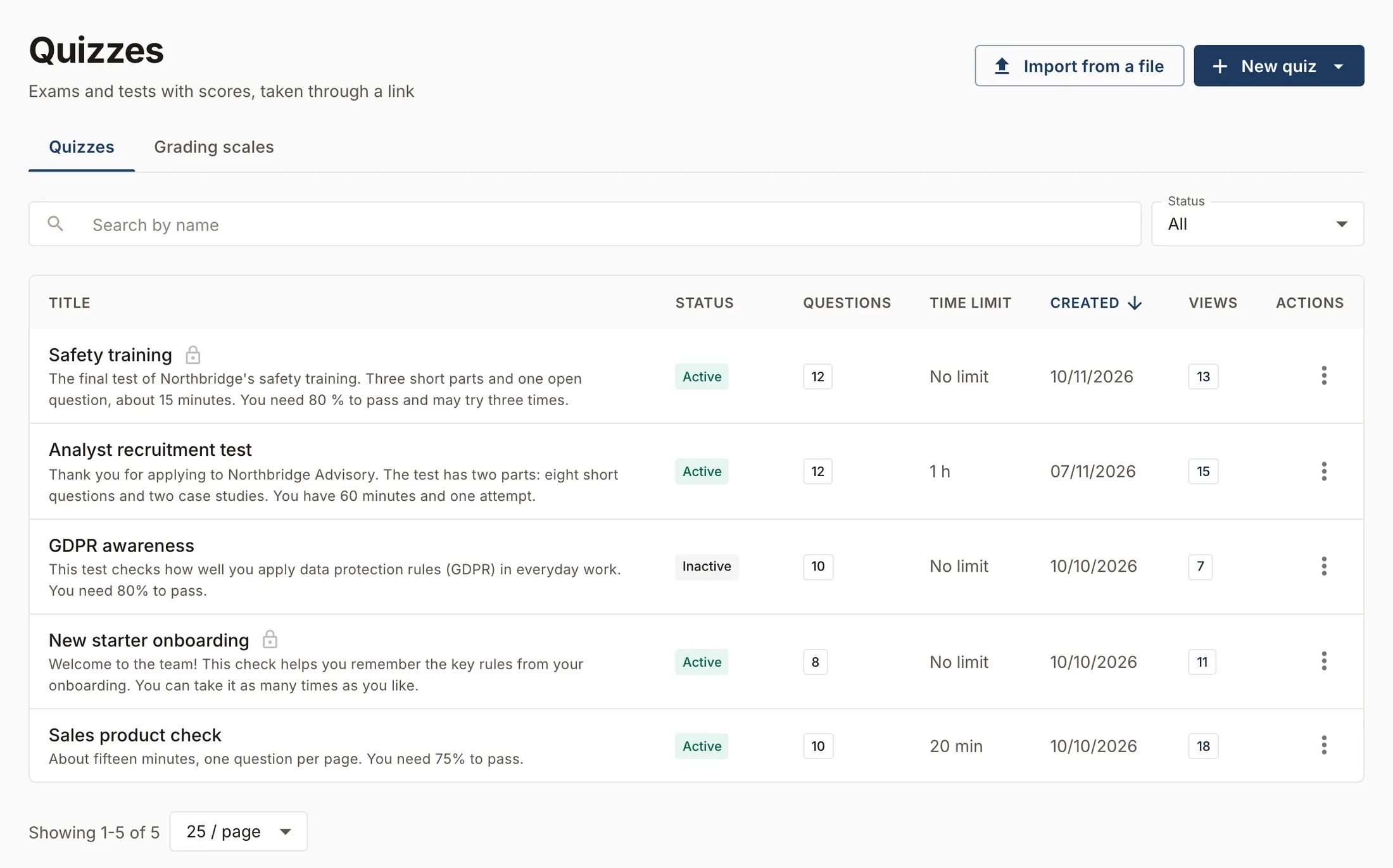
Above the list, people with the Manage quizzes permission have New quiz and Import from a file, which makes a quiz from a file exported here or in another organization. Learning platforms sits beside them when your organization can connect learning platforms. With no quiz yet, the page says No quizzes yet and offers New quiz in the middle.
| Column | What it shows |
|---|---|
| Title | The title and, under it, the description. A padlock means the link is password protected. |
| Status | Active or Inactive. An inactive quiz’s link says Nothing to open here. |
| Questions | How many questions it has. Content between them is not counted. |
| Time limit | How long an attempt can take, or No limit. |
| Created | The day it was created. |
| Views | How many times its page was shown, counted as for forms. |
| Actions | The menu of the row. |
You can sort by Title, Status and Created. Search by name looks in the titles, and the Status filter narrows the list to Active or Inactive quizzes. If nothing fits, the page says Nothing matches the filters. Filters live in the page address, so you can bookmark a filtered list. On a phone the table turns into cards with the same information.
Click a row to open the quiz in the designer. This needs the Manage quizzes permission.
The row menu
Section titled “The row menu”Click the three dots at the end of a row.
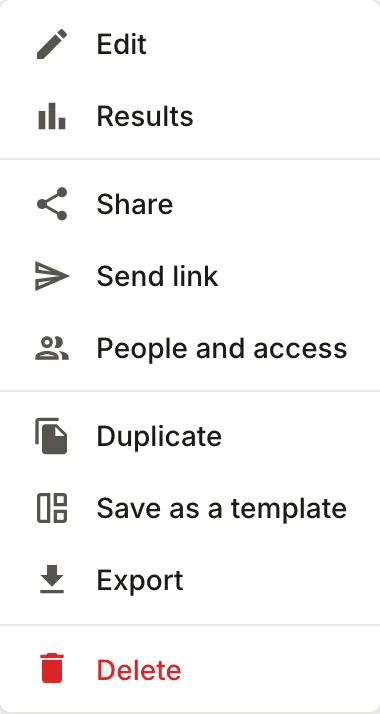
| Item | What it does | Who sees it |
|---|---|---|
| Edit | Opens the designer. | Manage quizzes |
| Results | Opens the quiz’s Results: its figures and charts, the class list on the Summary tab, and every attempt on the Responses tab. See Attempts and results. | Everyone who can see the list |
| Share | Shows the public link and its QR code. See Taking a quiz. | Everyone who can see the list |
| Send link | Sends the link by email, SMS or WhatsApp, a message for each recipient, from the Quiz link default message or a template written for it. Greyed out, with the reason under it, while the quiz is inactive or when your organization has no email integration. | Manage quizzes |
| People and access | Opens the quiz’s access list and access log. See People and access. | Manage quizzes |
| Duplicate | Makes a copy under a name you choose, inactive, with a link of its own, and opens it in the designer. See Duplicate a quiz. Greyed out when your plan has no room for another quiz. | Manage quizzes |
| Save as a template | Saves the quiz, without its people and results, as one of your organization’s templates, offered first under New quiz → From a template. See Save as a template. | Manage quizzes |
| Export | Saves the quiz as a file to import elsewhere. See Import and export. | Everyone who can see the list |
| Delete | Deletes the quiz with its questions, after you confirm. Refused while a workflow uses it: see Deleting what a workflow uses. The two workflows of its results sheet (Keep in a spreadsheet) don’t count: the dialog lists them under Also removed, and they go with the quiz; the spreadsheet stays in the drive. | Manage quizzes |
Duplicate a quiz
Section titled “Duplicate a quiz”A copy is the quickest way to a similar quiz: the same exam for another group, a resit with some questions changed, next year’s edition of a course test. Choose Duplicate in the row menu, or in the ⋮ menu of the designer’s top bar once the quiz is saved.
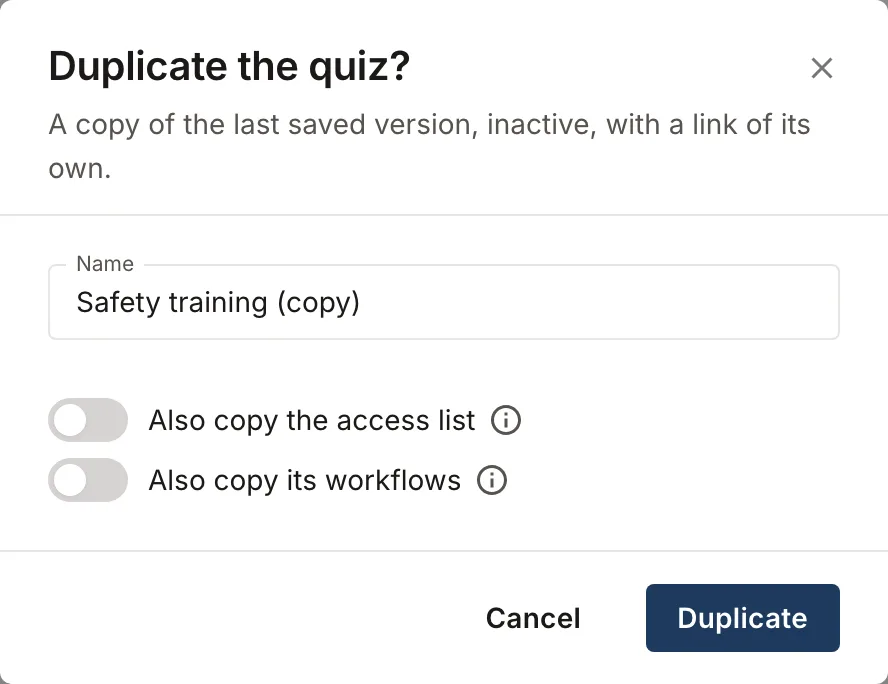
- Name the copy. Doxtly suggests the quiz’s name with (copy) after it; change it and press Enter, or select Duplicate.
- If the copy is for the same people, switch on Also copy the access list. If it should do what the quiz does after an attempt, switch on Also copy its workflows (offered to whoever has Manage workflows). Both are off by default.
- The copy opens in the designer, inactive, with a link of its own. Change what should differ and switch it to Active.
The copy is made from the last saved version: if the designer has unsaved changes, save them first, or they stay in the quiz you were editing.
What the copy holds. Everything the quiz is made of: the introduction, the questions of every type with their answer keys, partial credit, penalties, Other, explanations and rubrics, the sections with their time limits and draws (a draw from the question library keeps drawing from the same library), the content between the questions, the result texts and the variables in them, the language versions, the conditions and jumps, and the examiner notes. Its pictures are copied as files of its own, so deleting either quiz leaves the other’s pictures in place. Every setting comes along: time limit, navigation and pages, what people see at the end, the pass mark and grading scale (one of your organization’s grading scales stays shared, a scale set in the quiz itself is copied), negative marking, the AI grading policy and its reference material, attempts and retakes, the schedule, the quiz’s password, the link’s settings, metadata and link parameters, the answer sheet, the look and theme, and the exam safeguards.
What stays with the original. Everything people did with the quiz: attempts and their answers, grades and grading, the access log, invitations and their waves, personal links sent to contacts, certificates issued, AI analyses, saved reports, and the view and open counts. The copy starts with none of them, and its attempts are numbered from 0001.
The access list. Switched on, the people added by hand or from a file come along with their names, addresses, groups and extra time, each with a new password and a new personal link: the original’s passwords and links never open the copy. Nobody is invited; send the invitations from the copy’s People and access page when it is ready. People of a live sheet come either way, because the copy reads the same sheet; learners from a learning platform stay with the original.
The workflows. Switched on, every workflow started by the quiz’s attempts is copied, its certificate and its results sheet’s included: inactive, named with (copy) after the original’s name, started by the copy, and with each step that named the quiz now naming the copy. Check them and switch them on in Workflows. The copies of a results sheet’s workflows write to the same spreadsheet, so give them another file or tab first. Left off, the copy has no workflows, and a certificate made by a workflow of the original’s is cleared in its settings: choose one in the copy’s certificate settings.
A copy counts towards your plan’s quizzes, and its copied workflows towards its workflows: when either has no room, nothing is copied.
Create one in a minute
Section titled “Create one in a minute”- Open Forms → Quizzes, click New quiz and choose Blank.
- Type a title over Quiz title in the bar at the top.
- In Add on the left, click a question type, type the question and its options, and click the correct option to mark it.
- Add more questions the same way: each goes after the one selected.
- Click Create.
- Back in the list, choose Share in the row menu and copy the link.
Creating a quiz covers every option of the designer, and Settings the time limit, the result page, grading and the link’s protection.
Or ask Doxie: Make a 10-question quiz on fire safety, pass mark 80%, 20 minutes, or attach a Word file of questions. She prepares the quiz on a card and creates it switched off when you click Create.
Permissions
Section titled “Permissions”Three permissions in the Quizzes group of a role control this section. They apply to the whole organization: a quiz does not belong to a department. Surveys have permissions of their own.
| Permission | What it allows |
|---|---|
| View quizzes, attempts and results | See the list, the results and the attempts, get the share link and export a quiz. |
| Manage quizzes | Create, edit, duplicate and delete quizzes, send their links, and manage who may take them: the access list, invitations and the access log. |
| Grade attempts | Grade the answers the AI could not grade, and change an attempt’s points by hand. |
The built-in Administrator, Manager and Member roles have all three. Viewer has only the first.
Plan limits
Section titled “Plan limits”Two limits of your plan apply: how many quizzes you keep, and how many quiz attempts are started in a billing period. Surveys and their responses are counted apart.
| Plan | Quizzes (in total) | Quiz attempts (per billing period) |
|---|---|---|
| Free | 1 | 10 |
| Starter | 15 | 750 |
| Pro | 40 | 2,500 |
| Business | 100 | 10,000 |
At the first limit, New quiz, Import from a file and Duplicate are greyed out and say Your plan’s limit of quizzes is reached. Deleting a quiz frees its place.
An attempt counts when it starts, whether it is finished or not. At the second limit, new attempts are refused until the next billing period. On a paid plan, overage lets them go on at $0.02 per attempt, as for form submissions, once someone who manages the subscription has turned it on. The Free plan has no overage, so its limit is firm. Keep an eye on the numbers on your subscription page.
How long attempts are kept
Section titled “How long attempts are kept”Unless the quiz has a retention period of its own, its attempts are kept as long as your organization keeps form submissions, which it sets under Data retention. A quiz can set its own period, from 1 to 3,650 days, in the Security section of its settings.