

Google Drive integration
A Google Drive integration connects one Google account and one folder in it to Doxtly. Signed contracts can land in a client’s folder, a workflow can add each new form answer to a Google Sheet, and your team can browse it all from inside Doxtly. Northbridge, for example, points its integration at a /Clients folder, so that every signed service agreement ends up in /Clients/Halden Logistics without anyone downloading and re-uploading it.
Available when: you hold Manage integrations
What needs it
Section titled “What needs it”- the Cloud files page, which appears in the sidebar once a drive is active, for people who may view cloud files
- the workflow steps Upload to Google Drive, Upload to the cloud, Download from the cloud, Read from a sheet and Write to a sheet, which work with Google Sheets too
- cloud templates, which follow a file on your drive
- Save to a cloud drive in the PDF editor
- data sources of forms and PDF templates, which read a spreadsheet or a JSON file from the drive
You can connect several drives, for example one for contracts and one for training material. The same features work with OneDrive, SharePoint, Dropbox and Box, except that only Google Drive has Google Sheets.
Connect a drive
Section titled “Connect a drive”You need a Google account. There is nothing to set up at Google, though a Google Workspace administrator may have to allow Doxtly first.
- Go to Organization, Integrations, click New integration and pick Google Drive.
- Fill in Integration name, such as “Client documents”.
- Click Connect Google Drive.
- Sign in on Google’s page with the account you want to connect and accept. Keep every permission ticked, or Doxtly can’t do its work.
- You return to the integration, which is now Active and shows “Connected as” with the address.
- Under Folder selection, click Choose a folder on Google Drive and choose the folder in Google’s window, as described in The root folder.
- Click Save.
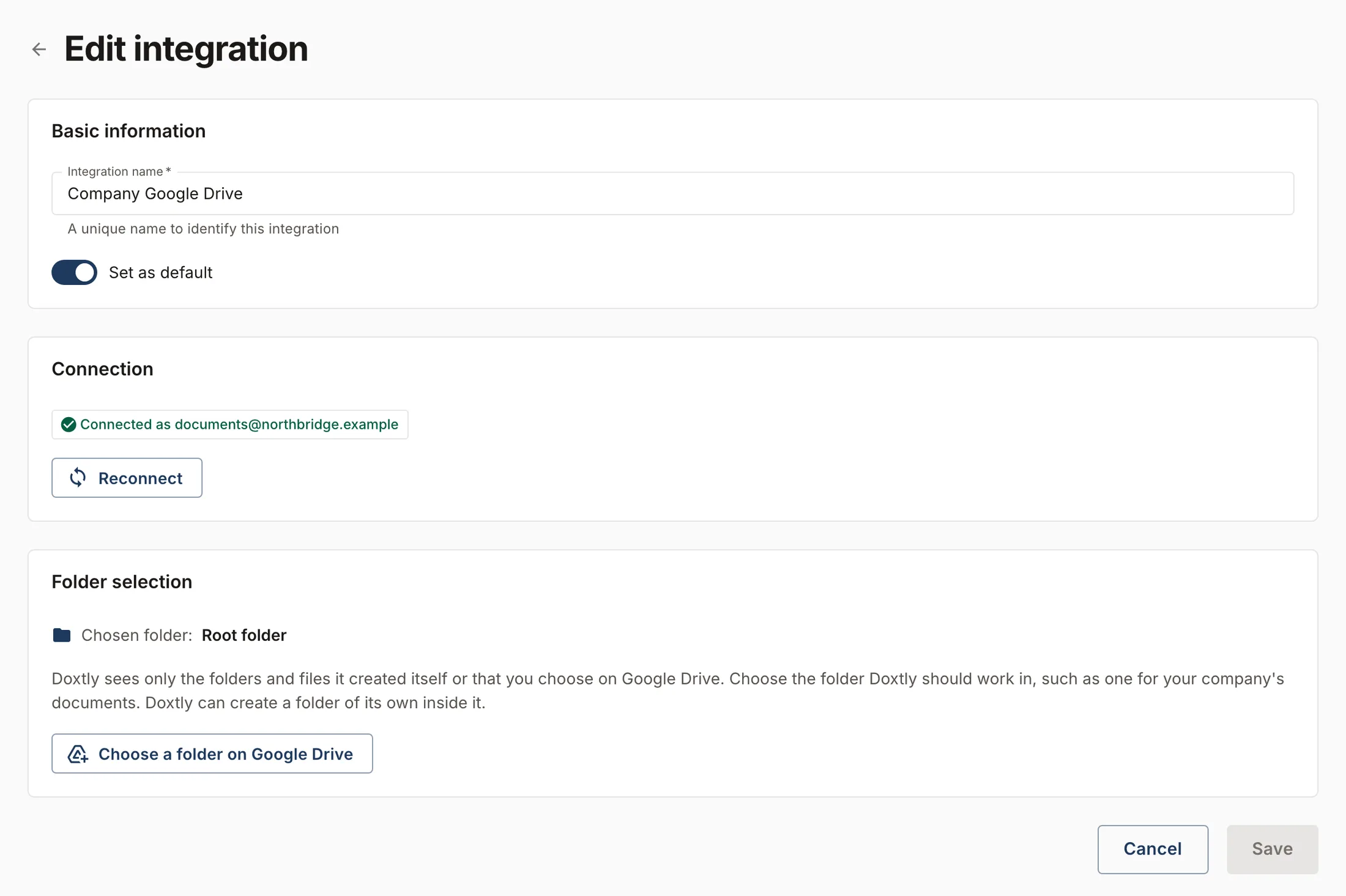
Until it is connected, the page says “Please connect your Google Drive account to continue”. A new drive has no Save button at this point, because connecting is what creates it. If you stop at Google’s page, you find a Draft in the list. Open it and click Connect Google Drive again. The overview lists the messages you may see if the connection fails.
Every field
Section titled “Every field”| Field | What it does |
|---|---|
| Integration name | Your label, shown wherever people pick a drive. Up to 255 characters, unique among your Google Drive integrations. A repeat is refused with “An integration of this type with this name already exists.” |
| Set as default | Makes this the drive used when a workflow step names no particular one. See the default integration. |
| Connect Google Drive, Reconnect | Signs in at Google. |
| Folder selection | The root folder, shown once the drive is connected and Active: Choose a folder on Google Drive, or a list of the drive’s folders when the connection sees all of Google Drive. |
The root folder
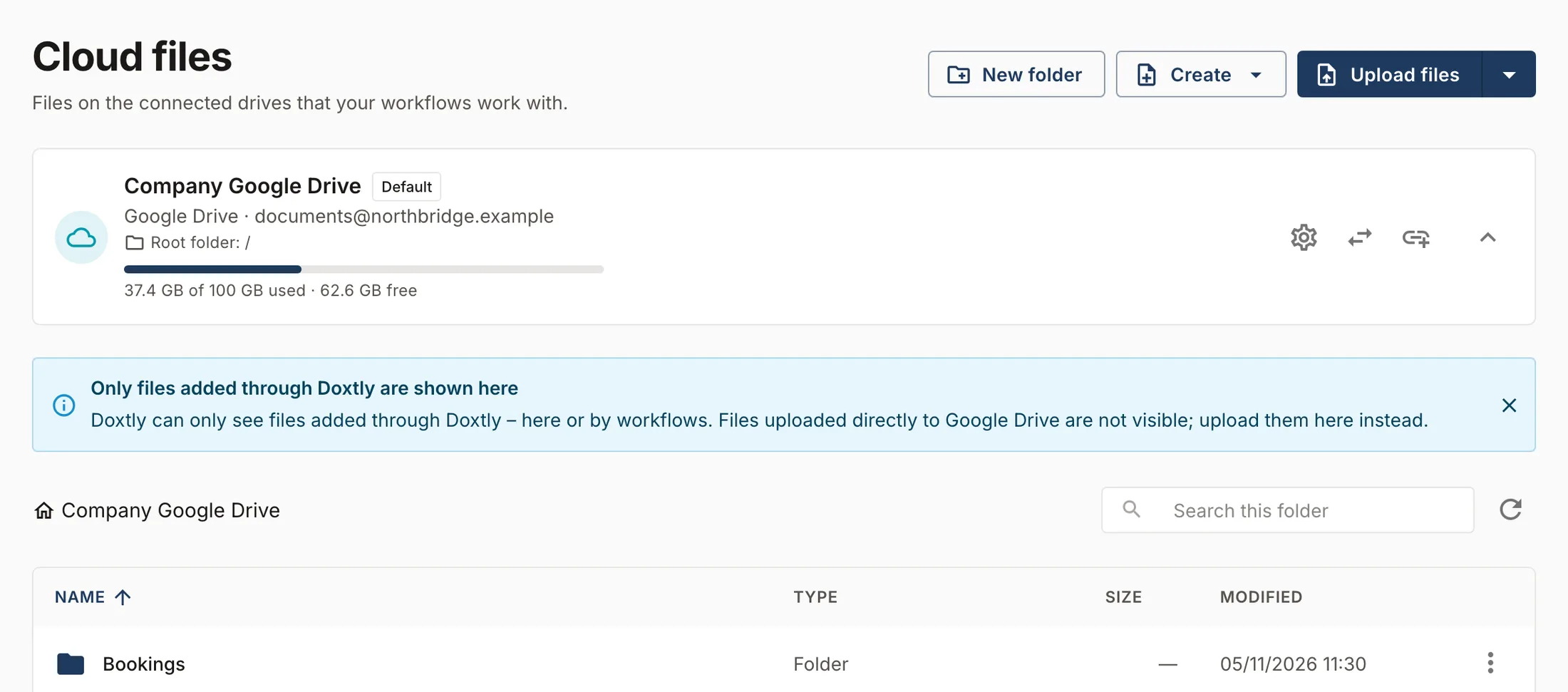
Section titled “The root folder”The root folder is the fence around everything Doxtly does on this drive. Workflows and the Cloud files page work inside it, and nothing outside it can be named. Without a choice, the root is the top of My Drive, which the card calls Root folder and the list’s summary shows as /.
Doxtly doesn’t browse your Google Drive on its own. You show it the folder to work in, and Doxtly works only with what it creates there and what you hand it. The folder window is Google’s own, not Doxtly’s, which keeps your Drive private: Doxtly sees only the folder you choose there. Northbridge keeps its papers in /documents/company and wants Doxtly’s files in a doxtly folder inside it:
- Under Folder selection, click Choose a folder on Google Drive. Google’s window, Choose a folder for Doxtly, opens over the page.
- The Folders tab starts at the top of My Drive, as Google Drive itself does. Double-click
documentsto open it. The path above the list shows where you are, and clicking a folder in it takes you back up. To find a folder by name, type it in the search box. Folders in shared drives are on their own tab. - Click
companyand click Select.
Doxtly reads the picked folder at once with the connected account, without creating anything yet, and asks in the Folder for Doxtly dialog where Doxtly keeps its files:
- In a new folder inside it (recommended): Doxtly creates the folder,
Doxtlyunless you type another name in Folder name, such asdoxtly. If it created a folder of that name there before, it uses that one again. - Directly in this folder: Doxtly works in
companyitself. Doxtly doesn’t see the files you put there yourself, so if it saves a file under the same name as one of yours, such asa.pdf, Google Drive keeps both side by side: yours stays untouched, whatever a workflow’s If a file with this name exists says.
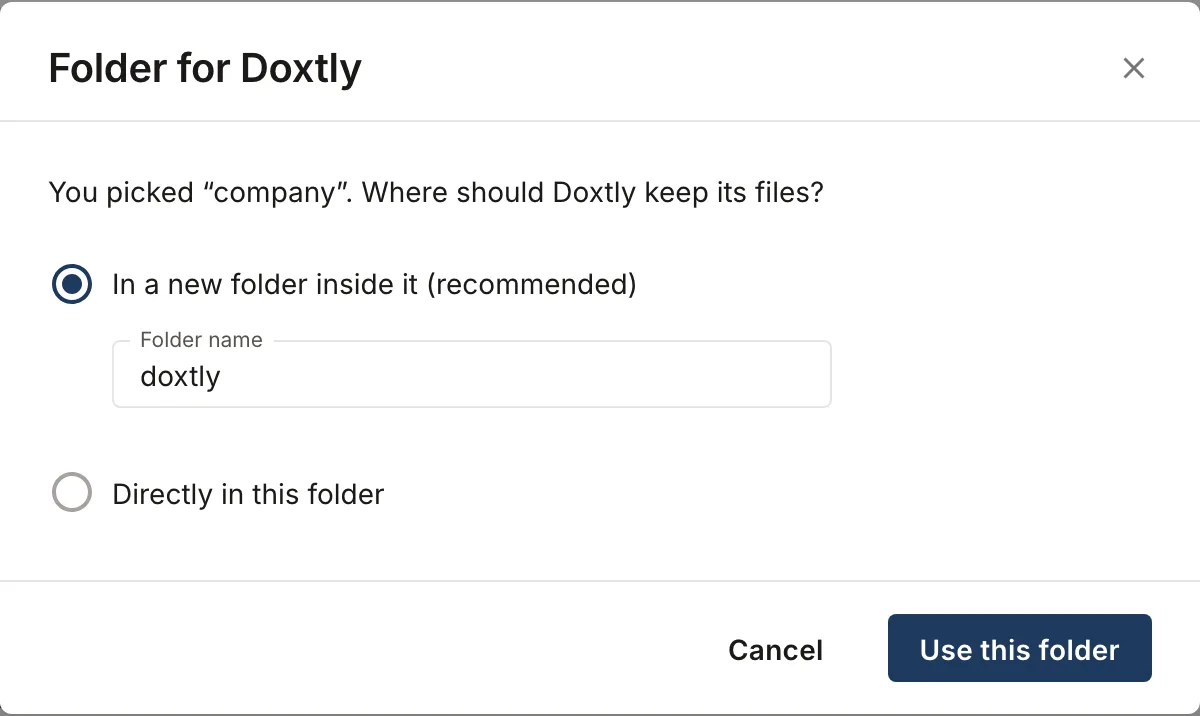
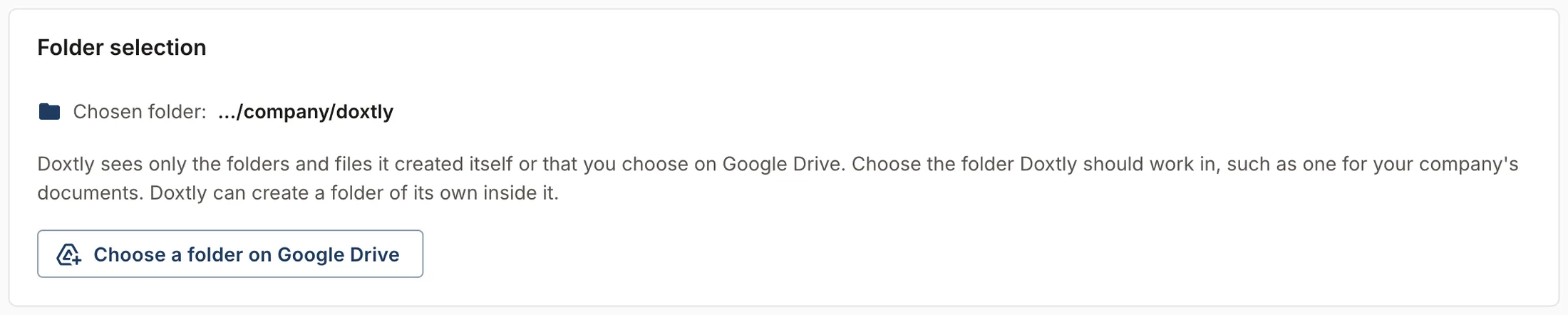
Click Use this folder. Chosen folder now reads …/company/doxtly. The … stands for the folders above, which Doxtly doesn’t see. Then click Save: nothing changes until you do.
When the browser is signed in to several Google accounts, the folder may come from another account than the connected one. Doxtly can’t reach such a folder, so instead of the choice the dialog A folder of another Google account says “This folder belongs to a different Google account than the connected one” and names the connected address. Click Choose another folder to open Google’s window again and pick a folder of the connected account.
The recommended choice is the simpler one to live with: everything in a folder Doxtly created is Doxtly’s own, so nothing in it is ever hidden from it. In a folder you picked as it is, Doxtly doesn’t see the files that were there before, which the page says before you confirm.
If you already made a doxtly folder on Google Drive by hand, pick it and choose Directly in this folder. Doxtly works in it, but doesn’t see what’s already inside.
The card appears only while the drive is Active. On a drive that turned Invalid, click Reconnect first. If Google’s window doesn’t open, check that the browser isn’t blocking pop-ups or cookies from Google.
If you click Reconnect and sign in with another Google account, the root folder goes back to the top of that account’s My Drive, because the old folder isn’t there. Choose a folder again. Reconnecting the same account keeps the folder.
Paths in workflows are read from the root folder, so moving the root later means those workflows look somewhere else. Check them after a change. You can move or rename the root folder itself on Google Drive later: Doxtly keeps working in it, though the summary shows the old path until you choose the folder again.
Only people with Manage integrations can choose the folder, because it decides where the whole organization’s files go.
When the card lists folders
Section titled “When the card lists folders”A connection that was given all of Google Drive shows the drive’s folders right in the card instead of Choose a folder on Google Drive.
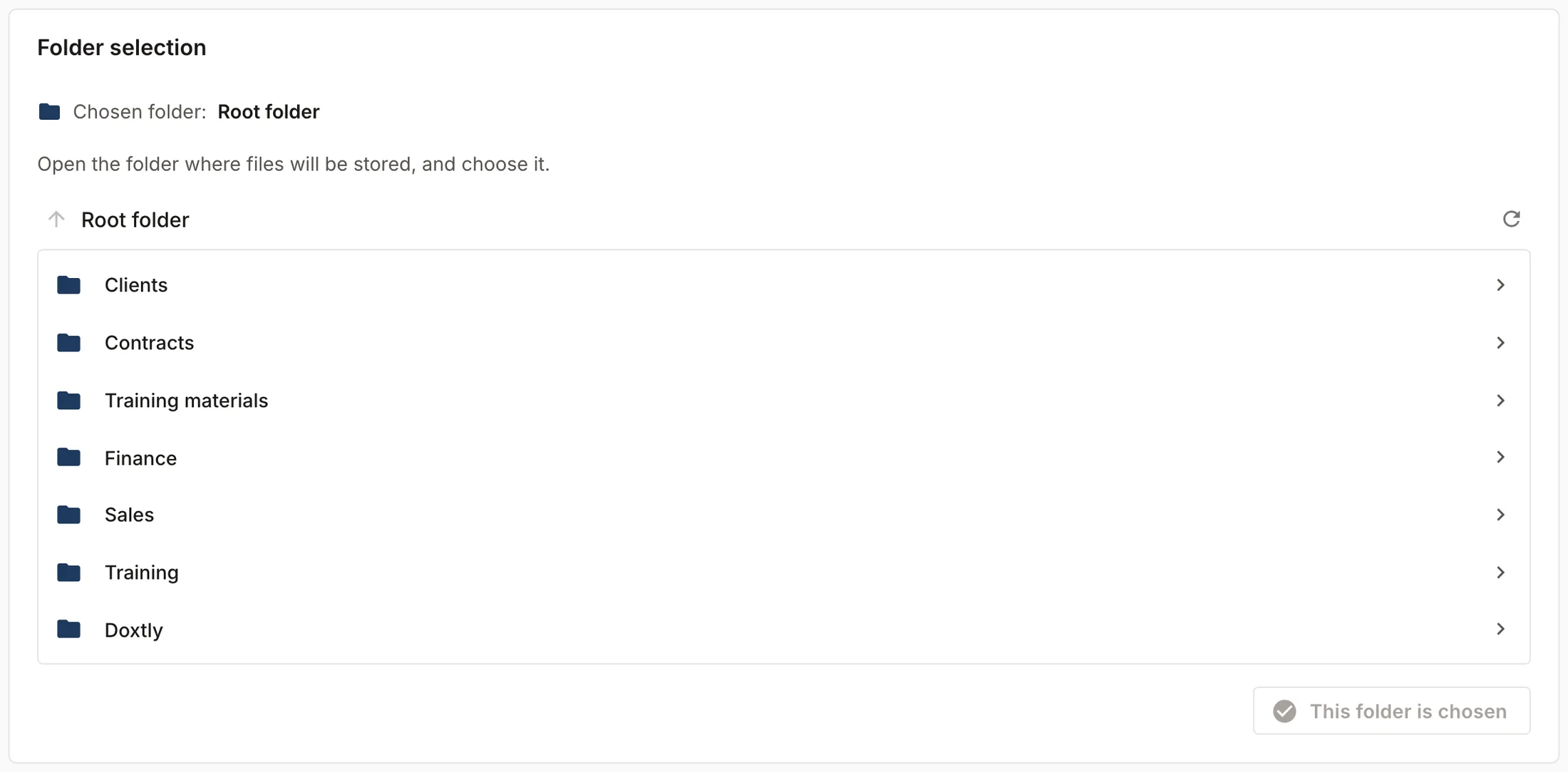
Walk down by clicking folders. Up one folder and the trail above the list take you back, and Refresh folders reads the list again. When the folder you want is open, click Choose this folder, which then reads This folder is chosen, and click Save.
What Doxtly can see
Section titled “What Doxtly can see”Google can give Doxtly either the whole Drive or only the files Doxtly itself works with. Doxtly asks for the second: it never reads the rest of your Drive.
Doxtly sees:
- the folder you chose, and every folder and file Doxtly created in it, wherever on the drive you move them later
- files uploaded on the Cloud files page, and files and Google Sheets that workflows and Save to a cloud drive create
Doxtly doesn’t see:
- files that were already in the folder you chose
- files and folders someone adds to the folder straight on Google Drive, by dragging them in or with New on Google Drive
That decides how you work with the drive:
- To give Doxtly a file that is already on Google Drive, such as a Word template or a price list sheet, download it and upload it on the Cloud files page. The uploaded copy is one Doxtly can see, and works everywhere from then on.
- Create folders on the Cloud files page or let workflows create them. A folder made on Google Drive itself stays hidden, so a workflow writing to the same path would create a second folder of that name next to it.
- A spreadsheet a workflow reads or writes, or a cloud template follows, has to be one Doxtly can see: uploaded through Doxtly or created by a workflow. Once it is, editing it on Google Drive is fine, and Doxtly sees every change.
The Cloud files page reminds you of this with “Only files added through Doxtly are shown here”.
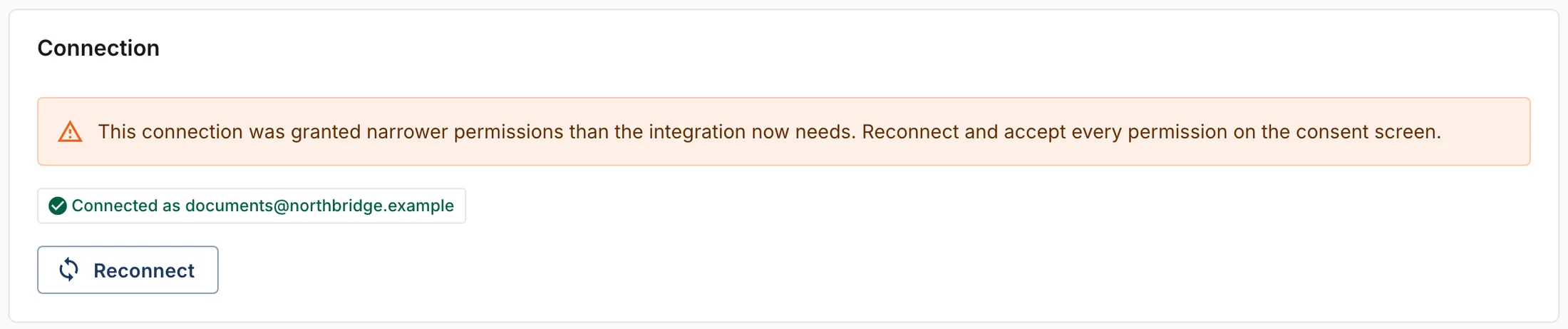
If the page shows “This connection was granted narrower permissions than the integration now needs. Reconnect and accept every permission on the consent screen.”, click Reconnect and accept everything Google asks.
When the connection stops working
Section titled “When the connection stops working”Google can end a connection: the owner withdrew access in their Google account, or the account was closed. The integration turns Invalid the next time Doxtly uses it. Workflow steps on it fail with “The connection to … has expired or was revoked. Connect the integration again.” Cloud files lists the drive as needing to be reconnected, and templates that follow files in it keep generating from their last approved version.
Open the integration and click Reconnect. Reconnect on the Cloud files page takes you to the same place, and people without Manage integrations are told to ask an administrator. Sign in with the same account, so that the root folder and the workflows that use it stay as they were.
What you see once it’s set up
Section titled “What you see once it’s set up”Click the row in the list for the summary: Connected account and Root folder, which reads / for the top of the drive, or here …/company/doxtly. The connected address also appears under the name in the list.

Delete a drive
Section titled “Delete a drive”Doxtly refuses while a workflow relies on the drive, a template follows a file in it or a data source reads from it, and names them. Files on the drive stay where they are: deleting the integration ends the connection, nothing else. See Delete an integration.