

Default messages
A new organization has its messages ready: an email and a text message for each occasion, in every language Doxtly writes, with your organization’s language as the default. When you change the organization’s language, the messages are renamed in the new one and take it as their default. A name you gave a message yourself stays. You can share a form or send a document for signing before you’ve written a single template.
| Occasion | Sent when |
|---|---|
| Signature request | A party’s turn to sign comes. |
| Approval request | An approver’s turn comes. |
| Signature reminder | A party who hasn’t finished is reminded. |
| Payment reminder | A party who signed but hasn’t paid yet is reminded to pay, instead of the signature reminder (Sign and pay). |
| Form link | You send a form’s link. |
| Interactive document link | You send an interactive document’s link. |
| Portal link | You send a portal’s link. |
| Quiz link | You send a quiz’s link. |
| Survey link | You send a survey’s link. |
| Quiz result | A person’s quiz result is released to them. |
| Viewer link | Somebody is invited to watch a package. |
| Everyone signed | The last party has signed. Each party’s sealed documents go with it. |
| Package voided | A package was voided and the parties told, or the sender chose to. |
| Package refused | A party refused and the package stopped. |
| Access password | A party’s password is sent to them. |
A party who is one of your organization’s people, by the account linked to them or by their email address, and who may open the package in the app, gets Open the package in the Everyone signed, Package voided and Package refused messages: a link to the package’s page on your organization’s address, the same button as in the notifications under the bell. Their message leaves out the note that the link they were sent no longer opens the documents. A party outside your organization gets no such link; when no signed copy goes with Everyone signed, it tells them to contact your organization for one. A viewer outside your organization gets Open the package in Everyone signed too, leading to their own viewer link, which goes on opening the signed documents, with those documents attached when the package sends signed copies and they fit. In a template of your own the link is the Package page in Doxtly variable, empty for everyone else.
Notifications
Section titled “Notifications”The Notifications tab under Messages lists each message Doxtly sends by itself to people outside your organization, grouped by when it goes: Signing holds the signature request, reminder and approval request, and After completion holds everyone signed, package voided and package refused. These are not the notifications under the bell in the app, which are for your own team.
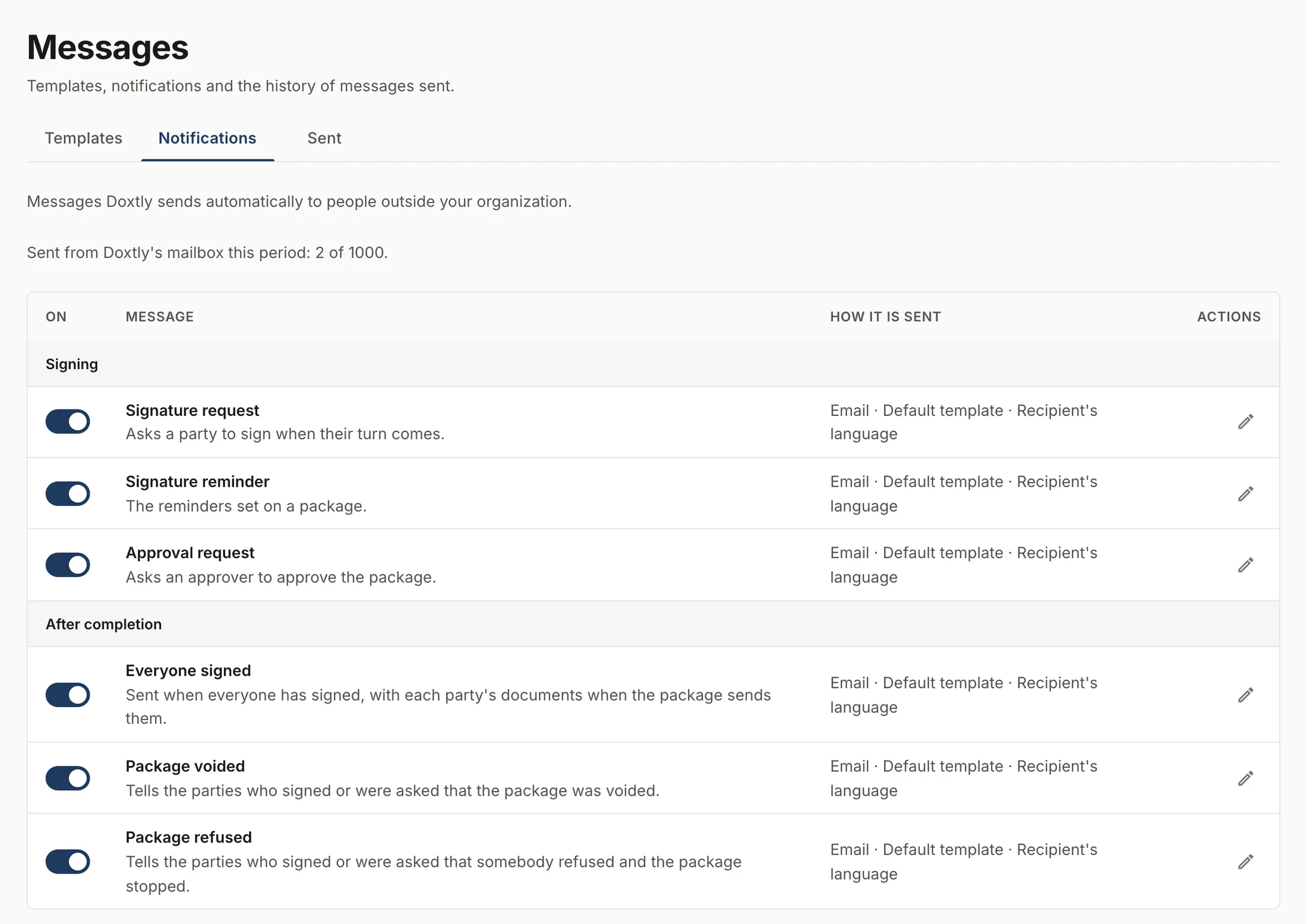
Each row has a switch that takes effect at once, the name of the message, a line on what it does and a summary of how it goes out, for example Email · Default template · Recipient’s language. Click a row or its pencil to choose the channel, template and language in a small dialog; on a phone, tap the card. A channel your organization has no integration for is shown disabled there, with where to set it up. When the integration of the chosen channel is removed, the row goes back to email by itself, and the message goes by email until you choose again. If no mailbox is connected, one warning at the top of the tab links to Integrations. It takes the same permission as editing default messages.
The channel on a row is used for a party who is left at the default, when it can reach them: with the signature request going by SMS, a party who has only a phone number is asked by text message, and one who has only an email address by email. A party whose own delivery says otherwise goes as that says. Nothing goes out without a working channel for that party: Send refuses a package when a party cannot be reached, and a package made by a workflow shows Failed: no integration on the party’s row.
A message sent from Doxtly’s mailbox always uses Doxtly’s own words, whatever template the row names, and the tab shows how many of the plan’s messages from it have gone out this period. Once they are used up, or if the mailbox is suspended for spam reports, the tab says so; connect your own mailbox to go on sending.
A workflow that builds its own messages turns all of these off for its packages with Send Doxtly’s notifications on the Create documents step, so nobody gets two.
In the lists
Section titled “In the lists”Under Resources > Messages, default messages are listed among your templates under the name of their occasion, the same as on the Notifications tab, with the mark Default. If you rename one, the mark says what it’s for, for example Default for: Signature request. Hovering over the mark says what it means. A long name wraps, and the mark moves under it, so every column stays in view. They stay active and can’t be deleted, only edited, and they don’t count towards your plan’s limit of templates.
Editing and restoring
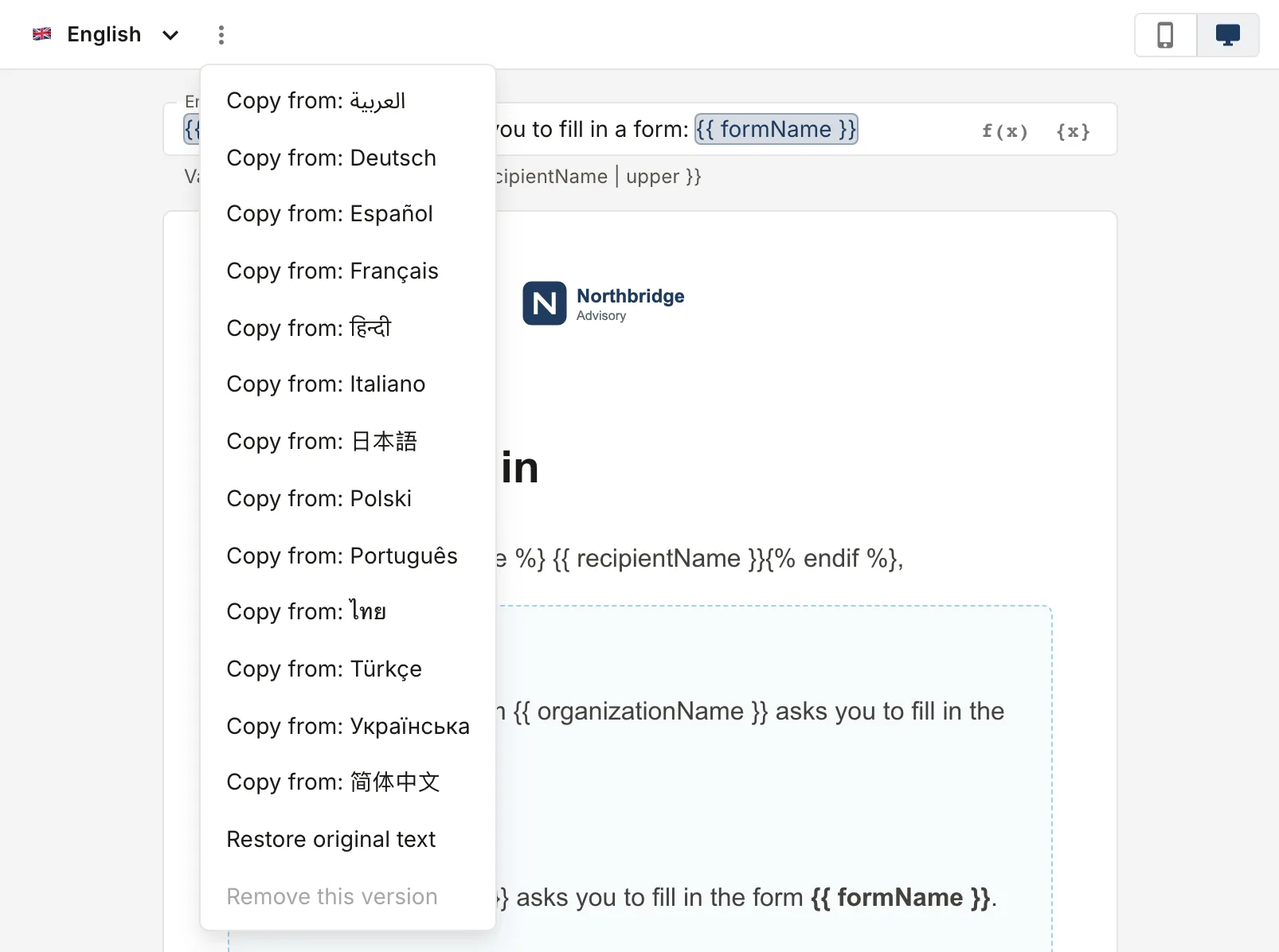
Section titled “Editing and restoring”Open a default message and change it like any other template. Each language is edited on its own tab, and Restore original text in the menu next to the tabs puts back what Doxtly wrote for that language, leaving the others as they are. Doxtly asks Restore the original text? first, and the restored text is saved with the rest when you save. A default message is written in every language, so it has no Add language and no version can be removed.
A message for an occasion must keep what that occasion delivers: a signature request can’t be saved without its link, and the error names the variable and the language that lost it.
Using your own instead
Section titled “Using your own instead”Write your own template for an occasion and choose Make default for its purpose in its menu on the list. From then on it goes out whenever nothing else is chosen. To go back, make the default message the default again.
You choose a template’s occasion in its Used for field: for an email in the Purpose section of the designer’s Email settings window, for an SMS or WhatsApp message on its form (see SMS and WhatsApp templates). Through the API it is the purpose field.
Variables of each occasion
Section titled “Variables of each occasion”Each occasion gives a message its own variables. The {x} button lists them under This message’s variables: in a text message template beside the message, in an email template beside the subject, heading and button fields and in the text editor. A version can’t be saved without the variable marked required, because that is what the message delivers.
| Occasion | Variables | Required |
|---|---|---|
| Signature request, Signature reminder | recipientName, packageTitle, documents, deadline, signingUrl, organizationName, senderName |
signingUrl |
| Payment reminder | recipientName, packageTitle, paymentAmount, deadline, signingUrl, organizationName, senderName |
signingUrl |
| Approval request | recipientName, packageTitle, documents, deadline, approvalUrl, organizationName, senderName |
approvalUrl |
| Viewer link | recipientName, packageTitle, documents, viewerUrl, organizationName, senderName |
viewerUrl |
| Everyone signed | recipientName, packageTitle, documents, organizationName, copiesAttached, copiesUrl, senderName, packageUrl |
None |
| Package voided | recipientName, packageTitle, documents, organizationName, reason, senderName, packageUrl |
None |
| Package refused | recipientName, packageTitle, documents, organizationName, senderName, packageUrl |
None |
| Access password | recipientName, packageTitle, accessCode, organizationName |
accessCode |
| Form link | recipientName, formName, formUrl, organizationName, senderName |
formUrl |
| Interactive document link | recipientName, documentName, documentUrl, organizationName, senderName |
documentUrl |
| Portal link | recipientName, portalName, portalUrl, organizationName, senderName |
portalUrl |
| Quiz link | recipientName, quizName, quizUrl, organizationName, senderName, deadline, reminder |
quizUrl |
| Survey link | recipientName, surveyName, surveyUrl, organizationName, senderName, deadline, reminder, optOutUrl |
surveyUrl |
| Quiz result | recipientName, quizName, resultUrl, score, percent, grade, organizationName |
resultUrl |
documents is a list, each with its title, so {% for document in documents %}{{ document.title }}{% endfor %} names every document of the package. deadline is a date, which {{ deadline | formatdate("d MMMM yyyy") }} writes in the version’s language, and copiesAttached says whether the signed copies came with the message; copiesUrl is the link to them otherwise. packageUrl is the package’s page in Doxtly. It is filled in for somebody of your organization who may open the package, and, in Everyone signed, with their own link for a viewer from outside it. For anybody else it is empty, so wrap it in a condition such as {% if packageUrl %}.