

Import and export
An interactive document can be saved as a single JSON file and imported as a new one, in your organization or in another. Use this to carry a document from a test organization to the live one, or to give a ready onboarding pack to a client who has their own Doxtly account.
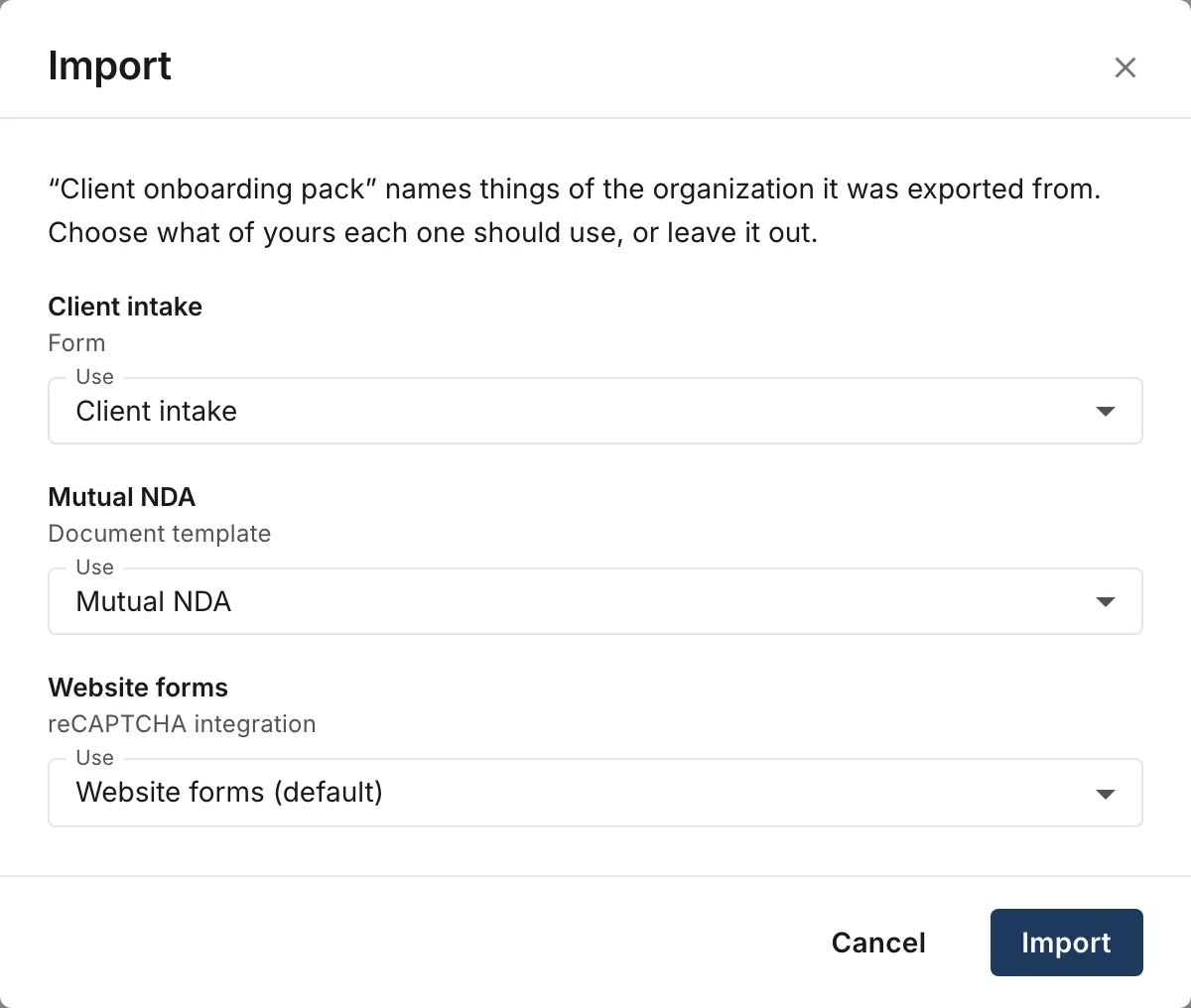
The PDF templates and forms a document shows belong to its organization and don’t travel with it. The file names them, and when it’s imported Doxtly asks which of the importing organization’s templates and forms to show in their place, suggesting the ones of the same name. Carry them over first: export the forms and set up the templates in the other organization, then import the document.
Export an interactive document
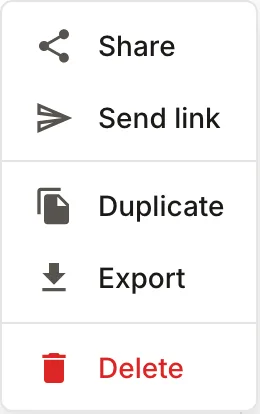
Section titled “Export an interactive document”In Interactive documents, open the menu at the end of a document’s row and choose Export. You get the document as last saved, in a file named after it, for example interactive-tenancy-agreement.json. This needs only the View interactive documents and submissions permission.
Export opens a short menu: Doxtly file (JSON) downloads the file to this device; with a drive connected the menu also lists it under Save to a cloud drive, which puts it into a folder of the drive (see Saving exports to a drive).
What the file holds
Section titled “What the file holds”| In the file | Not in the file |
|---|---|
| The title and description | The document’s password |
| Every position, in order, with its title and the party who fills it | The PDF templates and forms themselves |
| The name of each template and form a position shows | Submissions and uploaded files |
| What an attachment position asks for | The Active state |
| The settings: submit button, success message or redirect, security, link parameters, metadata | The document’s link and ID |
| The name of the reCAPTCHA integration its password prompt uses | The integration itself |
| The theme: a built-in one by its name; one of yours with its colours, made again in the importing organization (or the same one it already has) | Your other themes |
Import an interactive document
Section titled “Import an interactive document”-
In Interactive documents, press Import from a file, drop or pick a
.jsonfile from your computer or, with a drive connected, choose it with From cloud drive (see Importing from a drive), and press Import. -
In the Import window, check what Doxtly chose for each template, form and reCAPTCHA integration. Use takes one of yours. Choose Leave out for a position you don’t want.
-
Press Import, read what was left out, if anything, and press Review.
-
Check the new document in the editor and press Create.
Nothing is stored until you press Create.
What Doxtly suggests
Section titled “What Doxtly suggests”| Item | Suggested | If you choose none |
|---|---|---|
| A PDF template | One of yours of the same name. Only PDF templates are offered. | The position is left out |
| A form | One of yours of the same name | The position is left out |
| reCAPTCHA integration | One of the same name; else your default; else the only one you have | The password prompt uses your default integration |
A template or form of another name is never suggested, even when you have only one: it could be anything. Choose it yourself when the names differ.
What is left out, and why
Section titled “What is left out, and why”| Message | What happened |
|---|---|
| The position “…” was left out: nothing of yours was chosen for it. Add it again in the editor. | No template or form was chosen for it. |
| Choose who fills “…”: the template you chose addresses several parties. | The template you chose addresses several parties, and the one the file named isn’t among them. Pick the party in the position’s row. |
An attachment position asks for a file and names nothing of the organization, so it comes over as it was. If its name isn’t written in your organization’s default language, the editor marks the position until you add one.
After importing, check these
Section titled “After importing, check these”- Password. The file never holds one. Set it again in the settings if the document needs it.
- Workflows. A document’s workflows aren’t part of the file. Connect the new document to its workflows, or import them too.
Who can do it
Section titled “Who can do it”Exporting needs View interactive documents and submissions. Importing needs Manage interactive documents, as creating one does. Importing is done in the app. An access key given Export interactive documents (export_interactive_document) can export a saved document: see Export an interactive document.