

Question library
The question library keeps the questions your organization asks again and again, so that any quiz or survey can reuse them: the fire safety questions of every induction, a pool of exam questions by topic and level, or the satisfaction questions every course feedback survey asks. You file each question under tags and a difficulty, add it to a quiz or survey in a few clicks, or let a section draw questions from the library for every attempt or response.
Quizzes and surveys each have a library of their own, and the two never see each other’s questions. Everything on this page works the same in both, except that a survey’s questions have no right answers and no points.
The page and its tabs
Section titled “The page and its tabs”Available when: your role has the View quizzes, attempts and results permission, the View surveys, responses and results permission, or both
In the sidebar, open Resources > Question library. The page has two tabs, Quizzes and Surveys, one for each library. Each tab shows only to whoever may view that product: with only one of the two permissions there are no tabs, just that library’s list. The quizzes tab speaks of quizzes and attempts, the surveys tab of surveys and responses.
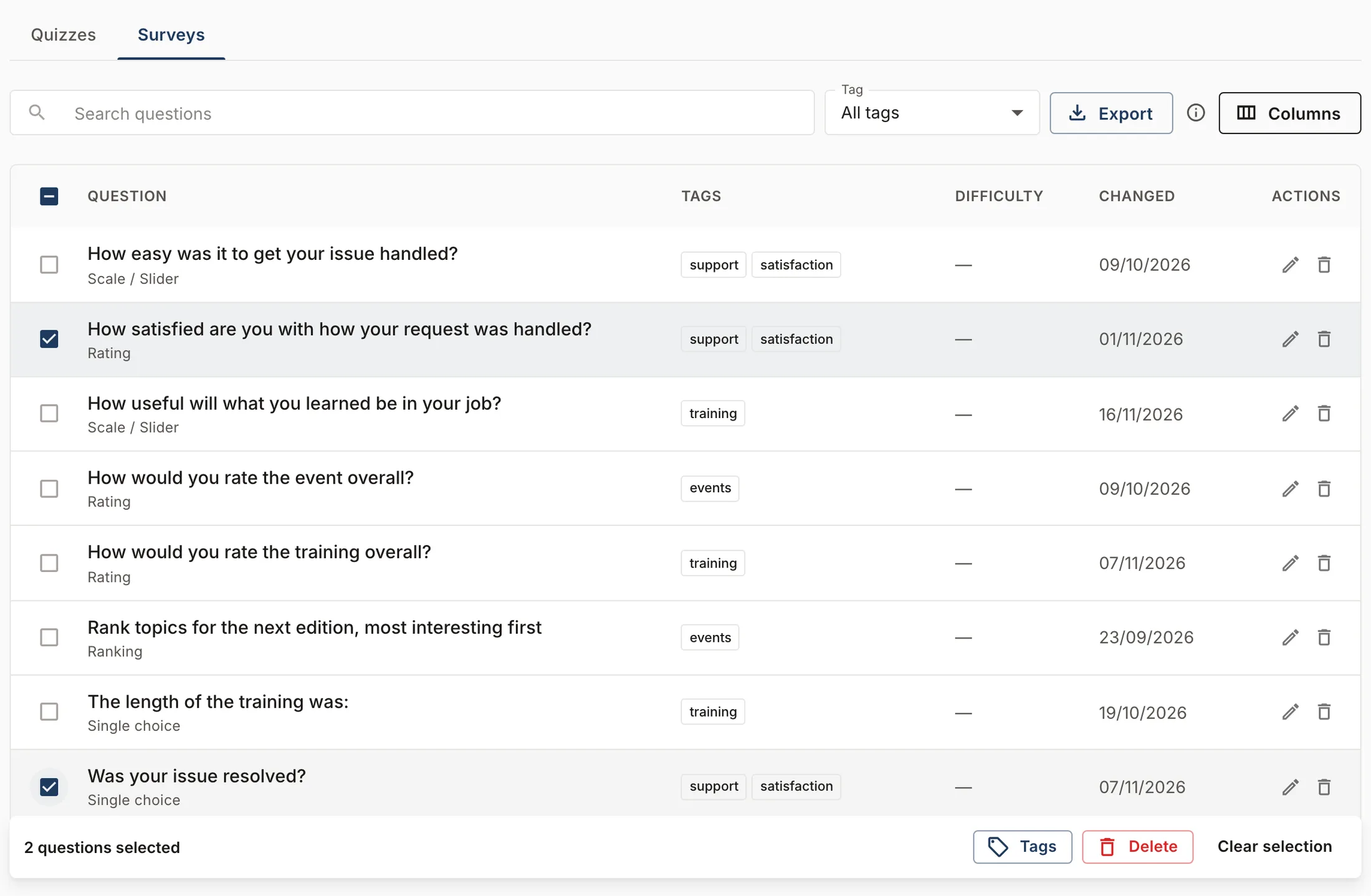
The list shows the questions in the order of their text:
| Column | What it shows |
|---|---|
| Question | The question’s text, with its type under it. |
| Tags | The tags it is filed under. |
| Difficulty | From 1/5 to 5/5, or nothing when not set. |
| Changed | When it was last changed. |
| Actions | The pencil, Edit, and the bin, Delete, for people who may manage the library. |
Columns, beside the filters, hides or shows Tags, Difficulty and Changed, as on the other lists; your browser remembers the choice, and Reset to default brings them back.
Above the list, Search finds questions by the words of their text, and Tag shows only the questions carrying one tag; each tag in it is listed with how many questions carry it. Clear filters takes both away. On a phone the questions are cards; Select shows tick boxes on them for bulk actions, and Done hides them again.
An empty library says The question library is empty and, to people who may manage it, offers Add question and Import in the middle. When the search and the tag leave nothing, the list says No questions match, with Clear filters.
Who may do what
Section titled “Who may do what”| Permission | What it allows |
|---|---|
| View quizzes, attempts and results | The Quizzes tab: the list, the search and filter, and export. |
| Manage quizzes | On the Quizzes tab, also adding, editing, importing, changing tags and deleting. In the quiz designer, saving to the library. |
| View surveys, responses and results | The Surveys tab: the list, the search and filter, and export. |
| Manage surveys | On the Surveys tab, also adding, editing, importing, changing tags and deleting. In the survey designer, saving to the library. |
Reading a Word file for an import also needs the permission to use the AI assistants.
Add a question
Section titled “Add a question”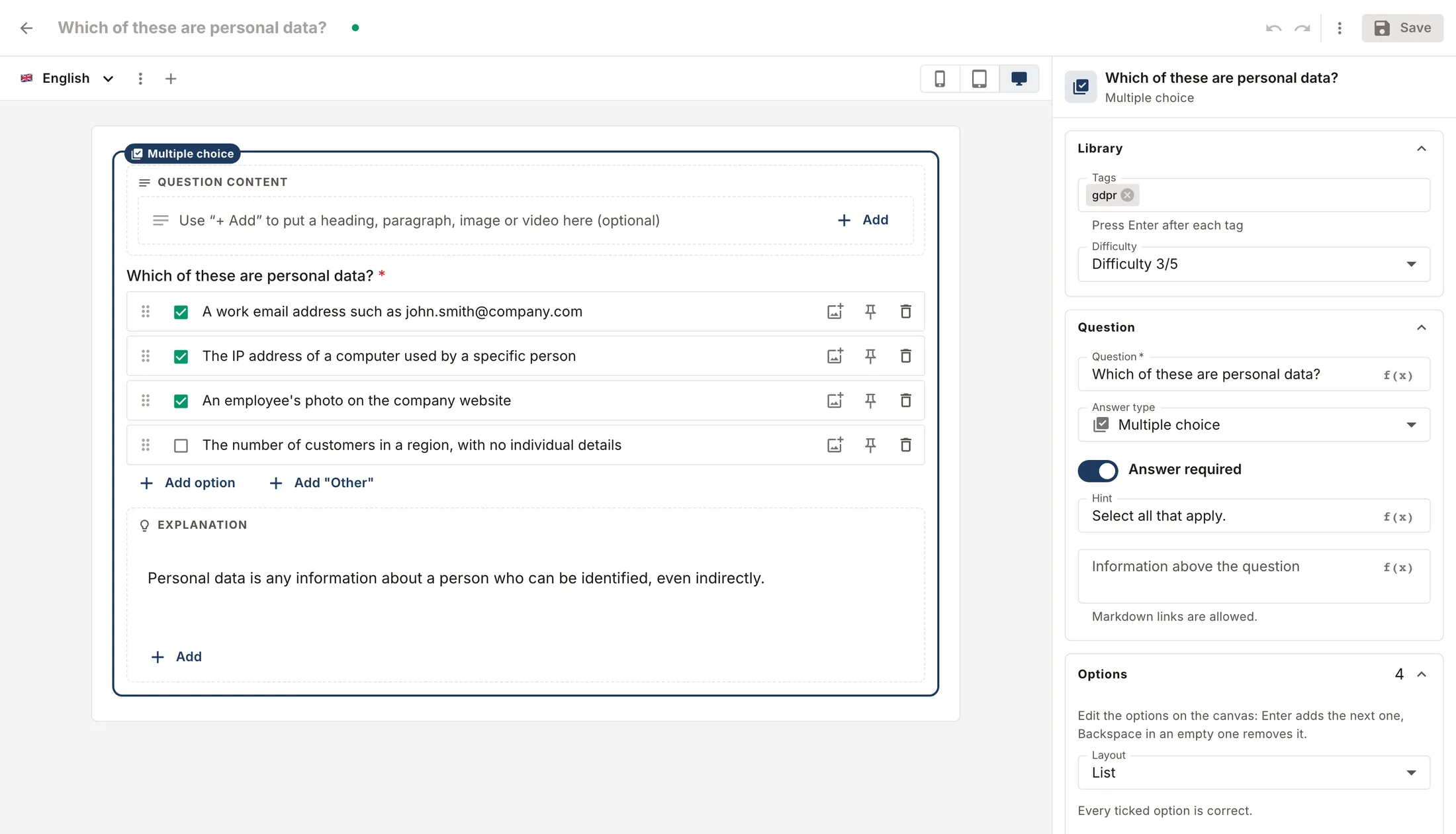
Add question, at the top of the page, opens New library question, a page of its own that fills the window, like every designer, and builds the one question the way the designer does:
- The bar at the top: ← back to the library’s tab, the question’s text (shown there; you write it on the sheet or in the properties), the status - what keeps the question from being saved, and Unsaved -, undo and redo, ⋮ with Remove from the library for a saved question, and Create, or Save. ⌘S (Ctrl+S) saves too.
- In the middle, the question on a sheet, as it is taken, with the language button and the widths of a phone, a tablet and a desktop above it. Above its answer is Question content, a region for what the question shows before its answer: a heading, a passage to read, a picture or a video. Under the answer, on the Quizzes tab, is Explanation, a region shown with the result. Each region has + Add, a menu of Heading, Paragraph, Image, Video embed and Divider; what you choose goes to the end of the region. Content in a region is edited in place, dragged to another place, duplicated and deleted in its frame, exactly as in the designer. The options are edited on the sheet too, and on a quiz question a click on an option marks it right.
- On the right, the properties of what you picked. For the question, Library comes first: Tags (type a tag and press Enter after each one; up to 20 tags, each up to 50 characters) and, on the Quizzes tab, Difficulty, from 1 to 5 or Not set. Then the question’s type, text, answer key, points and the rest; for a picture, its file, description and size. The language button adds and edits the question’s language versions, as in the designer.
A new question starts as a single choice; change the type as you like. On the Quizzes tab every question type is offered, with its answer key and points. On the Surveys tab there is no answer key, no points, no explanation and no difficulty. A picture you add is stored as the library’s own file.
On a tablet and a phone the sheet fills the page and Properties, in the bar, opens the properties, on a phone from the bottom; each region’s + Add adds content there.
Create adds the question to the library and keeps you on its page, now at its own address. Leaving with changes not saved, with ← or the browser’s back, asks first. You can also save a question straight from a quiz or survey you are designing: see Saving from the designer.
Edit a question
Section titled “Edit a question”The pencil, Edit, opens the question on its page, Edit library question, with its content, explanation, pictures, tags, difficulty and language versions. The question keeps its id, so the results keep counting it as one question across every attempt or response that got it. Quizzes and surveys it was copied into keep their copies as they were: a change in the library doesn’t reach them. Its pictures and the words of its language versions stay with it.
Import questions
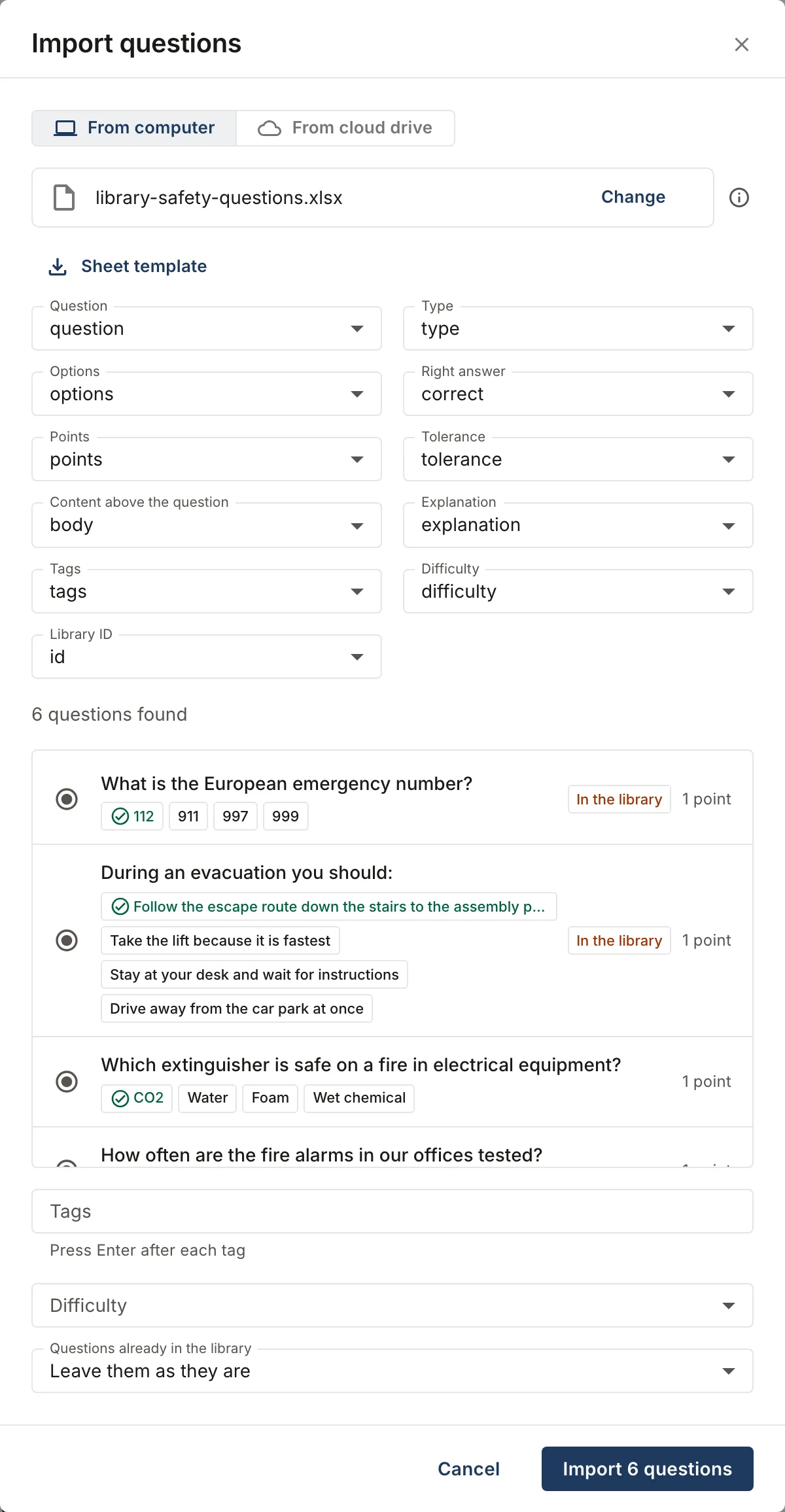
Section titled “Import questions”Import, at the top of the page, brings questions in from a file. It needs the manage permission of the tab’s product, and with an empty library it is also offered beside Add question in the middle of the page. It is the designer’s import dialog, with what the library adds to it.
The formats
Section titled “The formats”| Format | What it holds |
|---|---|
| GIFT, Aiken, Moodle XML | The text formats of learning platforms such as Moodle. |
| Excel or CSV sheet | A row per question, in the columns below. |
Word (.docx) |
Read by Doxie, for whoever may use the AI assistants: she finds the questions, their options and the right answers the document marks. It uses Doxtly AI, as in the designer. |
Drop the file on the area or choose it there, or take it from a cloud drive. Doxtly reads it and stores nothing before you confirm. The preview shows each question with its type and options and, on the Quizzes tab, the right answers and points. What could not be read is listed by its line, with the reason: a question type Doxtly doesn’t have, no question text, fewer than two options or no right answer.
Sheet template downloads an Excel file in the library’s columns, with an example row of each kind of question, written in your language. Fill it in and import it back.
The sheet’s columns
Section titled “The sheet’s columns”A sheet is read by the names in its first row, in English:
| Column | What it holds |
|---|---|
question |
The question’s text. Required. |
body |
Content above the question, in Markdown. |
type |
single, multiple, text, number, essay or truefalse. Left empty, the row decides: options make a choice, several right ones a multiple choice, a number a number question, another answer a text question, and no answer an open question (essay). |
options |
The options, separated by | or one per line in the cell. |
correct |
The right options, by their text or their letter (A, B…); for a text question the accepted answers, separated by |; for a number question the number. |
points |
What the question is worth. |
tolerance |
For a number question, how far an answer may be from the right number. |
explanation |
Explanation, shown with the result, in Markdown. |
tags |
The question’s tags, separated by commas or |. |
difficulty |
From 1 to 5. |
id |
The question’s id in the library, filled in by the export. Leave it empty for a new question; keep it to update the question it names. |
A survey library’s sheet needs only question, body, type, options, tags, difficulty and id: no right answers, no points and no explanation.
The template has a second sheet, Instructions, that sums up the columns, the Markdown and what happens to pictures.
When your sheet names its columns differently, choose the column for each field in the dialog, or No column; the file is read again as you choose. Besides the question’s own fields, the library’s Content above the question, Explanation, Tags, Difficulty and Library ID can be mapped too.
Markdown in the sheet
Section titled “Markdown in the sheet”The body and explanation cells hold the region’s content as Markdown:
| You write | It becomes |
|---|---|
| A paragraph; an empty line starts the next | A paragraph |
# Heading to ###### Heading |
A heading of that level |
**bold**, *italic*, [link](https://…) |
The same, in the paragraph |
Lines starting with - or 1. |
A list, in the paragraph |
--- on a line of its own |
A divider |
| A YouTube or Vimeo address on a line of its own | A video |
 |
A picture: see below |
A picture can’t come from a cell. The export writes each picture as  so you can see where it stands, and a video as its address.
Tags and difficulty for the whole file
Section titled “Tags and difficulty for the whole file”Before you import, two fields apply to every question of the file:
- Tags are added to each question’s own tags from the sheet.
- Difficulty, when you set it, replaces the difficulty the sheet gives.
Questions already in the library
Section titled “Questions already in the library”The preview marks a question the library already holds with In the library. A row is that question when its id is the id of a question in the library; without an id, when the library has a question with the same text, capital letters and spaces aside, of the same kind (a single choice, a multiple choice, a text question and so on). A question that appears twice in the same file is stored once.
When some are marked, choose under Questions already in the library:
- Leave them as they are, the default: the library keeps its questions untouched and only the new ones are added.
- Update them from the file: each marked question takes what its row holds.
An update changes the question’s text, its options’ labels by their place (an extra option in the row is added, a missing one removed), the right answer, the points, the tags and the difficulty. The tags are the row’s, or the question’s own when the row has none, plus the tags for the whole file. The question keeps its option pictures, its language versions and its exact type within its kind: a dropdown stays a dropdown, a slider stays a slider. When the row is of another kind, for example a single choice that became a multiple choice, the question is made anew under the same id, keeping its body and explanation.
The content and the explanation never lose what you didn’t change. When the body or explanation cell holds exactly what the export wrote, the region keeps its items as they are: pictures, videos, sizes and their words in other languages included. Only a cell you edited is built anew from its text, one item per paragraph or heading; a picture it names is then left out, with the row reported, and you add it again in the editor. A sheet without the column, or a GIFT or Moodle file whose question has no content or feedback, leaves the regions as they are.
Import 12 questions stores them. A message then says how many were added, how many updated and how many left as they were, and the rows whose pictures were left out.
Export questions
Section titled “Export questions”Export, beside the filters, saves questions to a file. It is open to anyone who sees the tab, and greyed out while the list shows no question. It exports the questions you ticked or, with none ticked, the ones the search and the tag filter show. Choose the format in its menu:
| Format | Tab | What it holds |
|---|---|---|
| Excel | Both | The import’s columns, with each question’s id. |
| GIFT | Quizzes | For Moodle and other learning platforms. No points. |
| Moodle XML | Quizzes | For Moodle, with the points as the default grade and the question’s id as its ID number. |
A message says how many questions were exported, or how many were left out because the format cannot describe their type. With a drive connected, the menu also offers each format under Save to a cloud drive, and the message after saving counts the questions left out in the same way: see Saving exports to a drive.
What Excel describes. Single choice and dropdown questions (both written as single), multiple choice, short text and e-mail (as text), long text (as essay), and number, slider and rating questions (as number, with the right value of the answer key). Yes/no, date, time, date and time, grid and ranking questions are left out.
What GIFT and Moodle XML describe. Single and multiple choice, short text with its accepted answers, numbers with their right answer, and open questions. A question without a right answer, other than an open one, is left out, and so are sliders, ratings and the types Excel leaves out.
A file holds words, not pictures. The question’s content and explanation are written as Markdown: in Excel in the body and explanation columns; in GIFT and Moodle XML the content stands before the question in its text (marked [markdown] in GIFT, format="markdown" in Moodle XML) and the explanation is the general feedback (#### in GIFT, generalfeedback in Moodle XML). Pictures are written by their file names and stay in the library, as do option pictures and language versions; an update that leaves those words as they were keeps them all.
When a GIFT or Moodle XML file from elsewhere is imported, an HTML or Markdown question text of several paragraphs gives the content (all but its last paragraph) and the question (its last); its general feedback becomes the explanation. A picture in them is left out and reported, as in a sheet.
Edit in Excel and bring it back
Section titled “Edit in Excel and bring it back”Because the Excel file carries each question’s id, you can make many changes at once in a spreadsheet:
- Tick the questions, or filter the list, and choose Export → Excel.
- Change the texts, options, answers, points, content, explanations, tags or difficulty in the file. Leave the
idcolumn as it is, leave abodyorexplanationcell as it is to keep its pictures, and add new rows with an emptyid. - Import the file, choose Update them from the file under Questions already in the library, and import.
The questions you changed are updated in place, with their ids, pictures and language versions, and the new rows are added.
Bulk actions
Section titled “Bulk actions”Tick the boxes before the rows to act on several questions at once; the box in the header ticks every question shown. A bar under the list says how many are selected and offers:
- Tags, which opens a dialog with Add tags, where you type new tags or pick existing ones, pressing Enter after each, and Remove tags, where you pick among the tags the selected questions carry. Save applies both. Removing ignores capital letters, and a question keeps at most 20 tags.
- Delete, after you confirm.
- Clear selection.
Tags and Delete need the manage permission of the tab’s product. Export uses the selection too.
Delete questions
Section titled “Delete questions”The bin, Delete, removes one question after you confirm; Delete in the bar removes the selected ones, and its confirmation names how many. Deleting changes nothing that has already used the question:
- sections stop drawing it;
- quizzes, or surveys, that hold a copy of it keep their copy;
- attempts, or responses, keep the questions they were served.
Limits
Section titled “Limits”- A library holds up to 2,000 questions; an import that would go beyond is refused.
- A question takes up to 20 tags, each up to 50 characters.
- Difficulty goes from 1 to 5.
In the designer
Section titled “In the designer”The library is at hand while you build a quiz or survey; the designer describes it in full.
- Save to question library, at the top of a question’s properties, saves a copy of the question with tags and a difficulty.
- Add from question library, in the ⋮ menu, adds copies of library questions to the quiz or survey.
- Questions from the library, on a section, draws questions from the library for every attempt or response; under it, a line says how many of the library’s questions match.
Both the Add from question library dialog and the section’s Questions from the library have Open the question library, which opens this page in a new tab. The quiz or survey you are designing stays as it is.