

Your profile
The Profile page is the part of Doxtly that belongs to you rather than to your organization. Everyone has one, whatever their role: no permission is needed to open it. Come here to correct your name, draw the signature you sign with, change your password or decide which notifications reach you.
Opening your profile
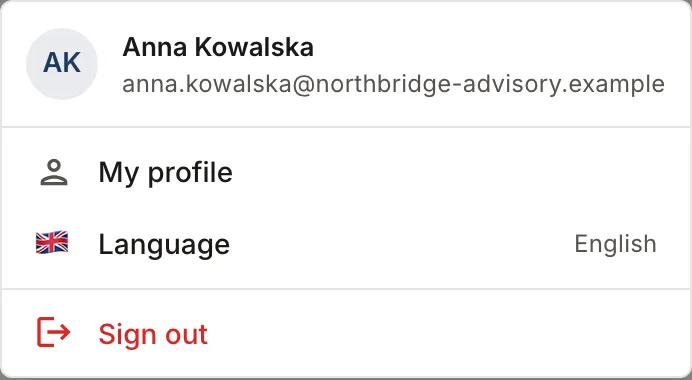
Section titled “Opening your profile”Click your name at the right end of the header and choose My profile. On a phone, tap your picture or initials: there the menu also shows the organization you are working in, and lets you switch.
At the top of the page, a strip shows who is signed in: your picture, your name, your job title if you gave one, and your sign-in address. The tabs sit below it.
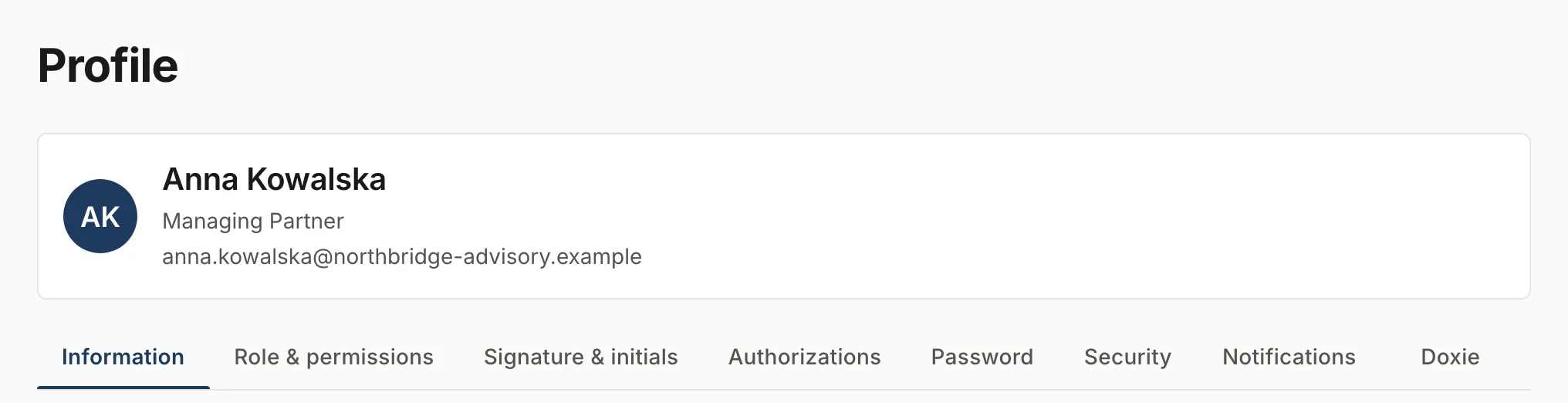
| Tab | What it is for |
|---|---|
| Information | Your first name, last name and job title. Described below. |
| Role & permissions | What you may do in this organization. Read only. |
| Signature & initials | The signature and the initials you keep ready for signing documents. |
| Authorizations | Who may act in your name, and for whom you may act. |
| Password | Changing the password of your account. |
| Security | Two-factor authentication, and every device you are signed in on. |
| Notifications | Which notices reach you, and how: in the app, by email, and on Slack or Microsoft Teams once your organization has connected them. |
| Doxie | Whether the app shows Doxie, the AI assistant, and what she remembers about you in this organization, and whether she may remember anything. |
Each tab has its own web address, such as /profile#security, so you can bookmark the one you use most. The notices about authorizations use this to bring you straight to the Authorizations tab.
In this organization, or everywhere?
Section titled “In this organization, or everywhere?”You have one Doxtly account and a membership in each organization you belong to. The tabs follow that split, and it decides how far a change reaches.
| Applies in the organization you are working in | Applies to your whole account |
|---|---|
| Name and job title | Sign-in address |
| Role, department and permissions | Password |
| Signature and initials | Two-factor authentication |
| Authorizations | The list of your sessions |
| Notification preferences | |
| Picture |
So if you consult for two organizations, you can be listed under a different job title in each, and you draw your signature and initials once in each of them. Change your password in one, and it has changed in both. Switch organization before you edit anything on the left-hand side.
Changing your name and job title
Section titled “Changing your name and job title”-
Open your profile. The Information tab is the first one.
-
Edit First name, Last name or Job title.
-
Click Save changes.
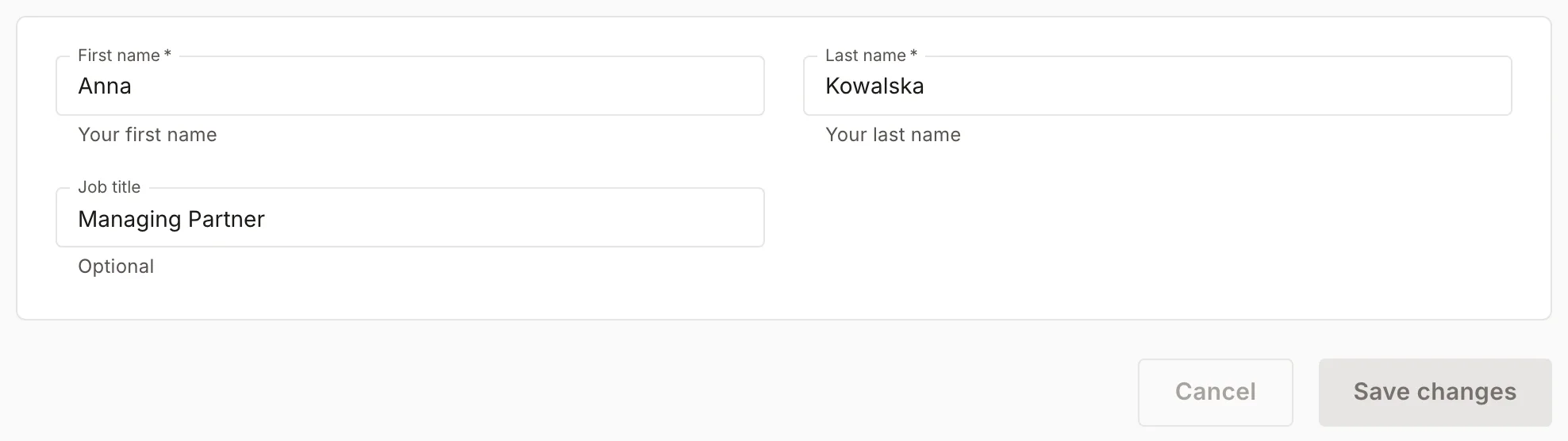
It is worth getting your name right early. It is how colleagues find you when they authorize you or look you up on the Users page.
| Field | Rules | Where it shows |
|---|---|---|
| First name | Required, 2 to 100 characters | Everywhere Doxtly names you in this organization, such as the header, the account menu, the list of people and authorizations |
| Last name | Required, 2 to 100 characters | The same |
| Job title | Optional, up to 150 characters. Empty it to remove it. | In the strip at the top of your profile. When you sign a package in the application and it asks for your job title, this one is filled in for you to change. Otherwise it isn’t printed on documents or shown to colleagues. |
The buttons stay off until you change something. Cancel puts the fields back as they were saved. If a name is too short or too long, the message appears under the field, for example First name must be at least 2 characters. Once saved, you see Your details were updated, and the header and the account menu show the new name at once.
Nobody else can do this for you. An administrator can change your role and department, but not your name.
Your picture
Section titled “Your picture”There is no upload button for a picture. If you sign in with Google or Facebook and the provider has a picture of you, Doxtly copies it for the organization you are entering. Until then, you are shown by your initials. Once you have a picture in an organization, later sign-ins leave it as it is, so a new photo at Google won’t replace it.
Your sign-in address
Section titled “Your sign-in address”Your address appears on this page and in the account menu, but it isn’t a field you can edit. It is the name of your account, the place your notification emails go, and the label of your entry in an authenticator app.
Your other organizations
Section titled “Your other organizations”The profile always shows you as you are in the organization you are working in. To move to another one, or to create a new one, use the organization switcher in the header. On a phone it sits in the account menu.