

Templates
A template is a document with gaps. You prepare it once, and Doxtly fills the gaps with data every time somebody needs a real document: a service agreement with this client’s name, a course certificate with this participant’s score, an NDA with today’s date. Whatever the template’s type, the result is a PDF.
Available when: you hold the View file templates and generated files permission. Adding, changing and deleting takes Manage file templates.
Which type to choose
Section titled “Which type to choose”Doxtly has three types of template. They differ in what you upload and in how you mark the gaps.
| Type | You upload | You mark the gaps | Best for |
|---|---|---|---|
| Word | A .docx file |
By typing markers such as ${client.name} into the text |
Contracts and letters: text that flows, tables that grow, clauses that come and go. See Word templates. |
A .pdf file |
By drawing areas on the pages in an editor; the file stays as it is | Documents whose layout is fixed and not yours to change: a government form, a bank’s mandate, a scanned application form. Areas can also be left for the recipient to fill in. See PDF templates. | |
| SVG | An .svg file |
By writing the Twig language into the text of the design | One designed page where the look matters: a certificate, a voucher, a branded invoice. See SVG templates. |
A practical rule: if a lawyer edits the document, use Word. If somebody else owns the form and you only fill it in, use PDF. If a designer drew it in Figma, use SVG.
SVG templates need the Starter plan or higher. Word and PDF templates are on every plan. The number of templates you may keep depends on the plan: see Plans and limits.
How a template gets used
Section titled “How a template gets used”A template does nothing on its own. Documents are made from it in one of these ways:
- A workflow’s Generate document step fills it with the data of the run, for example the answers of a client onboarding form. See Workflows.
- A workflow’s Create documents step turns it into a document to be signed. See Signing.
- A package you put together by hand in Documents takes it as a document, or a fragment of one, with From a template, and you fill in its data there. See New package.
- An interactive document shows a PDF template to a visitor, who fills it in on the page. Only PDF templates can go into an interactive document.
- Your own software calls the API.
A generated document can also set further work going: the Document generated trigger starts a workflow whenever a document is made from a chosen template, for example to file every certificate in a drive.
Here is how it looks at Northbridge Advisory. A new client fills in the onboarding form. A workflow takes the answers, fills the service agreement template, sends the result to the client for signature, and stores the signed copy. Nobody retypes a name, and every agreement comes from the same approved wording.
Everything made from a template is listed under Generated files. How the data finds its way into the gaps is explained in Data and variables.
The template list
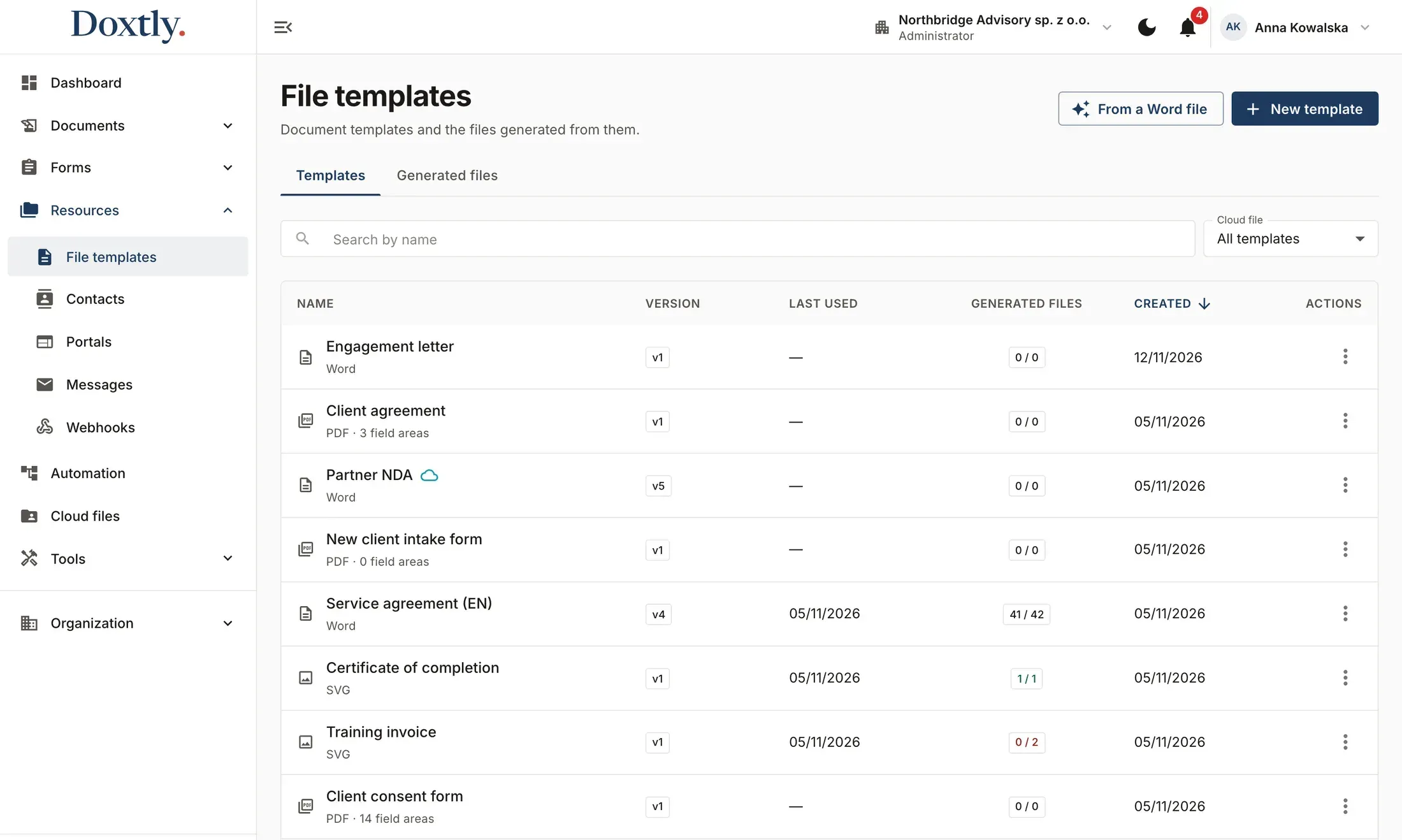
Section titled “The template list”Open Resources > File templates in the main menu. The section has two tabs: Templates, described here, and Generated files, which lists the documents made from them.
| Column | What it shows |
|---|---|
| Name | The template’s name with an icon of its type. Under the name you see the type; a PDF template also shows how many field areas it has. A template that follows a cloud file has the drive’s icon beside its name. |
| Version | The current version, such as v3. |
| Last used | When a document was last generated from it, successfully or not. |
| Generated files | Successful generations out of all of them, such as 41 / 42. The chip is green when none failed, red when none succeeded, and neutral for a mix or when there are none yet. |
| Created | When the template was added. |
| Actions | The menu of the template. |
Click a row, or the name, to open the template. Click the header of Name, Version, Last used or Created to sort by it. Click again to reverse the order, and once more to go back to the default, newest first. (Created only flips between its two directions, since newest first is the default.) The list shows 25 templates a page; the control under it switches to 10 or 50. On a phone each template becomes a card with the same facts.
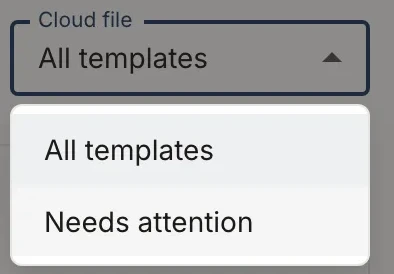
Above the list you have two filters. The search box, Search by name, finds templates by name. The Cloud file filter has two values, All templates and Needs attention: the second lists only templates whose cloud file is not in step with Doxtly. Each active filter shows as a chip you can remove on its own, and Clear all removes them together. Filters live in the page’s address, so you can send a colleague a link to a filtered list.
With no templates yet you see No templates and a button to add the first one, as long as you may manage templates and the plan has room. When filters hide everything, the page says No results and offers Clear all filters.
The template menu
Section titled “The template menu”The three dots at the end of each row open a short menu.
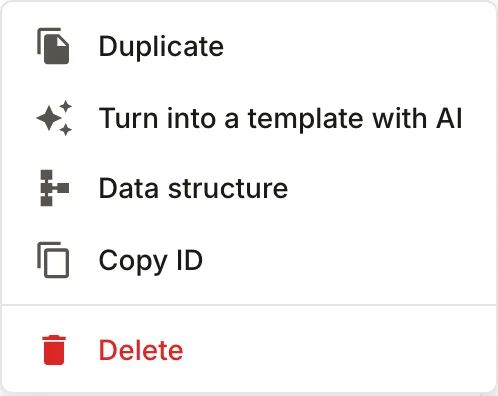
The menu comes in the order every list in Doxtly uses: copies of the template and what is read off it first, Delete last.
| Item | What it does |
|---|---|
| Duplicate | Makes a copy of the template: see Duplicating a template. Only for people with Manage file templates, and switched off at the plan’s limit. |
| Turn into a template with AI | On a Word template, for people who may use the AI assistants. Makes a new template from its file, and is switched off at the plan’s limit: see Turn a Word file into a template. |
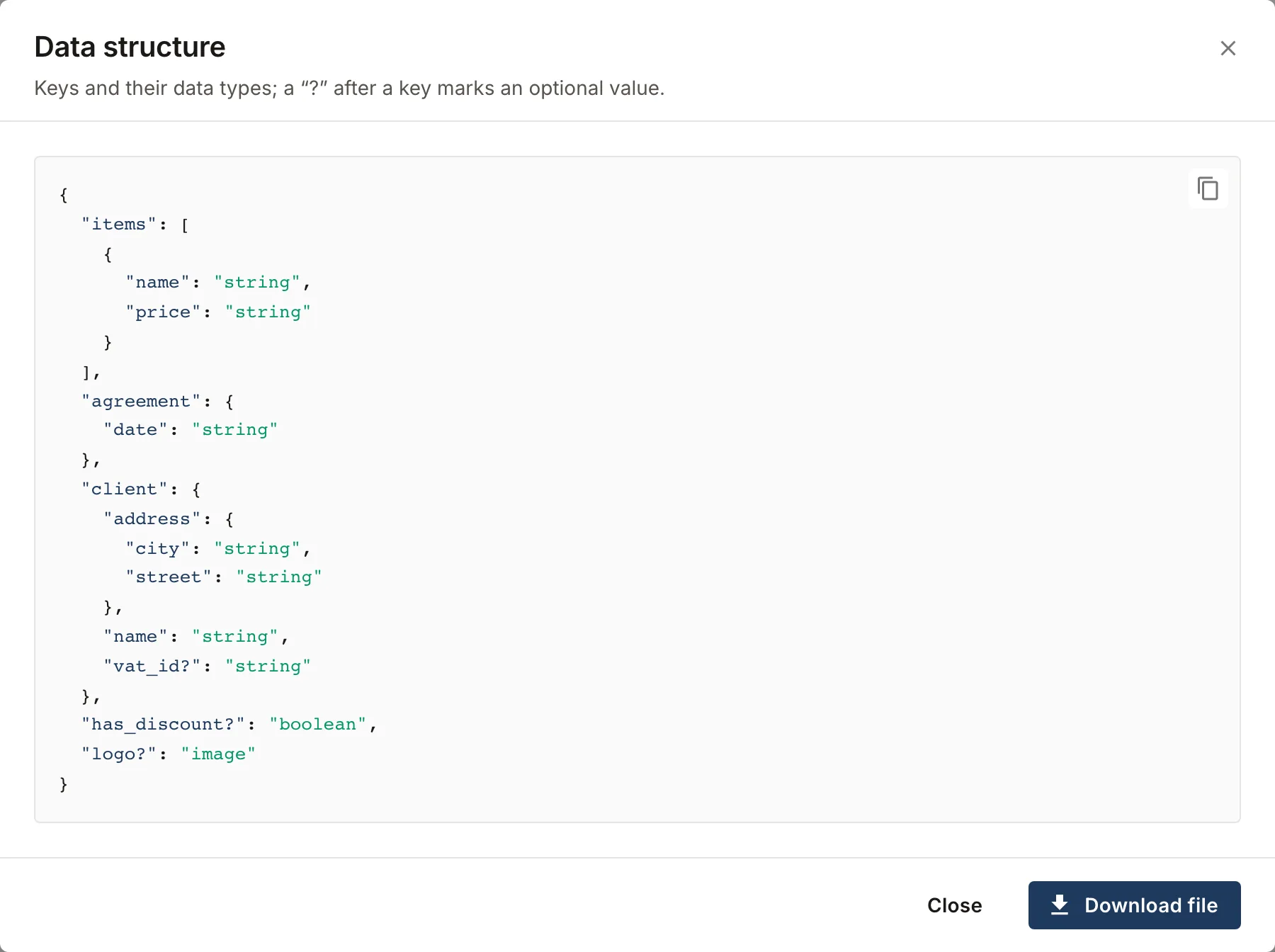
| Data structure | Shows the shape of the data the template needs, as JSON you can copy or download. See The Data structure dialog. |
| Copy ID | Copies the template’s identifier. You need it to generate documents through the API. The item is hidden where the browser gives no access to the clipboard. |
| Delete | Deletes the template after you confirm. Only for people with Manage file templates. See Deleting a template. The dialog lists the workflows that use the template under Used by, and while there are any, Delete is greyed out: see Deleting what a workflow uses. |
Duplicating a template
Section titled “Duplicating a template”Duplicate a template when the new document is mostly the old one: a lease for business premises made from the lease for flats, or a contract in a second version for another department.
- Open the template’s menu and choose Duplicate.
- Change the name if you like. It starts as the original’s with “(copy)” after it.
- Press Enter or click Duplicate. The copy’s page opens.
The copy has the same type, file, areas, metadata, variables, data sources and values filled from contacts. Its file is stored again as its own, so changing or deleting either template leaves the other as it is. It starts at version 1 and has generated nothing yet. A template that follows a cloud file is copied as it is now, and the copy follows no file: two templates waiting for the same new version would each ask for it to be approved. Link the copy to a file if it should follow one. The copy counts towards your plan’s template limit and takes disk space like any template file; the plan must also include the template’s type.
Creating a template
Section titled “Creating a template”Available when: you hold Manage file templates and the plan has room for another template
When the plan’s limit is reached, New template, From a Word file and a Word template’s Turn into a template with AI are switched off and say Subscription limit reached. Upgrade your plan to add more templates.
A Word file with no markers yet can be turned into a template with AI: From a Word file beside New template, or Turn into a template with AI in a Word template’s menu on the list. See Turn a Word file into a template.
-
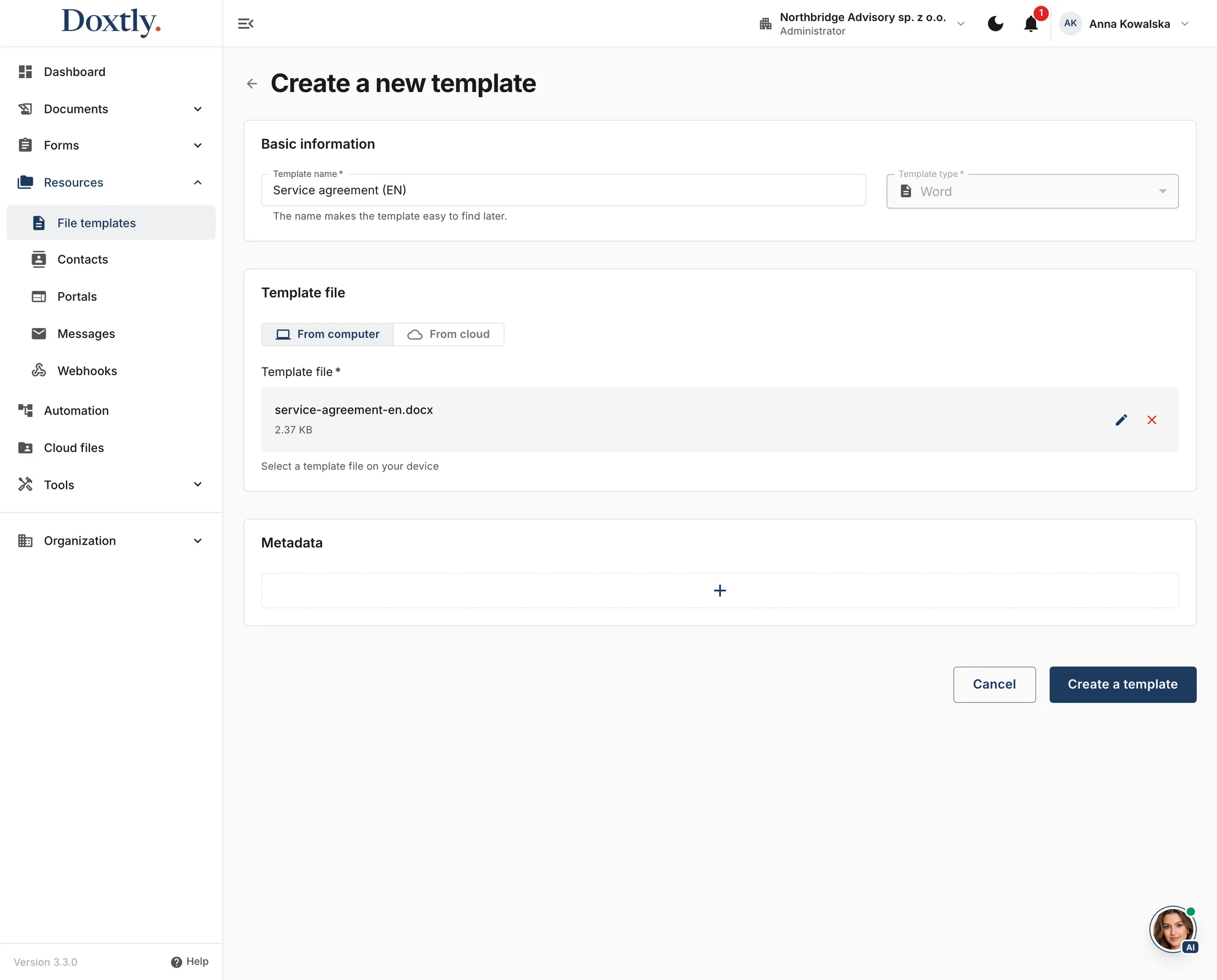
On the Templates tab, click New template.
-
Type a Template name. Pick one you will recognise in a workflow six months from now: “Service agreement (EN)” is better than “Contract 2”.
-
Choose the Template type: Word, PDF or SVG. Word is selected to begin with. A type your plan does not include is greyed out with Upgrade your plan to use this template type.
-
Under Template file, choose where the file comes from: From computer or From cloud. From your computer, drag the file onto the box or click it to pick one.
-
For a Word or SVG template, add any metadata you want.
-
Click Create a template. A Word or SVG template takes you back to the list. A PDF template opens in its designer, where you draw the areas and set its metadata under Template settings; later, Edit areas on its Template tab opens the designer again. See PDF templates. Cancel leaves without creating anything.
The form, field by field
Section titled “The form, field by field”| Field | Rules |
|---|---|
| Template name | Required, up to 128 characters. It is what you search for later and what people pick in a workflow. |
| Template type | Required. Locked as soon as you choose a file, because the file must match the type: remove the file to change it. After saving, the type cannot be changed. |
| Template file | Required, up to 10 MB. Doxtly reads the file’s real content, not its name: a PDF renamed to .docx is refused, with a message saying the file does not match the type. A damaged Word file is refused too, with The file cannot be read as a Word document: it is damaged, or of another kind. Nothing is stored in that case: no new template appears, and an existing one keeps its name and file. |
| Metadata | Optional. Word and SVG only: a PDF template’s metadata is in its designer’s Template settings, and its areas, at most 500, are drawn there too. |
From computer is an ordinary upload. From cloud picks a file in a connected Google Drive, OneDrive, SharePoint, Dropbox or Box, and the template then follows that file as it changes. The switch is greyed out, with a hint, until a drive is connected, and if you may manage integrations a small Connect a cloud drive link beside it takes you there. People without the View cloud files permission do not see the switch at all. Templates from cloud storage covers all of this.
You can also start from the other side: in Cloud files, the menu of a suitable file has Use as template, which opens this form with the type and file already chosen.
What happens when you save
Section titled “What happens when you save”Doxtly reads the file and records the variables it asks for: the markers of a Word file, the Twig of an SVG, the areas of a PDF. They appear on the Variables tab. For an SVG, Doxtly also repairs quotes that design tools tend to mangle inside template tags; see SVG templates. A Word or SVG template then takes you back to the list, with the new template at the top; a PDF template opens in its designer.
Saving an SVG does not test its Twig. A template with a syntax error is saved, shows no variables, and reports the line of the mistake when the first document is generated. An empty Variables tab on a template full of tags is the sign to look for.
The template page
Section titled “The template page”Click a template to open its page. The header holds the name, the type, the version and a menu. Below it are four tabs: Template, Variables, Parties and Information. The open tab is kept in the address (#variables), so a link can open straight on it.
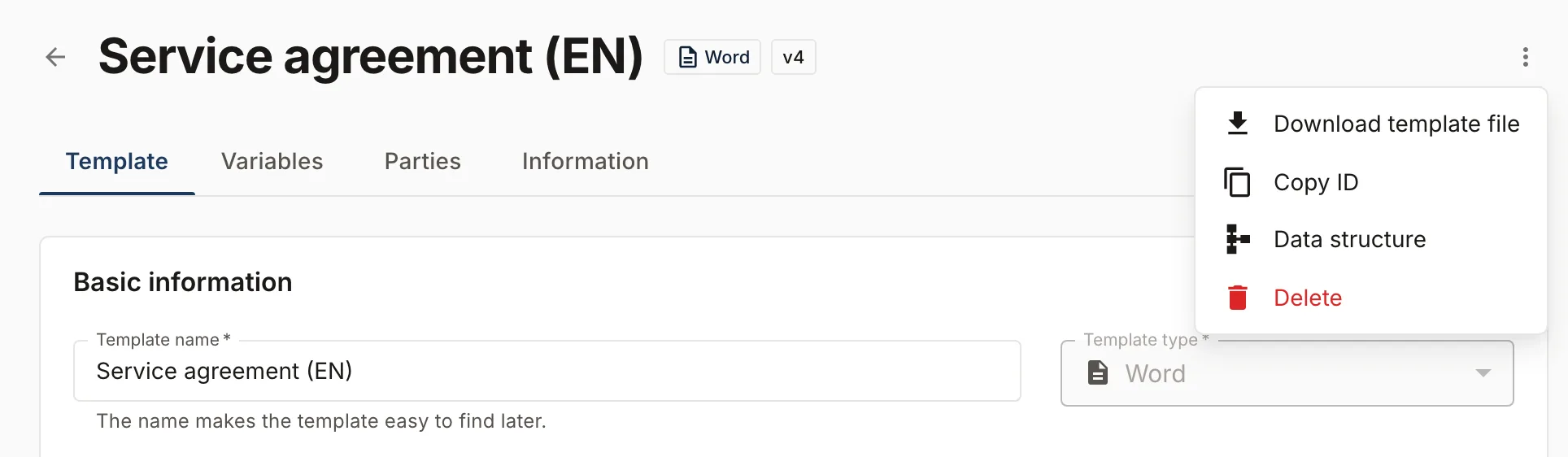
The header menu has Download template file, Copy ID, Data structure and, for people who may manage templates, Delete. The download always gives you the file Doxtly generates from, even for a template that follows a cloud file.
Template
Section titled “Template”If you hold Manage file templates, this tab is the same form you created the template with, already filled in. Change what you need and click Save changes, which takes you back to the list, or Cancel to go back without saving.
- The Template type is shown but locked.
- To replace the file of an uploaded template, use the buttons on the file in Template file: Change file picks a new one, Remove file clears it so you can drop one in, and Download file gets the current one. Replacing the file of a PDF template clears its areas, because an area is a position on one particular file. If you change your mind before saving, Reset to original file brings the old file and its areas back.
- A PDF template’s areas aren’t on this form: below the file, Field areas and the Document preview show them as they are stored, and Edit areas opens the designer, where they are drawn and changed. Its metadata is in the designer’s Template settings.
- If a new file keeps the PDF’s areas, such as a newer version of a followed cloud file, and some no longer fit, the form says how many lie outside the pages, and Save changes stays off.
- With a saved template open, Doxie, the AI assistant in Doxtly, can list the values it needs and say what it lacks, and on a PDF she can place the missing areas.
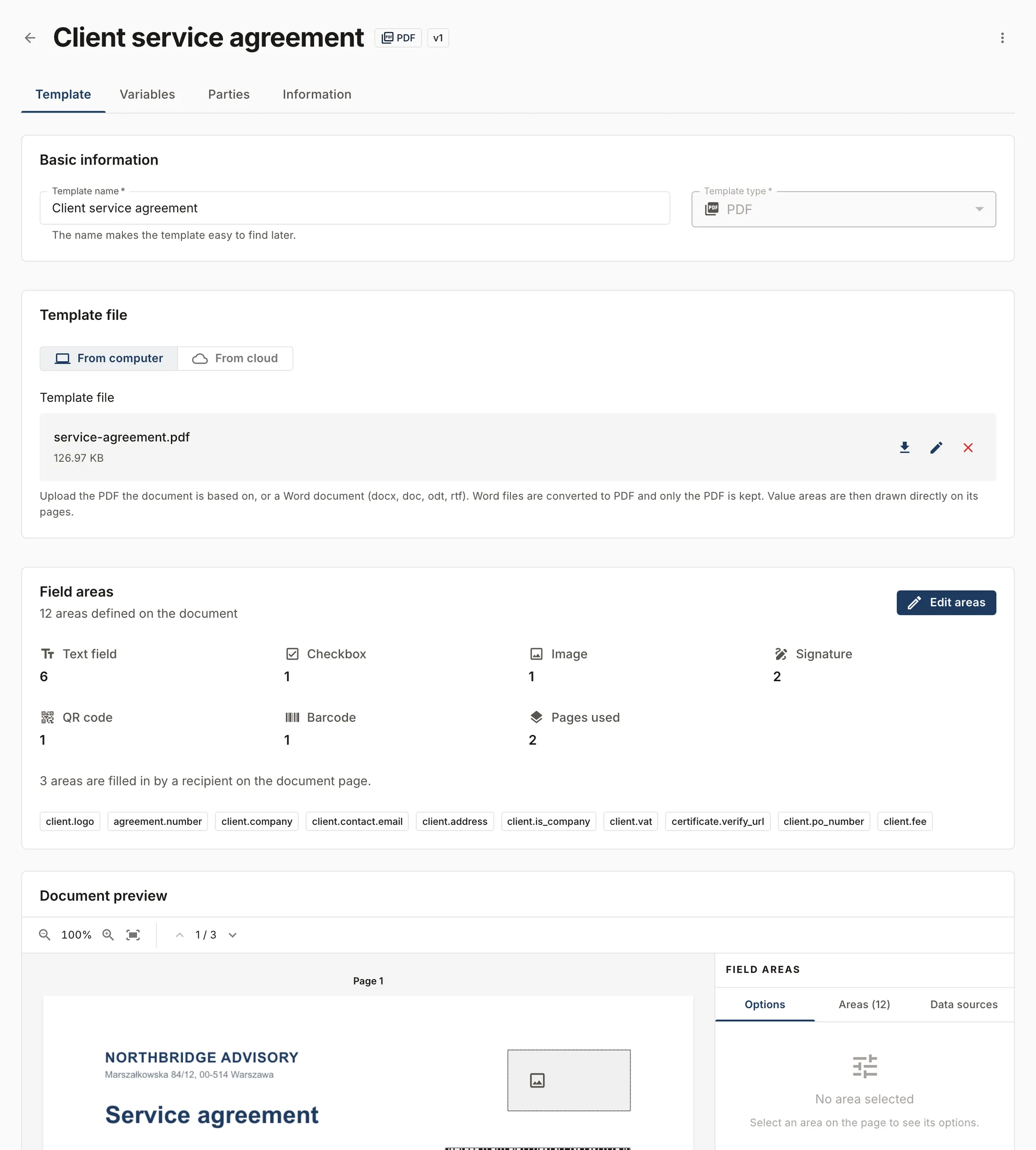
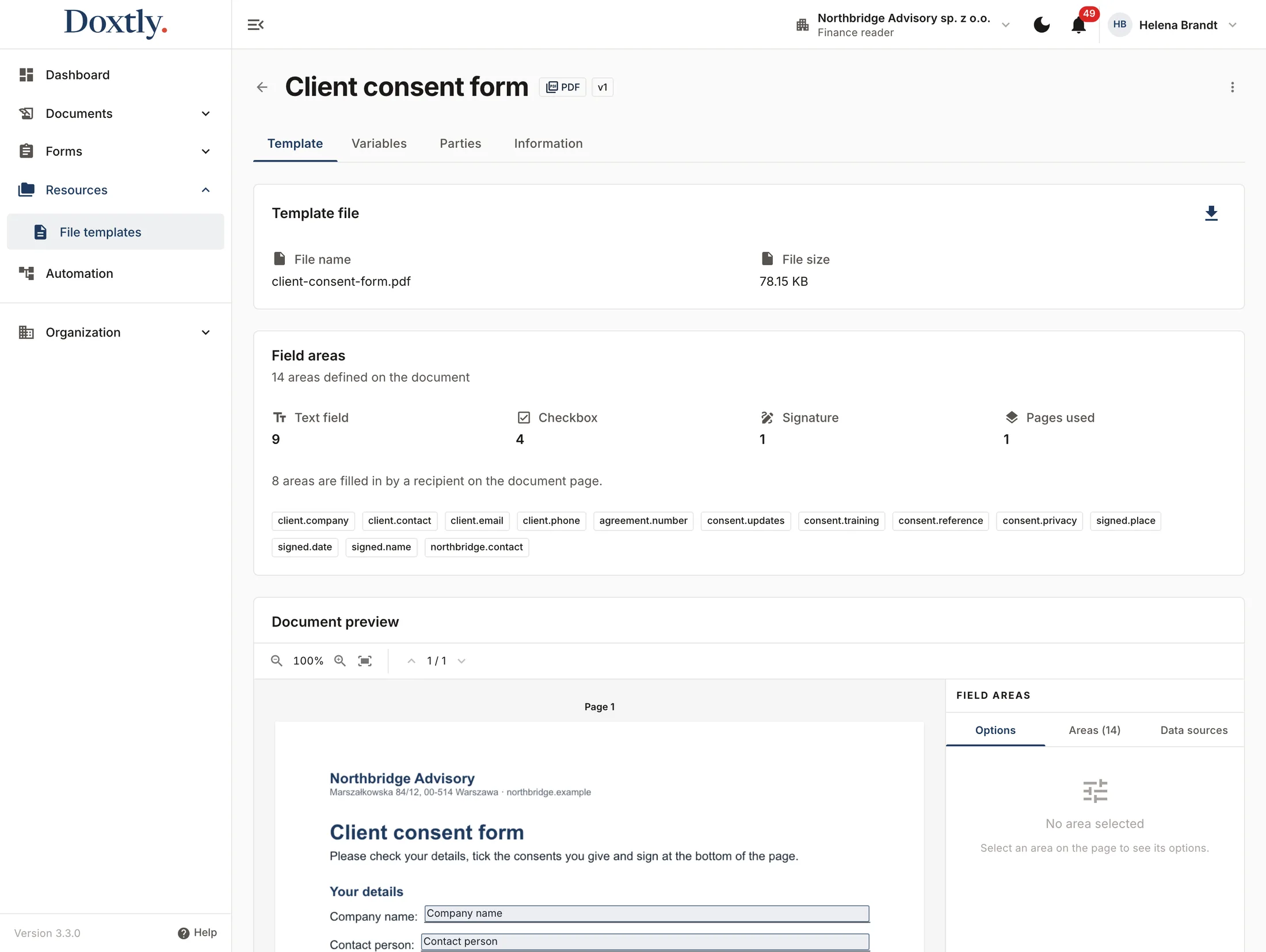
If you may only view templates, the tab shows the same things, read only:
- Template file, with the File name, the File size and a download button. A template that follows a cloud file shows its file card instead.
- On a PDF template, Field areas: how many areas there are of each kind, Pages used, how many are filled in by a recipient, and the variables as chips. Under it, Document preview shows the pages with the areas drawn on them.
- Metadata, if the template has any.
Variables
Section titled “Variables”Used variables lists the values a document must be given, each as a chip with its path, such as client.address.city. The count is at the top, with a Data structure button.

Use this list as the contract between the template and whoever supplies the data: the person building the form, the workflow author, your developer. With no variables you see No variables found: nothing in the template is filled from data, which is fine for a fixed document. Values read from _metadata are listed too, although the template supplies them itself.
A value the template can do without may be left out of this list. In an SVG, that is anything tested with is defined or given a default. In a PDF, it is an area with a print condition, and every area a recipient fills in. The Data structure dialog is more exact, because it lists the optional values too and marks them.
Parties
Section titled “Parties”Signing parties lists who is expected to sign documents made from the template, such as CLIENT and CONSULTANT. In a PDF template they are the recipients the areas are assigned to; in Word and SVG templates they come from [SIGNATURE:…] markers in the file. A party named only in a part that may not print, such as a conditional clause in Word or an area with a condition, is listed as well. A template with none shows No signing parties, which only means its documents are not signed by anyone in particular. This is the list a workflow’s Create documents step works from. See Signing.

Information
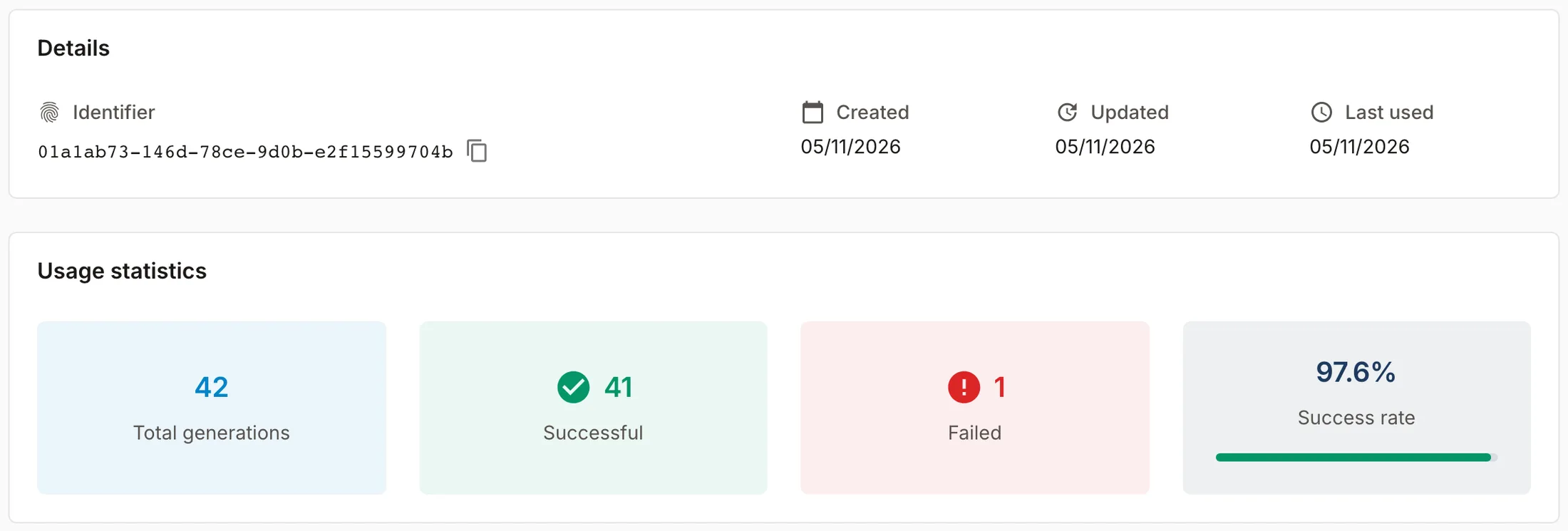
Section titled “Information”Details shows the Identifier with a button to copy it, and the dates Created, Updated and Last used (Not used yet if it never was).
Usage statistics shows Total generated files, Successful, Failed and Success rate, with a bar that is green from 80%, orange from 50% and red below that. Until the first generation the rate is a dash. A success rate falling after a change to a template is your first hint that a variable no longer matches the data. The failed documents are marked in Generated files; the reason is on the failed step of the workflow run, or in the answer to the API call.
The Data structure dialog
Section titled “The Data structure dialog”The dialog shows the data the template needs, written the way the data itself is written, with each value replaced by its type. Doxtly reads this from the template when you open the dialog, so it always matches the current file. Open it from a template’s menu in the list, from the header menu, or with the button on the Variables tab.
{ "client": { "name": "string", "vat_id?": "string" }, "items": [{ "name": "string", "price": "string" }], "has_discount": "boolean", "logo?": "image"}A key ending in ? may be left out. A list is shown as one sample item. The types you will meet here:
| Type | Meaning |
|---|---|
string |
Text, or the content of a QR code or barcode. |
boolean |
Something a condition or checkbox tests. |
image |
A picture, given as a data URI. |
any |
A value whose type cannot be known. In an SVG template every printed value is any, because what it must be depends on what the template does with it. |
_metadata is left out, because it is merged in from the template itself; see Data and variables. The keys follow the order the template first uses them in. The copy icon, Copy structure, copies the JSON, and Download file saves it as a .json file named after the template. Hand it to a developer connecting your system, or use it to check a form’s data paths.
The Fields tab beside JSON shows the same data as an outline, in the template’s order: each list with the fields of its items indented under it, a list inside an item with its own fields under it. Under a value it says what it is (Text, List, Picture, Code content, Yes or no), optional when a document can go without it, Only when with the conditions it is printed under (for a Word condition on an item’s field, the item’s paid), and Default with what the template prints when the data has no value.
Metadata
Section titled “Metadata”Metadata is a set of fixed values stored on the template itself, not sent with each document. Use it for what every document from this template shares: your company’s registered address, the current terms version, a department name, a layout switch.
Say Northbridge Advisory keeps its registration number in metadata. Every template reads _metadata.company.registration_no, and when the number changes, you edit one field per template, not the files.
The Metadata section is on the template’s form for a Word or SVG template, and in the designer’s Template settings for a PDF template. In it, Add field, the dashed box with a plus, adds a row. Give it a Key, a Type and a Value. The type is Text, Number or Object. An Object holds further fields, which is how you get paths such as company.address.city; you can fold it with Collapse and open it with Expand. Remove field deletes a row. Two fields on one level cannot share a key: the form says Another field already has the key and keeps the old one.
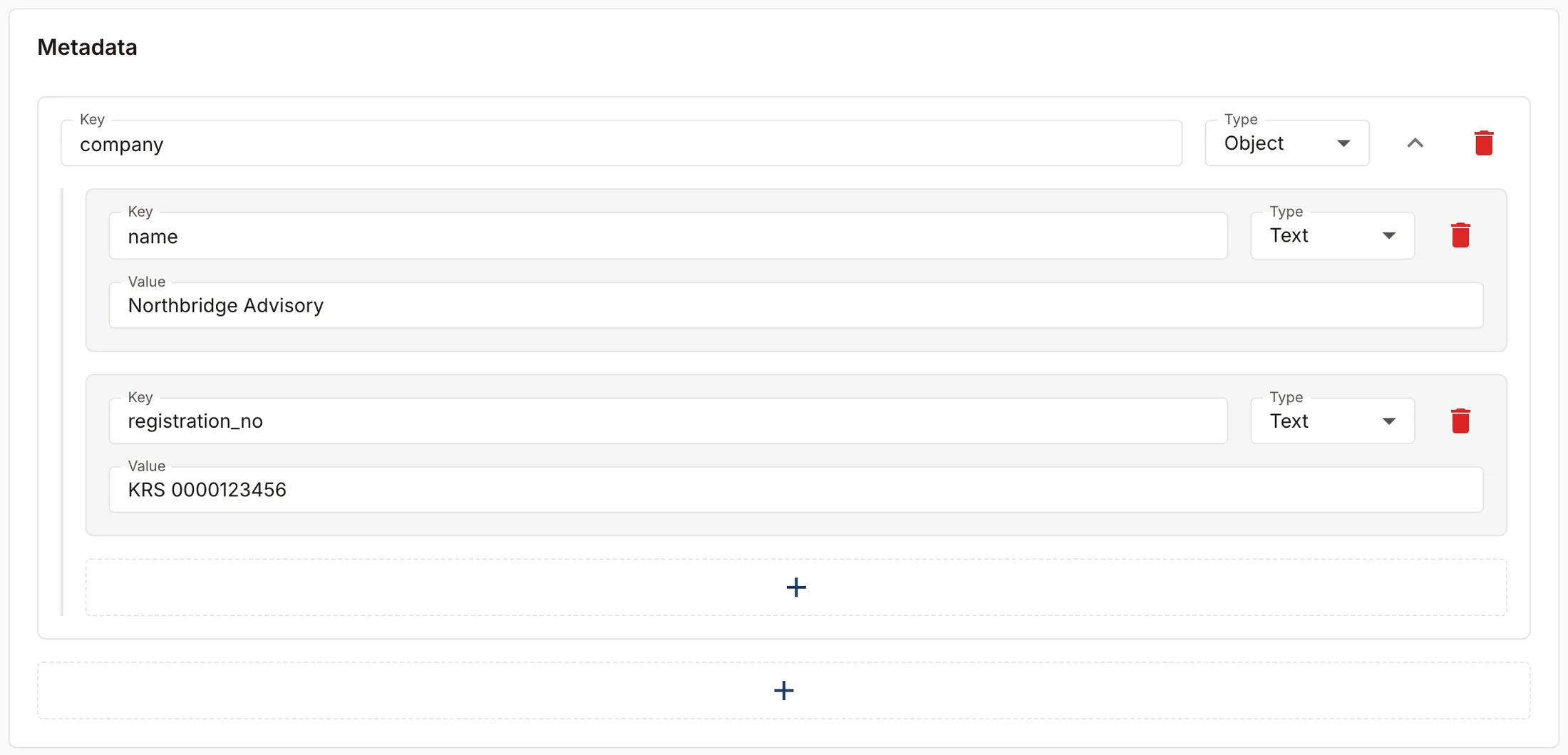
A template reads its metadata under _metadata: ${_metadata.company.name} in Word, {{ _metadata.company.name }} in SVG, the variable _metadata.company.name in a PDF area.
Changing metadata takes effect for the next document and does not change the version number. The full story of how a template’s metadata mixes with metadata from a form or a run is in Data and variables.
Versions
Section titled “Versions”Every template has a version number, starting at v1. It answers one question: which state of the template was this document made from? Generated files shows the version next to each document, so when a client disputes a clause, you can tell which edition of the contract they received.
| This change | Moves the version? |
|---|---|
| Uploading a new file | Yes |
| Choosing another cloud file | Yes |
| A new version of a followed cloud file being taken or approved | Yes |
| Moving, adding or removing an area, or changing its settings, on a PDF template | Yes |
| Renaming the template | No |
| Changing the metadata | No |
| Detaching the template from the cloud | No |
| Saving with nothing changed | No |
Deleting a template
Section titled “Deleting a template”Use Delete in the template’s menu, in the list or on its page, and confirm. Deleting cannot be undone, and it reaches further than the template:
- The template’s file goes, along with any new version waiting for review.
- All its generation records go, along with the data each document was generated from.
- The generated documents stored in Doxtly go too. A generated file that a signing document was made from stays.
- The template is removed from any interactive document built on it.
- A workflow step that names it can no longer generate from it, so check your workflows first.
Deleting frees a place in your plan’s template limit and the storage the files used.
If a signing document was made directly from the template’s file, Doxtly refuses: A signing document was created from this file, so it cannot be deleted. Nothing is removed in that case, not even a new version waiting for review. A document under signature never loses the file it came from.
What affects what
Section titled “What affects what”| If you change | This also changes |
|---|---|
| The variables in a file or on a PDF | What a workflow must supply. A document missing a required value fails. See Data and variables. |
| The parties in a file | Who a Create documents step asks to sign. |
| The file of a PDF | All areas are cleared and must be drawn again. |
| Cloud file status | A notification goes to the people who may view and manage templates. See Templates from cloud storage. |
| The plan | Templates of a type no longer included stay in the list and go on generating, but no new ones of that type can be created. |
Permissions
Section titled “Permissions”| Permission | What it allows |
|---|---|
| View file templates and generated files | Seeing templates and the files generated from them, downloading the template file, reading the data structure, and running Check now on a cloud file. |
| Manage file templates | Uploading, changing, duplicating and removing templates, generating files through the API, and reviewing new versions. Reviewing also takes the view permission above. |
| View cloud files | Choosing a template’s file in a drive. Needed on top of Manage file templates. |
| Manage integrations | The Reconnect button on a template whose drive lost its connection. |
| Use the AI assistants | Turning a Word file into a template, on top of Manage file templates. |
| Use Doxie | Asking Doxie about a template, and, on top of Manage file templates, letting her place areas on a PDF. |
Roles are set up under Roles.