

PDF editor
The PDF editor is a workbench for PDF files you already have. You open a file, write or draw on its pages, take pages out, bring pages in from another file, and save the result. Reach for it when a PDF lands on your desk and needs a small change now: a date added to a course certificate, your signature on a supplier’s contract, a proposal and an NDA joined into one file for a client.
Available when: your organization is on a paid plan (Starter, Pro or Business) and your role includes the Use the PDF editor permission
Where to find it
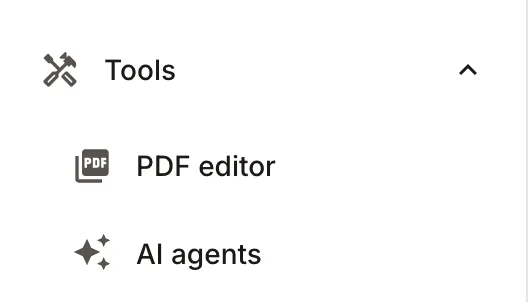
Section titled “Where to find it”In the sidebar, open Tools and choose PDF editor. The editor takes the whole window, so you get as much of the page as your screen allows: the app’s menu, notifications and sidebar are hidden while it’s open. A bar at the top holds the title, PDF editor, and a back arrow, Back, which returns you to the page you came from, or to the dashboard when you opened the editor directly. With unsaved files it asks first, see Your files stay in the browser.
You can also start from a file. In Cloud files, the menu of any PDF or Word document offers Edit in the PDF editor, which opens the editor with that file already loaded. See Opening and saving files.
What people use it for
Section titled “What people use it for”Most jobs take a couple of minutes and never touch the rest of Doxtly. A few that come up all the time at a firm like Northbridge Advisory:
| The job | How it goes |
|---|---|
| A supplier sends a contract to sign and return | Open the PDF, place your signature on the line, type the date in a text box, download it and send it back. |
| The supplier wants every page initialled | Put your initials at the foot of the first page, then paste them on the others. |
| A client wants a proposal, an NDA and a price list as one file | Open the proposal, then insert the pages of the other two. |
| Someone needs only the appendix of a long report | Delete the other pages and save the result under a new name. |
| A paper form was scanned, and it has no fields to fill in | Put a text box on each line. The editor remembers your font, so the second box already matches the first. |
| You want a colleague to look at one clause | Draw a red rectangle around it and add a note beside it. |
| A Word proposal has to go out as a PDF | Open the document, which converts it, and save the PDF. |
What it does and what it does not
Section titled “What it does and what it does not”The editor adds to a page. Everything you place is a separate object that you can move, restyle or delete until you save.
| You can | Where it is explained |
|---|---|
| Add text boxes, rectangles, ellipses and lines | Editing a page |
| Add images, a signature and initials | Images, Signature, Initials |
| Copy a piece of a page and reuse it elsewhere | Page clip |
| Delete pages, and merge in pages of other files | Managing pages |
| Open from your computer or a cloud drive, including Word documents | Opening and saving files |
| Download, save to a cloud drive, print | Opening and saving files |
A few things are outside what the editor does, and it helps to know them before you start:
- It does not change what is already on a page. You cannot retype a sentence or erase a logo that came with the file, only place something over it.
- It does not reorder or rotate pages. Pages stay in the order they arrive, although you can get a page to a new position by inserting it again. Objects you draw cannot be rotated either.
- It does not open password-protected PDFs. Remove the password first in the program that set it.
- Its signature is a picture. It looks like your signature, but it certifies nothing. When a signature has to stand up as proof of who signed, use Doxtly’s signing.
Your files stay in the browser
Section titled “Your files stay in the browser”The editor works inside your browser tab. Opening a file from your computer uploads nothing, no record of the file is created in Doxtly, no workflow runs, and nothing you do counts towards a plan limit.
Two things do leave the browser, because you ask them to. Files you open from or save to a cloud drive travel through your organization’s drive connection. A Word document you choose to convert is sent for conversion and the PDF comes straight back, with nothing kept afterwards.
The other side of this is that an open file exists only in that tab. Leaving the editor closes every file and empties the editor’s clipboard, and so does signing out. If you have unsaved changes the editor asks first, but it cannot bring back a file you chose to leave. Reloading the page also asks before it goes ahead.
The workspace
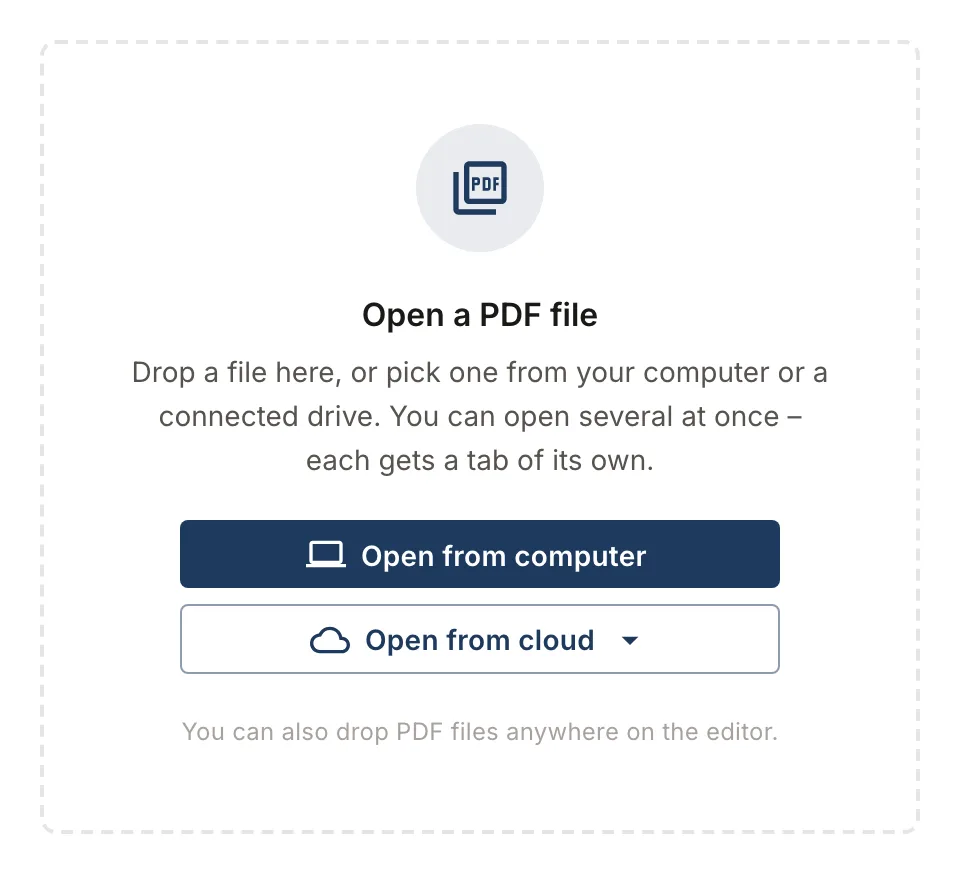
Section titled “The workspace”With nothing open, the editor shows the Open a PDF file panel. Drop one or more files on it, or use Open from computer or Open from cloud. The cloud button appears only when you have a drive to open from. Word documents are welcome too, although the panel only mentions PDFs: see Word documents.
Once a file is open you work in five areas.
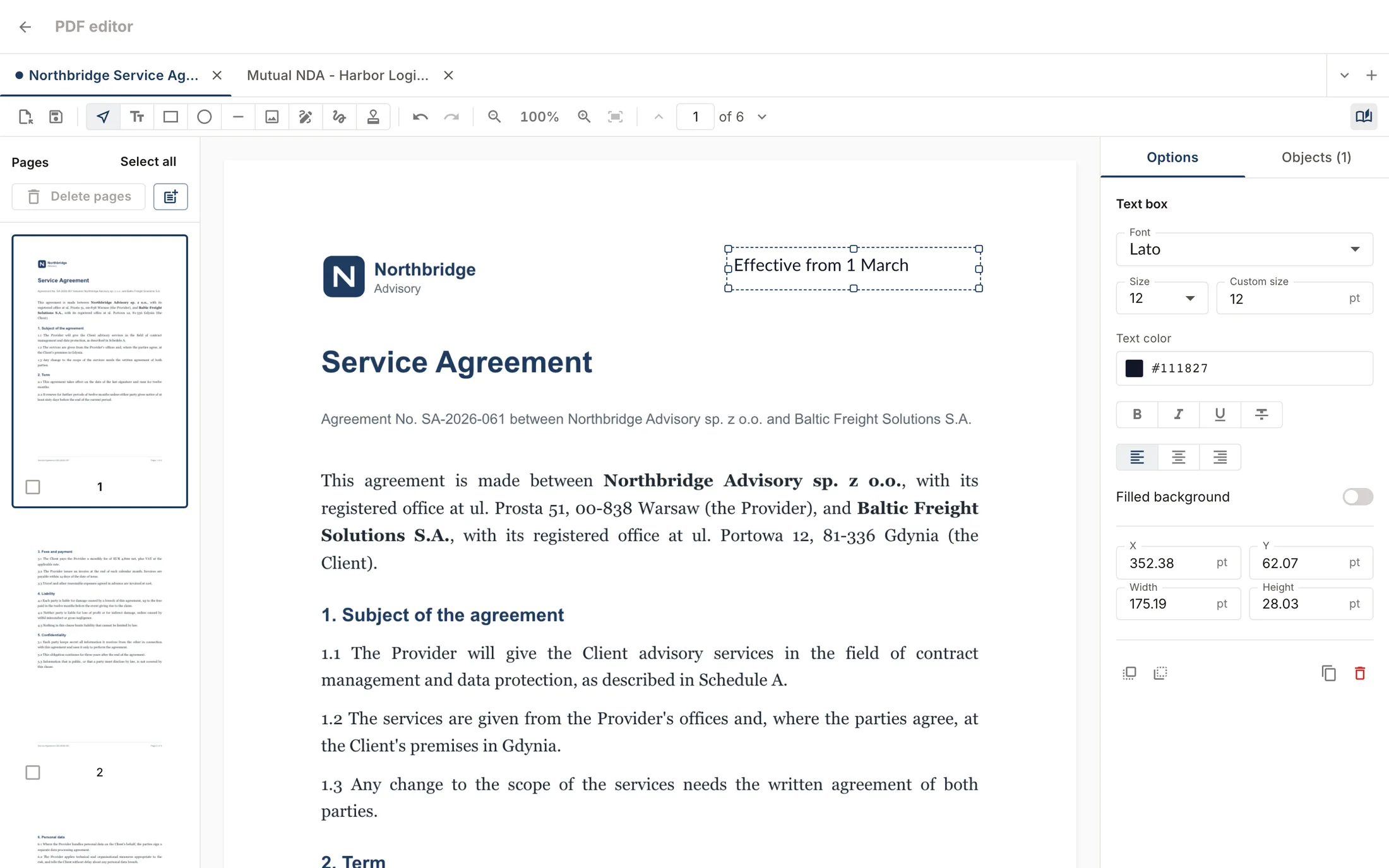
| Area | What it is for |
|---|---|
| Tabs | One per open file. A dot in front of the name marks unsaved changes. |
| Toolbar | Opening and saving, the drawing tools, undo and redo, zoom and page navigation. |
| Pages panel | Thumbnails, deleting and inserting pages. Open and close it with Pages at the right end of the toolbar. |
| Page area | Your pages, one under the other. You draw and work here. |
| Side panel | Options for what you selected, and Objects with everything you placed. |
The editor adapts to the width of your window. From 1536 pixels up, the tools show their names beside their icons. Below that you see icons only, and hovering over one gives its name and shortcut. If the toolbar still does not fit, it scrolls sideways, while Pages and Properties stay in reach at its right end.
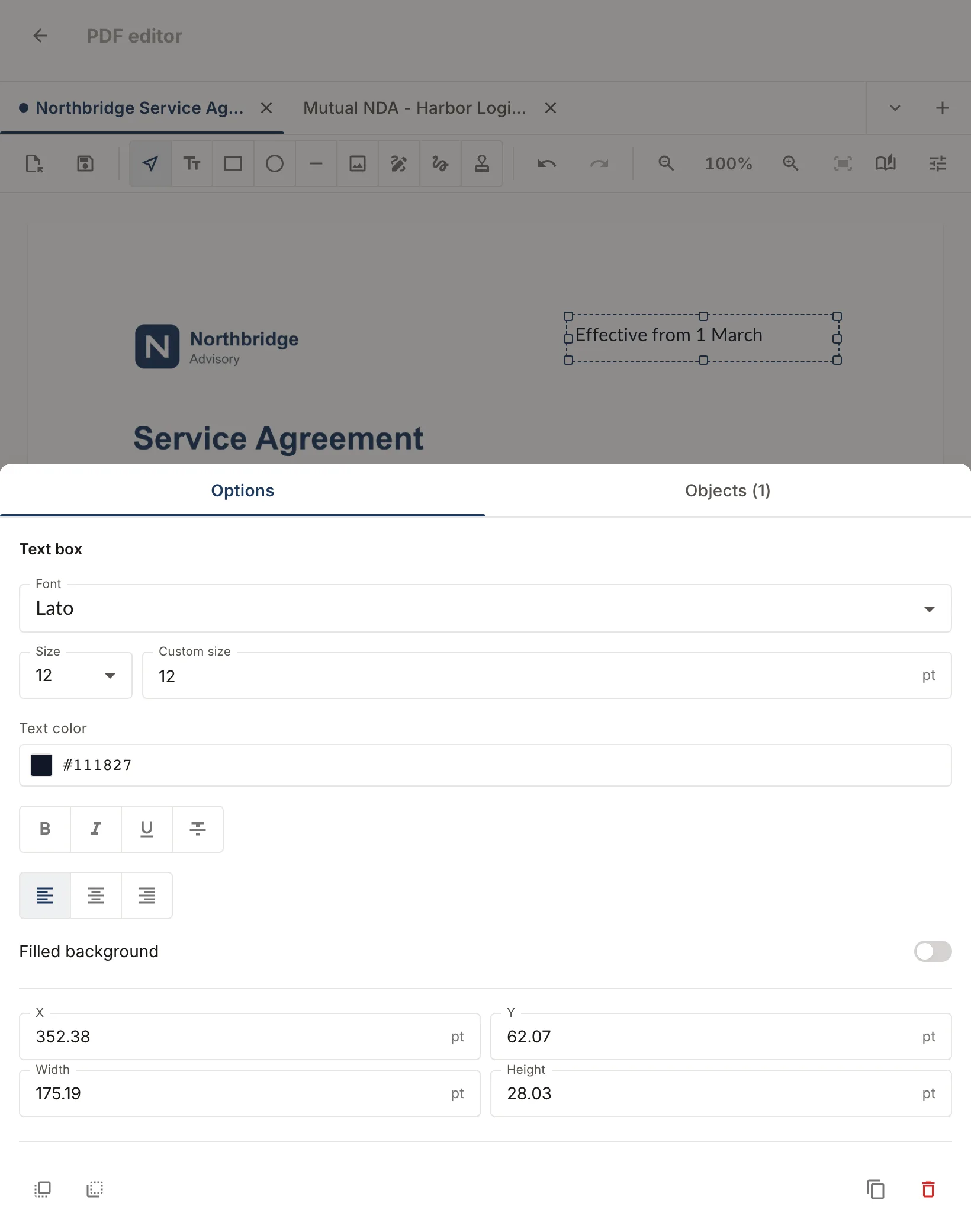
Below 1200 pixels, which covers tablets, phones and small laptop windows, the side panels would squeeze the page, so they become drawers. The pages panel slides in from the left and closes when you pick a page. Properties, a button that appears only at this width, brings the side panel up from the bottom, and it closes when you pick an entry in Objects.
On a touch screen a finger scrolls the page while Select is in hand. With a drawing tool in hand the same finger draws, and a finger on a selected object drags it. The resize handles get larger, and two fingers pinch to zoom.
The toolbar
Section titled “The toolbar”
From left to right:
| Control | What it does |
|---|---|
| Open a file | Opens a file in a new tab, from your computer or a drive. |
| Save or print | A menu with Download to computer, Save to a cloud drive… and Print. |
| Tools | Select, Text, Rectangle, Ellipse, Line, Image, Signature, Initials and Page clip. Each is explained here. |
| Undo, Redo | Steps back and forward through your changes to this file. |
| Zoom out, Zoom, Zoom in | The percentage in the middle is a menu of the fixed steps: 50, 75, 100, 125, 150, 200 and 300%. |
| Fit to width | Goes back to 100%. |
| Previous page, Page number, Next page | Moves through the file. Type a number and press Enter to jump. A number the file does not have is ignored. |
| Pages | Shows or hides the pages panel. |
| Properties | Opens the side panel, in a narrow window only. |
Until a file is open, only Open a file works. While a file is opening or a PDF is being prepared, opening and saving wait for that to finish.
Reading a document
Section titled “Reading a document”Zoom works relative to your screen: 100% makes the widest page as wide as the page area, so it is not the printed size. Each file keeps its own zoom.
Hold Ctrl (Cmd on a Mac) and turn the mouse wheel to zoom around the pointer, or pinch on a trackpad or touch screen. These go smoothly between 50% and 300%, so the toolbar can show a value such as 137%, which is not one of its steps.
The number in the toolbar follows you as you scroll: it shows the page nearest the top of the view. That page is the current page, and it matters beyond navigation, because pasted objects land on it and pages can be inserted after it. If you switch to another tab and back, you return to the page you left.
Plans and permissions
Section titled “Plans and permissions”Two things have to be true before someone can use the editor.
The plan
Section titled “The plan”The PDF editor is part of the Starter, Pro and Business plans, not of Free. On Free the sidebar entry is missing. Anyone who reaches the address anyway sees The PDF editor is not in your plan, and those allowed to manage the subscription also get a See the plans button that leads to Subscription. You can compare what each plan includes on Plans and limits.
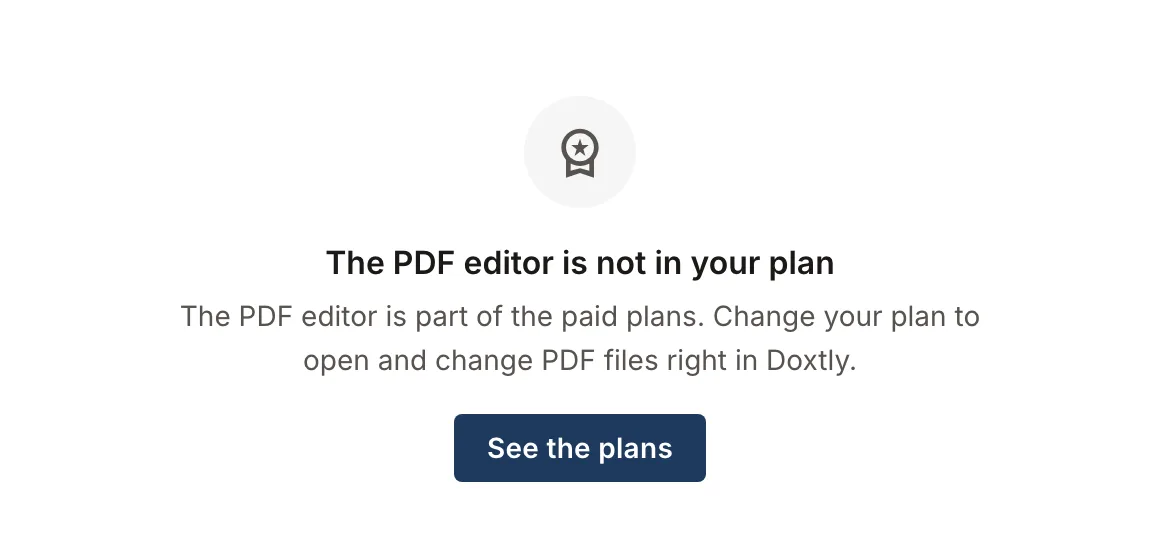
If Doxtly cannot read your plan at that moment, the page says so and offers Try again, because your plan may well include the editor.
The permission
Section titled “The permission”The Use the PDF editor permission sits in the Tools group of roles. The built-in Administrator, Manager and Member roles have it. The Viewer role does not. In a custom role you switch it on like any other permission.
Someone without it does not get the sidebar entry or the Edit in the PDF editor option in Cloud files, and at the editor’s address they read Your role does not include this page.
Drives
Section titled “Drives”The drives are a separate matter. Using them needs the cloud file permissions as well:
| To do this | You also need |
|---|---|
| Open a file, insert pages or insert an image from a drive | View cloud files, and a connected drive |
| Save to a drive | View cloud files and Manage cloud files, and a connected drive |
Someone with the editor but without those permissions keeps the whole editor for files on their own computer. The drive options do not appear for them. Drives are connected in Integrations.