

AI agent
This node hands part of the run to one of your AI agents and stores what it answers. Use it for work that needs reading rather than rules: sorting a complaint by urgency, summarising a client’s onboarding form for the account manager, pulling billing details out of an uploaded PDF. The steps after it decide what happens with the answer.
Available when: your plan includes AI agents, the organization has an active AI integration, and your role has Use AI agents
You find it as AI agent in the AI group of the palette. If the plan lacks agents, the entry says AI agents are not in your organization’s plan. Without an active integration it says No active AI integration. Connect an AI provider in the integrations first. Without the permission it says Adding this step requires permissions your role does not have: and names Use AI agents.
A step already in a workflow checks the plan each time it runs. If your organization moves to a plan without AI agents, the workflows stay as they are, but the step fails with the plan as the reason and the agent is not asked. Move back to a plan with AI agents and the step runs again.

Set it up
Section titled “Set it up”You need an active agent first. Build one in Tools → AI agents and try it there on sample input. See the agent builder.
- Drag AI agent onto the canvas, connect it and open its settings. They sit in a dialog with four tabs: Agent, Input, Output and No result.
- On Agent, pick the agent.
- On Input, write the Prompt, add Data, or pick Files. At least one of the three is required.
- On Output, choose the Answer format and name the variable.
- On No result, decide what happens when the agent gives no usable answer.
Agent tab
Section titled “Agent tab”| Setting | What it does | Allowed values | Default |
|---|---|---|---|
| Agent | The agent to run. Required. | One of the organization’s active agents | None |
The list shows each active agent’s icon, name, what it produces and the model it runs on. With no agent yet it says No active agent yet – create one in Tools → AI agents. Once you pick one, Open in the builder opens it in a new tab.

The agent also decides which answer formats the step can use. If you pick an agent that does not allow the step’s format, the step moves to the agent’s own. If the agent changes later, this tab warns you that it does not allow the format chosen on the Output tab, and the workflow cannot be saved until you change it there.
An agent that was switched off is still named here, with a warning that the step will fail until it is switched on again, and the workflow cannot be saved meanwhile. An agent used by a workflow cannot be deleted: Doxtly refuses and names the workflows, so remove the steps first. If the agent is gone all the same, the field says This agent no longer exists. Choose another one.
Input tab
Section titled “Input tab”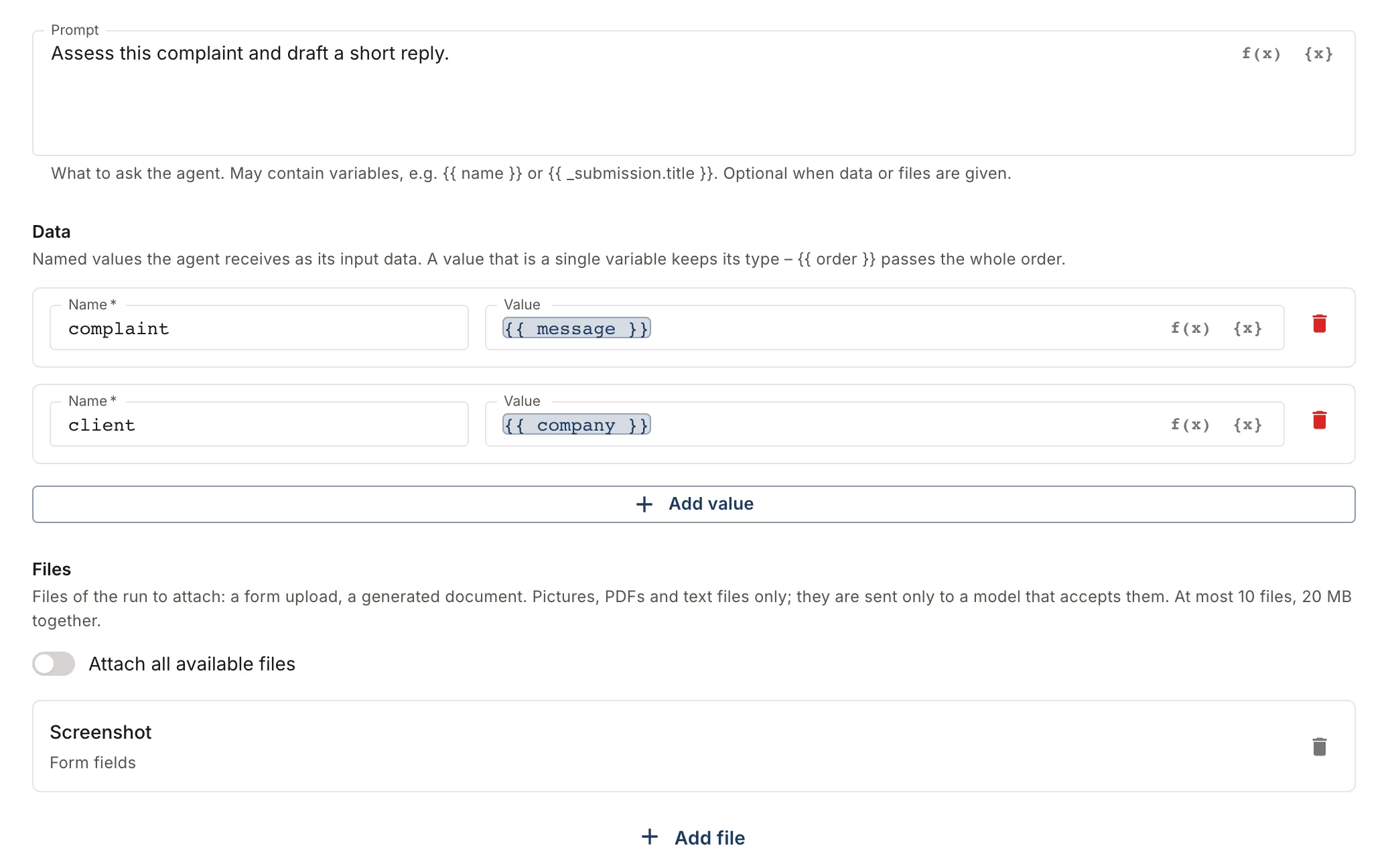
| Setting | What it does | Allowed values | Default |
|---|---|---|---|
| Prompt | What to ask the agent. Required when no data or files are given. | Text with variables | Empty |
| Data | Named values the agent receives as its input data. Add them with Add value. | Pairs of Name and Value | None |
| Files | The run’s files to attach. | Attach all available files, or chosen files | None |
Variables in these fields can carry operations and functions, such as {{ id | first(8) }} or {{ nickname ?? firstName }}: click a variable and then Operations, or use f(x).
Prompt. Write it as you would brief a colleague, for example Assess {{ name }}'s request and suggest a reply. Doxtly sends your text with the placeholders as you wrote them and hands the values over beside it, marked as data. The agent is told to treat such data as material to work on, so a respondent who types “ignore your instructions” into a form is giving it text to read, not a new task. The same goes for Data and for what is inside files.
Data. Use it for the things the agent should work on, and keep Prompt for what you want done. Name takes letters, digits and _, starts with a letter or _, and appears once. Value is text with variables. A value that is one single variable keeps its type, so {{ order }} passes the whole order with its list of products. Anything else becomes text.
Files. The picker offers files that can be one of these:
- pictures: PNG, JPEG, GIF, WebP, so also a form’s photos and drawings;
- PDF;
- text: plain text, Markdown, CSV, JSON.
Limits: at most 10 files and 20 MB together. A text file reaches the agent up to its first 200,000 characters. The prompt and the data together may run to 300,000 characters.
The model has to be able to read what you attach. Saving is refused for a model that reads no files at all, and a run fails when a picture goes to a model without vision or a PDF to a model that cannot read documents.
Output tab
Section titled “Output tab”| Setting | What it does | Allowed values | Default |
|---|---|---|---|
| Answer format | The kind of answer. | Text, JSON, Image | Text |
| Store the answer as | The variable with the answer. Text and JSON. Required. | A variable name, such as analysis |
Empty, with a suggestion to click |
| JSON schema | The shape of the answer. JSON only. Required. | A JSON Schema object | Empty |
| File name | The name of the generated picture. Image only. Required. | Text with variables, such as picture-{{ _execution.date }}.png |
Empty |
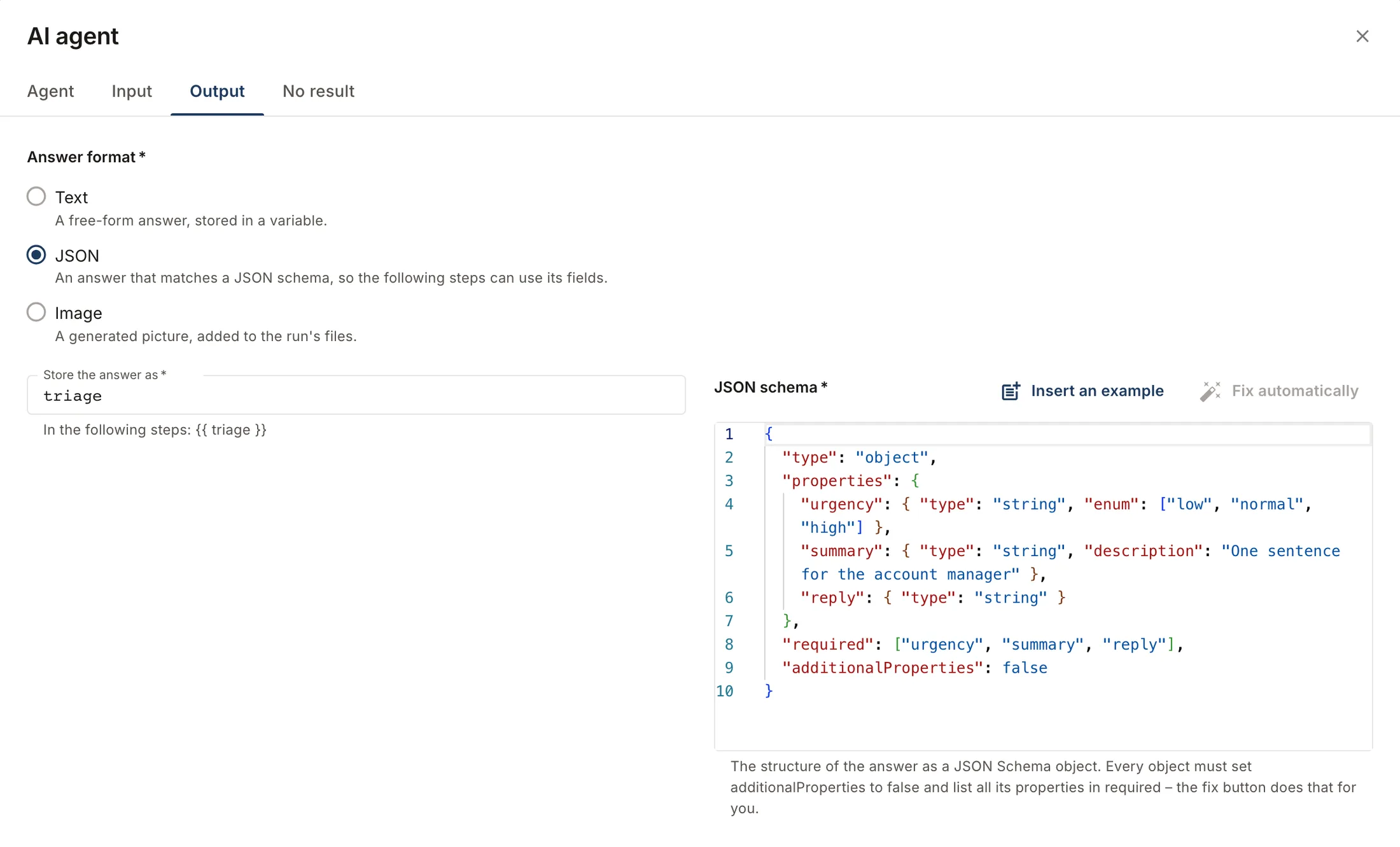
Answer format is limited by the agent, and by what its model supports. A step may narrow what the agent produces, never widen it. Asking a JSON agent for Text is useful when one agent serves two workflows and only one of them needs the fields:
| The agent produces | The step can ask for |
|---|---|
| Text | Text |
| JSON | JSON or Text |
| Image | Image |
Store the answer as follows the rules of all result variables: no two steps may share a name or nest one in another, and the names _metadata, _params, _execution, _recipients, _nodes, _contact and _company are reserved. If the trigger brings a variable of that name, you are warned that the result replaces it in the following steps.
File name cannot contain characters a file name cannot hold. The extension always matches the picture the model made: logo.png comes out as logo.jpg if the answer is a JPEG. Names are cut to 200 characters, and a name that comes out empty becomes image.
JSON schema
Section titled “JSON schema”JSON makes the answer usable by the steps after it. You describe the fields you want, and the agent has to fill exactly those. Write the schema in the editor, or press Insert an example to start from one with the fields assessment (justified or unjustified), reasoning and reply. The field checks it as you type.
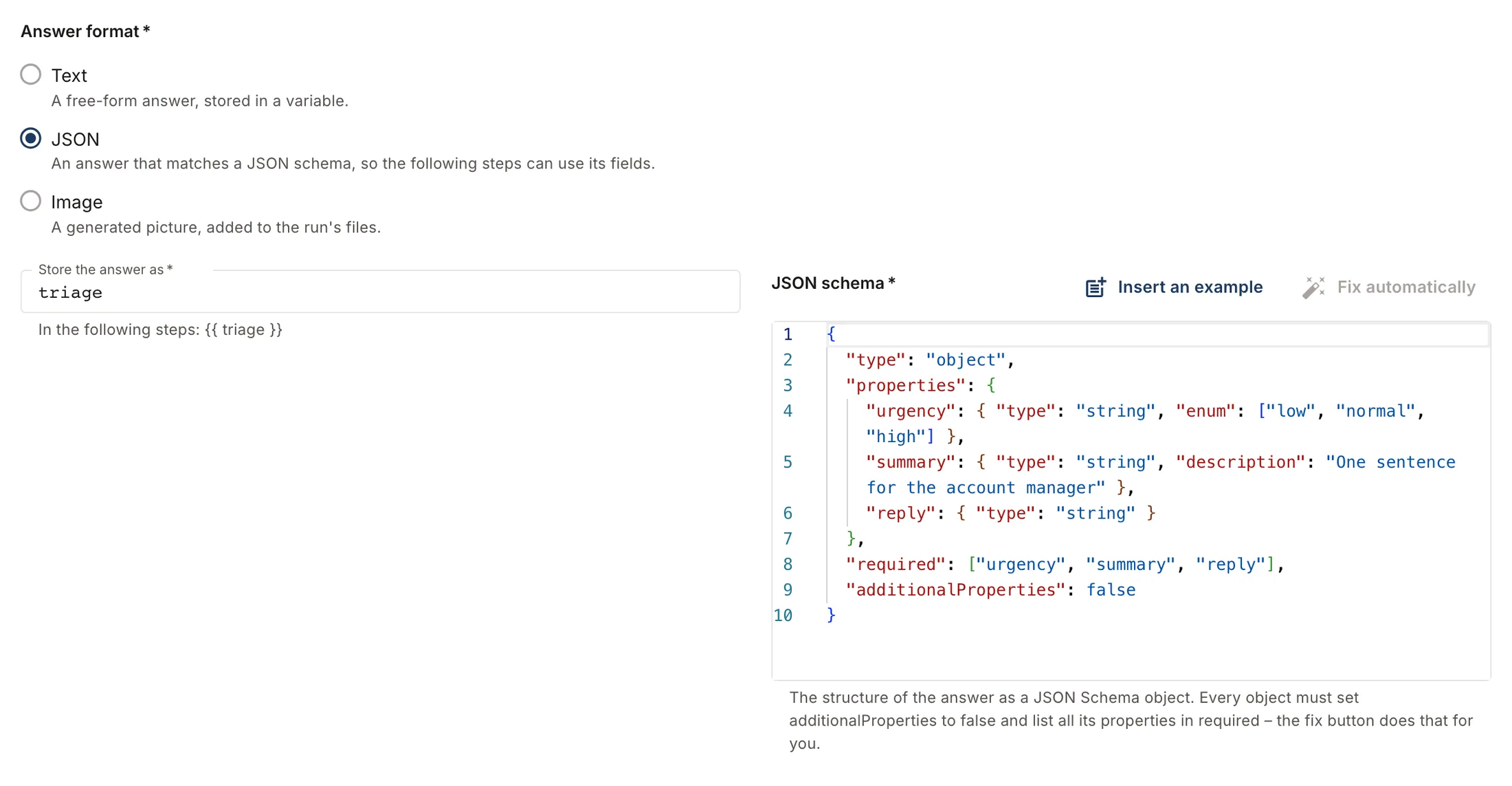
The rules exist because the AI providers can only enforce so much:
- The top level must be an object with
"type": "object". - Every object must set
"additionalProperties": falseand list all its properties inrequired. Fix automatically writes both in for you. - Types are
object,array,string,integer,number,booleanandnull. A list of types, such as["string", "null"], lets a value stay empty. - You can use
enum,const,anyOf,allOfanddescription, and$defswith a$refto a definition of the same schema. A reference may not lead back to itself. - Constraints are refused:
minimum,maximum,minLength,maxLength,pattern,minItems,maxItems,uniqueItems,patternProperties,oneOf,not,if/then/elseand the like. - At most 32 KB and 16 levels of nesting.
A description on a property is worth writing. It guides the model, and the variable picker shows it under the name.
No result tab
Section titled “No result tab”| Setting | What it does | Allowed values | Default |
|---|---|---|---|
| When there is no usable answer | What the step does then. | Stop with an error, Continue, Branch: Result / No result | Stop with an error |
“No usable answer” means one of four things: no image, JSON that still does not match the schema after a retry, an empty answer, or a refusal. A text answer cut off at the agent’s output limit still counts as an answer. If yours run long, raise Max output tokens in the agent builder.
| Answer | What it does |
|---|---|
| Stop with an error | The run stops here, with the reason. |
| Continue | The run goes on. The variable holds no value, and for an image there is no file. |
| Branch: Result / No result | The step gets two outputs. An unconnected No result output ends the run without an error. The execution list marks such a run No result, and Outcome can filter by it. |
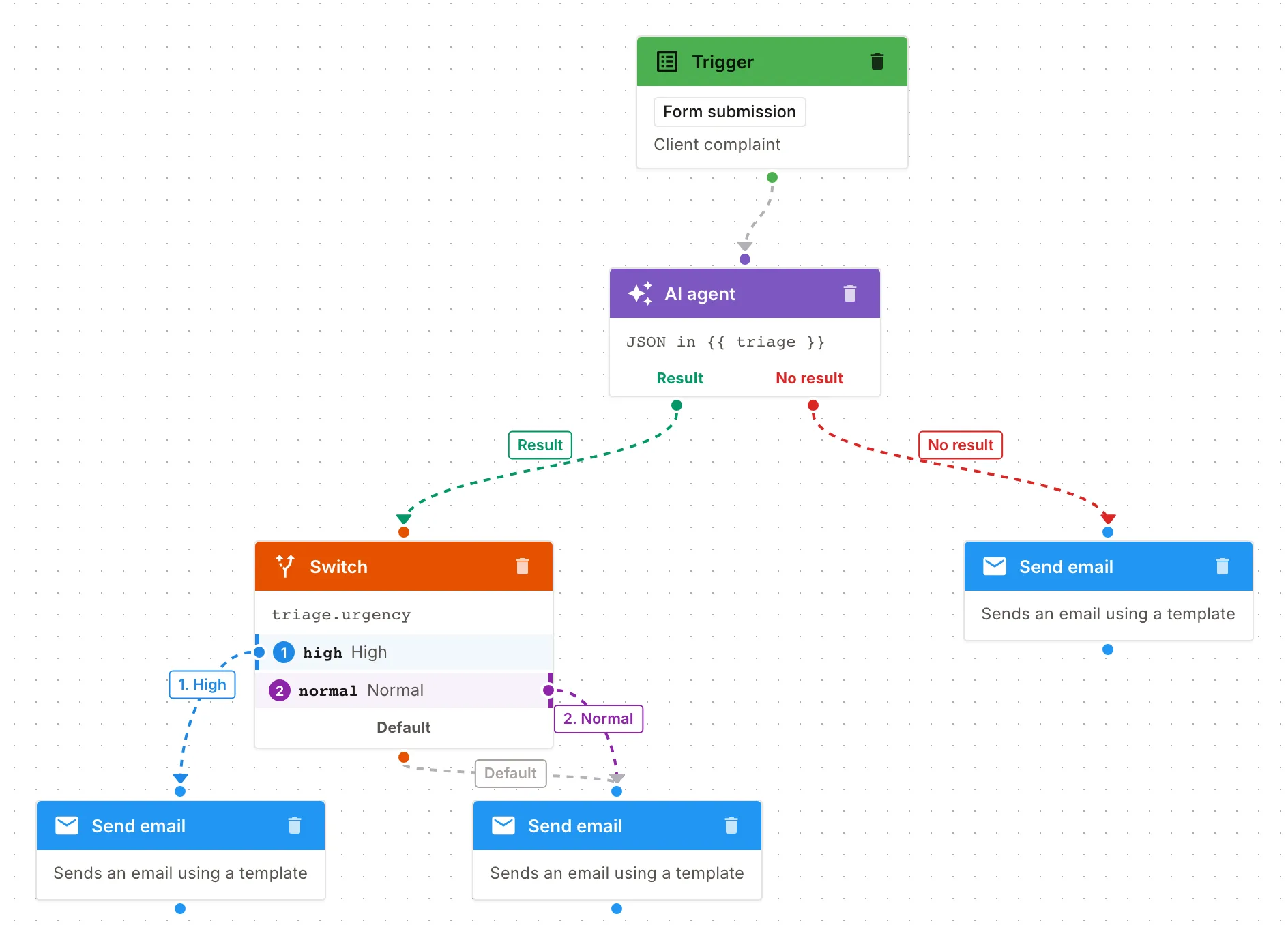
Pick the branch when a person can take over. A complaint the agent could not sort goes to a colleague, rather than stalling the workflow.
What it produces
Section titled “What it produces”| Format | Result | How later steps use it |
|---|---|---|
| Text | The answer, in the variable | {{ answer }} |
| JSON | An object, in the variable | {{ analysis }}, {{ analysis.urgency }}, and lists can feed a list in Write to a sheet |
| Image | A file added to the run | Picked under Generated documents wherever files are chosen, by its file name, or as The generated image while the step has no name yet |
For JSON, the variable picker in later steps offers the schema’s properties before the workflow has ever run. A property’s type carries over, so a number stays a number in conditions.
When something goes wrong
Section titled “When something goes wrong”The setting on the No result tab covers only the agent’s answer. These always fail the step:
| Situation | Note |
|---|---|
| The provider cannot be reached or answers too slowly | A run of the agent has 280 seconds for all its calls together. |
| The provider refuses the key | The AI integration is marked invalid and the palette stops offering the step until someone fixes it. |
| The integration’s budget is spent | See AI agents. |
| The provider is limiting requests | Try again later. |
| The agent was switched off or no longer exists | Open the step and choose another. |
| A file is of a type no model reads, or not what it claims to be | A file that claims to be a picture and is not one is refused. |
| Too much text, more than 10 files or over 20 MB | The limits are under Input tab. |
The run’s card shows the agent, the provider and model, the format, Tokens, Cached, Web searches, Images and Cost, then No result or where the answer went: Stored in and the variable, or File: and the name. It never shows the prompt or the answer. If you need to see what the agent said, put it in an email or a sheet.
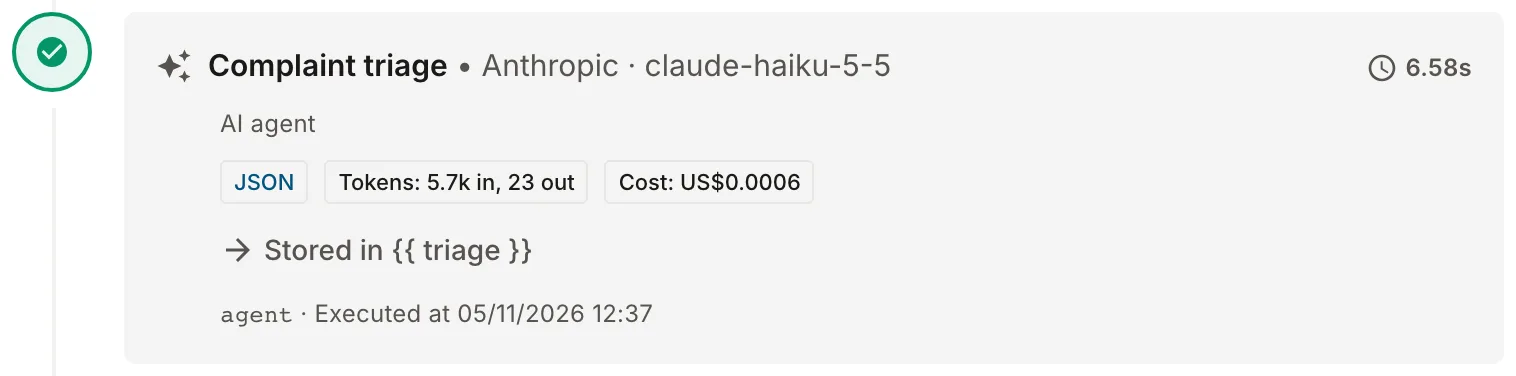
A JSON answer that did not match is asked for once more, naming what was wrong, and the second call costs too. A picture is made in two calls, one composing the description and one painting it. Costs are charged to your own provider account. A rerun runs the agent again, so it costs again, and the answer may differ from the first.
Adding or changing this step takes Use AI agents, beside the workflow permissions. A person without it gets Show the settings of this step, sees the settings read-only, with the agent’s name, and can still connect, move or delete the step. See Access.
Example
Section titled “Example”Northbridge Advisory gets complaints through a form, and the agent Complaint triage sorts them. Its output format is JSON.
| Tab | Setting | Value |
|---|---|---|
| Input | Prompt | Assess this complaint and draft a short reply. |
| Input | Data | complaint = {{ message }}, client = {{ company }} |
| Input | Files | The form’s screenshot field |
| Output | Answer format | JSON |
| Output | Store the answer as | triage |
| No result | When there is no usable answer | Branch: Result / No result |
The schema:
{ "type": "object", "properties": { "urgency": { "type": "string", "enum": ["low", "normal", "high"] }, "summary": { "type": "string", "description": "One sentence for the account manager" }, "reply": { "type": "string" } }, "required": ["urgency", "summary", "reply"], "additionalProperties": false}Result goes to a Switch on triage.urgency: high emails the partner at once with {{ triage.summary }}, the others go to the shared inbox with {{ triage.reply }} as a draft. No result sends the complaint to the office manager to read by hand.