

Send to fill in
Send to fill in sends one contact, or one company, a link of their own to a form, an interactive document, a quiz or a survey. From the contacts list it sends many contacts each a link of their own at once. The page that opens fills in the fields whose default value names the contact’s or the company’s details, so a client confirming their data only checks it and corrects what changed. Northbridge Advisory, say, sends each client its yearly “Update your company details” form: the name, the tax ID and the address are already there, and the client changes only what is new.
Available when: the View contacts permission and the right to send the link of what it opens: Manage forms for a form, Manage interactive documents for an interactive document, Manage quizzes for a quiz, Manage surveys for a survey
Send a link
Section titled “Send a link”-
Open a contact or a company, or its row’s ⋮ menu in the list, and choose Send to fill in.
-
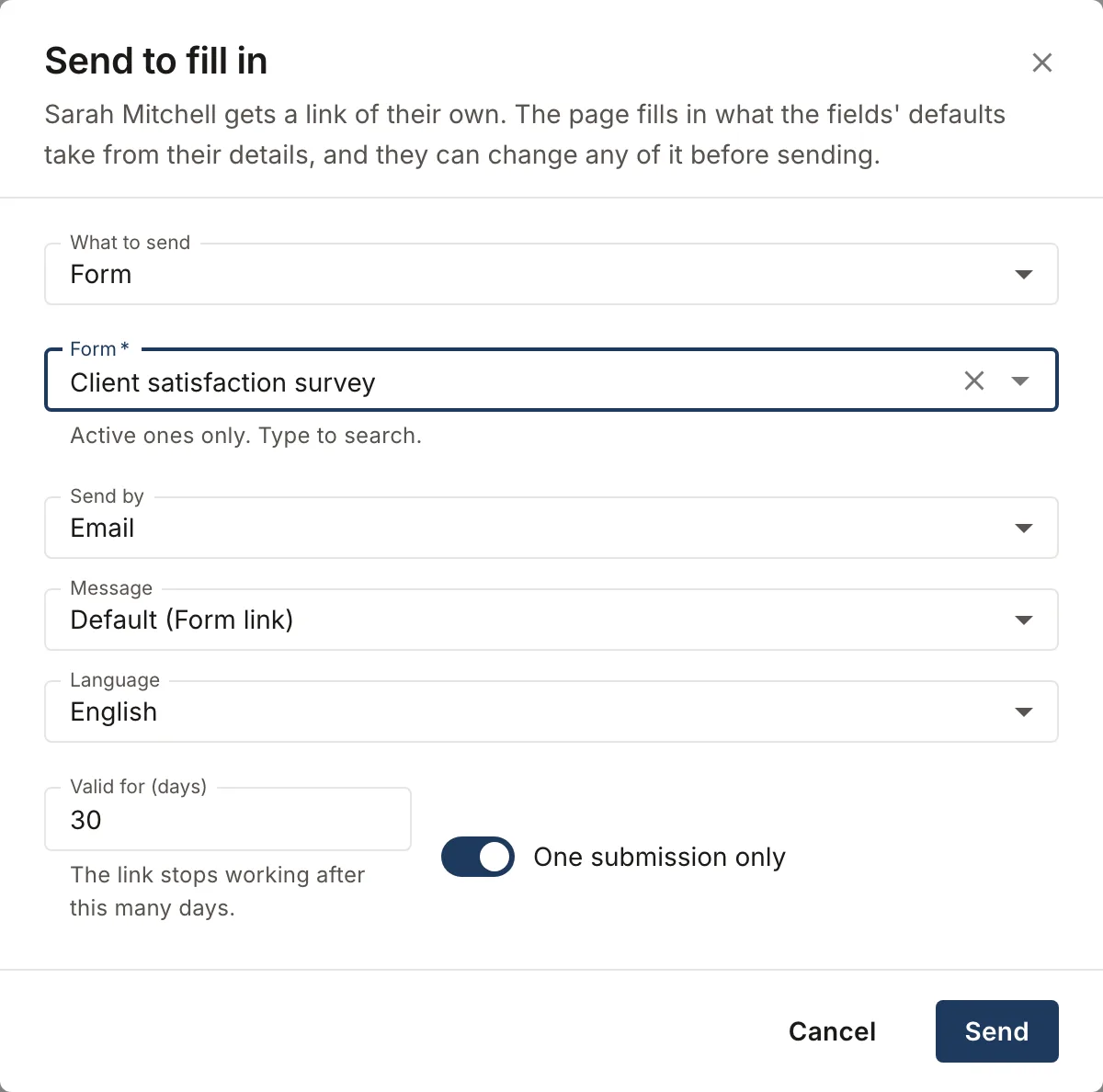
Under What to send, choose Form, Interactive document, Quiz or Survey, and pick it from the list below, which offers only that kind. What to send appears only when you may send more than one kind: someone who manages surveys but not quizzes is offered Survey and never Quiz. Only active ones are offered; type to search.
-
For a company, choose the Recipient: the company’s own address, or one of its contacts.
-
Choose how it goes under Send by, and the Language. The language starts as the contact’s own when the contact has one, and as Organization’s language otherwise. When your organization has its own message templates for this kind of link, a Message field lets you pick one of them instead of the default.
-
Set how many days the link is valid under Valid for (days) (30 by default, from 1 to 365) and whether it takes One submission only (on by default). A quiz’s or a survey’s link has no such switch: it opens for as many attempts or responses as the quiz or survey allows.
-
Press Send.
The link goes to the address the contact or the company has for the channel: you don’t type it, so a link that fills in someone’s details reaches no one else. A channel it has no address for, or one your organization can’t send by, is listed but can’t be chosen, and the dialog says why. When none can be used, no channel is chosen and the reasons are shown as an error:
| Channel | Offered when |
|---|---|
| The contact or the company has an email address and your organization can send email (email integration). | |
| SMS, WhatsApp | It has a phone number with its country code, such as +48 600 100 200, and your organization has an active integration of the channel. |
The message is the one the form’s or the document’s own link is sent in, the default or one of your templates for it, and it greets the person by name. The address in it is the personal link, never the form’s public one.
Many contacts at once
Section titled “Many contacts at once”To send the same form, document, quiz or survey to many contacts, select them in the contacts list. Each gets a link of their own, at their own address.
-
In Resources > Contacts, tick the contacts, or the box in the header to tick the whole page. On a phone, press Select first.
-
With the whole page ticked and more contacts matching the search and filters, the bar under the list offers to select them all, as in Select all 240 matching. It ticks every one of them; it is offered for up to 5,000 contacts.
-
Press Send to fill in in the bar under the list.
-
Choose what to send, Send by, the message and its Language (your organization’s to start with), Valid for (days) and One submission only, as for one contact. For a quiz or survey, set a deadline and reminders if you like, and send now or later: see Deadline and reminders.
-
Press Send.
The messages go out in the background, and the dialog says how many contacts they are going to. Each contact gets the link at their address of the channel, and a contact without one is skipped; when none of them has one, the dialog says so. Only a channel your organization can’t send by is unavailable.
What the person sees
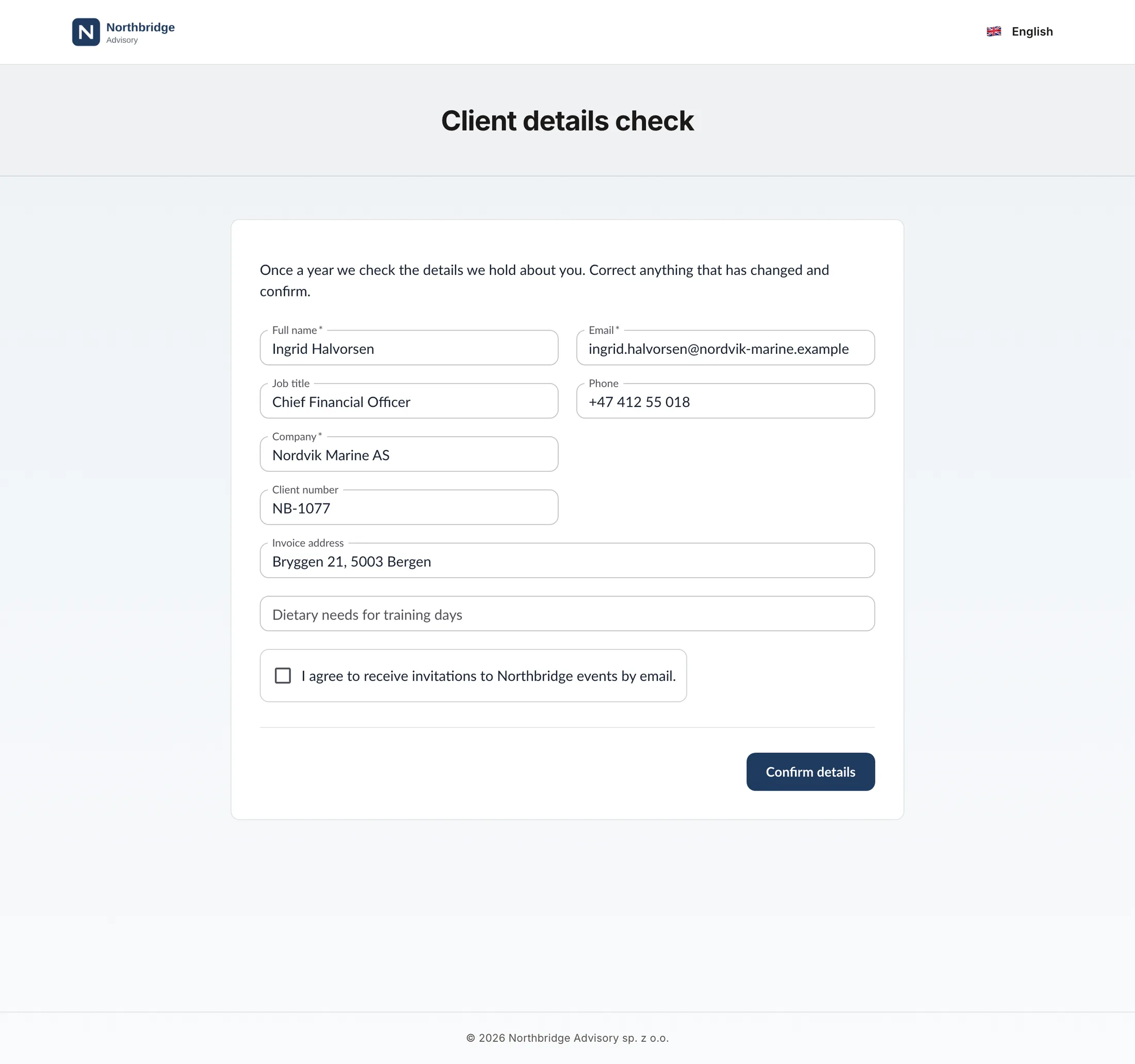
Section titled “What the person sees”The link opens the form, or the document, at its own page, /cf/… for a form and /ci/… for an interactive document. The fields whose default names the contact or the company start with their values; every other field starts as usual. Everything filled in can be changed: it is only where the person starts.
Which values a field may show:
- the contact’s name, email, phone, job title, company name and language, and the company’s name, tax ID, address, email, phone and website;
- a custom field with Prefill forms sent through personal links switched on. A sensitive field starts with it off; switch it on only if the person may see the value.
Only the fields that name a value get one: nothing else about the contact reaches the page. A value the contact doesn’t have, such as a phone never entered, leaves its field empty, with none of the default’s other text, unless the default gives a fallback: {{ _contact.phone | default("+48 ") }} starts the field with the country code. Defaults and fallbacks are described under Expressions and functions.
A link stops working when it expires, when you revoke it, or once it was sent in if it takes one submission only. The person then reads why, on your organization’s page with its logo and name, and that they can ask you for a new one. A form protected by a password asks for it through a personal link too.
Quizzes
Section titled “Quizzes”A contact’s link to a quiz opens it at /cq/…. It lets them in whoever the quiz is for, without the quiz’s password, and Doxtly knows who took it: the attempt carries their name. They don’t join the quiz’s access list, but they appear on its People tab beside it, with how far they got. A contact has one link to a quiz: sending the quiz again sends the link they already have while it still works, and the link opens for as many attempts as the quiz allows.
Sent to many contacts at once, or from the quiz’s People tab, the links go as one batch of the quiz’s invitations, with a deadline and reminders if you set them. A link sent to one contact has none. It stops working when it expires, when you revoke it here or on the People tab, or at a deadline that closes it.
Links to quizzes, and their results, are shown only to people with View quizzes, attempts and results: without it, the contact’s Sent links and History leave them out. In History, a finished quiz shows its points, Passed or Failed and the grade, or Awaiting grading while an examiner still has to grade it.
Surveys
Section titled “Surveys”A contact’s link to a survey works the same way: it opens at /cq/…, lets them in without the survey’s password, and the response carries their name, unless the survey is anonymous. They appear on the survey’s People tab, and a batch sent to many contacts has the same deadline and reminders.
Links to surveys are shown only to people with View surveys, responses and results. Quizzes and surveys are two products, each with its own permissions: someone who works only with surveys never sees a contact’s quizzes, and the other way round. In History, a finished survey shows only Answered.
Declining surveys
Section titled “Declining surveys”Every email of a survey sent to a contact ends with Don’t want surveys from Northbridge Advisory? Stop sending me surveys. The link opens a page of your organization that asks Stop receiving surveys from Northbridge Advisory?, and only its button, Stop sending me surveys, declines: opening the page does nothing, since mail scanners open links too. The page then confirms that you will send them no more surveys, and offers Subscribe again: only the contact can undo it, from that page, and nobody in your organization can.
From then on no survey reaches the contact: not from Send to fill in, not sent to many, not by a workflow, and no reminder of one already sent. Exams still do: a quiz carries no such line, since it is part of a course or a job, not a request for an opinion.
The contact’s page shows it with a Declined surveys chip beside the name, which gives the day when you point at it or tap it. You also see it when you send: Send to fill in for that contact says This contact declined surveys. once you pick a survey, and doesn’t send it. Sent to many, the contact is skipped and counted among those Not delivered in the survey’s invitations. A message template of your own for survey links carries the line only if it includes {{ optOutUrl }}.
Sent links
Section titled “Sent links”The Sent links tab of a contact lists the links sent to it, the newest first, and a company’s tab lists those sent to its own address and to its contacts.

| Column | What it shows |
|---|---|
| What was sent | What the link opens, whether it takes one submission or many, and how many times it was sent in. |
| Contact | On a company’s tab only: the contact the link went to, or The company’s own address. |
| Sent to | The channel and the address. |
| Status | Sent, Opened once the person opened it, Filled in, Expired or Revoked. |
| Sent, Expires | When. The expiry is shown while the link still works, and for a link that expired. |
With nothing sent yet, the tab says No links sent yet. You see only the links to what you may view yourself, a form’s with View forms and submissions, an interactive document’s with View interactive documents and submissions, and quizzes and surveys as described above.
Revoke stops a link at once. It is offered only while the link still works, so one filled in for one submission keeps showing Filled in. It needs the same permissions as sending it. On a phone each link is a card with the same details.
The contact’s History records each link sent and each time it was filled in, by whom and when.
After it is sent in
Section titled “After it is sent in”The submission is stored as any other, with the person’s answers in the form’s fields. Its workflows also get the contact and the company as they were at that moment, under _contact and _company, and _submission.personalLink is true. An Update contact step can then copy the corrected answers back to the contact.